
Are you worn out from attempting various Google accounts to access your device after completing a factory reset? You might be trying to sign-in with the Gmail account, that was not previously configured. That is why, the phone is locked out by FRP lock protection. This feature, accept only the Gmail account, that was already setup before performing hard reset. But, if you’ve completely forgot your id, then, follow up the process here to Bypass FRP Lenovo K14.
Disclaimer: This method is only for a real device owner, who has lost his/her Gmail account after hard reset. If you are unknown to this phone & trying to gain access, you will be jailed once the device is traced. This is a serious crime & Sin. You must return this phone to its real owner.
Let’s Start to Bypass FRP Lenovo K14:
-Start this guideline by turning on Phone & Connect to WiFi network. Then, go to (Verify your account) page, where you are asked to login with google account.
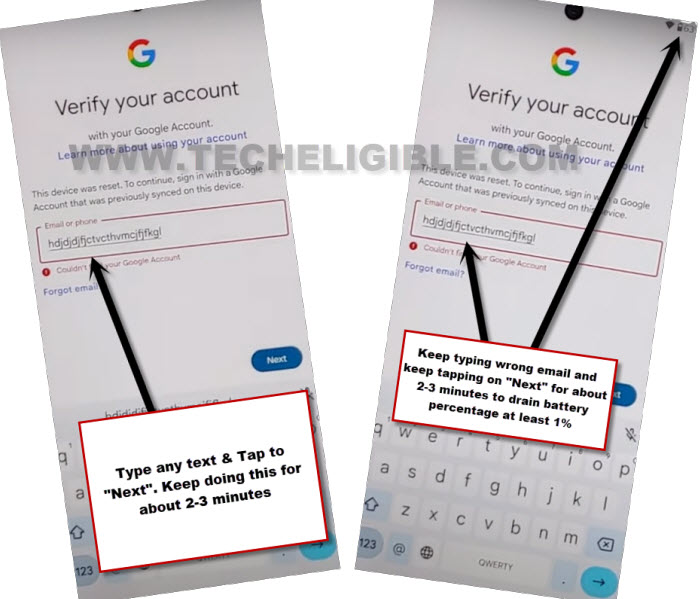
-Here, on this page, we have to spend 5-6 minutes in typing any random text in email field tab and hitting on “Next” option. You just have to spend here 5 minutes in performing such activities multiple times.
-Let’s do that now, type any random text in the email field tab, then, hit on “Next”. Do it again and again until you pass 5 minutes.
Note: Why we are doing such activities on this page?, this is due to get the (Google Play Services) application on (Battery Usage) option. Wherefrom, we will disable this app easily to complete the startup steps easily.
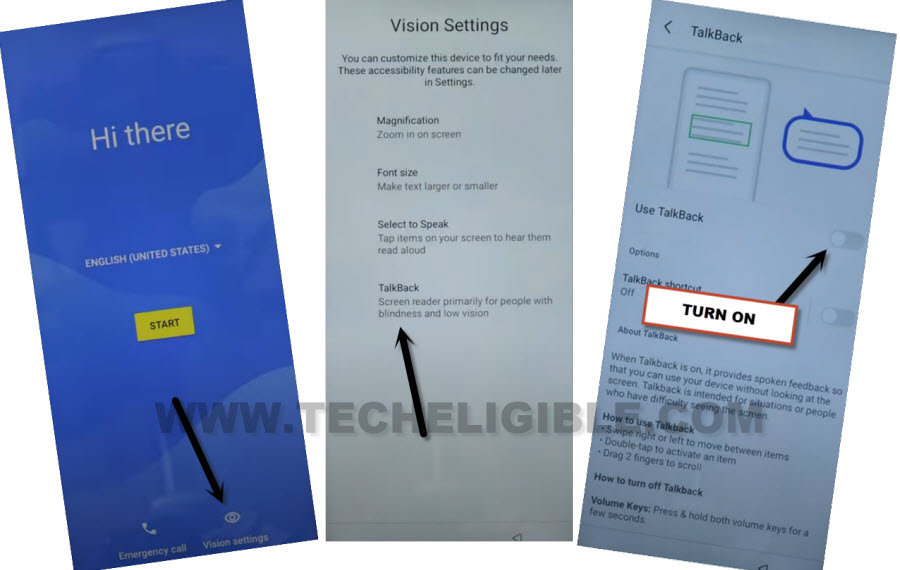
-By tapping several times on back arrow option, get back on (Hi there) page and go to > Vision Settings > Talkback.
-Simply, toggle on the “Use Talkback” option.
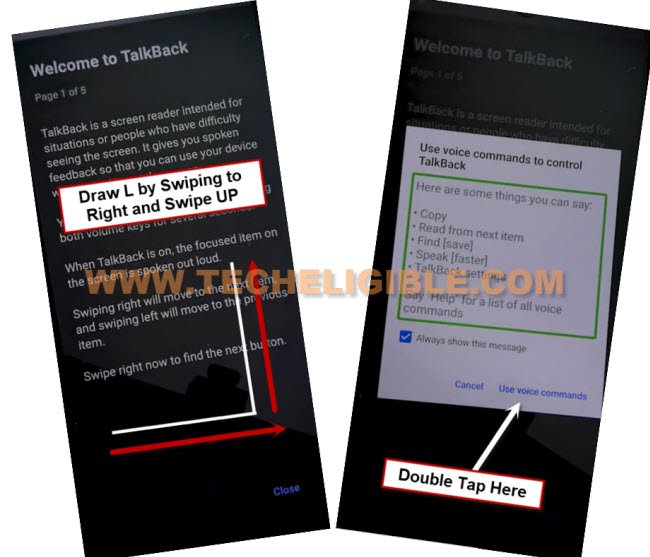
-We need to get the (Voice Command) popup window by swipe right and swipe up on screen.
-After that, you will be shown a popup window, from there, double tap on the > While using the app > Use Voice Commands.
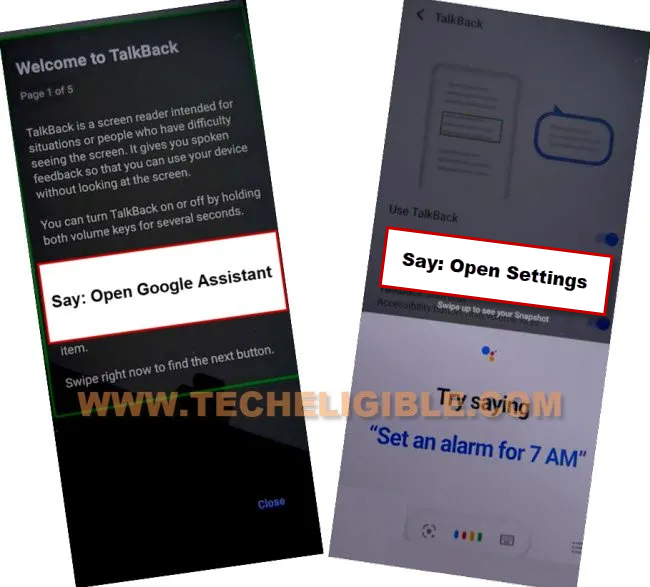
-After that, you will be shown green lines on the screen, we are going to reach the assistant option by speaking loudly “Open Google Assistant”.
-From the (Google Assistant) popup window, speak again loudly “Open Settings”.
Enable Accessibility Option
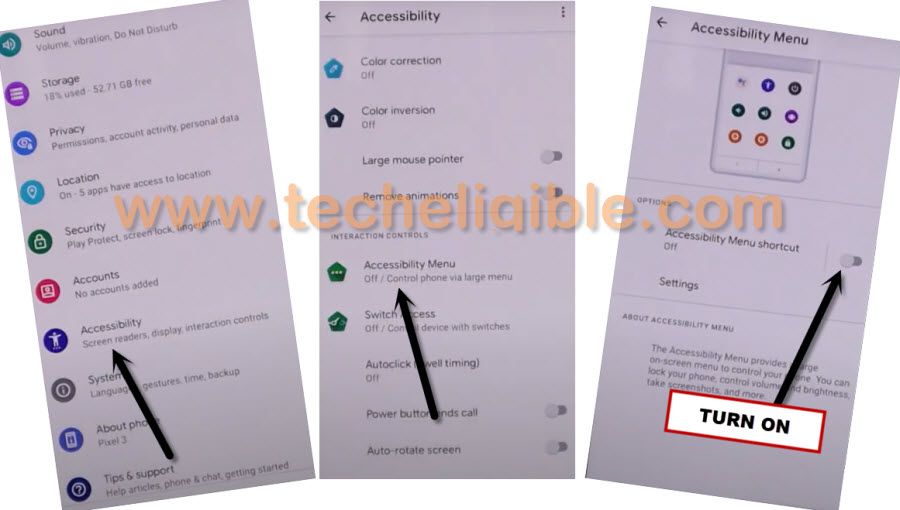
-Once you reach on the primary settings page of the lenovo phone, from there, double hit on the > Accessibility > Talkback.
-Finally, we are gonna turn off this talkback function by turning off the “Use talkback”.

-After disabling the talkback function, let’s get back on the main settings page. From there, tap on the “Accessibility” option again.
-We need to fully enable this function and get the (3 dots menu) icon on our phone screen. For this, go to “Accessibility MENU”.
-Then, toggle on the option “Accessibility Menu Shortcut”.
-You will see some popup window, just tap over the “Allow” and then, tap on “Ok”.
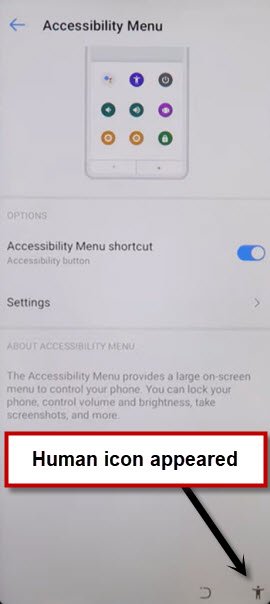
-On fully activation of the (Accessibility function), you will see the (Human icon) appeared up on bottom right corner of the phone display.
Disable App from Battery Usage
-We are going to disable the google play services application. To do this, get back on main (Settings) page again.
-Then, tap over the “Battery” option.
-After that, you have to hit on “3 dots” icon located over the upper right corner. Then, tap on “Battery Usage” option.

-As we have already spend 5 minutes on a google sign in screen, that is why, you will see the “Google Play Services” application there. Let’s tap on this application.
-Firstly, hit on the > Force Stop > Ok.
-Then, tap to > Disable > Disable this app.

Go back on the (Hi there) page
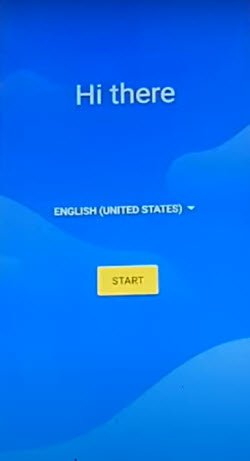
-After disabling this app successfully, get back over the first (Hi there) screen.
-Tap to > Start > Skip > Don’t Copy.
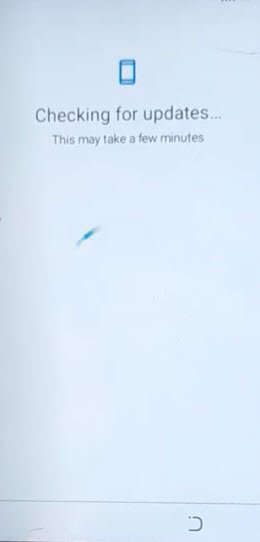
-Wait for a minute on the (Checking for update..) loading page. This will not complete because of google play services app is disabled currently.
-We just have to hit few times on the “Back Arrow” option from bottom and until you get back on the (WiFi) screen. There, you will see also a (Setup offline) option. But, right now, we don’t need to tap any option from this page and also don’t go back from this page.
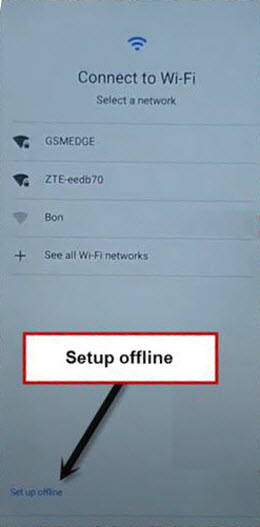
Enable Google Play App by Accessibility Menu Option
-Just, get help of the (Accessibility Menu Shortcut) function to reach directly on phone settings page. For this, tap on “Human” icon from bottom corner and tap to “Assistant”.
-Speak loudly “Open Settings” to reach to main settings page again.

-From there, tap again on > Battery > 3 dots > Battery Usage.
-Finally, enable the google play services application by tapping at the “Enable” option.

–
-After enabling back the google play application, let’s get back on WiFi screen carefully by tapping 4-5 times on back arrow options.
-Once you reach back to WiFi page, tap to > Setup offline > Continue.

-Its all done, you can complete all the remaining startup steps by yourself without facing the google verification screen.
-Don’t forget to setup pattern lock protection and login with another google account after accessing on the main home-screen of the Lenovo k14 phone.
The Bottom Line
After connecting WiFi to the phone, we went on the google verification screen and spent 5 minutes in typing any random text and tapping on “Next” option. After doing such activities numerous time. We just reached back to (Hi there) startup screen and enabled talkback function. Then, opened the primary settings page to enable accessibility menu shortcut function.
Afterwards, we just disabled the google play services app by accessing into the (Battery Usage) option. Then, by tapping several times on back arrow option, we successfully reached back on the (Hi there) page. From there, we just hit over the > Start > Skip option. and accessed to WiFi page. Then, enabled the google play services again using the (Accessibility shortcut menu). Finally, we completed setup wizard steps using the (Setup offline) option.