
Are you getting anxious because of not accessing on your own device after doing hard reset. The reason behind this, you have completely forgotten our own logged in google id. You might have logged in couple of years ago, now, you don’t remember your account. That is why, the FRP lock function has been activated. To get it resolved. follow our guide for easy unlocking and Bypass FRP Samsung A56 5G Android 16.
Disclaimer: We highly recommend you to apply this method only on your own device, if you are not owner of this Samsung A56 device, or you found this from some where, you must return this device to its real owner.
Bypass & Unlock FRP Samsung A55 5G (Security Patch 2025-24 Android 16)
-Get all the required tools on your PC first. Use the link below to download (Android Utility Software + USB Drivers).
| ⇒ Android Utility Pro V200 [DOWNLOAD] ⇒ Samsung USB Drivers [DOWNLOAD] Pass: gsmprime |
-Let’s install the (USB Driver) on PC.
-Extract & Run the downloaded (Android Utility Tool) software too.
-After running this tool, go on the “Samsung” option.
-Then, you have to hit on the “Main”.

-Switch on your phone & Connect WiFi.
-Once its done, keep your phone display on the (Choose a WiFi network) page.
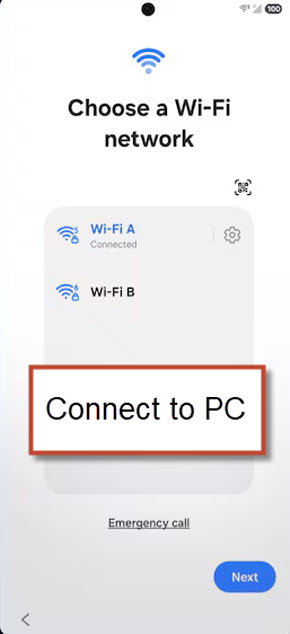
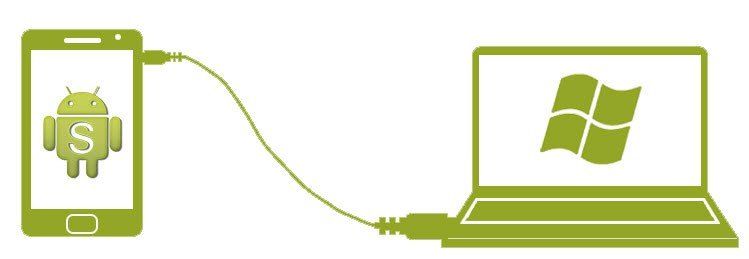
-You’ve to connect the phone with PC now using proper USB Cable.
-Now, you need to go to your PC screen. From there, click on the button “Samsung Remove FRP Android 16 (December 2025) (MTP)“.
-Afterwards, the frp bypassing process will continue. This may take several minutes to be done. Keep patience.
Remember: Don’t Let your phone display off or dim and also do not go to any next screen. You have keep phone display on and on the (Choose a WiFi network) screen until software bypassing procedure is fully done. If phone display goes dim, just tap blank area on the screen to turn it on again.
| Note: If you face any trouble in bypassing frp, the phone take longer time and stuck on (Enabling ADB / Installing ADB..) etc. Taking longer than 2 minutes on this process. Or any connectivity error. Just read these important tips here. |

-The phone will auto reboot, its from software side, do not disconnect it now.
-Keep your device connected and on until you see a message on the software screen (FRP Removal Complete!).

-After that, you can disconnect your device and your phone will be on a (Welcome) screen.

Complete Setup Wizard Steps
-Go to (Choose a WiFi network) page.
-From there, tap on the “Skip” option.
Note: If the (Skip) option is not being displayed there. Just connect or disconnect WiFi, after that, this option will be displayed there.
-You can complete all the remaining steps on your own easily.

Tips to Fix Error during FRP Bypass
Note: There exist 3 phases that the FRP bypass procedure genuinely undergoes. The device might require one to two minutes in the (Switching mode). Subsequently, an additional one to two minutes will be spent on the (Installing ADB enabler) step. In conclusion, you will observe the (Finalizing). This indicates that the FRP has been completely bypassed.
Phone Display Goes Off: Sometimes, our connected phone display just get dim or goes to black, in this situation, you could face dysconnectivity issue or take longer time in completing its process or even hanged on some options. So, do make sure, your phone is on (WiFi) page and keep the phone display (Bright & ON) by tapping any blank spot on the screen.
Connectivity Error: If the device is not being found or getting error in connectivity, in this case, check your phone USB cable or PC input ports. Install proper Samsung USB drivers.
Stuck on Enabling ADB / Installing adb: Your device is taking longer time on (Enabling ADB / Installing ADB..) more than 2 minutes. Then, simply, hit on the “Stop” option from the tool interface. After that, reconnect Phone to PC. Click again on the button “Samsung Remove FRP Android 16 (December 2025) (MTP)“. If same issue again, then restart your android utility tool and try again. After doing like this few times, you may could resolve this issue.
Stuck (Finalizing…): In some cases, the operation just hanged on the (Finalizing…), if it takes longer than 2 minutes, do same thing, restart tool and reconnect phone and click again on (Samsung Remove FRP….) button.

Repeat: If you see your device screen goes off and turned to black, simply, tap anywhere on screen to wakeup the display, so that, the on going process of frp may not interrupt.

The Bottom Line
Firstly, we downloaded the required tools (Android Utility Tool + USB Drivers). After that, installed driver on computer and run the frp bypass software. Once its done, then, we just chose the options > Samsung > Main from the tool interface.
Turned on the phone and connected WiFi, Keep the phone display on a WiFi page. Then, connected the device with PC. Finally, hit on the (Remove FRP) option from the tool to continue frp bypassing procedure. This is required several minutes, after that, the device auto reboot and got the (FRP Removal…) message on android utility tool interface.