
After several attempts, you cannot access your Google account and encounter the error (login failed, etc.) on the Google verification page? The reason you are experiencing this problem is due to performing a hard reset on your device and forgetting the previously configured Google account.
This is why individuals who perform a hard reset encounter the same verification screen, as the Factory Reset Protection lock is activated. To finalize the verification procedure, you must sign in with the account that was established previously. If you cannot recall your account information, then proceed with an alternative method to Bypass and Unlock FRP Samsung A55 5G (Android 16) old security patch level.
Good News: This method is working perfectly and tested on (Samsung A55 5g Android 16, Sec Patch 09/25).
Bad News: If your phone is upgrade to most recent 2026 sec patch level. Then, this method may not work. Even then, you can try, its free.
Disclaimer: We highly recommend you to apply this method only on your own device, if you are not owner of this device, or you found this from some where, you must return this device to its real owner.
Bypass FRP Samsung A55 5G (Security Patch 2025-24 Android 16)
| Note: Before continuing this process, we are informing you, if your phone has android 16 and it has lower security patch under 2024 or 2025, then, this method gonna work perfectly, if the android version is (Android 14-15), then, there are less chances to bypass frp successfully. Even then, you just try this method, its free and simple. If you face issue in bypassing frp with lower android version. You can use this link to upgrade android version of your Samsung Phone. But, do make sure, you are upgrading to sec patch level 2025 or 2024 only. |
Start this easy procedure just by downloading the required tool & USB driver on your PC. For that, have a look at the below links.
| ⇒ Android Utility Pro V200 [DOWNLOAD] ⇒ Samsung USB Drivers [DOWNLOAD]Pass: gsmprime |
-Once you are all done from downloading side of both above the required tools.
-Let’s move on to next step, we have to install the downloaded (Samsung USB) driver on our PC.
Extract & RUN (Android Utility Software)
-Then, extract and run the (Android Utility Software).
-Using this tool is very simple, as the brand of our phone is (Samsung), for this, go to > Samsung > Main.

-Now, switch on the phone and go to (WiFi) page and connect to proper WiFi network.
-Keep your phone display on the (Connect to WiFi) page same shown in the below image.
Link Device to PC by USB Cable
-Let’s connect phone with PC.
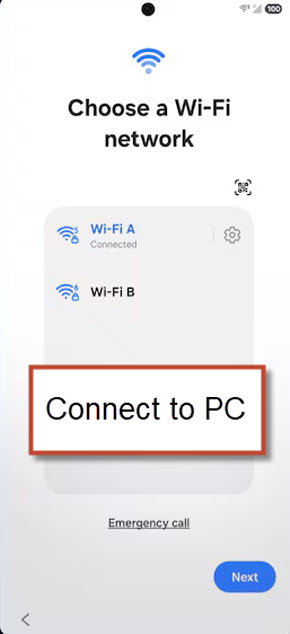
-Go back on the PC screen, from there, click on the option “Samsung Remove FRP Android 16 (December 2025) (MTP)“.
-Within 30-60 seconds, the tool will fetch all the necessary details of the phone, that is confirmed, our phone has been detected by the tool and PC successfully.
Remember: If you get connectivity error, do make sure, your PC input working fine or check the USB cable. Also, do make sure, the Samsung Drivers are installed properly. Do not let your phone display off or dim. Keep this on by tapping anywhere on screen. Even then, same issue, then, your device might be on lower Android 15 or Android 14 versions. Upgrade your phone android version to 16. Click here to upgrade Samsung Android Version.
Note: If it get longer then 2 minutes on (Enabling ADB / Installing ADB..) just, click at the “Stop” option from the tool and reconnect the phone, then, click again on the “Samsung Remove FRP Android 16 (December 2025) (MTP)” button. After 2-3 tries, this issue will resolve.

Important Tips to Unlock FRP (If Stuck on Loading)
-There are 3 stages, from which, the FRP bypass process actually goes through. The phone may take 1-2 minute on the (Switching mode). After that, this will take further 1-2 minute on the (Installing ADB enabler) process. Finally, you will see the(Finalizing). That means, the FRP has been bypassed thoroughly.
Note: In some cases, if the software stuck on any one frp bypass step, then, simply, tap any blank space on the (WiFi) screen, do not tap any option, that may change the screen.
-If the tool stuck on (Finalizing…) screen. Its not going through even after waiting of 3-4 minute. Then, reconnect the phone. If same issue occurs, don’t worry. Disconnect phone again an restart the (Android Utility Tool). After that, connect phone again. Then, hit on the “Samsung Remove FRP Android 16 (December 2025) (MTP)”.

Repeat: If you see your device screen goes off and turned to black, simply, tap anywhere on screen to wakeup the display, so that, the on going process of frp may not interrupt.

FRP Removal Complete
-You will be shown a message of (FRP Removal Complete!) on the software interface.

-Once its thoroughly completed. You will be shown a phone display (Welcome) page. That means, FRP bypassing process has been done.

-Remove the connected cables from PC and phone. Then, continue setup the device again by tapping “Start” button.
-Go to (WiFi) page. From there, you have to tap on the “Skip” option.
Note: If skip option is not appearing up there, just connect WiFi, after that, you will see the (Skip) option. Or connect and disconnect WiFi.

The Final Words
Arranged both (Android Utility Tool + USB Drivers) for the Samsung smartphone onto our computer. After that, accessed at the (WiFi) screen. Put our phone display on WiFi page and then, simply connected device to PC using USB Cable. After that, we pressed the (Remove FRP) option from the tool, which required several minutes to finish the frp bypass procedure. Subsequently, we unplugged the device from the PC and finalized the setup wizard by selecting the (Skip) option from WiFi display of the phone.
FAQs
My device is not being detected
Check your USB port & DATA Cable. Also verify your drivers are installed properly
I am getting error at 95%: Device not found, repeat the operation!
That means, you don't have any issue from driver side. Your phone has been detected by the PC. But, your device might have lower android version, like Android 15 or 14. Kindly, upgrade your phone to Android 16. Do make sure, the phone security patch is in 2025 and 2024.
What should i do, if my phone has latest security patch level of 2026?
Either you wait for new updates or look for paid services