
After multiple tries, you are unable to login with google account and get the error (login fail etc) on google verification screen? you are facing this issue is because of doing a hard reset on the phone and forgetting the already setup google account. That is why. everyone who go for hard reset, they face the same screen because of FRP lock protection has been enabled. To complete the verification process, you need to login with same account, that was setup earlier. If you don’t remember your account, then, follow alternative way to Bypass FRP Tecno Spark Go 2.
Disclaimer: It is strongly advised that you utilize this technique solely on your own device. If you are not the legitimate owner or have come across this information elsewhere, you must return it to the rightful owner. This technique is intended for instructional purposes only.
How to Bypass FRP Tecno Spark Go 2
We have to use a PC free tool named (BFT V1.7). This tool will help you in bypassing frp with very easy step. We only have to download & run the tool on our computer. After that, we will just connect the phone with PC and the tool will do its work on its own.
-Let’s start this procedure by downloading the BFT software on computer with below given link.
| ⇒ BFT Tool V1.7 [DOWNLOAD]. |
Note: Turning off the @ntivirus software before launching the (BFT) tool is necessary step, otherwise, you won’t be able to use this tool smoothly.
-Once tool has been downloaded successfully, just extract it from winrar archive. After that, install it on your PC.
-Go to your PC desktop screen, and double click on “BFT Tool” icon to run this software.
Login into Tool
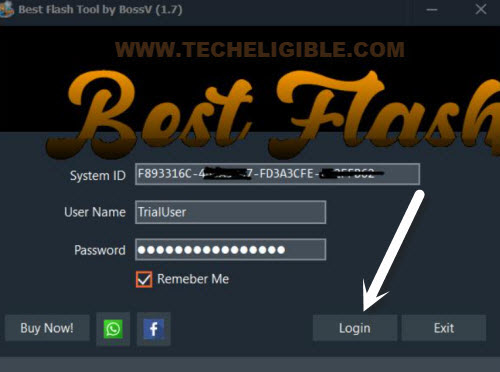
-From the first popup window, click at “Login” button. This will login automatically.
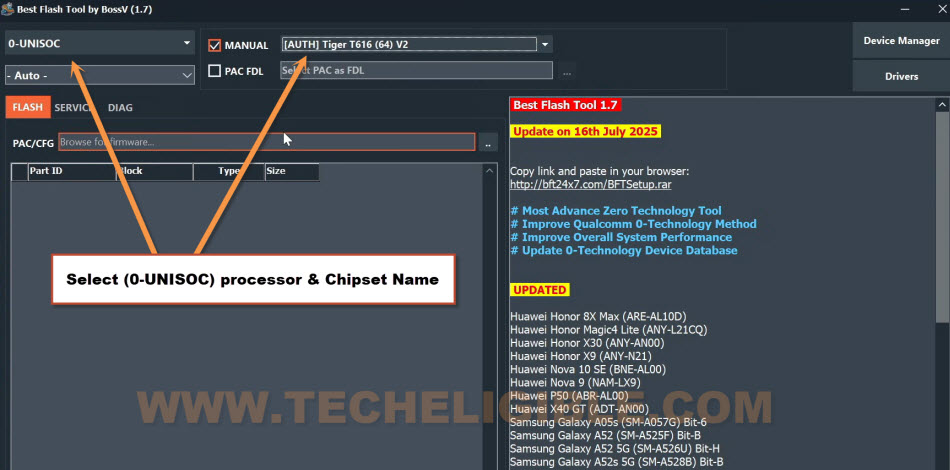
-After accessing on the main screen of the bft tool, just choose the process named “0-UNISOC“.
-Afterwards, you have to choose also the chipset name “[AUTH] Tiger T616 (64) V2“.
-Before we go for frp bypass process, we need to install the SPD driver on our computer, this is very essential driver, through which, we can get our phone detected by the tool easily.
Install SPD Driver on PC
-For this, click at the “Driver” button from upright corner and then, click on the “Install LibUSB Filter Driver“.
-From the popup window, install spd driver by clicking on > Next > Next > Finish.

Note: If you are facing issue in downloading and installing driver directly through BFT tool. You can install it manually from below as well.
|
Click on Reset FRP & Connect Phone to PC
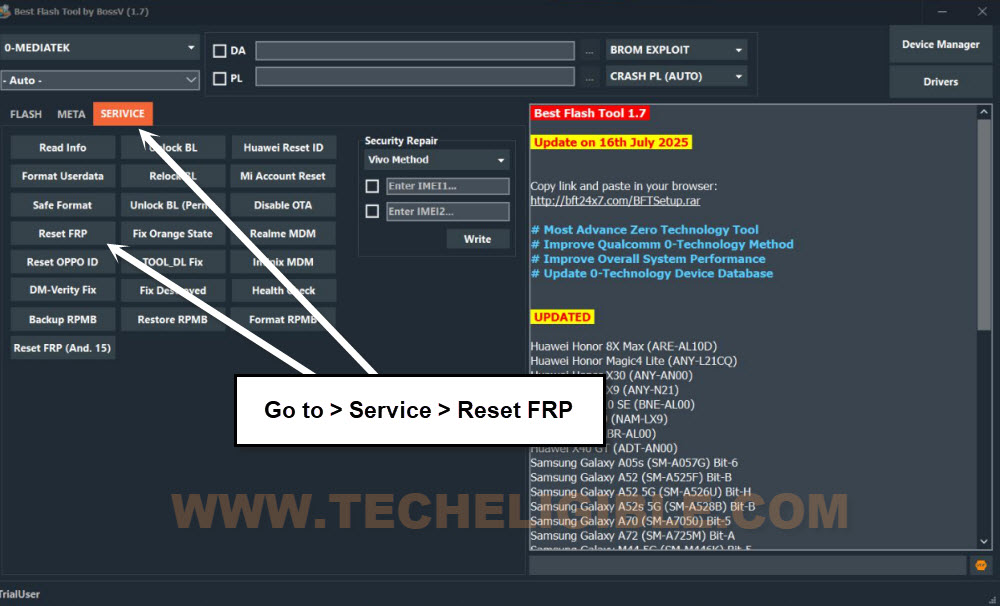
-Go to over the “Service” option from the tool to perform FRP Bypass service.
-Then, hit on the “Reset FRP” button. After that, you will be asked to connect your frp locked device with PC.
-Turn off the (Tecno phone) completely and wait for 10 seconds.
-Then, while holding the both (Volume UP + Down) button, connect the device with PC.
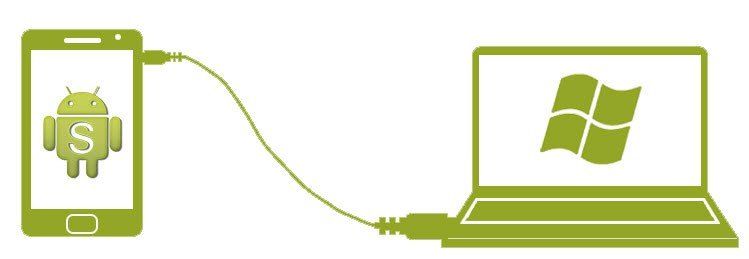
-Afterwards, your phone will be detected and FRP bypassing process will continue.
-Finally, the device will be detected by the tool and it will continue its frp bypass process on Xiaomi Redmi A5 phone.
-Once its completed, you will get the FRP reset END message.
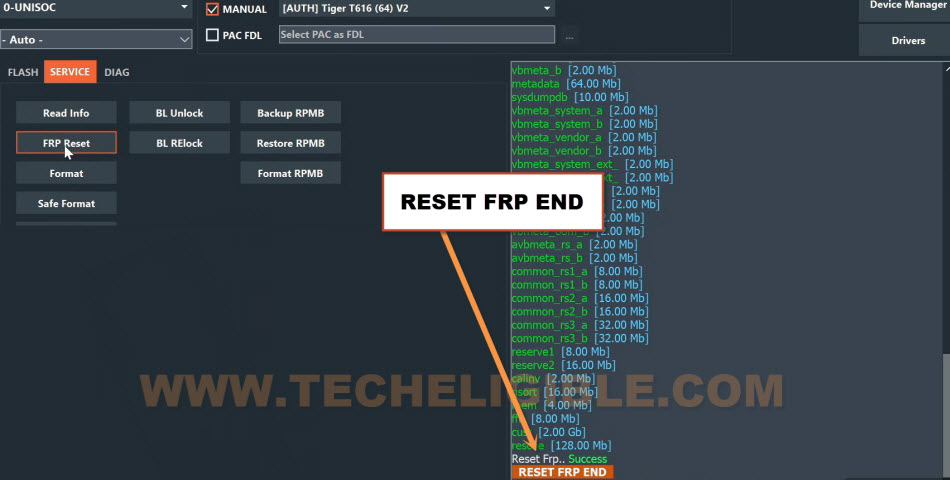
-We can easily unplug the phone from PC and the phone will auto restart.
Forget WiFi & Skip the WiFi Page
-Go to (Connect to WiFi) page, after that, long hold on your connected WiFi name and tap to “Forget” to disconnect the WiFi completely from the device.
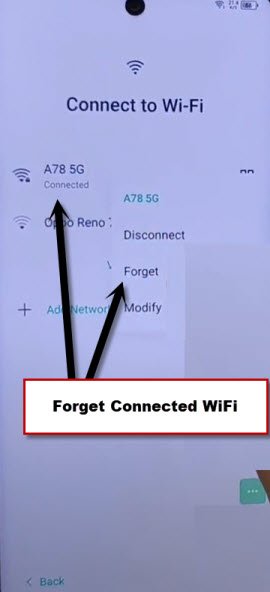
-After forgetting the WiFi network, you will have (Skip) option, just tap on that skip option to proceed further.
-Let’s tap on > Skip > Next > Skip.

-After that, you will reach over the (Google Services) page. Just, go to > More > More > Accept.

-Then, hit again on “Skip” from the mobile cloner page.
-Finally, you will reach over the (HiOS) page, just, tap to “Next Arrow” icon to complete the setup wizard steps.

The Final Words
We only used a free pc tool (BFT Tool V1.7). This tool is amazing, we just downloaded and installed on computer. After that, installed driver as well. Finally, selected the processor and chipset from the tool interface. Then, we just clicked over the (Remove FRP) option. After that, connected the phone with PC while long pressing (Volume up + don). In this way, we got our device free from FRP lock protection. Then, completed setup wizard steps by forgetting WiFi network.