
Are you feeling stressed due to your inability to access your personal device following a hard reset? The cause of this situation is that you have completely lost track of your previously signed-in Google account. You may have logged into it several years back, but now you can’t recall your account information. This is the reason the FRP lock feature has been turned on. To resolve this issue, please refer to our guide on how to Bypass FRP Honor X5 Plus Android 14 and 13 versions.
Disclaimer: We highly recommend you to apply this method only on your own device, if you are not owner of this device, or you found this from some where, you must return to its real owner. This method is for educational purpose only.
Bypass FRP Honor X5 Plus (Android 14/13)
-We have to download the tool on PC first.
Note: Don’t forget to disable your pc (@ntivirus Software), otherwise, you may not be able to use this tool.
| ⇒ BFT Tool V1.7 [DOWNLOAD] |
-After downloading process is completed, just extract & install this tool on PC.
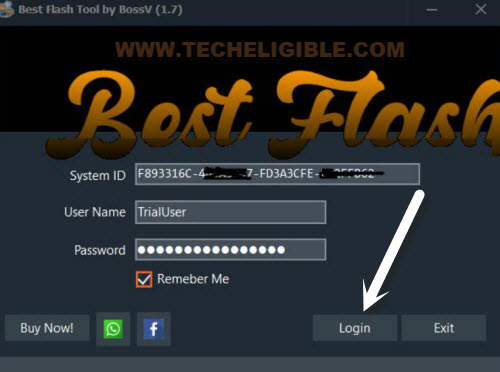
-Double click on the (Best Flash) software icon to run this tool. Then, hit on the “Login” button.
Install Mediatek & LibUSB Drivers on PC
-We have to download & install 2 very important drivers in order to get smooth and easy connection of our phone with PC. Because, if you did not install proper and relevant drivers on PC for your Honor X5 Plus phone, then, you could face connectivity problem while bypassing frp.
-Firstly, hit over the “Driver” button from top right corner and install “Install Mediatek Driver”.
-From popup window of the installation, just click “Next” and install it.

-Secondly, we have to install libsusb driver. This driver help in detecting and installing missing driver on PC. For this, click again on “Driver” and hit on “Install LibUSB Filter driver”.

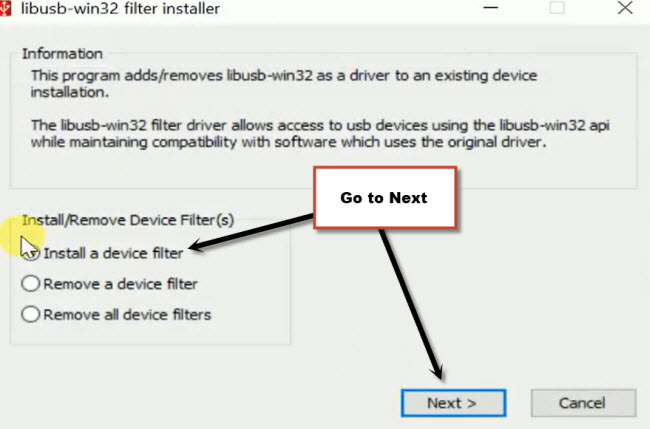
-After installation is done, you will see further window of (libusb-win32…). From there, choose “Install a device filter”.
-Then, hit on “Next” button.
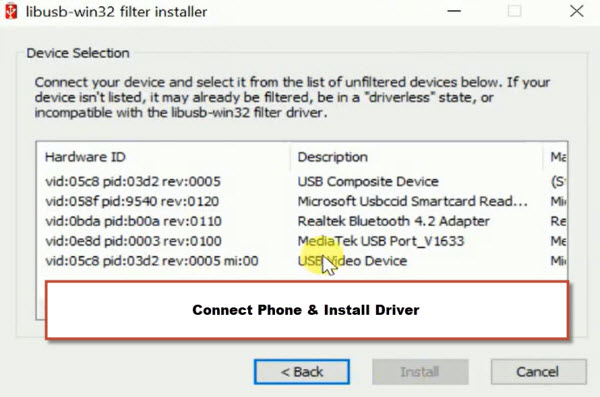
-Once you get the (Device Selection) popup, just turn off your Honor phone completely.
-After that, connect the phone to PC and you will notice a driver will be displayed on the (libusb-win32 filter installation) popup screen same as shown in below image. If nothing happens. Just disconnect phone, while holding both (Volume up+down) keys connect phone again to PC.
-After you get your device driver on popup window, just select that driver and install it.
Note: If you don’t see any driver on screen regarding your phone, you can close this popup window, because, your PC has already installed proper USB drivers.
Choose Brand & Model No on BFT Tool
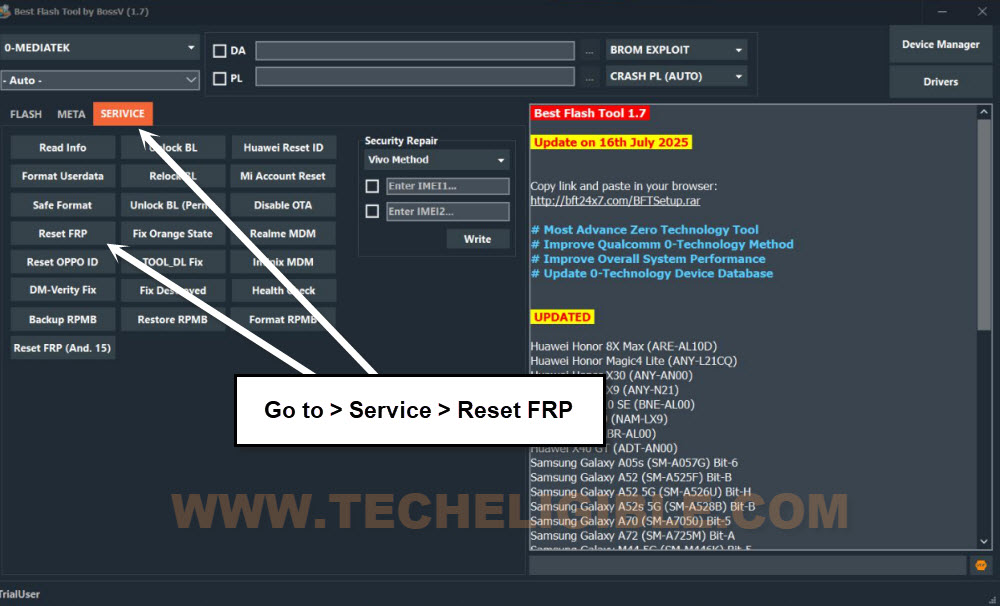
-Go to BFT tool interface and select the “Huawei” brand. Then, choose the your phone model such as (Huawei Honor X5 Plus WOD-LX1/1/2/3).
-Finally, select the “Huawei V1”.

-We have to start frp bypassing operation by going to “Service” option.
-Disconnect your phone from PC.
Link the Phone to PC & Click at Reset FRP Option
-Let’s click at the “Reset FRP” option.
-Do make sure your phone is fully switched off and wait for 10 seconds. Now, reconnect your phone again to PC.
-After that, the bft tool will detect your device and continue its frp bypassing operation automatically.
-Keep the phone connected to PC until frp bypassing is done, this may take several minutes but not more than 5 minutes. After that, you will see the (FRP RESET END) on tool interface.
| Note: If you are getting (Sync error) on your bft tool and the tools is not detecting your phone try again by reconnecting phone or restarting the BFT tool. Also try with different model, such as (Honor X5 Plus WOD-LX2 or WOD-LX3) etc. |
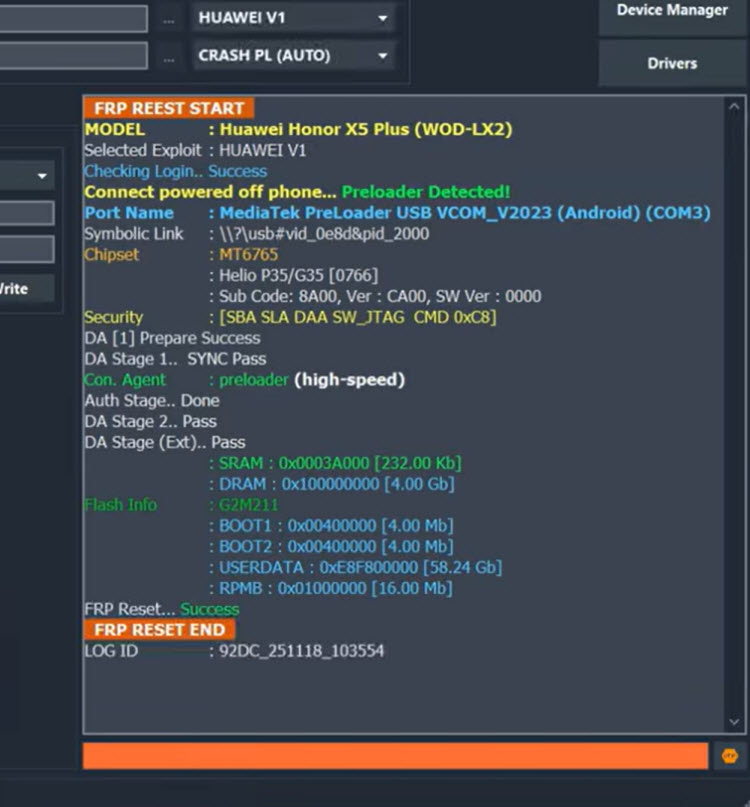
Setup Phone by Choose (Get Started) option
-Once the frp bypass process is done, your device will auto restart and you will see the device screen is on first startup (Welcome) page.
-Go to WiFi page by tapping on > Get Started > Next > Next > Skip.

-You will reach on a (Connect to a Network) page, from there, hit on “Next” option.
-Wait on a (Just a few moment) loading page, after that, you will be taken on a page of (Copy Apps and Data).
-Go back again on a (Connect to a Network) page by hitting on “Back Arrow” icon from bottom.
-Toggle WiFi option and hit on “Skip”.

-Now, you will see the (Google Services) page. Just tap to > More > More > Accept.
-You can complete all the remaining steps on your own.

The Bottom Line
Its very easy, you just download the required BFT tool on your PC in free. Then, install (Mediatek + LibUSB) drivers from the tool. Once its done, select the brand and model number from your tool interface. Then, go to (Service) option and click on (Reset FRP) button. You will be asked to connect the phone with PC in switched off mode.
You just switch off the phone completely and wait for 10-20 seconds. Then, connect the phone to PC. After that, the BFT tool will detect the phone automatically and frp will be bypassed very quickly.