
You have unsuccessful Gmail account login attempts after hard reset the device?. Your device is presently secured with factory reset protection. This is because you have performed a reset on the device using android recovery mode. It is essential to be aware of your previously logged Google ID before undertaking this process. Failing to do so may lead to issues similar to this one. Proceed with these steps to bypass FRP Mobicel Titan Android 10, 11.
Disclaimer: We highly recommend you to apply this method only on your own device, if you are not owner of this device, or you found this from some where, you must return to its real owner.
Bypass FRP Mobicel Titan Android 10/11
-Start this method just by powering on your phone and connect to WIFI network.
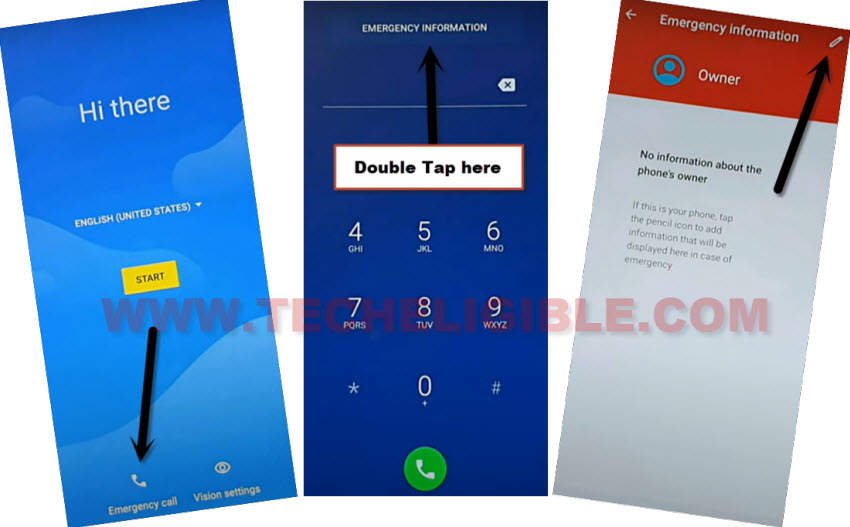
-Get back on first (Hi there) page. From there, you have to access on the emergency page by tapping on “Emergency Call” option.
-Tap twice time on the “Emergency information” button to lead to next page. From there, hit on “Pencil” icon from upper right corner.
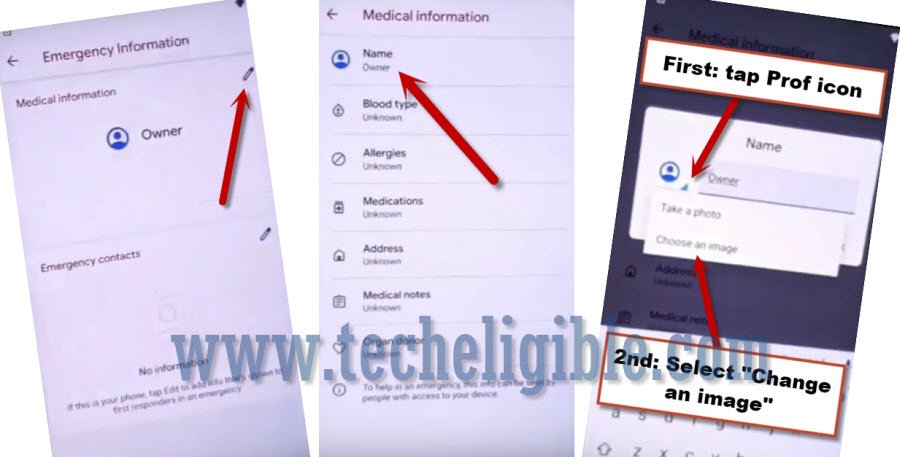
-From the information screen, tap on the “Name” from top. Then, hit on a “Down Arrow” icon and tap on “Choose an image”. See below image for guide.
Go to Primary Settings Page
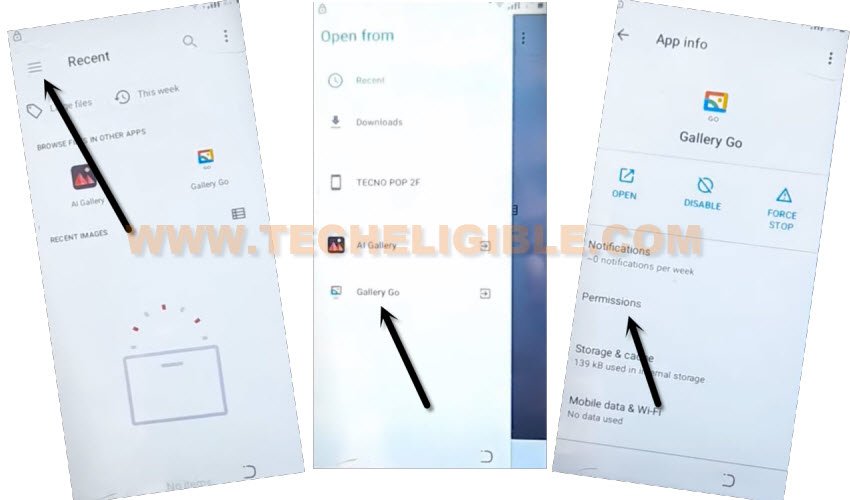
-From the (Recent) page, lets reach to sidebar menu by tapping on “Menu” icon from top left corner. Then, long tap on the “Gallery Go”.
-Finally, tap on the “Permissions”.
-Let’s hit over the “Storage” option. Then, tap on the “See all apps with this permission”.

-Finally, hit on the “Search” icon from top upper right corner.
-Search there with “Settings” and then, find and hit over the “Settings app info“.
-From next screen, you need to hit over the “Open” link to reach the primary settings page.

Create Another Screen Lock
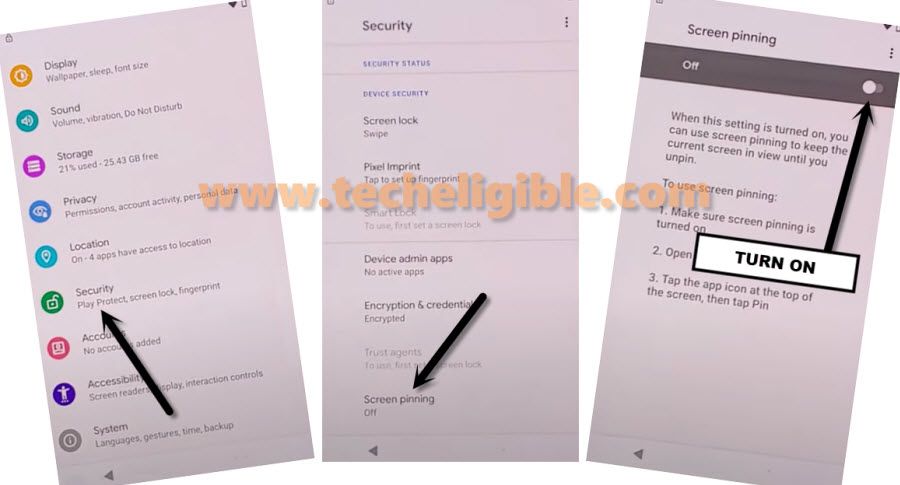
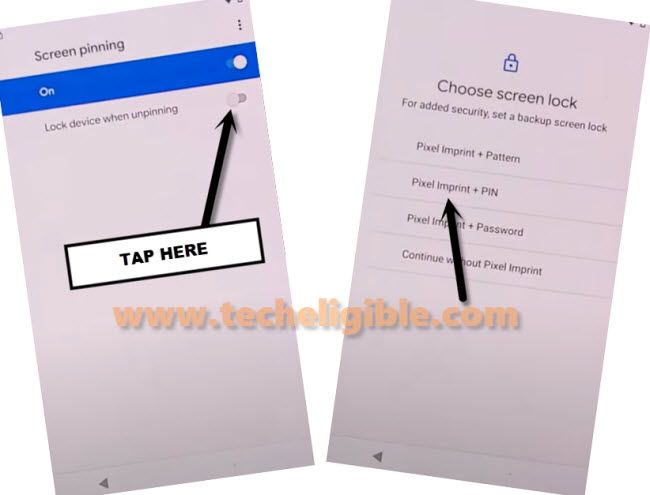
-We can easily create new security lock protection on this phone to bypass frp. For this, firstly, we have to go to > Security > Screen Pinning > Turn on screen pinning from top right corner.
-Let’s enable the “Lock Device When unpinning” option.
-You will be redirected on next page, from there, you need to choose the screen lock, that, you are looking to setup on your phone.
-We are gonna choose “Fingerprint + Pattern”.
-From next page, we need to setup pattern lock on this device.
-Let’s draw your any pattern lock on page and go to “Next”.
-Draw same pattern again and tap to “Confirm” option.
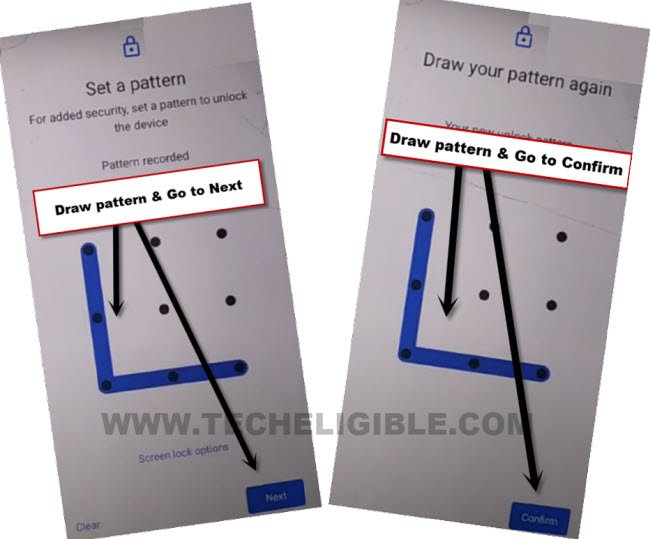
-Once you see the (Touch the sensor) screen, that means, the new pattern lock has been accepted by your Mobicel Titan phone. We can easily complete setup wizard steps without login with Gmail account.
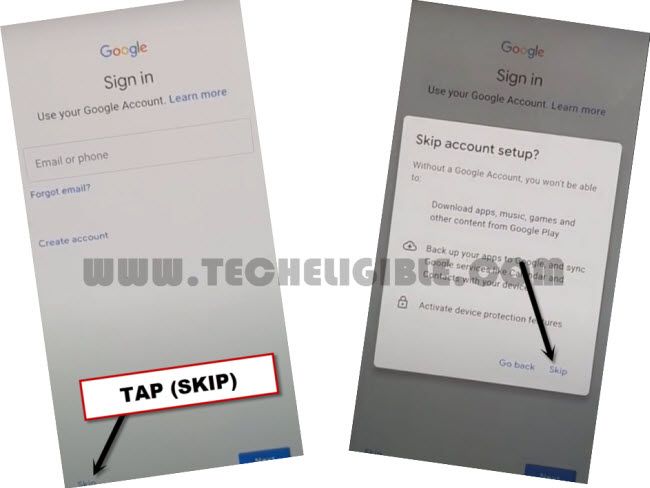
-Let’s hit on the “Skip”.

Go Back & Complete Setup Wizard Steps
-Get back on the first (Hi there) page by tapping back arrow several times.
-Then, hit on the “Start” option and you will see the the (Checking for update….) screen. Just wait over there.
-After that, you will reach over the (Copy Apps & Data). From there, tap to “Don’t Copy”.

-You will be asked to complete the verification step through entering previously setup pattern lock. You know very well, what pattern lock you setup in previous steps. You just draw that pattern here only.
-From the next google sign in page, hit on > Skip > Skip.
-Finally, you will get the google services page. Just, tap to > More > More > Accept. Then, complete all the remaining steps on your own.

The Final Words
We simply used the (Emergency Call) option to access the phone app list page. From there, we searched and reached the primary settings interface of the FRP protected device. Once its done, from there, we got into the (Security) tab. Finally, setup new pattern lock protection on this phone and completed setup wizard easily.