Addressing the challenging scenario, which is obviously the case, you have encountered a lockout with FRP security because you lost your previously synced Google account after performing hard reset. If you find yourself in this predicament, then you can refer to our guidelines here for a way to Bypass FRP Tecno Spark 8P with the help of other phone hotspost connection and using the Xshare Mini App.
Disclaimer: We highly recommend you to apply this method only on your own device. If you are not owner of this device, or you found this from some where, you must return to its real owner. This FRP bypass process is just for educational purpose.
Bypass FRP Tecno Spark 8P By Easy Steps
-Start this process by power on your phone first.
-Do make sure, the SIM card is already inserted.
-Then, take your any other phone and turn on Hotspot WiFi connection on other phone.

-Connect your Tecno phone to other phone hotspot WiFi connection.
-After that, go to (Google Verification) screen.

Disconnect Hotspot WiFi
-Get back again on the (Connect to WiFi) screen.
-Turn off (Hotspot Connection) from other phone now. Your is device no longer connected to any WiFi network.

-Tap to “Use Mobile Network for setup” option from bottom of the (Connect to WiFi) screen.

-From the next page, go to “Next”.
-Check mark option “i have read and agreed….” from the (Terms of use) page, then, tap to “Next”.

Eject SIM Card
-Once you get the loading page of (Connecting mobile service….), you just have to eject the SIM card at this exact spot.
-After that, you will be shown a popup window of (Cant connect to mobile data), let’s tap to “Ok” from there.

-You will get back on the (Terms of use) page. From there, tap again on “Next”.
-After that, the google services page will come up, from there, hit on the > More > More > Accept.

-Tap on the “Skip” option.
-After that, you will have a display of (Transfer Data). From there, hit on “Transfer Now” option.
-You will be shown a QR Code on your phone screen.
-Now, Turn on Hotspot WiFi connection from other phone.

-Afterwards, hit on “Get it here” link from the QR code screen. Choose the “Xshare mini” application.

-From the popup of (Preparation) window, tap to “Open” WiFi option and then, give permission by tapping on > Allow > While using the app.

Download Apps on Other Phone
-On your other android phone, open the google chrome browser.
-Search there our official website by typing “Techeligible” and go to 1st searched result.
-After that, hit on “Menu” icon from upper corner and tap to “Download FRP Tools” option.

-Scroll down and download below listed applications from there.
1st: Google Account Manager 9
2nd: Account Login.
-We have to install the Xshare application on this phone as well.
Install Xsahare App & Transfer Apps to Tecno Spark 8P
-For this, just simply, open “Google Play Store” application. Then, Download & install the “Xshare App” on your other phone.
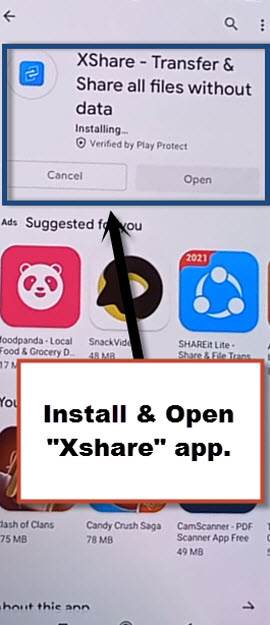
-Afterwards, launch this app by hitting on the “Open” option.
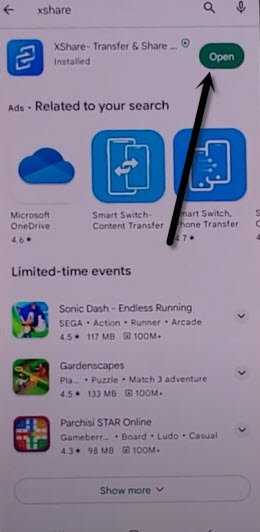
-Open up this app by tapping on > Agree > Settings > While using the app > Allow.
-Tap on the “Receive” option from Xshare app, and then, then, you will have a QR code scanner page.
Note: If you get popup window, give complete permission and also enable the (Xshare app) from app list in order to use this app easily.
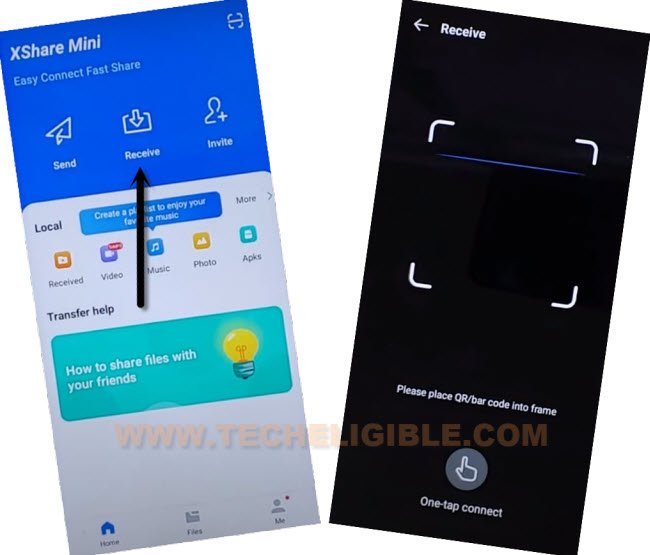
-Scan the QR Code from Tecno Spark 8p device.
-Within few seconds, your both devices will be connected each other.
Note: If the phone is not able to connect with Tecno, then, turn off the (High speed mode) from the screen of Tecno spark 8P. After that, relaunch the Xsahre app on other phone. Tap again on “Receive” option and scan qr code.
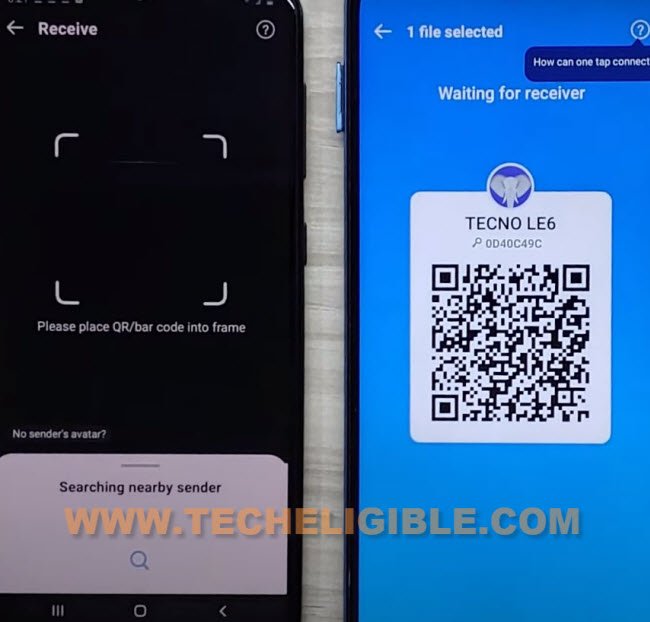
-After that, from other phone, hit on the > Send > Send More.
-Go to > Apps > Apks.
-Select recently downloaded apk apps named (Google Account Manager & Account Login) app. After that, tap to “Send” option from bottom corner.

Use Account Login App to Setup Gmail Account
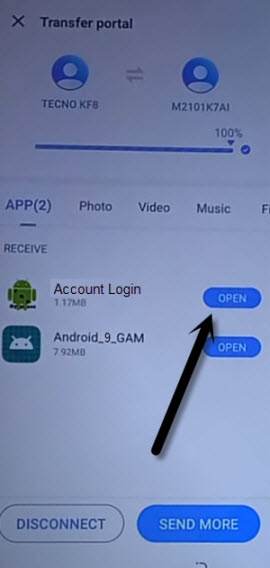
-Wait until both apps received successfully.
-Once its completed, simply, tap to “Open” button from account login application to launch this app.
-Finally, hit on “3 dots” kebab menu from top corner. After that, go to “Browser Sign-in” option. Then, tap to “Ok”.
-You will be asked to login with Gmail account. You can enter your any valid google account there to login successfully.
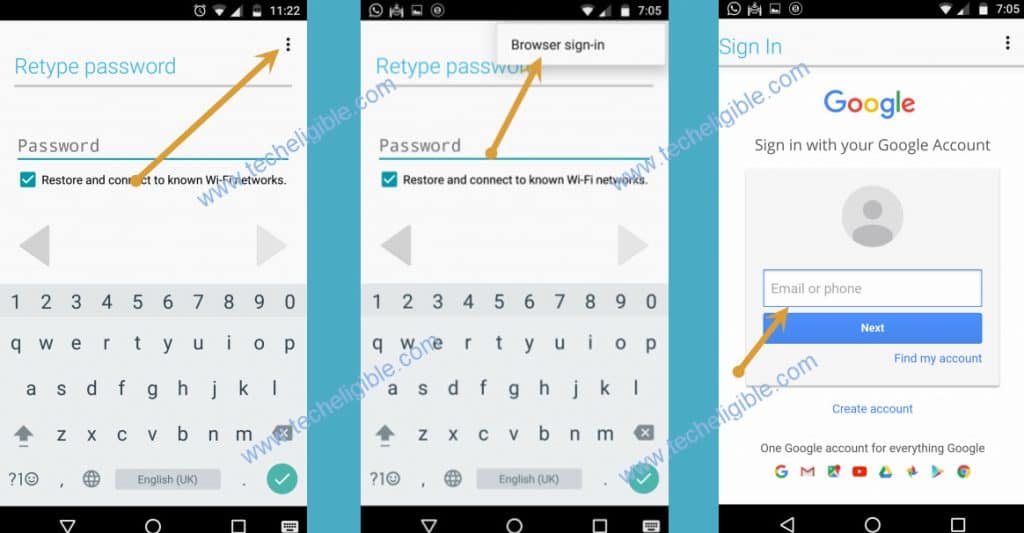
-After that tap twice on “Cross” icon from top left corner.
-Tap to “Back Arrow” icon from top left corner.
-From the (Transfer Data) page, hit on the “Skip”.
-At last, you will have a (HiOS) welcome screen, from there, tap the “Next Arrow” icon to access the main home-screen of the device.

The Bottom Line
We used two phones here, one is the FRP locked device and 2nd is the other android phone. Firstly, we connected our device to other phone (Hotspot WiFi) connection. After that, disconnected hotspot and accessed to further options of the (Use Mobile Network for Setup) from WiFi page. From there, we successfully launched the Xshare Mini Application.
Afterwards, downloaded frp bypass app on other android phone and transferred both apps to the Tecno Spakr 8P device using the Xshare application. Once the frp bypass apps received, we directly launched the (Account Login) app and setup another Gmail account on the phone to bypass frp account.