Hey, still stuck on the google verification process due to reset the phone from recovery mode? Your phone is 100% on FRP lock protection and you are being asked to login with same Google Account, that was setup before you reset this device. Otherwise, you remember or recover it. If, you don’t have any way to get back your account, then, follow alternative method to Bypass FRP Mobicel Force.
Disclaimer: We highly recommend you to apply this method only on your own device, if you are not owner of this device, or you found this from some where, you must return to its real owner.
Bypass FRP Mobicel Force With Easy Steps
-Let’s begin this process by connect WiFi to your phone first.
-Get back over the first (hi there) page.
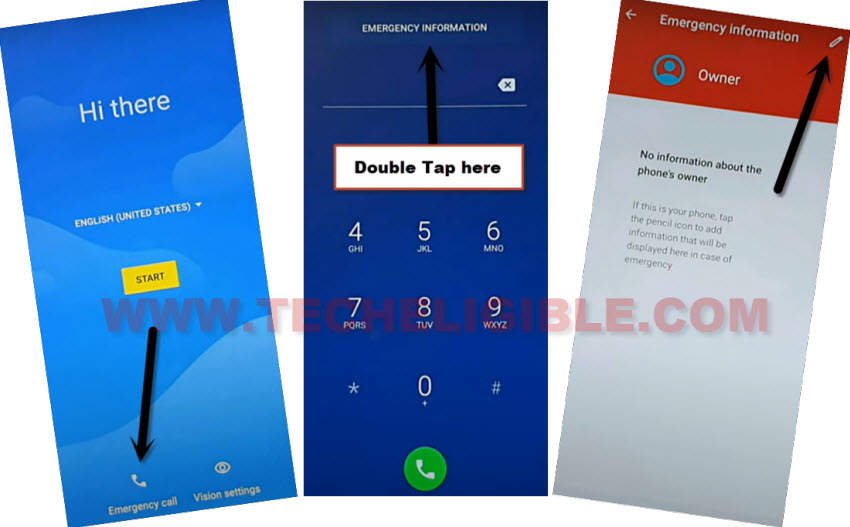
-Access to the emergency page by tapping on “Emergency Call” option.
-Then, tap 2 times again on the “Emergency information” option from the top center.
-On next screen, hit over the “Edit” option from upper corner.
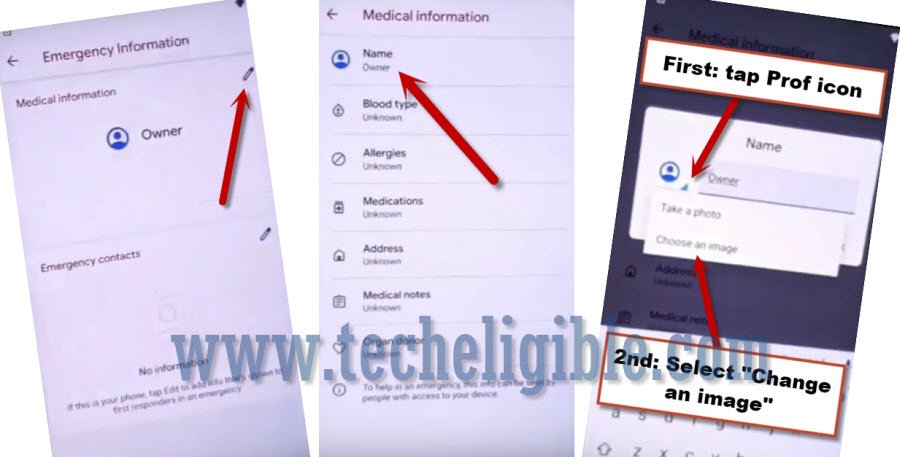
-Simply, tap on the first option called “Name”. After that, from popup window, hit on the small “Down Arrow” icon and tap to the “Choose an image” option.
Access to Gallery Go Option
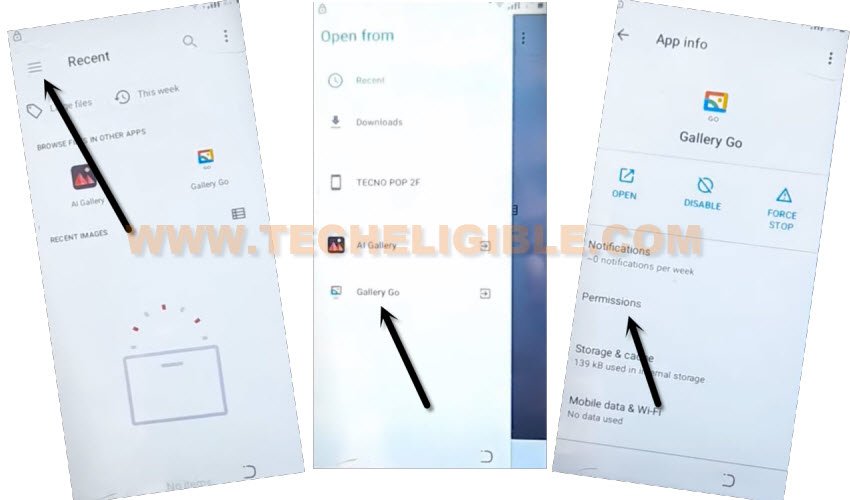
-Bring up the menu bar by tapping “Menu” option from upper left corner.
-Then, long hold on the “Gallery Go” option. Afterwards, go to “Permissions”.
-Tap on the “Storage” folder or icon. Then, go to “See all apps with this permission” link.

-We can easily regain access to the main settings page of this device by tapping over the “Search” icon from top corner. Search there “Settings” and then, hit on the “Settings app info” from the searched result.
-On next page, tap to “Open” icon.

Turn off Google Play Services App Functions
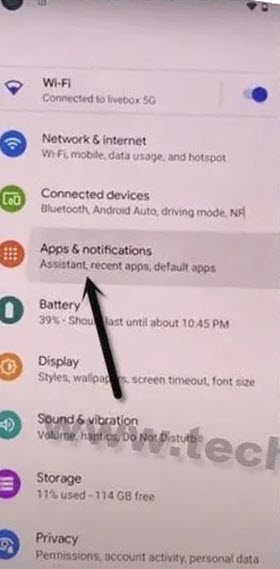
-Access to the app info page by hitting over the > Apps & Notification > App info
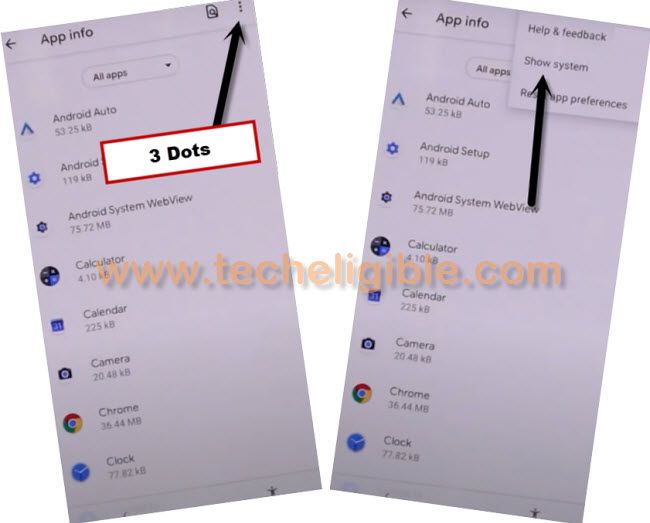
-You need to enable the show system option to get all the hidden app displayed on app list page. For this, tap “3 dots” icon and then, tap on “Show system”.
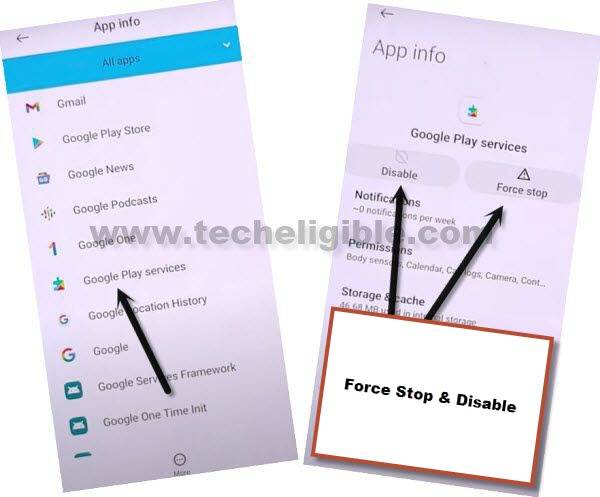
-From app list page, find and hit on “Google Play Services” application.
-We have to disable this app for very short time of period, for this, hit on the > Disable > Disable app.
-Tap also on the > Force Stop > Ok.
Check the (Setup Offline) Option
-Afterwards, go all the way back on the first (Hi there) screen by hitting on the back arrow icon few times.
-From there, tap to “‘Start” option.
-Wait until the loading screen is done and you see the next page. From there, tap to “Don’t Copy”.

-Your phone will stuck on the loading page. You just wait on this loading page for a 30 seconds, after that, tap to > Back Arrow > Back Arrow.
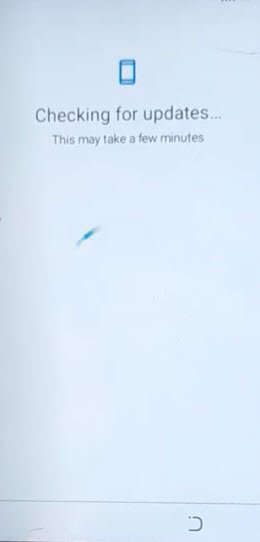
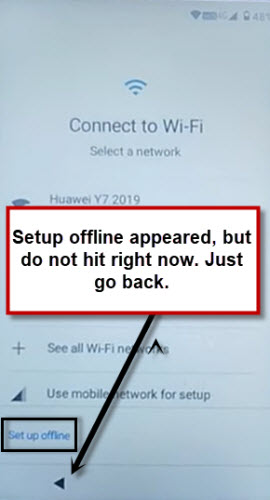
-You will reach back on the (Connect to WiFi). But, you will notice that, the (Setup offline) offline options will appear up. But, do not hit on this option right now.
Repeat Steps to Access the App info Page
-Go all the way back over the (Hi there) startup page.
-Let’s repeat all steps to access back on the (Apps info) page.
-Access to the emergency page by tapping on “Emergency Call” option.
-Then, tap 2 times again on the “Emergency information” option from the top center.
-On next screen, hit over the “Edit” option from upper corner.
-Simply, tap on the first option called “Name”. After that, from popup window, hit on the small “Down Arrow” icon and tap to the “Choose an image” option.
-Bring up the menu bar by tapping “Menu” option from upper left corner.
-Then, long hold on the “Gallery Go” option. Afterwards, go to “Permissions”.
-Tap on the “Storage” folder or icon. Then, go to “See all apps with this permission” link.
-We can easily regain access to the main settings page of this device by tapping over the “Search” icon from top corner. Search there “Settings” and then, hit on the “Settings app info” from the searched result.
-On next page, tap to “Open” icon.
Turn on (Google Play Services) Function
-Access to the app info page by hitting over the > Apps & Notification > App info
-You need to enable the show system option to get all the hidden app displayed on app list page. For this, tap “3 dots” icon and then, tap on “Show system”.
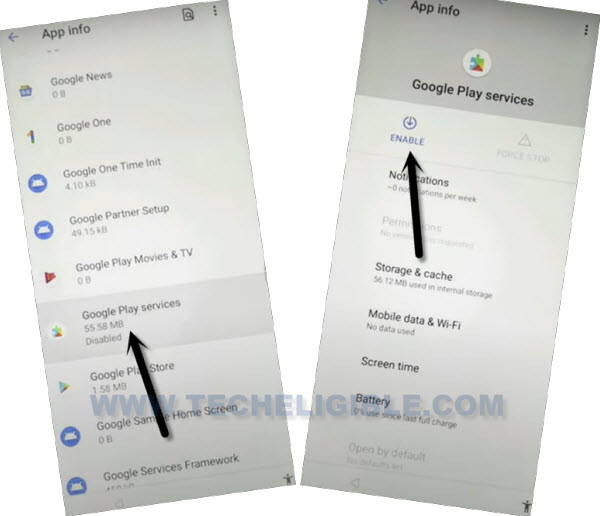
-From there, you just scroll down and find the “Google Play Services” app, which you disabled recently.
-Tap on the “Google Play Services” application and hit on the “Enable” button to get this operational again.
Setup the Device in Offline
-Let’s get back to the (Hi there) page. And, tap again on the “Start” option. After loading screen is completed, you will reach again on the (Copays Apps & Data), from there, hit on the “Back Arrow” icon from bottom.

-You will see again the (Connect to WiFi) page. Let’s hit over the > Setup offline > Continue.

-Finally, you will directly reach on the (Date & Time) screen. From there, hit on “Next”.
-After that, from the google services page, go to > More > More > Accept.

The Final Words
We got help of the emergency option to reach the primary settings interface of this phone. From there, we just accessed to the (Apps & Notification) option and looked for the (Google Play Services) application. Then, we just disabled this app. After that, reached back on the (Hi there) startup page again.
Accessed to the (Checking for update) screen. Wait on this loading page, then, got back on the (Connect to WiFi) page to verify that, we have go the (Setup offline) option. Once its done. We repeated all steps to reach back to the (App info) screen. From there, enabled back the google play services application and then, completed all setup wizard steps using the (Setup offline) option from WiFi page.