Hey, are you still having trouble with the Google verification process because you reset your phone via recovery mode? Your device is entirely under FRP lock security, and it requires you to enter the same Google Account that was configured prior to resetting it. If you cannot recall or retrieve it, and if there’s no option to regain access to your account, then consider using a different method to bypass FRP Mobicel Legend device through setup new PIN lock protection.
Disclaimer: We highly recommend you to apply this method only on your own device, if you are not owner of this device, or you found this from some where, you must return to its real owner.
Bypass FRP Mobicel Legend By PIN Configuring
-Continue this method by turning on your device and connecting to a Wi-Fi network.
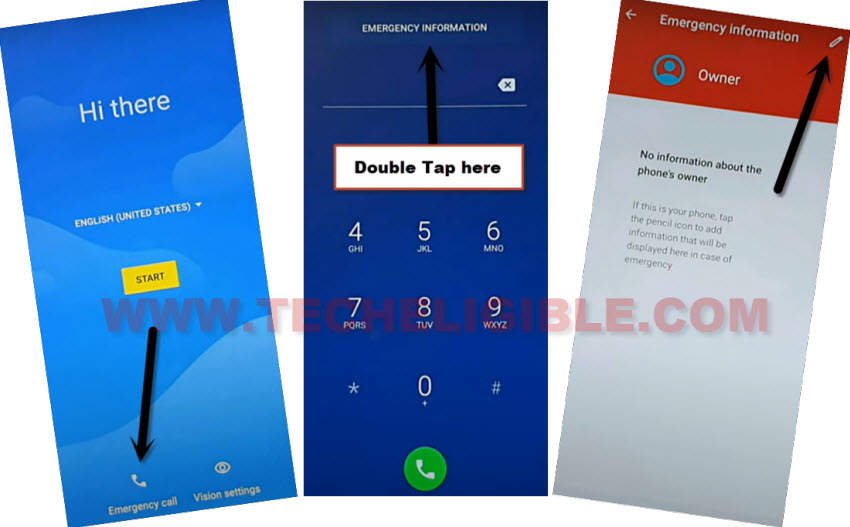
-Return to the initial (Hi there) screen. From this point, access the emergency options by selecting the “Emergency Call” feature.
-Double tap the “Emergency information” button to navigate to the following screen. Then, select the “Pencil” icon located in the upper right section.
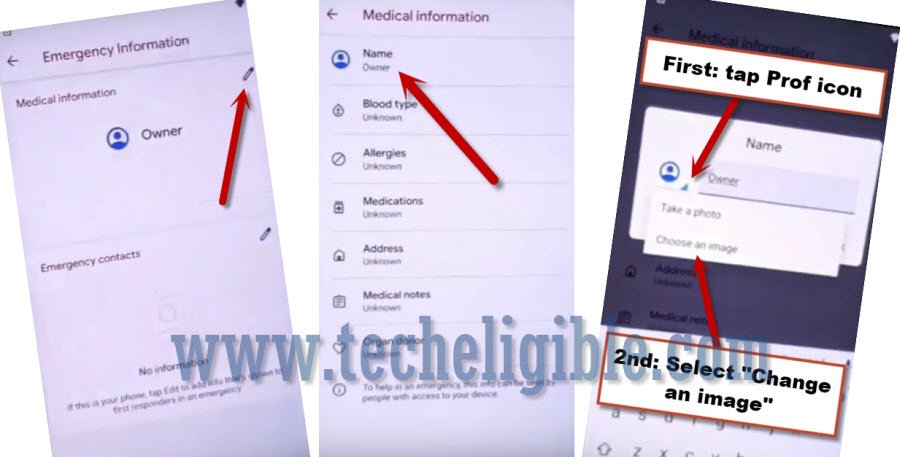
-On the information display, choose “Name” at the top. Next, click the “Down Arrow” icon and select “Choose an image”. Refer to the image below as a reference.
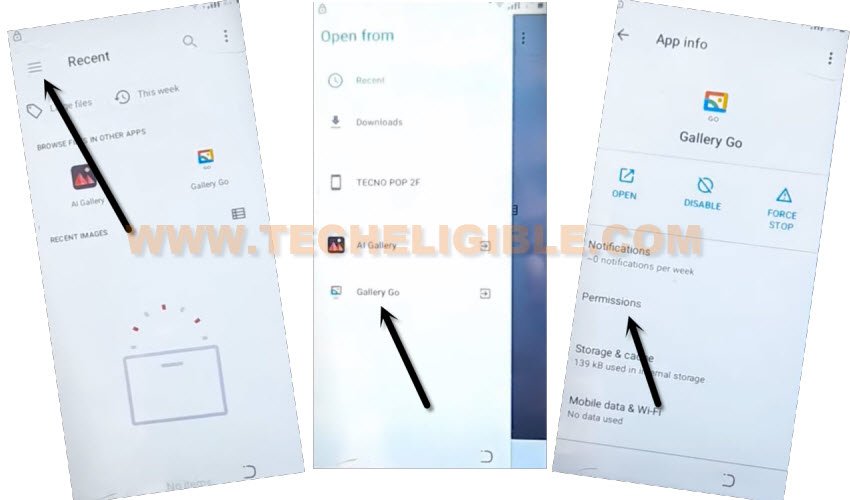
-Lets reach the sidebar menu by clicking on the “Menu” icon in the top left corner. Then, press and hold the “Gallery Go”.
-Afterwards, you need to click on the “Permissions”.
-Then, you just go the “Storage” option. Then, click on “See all apps with this permission”.

Search & Access at the Settings Screen
-Lastly, tap the “Search” icon in the upper right corner.
-Look for “Settings” and then locate and click on “Settings app info”.
-From the next page, click on the “Open” link to access the primary settings section.

-It is very easy now for you to set up a new security lock on this phone to bypass FRP. To begin, navigate to > Security > Screen Pinning > Activate screen pinning from the top right area.
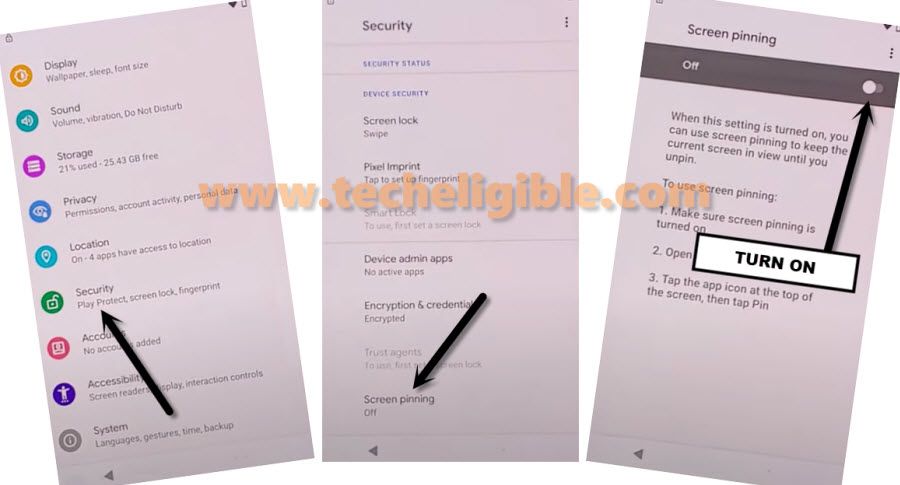
-Let’s turn on the “Lock Device When unpinning” setting.

Setup 4 Digits PIN Code
-Then, this will take you to the next page, where you need to select the type of screen lock you want to establish on your device.
-Select “Fingerprint + PIN”.
-From the next page, we need to configure the PIN lock on this device.
-From here, you need to create any PIN on the screen and proceed by clicking “Next”.
-Retype the same PIN and then tap the “Confirm” option.

-When you arrive at the (Touch the sensor) screen, it indicates that your Mobicel Titan phone has accepted the new pattern lock. You can easily finish the setup wizard steps without having to log in with a Gmail account.
-Let’s select “Skip”.

Finalize the Setup Process
-Navigate back to the first (Hi there) page by repeatedly tapping the back arrow.
-Afterwards, you just have to click on the “Start” option, and you will be greeted by the (Checking for update….) screen. Just wait there.
-Next, you will arrive at the (Copy Apps & Data) stage. From here, select “Don’t Copy”.

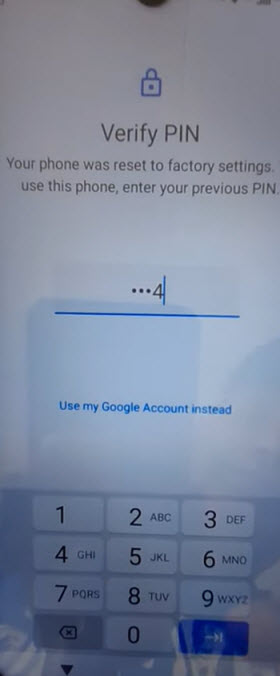
-You will need to complete the verification process by entering the previously created PIN lock on this phone. You already know the 4 digits PIN code you established in earlier steps. Simply type that here.
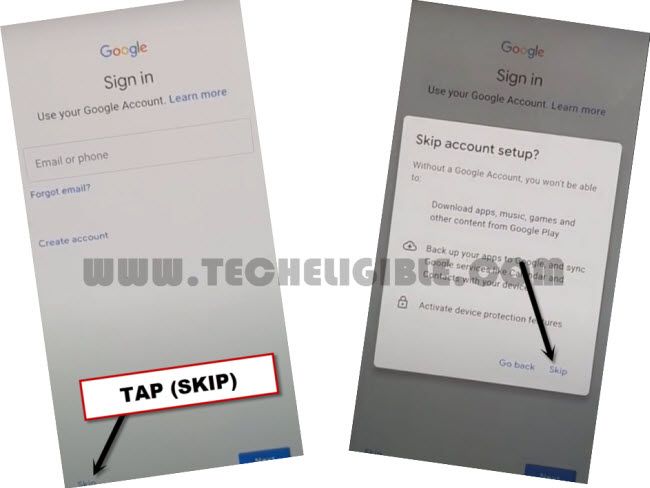
-At the subsequent Google sign-in screen, select > Skip > Skip.
-Then, you will be taken to the Google services page. Just click > More > More > Accept. Then, proceed to complete all remaining steps independently.

The Bold Steps
After connecting to WiFi, we just accessed on the (Emergency Call) feature to arrive at the phone application list screen. After that, we looked for and entered the main settings page of the device secured by FRP. When this was finished, we navigated to the (Security) section. Ultimately, we established a new 4 digits PIN code security on this device and smoothly finalized the setup process by going all the way back to first startup page.