
Have you been locked out with FRP protection on your own Samsung A36 5G phone after doing hard reset? If this is happening with you, then, you must have forgotten, what google was setup earlier on this phone. FRP is actually completely connected with current synced google account to protect the phone from unauthorized people. This feature get activated and ask you to complete the verification step by signing back with google account.
If you can’t recover your account, in this case, you can follow the guideline from here to bypass frp Samsung Galaxy A36 5G Android 16 and 15 version and unlock it easily. For the android 15 version phone, you may have to perform some additional step to upgrade it. Well, everything is mentioned in this post.
Disclaimer: We highly recommend you to apply this method only on your own device, if you are not owner of this device, or you found this from some where, you must return to its real owner.
Bypass & Unlock FRP Samsung Galaxy A36 5G (Android 16/15) By PC
| Note: Before applying below steps, do make sure, your phone is on Android 16 version. If your phone is on Android 15, then, you will have to apply some additional steps to update its android from 15 to 16. For this, check out how to upgrade Samsung A36 to Android 16. |
-We need to use PC tool and through connecting our phone to PC, we can easily perform frp bypass task without facing any trouble. Let’s follow the steps from below.
-You have to download below very important tools on your PC.
| ⇒ Android Utility Pro V200 [DOWNLOAD] ⇒ Samsung USB Drivers [DOWNLOAD] Pass: gsmprime |
-Don’t forget the turn off your (@ntvirus software) temporarily. This may could cause issue in running the (Android utility tool). Well, you can try first running this tool.
-Do also install downloaded (Samsung USB drivers), so that, you don’t face any connectivity problem.
Run the Android Utility Tool
-Simply, right click on the downloaded file (Android Utility Tool) and extract it. After that, go to extracted path and install + run on your PC.
-Once you reach the main homescreen of this software, from there, you have to choose option “Samsung”. Because, your phone brand is Samsung.
-After that, just go on the “Main”.

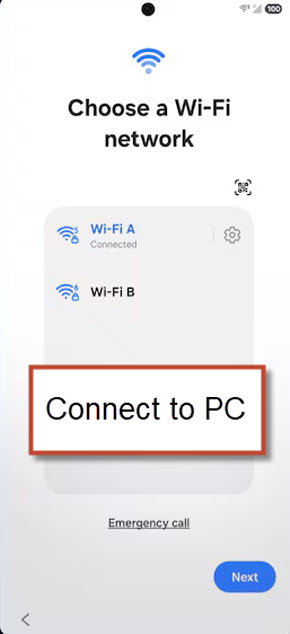
-Keep your Samsung phone display on a (Choose a WiFi) page. This is very important step. If you don’t do so, then, software may not wrk.
Clicked the (Samsung Remove FRP…) Option
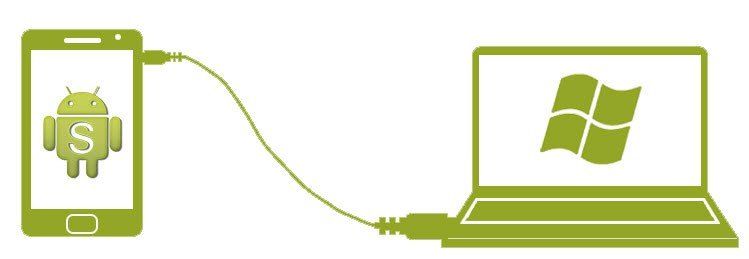
-Using a working USB Cable, connect the device with PC.
-From your running software, just click at the “Samsung Remove FRP Android 16 (December 2025) (MTP)” button to continue frp bypassing operation.
Crucial Note: Keep the phone display bright and ON. Also, make sure, your phone display is on a (Choose a Wi-Fi Network) page. If the display goes dim, just, tap once anywhere on screen to make it bright again.

Note: If the operation just freeze for more than 2 minutes (Enabling ADB / Installing ADB..) etc. click on the “Stop” button. Reconnect the phone and click again on “Samsung Remove FRP Android 16 (December 2025) (MTP)“. Keep on doing this each time, when you notice, the software taking longer time, such as 3-4 minutes.
-After that, your Samsung device will restart. But, keep the phone connected to PC. Don’t disconnect device until you get the message of (FRP Removal Complete!).

Disconnect & Setup Device
-Once you reach on the (Welcome) page, and the little lock icon has been disappeared from top left corner. You can now safely disconnect the phone from PC.

-Simply, go over the WiFi page. From there, tap on the “Skip” option. Because, we are going to setup the phone in offline mode.
Note: Are you not seeing any (Skip) option on WiFi display? don’t worry, just connect and disconnect WiFi. After that, this option will be displayed over there.

-Other all steps can be finished without any further instructions. The FRP has been bypassed successfully and completely.
The Final Words
We followed up the easy steps just by downloading the free (Android Utility Tool) on the PC. Then, we installed and launched this tool. After that, put the tool on a (Samsung > Main) interface. After that, we switched on the frp protected phone and keep the phone on a display of (Choose a WiFi network).
After that, we just connected device to the PC and clicked over the option of (Remove FRP….) from the tool. The tool has just detected the phone and continued frp bypassing process.