
Upgrade android version of Samsung A36 5G just through using the firmware and Odin tool. If you are looking to bypass frp, and your phone is on Android 15 version. Then, you must Upgrade Samsung A36 5G to Android 16. For this, check out below steps. In this guide, we will just download firmware and flash the phone with Odin tool.
Steps to Upgrade Samsung A36 5G to Android 16
Steps are quite simple, firstly, we will check our firmware version. Whether its of (A366E) or (A366B). After that, we will download exact firmware with the help of link given below. After that, we will install and launch the (Odin) software. Finally, we will flash the device with firmware to upgrade its android version from 15 to 16.
Check the Firmware Details
-Check your phone firmware number. To check this, you need to put your device into the android recovery mode.
-For this, power off the phone completely.
-Do this 3 actions at the very same time, Press the (Volume UP + Power button + Insert the Cable).
Repeat: You have to connect the phone with USB Cable while pressing the (Volume UP + Power button) at the same time.
-Once the Samsung logo appear, release the (Power button) 3 seconds later, while keep holding the (Volume Up) button until you see the (Recover mode).
-Now, you can release the volume up button as well.
-Let’s read your device firmware version number. In the below image, you can see the the model number is (A366E……). If your model number is (A366B………..), then, download the same firmware file on PC from below.

Download Relevant Firmware
-Download Android 16 firmware.
⇒ Samsung A36 5G Android 16 (SM-A366E | BIT 7) [Download] ⇒ Samsung A36 5G Android 16 (SM-A366B | BIT 7) [Download] Note: If your phone bit and binary number is changed from already given above 2 firmware, then, you can search out the firmware on Sammobile site and also follow up further instructions from here. |
-We have successfully arranged the required firmware file for our Samsung phone to upgrade to Android 16 version.
-Let’s go for flashing process with the downloaded firmware.
Put Samsung Phone into Download Mode
-Firstly, you have to make sure, your device is fully charged or at least 70%.
-Power off the phone & put the phone into download mode by long holding the (Volume UP + Down) button and just connect the Cable to the phone.
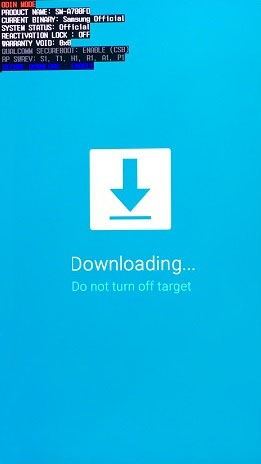
-Keep holding both buttons until you see (Blue Display). After that, just press the (volume up) key to continue.

-After that, you will successfully get into the download mode screen.
Download & Flash with Odin Software
-Simply, download below given Odin tool and USB driver on computer.
⇒ Odin Tool V3.14.4 [DOWNLOAD] ⇒ Samsung Drivers [DOWNLOAD] |
-Install Samsung driver.
-Afterwards, install & run also the (Odin Software).
-Let’s extract also your downloaded firmware file.
-You will see 4 files listed inside the firmware folder starting with (AP/BL/CP/CSC).

-Give 4 files path into odin tool respectively by matching with starting (2 letters).
-Means, in “AP” blank of Odin, just give the file path of (AP) file.
-Same as it is goes with (BL/CP/CSC).
Note: You don’t need to give file path of (Home CSC) file.
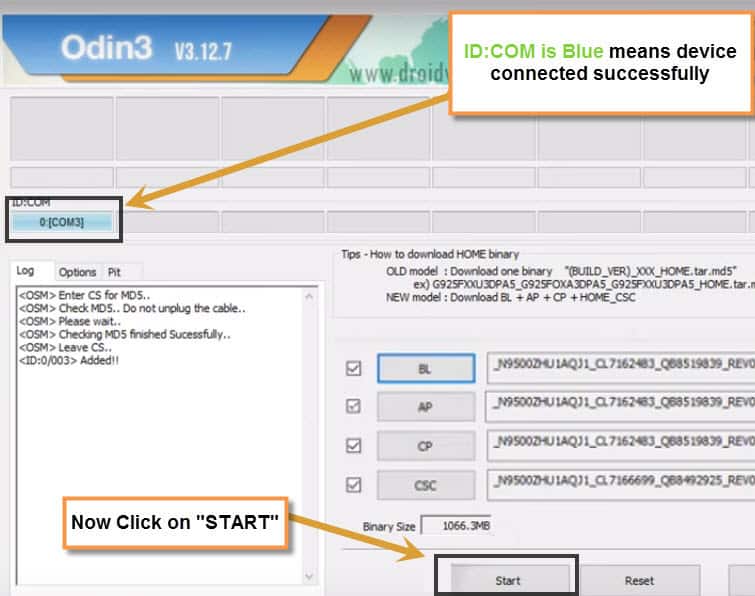
-Your odin will look like this, same as shown in below image.

-Your phone is already connected to the PC and in the download mode.
-Just, click at the “Start” button from the Odin software to continue its flashing process.
-You will get the (PASS) message on the Odin tool. That means, we have successfully upgraded our Samsung A366 5G phone to Android 16 version. Let’s go back to the method of Bypass FRP Samsung A36 5G Android 16.

Conclusion
Firstly, we downloaded firmware of our Samsung phone. Then, we also arranged the (Odin tool). After that, connected our phone to the PC and the Odin software. Selected firmware file in the Odin. To continue the flashing and upgrading process, simply, clicked at the (Start) button. Within few minutes, the upgrading to android version 16 process completed automatically and go the (Pass) message on the tool screen.