
Are you seeking an effective manual method for bypass frp Samsung Galaxy S5 device after loosing access to this phone? Then, you visited the right method. We will show you detailed steps about, how you can setup another google account after doing factory reset the phone and forgetting the already synced ID. We have 2 methods in this post. You can try one by one.
Disclaimer: We are creating this post to educate people about how to get back their lost device due to forgetting Google account. This method is only for device owner and for educational purpose only.
How FRP Feature Secure a Phone?
FRP serves as the protective measure that secures our phones against unauthorized person. In the event that your Samsung Galaxy S5 is lost or stolen, the FRP lock functions effectively ensure that the device remains unreachable. Typically, unknown person may attempt to regain access to the phone through a factory reset procedure. However, the FRP lock will block access to your Samsung S5 by requiring users to log in with the Google account that was previously synced for verification purposes.
Method 1: Bypass FRP Samsung Galaxy S5 (Android 6)
-Firstly, you just switch on your device. Then, connect to WiFi network.
-From the same WiFi screen, tap on “More” option from upper corner.
-From there, simply, tap on “Add network” and then, type any text in the (Enter Network Name) field tab.
Reach to Chrome App By (Assist) Option
-Afterwards, long hold on the typed text and from some popup options, tap on “Assist”.
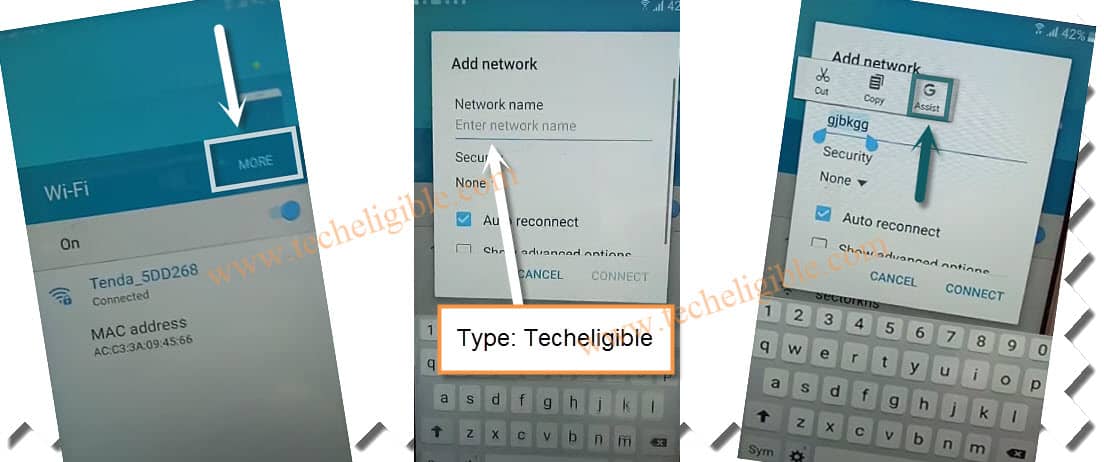
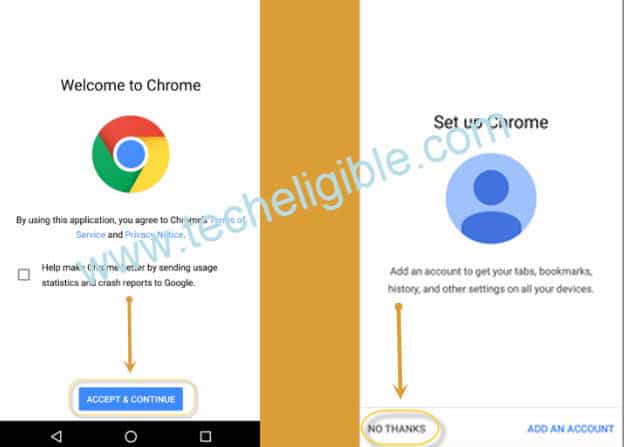
-After that, you will access over the (Welcome to Chrome) screen, from there, simply, type the “Ch” and hit on the “Chrome” browser icon.
-Then, go on the > Accept & Continue > No Thanks.
-Visit the techeligible official site by searching with “Techeligible“.
-Go to 1st searched result to access the site. Then, go to “Menu” by tapping menu icon from upper corner. Tap on “Download FRP Tools”.

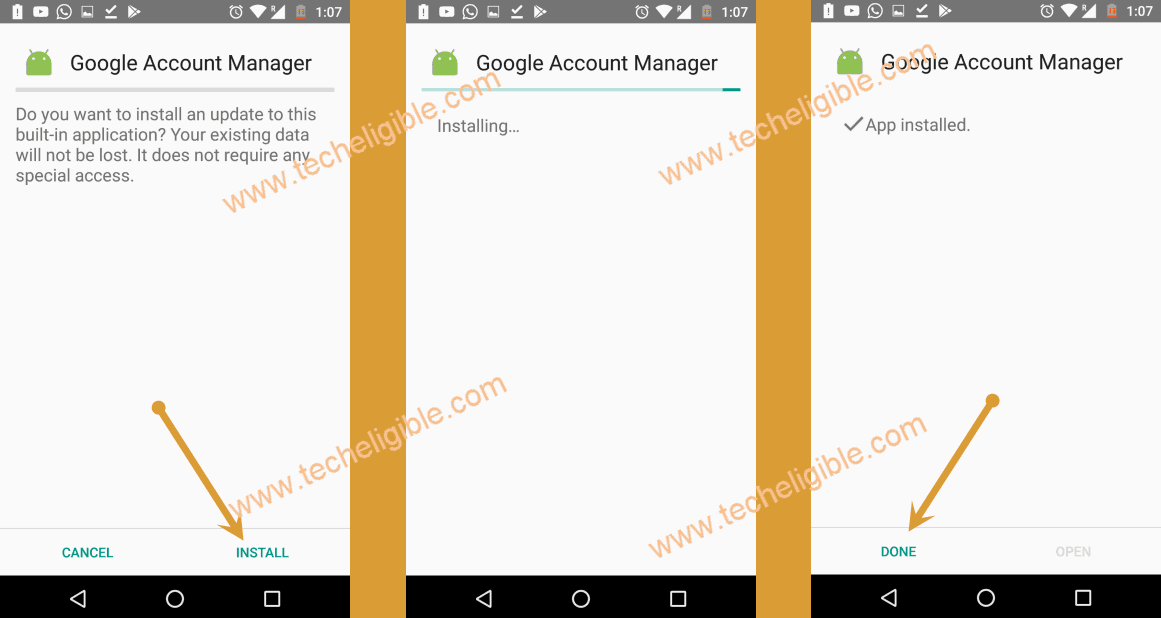
-Let’s start downloading an app “Google Account Manager 6″.
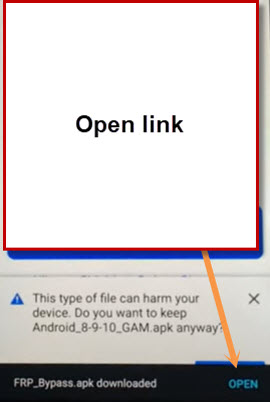
-After your downloading app process is done, you will see notification in the bottom. From there, hit on “Open” option.
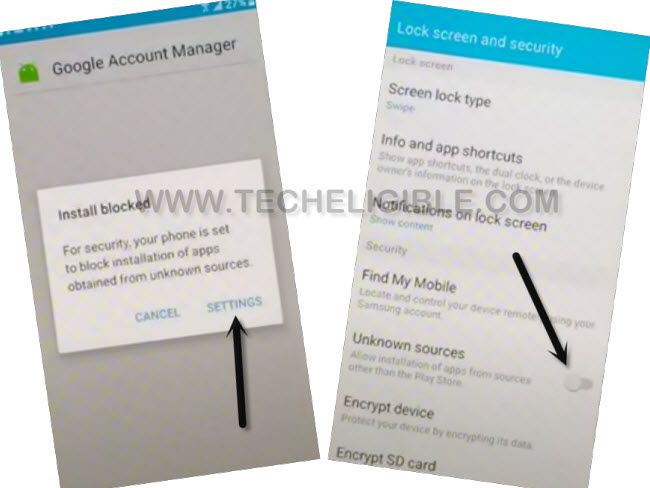
-In case, if you get the installation blocked popup window, just tap over the “Settings” and enable the “Unknown Sources” option.
Install Google Account Manager App
-Let’s download again the app “Google Account Manager 6“. Then, from the popup window, tap to “Open” option again.
-Install the google account manager application. For that, tap to “Install” and then, hit on “Done”.
Note: If you are unable to install the google account manager 6 version app, or you are facing error. Then, try with (Google Account Manager 5 version) app.
-Let’s go back to frp tools page. From there, find and download another application “Account Login“.
-You must have a bottom notification again on downloading is done. From there, just go to “Open”.
Install & Setup Account by Account Login App
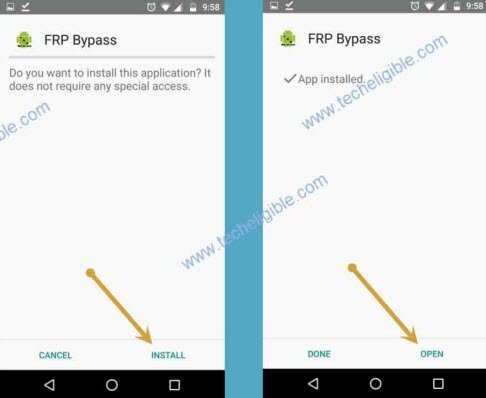
-You need to install this app as well on your phone. For that, just go to “Install”.
-Once the installing process is done, just choose the “Open” option to launch this application.
-After that, you will be redirected over the entering password screen. Hit on the “3 dots” option from top corner. Then, tap at the “Browser Sign-in”.
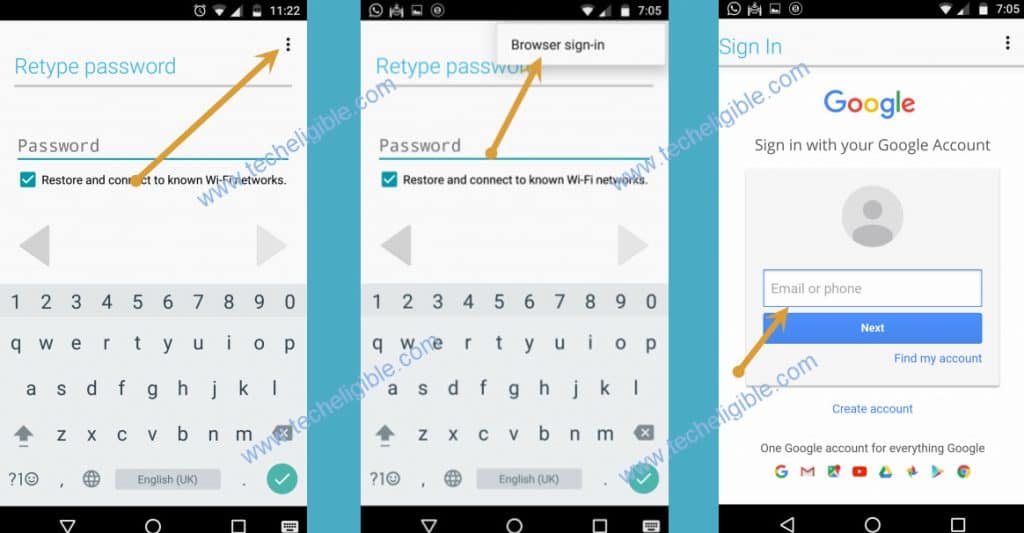
-From popup window, go to “OK” option. After that, login with any google account on this page to completely bypass frp.
-Once the login process is done successfully. You can restart your device and setup the phone again without stuck on google sign in page. Because, google has accepted your google account.
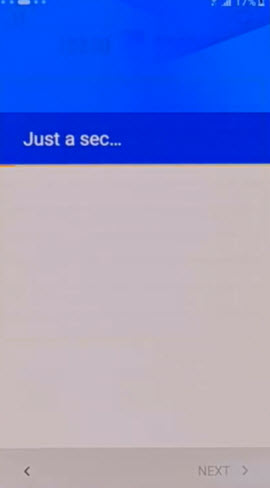
Note: While completing the setup wizard steps, you may face longer loading time on the (Just a sec..) page. Just wait there until its done. This may take 4-5 minutes easily.
Method 2: Bypass FRP Samsung Galaxy S5 (By Talkback)
In this guideline, we are gonna connect WiFi first, after that, we will enable talkback feature, then, we will launch the google app to access the (Samsung internet browser) app. After that, we downloaded and used (Package Disabler Pro) application to bypass google account.
Continue FRP Bypass Steps Here
-Turn on phone & connect WiFi.
-Go back to first “Welcome” screen.
-Press “home button” 3 times quickly. this will enable talkback feature automatically.
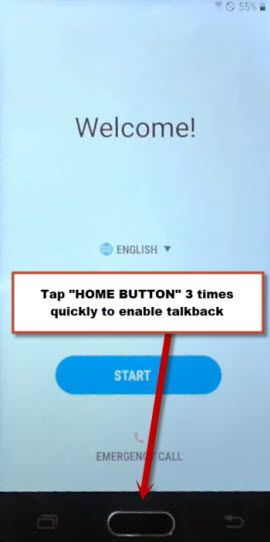
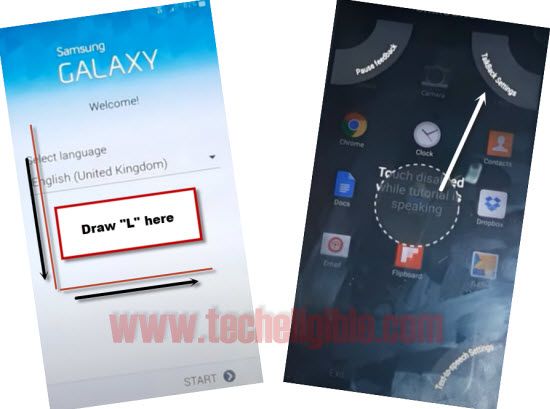
-Draw “L” by swiping down to right, and wait few seconds, it will show “Talkback Settings” option.
-Double tap on “Talkback Settings” from top right corner. if you see popup window, just double tap on “Decline”.
-Once you access to “Talkback Settings”, just draw “L” again.
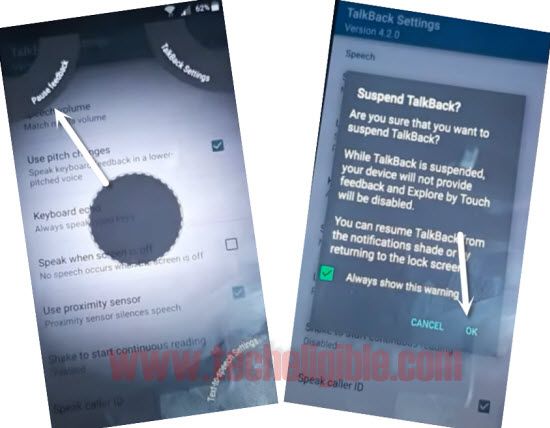
-This time, double tap on “Pause Feedback”, after that double tap on “OK” from the (suspend talkback?) screen.
-Go down and tap on “Open Talkback at the playstore”.
-Wait until it show google sign in screen.
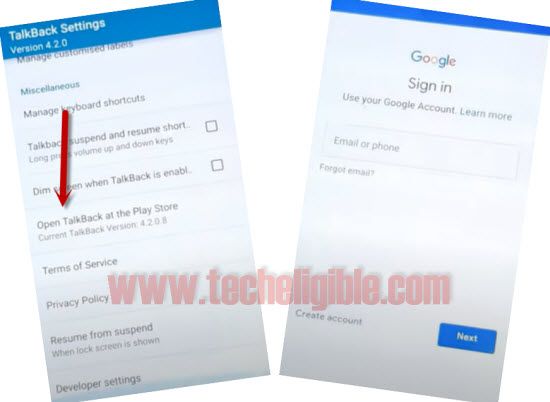
-Sign in there with your any active gmail account.
-After entering gmail id and password, just tap on > Next > i agree.
-From google services screen, just swipe up, and tap on “Next”.
-Select option “Remind me later”, and then hit on “Next”.
Access to Internet browser
-Hit on “Back Arrow” from top left corner.
-Hit on “Search icon” from top right corner, and search there “Google”.
-Tap on 1st “Google App” icon, and then tap on “OPEN”.
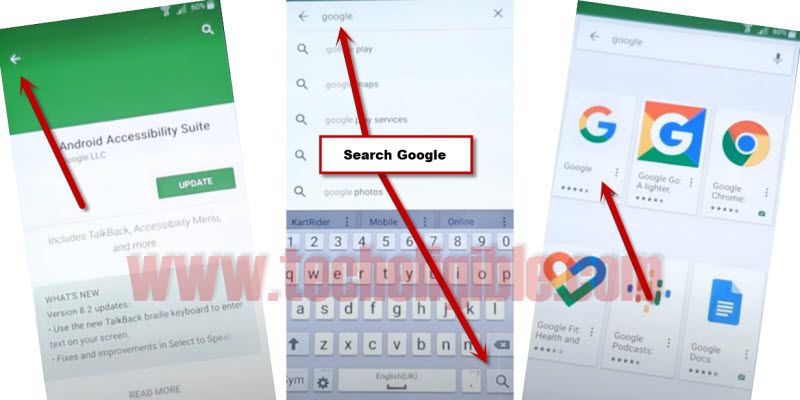
-Tap on “SKIP”.
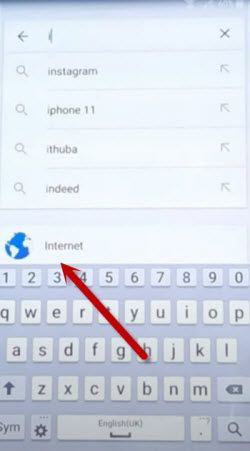
-Type in search box “Int“, and then tap on “Internet icon” from searched result.
-Indeed, after that you will get access into internet browser.
Download Samsung S5 FRP Tools
-We have to download frp bypass applications on our android device.
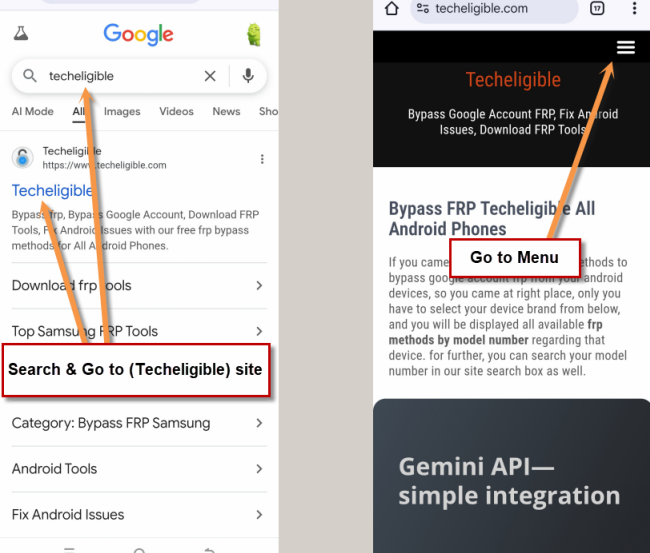
-Search in chrome browser “Techeligible“. Visit same searched result as mentioned in below screen shot.
-Tap to “Menu” option from upright corner of the site.
-Simply, go to “Other Free Tools” option from there. After that, tap to “Samsung FRP Tools”.
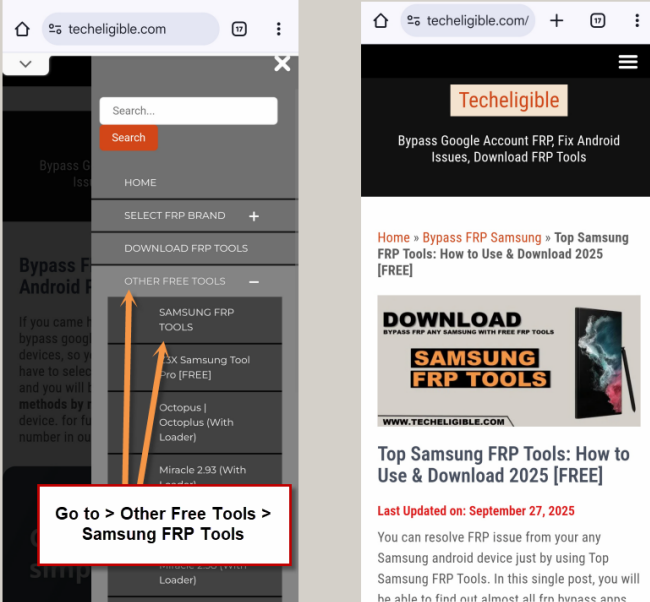
-Go to the searched result of our site same as shown in below image.
-From there, download only frp app “Package Disabler Pro“.
-Once downloading process finish, just tap on “Back Arrow” several times until you get back to “Talkback Settings” screen.
-Tap on “Open Talkback from Play Store”.
-Tap on “Back Arrow” from top right corner.
-Search “Google”, and then open “Google App” again.
-Type in google app search box “File”, and then tap on “My File” icon from searched result.
-Open “Download History”, and there you will be able to see your downloaded app.
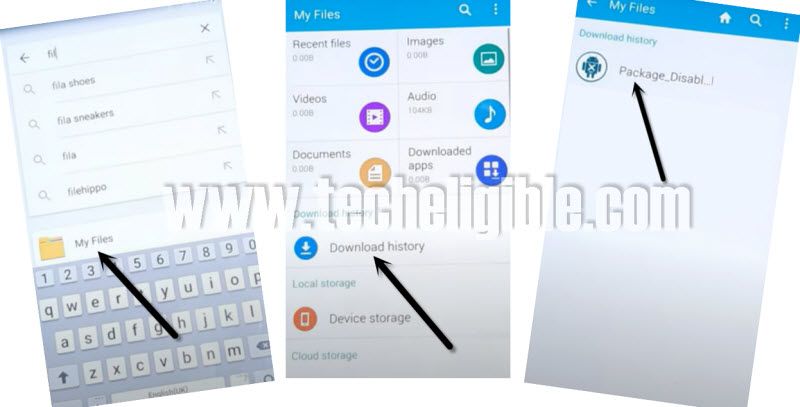
-Tap on “Package Disabler Pro”, and then tap on “Settings” from installation blocked popup window, and after that, just tap on “Unknown Sources”, and then tap on “OK”.
-Now tap on > Install > Open > i agree > enable Admin > Activate.
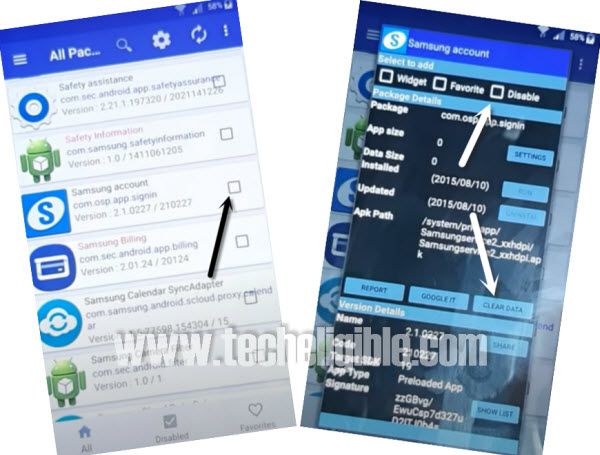
-There you will see big app list, just go down and find “Samsung Account”.
-Tap on “Samsung Account”, and then select “Disable Option”, and hit on “Clear data”.
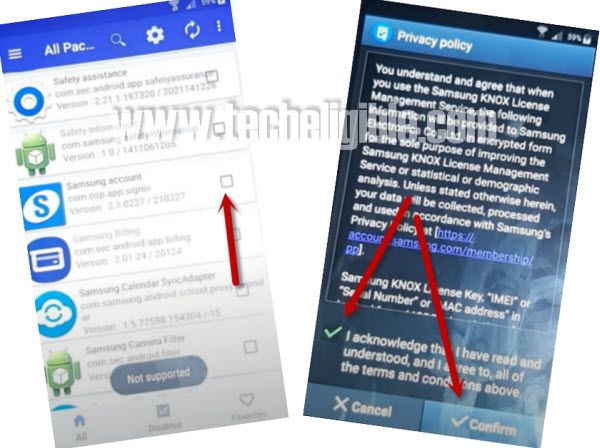
-Tap on “Back Arrow” from your phone button, and then again tap on “Samsung Account”, this time you will see “Privacy Policy” screen, just select “i acknowledge…..”, and then tap on “Confirm”.
-Tap on “Square box” to select Samsung Account, after that it may show “Operation error….” window, just hit on “Retry”.
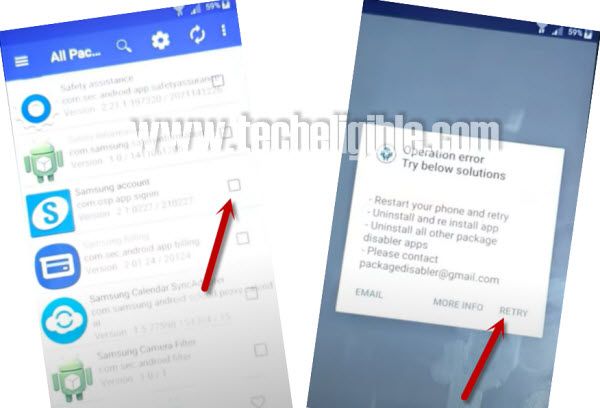
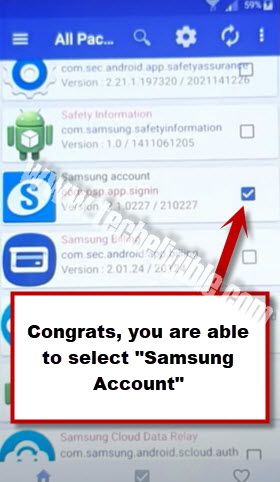
-Now again try to select “Square box” which is right next to the “Samsung Account”, if are able to select or check mark the “Samsung Account”, that means, the FRP unlocking method worked perfectly.
-Long press “Power button”, and tap on “Restart” option.
Complete Setup wizard
-Tap on > Start > Next > Next.
-Wait several minutes on “Checking connection…”.
-Tap on > More > More > Next > Next > Continue.
-Now tap on “Skip” from the Dropbox screen.
-Final option, just tap on “Finish”.
-Don’t forget to disable “Talkback Feature”, you can disable that just by going to > Settings > Accessibility > Vision > Talkback > just turn off option from there.
-You have successfully added your new Samsung Account to Bypass Google Account Galaxy S5, and please don’t forget your this account this time.
FAQs
How to Factory Reset Samsung S5?
Turn off the phone. Long hold both (Volume UP + Power) button at the same time, release all keys once you enter into the (Android Recovery Mode) screen. Using (Volume Down) keys, select (Wipe Data/Factory Reset) option. After that, select (Yes).
What to Take Care before doing a Factory Reset Samsung S5?
You must remove your logged in google account. Or you must know your logged in account credential. Once you factory reset the device, you will be asked to sign in again with same Gmail account, that was setup earlier.