Samsung Galaxy device are fully protected with FRP protection feature against any illegal access. This FRP is actually work with your already signed in google account or Samsung account. If you’ve forgotten your account after factory reset, then, you will surely need a method to reach back to your device. So, the method is to Bypass FRP Galaxy S6/S6 Edge Plus/S6 Edge (Android 7). You can get help with (2 Methods) on same device. Check out below frp bypass methods.
Disclaimer: We highly recommend you to apply this method only on your own device, if you are not owner of this device, or you found this from some where, you must return to its real owner.
| Method 1: Remove FRP Samsung S6/S6 Edge+/S6 Edge [By Flashing Process] |
| Method 2: Remove FRP Samsung S6 [By Realterms Tool] |
| Method 3: Remove FRP Samsung S6 / S6 Edge Plus (Android 7) |
| Method 4: Remove FRP Samsung S6 Edge Plus (Android 6) |
Method 1: Bypass FRP Galaxy S6/S6 Edge Plus/S6 Edge [By Odin]
In this method, we will use Odin software and combination ROM. After flashing with combination ROM, you can easily enable “ADB” mode and developer option in Galaxy S6 device to bypass frp account with ease.
Flash With Combination ROM:
-Download Odin software, and combination ROM according to your device model from below.
| ⇒ Odin Software |
-After download finish, extract downloaded “Combination ROM” file.
-Open “Odin Software”.
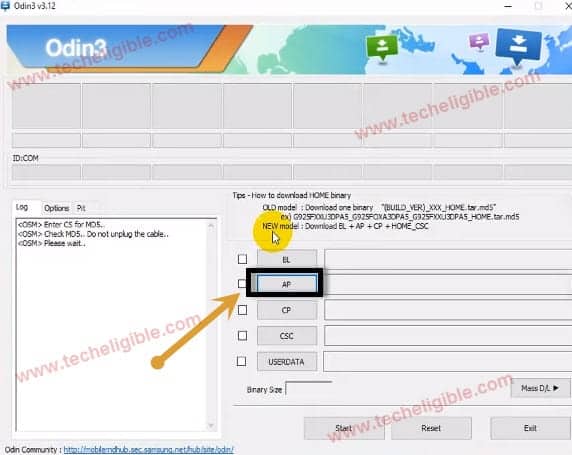
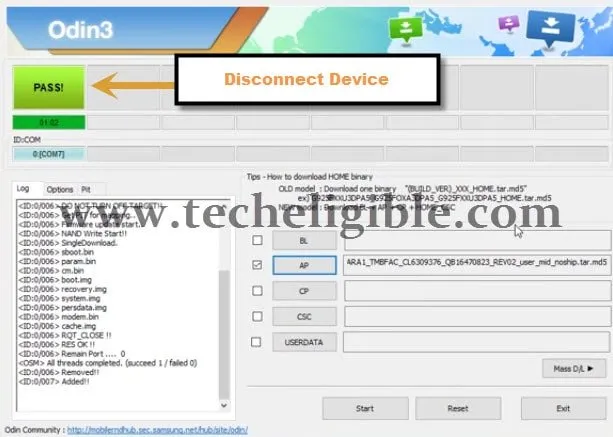
-From “Odin” software, click on “AP” and give file path of “AP File” from downloaded “Combination ROM”.
Reboot the Device into Download Mode:
-Switch off device.
-Now press & hold “Volume Down + Home + Power” buttons together until you see “Warning!” screen.
-After that, press “Volume UP” key to continue.
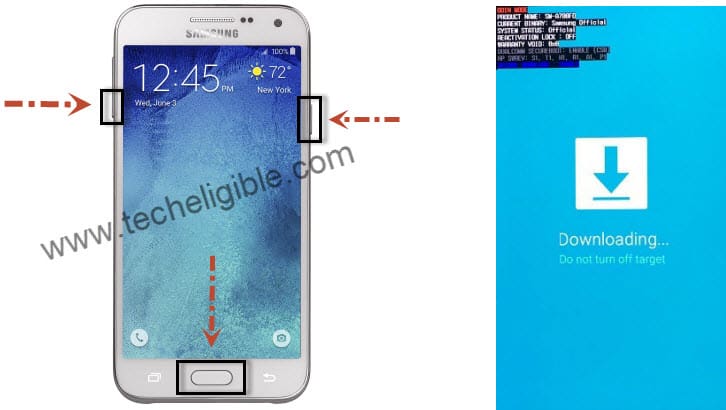
-Once you successfully enter into “Download Mode”.
-Connect device to computer via micro USB Cable.
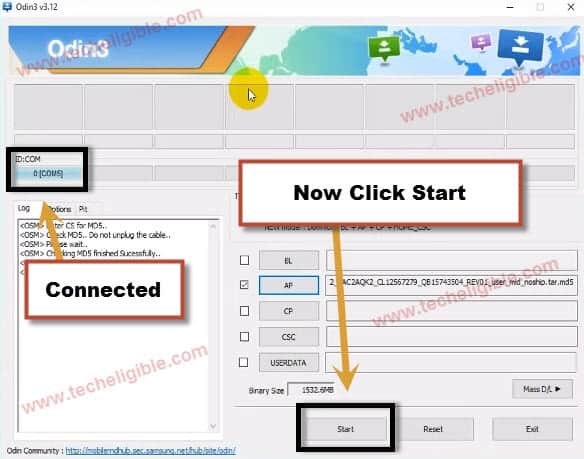
-Now you will notice that “ID:COM” in Odin software would turn to “Blue”, and it will show you “COM Number”, that means you’r device has successfully been detected by Odin software.
-Click on “START” button to start flashing galaxy device with combination ROM.
-Once flashing process finish, and you get a symbol of “PASS!“, now you can disconnect your device from computer.
-Galaxy S6 edge will auto reboot to “Factory Binary” menu.
Enable Developer Option:
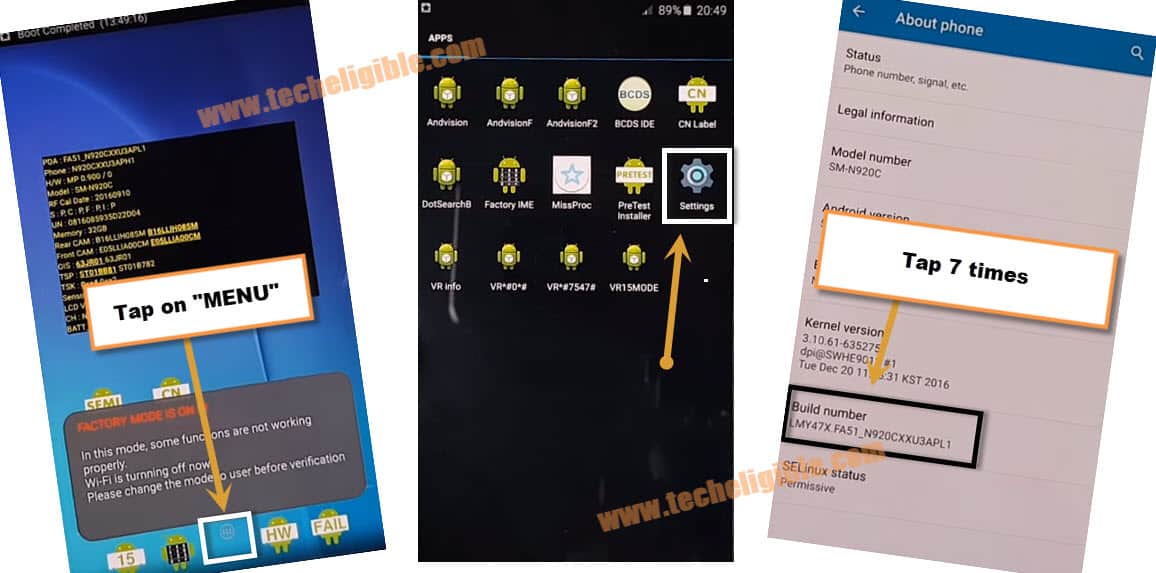
-Tap on “Menu”.
-Go to “Settings”.
-Tap 7 times quickly on “Build Number” until you get a popup message of “You are now a developer”.
-Go back to “Settings”, and then go to “Developer Option”.
-Enable “USB Debugging” from there.
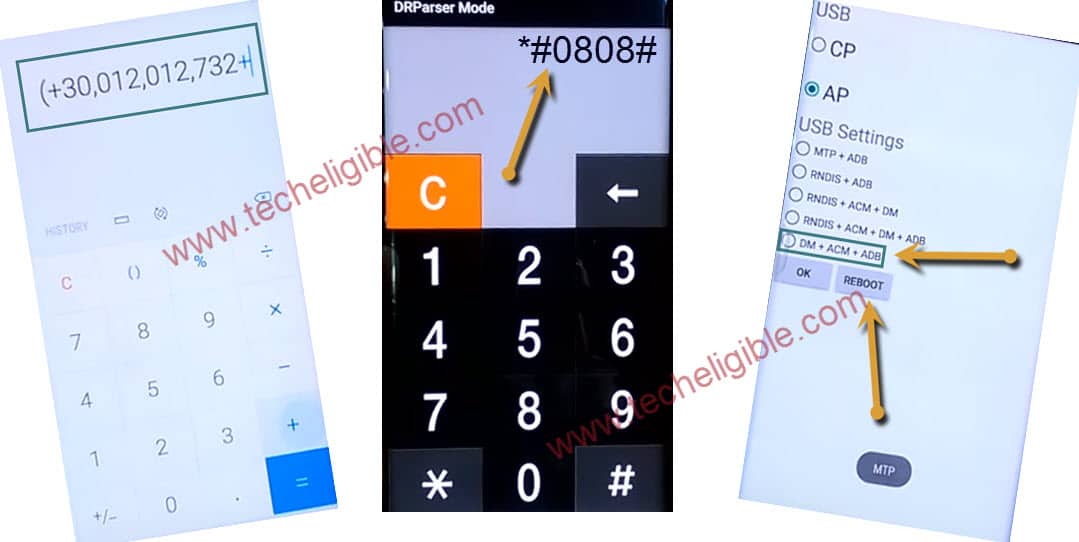
-Go back to “Home Screen”, and then tap on “Calculator”.

-Type code in calculator ” (+30012012732+ “
-DRParser Mode will open, after that you need to type there ” *#0808# “
-Select “DM + ACM + ADB“, after that tap on “Reboot“
-After rebooting finish, you will have “HOME SCREEN” back.
Start FRP Bypass Process on S6/S6 Edge Plus/S6 Edge:
-Make sure device is on
-Connect device to computer
-Download Frp tools from below
| ⇒ ADB-DRIVER [DOWNLOAD] ⇒ SAMSUNG USB DRIVER [DOWNLOAD] ⇒ ABD-FRP-BYPASS [DOWNLOAD] |
-Extract & Install both “Adb-Driver + Samsung USB Driver”.
-Extract “Adb-frp-bypass” tool.
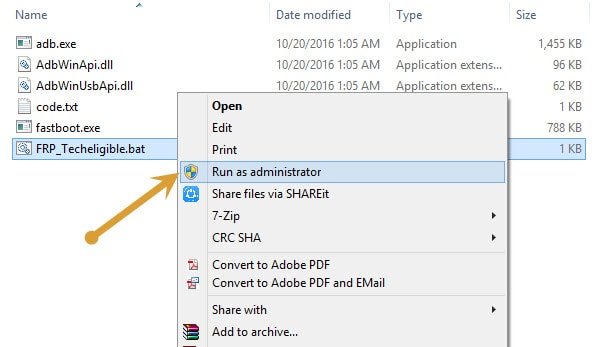
-Run “FRP_Techeligible“.
-Connect Galaxy device to computer.
Note: Make sure your device is on, if you get usb debugging popup in your device, tap on “OK”.
-After that, frp tool will auto detect your device.
-Now press any key to continue.
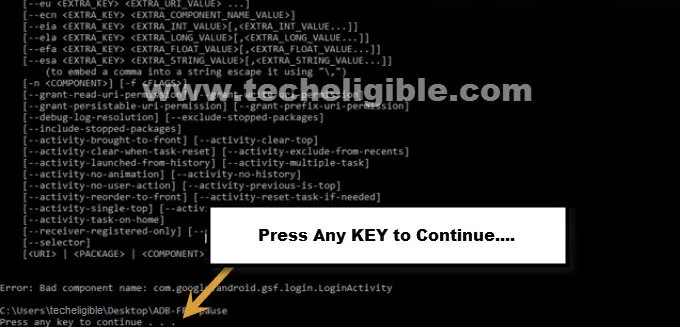
-After that, CMD window will auto disappear.
-This frp tool will Bypass FRP Galaxy S6 Edge in few seconds.
-Disconnect device from computer.
Download Official Stock Firmware:
-Go to Samsung official website by click here.
-Type model there, and search with that.
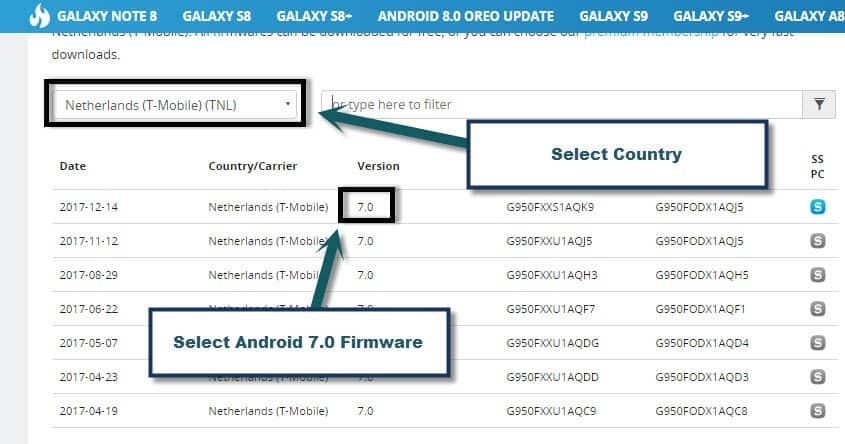
-Select “Country”, and then click on firmware name to download.
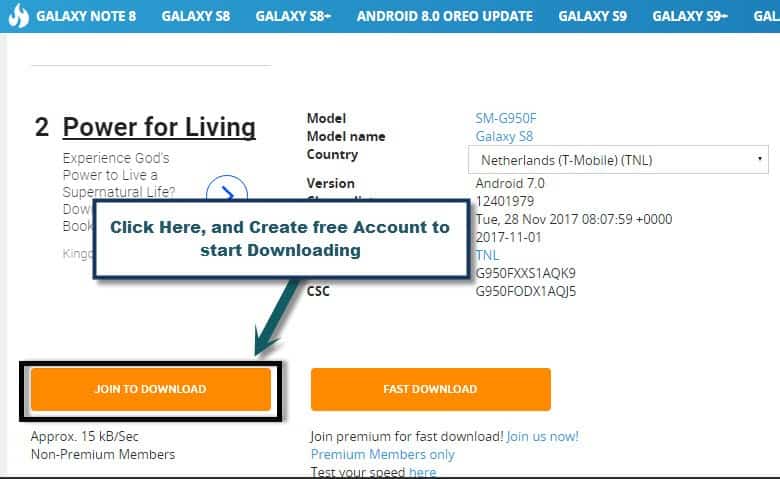
-Click on “JOIN TO DOWNLOAD”.
Note: If you have “Samsung Account” already, so sign in there to start downloading, otherwise “Create free account” to download stock firmware.
Final Flash With Stock Firmware:
-After successfully download “Stock Firmware” form official site, its time to flash again to get back galaxy device in normal mode.
-Extract downloaded “Stock Firmware” file.
-Open “Odin Software’.
-Click on “AP” and give file path there of “Stock Firmware”.
-Reboot the device again into “Download Mode” by pressing “Volume UP + Power Key + Home button“.
-Once you enter successfully into download mode, let’s flash with stock firmware.
-Connect galaxy s6 edge device to computer.
-Now click on “START” button from Odin to start flashing with stock firmware.
-Wait until you flashing process finish.
-Disconnect device & complete initial setup to access galaxy s6 edge home screen.
Method 2: Bypass FRP Galaxy S6 Android 7 By Realterm Software
-Turn on Samsung S6 device and Connect WiFi.
-From WiFi screen, just go to > Next > Next > Agree, after that wait 2 minutes till it finish checking connection.
-Now it will show to “Verify Your Account”, there you will have to enter your “Email address and password”, and on this step you are unable to go ahead, Next option does not work, so let’s fix this, to fix this issue, we need some files and drivers to download, you need to download some files to your “Computer/laptop”, and you need “Data Cable + Computer” for this method.
-Insert an activated “SIM CARD” to your mobile, after having “SIM CARD” signal upside of your Samsung device screen corner, let’s go for next step.
-You need to download below tools in your PC.
Download and Install FRP Bypass Software in your PC:
⇒Samsung USB Driver [DOWNLOAD]
(Extract from winrar, and install USB Driver)
⇒Realterm: Serial/TCP [DOWNLOAD]
(Extract and Install realterm into your PC, uncheck both option “Read me, register” will appear at the end of installation.)
-Alright, so now you have successfully installed both software.
-Open Realterm as Administrator, (Right click on software logo, and Run as administrator)
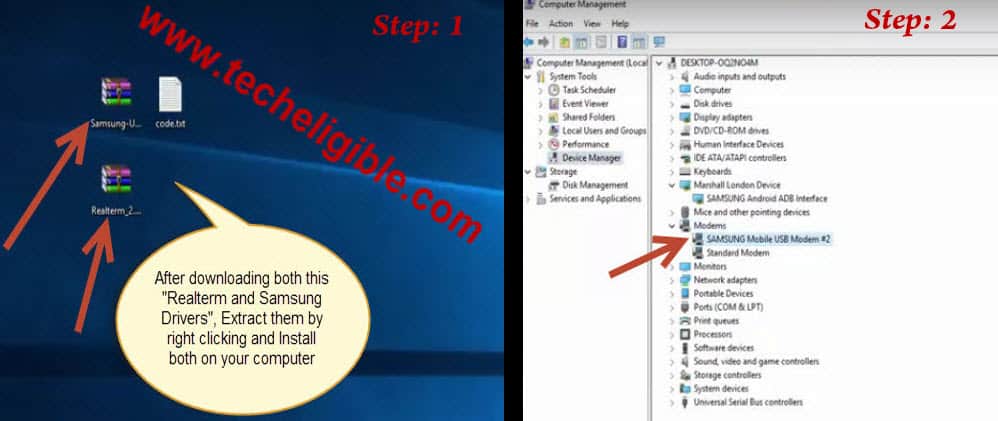
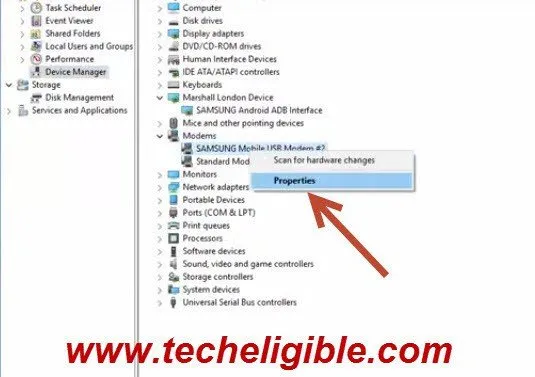
-Right click on “My Computer” and click on “Manage”, after that, click on “Device Manager” from left side bar, and “Connect your mobile via Data Cable with your computer” and then see, under “Modem” your Samsung Port will appear as shown in below image.
-After that “Right click” on that device com port, and click to properties as in below image you can understand better to Bypass FRP Account on Samsung Galaxy S6.
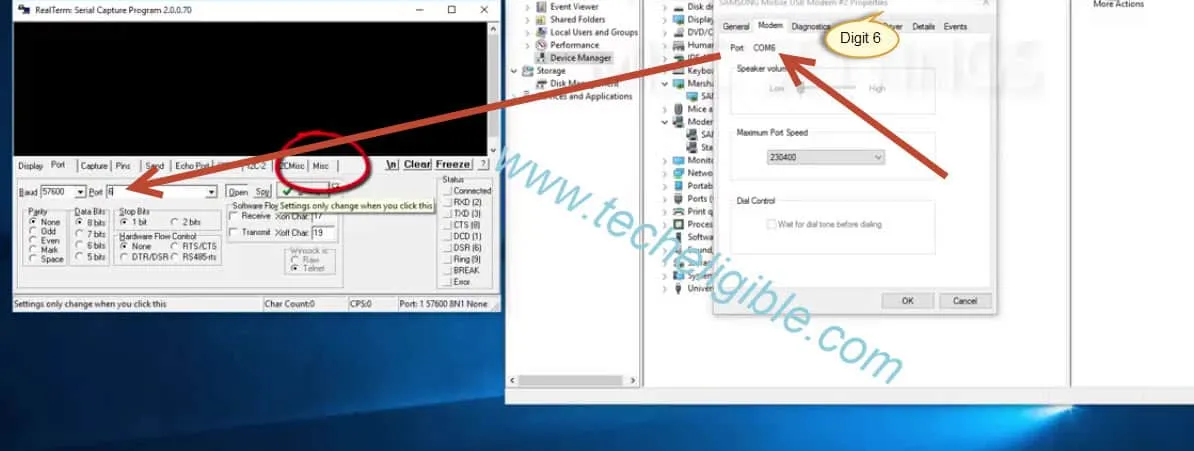
-Now new window will appear on your screen, from there see upside tab, 2nd tab will be of “MODEM” click on that and then note “Port COM” number, what digit is coming with port com, mine is coming “Port COM6” means 6 digit is mine, i will put this number in “Realterm Port” box, see below image
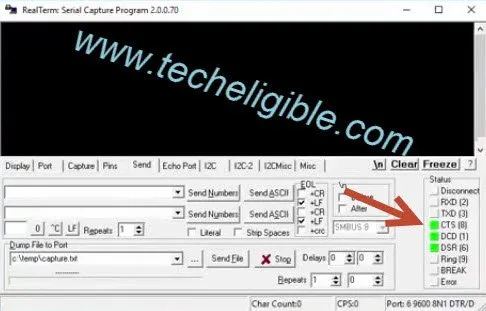
-Now click on “Misc” tab from “Realterm window”, and then “Setup” from left side in realterm, and then see “3 Green lights must be ON”, as can be shown below,
-And after that copy this command without colons ” at+creg?\r\n ” and past into realterm and click to “SEND ACSII”
-Now do same process again, copy this command also ” atd198;\r\n ” and past into same place where you pasted 1st command before and click to “SEND ASCII”.
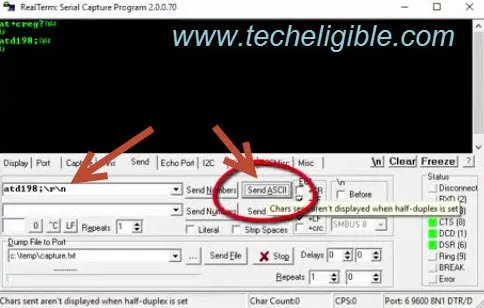
Note: 198 the number in command, is the “Customer care number“, you can give your any other number there if you want.
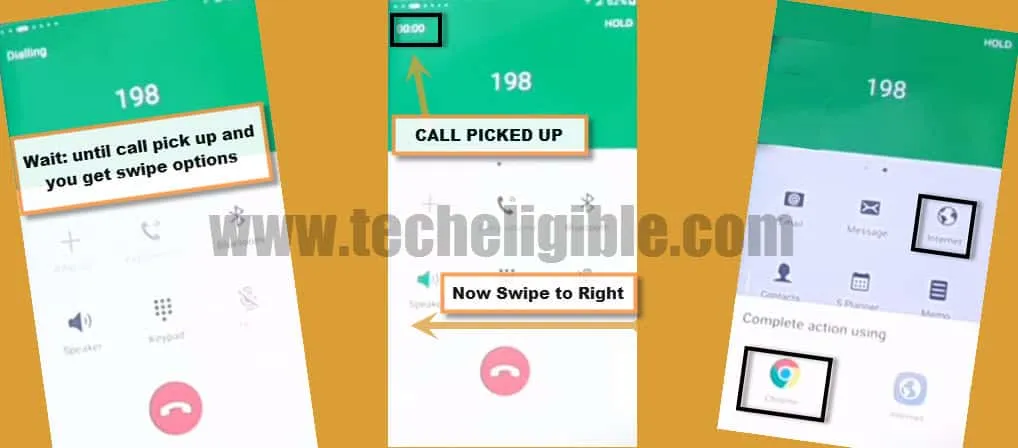
-After clicking on “SEND ASCII” button, it will call to “198” emergency number from your device.
-Now wait until call picked up, after that you will have “Swipe Option”.
-Just swipe screen to right, after that you will be able to see “Internet” icon.
-Tap on “Internet icon”, and then tap on “CHROME” icon to open “Google Chrome Browser”, once we access to chrome browser.
Note: if calling screen has been sided, just skip this step and continue from below.
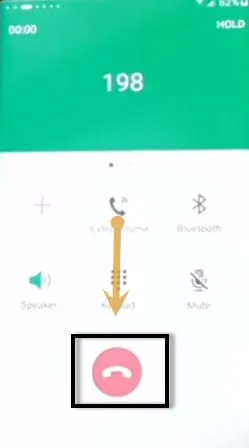
Calling screen is not Sliding? Try below Another Way:-Now Cut call from your mobile.
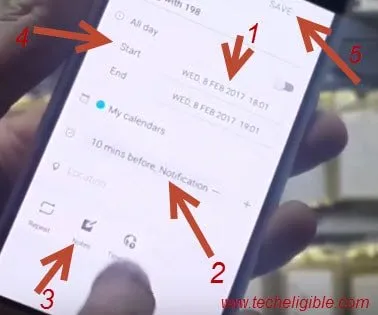
-After disconnecting call, you will have some options. -Tap on “Even Icon”, that would seem like “Calendar icon”, will appear at number 3. -After that “Create an Event” there, to create an event, click to “date option, where current date is written with start (date) like this, if you are unable to get my point, see below image” -Now give nearest time there, like set event for next 2 or 5 minutes, means after 5 minutes, event show you notification as reminder, and “Event” must be on time, click to “On time, Notification” from event screen, select “ON TIME”. -After that click on “Notes”, and give url there, “www.techeligible.com“, and then click to “date area” again, and there you will see “START and END” option, so simply click to “Start”, after that click to “SAVE”, now wait till the time you set your even to show you up.
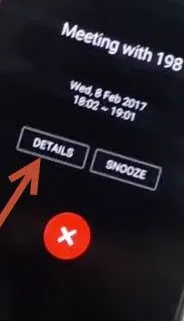
-Once EVEN displayed on your mobile screen, tap to “DETAILS”, and then tab on “URL” which you gave in “NOTES”, now you will be asked to open this url with which browser, so select “GOOGLE CHROME” if you have, if you don’t have, so select anyone which you have.
-So this was the 2nd method, if 1st method didn’t work for you, so you can access to “GOOGLE CHROME” using this 2nd method, so in short BOTH METHOD PURPOSE IS TO BRING YOU ON “GOOGLE CHROME” Or internet browser, where from you could download and install software into your mobile for google verification bypass. |
Finally accessed to Google Chrome Browser:
-In your google chrome browser, if asks you to enter your gmail id, tap to “No thanks”.
-We have to download frp tools in Samsung S6 device.
-Let’s go to techeligible site by searching in browser with “Techeligible“. After that, visit first searched result same as shown in below image.
-Afterwards, you have to hit over the “Menu” icon from top corner. Tap to “Download FRP Tools”.

-After that download below 3 apk apps from there
1-Quick Shortcut Maker
2-Google Account Manager 5.x.x
3-Google Account Manager 6.x.x
-Once you downloaded all above software’s in your mobile, you will see one notification, bottom of your mobile screen, downloaded done, and open download manager, so if this option appears on your mobile bottom screen so tab to “OPEN”, it will take you to all your “downloaded software list”, install them all, “Quick Shortcut maker and Google account manager”, i asked you to download 2 version, because any one of them will suit your mobile.
Note: If “OPEN” option did not appear on the bottom of your mobile screen, so follow this 2nd way to bring that option.
Open option is not appearing up? Follow another way to Bypass FRP:-Type “Samsung Apps Galaxy” on your chrome address bar”, and search, after that open 1st search result which will be of samsung website, from there, tap to “Samsung Galaxy Apps” as shown in below image -After tapping on “Samsung Galaxy apps”, you will be taken to “Terms and conditions”, from there tap to “Agree”, then from “Galaxy apps” tap to “Search”. -Now on search bar, type “ES-FILE EXPLORER”, and then tap to es file explorer once it appears in search, then “Download that ES FILE EXPLORER” into your mobile, you will be asked your samsung account, so you must need your samsung account, if you don’t have so first “create your samsung account from samsung website” then apply this process to download “ES FILE EXPLORER” app Bypass Google Account Galaxy S7 Edge Android 7 & S6. -Once Installation finish, open ES-FILE EXPLORER, and there you will see many folders, so choose “DOWNLOAD” folder of them, and then there you can see all your downloaded software, so install “Quick shortcut maker”, and then on “LOCK SCREEN AND SECURITY” tab, also allow “Unknown sources”, and then install quick shortcut maker, after that, on installation finish, you will see “OPEN” there, so tab to “OPEN” shortcut maker. |
-Now install “Google Account manager” as well, if you don’t know about your google account version, so try with both 5.x.x and also 6.x.x, any one of them will work for you.
Note: If you get installation block, just tap to “Setting” from there make turn on “Unknown Sources”, now Tap to “Install > Done”, now again go to “Quick short maker”.
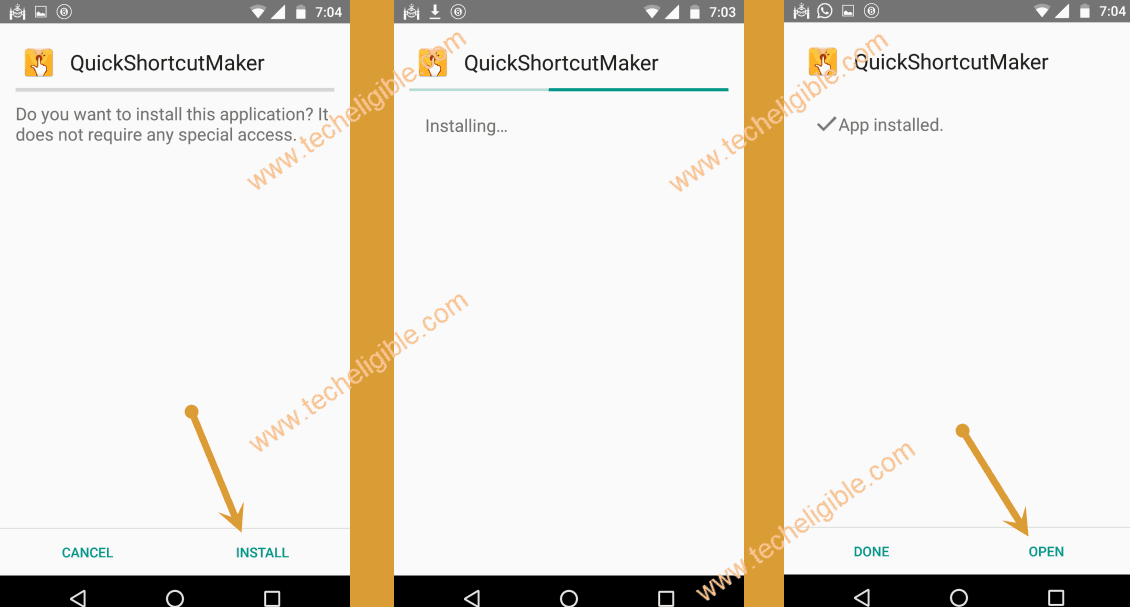
-Tap on “Quick Shortcut maker > Install > Open.
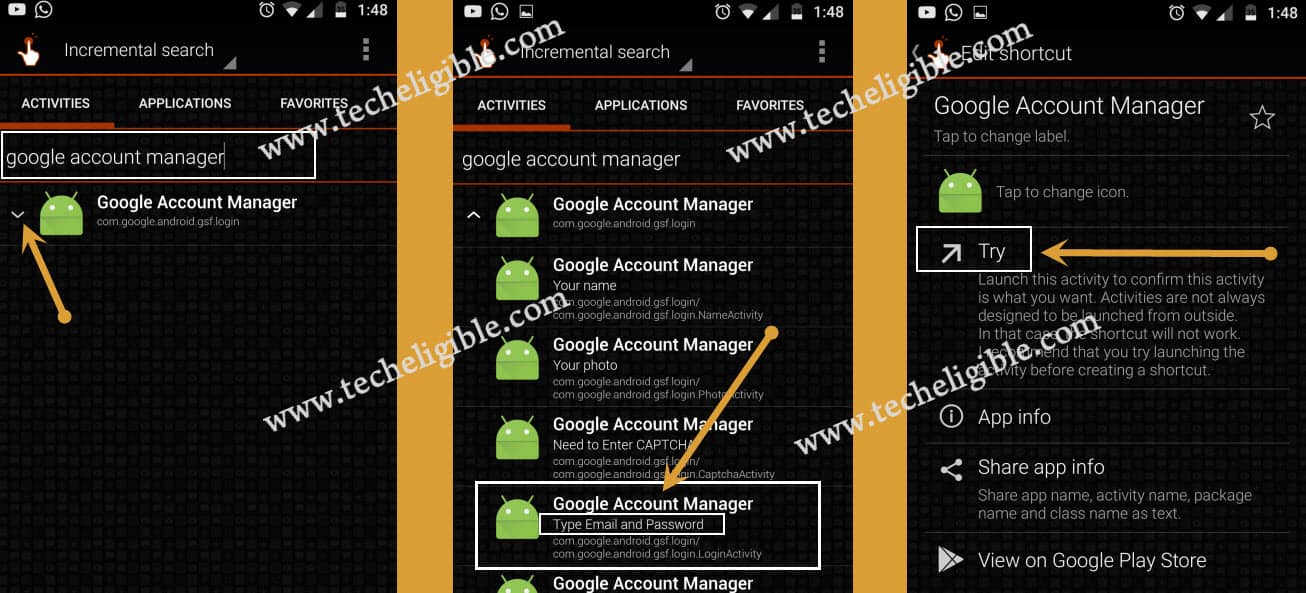
-Then type “Google Account Manager”, now tap on that, after that you will see there “List of google account manager”, so find out of them the one with “Type Email and password”.
-Search there “Google Account Manager”. Once result is appeared up, just tap to “Down Arrow” to collapse this app further and will show you huge similar list of (Google Account Managers) app.
-Choose the one with “Type email and password”. After that, tap over the “TRY” option from next screen.
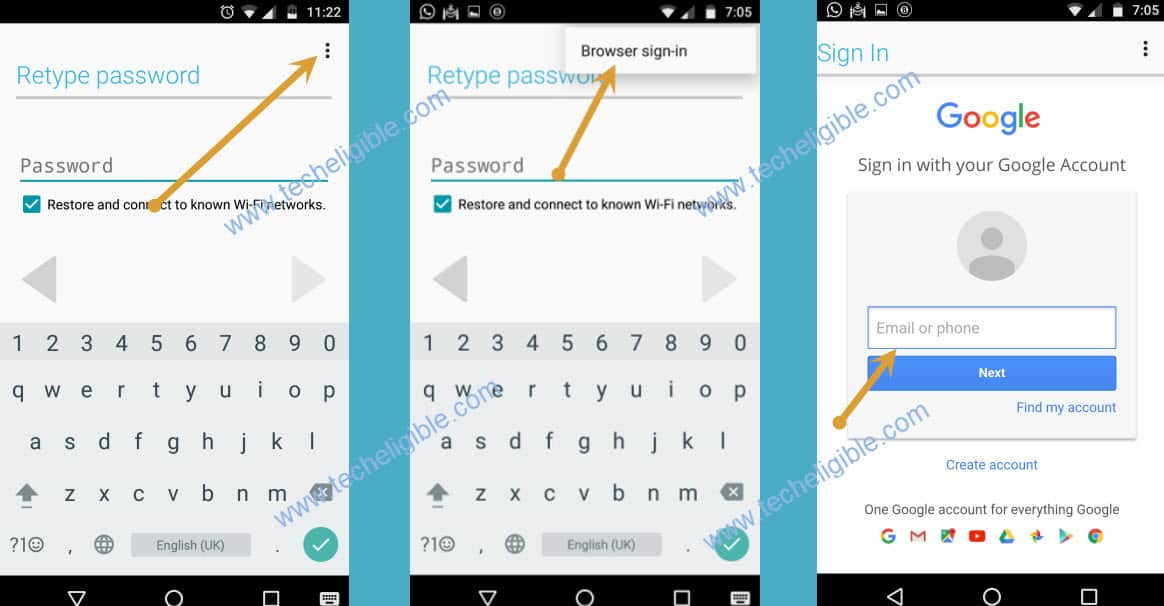
-After that tap on “3 Dots”, and then choose “Browser Sign in”, now enter your valid Gmail account to Bypass FRP Galaxy S6, S6 edge+, S6 edge.
-Restart your Device and your device will function normally, you can access all options to your Samsung Galaxy S6.
Remove FRP Account Galaxy S6 edge plus & S6 edge (Android 7):
Required Tools:
1- PC
2- USB Cable
3- Easy SASMSUNG frp Tools 2020 [DOWNLOAD].
-Turn on phone & connect WiFi.
-Put your phone on very 1st (Welcome) homepage screen.
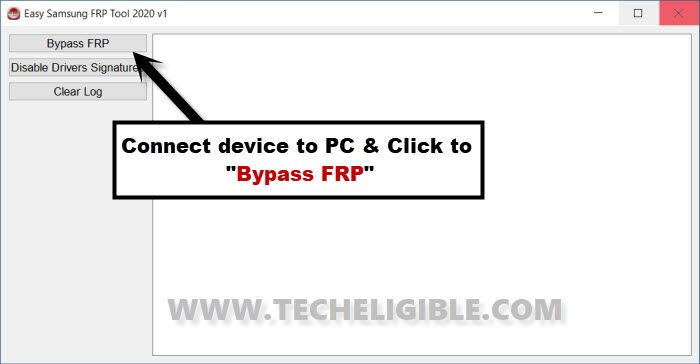
-Download and Open “Easy Samsung frp tools” in your PC.
-Connect Galaxy S6 edge to your PC.
-Click on “Bypass frp” button.
-From Popup screen in your phone, tap on “VIEW”.
-We have to download frp bypass applications on our android device.
-Search in chrome browser “Techeligible“. Visit same searched result as mentioned in below screen shot.
-Tap to “Menu” option from upright corner of the site.
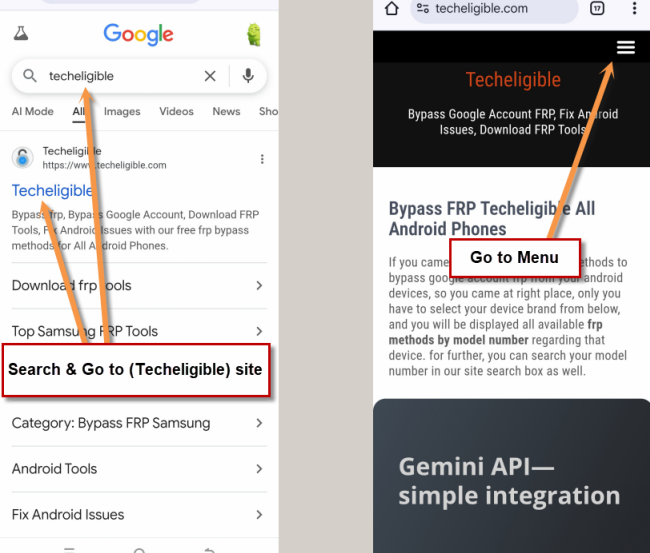
-Simply, go to “Other Free Tools” option from there. After that, tap to “Samsung FRP Tools”.
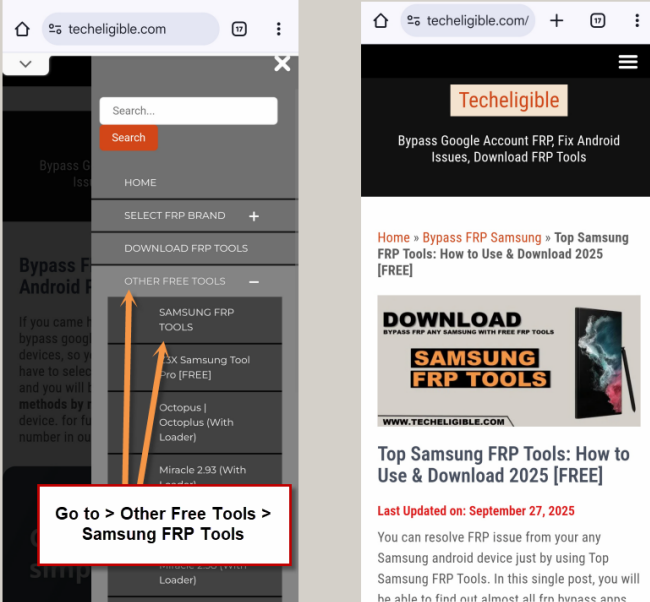
-Download “Google Play Services” app.
-Once downloading process done, you will surely receive a popup box bottom of screen, just tap on “OPEN”.
-Hit on “Settings” from popup window, and enable “Unknown Sources” option from there.
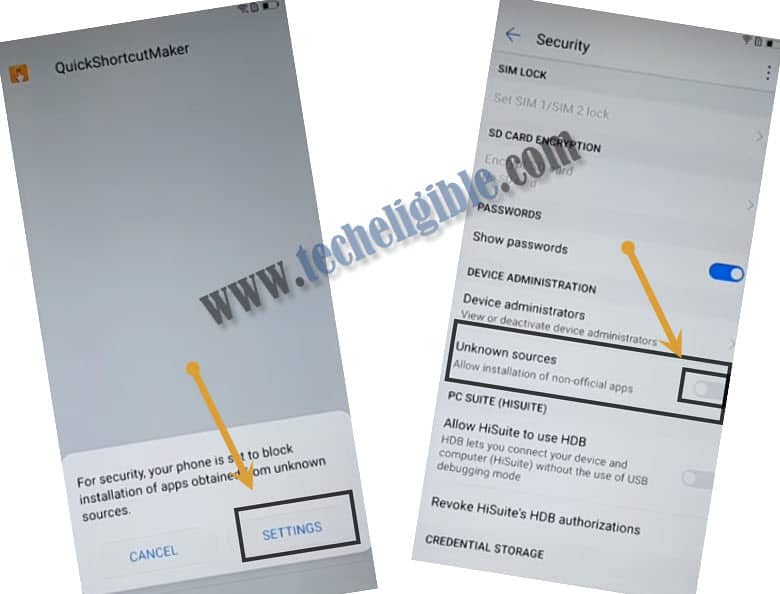
-Go back, and tap to > Install > Done.
-From same frp tools page, tap on “OPEN Samsung Settings“, this will redirect you to your device (Settings).
Disable Apps:
-Tap to > Lock Screen & Security > Other Security Settings > Device Administrator > Find My DEVICE > Deactivate.
-Go back to “Settings” by hitting at back arrow.
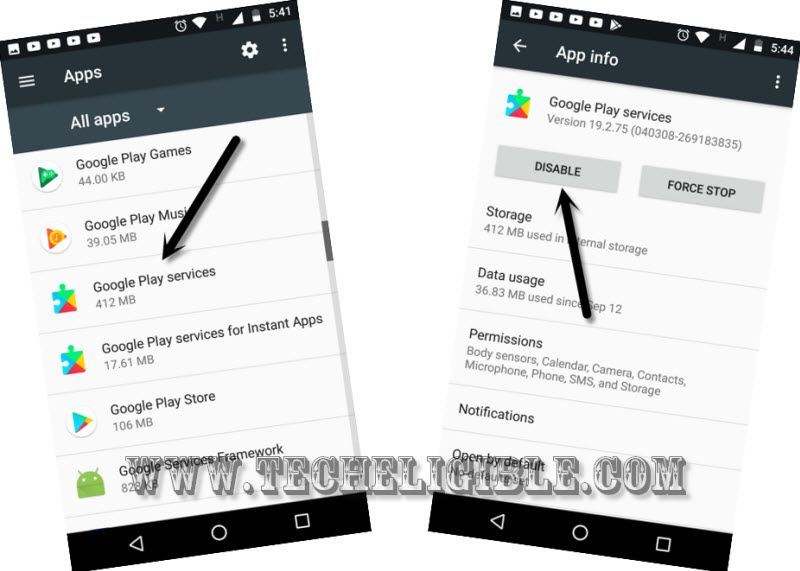
-Go to > Apps > Google Play Services > Disable.
Add New Account:
-Get back to “Settings” again.
-Clouds & Account > Accounts > Add Account > Google.
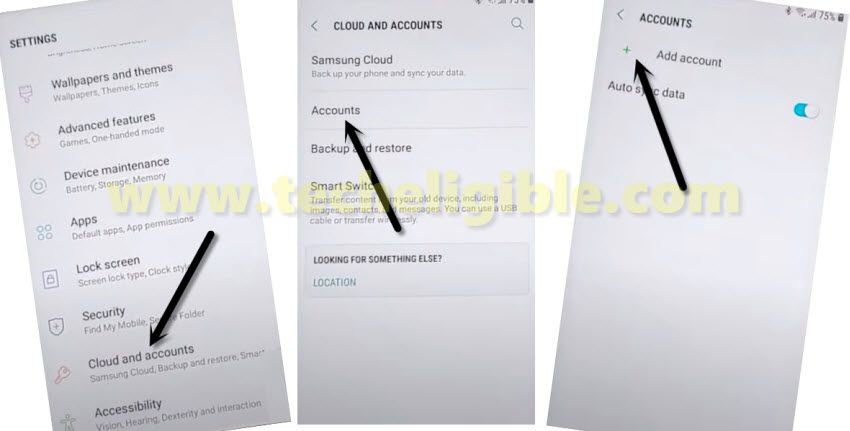
-Wait for just a sec…. screen to be finished.
-Add your new Account there to bypass frp Samsung S6 edge Plus, S6 edge.
-Restart your Galaxy S6 edge device in order finish setup wizard.
Bypass Google FRP Galaxy S6 Edge Plus By Swype Keyboard (Android 6):
With the help of wi-fi disconnection at right time, we will be able to bypass google verification step, and then we can easily open chrome browser, and just download some frp tools from there, after that remove frp protection from Samsung Galaxy S6 Edge+ device.
Note: This method has successfully been applied on Samsung Galaxy S6 Edge+ (SM-G928A), Android 6.0.1. You can also try this method with Galaxy Note 5 (Android 6.0).
Remember: Make sure “Wi-Fi” device is near by you, so that you could turn off wifi device quickly when we need. You can also make your any other smartphone as “Hotspot”, and just keep your that hotspot device near you.
-Connect “Wi-Fi” in Galaxy S6 Edge plus device.
-Once “Wi-Fi” connected successfully, tap on “Next” from Wi-Fi screen.
-Now when you reach at “Software Update” screen, just quickly turn off Wi-Fi device to disconnect wifi network from s6 edge plus device. (See Below Image).
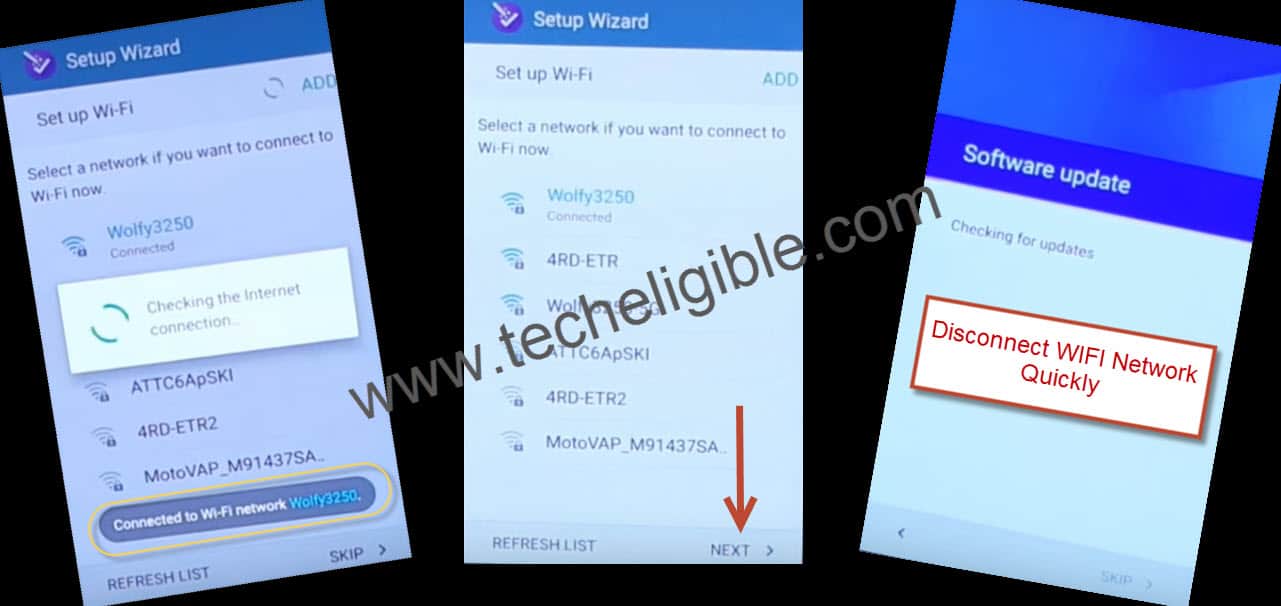
-Now you will get screen of “Couldn’t Sign In”, just tap on “Next”.
-Once you reached at “Date & Time” screen, simply “Turn On” wi-fi device once a again.
-Now Wi-Fi has connected successfully to your frp locked device.
-Just tap on > Next > Next >, After that tap on “Setup Pin, Pattern, Password”, and then tap on “Next”.
-Now tap on “Password”, and give there any password, after that tap on “Next”.
-Tap on “Setup”, after that place your finger on home key multiple times to verify.
-From “Google Services”, go down and then tap on “Next”.
-By pressing “Power Key”, restart device to Bypass FRP Galaxy S6 and S6 Edge Plus.
Bypass FRP via Swype Keyboard:
-After restarting finish, swipe up on your screen.
-Now select “Keyboard” icon.
-Select “Swype”, after that type your password there.
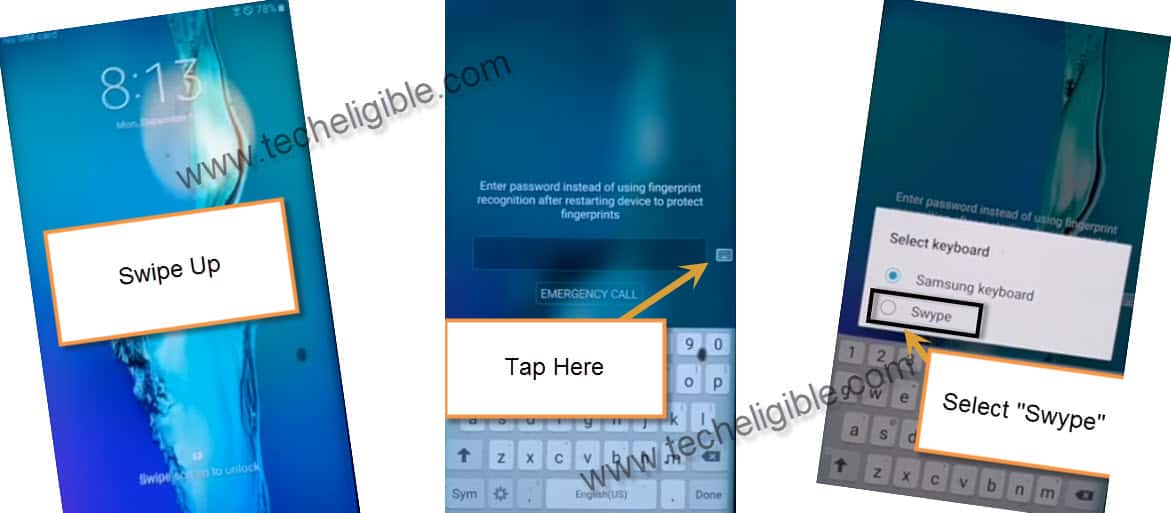
Note: Type same password, which you have given already in above steps.
-Tap on “Help”, and then “Version”, after that tap on “Swype”.
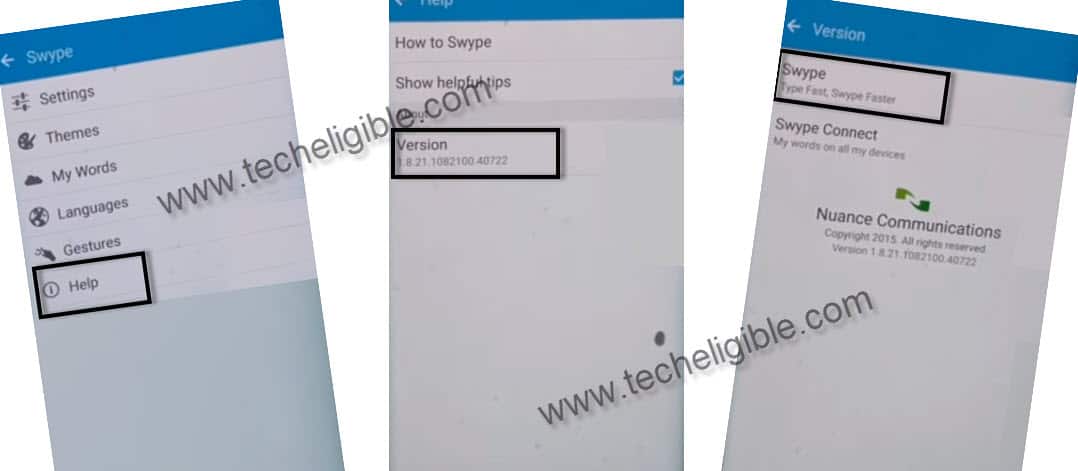
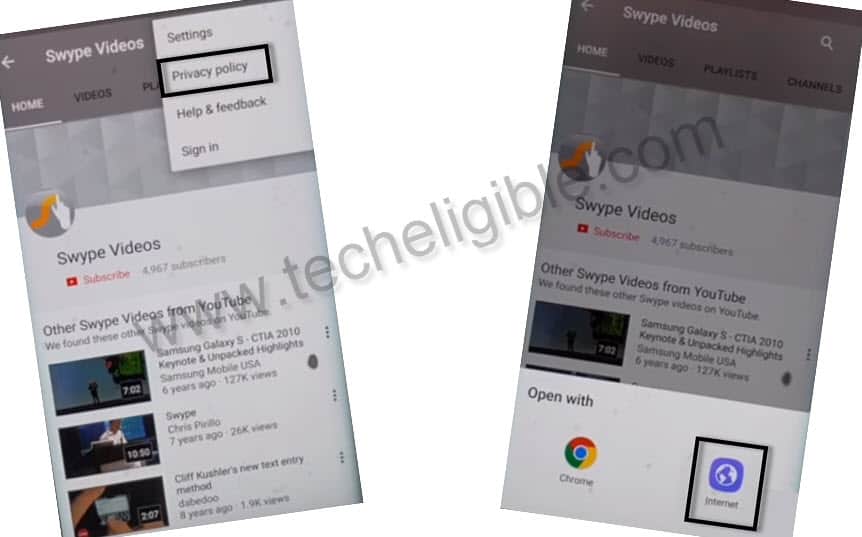
-Now tap on “Watch Swype on Youtube”.
-Youtube will be launched, now tap on top right corner “3 dots”, after that “Privacy Policy”.
-Tap on “Internet” to open with.
Download FRP Unlock Apps:
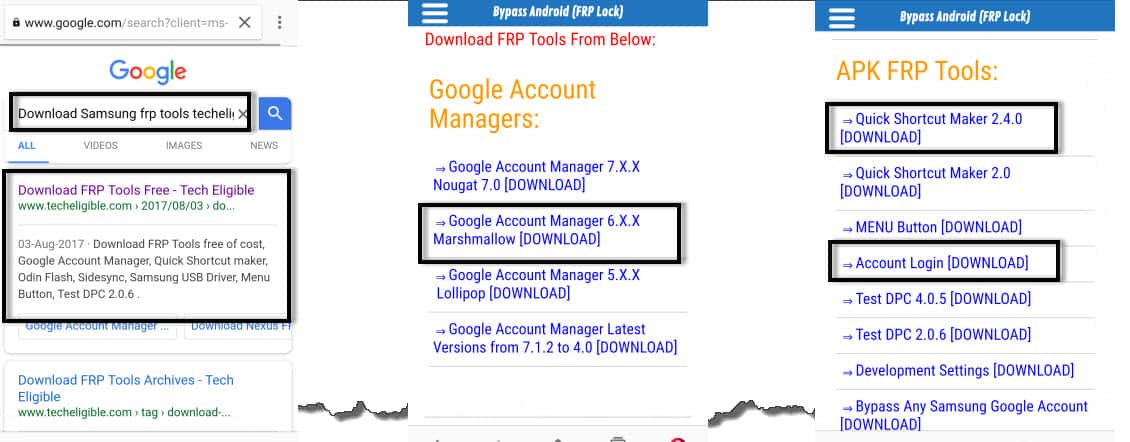
-Type in search bar “Download Samsung FRP Tools Techeligible“.
-Open most relevant search result as shown in below image.
-Now download from there below apps:
⇒ Google Account Manager 6.0.
⇒ Quick Shortcut Maker 2.4.0
⇒ Account Login.
-Once downloading finished of all above frp tools, tap on “Bookmarks”, from bottom of your browser.
-Now tap on “History”, and then open “Download History”.
Install Downloaded FRP Apps:
-Tap on “Google Account Manager”, if you get pop up of open with, open with “Package Installer“, and then tap on “OK”, after that you will get “Installation Blocked” popup, just tap on “Settings”, and then enable “Unknown Sources” from there.
-Now tap on “Google Account Manager”, after that “Install”, and then tap on “DONE”.
-Now tap on “Account Login”, after that tap on “Install”, and then tap on “OPEN”.
Now you have been redirected to the “Retype Password” screen.
Sign-in with another Gmail Account:
-Tap on “3 Dots” from top right corner.
-Then select “Browser Sign-in”.
-Now sign in there with your any valid gmail account.
-By pressing “Back Key” go back very first “Welcome Screen”.
-Now complete initial setup to get back your Samsung Galaxy S7 Edge Plus.
Note: Your device may take several minutes to be bypassed from “Just a Sec..” screen, so don’t doubt that it has hanged, just wait and see.