FRP Protection is very helpful and secure your device from data leaking, but if you forget your own google account, so you will have to go for a method to Bypass FRP Huawei Y6 (2018) and Huawei Y6 (2017) to sign in with new google account, and remove old one. The question is, how you can do these all with a frp locked protected device?. You just follow up below guideline to get back the phone with step by step instructions.
Legal Disclaimer: This guideline is just for educational purpose to train a device owner only, how to regain access to their own phone after loosing complete access because of factory reset protection.
Method 1: Bypass FRP Huawei Y6 (2018) [Android 8]
-Activate your mobile device and link it to a WiFi network. Next, navigate back to the initial (Welcome) page. From that point, select the “Emergency Call” option.
-Subsequently, input the number 112. Once this number is entered, begin quickly pressing the (4) digit multiple times until the (Calendar) page appears.
Note: If unsuccessful, there is no need for concern, simply redial 112 and then promptly start tapping on the (4) digit several times from the dialing interface.

Create Event for Accessing to Gmail App
-Select the “New Event” option located at the bottom, afterwards type any name in the (Location) field tab. Next, save this event by pressing the “Check Mark” icon found in the upper corner same as shown in the below screen shot.
-Go to (No Title) event name from next page.

-Next, click the “Share” icon. A popup screen will display various sharing applications, just select the “Gmail” app.

-From the gmail app info screen, go over these options respectively > Notifications > More Settings.

-Click on the “3 dots” icon located in the top corner, and then choose the “Manage Accounts” selection.
-Proceed to the “Accounts” option displayed on the new pop-up screen. Following this action, you will be directed to the main settings page of your device.

Go to Main Homepage By Reset Settings
-We have to perform a total reset on this device by navigating to > System > Reset. Then, tap the “Reset All Settings” option three times.

-Return to the main settings page. Once there, navigate to > Display > Home Screen Style. After that, from the next page, choose only “Drawer” option.
-You will be taken on the main homepage of your phone.

-From that screen, firstly, open up the main menu by hitting on “Menu” icon.
-Tap over the “Settings” gear icon to access the primary settings page.
-Go to “About Phone”.

Enable Developer Mode
-Touch the (Build Number) seven times to activate the developer mode.
-After it is activated, simply click once on the “Back Arrow” icon located at the bottom to return to the (System) screen. From that point, navigate to > Developer option > Enable (OEM Unlocking).

This is the final stage, and we will now execute a factory reset of the device through the settings. Let us press the “Back Arrow” symbol located at the bottom to return to the (System) screen once more.
Reset the Phone Completely
-Subsequently, go to > Reset > Factory Data Reset.
-Press the (Reset Phone) button two times. This action will reboot the device to carry out a factory reset, allowing for the removal of the old, forgotten Gmail account and bypassing the FRP.
-After the reboot is finished, you can conveniently reconfigure the phone without encountering any verification display.

Method 2: Bypass FRP Huawei Y6 (2017) Android 6
For successfully bypassing the frp, we need to prepare a SIM card with 4 digits PIN lock code. This step is very easy and can be done easily with any other android phone. You can also youtube it. After that, simply, insert that sim card back to your phone and continue steps.
-After connecting WiFi, just remove back cover and insert PIN locked SIM card.
-As soon as you have a PIN lock screen, just remove SIM card.
-Wait few seconds, after that you will have a lock screen same as shown in below image.
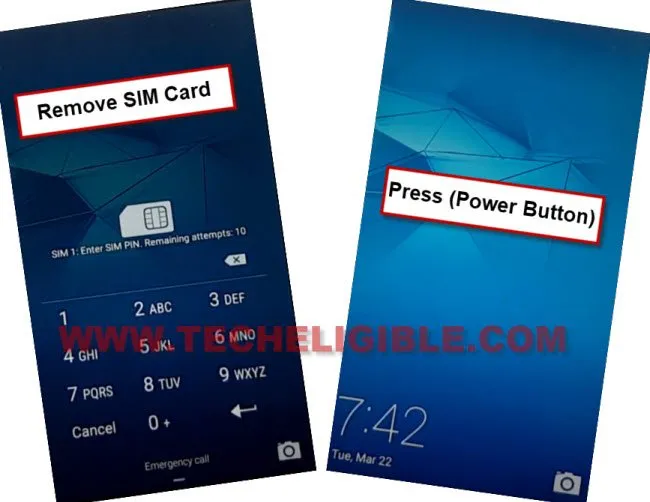
-Press (Power button) to lock the screen, and then press again (Power button) to wakeup the screen.
-Swipe up from bottom & tap to “Share” icon.
-Now hit on “Add to Maps” icon, and then tap to “OK” from popup.
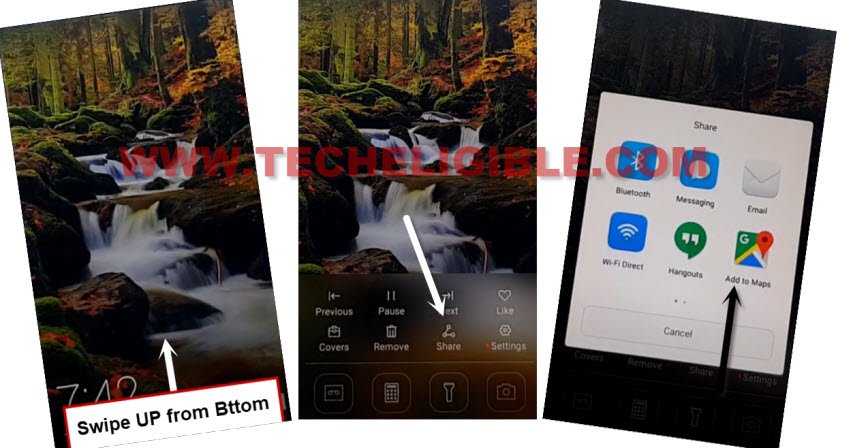
-Hit on > Accept & Continue > Allow > Cancel.
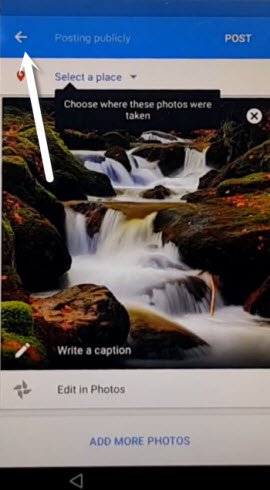
-If you have same screen as shown in below image, just tap on “Back Arrow” from top left corner.
Go to Chrome Welcome Page
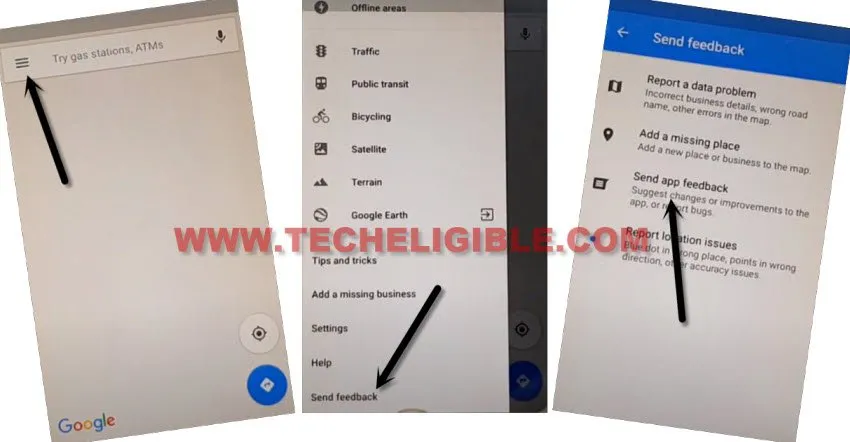
-Hit “Menu icon” from over up-left corner, and then go to > Send Feedback > Send app feedback.
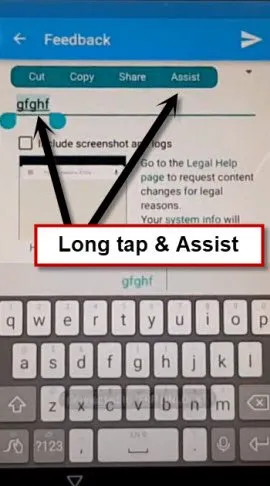
-Type anything any texting area, and long tap on your text, and then hit on “Assist”.
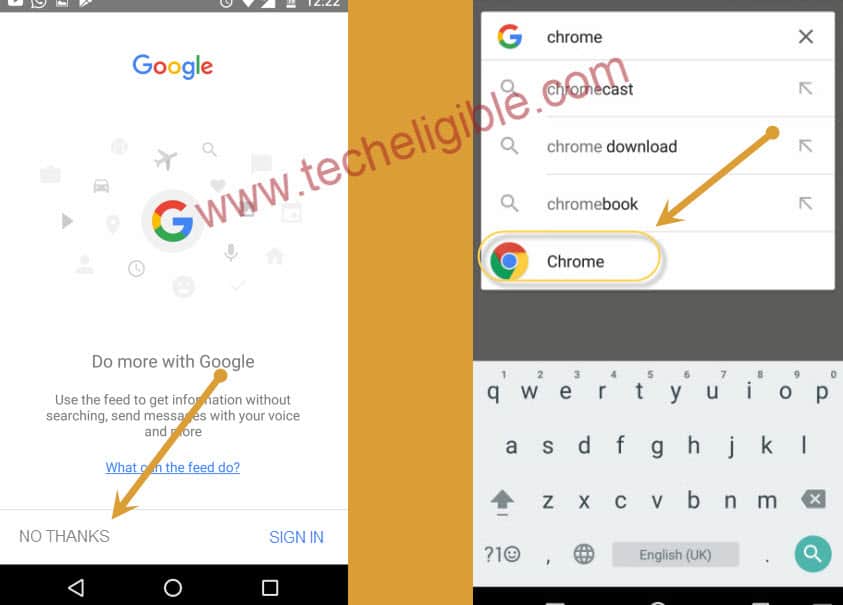
-Tap to “No Thanks” from google window.
-Open chrome browser from google.
Get the FRP Bypass Apps
-Access to official techeligible site by searching in chrome browser search bar (See below image).
-To reach to frp tools page, just go to > Menu > Download FRP Tools.

-Scroll down and download from there 2 applications “Quick Shortcut Maker 2.4.0” & “Google Account Manager 6“.
-Once downloading process done, just go back to google app same as shown in below image.
-Search and open “Files”, and then go to “Applications”.
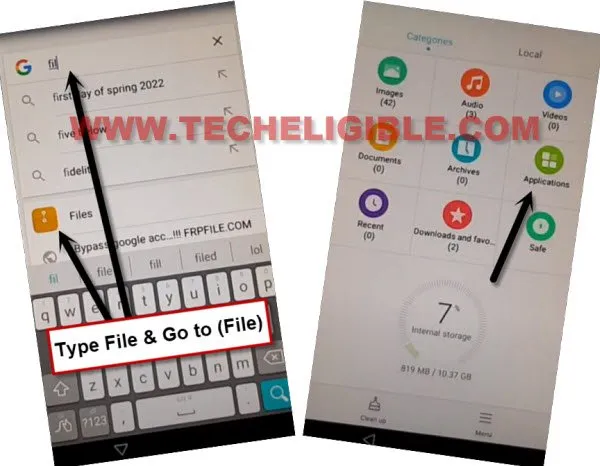
-There you will be able to see your both downloaded apps, and through these apps.
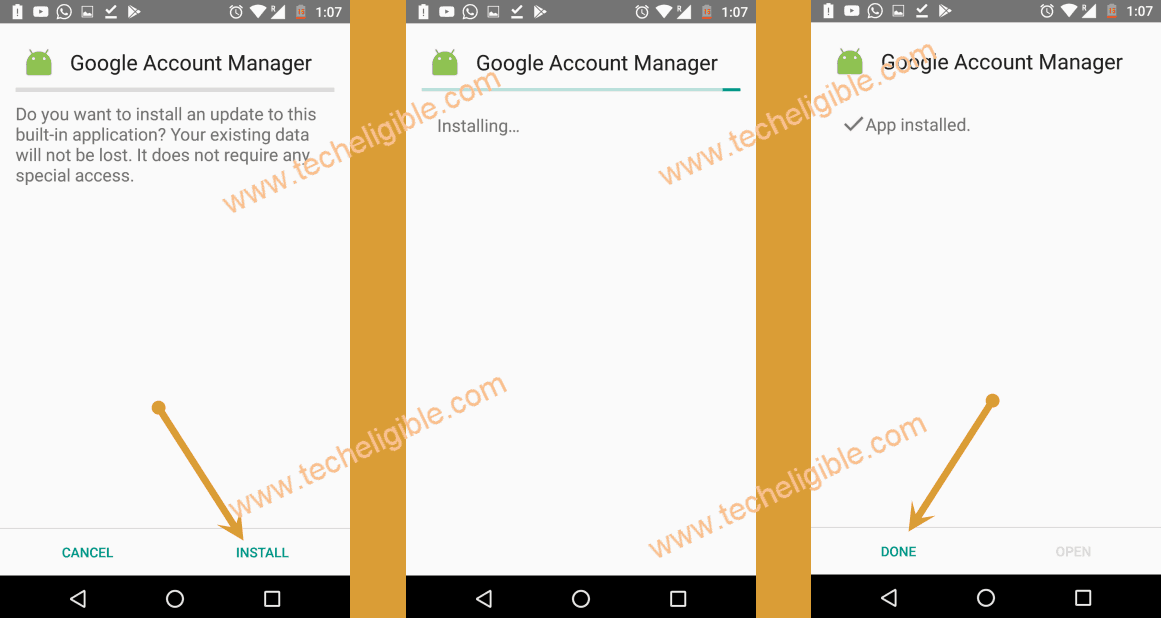
-Firstly, hit on “Google Account Manager” app to install, and from popup window, tap to “Settings”, and turn on “Unknown Sources” option.
-Go back, and tap again on > Google Account Manager > Install > Accept > Open.
-Now tap on > Quick Shortcut Maker > Install > Open.
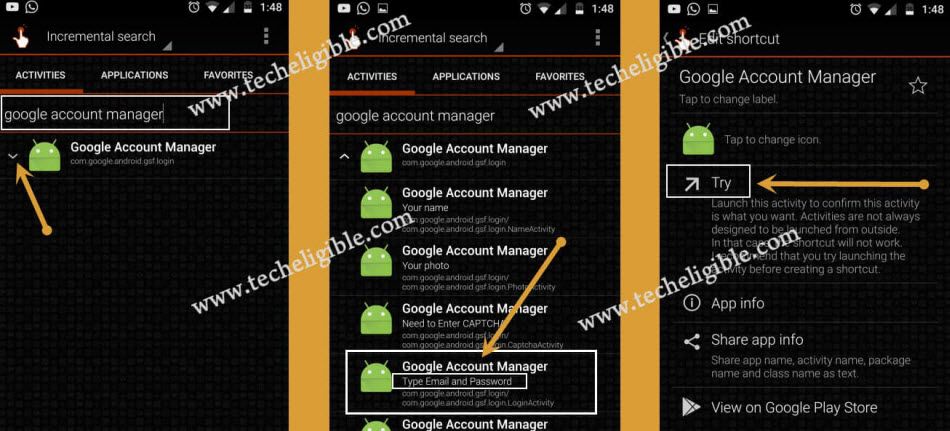
-Type “google ac”, and then hit on “Google Account Manager” to expand it.
-Tap one of “Google Account Manager” which has (Type Email and Password) see below image for better understand.
-After that, tap to “Try”.
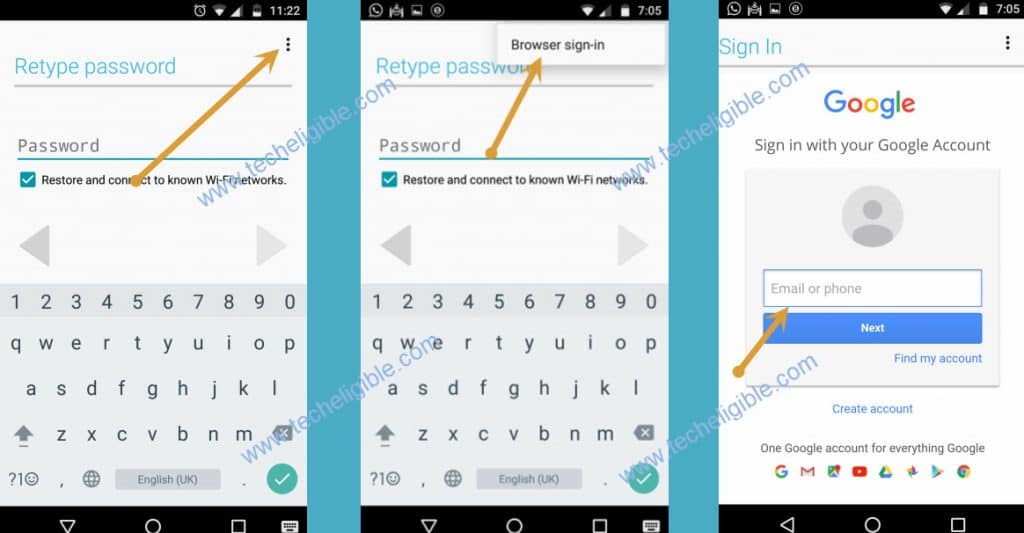
-Let’s sign in with our new google account.
-Just tap to > 3 dots > Browser Sign-in > Ok. Sign in with your any google account to setup new FRP lock protection.
-Restart device & Complete setup wizard.
The Bottom Line
1st Method: We dialed the 112 and started tapping rapidly over the (4) number digit, this got us to the calendar page. From there, created new event and accessed on the Gmail settings page. From there, we chose the (Manage Account) option to access directly to the primary settings page and reset the phone completely after enabling developer mode.
2nd Method: Prepared a PIN locked setup SIM card and then inserted that SIM on the FRP locked device. After that, we got the share option and chose the (Google Map) app. Accessed over the google chrome browser successfully through the google map. Once its done, we just downloaded frp unlock apps on our phone, finally, we installed apps and logged in with another Gmail account.
FAQs (Frequently Asked Questions)
Is it safe to follow up frp bypass method on my Huawei Y6 phone?
Yeah, you can apply both methods safely according to your phone android version.
Why do i need to dial the emergency call number?
Because, we have to open the (Calendar) application, with this trick, you can reach to that app easily. We don't need to make a call on emergency.
I am afraid of making call to 112
You can try this by removing sim card.
Setup PIN locked on SIM Card is safe?
Yeah, its totally safe, you can use any other phone to setup pin lock code. After that, use that sim card on your phone.
Read More: