If you are stuck on a google sign in page, and unable to recover Gmail account and bypass google verification screen. You should follow up this method to Bypass FRP Tecno Camon 30 Android 14. We will access to this device main settings page, after that, with the help of another android device, we will transfer 2 frp apk apps to this phone. Afterwards, you can easily setup new google account without any hassle.
Note: We highly recommend you to apply this method only on your own device, if you are not owner of this Tecno Spark 9 device, or you found this from some where, you must return this device to its real owner.
Let’s Start to Bypass FRP Tecno Camon 30:
-Switch on tecno phone. Connect WiFI. From the same WiFi page, go to > Share > Neary > Turn on.
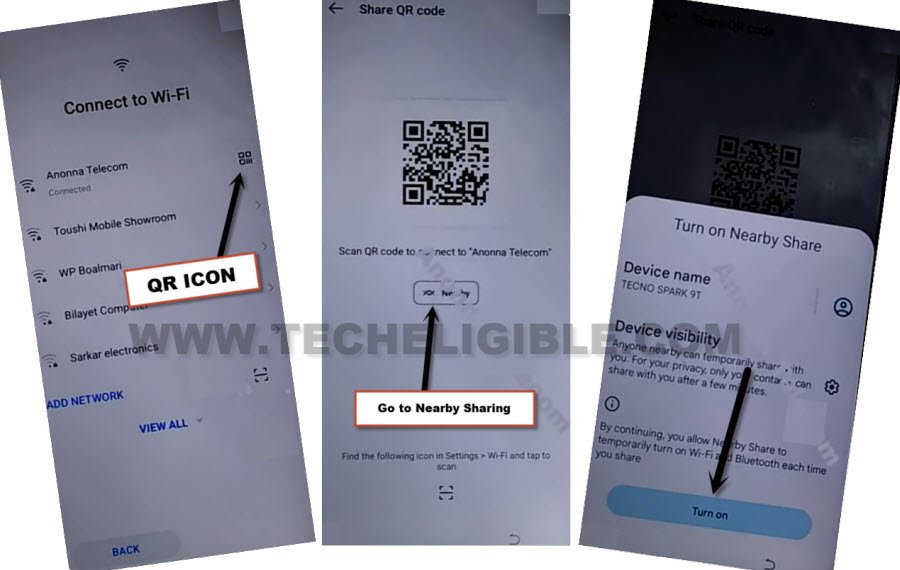
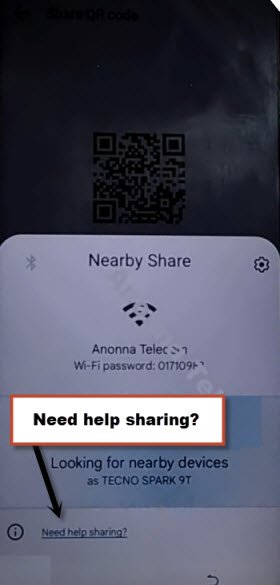
-Hit on a link “Need Help Sharing?”.
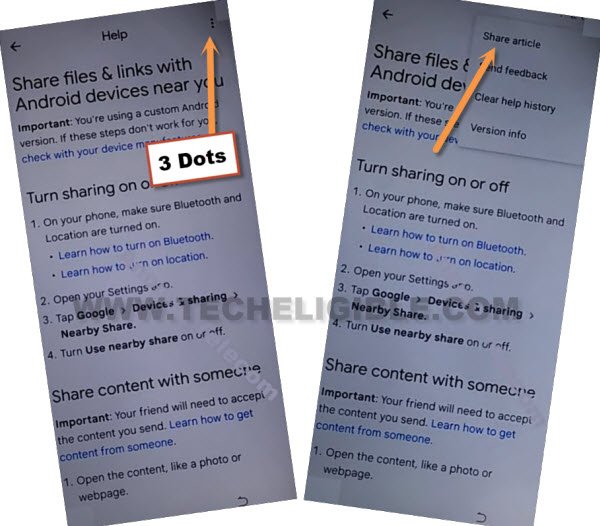
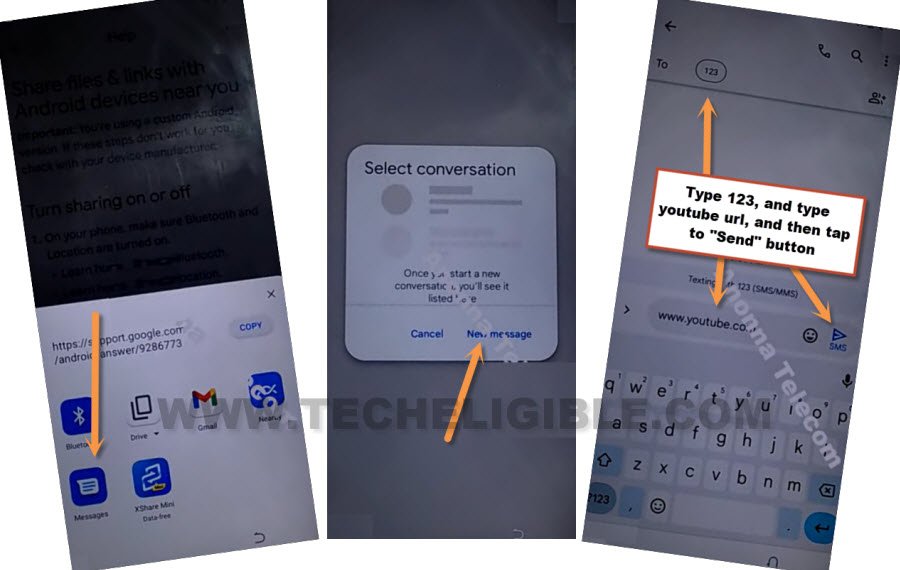
-Afterwards, from help page, just go over > 3 dots > Share Article.
-From popup window, choose a “Message” app. After that, go to “New Message”.
-Send a text message with the url of “www.youtube.com” to any random number (See below image).
-Go to “Tap to load preview”. After that, go to “Youtube” image.
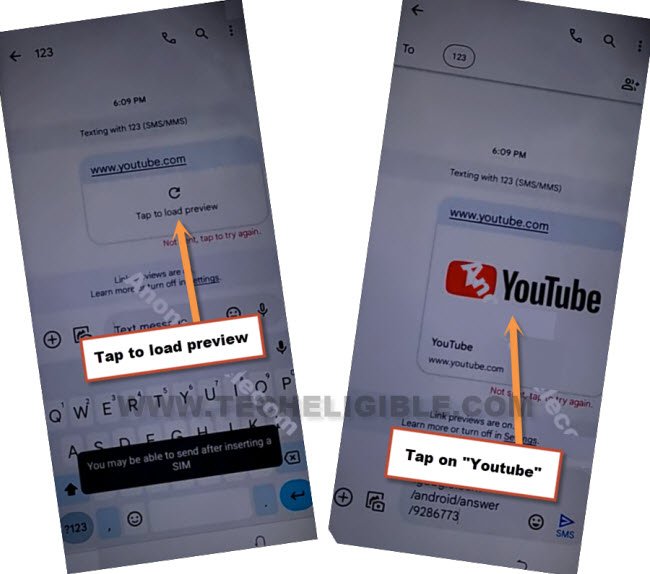
| Note: In case, if you get back to QR Code scanning page, don’t worry repeat all above steps again, and hit again on youtube link, this time the youtube website will be launched successfully. |
-Tap on “Profile icon” from top corner, and go to > Settings > About > Youtube terms of service.
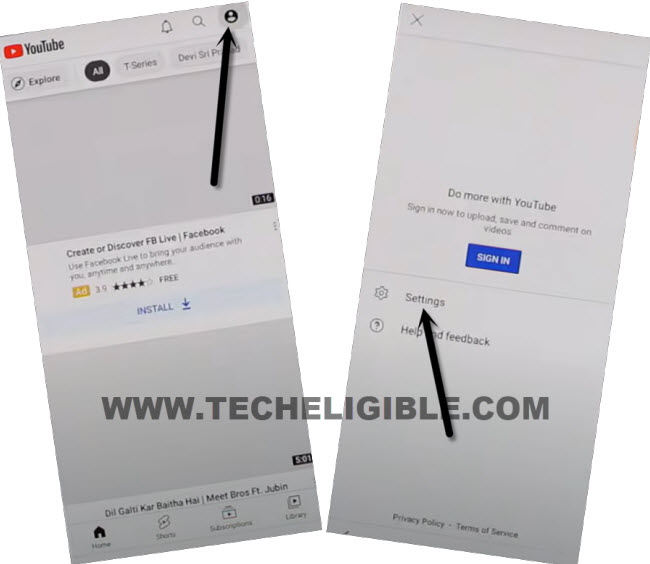
-Choose an option > Use without an account > No Thanks.
Access to Tecno Camon 30 Settings:
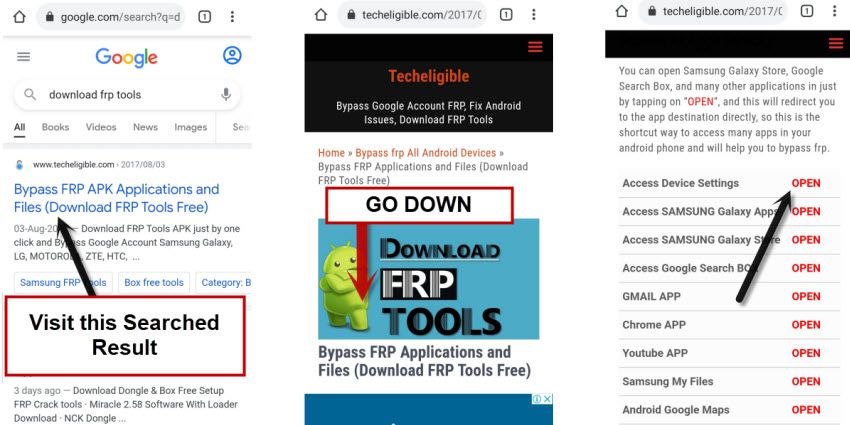
-Search in browser “Download frp tools Techeligible“, and visit our website searched result.
-Tap on “Open Palm Store” to get into your device settings directly.
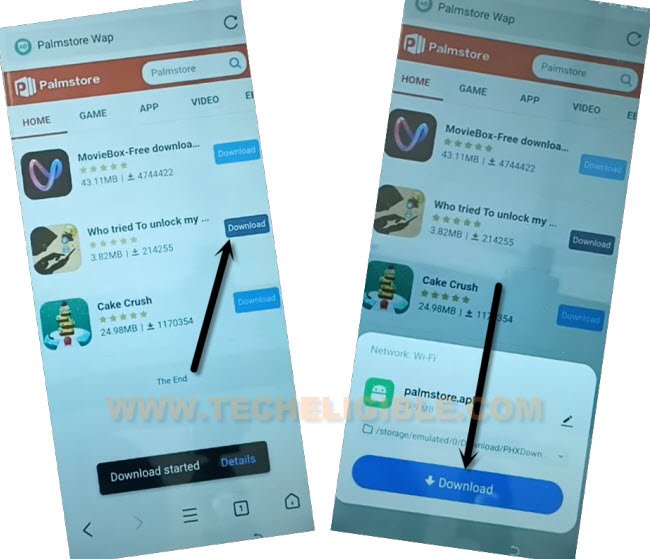
-After reaching inside palmstore app, just tap to “Download” button from (Cake crush) app.
-Hit on “Back Arrow” from bottom.
-Tap to “Skip” from top right corner.

-After that, hit on “Tools” icon from bottom corner, if you reach back over (Smarten your apps choice) screen, just go to “Skip” from top right corner.
-Go to “Search” icon from top left corner.

-Tap few times over “Allow” option from popup window.
-Type “Palm” in top search bar, after that, tap to “Update” option to update palm store app.

-After updating palmstore app successfully, you will get back to main (Palmstore) page.
-Tap again over “Download” button from (Cake crush) app. After that, hit on “Back Arrow” from bottom.

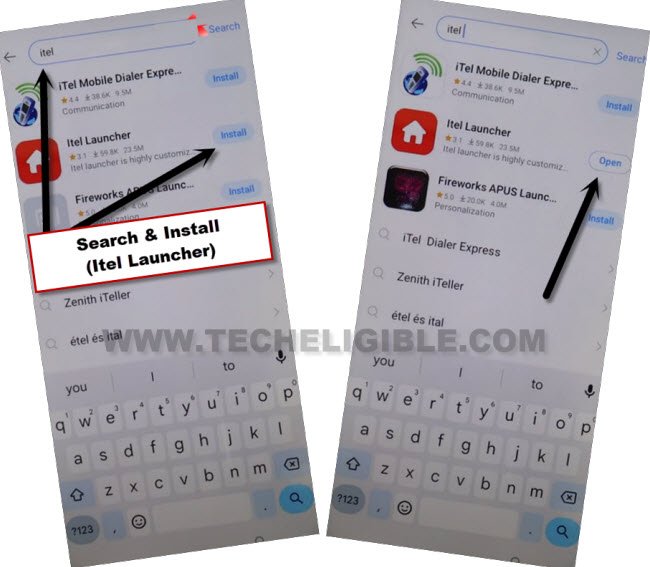
-Search and install “Itel Launcher”. Once the installing process is done, just go to “Open” to launch itel launcher application.
-From 1st startup page of itel Launcher, just go to > Start > Next > Accept.
-Congrats on successfully reaching toy our device main home-screen.
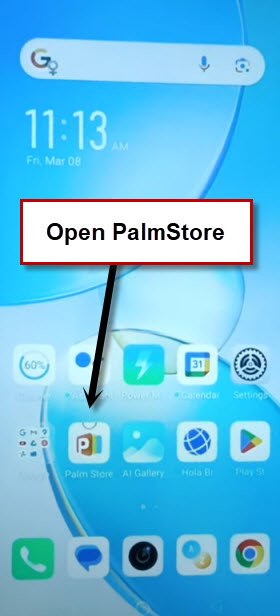
-Open your device menu, and find and tap on “Palm Store” app icon.
-Tap to “Back Arrow” from top side. After that, tap again on “Back Arrow” from bottom right corner.
-Go to “Tools” icon. After that, tap to “Free Space” option.

-Go to “Receive” option to receive some frp bypass apk apps.
-Open & Allow all the list same as shown in below screen shot.
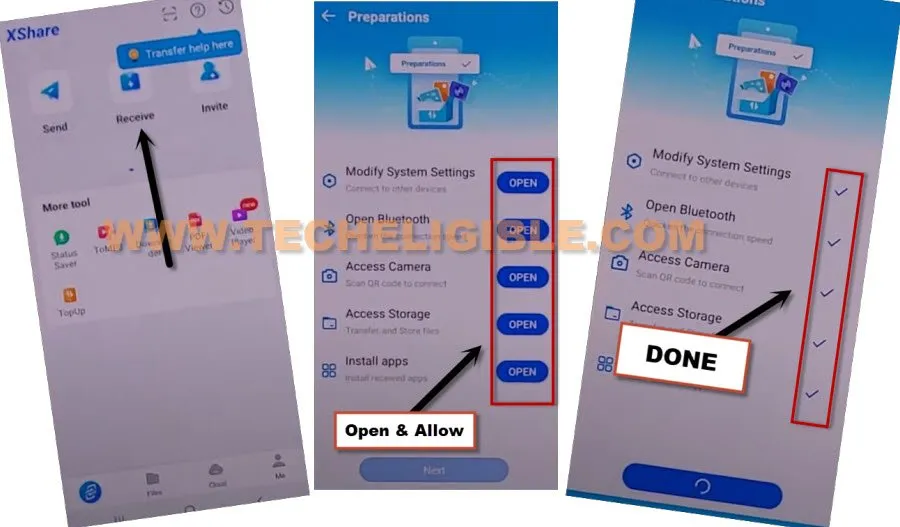
-Go to > Next > Got it.
-You will have a (QR Code Scanner) over there.
-You are required here another android device, using that android that phone, we will transfer 2 apks app to our Tecno Camon 30 device. After that, we can easily setup new google account.
Use another Android Device to Download & Send Apk Apps:
-You can use your any sibling or friend android device, would be better, if you use (Infinix, itel, or Tecno) brand device.
-Let’s download & install (Palmstore) app. In other android device, just open “Chrome browser”.
-Search with “Palm Store”. From the searched result, just go to “Palm Store Wap”. (See below image).
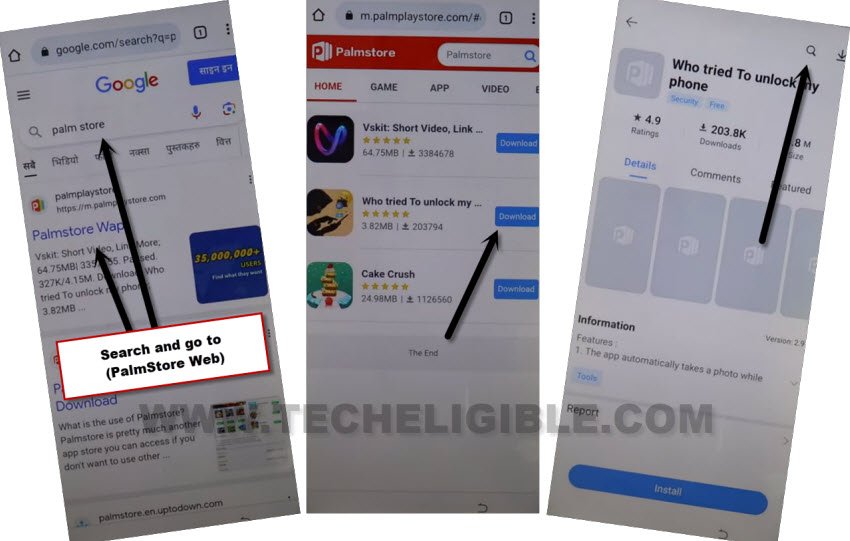
-Hit on a “Download” option. after that, you will be displayed a popup window, just hit again on “Download” option from popup window to download (Palmstore) app.
-After that, install the downloaded (Palmstore) app in your device to Bypass FRP Tecno Camon 30.
Download FRP Tools:
-After installing palm store app, just open “Chrome browser” again. Search there with “Download frp tools Techeligible“.
-Go to 1st searched result same as shown in below image.
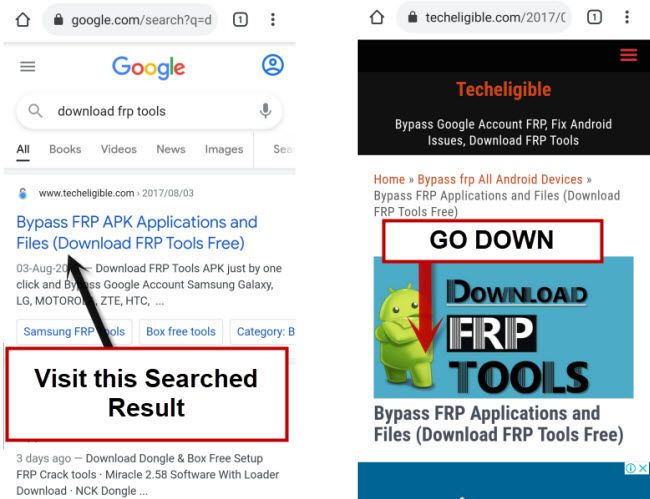
-Download 2 below apps from there.
1st: Account Login.
2nd: Google Account Manager 8.
-After that, go to top of the page, and tap over > 3 dots > Downloads.
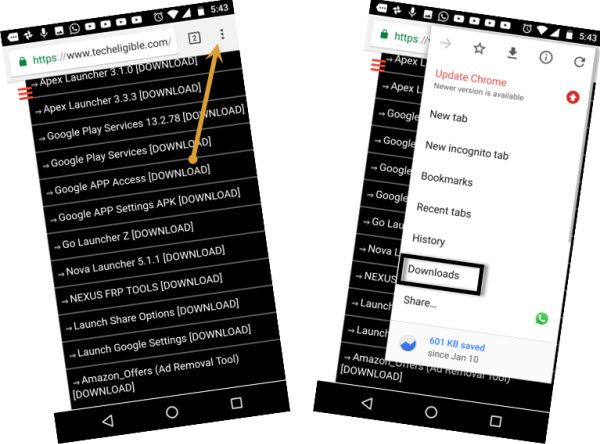
-You will be able to see both downloaded apps in your download folder.
-Let’s go back your device main menu screen. From there, open “Palm Store” application which you recently installed.
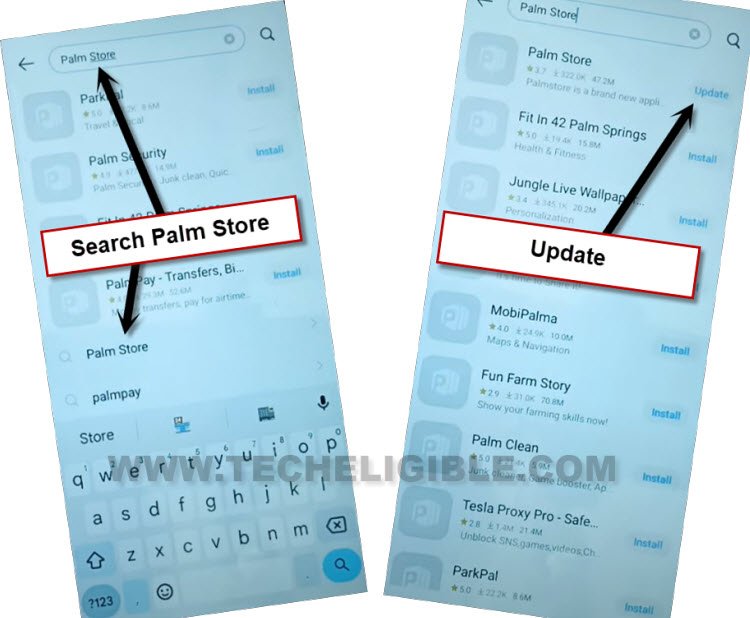
-Lets update this app now, just search type in to search area “Palm”, from the searched result, go to “Palm Store” app.
-Tap to “Update” option to update this app successfully.
-Relaunch plamstore app from the device main homescreen.
-Go to > Tools > Free Share > Send.

-Go t “Apks” option from the top, choose both downloaded apps (Google Account Manager & Account Login) app.
-After that, tap to “Send” button from bottom.

-From next (Prepartion) page, you will be asked to (Open Bluetooth & Access Location). Just allow both options from there one by one.
-You will be displayed (QR Code) on screen.
-Let’s Scan QR code using (Tecno Camon 30) device to connect both devices each other.
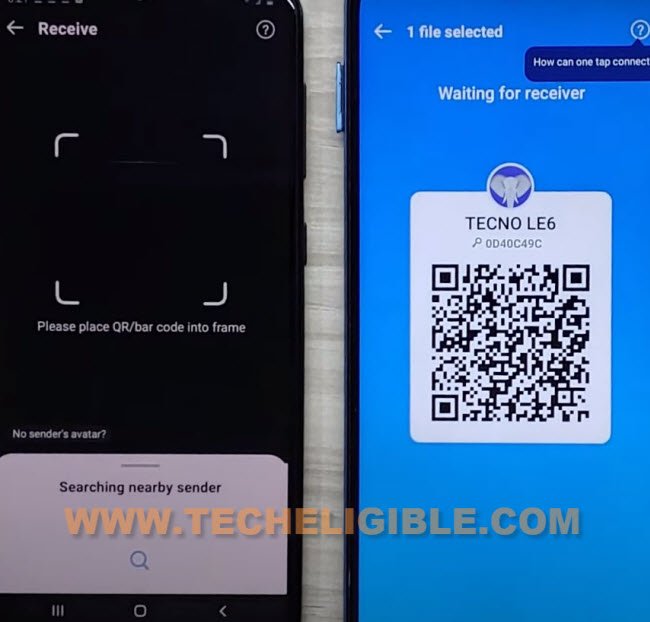
-Install both apps one by one in your Tecno Camon 30 device.
-After that, from Tecno camon 30 device, just tap to “Open” from (Account Login) application.

-Sign in new account there by going to > 3 dots > Browser Sign in to Bypass FRP Tecno Camon 30.
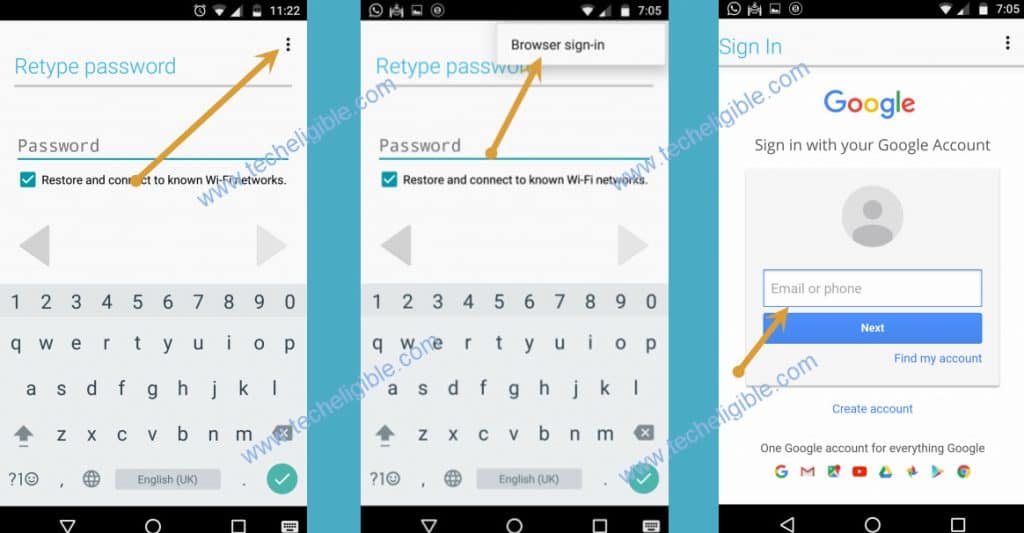
-After setup new account successfully, just go back to main (Palmstore) page by hitting over back arrow few times same as shown in below image.
-Tap to “Uninstall” option from there.
-Uninstall all 3 previously installed apps (Google Account Manager, Account Login, Itel Launcher.

-After that, just go all the way back to first (Select Language) screen. Complete initial setup wizard without facing google verification screen. Thanks for visiting us.