
If you don’t remember your device google account after hard reset. Then, you must be facing FRP protection on your device google verification sing page. You can’t bypass this page until you login back with previously setup google account. If you cant’ recover your google account, in this case, follow this way to Bypass FRP Infinix Smart 9, infinix Smart 9 HD. We will use here a WiFi connecting and disconnecting method. Follow steps from below.
Disclaimer: We highly recommend you to apply this method only on your own device. If you are not owner of this device, or you found this phone from somewhere, you must return this phone to its real owner. This method is for educational purpose only to educate the device owner, how to get back their own device after forgetting google account.
Let’s Start to Bypass FRP Infinix Smart 9 | Smart 9 HD:
-Connect WiFi to your inifnix device to start frp bypass process.
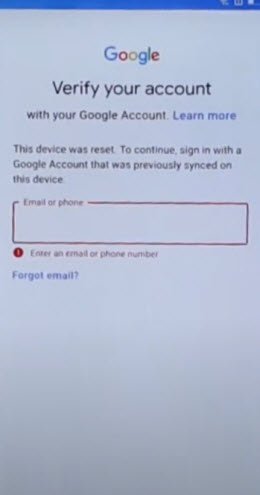
-Go to (Verify your account) screen, where you are being asked to sign in with google account. After that, go two steps back by hitting on back arrow icon two times.
-You will reach back to (User agreement and services) screen. From there, hit on a link “Privacy Policy of personalized recommendations”. This link will redirect you on a (Welcome to chrome) browser screen.

-From there, tap to > Use without an account > No Thanks.
-We can easily make search from top bar to access techeligible frp tools page.
Go to FRP Tools Page:
-You have to type in chrome browse search bar “Techeligible“. After that, visit same searched result as shown in below screen shot.
-From official site, go to “Menu” icon from top corner and hit over the “Download FRP Tools” option to access to frp tools page.

-Scroll down from there and tap to “Open Palm Store“.

-Once the palm store app is fully launched, just tap to “Download” option to access download page of any app.
-After that, hit on a “Back Arrow” icon from top left corner. You will reach back to main home-screen of palmstore app.

-Search there “Android Hidden Settings”. After that, tap to same android icon “Android Hidden Settings” app.
-Hit on “Get” option to start downloading process. Once the downloading process is done, tap on a “Open” option.

-From there, hit on a “Settings”.

Let’s Switch on Accessibility Function:
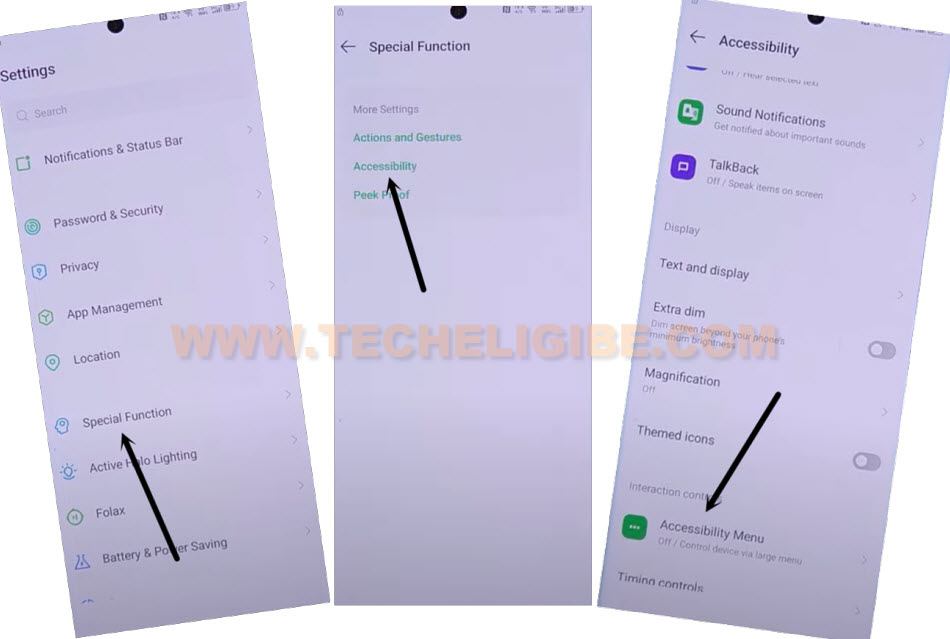
-Scroll down from settings page, and tap on a “Special Function”.
-After that, hit over a “Accessibility”.
-Go to “Accessibility MENU”.
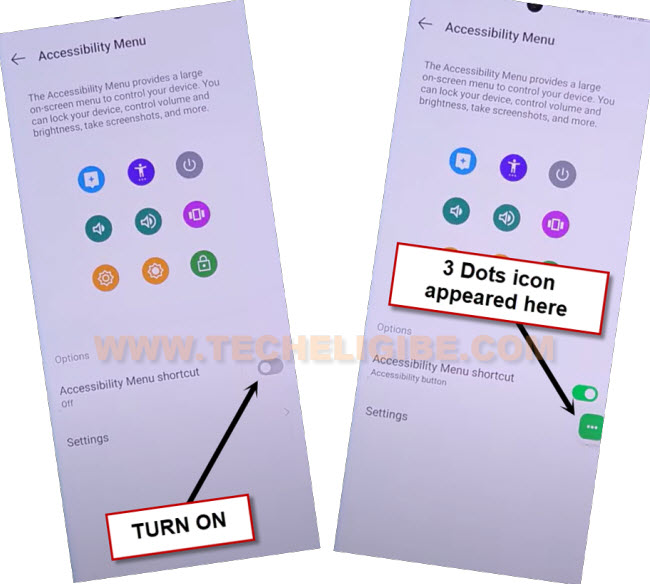
-Hit on a “Turn on” option from “Accessibility Menu Shortcut” function.
-You will have a popup screen there, just go to > Allow > Got it.
-After enabling this function, you will start having a (3 dots) icon screen. We will use this option later on to Bypass FRP Infinix Smart 9.
-Go back to (User agreement & services) page by hitting on back arrow icon several times.
-Disconnect WiFi from your device just through turning off your router or hotspot from backend.
-After that, tap to “Next” option.
-You will reach to (Google services) screen. From there, hit on a > More > More > Accept.

-Tap to “Skip”.
-Once you reach to (Mobile Cloner) page. Just turn on your WiFi router or Hotspot again to have WiFi connection back in your infinix device.
-Wait until the WiFi is connected again. After that, tap to > 3 dots > Assistant.
-Hit on a > Use without a google account > English > Done.

-You will have a listening google screen. Say loudly “Open My Phone Settings”.
-Tap to > Open Settings > Settings.

Disable Google App to Bypass FRP Completely:
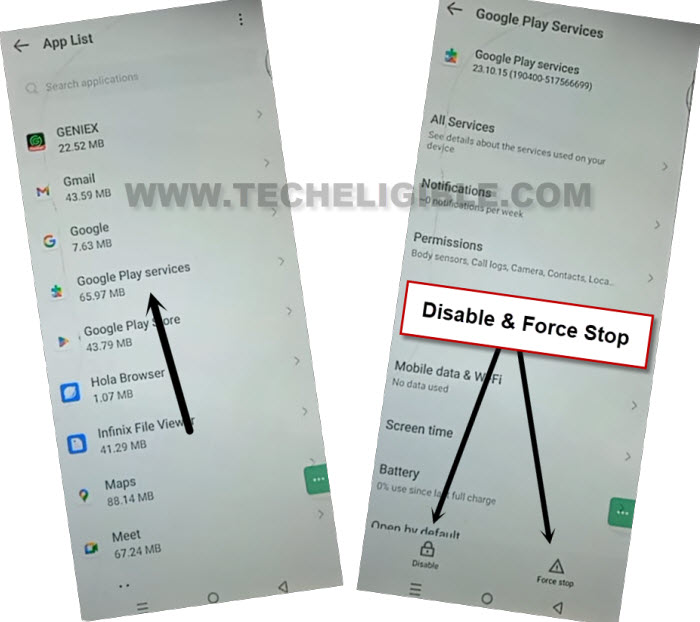
-You have to hit on a > App management > App list.
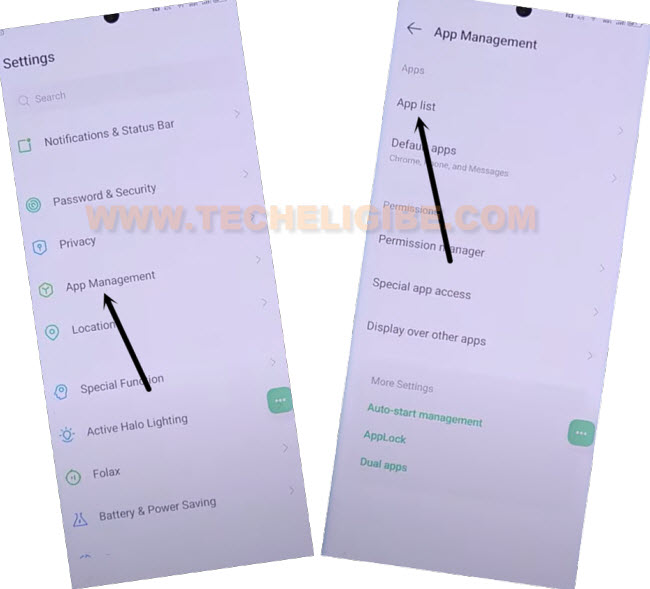
-Let’s go to “Google Play Services” from there same as shown in below image.
-Hit on a > Disable > Disable app. After that, hit also on a > Force Stop > Ok.
-Go back to (Mobile Cloner) screen by hitting on back arrow icon few times.
-From there, tap on a “Skip” option.
-Finally, hit on a “Next icon” from XOS screen. After that, you will reach back to your device main home-screen.

-You are all done from Bypass FRP Infinix Smart 9. Don’t forget to setup new google account into your device by to settings. Do setup new pattern lock as well.