
Have you found yourself unable to access your Android device following a hard reset? Are you trapped on the Google sign-in page and cannot log back into your Google account? This indicates that your device is experiencing FRP lock security, and you should check out the instructions provided here to bypass FRP Samsung S22 Ultra on running android 15 and 14 versions.
Disclaimer: We strongly advise you to use this approach only on your own device; if you do not own this device or obtained it from somewhere else, you must return it to its rightful owner. This method is intended solely for instructional purposes.
Method 1: Bypass & Unlock FRP Samsung S22 Ultra By Flashing With Firmware (Android 15)
Continue this great frp unlock procedure just through downloading (Samfw Tool) and firmware files of Android 15 & 14 version. After that, flash the phone to downgrade android version. Then, reflash back with android 15 firmware. By doing this, your device will be free from FRP lock protection and allow you set up phone again easily. Follow up steps below.
Steps:
-Downlow below tool on PC and install it first. After clicking the download button, you will be redirected to another post, wherefrom, you will be able to download the tool easily with one click.
⇒ Samfw Tool V4.9 on PC [Download] ⇒ Samsung USB Drivers [Download] |
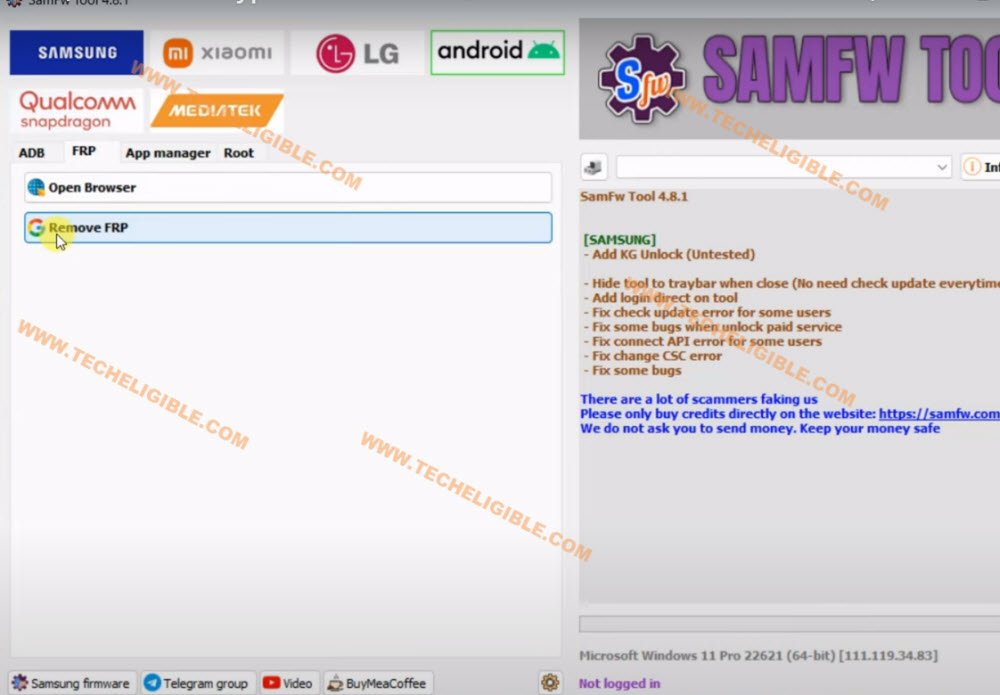
-After that, install your downloaded tool and run it on your pc/laptop same as shown in below image.
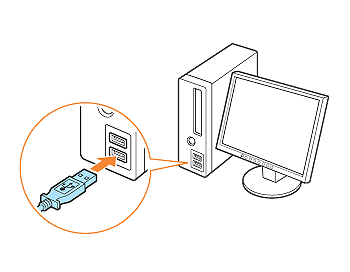
-Insert one end of Data USB Cable to your PC port.
Put Samsung S22 ultra in to Download Mode:
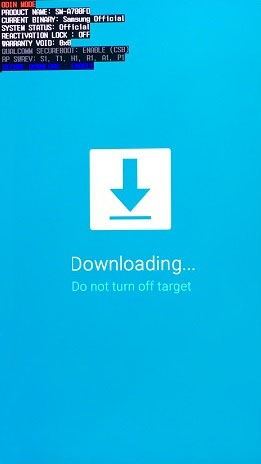
-Lets enter into download mode of Samsung S22 phone by turning this phone off. After that, keep holding both buttons (Volume UP + Down) simultaneously, and then, insert the USB Cable to your device.
-Do not leave holding keys until you see (Exclamation or blue screen).

-Once you get the (Exclamation) screen, just release holding keys and press once the (Volume UP) button, this will lead you into the download mode of your phone. The device will also be detected by PC and tool.
-Move to the Samfw V4.9 main primary screen, from there, hit over the “Samsung” tab from top menu bar. After that, tap to “Odin Flash”.

-Let’s read the Samsung S22 Ultra firmware details first. Because, we have to download correct firmware by matching with the given details.
-Tap to > Info > [Samsung] Download Mode Info. This will start reading your firmware.

Check Out Mandatory Firmware Details:
-Once the firmware details is displayed on screen, you have to write down 3 main things from there.
• 1st: Country Code, such as (XAA)
• 2nd: Binary Code, such as (8)
• 3rd: Device Model Number, such as (SM-S906U1)

Download Android 15 & 14 Samsung S23 Firmware:
-Go to official samfw tool site. Search there firmware with your device model number.

-Once the correct model is chosen, just choose your device country code. In our case, we have a (XAA).

-You will be displayed firmware list on screen. We have to download 2 firmware of (Android 15 & Android 14) by matching with the binary and android version.

-After you successfully download both firmware of Samsung S22 Android 14 and Android 15 version, we are gonna install both firmware one by one. Firstly, we will downgrade our phone.
-Extract both firmware from winrar archive.
Flash Samsung S22 Ultra with Android 14 Firmware:
-You have to flash your device with (Android 14) version firmware.
-Tap on “Open” and locate files respectively of (BL/AP/CP/CSC) from S22 ultra Android 14 firmware folder.


-After files are located successfully, simply, click to “Flash” button to continue flashing process and downgrading Samsung S22 ultra from android 15 to android 14 version.

-Once the flashing is completed, your device will reboot to (Welcome!) screen.

Reflash S22 Ultra With Android 15 Firmware:
-Click over the “Clear” option to remove all selected files locations.

-Locate new files of (BL/AP/CP/CSC/HOME CSC) respectively from the folder of S22 Ultra Android 15 firmware.
-Then, click to “Flash” button to continue flashing the phone again.

-Once the flashing process is completed, the phone will reboot to (Welcome) screen again after optimizing apps. You are all done from bypass frp Samsung Galaxy S22 Ultra. Set up the device again with another google account.

Method 2: Bypass FRP Samsung S22 Ultra (Android 15/14)
We will download and install Samflash software on PC. After that, reboot the Samsung S22 ultra phone into download mode. Install proper Samsung USB drivers on PC. Finally, connect phone to PC and click to “Samsung mtk ftp (Odin)” option for bypassing the google frp account. Let’s continue frp steps from below.
RUN Samflash Software on PC:
-Download below tool on your PC.
⇒ Samflash Software [Download] ⇒ Samsung USB Drivers [Download] Note: You need to turn off (@ntivirus) first before using the Samflash tool. |
-Once the downloading process is done, simply extract right click on (Samflash.exe) file. After that, choose the option “Run as administrator”.
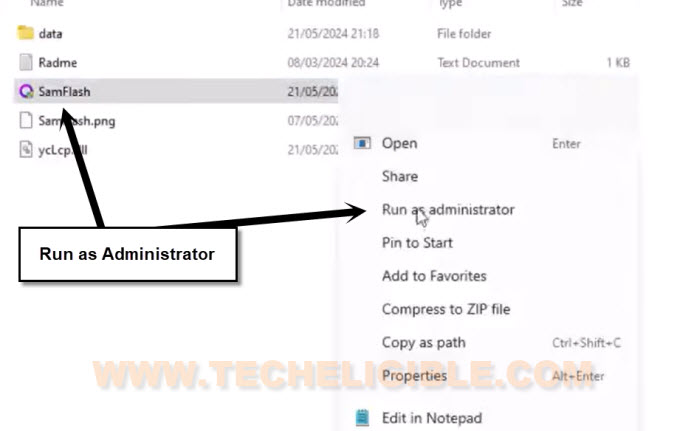
-From popup window, hit on “More info” option. After that, tap to “Run anyway”.
-Install also downloaded Samsung USB drivers to avoid any type of interruption during the connectivity.
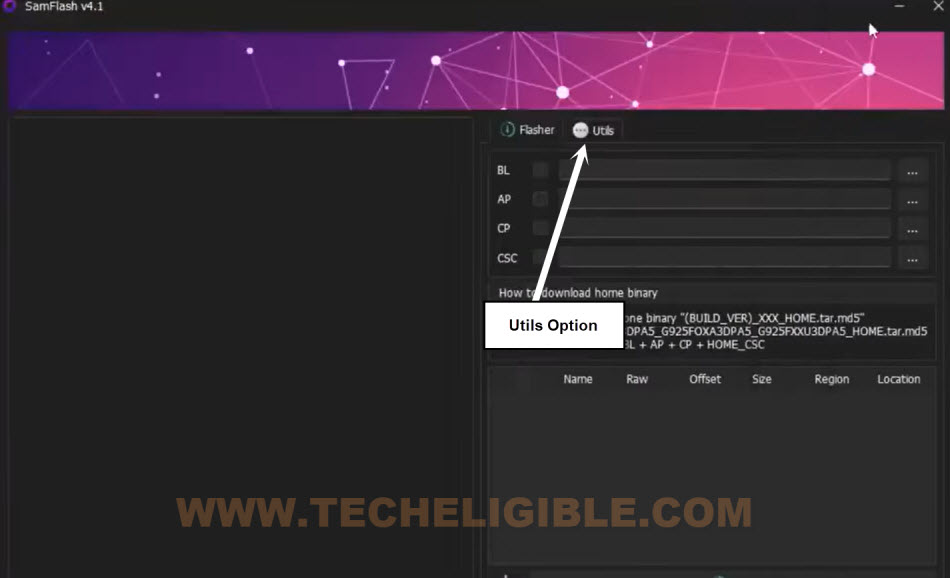
-Once the Samflash software is fully lunched, form first startup screen, go to “Utils” option.
-Connect the USB cable to your PC/Laptop.

Enter into Download Mode:

-Pick up your device and turn it off.
-Let’s put the phone into the download mode by long holding (Volume UP + Volume Down) buttons together then insert the USB Cable.
-Keep holding both volume keys until you see (Exclamation) icon on screen. After that, release both keys and press the (Volume UP) button once. By doing this, you will enter into the download mode of Samsung S22 ultra device.
Note: You have to insert the USB cable while long holding both volume keys together.
Unlock FRP By Samflash Software:
-From your tool interface, click on the “Samsung mtk ftp (Odin)” button to continue Unlock frp Samsung S22 Ultra.

-Wait until the bypassing the google frp account is done, and you see message of (Erase frp data…) okay.

-Your connected Samsung S22 ultra device will reboot. You can now unplug the phone from PC.
-Complete the initial setup process from your phone. You will not face the google verification screen.
FAQs About FRP
Is it legal to bypass frp on Samsung S22 Ultra?
Yeah, its legal for you, if you are legitimate device owner. Its your right to access back to your device using the frp bypass process.
this free frp bypass guideline?
Its totally free, you don't need to pay anything for the tool. Download and install Samflash tool in free and use on your Samsung S22 Ultra for bypassing the frp account.
My Samsung S22 Ultra is not being detected by the PC and tool
Re-check your USB Cable and USB Port. If everything is fine, re-install proper Samsung USB drivers on pc/laptop.
The Bottom Line:
In the first method, we just downgrade our Samsung S22 ultra phone android 15 version to android 14. After that, reflash again with (Android 15 firmware). By doing this, we successfully bypassed the google account. The flash and firmware downloading instructions have already been posted in this guideline.
In 2nd frp bypas guide; We simply downloaded the frp unlocking (Samflash) software from the given link. After that, run into our PC. Turn off the Samsung S22 phone and entered into the downloading mode using (Volume buttons). Once its done, we just manually downloaded and installed Samsung USB drivers as well. After setup everything accordingly, simply connect the phone to PC and its detected successfully. After that, we just hit over the (Bypass FRP) button from the tool and sit relaxed until frp bypassing process is completed automatically.