
The Nokia G400 operates on Android 12 and includes the FRP lock capability. This ensures that no one can gain access to your phone, even if they try to reset it to factory settings. If you signed into your Gmail account during the initial setup of Nokia phone, the FRP lock will safeguard your device from unauthorized users. However, there are instances when the owner might forget the Google account they created during the first setup. Therefore, this article is created to guide the device owner on how to regain access to their phone through Bypass FRP Nokia G400 (Android 12 and 13) without using any PC.
Disclaimer: We highly recommend you to apply this method only on your own device. If you are not owner of this device, or you found this phone from somewhere, you must return this phone to its real owner. This method is for educational purpose only to educate the device owner, how to get back their own device after forgetting google account.
How to Bypass FRP Nokia G400 Without PC
We are about to dial an emergency hotline. Utilizing this, we will gain entry to (Google Map). Next, launch the (Message application) on the Nokia G400 device that is locked with frp. After that, navigate to the chrome browser using the youtube link. Ultimately, we will get to the primary settings page to deactivate the google play services application and subsequently, reconfigure the phone in offline mode. adhere to the step-by-step instructions provided here.
Steps to Follow
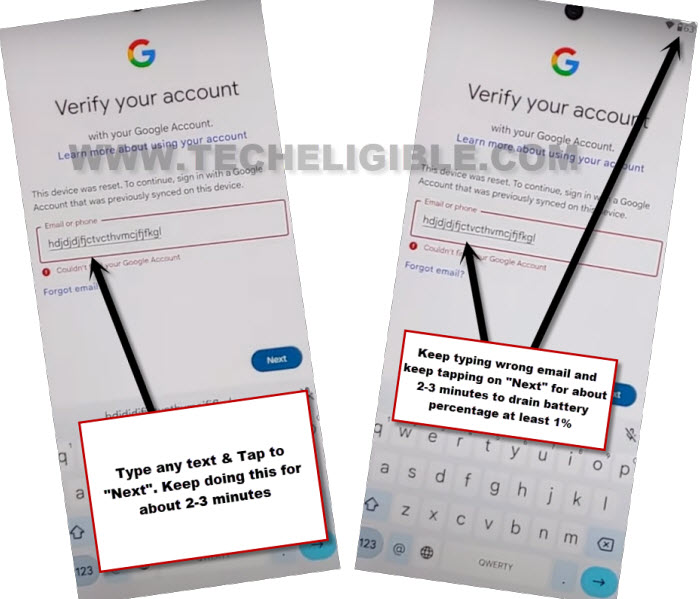
-Continue with the procedure by initially connecting to WiFi. Subsequently, navigate to the page labeled (Verify your account). At this point, you should spend approximately 4-5 minutes entering incorrect email addresses in the login section. Persist in this action until your battery level lowers by 1-2%.
-Input any text in the (Email or Phone) segment, then click on “Next”. Continue performing this task for several minutes.
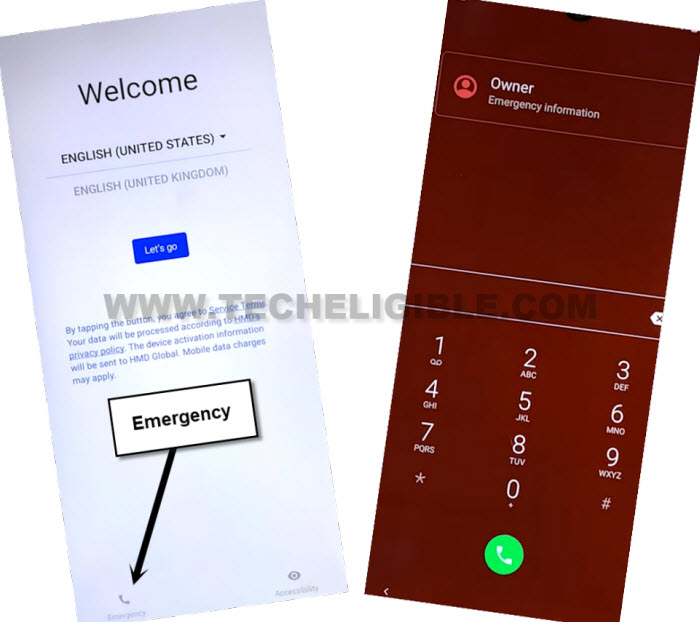
-Return to the initial (Welcome screen). Select the “Emergency” option located at the bottom.
Please note: We will be dialing the emergency number, so try this after removing your SIM card. If the call does not go through without the SIM, simply reinsert the SIM card and attempt the call again.
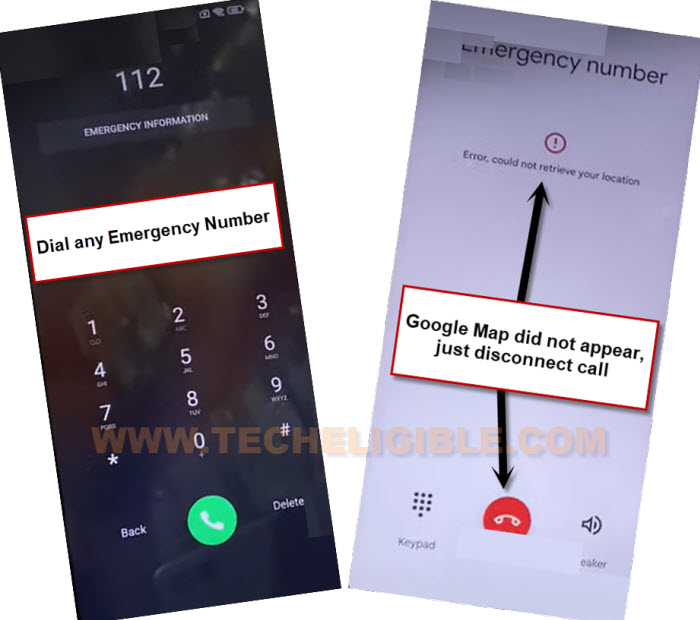
-Dial an emergency number. On the following call screen, you should see (Google Map). If an (Exclamation) icon appears, just attempt it once more.
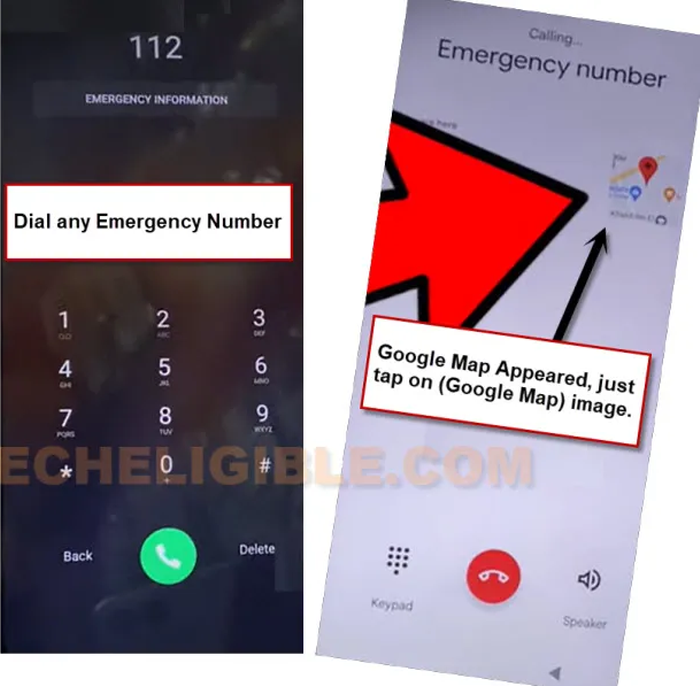
-Redial the emergency number and keep trying until you can successfully view (Google Map) on your display.
-Press that (Google Map) to open it.
-You might see a (Call icon) located on the left side of your display; click on that call icon to hang up the call.
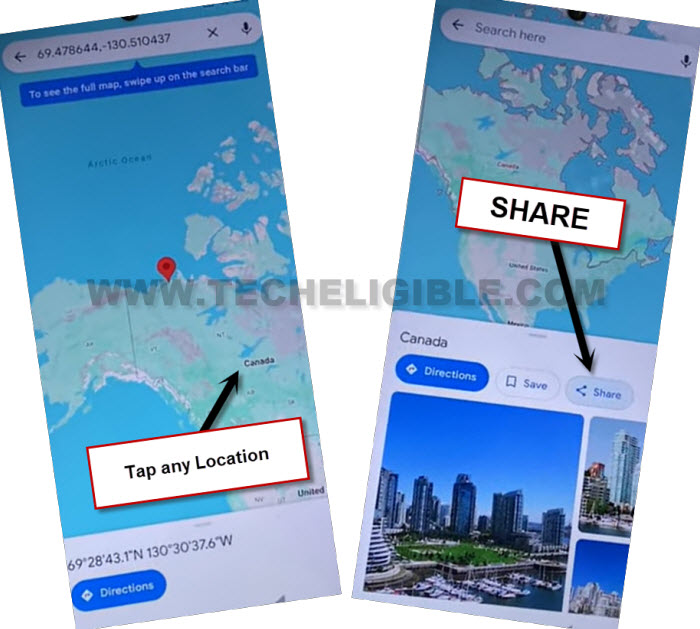
-Afterward, look for any random location, such as a restaurant or resort. Then, tap the “Share” icon associated with that location.
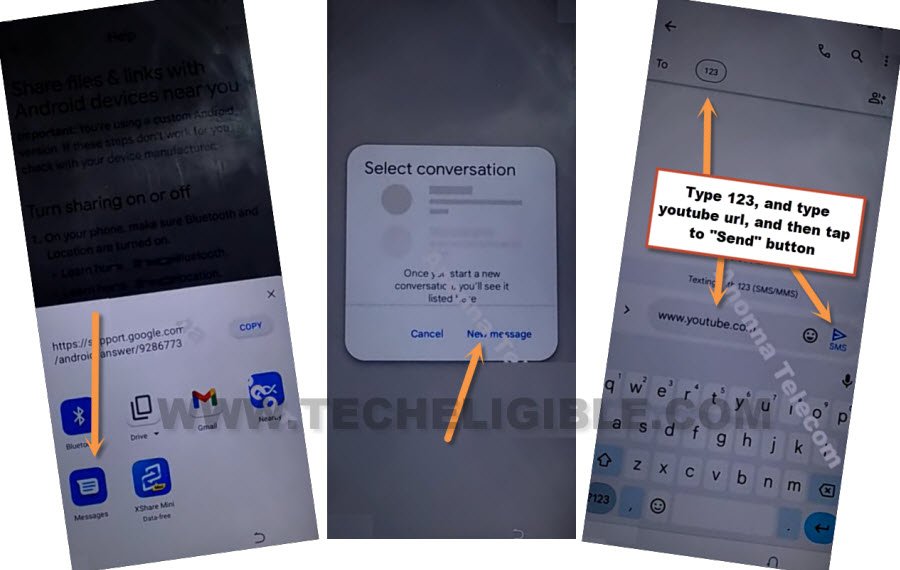
-A pop-up window will appear; select the “Message” application.
-Click on the “New Message” option.
-Type in the URL “www.youtube.com” and send this link to any random phone number as a text message.
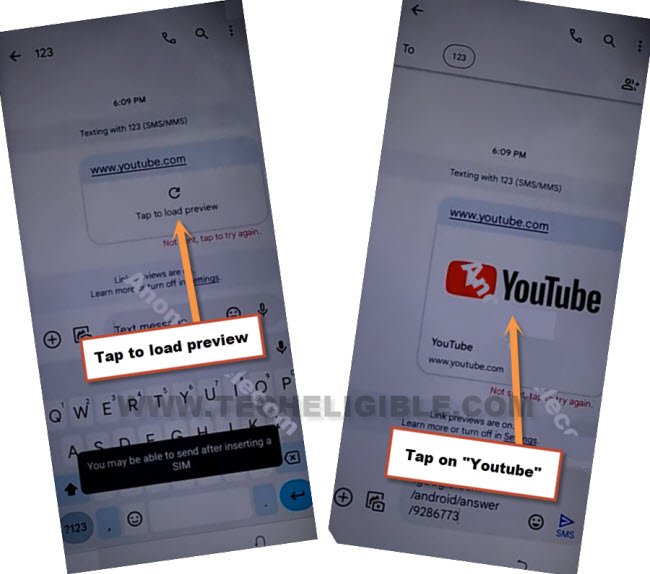
-Click on “Tap to load preview” from the URL that was previously sent in a text message, then select the thumbnail image from Youtube.
-From the Chrome interface, navigate to > Accept & Continue > No Thanks.
Direct Access to Settings
-Look for “Techeligible” using Google, and visit our official website.
-Next, access the FRP tools section by clicking on the “Menu” option, then select “Download FRP Tools.”

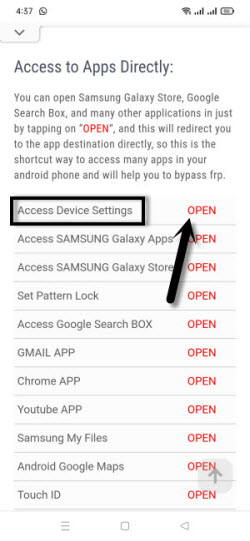
-Scroll down and tap on “Access Device Settings” to arrive at the main settings page of your device.
Enable the Accessibility Menu
-We need to turn on the (Accessibility) option to bypass the FRP on a Nokia Android 15 device. Let us proceed by tapping on > Accessibility > Accessibility MENU.
-Let’s turn on the “Accessibility Menu Shortcut.”
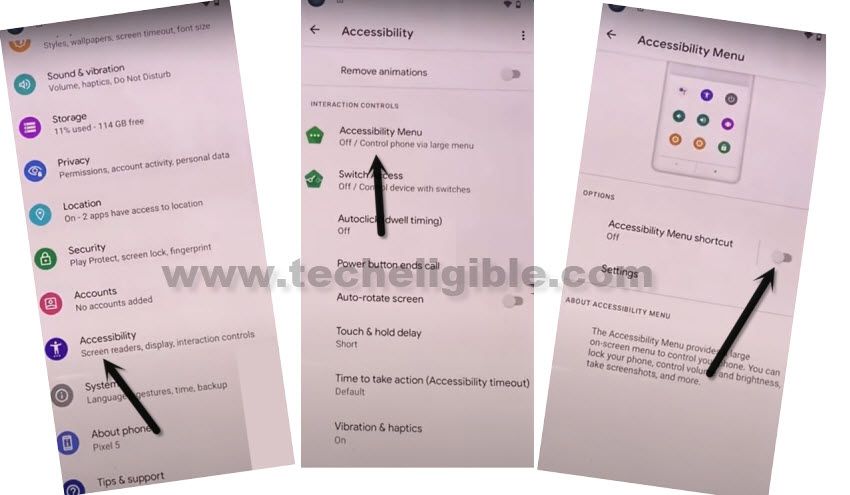
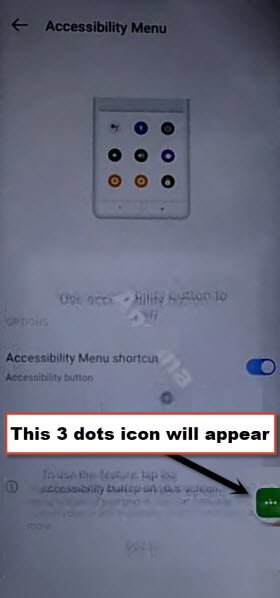
-In the pop-up window, click on > Allow > Got it. You will see a (3 dots) icon appear after successfully activating the (Accessibility Menu Shortcut).
Turn Off Google Play Services from Battery Usage Settings
-Return to the main (Settings) page. Then, click on > Battery > Battery Usage.

-From that point, select > Google Play Services > Disable > Disable this app.
-Afterwards, click on > Force Stop > Ok.

Reboot and Configure Phone in Offline Mode
-Let’s restart the Nokia Android 15 by holding down the “Power” button and selecting the “Restart” option.
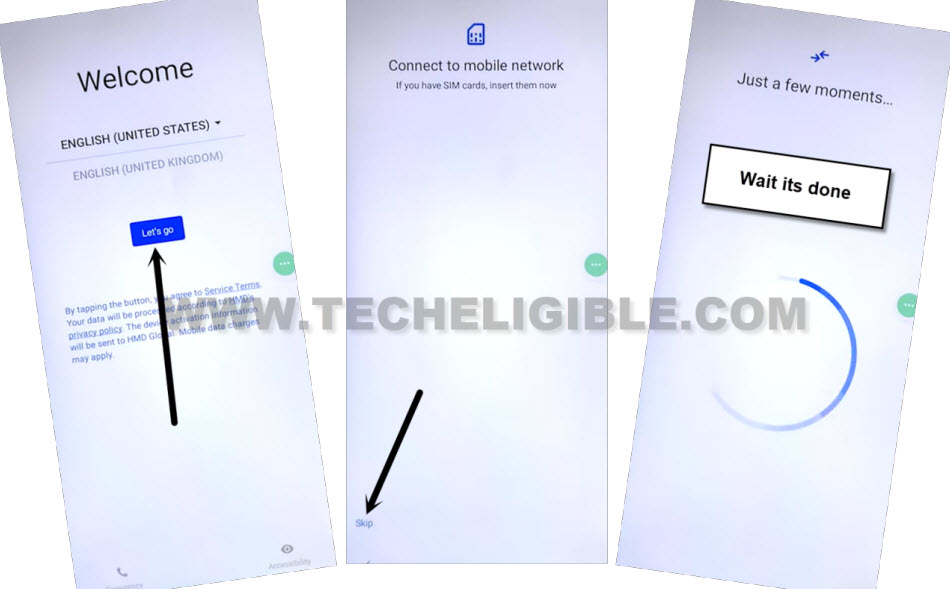
-Press the “Let’s go” button on the initial setup screen. If you encounter a screen requesting a SIM card and do not have one inserted, simply click on “Skip.”
-Continue to wait on the loading screen until it is completed. This process may take some time to finish since (Google Play Services) is disabled.
-Eventually, a notification will pop up stating that (Android Switch has stopped); just click on “Close app,” and you have successfully completed the bypass frp Nokia G400 process.
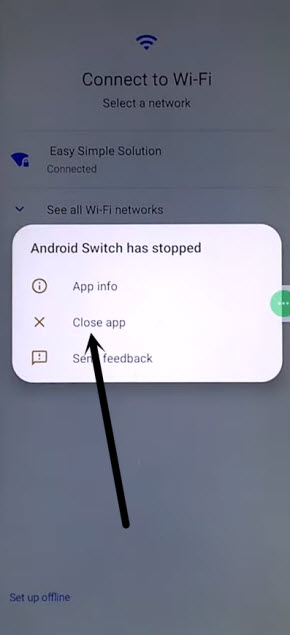
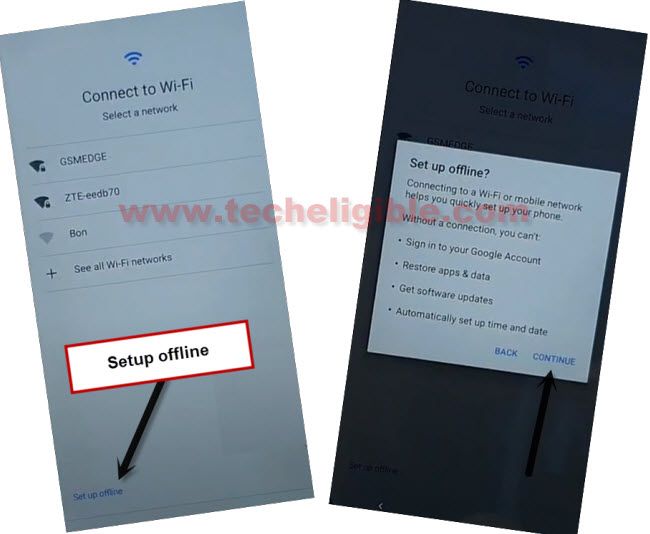
-You will be directed to the WiFi screen once the loading is finished. At that point, select the option for “Setup offline.” After that, press “Continue” and complete the rest of the steps independently, avoiding the Google verification screen once more.
Note: Once you have successfully configured the phone, remember to reactivate the Google Play Services by navigating to > Settings > Apps > See All Apps. Locate and select > Google Play Services > Enable.
The Conclusion
We spent a few moments on the (Google Sign) page in order to deplete the battery level, after which we returned to the primary (Let’s Go) screen. Dialed the emergency number 112, which led us to (Google Maps). From there, tapped at the (Share) option to access (Message Application). Then, typed and sent a YouTube URL as a text message, which opened the YouTube site in the Chrome browser.
In the end, we were able to access the main settings menu of the Nokia G400 running Android 12. Then, disabled Google Play Services to bypass FRP and finished the setup wizard.
Read Also: FRP Bypass on Nokia Android 11