
If your phone gets misplaced, and an individual attempts to bypass your security measures via a factory reset or hard reset procedure. In such a situation, FRP locking function will safeguard your device against any unauthorized access attempts. They will not be able to access your device once the factory reset is executed. They will be required to log in again using the Gmail account that was previously signed in. If you are facing this situation on your own phone, then, you can get help through Bypass frp VIVO IQOO Z7s 5G and IQOO Z7 (Android 13) version.
Disclaimer: Do not try this frp method on a stolen phone, this is a serious crime, if you are trying to bypass frp on a stolen phone, you may also be jailed, this process is for device owner and for educational purpose only.
How to Bypass FRP VIVO IQOO Z7s 5G & Z7 (Android 13 Version):
Firstly, we will enable the talkback function. After that, accessed to main settings screen using (Accessibility function). From there, we can easily launch the (Clone Phone) feature, which is already installed on VIVO Phone. Connect our device with other phone using this feature and receive the frp bypass application. Let’s check all stepwise guide below to bypass frp account.
Guide to Follow:
-Begin the process by turning on VIVO device and connect WiFi.
-Go back on (Hello!) screen. Turn on talkback by long holding both (Volume UP + Down) keys at the same time, keep holding keys until you have a (Enable Talkback Shortcut?) popup. After that, tap to “Turn on” option.

-Long hold both keys (Volume UP + Down) once more and talkback will be fully activated. From (Welcome to talkback) page, double tap over > Close > Close.

-Swipe down and swipe right on screen same as we draw “L” shape. Then, double hit on “Screen Search” from the popup screen.

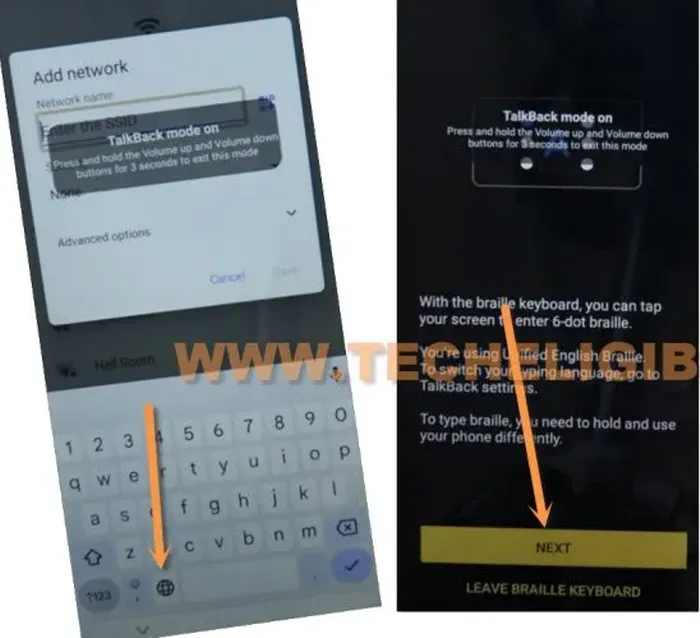
-You will be shown (Add network) screen, just double tap to “World icon” from bottom, and go to “Next”.
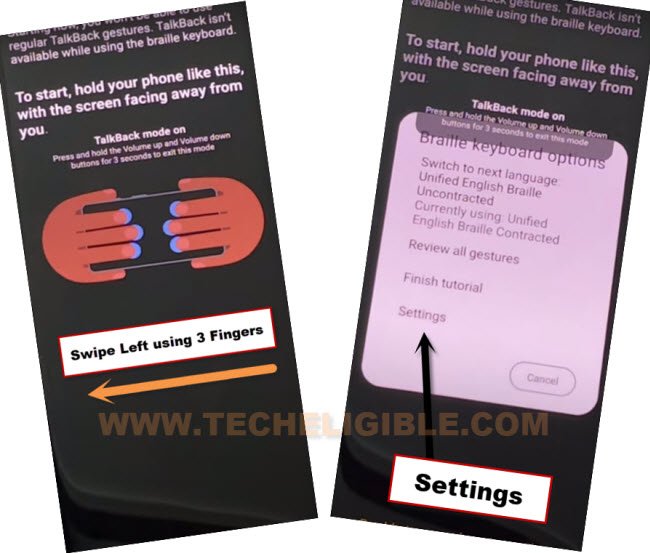
-Swipe to left using your 3 fingers together. Then, go to “Settings”.
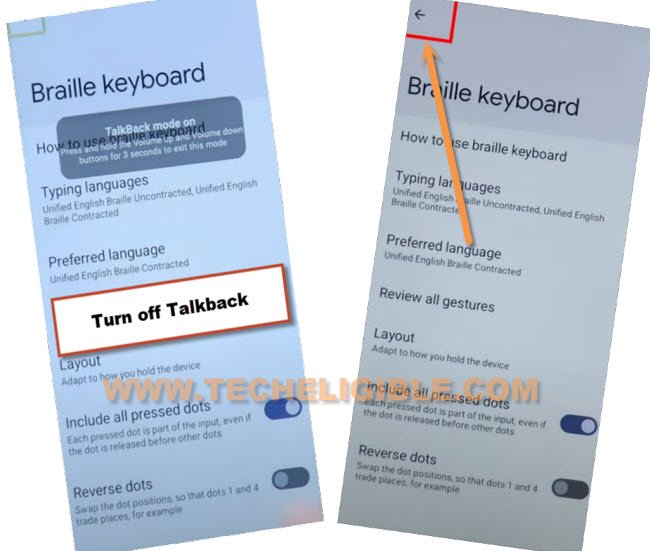
-We’re gonna deactivate the (Talkback function) by long holding again both (Volume UP + Down) keys. Then, hit over the “Back Arrow” icon from top.
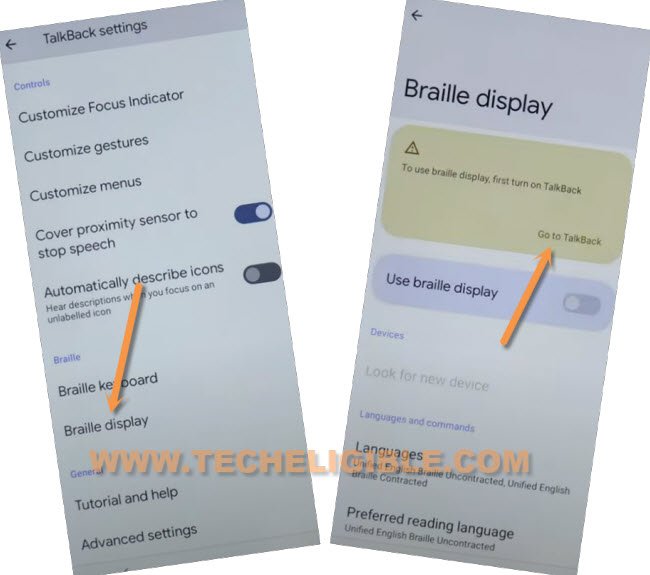
-We are inside the (Talkback Settings) page, from there, let’s tap these > Braille Display > Go to Talkback.
Activate Accessibility & Go to Settings:
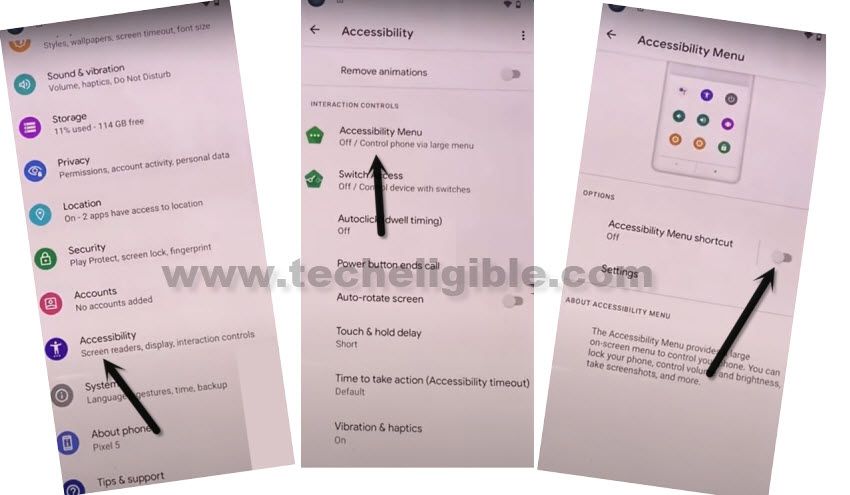
-Let’s activate (Accessibility) by tapping these > Accessibility > Accessibility MENU.
-Finally, toggle on the “Accessibility Menu Shortcut”. From popup screen, tap at “Allow”, then “Got it”. After activation is done, you will have (3 dots) icon on screen.
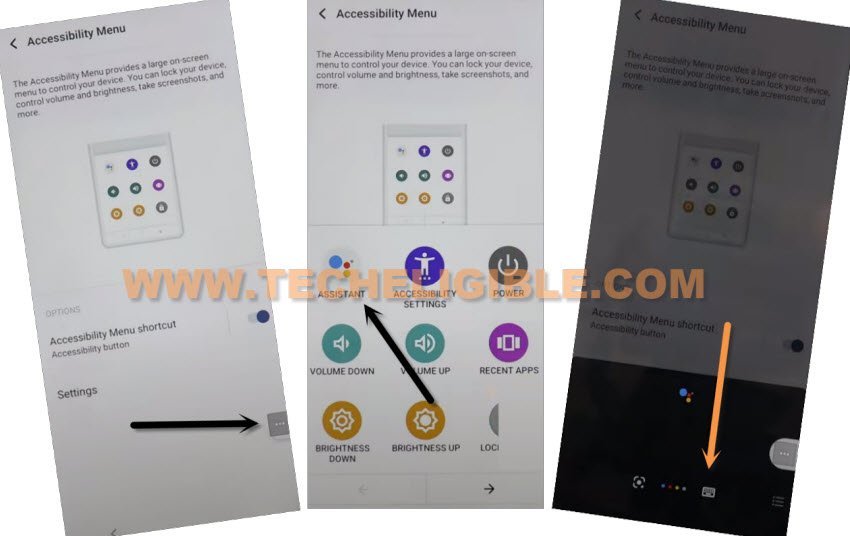
-Tap on > 3 dots > Assistant > Keyboard icon.
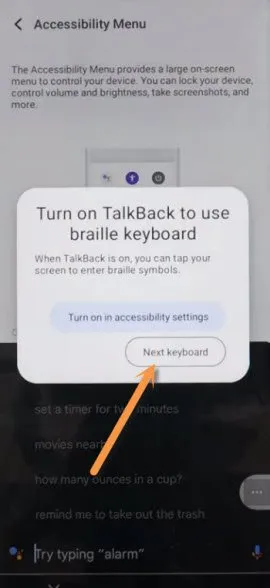
-If you get a popup notification, choose “Next Keyboard” to allow you using the keyboard.
-Search “Open Settings” and tap to “Send” button from bottom corner of your keyboard. You will be redirected to the main (Settings) interface of the phone. From there, we can go further steps for bypass frp vivo IQOO Z7s 5G and Z7.
Launch Phone Clone from (SYSTEM):
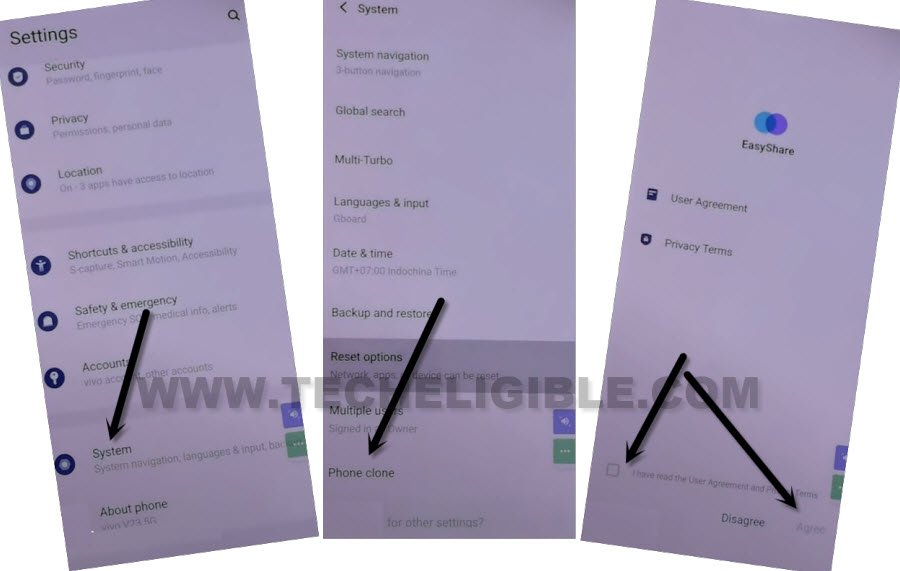
-Tap at “System” option. After that, choose from there “Phone Clone”.
-Hit on “Agree” and give some other permissions as well.
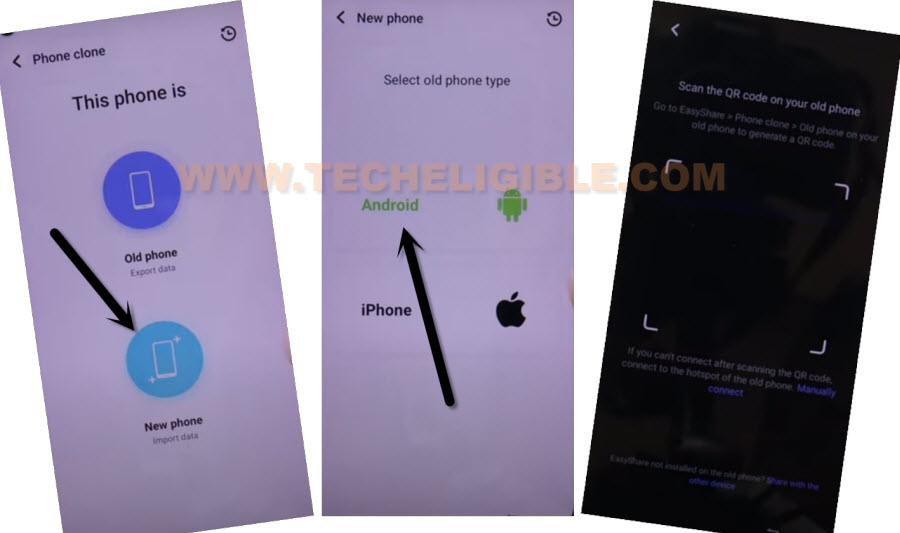
-From the phone clone screen, choose > This is a new phone > Android > Got it.
-From popup window hit few times on (While Using the app & Allow). Finally, we will see QR Code scanner page. That means, our device is ready to be connected with other android phone.
Follow Steps On Other Android Phone:
Note: Do make sure, (Other Phone & VIVO) Phone both devices should be on same WiFi network.
-You can use your any sibling or parent android device. Open the (Google Play Store) application there.
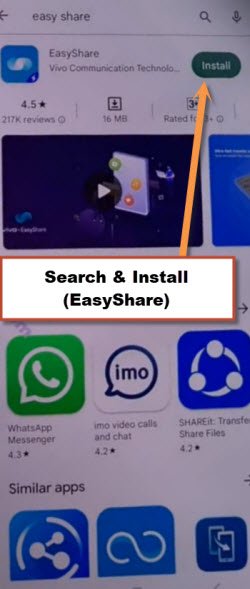
-Search & Install (EasyShare) app.
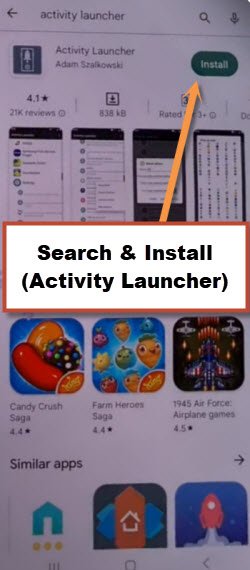
-We need to install (Activity Launcher) application too.
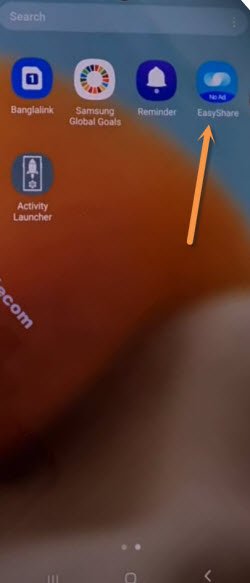
-Once the both apps setup successfully on the other android phone, just launch “Easyshare” now.
Transfer the (Activity Launcher) App to IQOO Z7:
-Choose “Phone Clone” option.
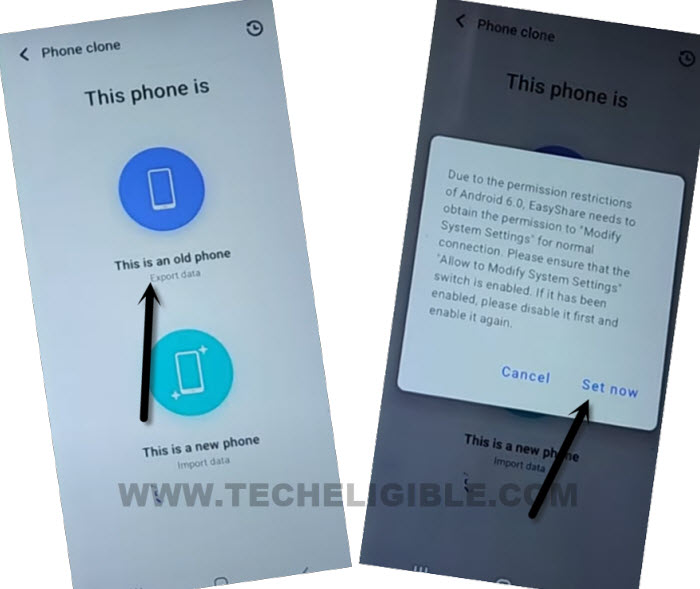
-After that, choose this phone as old one by tapping on “This is an old phone”.
-If you get a popup, just tap to “Set now”. After giving some permissions, we will be able to use this app.
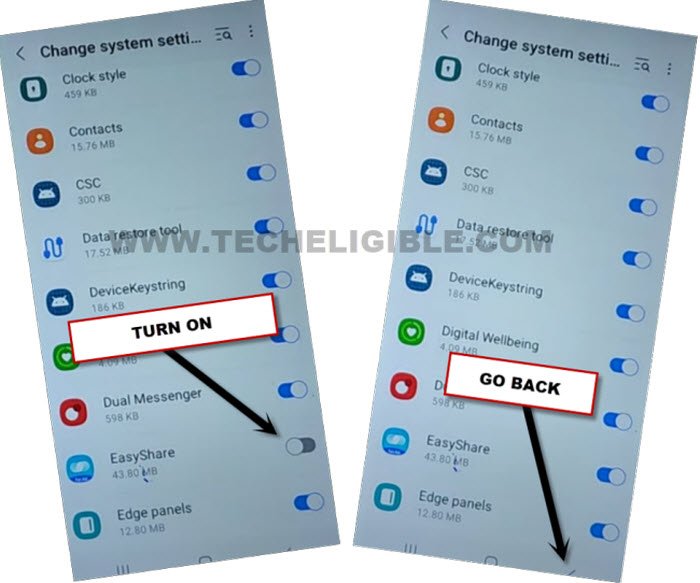
-Give permissions by turning on some options.
-After giving permissions and turning on required options, just go back to main clone phone app screen.
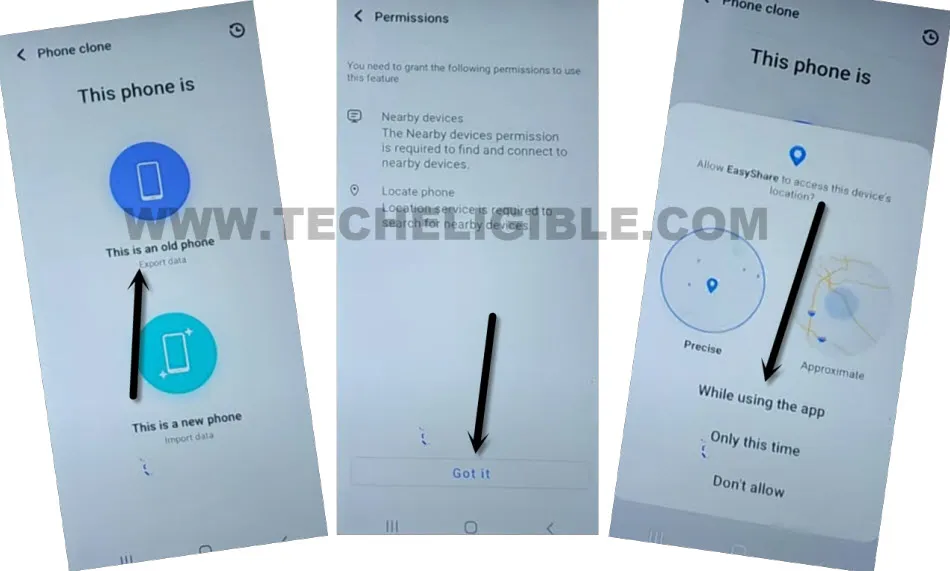
-From main phone clone page, choose again > This is an old phone > Got it > While using the app > Allow.
-We will see (QR Code) on other phone display. This code should be scanned with frp locked vivo phone.
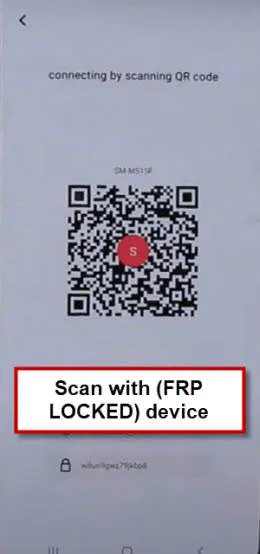
-Scan code with qr code scanner (VIVO) phone.
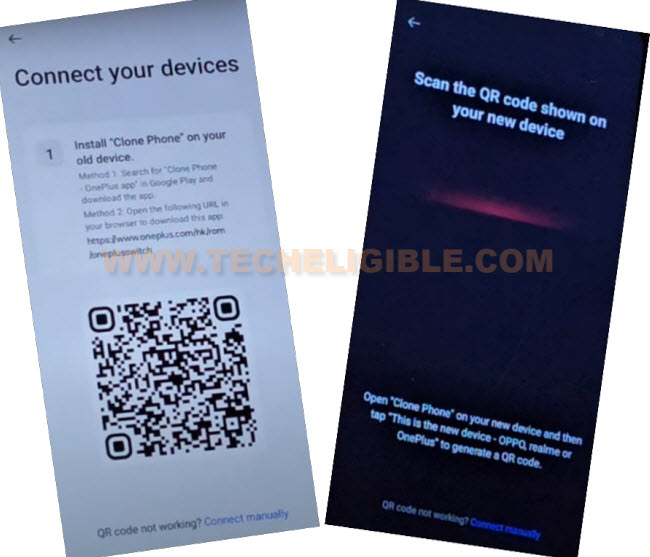
-After that, you will see again another popup window on other android phone, hit on “Set Now” option. After that, turn on “EasyShare” app and hit on “Got it”.
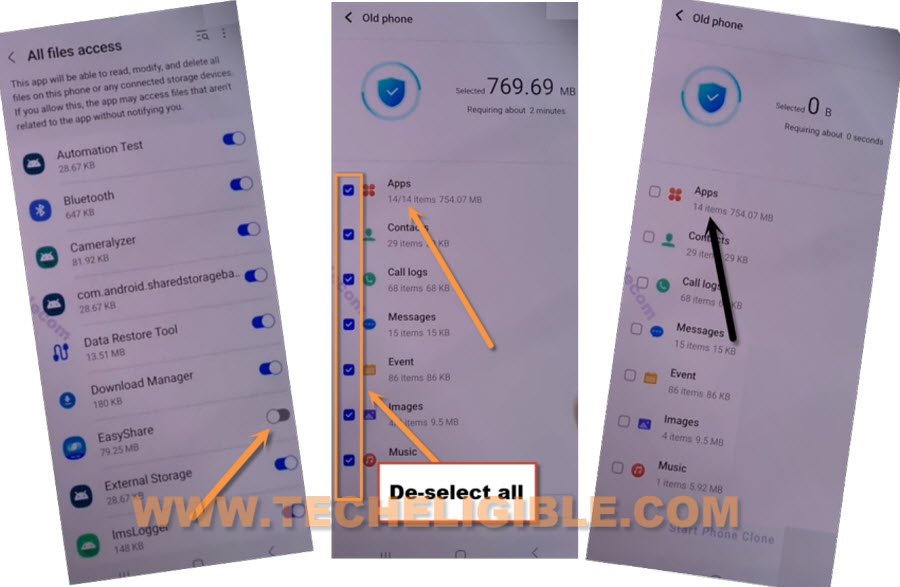
-Give all required permissions again by tapping on (Allow) and turning on some options.
-Once its done, you will be displayed (Apps/Contacts/Call Logs…) list. Simply, un-check all selected options.
-Go inside (Apps) by tapping on it.
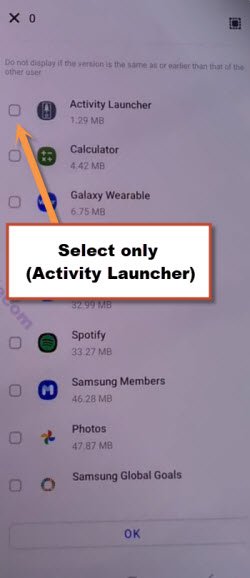
-Check mark only (Activity Launcher) and then, hit on “Ok”.
-Tap to > Next > Start Cloning.
Use (Activity Launcher) App:
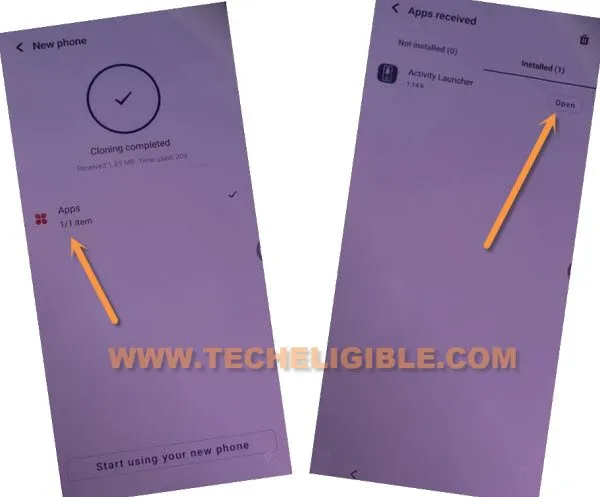
-Once you received the (Activity Launcher) app successfully, just hit on “Clock” icon from top corner of the (VIVO IQOO Z7) phone display.
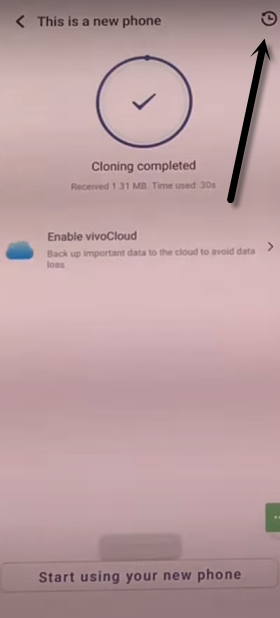
-After that, tap to “Apps”. Then, launch the activity launcher app by tapping at > Open > Ok.
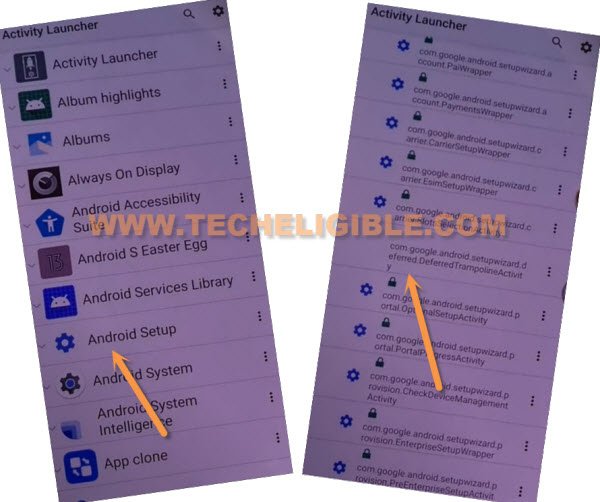
-From the list, choose just “Android Setup”.
-Select the option, that is without (Settings) icon and with this info “com.googel.android.setupwizard.deferredTramplineactivity“. (Have a look below illustrated image).
-Finally, you will be redirected to the set up the phone display. Let’s choose options respectively > Start > Skip > Next > Next > No Cable > Copy Without Cable > Next.
-Finally, from the (Verify pattern) screen, choose this link “Use my google account instead”.
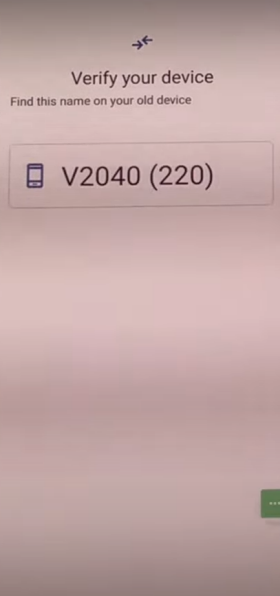
-By tapping on > Next > Next, you will reach at the (Verify your device) page.
Copy Account to FRP Locked Phone:
Note: Do make sure, (Other Phone & VIVO) Phone both devices should be on same WiFi network.
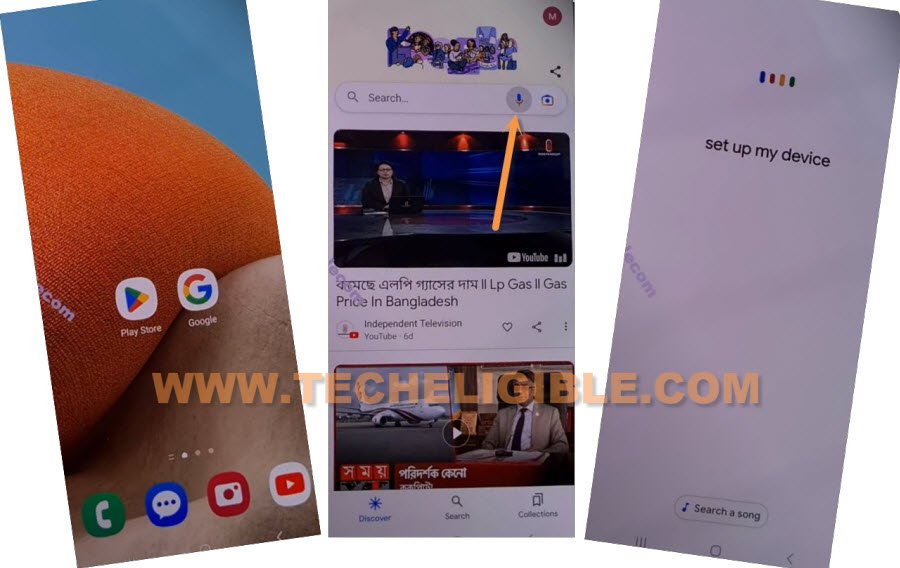
-Launch the (Google) application from your other android device. After that, tap at “Mic” option then speak “Setup My DEVICE”.
-Let’s tap these > Next > Next > Copy.
-You may see verification screen on both your device display. From there other phone, go to > Next > Copy.
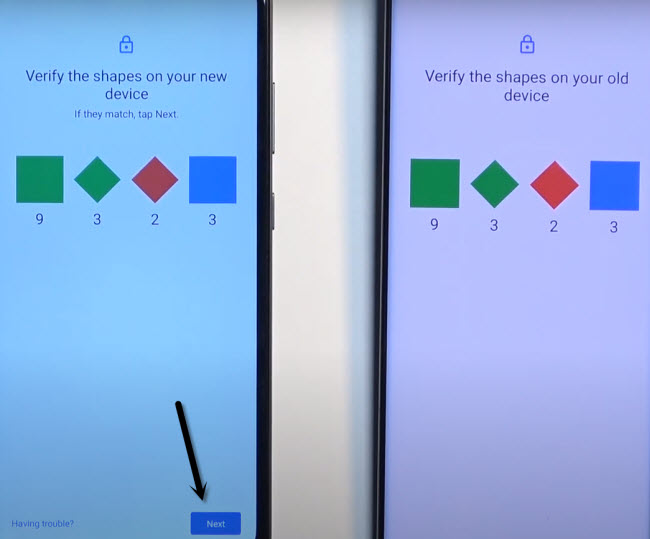
-If you are asked to complete verification by giving pattern or google account on (Other phone). Just complete verification process.
-Tap to “Copy” option.
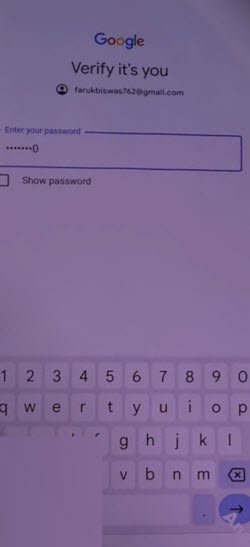
-After that, you will see (Choose what to copy) screen. From there, check mark only (Device Settings) option and hit on “Copy” button.

-Allow some permissions and you may be asked to enter pattern again for the verification, just enter your device correct pattern or pin lock to complete this copying process.
-After few minutes or seconds wait, you will have a (Copying done) screen. Your other phone google account has been logged in and copied on a frp locked vivo iQOO Z7/Z7s phone. That means, the frp lock has been bypassed successfully.
FAQs About VIVO Phone
Is this legal way to bypass frp account?
Yeah, this is totally legal, if you are a device owner and looking forward to get back your phone after forgetting the logged in account.
Why do i need another android phone?
Its an essential part for bypassing the frp lock on VIVO IQOO Z7 phone. Because, we have to receive (Activity Launcher) application from other phone.
Can i setup google account directly on my FRP locked VIVO IQOO Z7s 5G / Z7 phone?
No, you can't do this, because, for setup the google account, you need access to your device settings. Even, if you reached to settings somehow, even then, the device may not accept your google account due to frp lock is triggered.
Conclusion
We just turned on talkback function to activate the (Accessibility function). With the help of accessibility shortcut menu, managed reaching on main settings of the frp locked phone (VIVO IQOO Z7s 5G, Z7). After that, launched the (Clone Phone) app and connected with other phone devices through easyshare application. Used the (Activity Launcher) application to launch setup wizard steps. Finally, we copied other device logged in google account on our vivo phone. This is how, we bypassed the google account successfully.
Read More: FRP Bypass on VIVO Z3