
The FRP lock security feature is turned on automatically for all Android devices running on versions higher than 5.1. This protection feature engages by itself when you sign in using your Google account. If someone else attempts to access your device by executing a factory reset, they will need to enter the previously configured Google account credentials to regain access to the phone. If they do not do this, the Android phone that has undergone a factory reset will be halted on a Google Verification screen.
Remember: Apply this frp method only on your own frp locked phone or with the consent of the owner to fix up accessing issue. Firstly, try to recover your lost google account, if you failed with that, then follow up the frp bypass steps.
Bypass FRP Zonko K118 (Tablet):
-Commence this procedure by powering on the tablet and linking to the appropriate WiFi network. Next, return to the initial (Hi there) page. From that point, select > Emergency Call > Emergency information > Edit option.
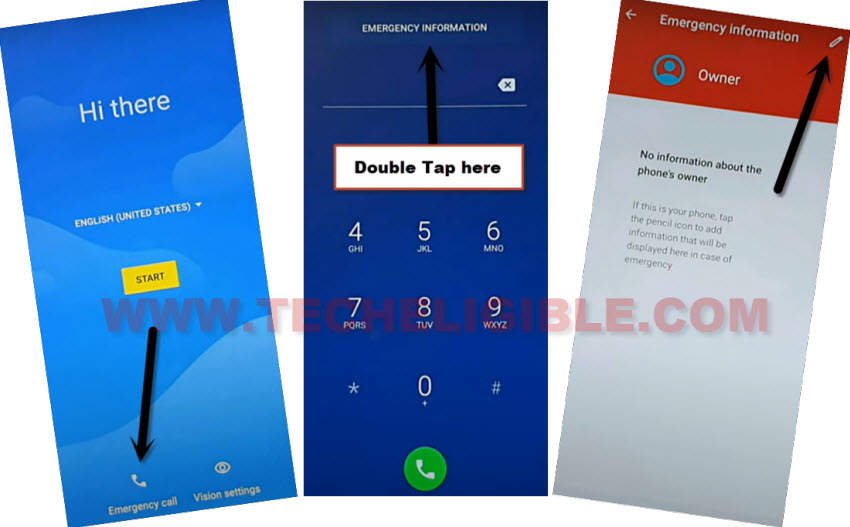
-Select the first option labeled “Name” and then tap the small arrow icon from the circle to access “Choose an image”.

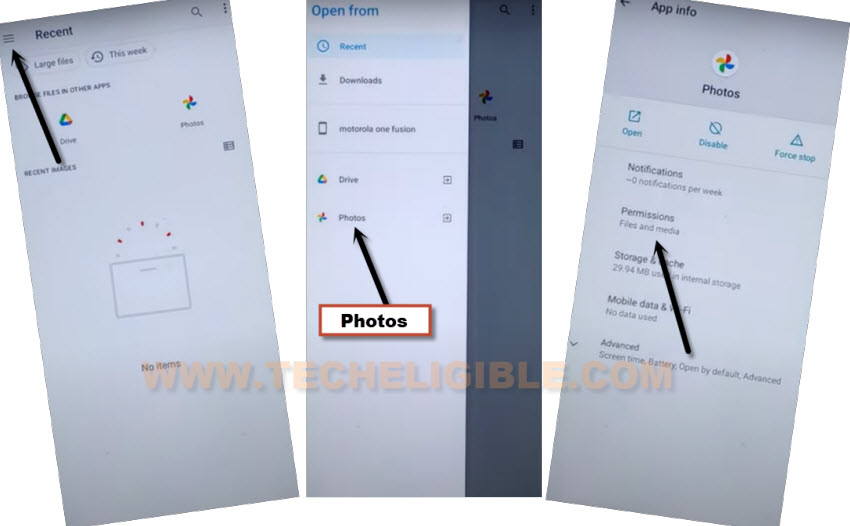
-Access the “Menu” located at the top corner and press and hold on “Photos”.
-Following that, select “Permissions”.
Initiate Settings
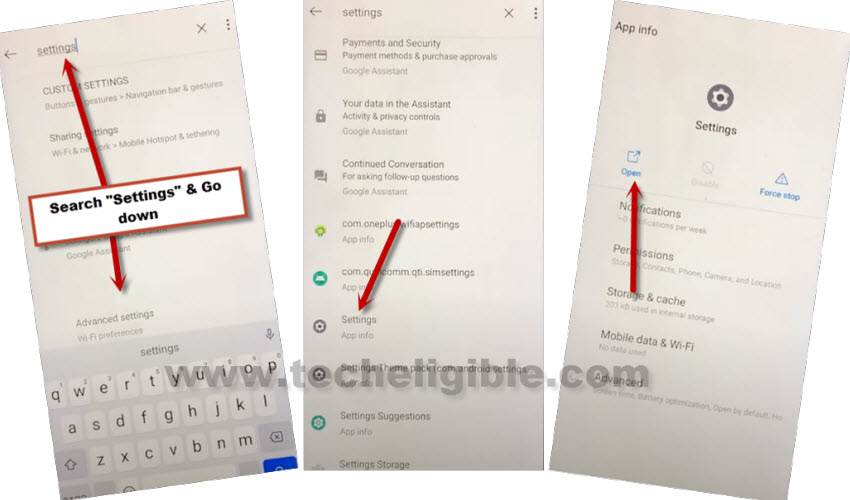
-Let’s initiate a search within settings by pressing the “Search” icon situated in the top corner. Then, look for and access “Settings”.
-Press “Open” to directly launch it on your FRP-locked tablet.
Note: After entering “Settings” in the search bar, you will observe (Settings) within the search result suggestions; simply press on that “Settings” to view the relevant search results.
-Afterwards, from the settings interface, simply tap on “Apps & Notification”, followed by selecting the “App info” option to access the application list screen.
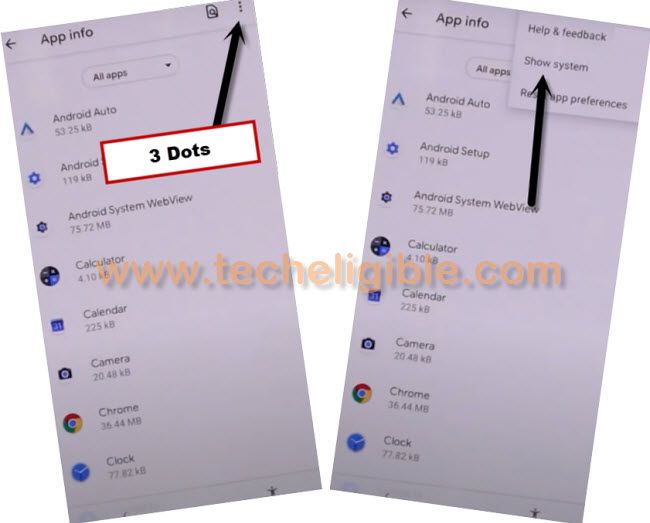
-Next, click on the “3 dots” menu situated in the extreme top corner.
-Then, choose the “Show system”.
Disable Apps
-It is necessary to force stop the application and erase the cache of the apps. Firstly, locate and press the “Android Setup” app as displayed in the image below.
-After that, tap on force stop and disable this application. Finally, navigate to “Storage & Cache” and select > Clear Storage > Ok.
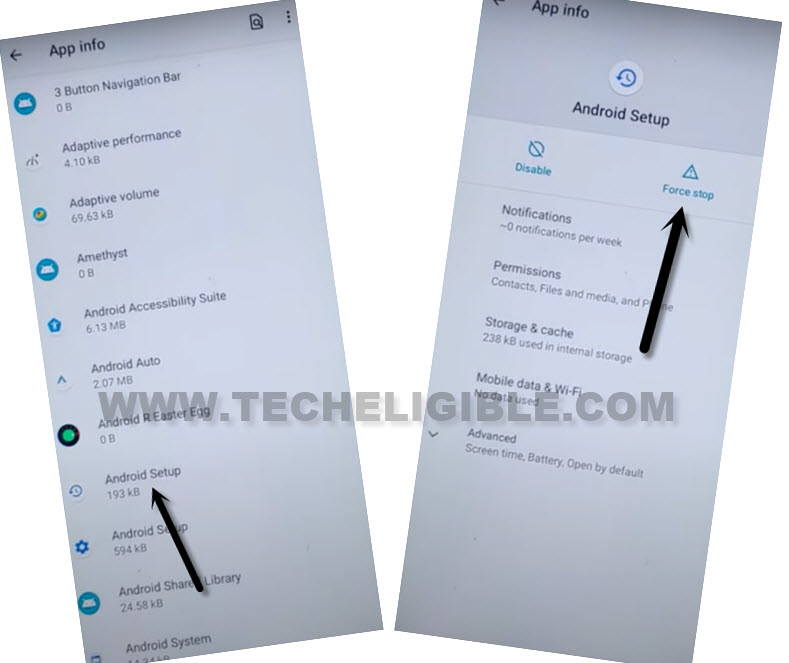
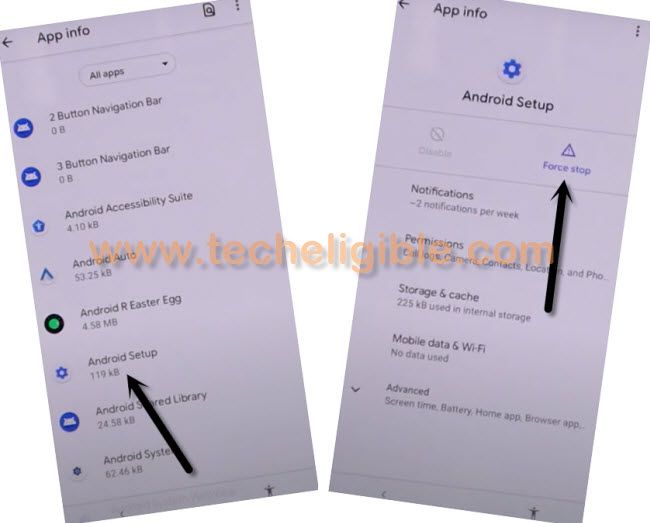
-Return to the app list screen. Repeat the same process with another “Android Setup” displayed in the image below.
-We need to select > Android Setup > Force Stop > Ok.
-Next, go to “Storage and Cache”. Then, clear the cache and storage from there as well.
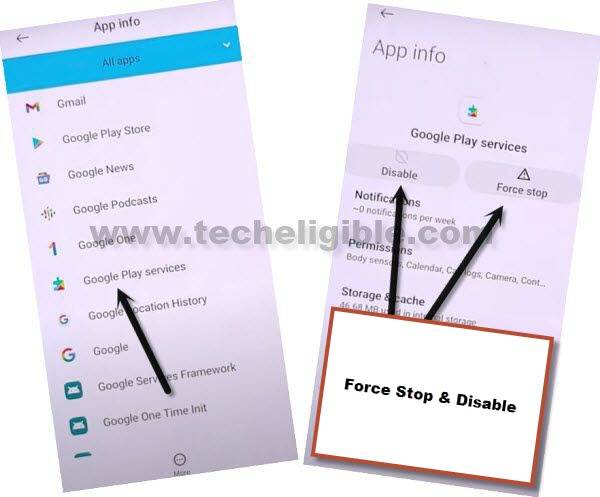
-Return to the app list screen. Proceed to > Google Play Services > Disable > Disable App.
-Then, also tap on > Force Stop > Ok.
-Clear the cache for this application as well from (Storage & Cache).
-Restart the Zonko K118 tablet by pressing and holding the (Power key) and selecting the “Restart” option.
-Then, from the initial startup screen, navigate to > Start > Skip.
-When you encounter a loading screen, tap the “Back Arrow” icon in the bottom left.
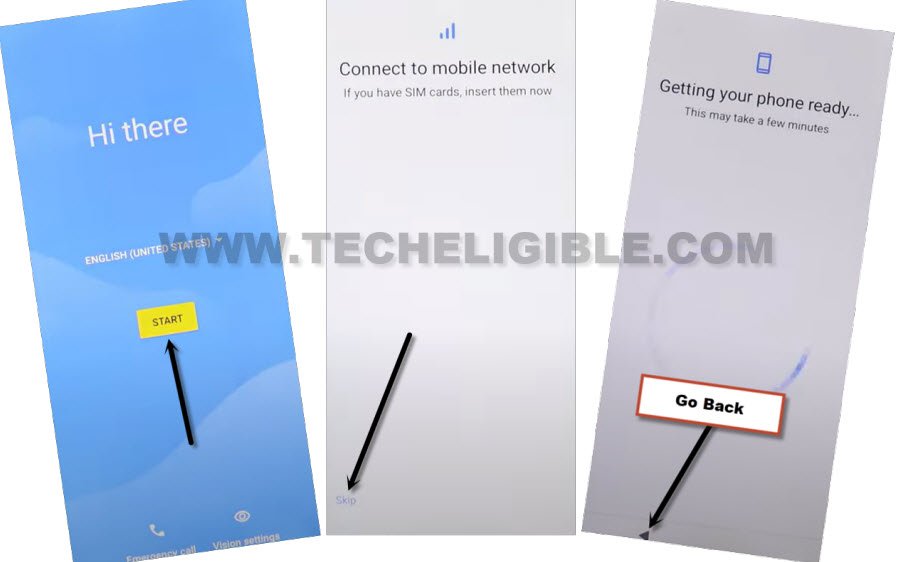
-You will have a WiFi screen, just tap from there > Setup offline > Continue.

-After that, from the (DATE & Time) screen; tap “Next” there and the tablet will get stuck on the (Just a sec….) screen. Wait on this screen for approximately one minute. After that, return on the (Hi there) page by tapping back arrow several times.
Re-enable Google Play Services
-Let’s repeat steps now by hitting on > Emergency Call > Emergency information > Edit option.
-Select the first option labeled “Name” and then tap the small arrow icon from the circle to access “Choose an image”.
-Access the “Menu” located at the top corner and press and hold on “Photos”.
-Following that, select “Permissions”.
-Let’s initiate a search within settings by pressing the “Search” icon situated in the top corner. Then, look for and access “Settings”.
-Press “Open” to directly launch it on your FRP-locked tablet.
Note: After entering “Settings” in the search bar, you will observe (Settings) within the search result suggestions; simply press on that “Settings” to view the relevant search results.
-Afterwards, from the settings interface, simply tap on “Apps & Notification”, followed by selecting the “App info” option to access the application list screen.
-Next, click on the “3 dots” menu situated in the extreme top corner.
-Then, choose the “Show system”.
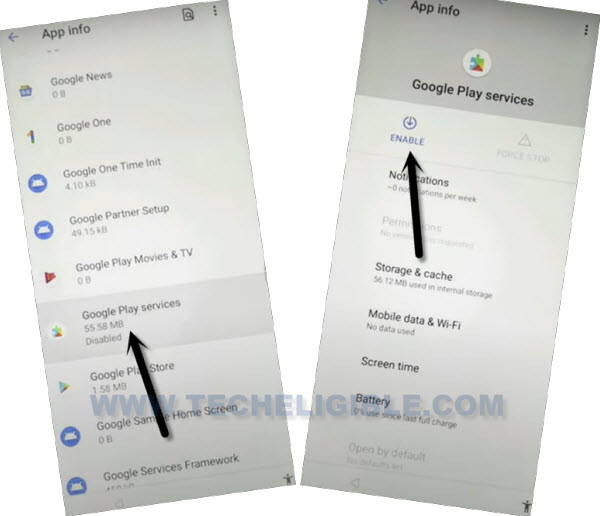
-Now, let’s return to the Google Play app to enable it again. From the app list view, locate the “Google Play Services” application.
-Activate this application.
Set Up Zonko K118 in Offline Mode
-Go back to the initial (Hi there) screen by clicking the (Back Arrow) icon multiple times.
-Then tap > Start > Skip.
-Press the “Back Arrow” on the loading screen to return to the WiFi screen.
-We’re gonna complete steps now in offline mode by hitting on > Setup offline > Continue.
-Its all done from bypass FRP Zonko K118 table and you will not encounter the (Just a sec..) loading screen. You will reach your device’s main home screen by finishing the remaining setup wizard steps.
The Bottom Line:
We managed to circumvent the frp by simply linking WiFi to our Zonko tablet and navigating to the main (Settings) through the (Emergency) option. Subsequently, we arrived at the application list screen and deactivated certain apps from there. We navigated back to the primary (Hi there) screen of the tablet and operated the tablet in (Setup offline) mode. However, we encountered a roadblock at the (Just a sec..) loading page.
Following that, we repeated the process to re-enter the (Settings) and activated the Google Play Services application. Ultimately, we succeeded in bypassing the frp on the Zonko K118 tablet by completing all the setup wizard procedures.