
Struggling with the Google verification procedure? If you are the legitimate owner of your device and have performed a hard reset for any reason, you might have lost access to the Gmail account information that was previously configured on the device. Consequently, your phone will be secured with an additional layer of protection known as FRP lock. To overcome this issue, you must sign in using the same account that you cannot remember. If that is not possible, consider another option, which is to Bypass FRP VIVO V50 Lite Android 15 phone without using any PC.
Disclaimer: We highly recommend you to apply this method only on your own device, if you are not owner of this device, or you found this from some where, you must return to its real owner. This method is for educational purpose only.
Bypass FRP VIVO V50 Lite Android 15 (Without PC)
For accomplishing this method, you need a (WiFi connection, Other Android Phone). Because, we will get help of pre installed app (Easyshare). With this app, we can connect our frp locked phone with another phone for transferring or receiving files easily. Let’s follow up steps from below.
Toggle on Talkback & Go to Braille Keyboard Screen
-Continue this easy process just by turning on the phone and connect to WiFi. After that, go back on first startup screen.
-Enable the (Talkback) feature by going to > Accessibility > Talkback > Turn on.

-After turning on the talkback function, the popup window will appear up, just make “L” shape on screen through swiping down to right.
-Go to “Screen Search” option by double tapping on it.

-Double hit over the “World” symbol from keyboard of your phone.
-After that, you will see a black screen, just double hit on “Next”.
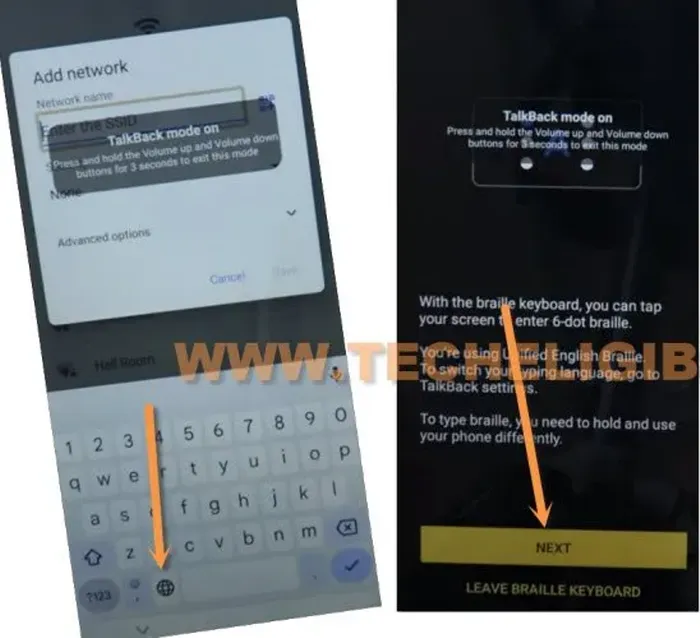
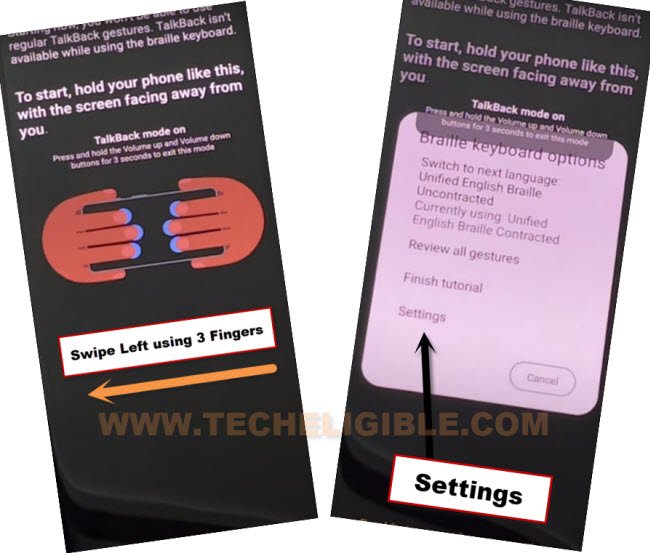
-With your 3 fingers together, swipe from right to left same as shown in below image.
-Double hit on “Settings” from popup window.
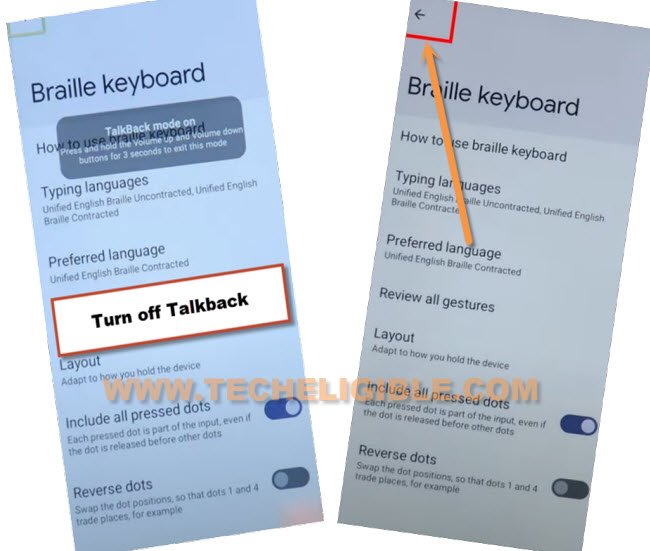
-After reaching on the (Braille keyboard) screen, just long press “Volume up + down” button together to disable the talkback function.
-Let’s double tap on “Back Arrow” icon from top left corner.
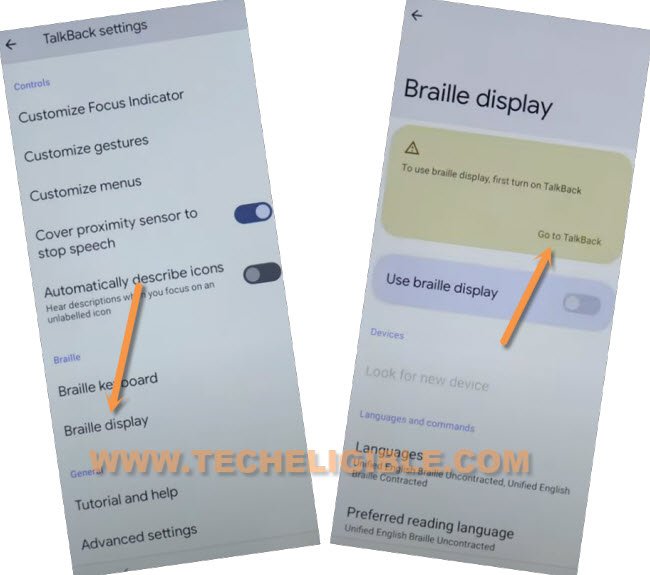
-Tap on the “Braille Display” and then, hit on “Go to Talkback” from top.
Access Youtube By Accessibility Function
-Go to “‘Accessibility MENU” and then, enable option of “Accessibility Menu Shortcut”.
-Once you see the popup screen, simply, tap on > Allow > Got it.
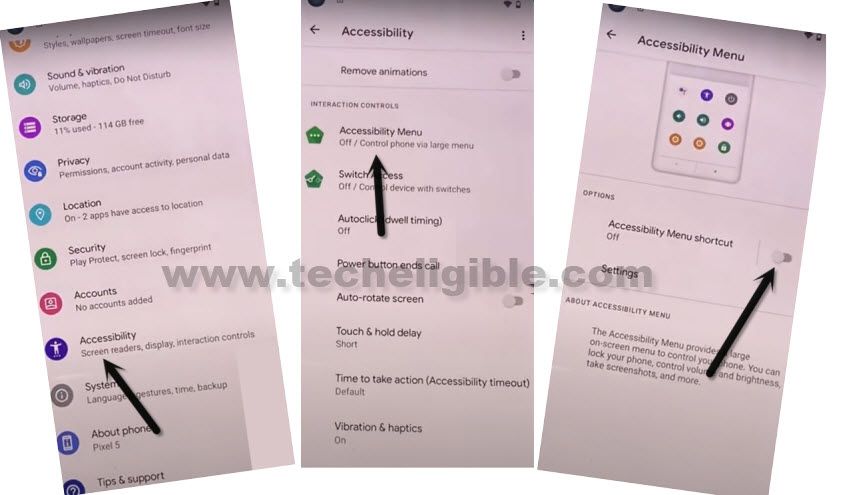
-Once the accessibility feature enabled successfully, from the same screen, go to > Settings > Help & feedback.

-You will access on the article page, from there, tap on “Search help” box, and search there “Write”, after that, tap on the “Write in morse code” searched result.

-In next page, you will see the youtube video, just tap over the “Play” option. Within few seconds, you will see the (Watch on Youtube) option on video, just tap on that.

-From the prompt screen, tap to “Allow” and you have accessed on the official youtube website successfully.
-We don’t need to watch youtube video, just drag it down and go to “Profile” option from extreme top corner and tap at “Settings”.
-Hit over the “Try experimental new features” option.

-Let’s quickly tap on the “3 dots or profile” icon from top corner. After that, new options will popup, just choose the “Terms and privacy policy”.

-From chrome screen, tap on the > Use without an account > No Thanks.

-Search on browser with “techeligible” and visit our official site.
-Open up the site menu by tapping on “Menu” icon from top corner and go to “Download frp tools”.
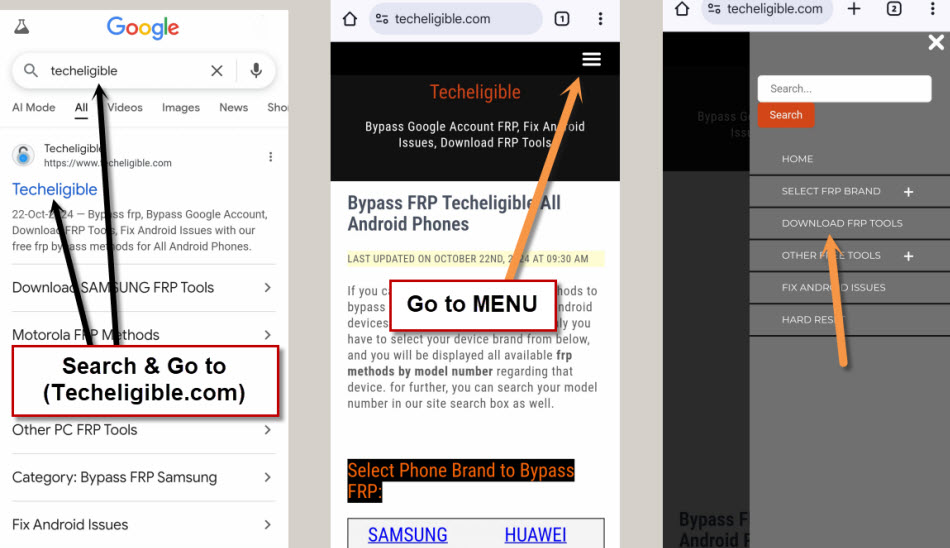
-Scroll down from the frp tools page and tap on “Open EasyShare” app to launch it directly.

-Once easyshare is launched, just tap to > Agree > Device Clone.
-Choose the option > This is a new device > Android > Got it.

-Tap few times on “While using the app and allow” option from the popup window.
-You may see again (Select the type of old device) screen, from there, tap o “Android” option again and finally, you will get the (QR Code) on screen.

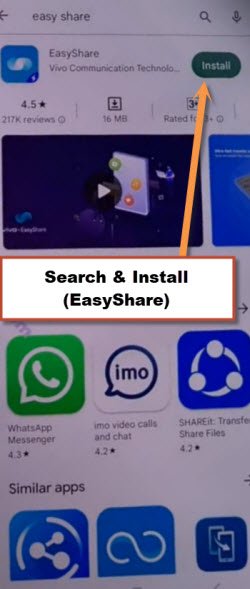
-On your any other android device, just open the (Google Play Store) application, and search there “EashShare” application.
-Install this same app on your phone. (See below image).
-Let’s install one more app, which is “Activity Launcher” application.
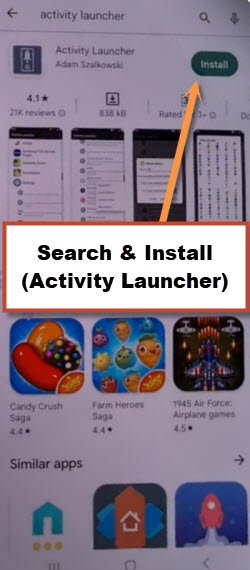
-Once the installing process is completed of both apps, just go back to your device main menu. From there, long tap on the “EasyShare” app icon and tap to “App info”.
-After that, tap over the “3 dots” icon from top corner and choose the “uninstall updates”.
-Then, tap on “Ok”
Note: This will uninstall all new updates and you may not face any connectivity issue with your VIVO V50 lite phone.

-Do make sure, your both phones are connected to Same WiFi router.
-Let’s re-launch the “EasyShare” app from main menu.
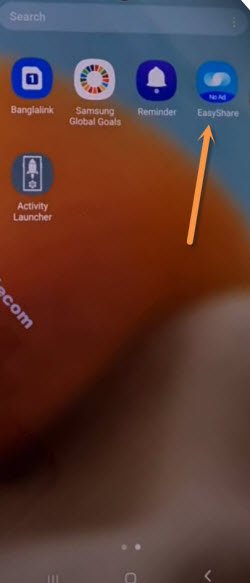
-Tap again on “Agree”, Swipe left few time and hit on “Start” button.
-Once the app is fully launched and you reach to the primary screen, just choose > Phone Clone/Device Clone > This is an old device.

Transfer Activity Launcher App to FRP Locked Phone
-You will get the QR Code scanner, just scan the QR code, that is being displayed on the (VIVO V50 lite) phone screen.
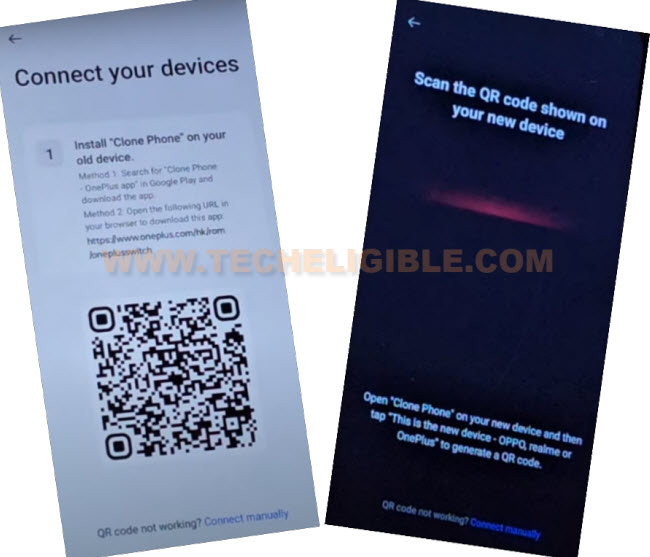
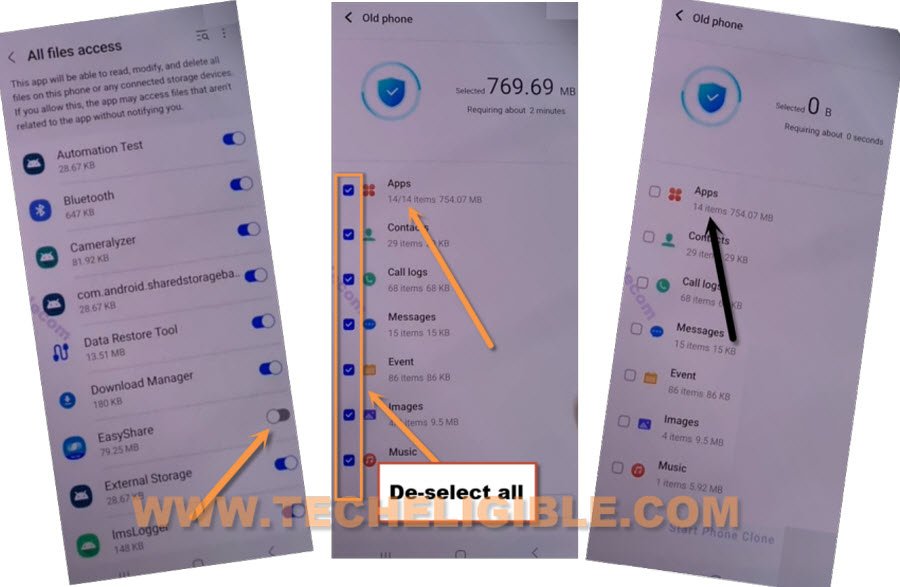
-You will be asked to select the app from other android phone, just un-check all selected apps and go to only “Apps”.
-From there, choose “Activity Launcher” app, and hit on > Ok > Next.
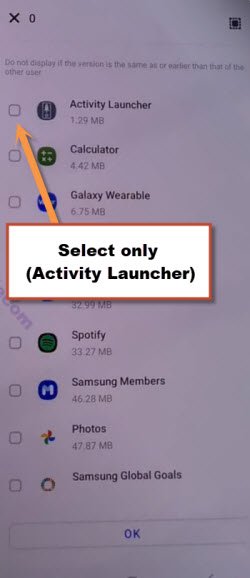
-Then, tap at “Start cloning”. The process will continue of sending this app to your connected frp locked phone.
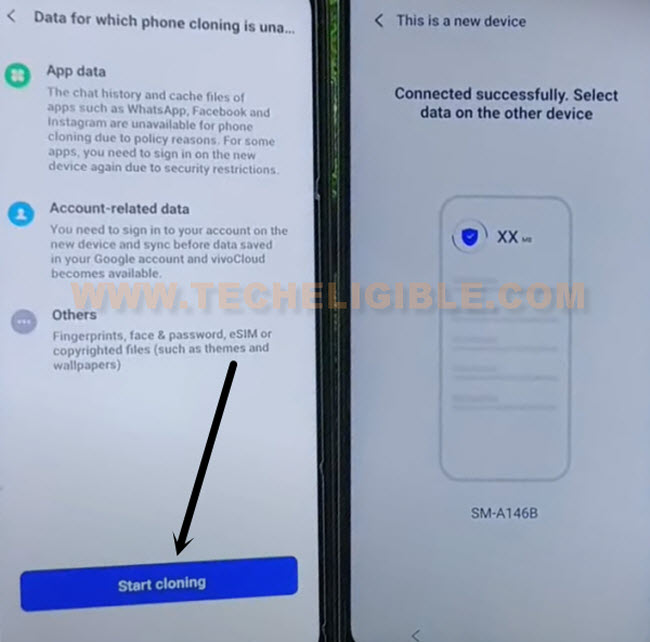
-Once you receive the app on connected (VIVO V50 lite) device, just tap to “Clock” icon from top corner.
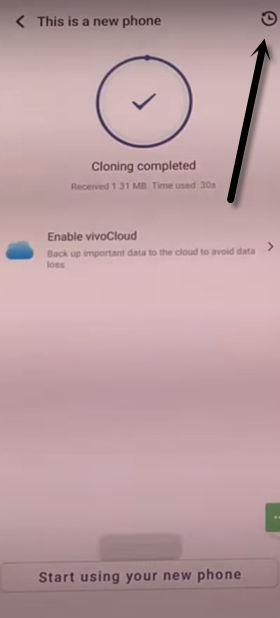
-Then, we have to go to “Apps”.
-From disclaimer popup window, hit on “Ok”.
-There, you will see the app will be installed automatically, you just have to launch this app by tapping on “Open” button.
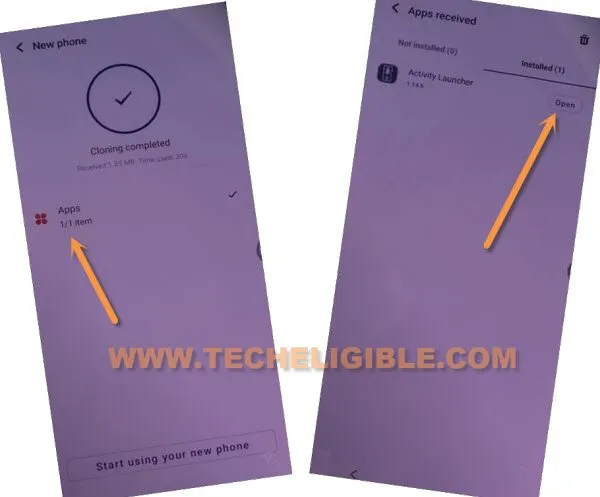
-Let’s hit over the “Android Setup” application from the list of apps you found inside the activity launcher app.
-You will see another big list of (Settings icon) apps there. Among them, we have to choose the exactly same app, which on 2nd number “.WizardManagerActivity”.

Enable the Screen Rotation Mode
-Tap to “Launch Activity” button and after that, quickly swipe down from top to bring up top notification bar and enable the “Rotate Screen” option.
Note: Nothing is happening? Tap again on “Launch Activity” option and quickly bring up top notification bar again, try this as many time as possible, after some tires, the top notification bar will come down, then, quickly enable the (Rotate Screen) option before it disappear.

-Rotate your phone into landscape mode.

-Now, the top notification bar will come down easily, just swipe down from top bring up top notification panel.
-Tap to small “Profile” icon from there same as shown in below image.

-From the prompt screen, choose the “Guest” icon and it will create guest mode on your phone, may take a minute or two.

Switch Back to Owner Mode
-Once the guest mode is created successfully, you will be redirected on the main home-screen of the phone.
-Hold the phone into portrait view and open up the phone “Settings” and tap at “User & Account” option.

-Then, tap on the “Multiple User” option. We don’t the guest mode anymore, lets exit this one by tapping at > Exit Guest Mode > Exit.

-Within few seconds, the phone will switch back to owner mode.
-You will see the (Edit shortcut) screen. Just, tap at “Back Arrow” icon from bottom.
-Tap on the first “SetupwizardActivity” option and hit on the “Launch Activity” button.

Finish Setup Wizard in Offline Mode
-You will be redirected on the first startup page (Hello).
-Tap on the > Start > Next > Next.

-When you see the (Set using another device) page, from there, tap at “Skip” option.
-Tap to “Back arrow” icon from bottom when you reach on the (Getting your phone ready…) screen.
-Let’s finish up setup wizard now in offline mode, choose the “Setup offline” option from the (connect to wifi) page. Tap at “Continue” from popup screen.

-Ski the (Set unlock method) screen and then, go to > more > more > accept.

-Tap to > Next > Next.
-Finally, you will see the (Funtouch OS) page, just hit on the “Get Started” button to get into your phone main home-screen and FRP has been bypassed successfully.

-You can turn off the accessibility function by going into the phone primary settings.
Conclusion
We used two android phones for bypassing the frp lock from one of them. We installed the (Easyshare) application on other android phone and also (Activity Launcher) app. After that, on a frp locked phone, we just enabled talkback and accessed to the (Accessibility function) screen. Then, we enabled this function as well.
Finally, we reached on the frp tools page and launched directly the (Easyshare) application. After that, connected our VIVO V50 Lite with another android phone using the easyshare app and received the (Activity Launcher) app. Then, we just created the gust mode on the phone and bypassed frp account easily by completing setup wizard steps in offline mode.