Are you not able to regain control and access to your phone after performing hard reset it? That’s very common reason, and occurring with people, who just purchase used phone or forget their own recently logged in google account. Because, FRP lock protection actually secure their devices from unknown person reach, and they are also being considered in the same list due to unable to complete the verification process by signing in again with the recently setup google account. Follow our guide to Bypass FRP Xiaomi POCO C71 with free (BFT Tool).
Disclaimer: Attempting this frp removal method on a phone that is not yours, is not allowed. This post is only for the device owner or follow up with the consent of the owner. This is an educational guide.
Bypass FRP Xiaomi POCO C71 [With BFT Tool – FREE] ?
-You need to download the tool and install it on your computer.
Note: This below tool is totally free, no activation is required at all. Just download and install it. After that, we will be able to bypass the FRP with one click. Before extracting and using this software, do make sure, your @ntivirus is deactivated, otherwise, the tool file may be deleted.
| ⇒ BFT Tool V1.7 [DOWNLOAD] |
-Extract the downloaded tool and install it on PC.

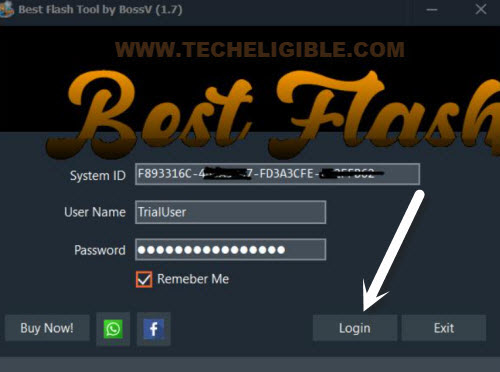
-Let’s run this tool on PC by double click on (BFT Tool) icon from your desktop. Once you get the login account popup screen, simply, hit on the “Login” button. That’s it, you will be logged in automatically by default username and password.
-Once the tool is fully launch, select this option “0-UNISOC”.
-Then, select the processor name “[AUTH] Tiger T616 (64) V2”
-After selecting these two options same as displayed in the below image, we can safely go for next step.
-We have to hit over the “SERVICE” tab from the tool screen.

-Afterwards, click on the “FRP Reset” button.
-Once you see the message on tool (Connect device in flash mode…), after that, we will connect our phone to PC. (Check out steps below).

Connect Xiaomi to PC in Flash Mode
-Connect one end of USB Cable to PC.
-Turn off your phone complete and wait for 5-10 seconds.
-Let’s long hold the (Volume Down) button from the Xiaomi phone and connect 2nd end of USB to your phone.
Note: While holding the (Volume Down) button, connect Xiaomi phone to PC.
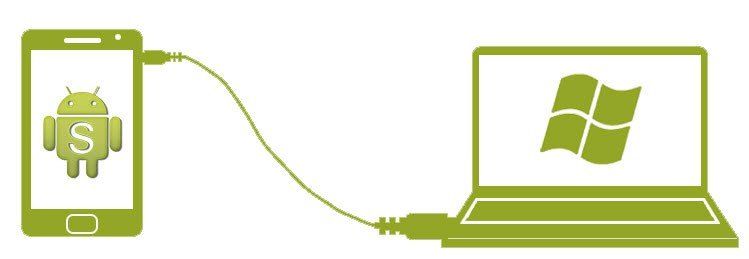
-Your device will be recognized by the tool, and the tool will continue its FRP bypass process, you will be able to see its on going process on screen.
| Note: If the phone is not recognized by the tool and PC, that means, you are required to install (SPD Drivers) on the windows first. For this, you just click here to follow up further to install SPD driver Computer. This issue usually occurs on old Windows 10. On latest Updated Windows 10 or 11, you may not face this type issue. |
-This may take several seconds or a minute in completing its process, once its completed, you will get the message of (RESET FRP END).

-Disconnect the phone and turn it one. After that, you will be able to complete the setup wizard steps on your own.
-The little lock from above corner of the screen will disappear, that means, the FRP has been bypassed successfully. After access on the (Connect to WiFi) screen, from there, just, tap over the > Setup Offline > Continue.
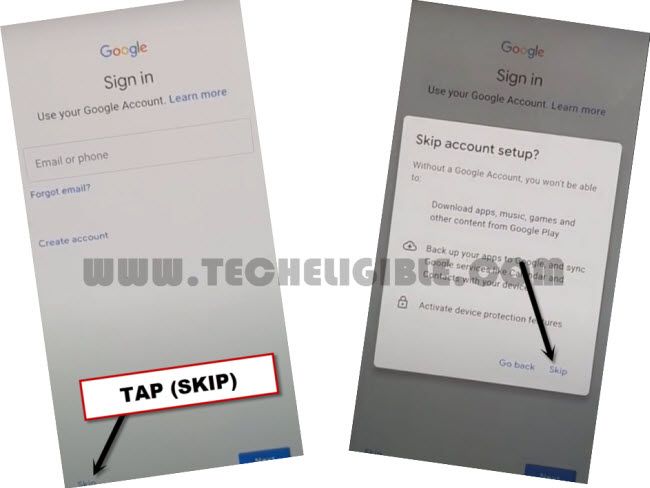
Note: If you don’t the (Setup offline) option, you simply, connect your phone to WiFi network, after that, from the (Connect to WiFi) screen, just skip that screen. Or else, you will reach on the (Google Verification) page. From there, you can skip that screen as well. Check out below step.

-If you reach on the google verification screen, just hit on > Skip > Skip. That’s it, you can complete all the remaining steps easily by yourself.
Additional Steps (Installation of SPD Drivers on PC)
-Install SPD Drivers on PC Windows (If Phone is not Recognized by PC)
-Firstly, do make sure, your USB Cable input and output, both are working fine. If even then, you face the connectivity issue. Then, next step to install SPD driver.
-Hit on “Driver” tab from top corner and choose the “Install SPD Driver” option.
-The downloading and installation process will continue automatically. Just install this driver first.

Troubleshooting Steps (Device not recognized by PC)
⇒ 1st Trick:
-If, even after the installation of drivers directly from the tool, your phone is not being recognized, then, try to download and install SPD drivers manually on computer.
| ⇒ SPD Driver Latest [DOWNLOAD] |
| ⇒ SPD Driver V1.4 [DOWNLOAD] |
⇒ 2nd Trick:
-You are may be using the old Windows 10. For this, you will have to follow up some extra steps to install drivers on your PC.
-Follow up this post to Install Drivers on Computer.
The Bottom Line:
We just turned off the phone. After that, downloaded and installed (BFT Tool V1.7) from the given source on this post. Finally, we selected the (Unisoc) option from the tool interface. Afterwards, we just downloaded and installed spreadtrum drivers as well for not to face any type of connectivity issue. Finally, we connected the phone to PC and clicked on the (Reset FRP) button to bypass frp.