
Don’t have any other solution to access back to your FRP locked phone after doing a factory reset from recovery mode. If this is exactly happening with you, then, you must be in frustrating situation, to overcome this, you need to follow up steps here for Unlock and Bypass FRP Samsung Galaxy A16 5G (Android 16 & Android 15) with the help of Android Utility Tool V200. This tool is totally free and very easy to use. We just have to connect our phone with PC and click to (Remove FRP) option from the tool to work with. Follow the guide from below.
Note: We highly recommend you to apply this method only on your own device, if you are not owner of this Samsung A24 device, or you found this from some where, you must return this device to its real owner.
Bypass FRP Samsung A16 5G [With PC]
-Firstly, arrange the Android Utility V200 tool on your PC & Also USB Driver.
Remember: This method work perfectly fine with Samsung A16 5G Android 16, if your device android version is 15, then you will have to upgrade it first. For this, Click here to upgrade it.
Download Tool & Driver on PC
We will download and install (Android Utility Tool V200) on our PC. After that, we also have to download and install proper Samsung USB driver. So that, we don’t face any type of issue while connecting the phone with PC. After setup these all, we are good to go for FRP bypass process with one click.
-Download below (Android Utility Pro V200) software on your PC and also USB driver for safe unlock frp.
-After downloading and installation is done of the tool, revisit this post to continue further steps.
⇒ Android Utility Pro V200 [DOWNLOAD] ⇒ Samsung USB Drivers [DOWNLOAD] Pass: gsmprime |
-After that, you just have to install Samsung USB driver on computer.
-Extract the downloaded tool and run it on your PC.
-Once you get your tool interface same as shown in below image, just click over the > Samsung > Main.

Use a USB Cable to Connect Phone with Computer
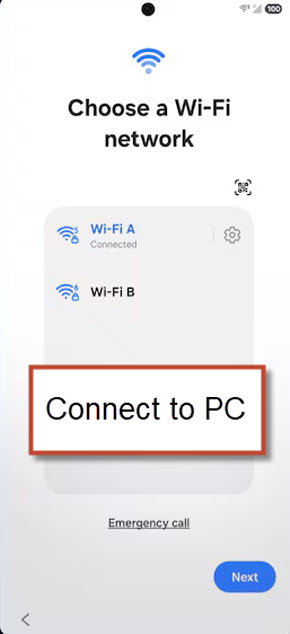
-Let’s turn on the phone & connect to WiFi network.
-Once its done, just keep the phone display on (Choose a Wi-Fi network) page.
-Finally, connect your device with PC.
Remember: This method work perfectly fine with Samsung A16 5G Android 16, if your device android version is 15, then you will have to upgrade it first. For this, Click here to upgrade it.
Click to Unlock FRP Option
-Afterwards, you have to hit on an option “Samsung Remove FRP Android 16 (December 2025) (MTP)” from the tool.
-After 30-60 seconds, you will start getting all the detail of your phone on the tool interface, that means, the phone has been detected successfully and FRP bypass process has just continued.

Troubleshooting StepsImportant Trick: The FRP bypass completion procedure may take several minutes to complete, you just have to wait and keep patience. Firstly, you will see (Switching mode), this is required roughly 1-2 minute to be done. Then, (Installing ADB enabler) will also take 1-2 minute. At the end of this process, you will get the (Finalizing) message. Trick 1: If the software take longer time in completing any one step, like it may stuck on the (Finalizing) and even after wait more than 2 minutes, its not going through this step, then, simply, reconnect cable to your phone. If even then, same issue occurs, just disconnect phone and restart the software and click again on the “Samsung Remove FRP Android 16 (December 2025) (MTP)” option. After that, reconnect your phone with PC. Do make sure, the device is switched on. Trick 2: In some cases, if the tool stuck on any one frp unlock step, then, simply, tap any blank space on the (WiFi) screen, do not tap any option, that may change the screen.
|

Remember: If the phone display just goes dark, simply, tap anywhere on the screen to wake up the phone. Avoid tapping any option from the WiFi screen.

-After the process is done, your device will auto restart. After that, wait on the main home-screen for 5-10 minute. After all frp steps are done, you will be displayed a (Welcome) page.

Disconnect & Complete Setup Wizard Steps in Offline Mode
-After getting the (Welcome) page, you can safely disconnect the device from PC.

-Setup phone now by hitting on “Start” button.
-After reaching at the (Choose a WiFi network) page, you just tap on “Skip” option to setup the phone in offline mode.
-Complete all steps accordingly and you will reach to main home-screen of your device. Its all done from bypassing frp side.

The Bottom Line
We only downloaded (Android Utility Tool + USB Drivers) for Samsung phone on computer. After that, we connected the device to PC by putting our phone into (WiFi) screen. After that, we just clicked on the (Remove FRP) button and it took several minutes in completing its frp unlocking process. Then, we disconnected the device from PC and completed setup wizard steps in offline mode.