
You can still get back your device even after hard reset and loosing your recently signed in google account. If you are a device owner, then you can follow up this way to Bypass FRP Account Infinix Hot 50 (Android 14) without using any paid service. We will access to app management screen an disable some apps from there. Follow up guideline from below.
Disclaimer: We highly recommend you to apply this method only on your own device, if you are not owner of this device, or you found this from some where, you must return to its real owner. This method is for educational purpose only.
Let’s Start to Bypass FRP Account Infinix Hot 50:
-Connect WiFi to your infinix phone to start frp removal process.
-Go back on first (Select Language) page. Tap 3-4 times quickly on screen anywhere. After that, you will reach to (Verify pattern) screen. If the pattern lock is not setup, then you may reach to other screen.

-Long hold on that screen with two fingers together for holding smart touch option.
-If nothing happens, try again. Do this 2-3 times by long holding on screen with 2 fingers for about 20-30 sec.
-After that, you will have a same screen same as shown in below image. From there, tap to “Privacy Policy” link.

-Long hold at any text from (Privacy Poliyc) screen and go to “Share” option.
-Tap on a “Quick Share” icon from popup window and hit on “Continue”.

-Tap to these blue links > Learn more > Next > Settings.

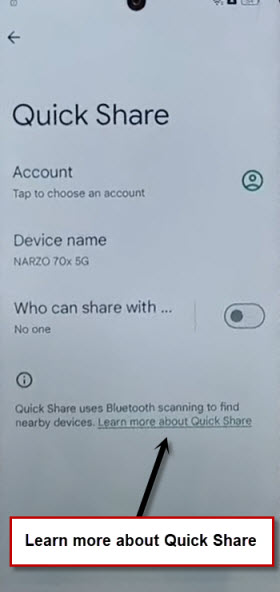
-Go to this link “Learn more about Quick Share”.
-Afterwards, hit over a “3 dots” icon from top corner and tap to “Share Article”.
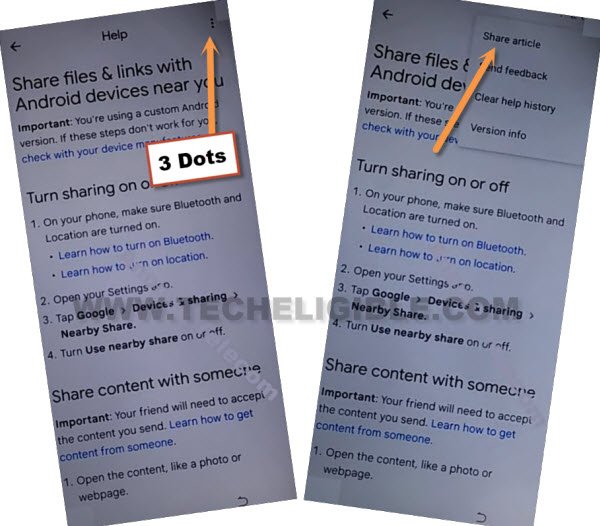
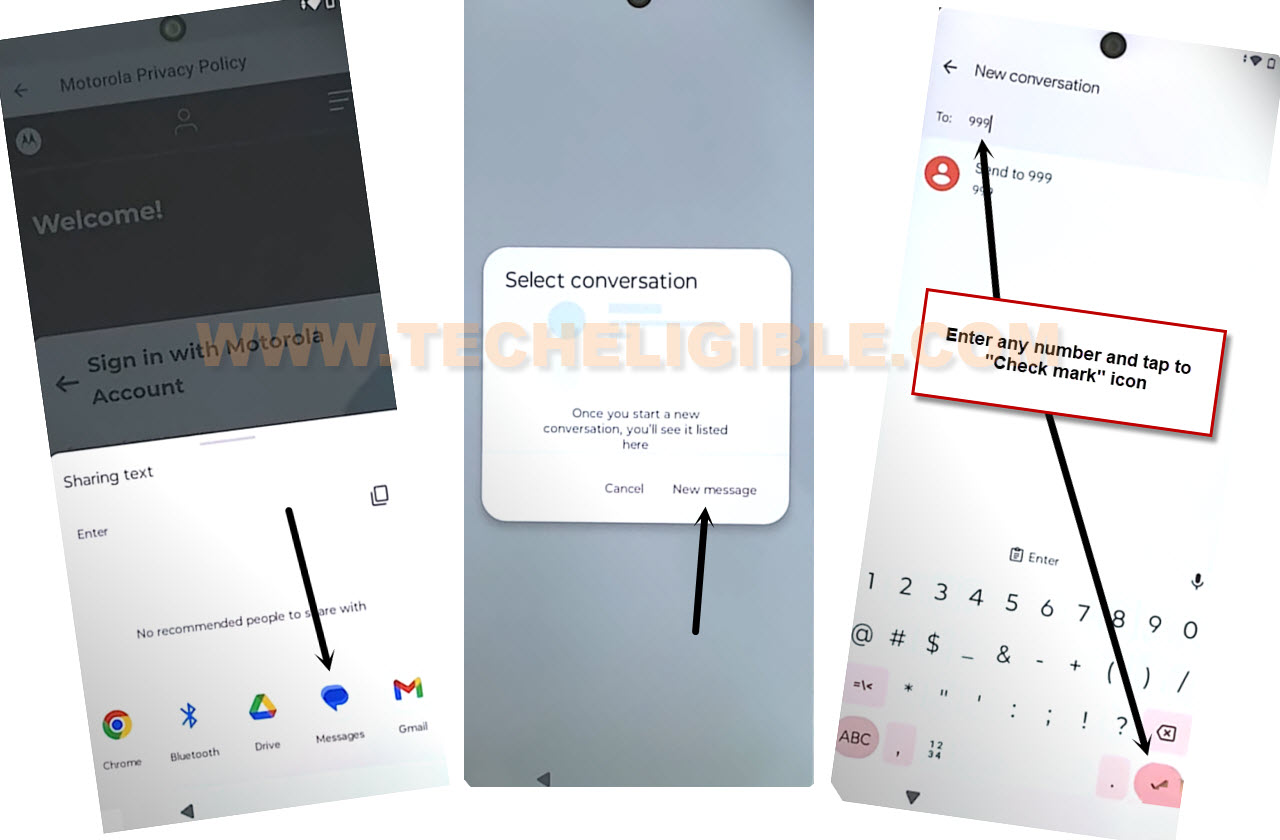
-You will be shown a help screen, from there, tap to > Message > New Message.
-Type “112 or 999” there and tap to “Send to or check mark” option same as shown in below image.
-Let’s hit over a “Image” icon and capture any random image from your device. After that, hit on “Attach” option to Bypass FRP Account Infinix Hot 50.

-Lets hit over a captured image same as shown in below screen shot. After taht, tap on “Share” your image.
-Choose with “Google search image” icon.

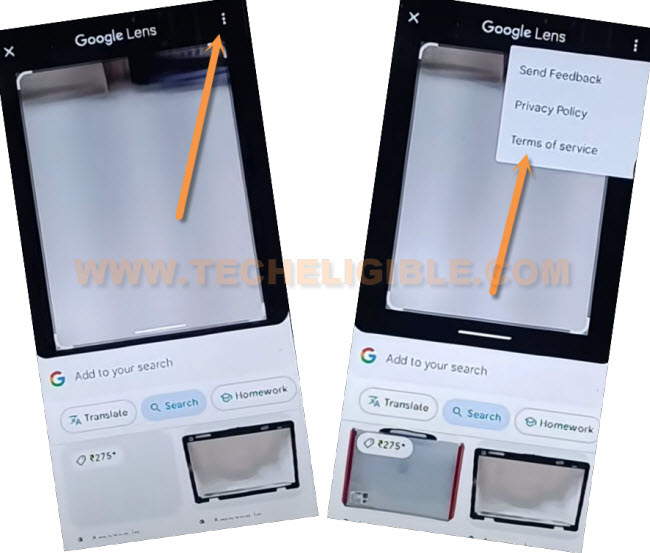
-You will be redirected on a (Google lens) screen. From there, go on > 3 dots > Terms of service.
-From chrome screen, go to > Use without an account > Got it.
-From terms of service screen, long hold at any text again and tap to “>” this icon from there. After that, go to “Web search”.

Go to Device Settings Page:
-Search in chrome browser search bar with “Techeligible“. After that, visit same searched result as shown in below screen shot to access our official site.
-After accessing there, just go to “Menu” icon from upright corner. After that, tap on “Download FRP Tools” option.

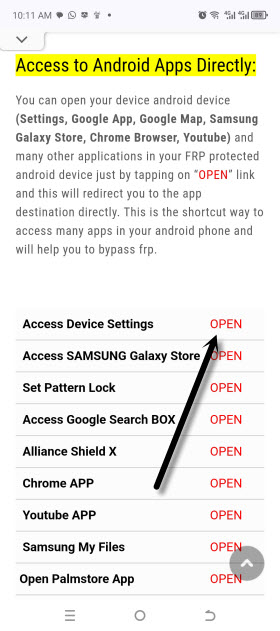
-Scroll down from there and tap on a “Access Device Settings” option. This option will take you in your device main settings page.
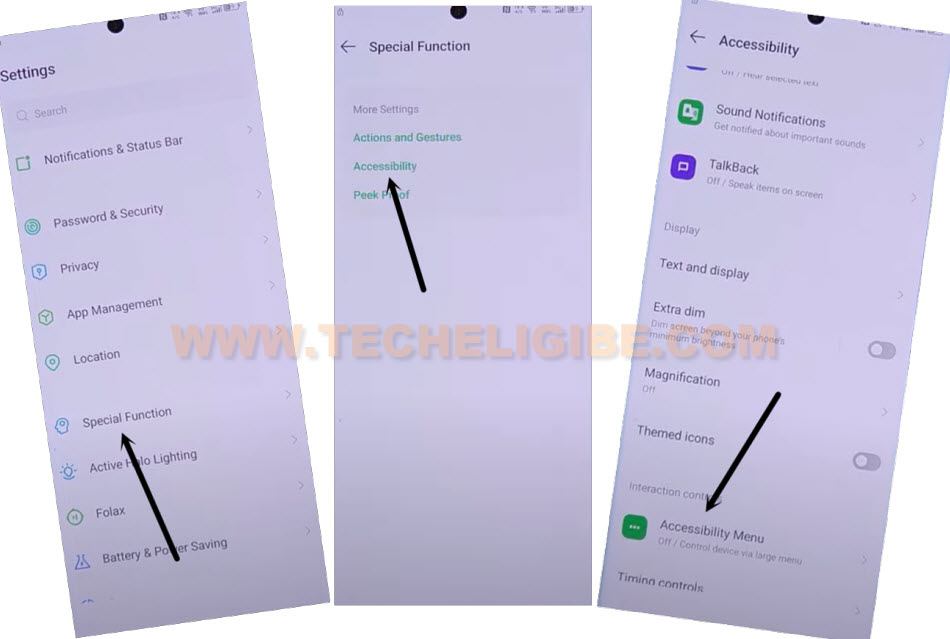
-Let’s enable (Accessibility function) in our device to Bypass FRP Account Infinix Hot 50.
-First of all, you have to tap on these options respectively > Special Function > Accessibility > Accessibility MENU.
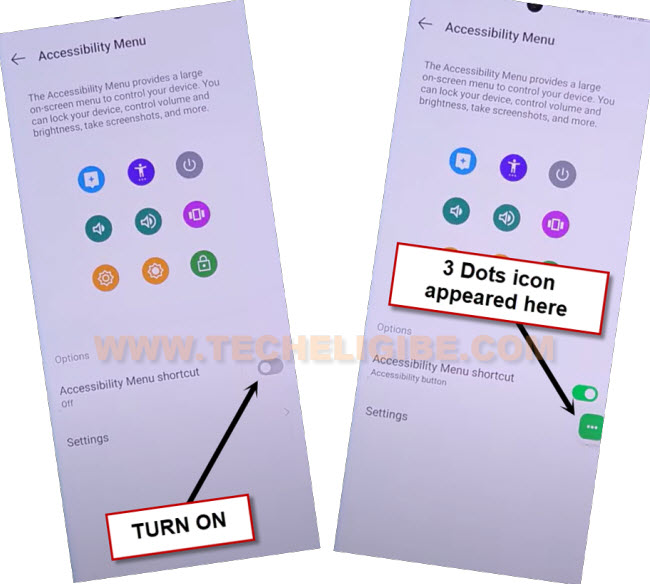
-Enable now “Accessibility Menu Shortcut” button.
-Tap to > Allow > Got it.
-After enabling this successfully, you will be shown (3 dots) icon.
Go back to Settings to Disable Some Apps:
-We are going back main (Settings) screen by hitting on back arrow icon.
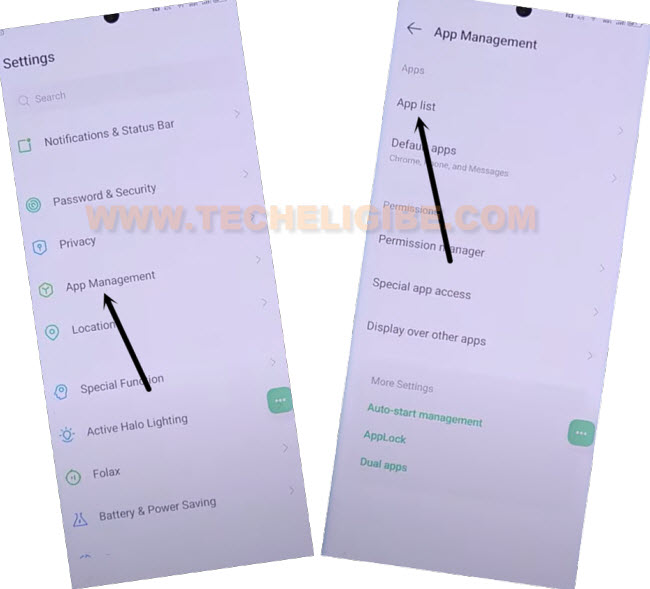
-Go to > App Management > App list.
-Let’s enable show system option to display all hidden apps. Just hit on a > 3 dots > Show system.
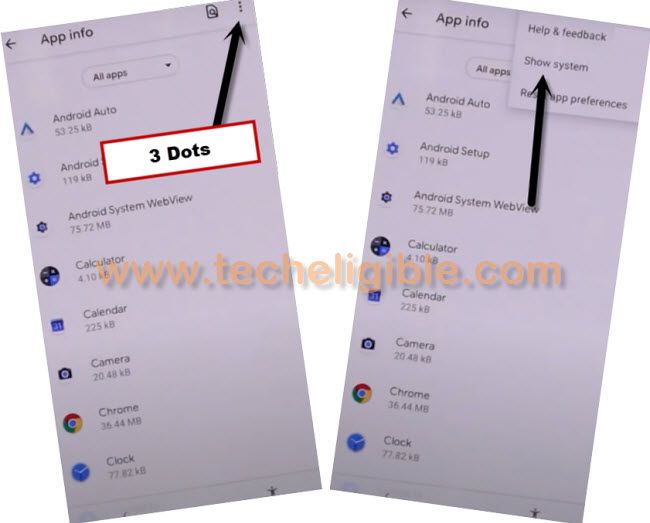
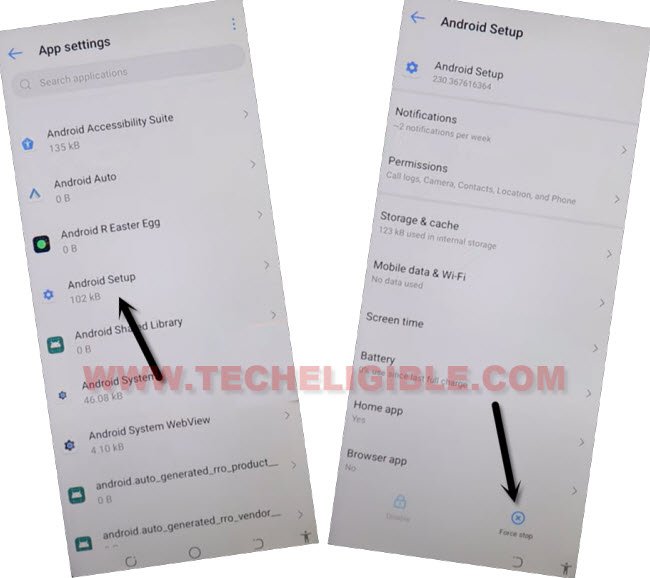
-From below app list page, find and go to > Android Setup > Force Stop > Ok.
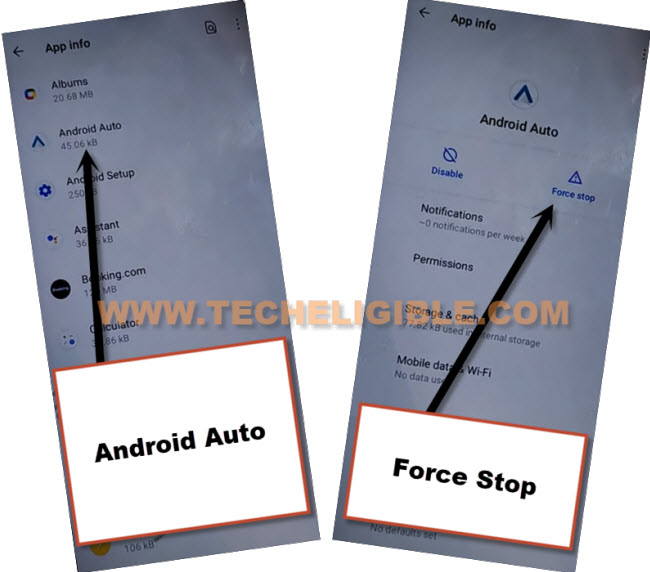
-Go back to main app list screen. Find another app now named “Android Auto”.
-Force stop this app as well.
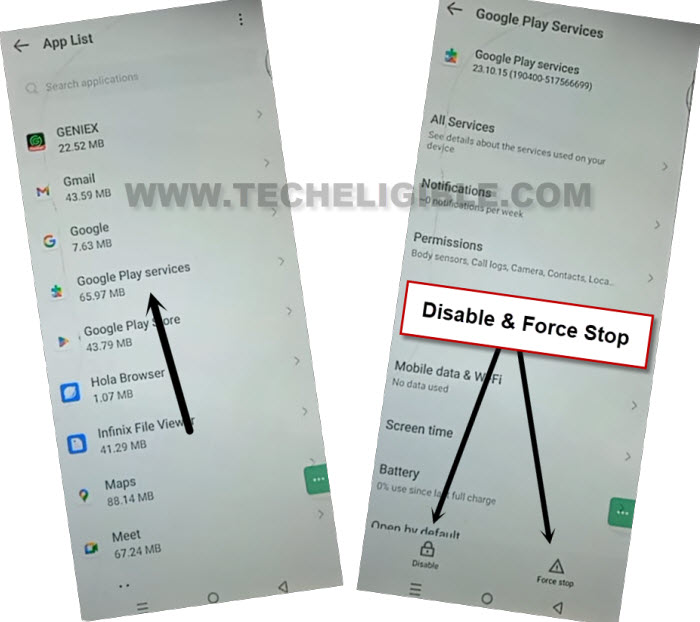
-Let’s get back to app list screen again. From there, find and tap on “Google Play Services” app to Bypass FRP Account Infinix Hot 50.
-After that, hit over > Disable > Disable this app.
-Tap also on > Force stop > Ok.
Go back on 1st Start-up Page (Select Language):
-Keep tapping on “Back Arrow” to reach back on main (Select Language) screen.
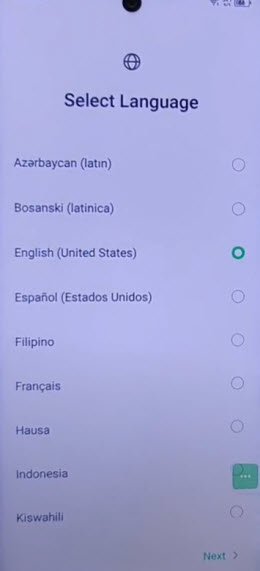
-After that, hit on a > Next > Skip > Next > Next.
-Wait on a (Just a few moment) screen. After that, you will reach to (Copy apps & data) screen. From there, tap to “Don’t Copy” option.
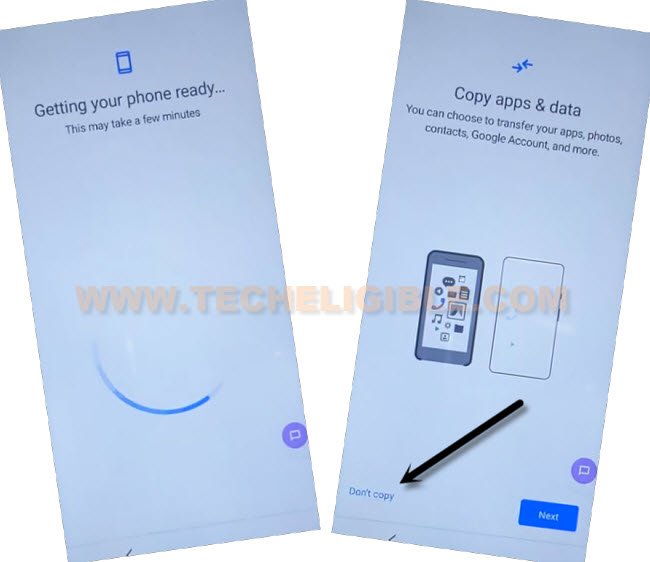
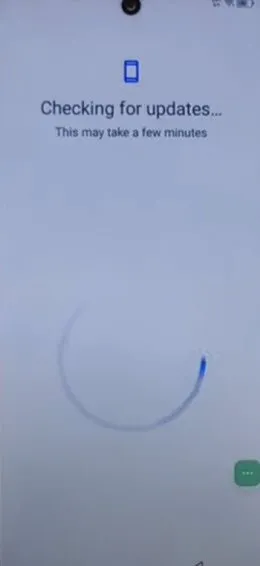
-Your device will stuck on a (Checking for updates..) screen.
-Let’s tap to > 3 dots > Accessibility Settings.
-If nothin happens, tap again on > 3 dots > Accessibility Settings.
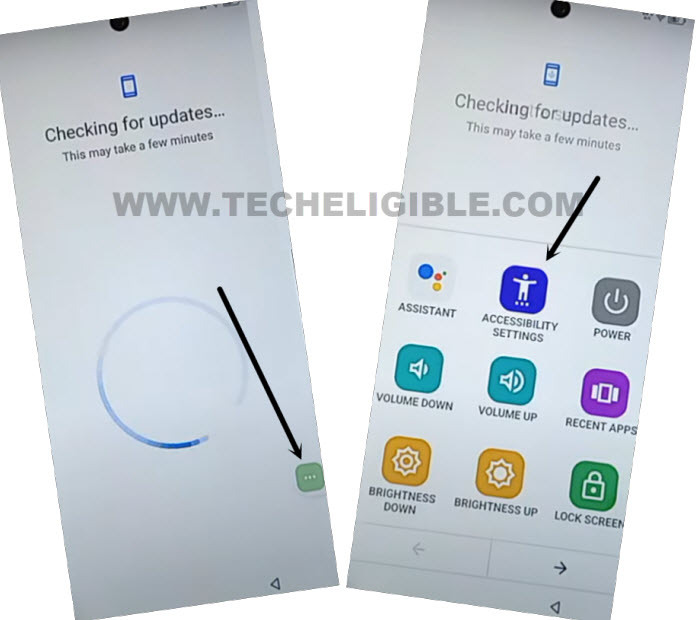
-We have to access back to (App management) screen enable back google play services app.
-From (Accessibility) screen, just go to > Talkback > Settings > Braille keyboard > Setup braille keyboard > Settings.
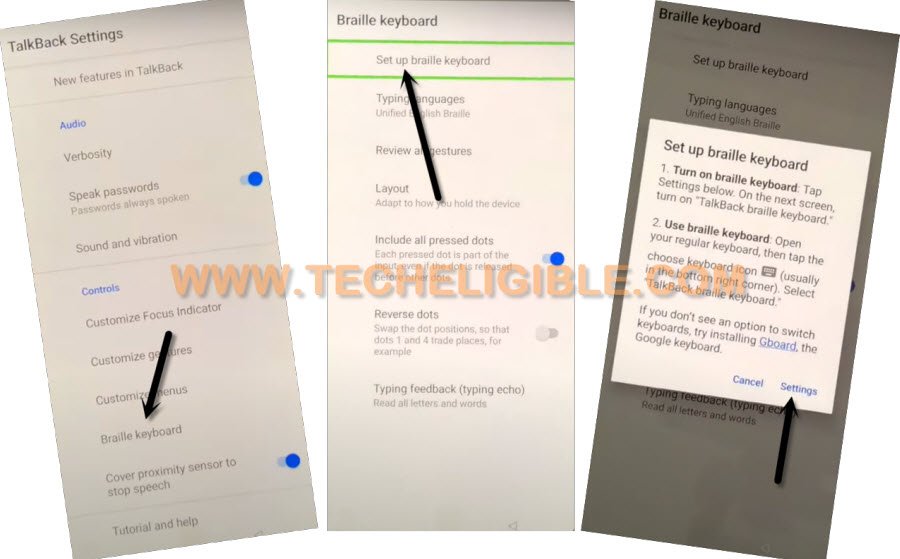
-We will reach on a (On-screen keyboard) page. From there, we have to tap on a > Gboard > Share Gboard > Share.
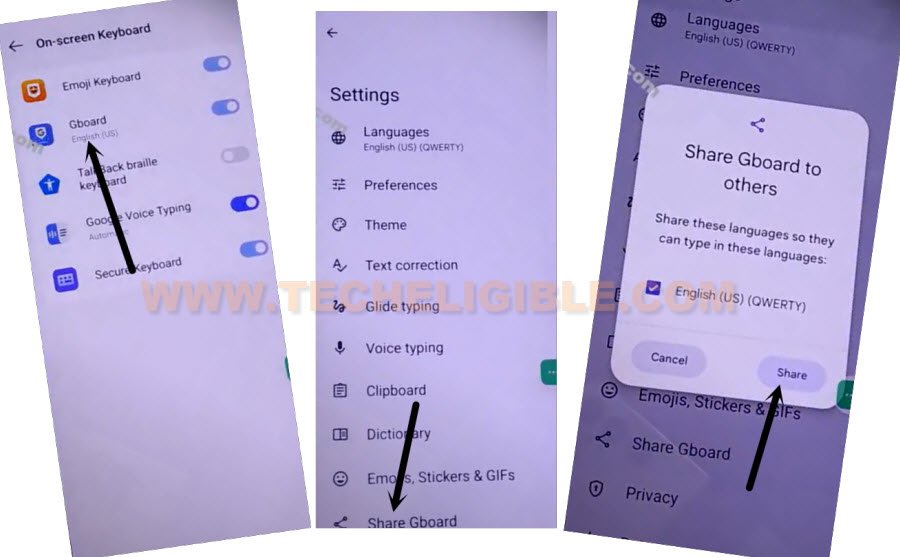
-Let’s repeat steps to access to main settings page.
-Tap to “Message” from popup window. Tap on your recent number.

-Let’s hit over a “Image” icon and capture any random image from your device. After that, hit on “Attach” option.
-Tap on your captured image same as shown below. After that, go to > Share > Google Search image.
-You will be redirected on a (Google lens) screen. From there, go on > 3 dots > Terms of service.

-From chrome screen, go to > Use without an account > Got it.
-From terms of service screen, long hold at any text again and tap to “>” this icon from there. After that, go to “Web search”.
Go to Device Settings Page:
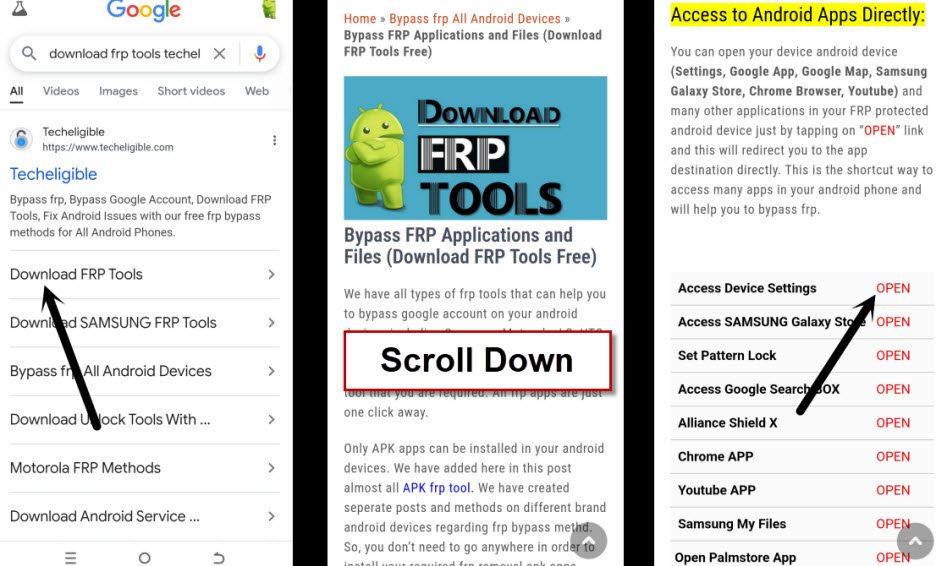
-Search in browser with “Download FRP Tools techeligible“.
-Go to 1st searched result same as shown in below screen shot to reach to techeligible official frp tools page to Bypass FRP Account Infinix Hot 50.
-Scroll down from there and tap on a “Access Device Settings” option. This option will take you in your device main settings page.
-Go to > App Management > App list.
-Let’s enable show system option to display all hidden apps. Just hit on a > 3 dots > Show system.
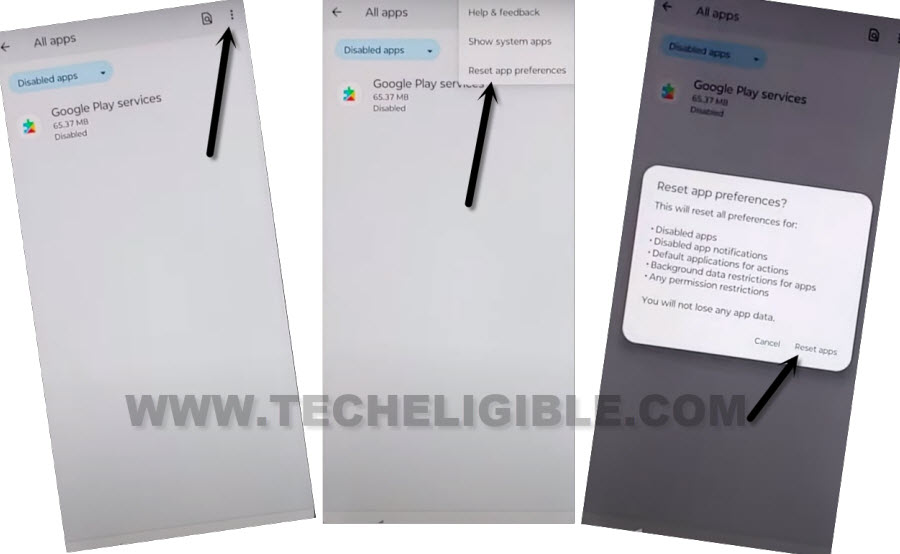
-Let’s enable back google play service app.
-Tap to “3 dots” icon from top corner and hit on “Reset app prefrences”.
-From popup window, tap to “Reset app” option.
-Go all the way back on (Checking for updates…) screen by hitting on back arrow several times.
-After that, you will have a (Google Services) screen, from there, tap to > More > More > Accept.
-Tap on “Next”. After that, select “Google” and tap to > Next > Ok.
-Go to > Next > Skip > Skip. Select “Button” and tap to “Next”.
-After that, hit over a “Next Arrow” icon from (XOS) screem. After that, you will be redirected into your device main home-screen.
-We have to reset our device completely by going to > Settings > Reset phone > erase all data > Got it. You are all done now. You can use your device again without facing any issue again.