
You can resolve your device frp bypass issue on your own with the help of these below given 2 methods on Bypass Google Account Moto G Play 2024 (Android 13) & Moto G Play 2021 (Android 11). We will disable (Google Play Services) app in both methods to complete setup wizard steps. If you can’t recover back your old setup google account on this phone, then, follow up below frp bypass method on your device.
Disclaimer: We highly recommend you to apply this method only on your own device. If you are not owner of this device, or you found this from some where, you must return to its real owner.
| Method 1: Remove FRP Motorola G Play (2024) [Android 13] |
| Method 2: Remove FRP Motorola G Play (2021) [Android 11] |
Method 1: Bypass Google Account Moto G Play (2024) Android 13
-Start this frp removal process by connecting WiFi to your Moto phone first.
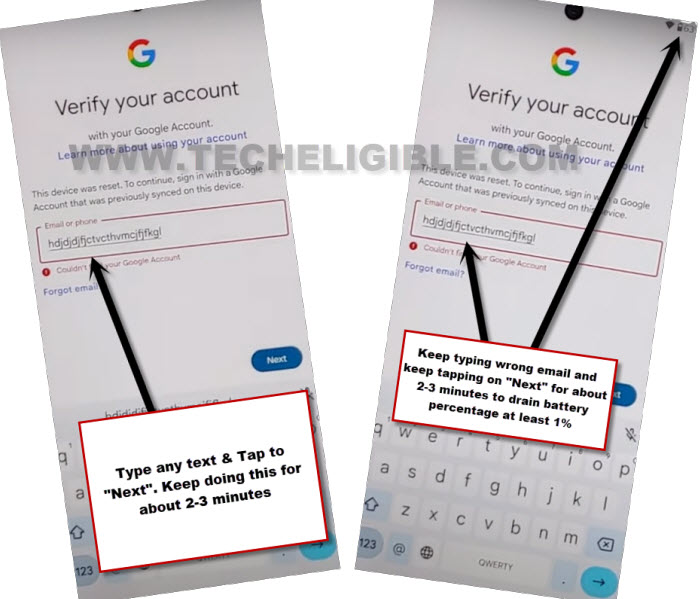
-After that, go to (Verify your account) screen same as shown in below image.
-Type any random text in (Email or Phone) tab. After that, tap to “Next”. Your text will not be accepted. You have to do such type of activity for about 5 minutes to drain your device battery at lest 1-2%.
-After that, go all the way back to first (Hello) screen. From there, hit on > Start > Skip.
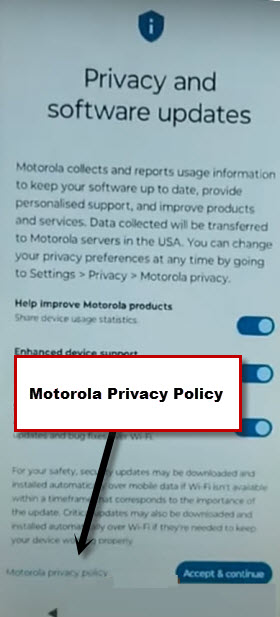
| Note: In case of not having the same screen of (Privacy & Software Update) . Don’t worry. Go to (WiFi screen) from there, tap once on your (Connected WiFi SSID) name. Afterwards, you will reach to (Privacy & Software Update) screen successfully. |

-After that, hit on a “Motorola Privacy Policy”.
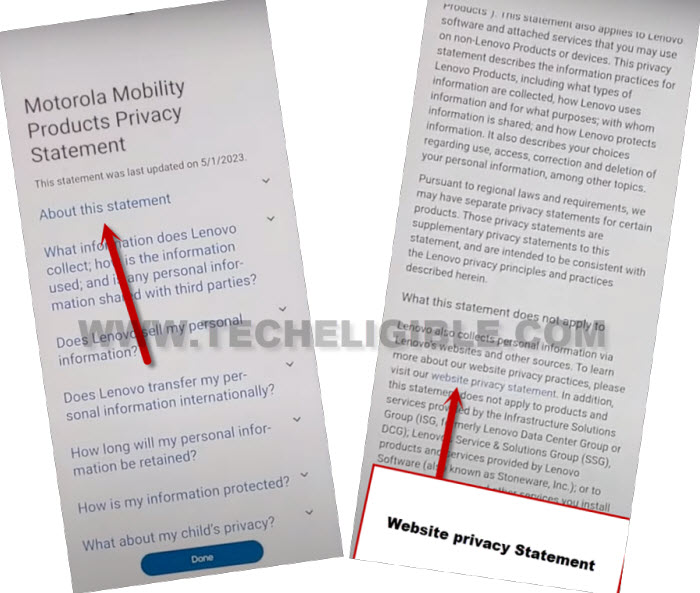
-You will be redirected on (Motorola Mobility Products Private Statement) page. From there, tap to “About this statement” scroll down option. This will show you an article page. Just, tap to “website privacy statement” link from there.
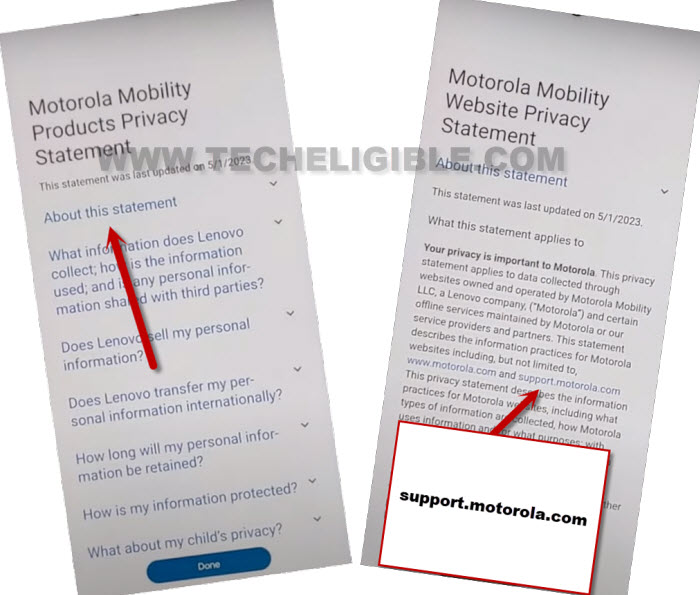
-Hit again on a “About this statement” scroll down option to open up another article page.
-This time, you have to hit on this email “support.motorola.com” to access to moto official support page.
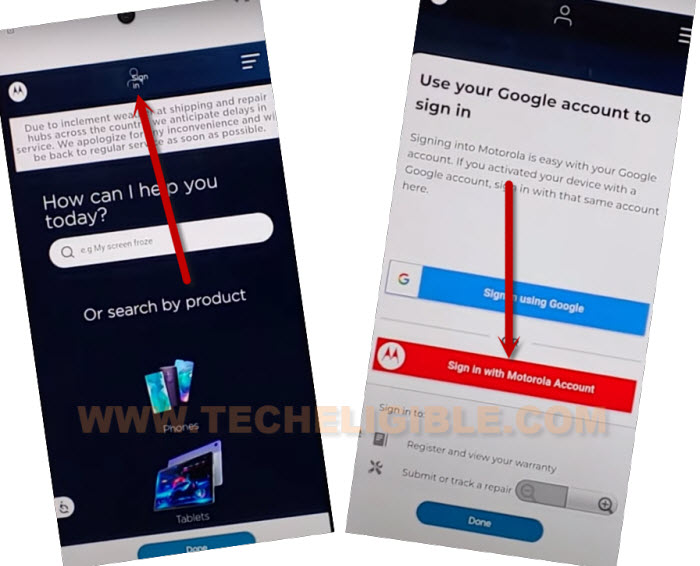
-Let’s over the “Sign in” option from the top of the page. Afterwards, you’ve to tap on a red button “Sign in with Motorola Account”.
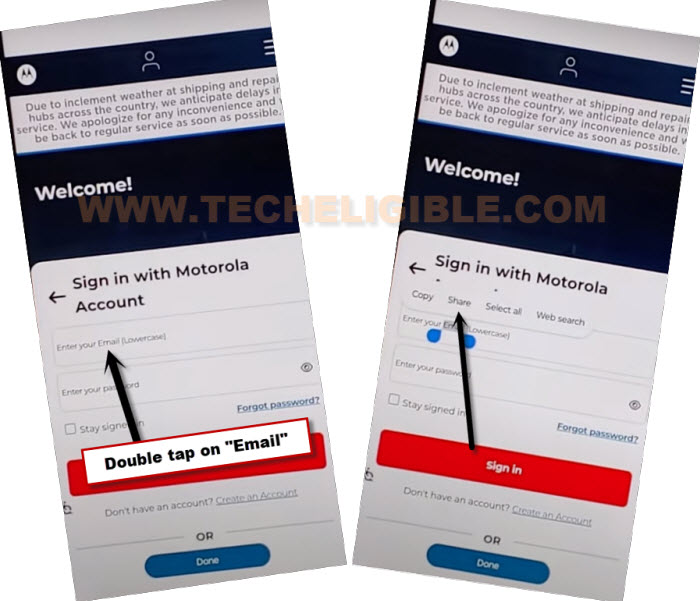
-You will be shown another tab of (Sign in with Motorola Account). Just long hold on text “Enter your email” and tap to “Share” option.
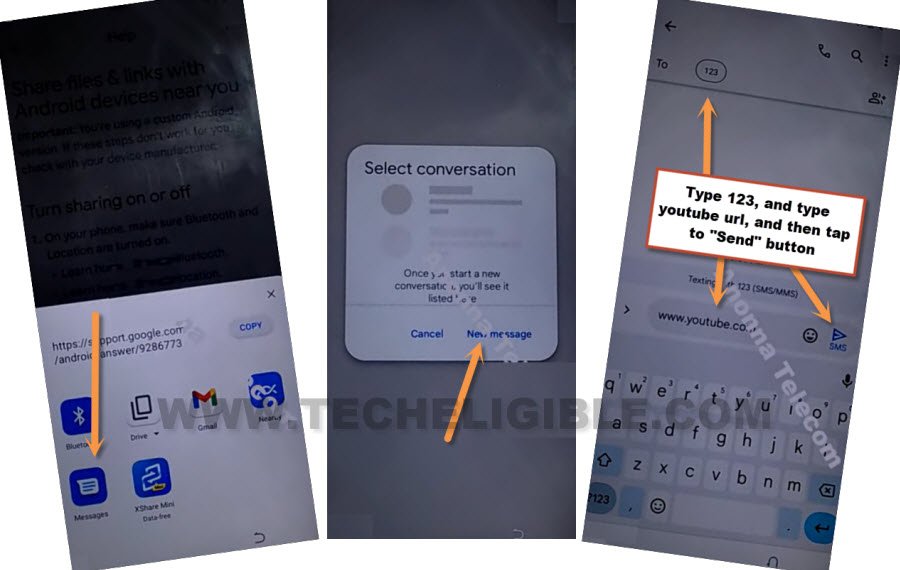
-You will be shown a popup screen, just choose “Message” application from there.
-After that, choose “New Message” to access to new message creating screen.
-Simply, send “www.youtube.com” url to any random number as a text message.
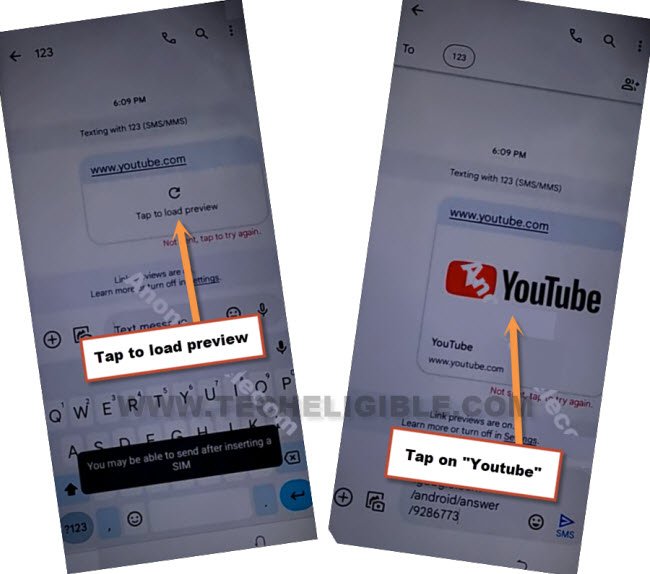
-Afterwards, the youtube url will convert to hyperlink and will show you a reload icon.
-Just tap on the “‘Reload” icon from there. After that, hit to “Youtube” image to access official youtube site to Bypass Google Account Moto G Play.
-Tap to “Allow” from popup message.
-Let’s hit on a “Account icon” from top corner and ta on “Settings” icon.
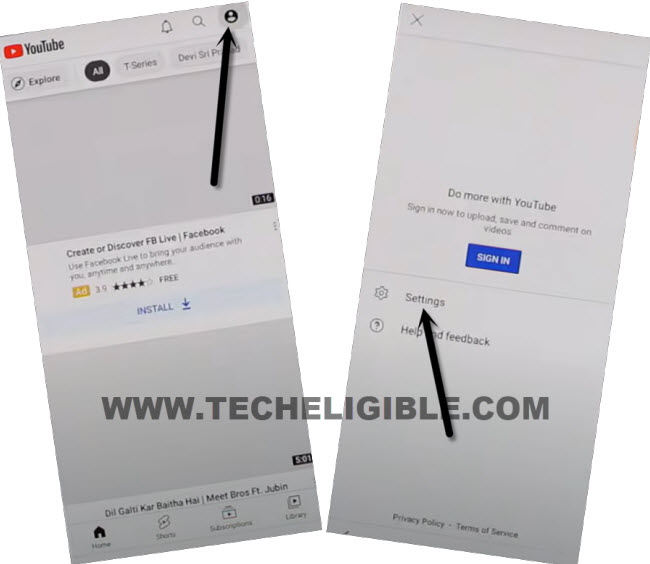
-You have to go to > About > Youtube terms of services.
-We can easily access to main settings page of our device to disable google play services application from there. This is the important step of this method.
Go to Moto G Play Settings Page:
-Access to techeligible website. After that, go to official frp tools page from there by hitting on “Menu icon” from top corner.
-Tap to “Download FRP Tools” text from sidebar menu.

-From frp tools page, just scroll down and tap on “Access device settings” option. This will redirect you to your device main settings screen.
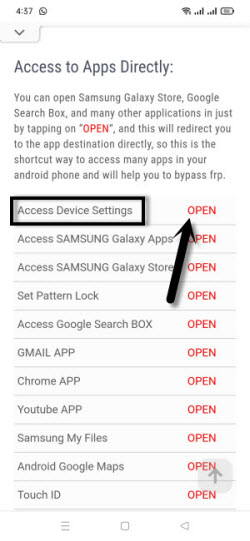
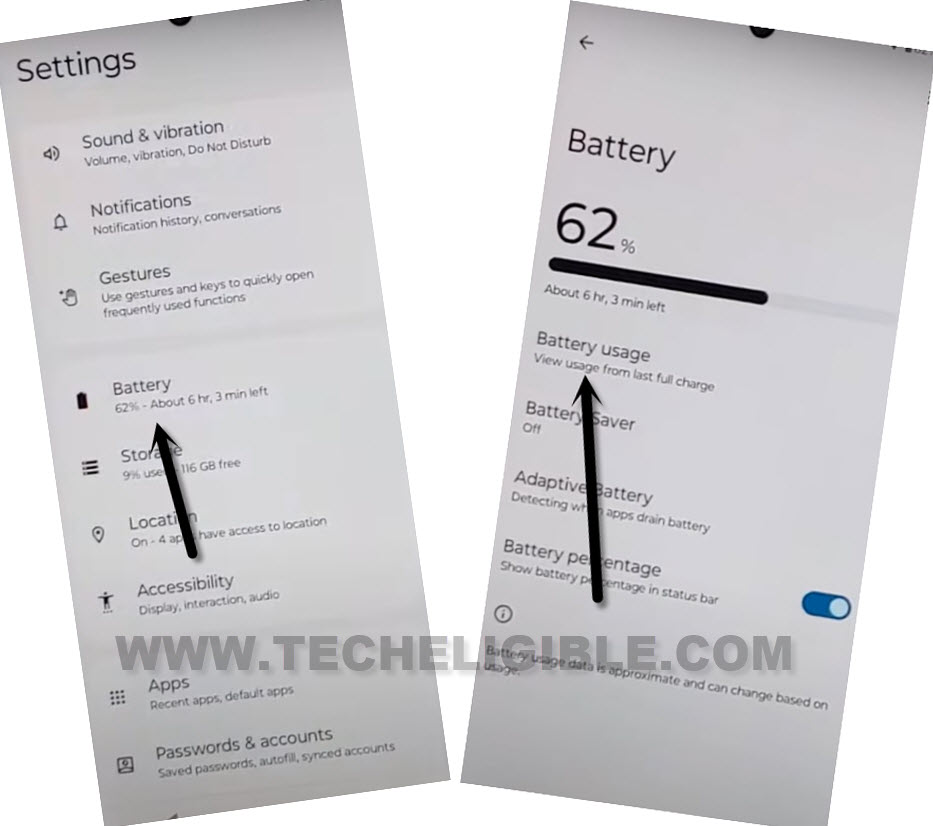
-We are going to battery usage page to disable google play services app from there.
-Just tap to > Battery > Battery Usage.
-Tap on a “Google Play Services” from battery usage page.
-After that, hit on a > Force Stop > Ok.
-Tap also on a > Disable > Disable App.
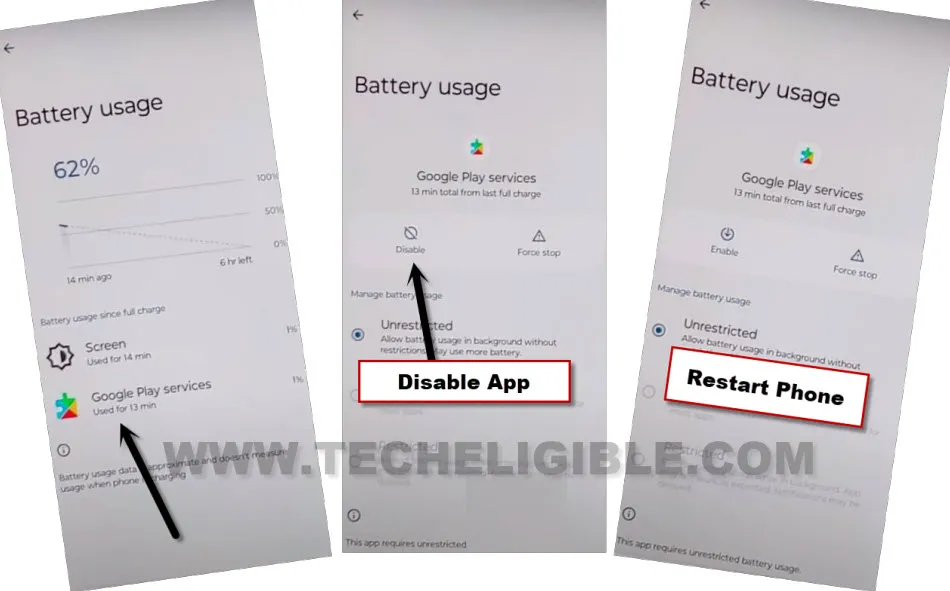
-After disabling the google app successfully. Just go all the way back to first (Hello) startup page.
Repeat Steps to Enable Google Play Services:
-Tap to > Start > Skip.
-Tap to “Accept & Continue” option.
-Wait on a loading screen for a minute. After that, go back to (Connect to WiFi) screen by hitting on “Back Arrow” icon 2-3 times.
-Tap on your connected WiFi name. This will redirect you back to the (Privacy and software updates) screen.
-After that, hit on a “Motorola Privacy Policy”.
-You will be redirected on (Motorola Mobility Products Private Statement) page. From there, tap to “About this statement” scroll down option. This will show you an article page. Just, tap to “website privacy statement” link from there.
-Hit again on a “About this statement” scroll down option to open up another article page.
-This time, you have to hit on this email “support.motorola.com” to access to moto official support page.
-Let’s over the “Sign in” option from the top of the page. Afterwards, you’ve to tap on a red button “Sign in with Motorola Account”.
-You will be shown another tab of (Sign in with Motorola Account). Just long hold on text “Enter your email” and tap to “Share” option.
-You will be shown a popup screen, just choose “Message” application from there.
-After that, choose “New Message” to access to new message creating screen.
-Simply, send “www.youtube.com” url to any random number as a text message.
-Afterwards, the youtube url will convert to hyperlink and will show you a reload icon.
-Just tap on the “‘Reload” icon from there. After that, hit to “Youtube” image to access official youtube site.
-Tap to “Allow” from popup message.
-Let’s hit on a “Account icon” from top corner and ta on “Settings” icon.
-You have to go to > About > Youtube terms of services.
-We can easily access to main settings page of our device to disable google play services application from there. This is the important step of this method.
Go to Moto G Play Settings Page:
-From top google chrome browser, just type there “Download FRP Tools Techeligible“.
-Go to same searched result as shown in below image to access the official frp tools page.
-From frp tools page, just scroll down and tap on “Access device settings” option. This will redirect you to your device main settings screen.
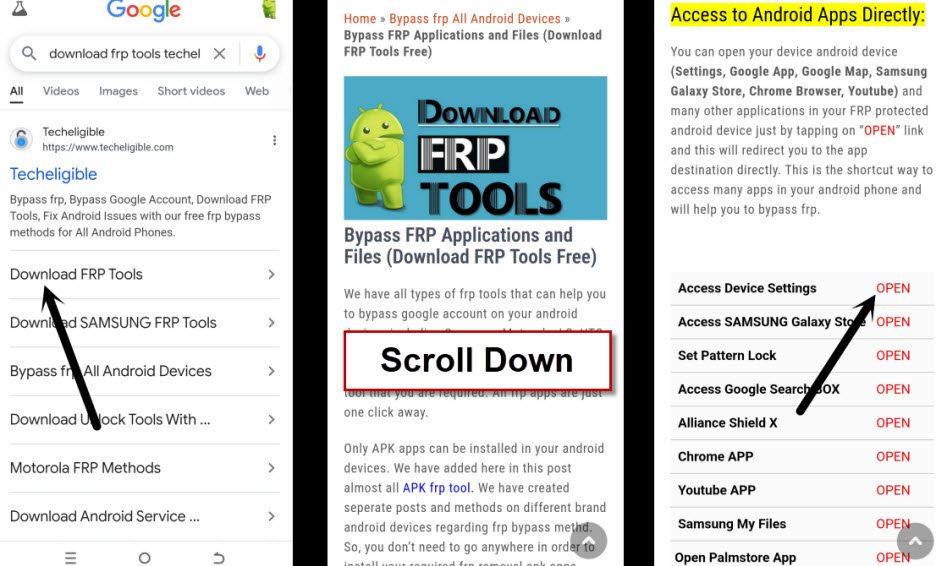
-We are going to battery usage page to disable google play services app from there.
-Just tap to > Battery > Battery Usage.
-From there, tap over a > Google Play Services > Enable.
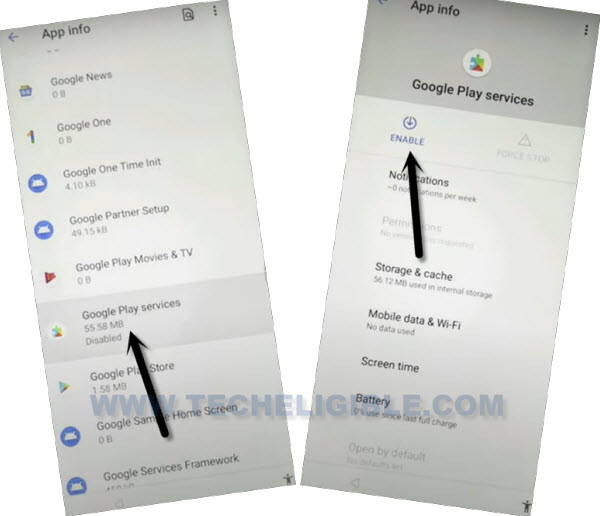
-Keep tapping on back arrow until you reach back on a (Connect to WiFi) screen. From there, hit on a > Setup offline > Continue.
-You can complete setup wizard steps easily without stuck on google verification screen.

Method 2: Bypass Google Account Moto G Play (2021) Android 11
We will use (Emergency Calling) option from our device to access main settings page directly and enable (Accessibility Menu Shortcut). After that, just by disabling some apps from app list page. We will be able to Bypass FRP MOTO G PLAY 2021 (Android 11) without using any PC. Follow guideline from below to fix this issue easily.
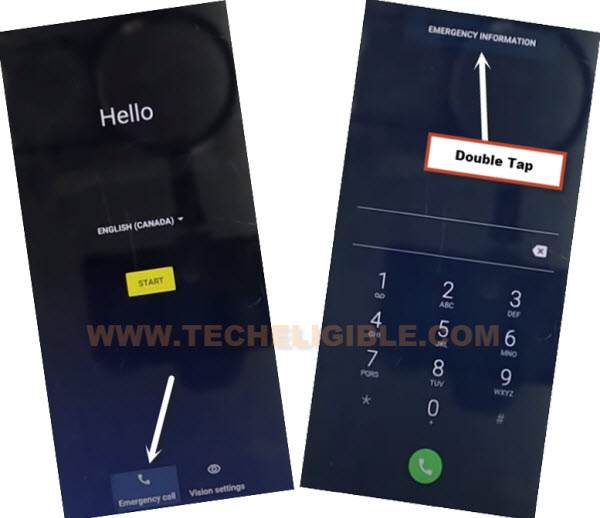
-Connect WiFi, and from “Hello” startup screen, tap to “Emergency Call”, and double tap to “Emergency Information”.
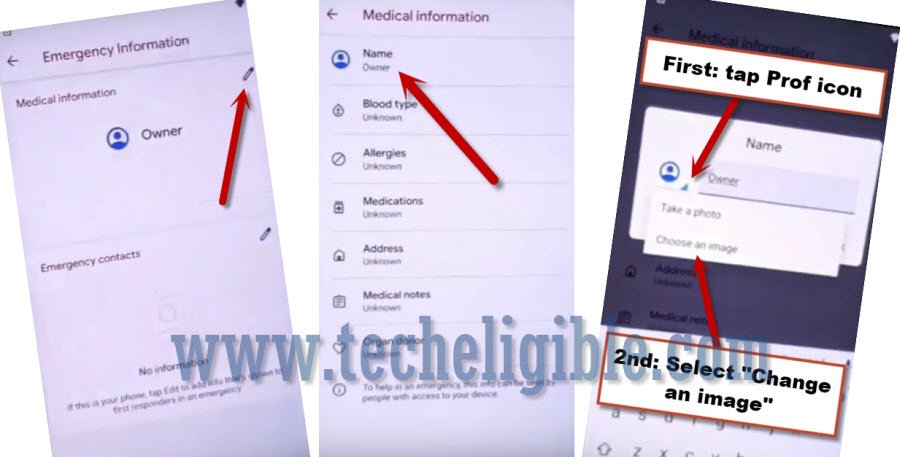
–Tap > Pencil icon > Name > Profile icon corner > Choose an image.
-Go on “3 lines” from top left corner of the screen.
-From sidebar menu, just long tap on “Photos”. After that, tap on “Permissions.”.
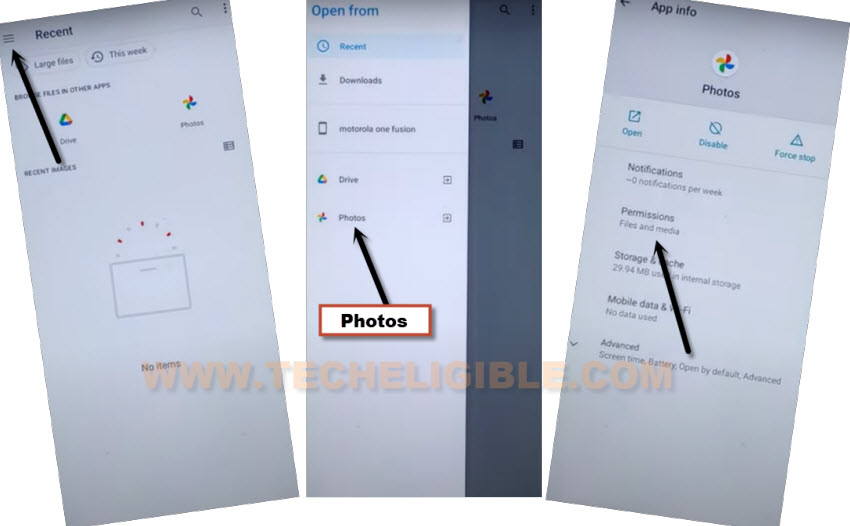
–Contacts > See All apps with this permissions.
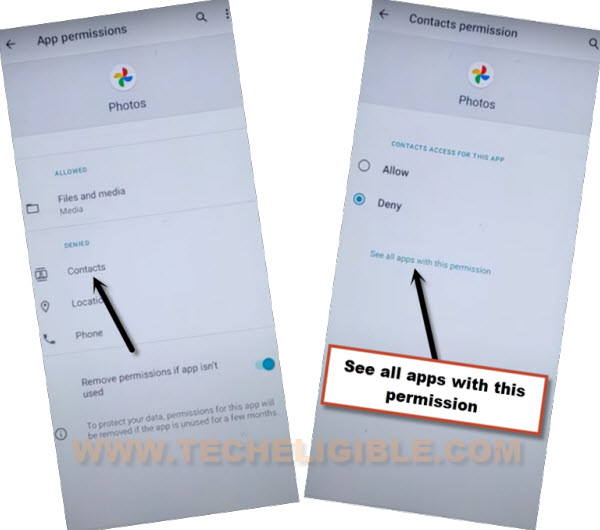
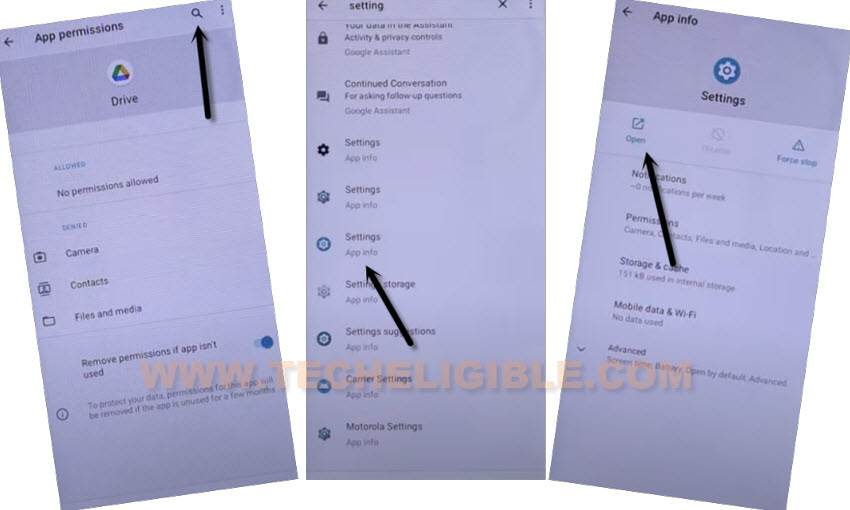
–Hit on “Search icon”, and search there “Settings”, afterwards, tap to “Settings App info“, now hit on “Open”.
Turn on Accessibility MENU:
– Go to > Accessibility > Accessibility Menu > Turn on.
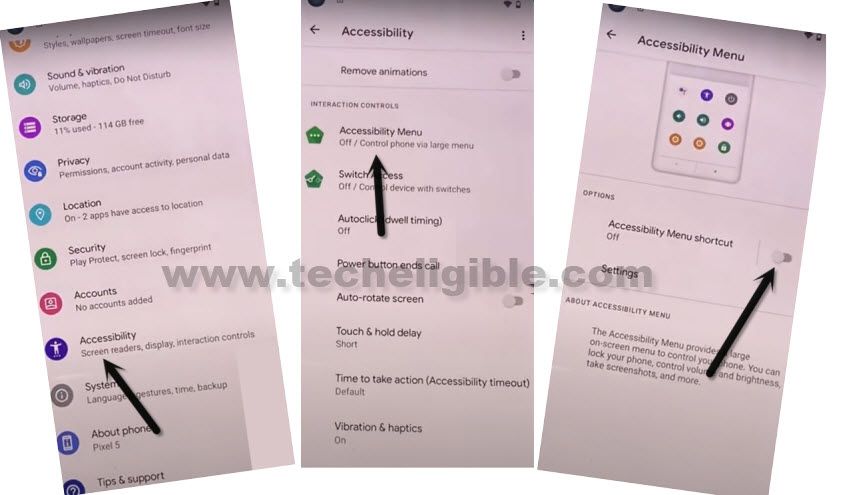
Note: Just for verification, swipe from bottom to top using two fingers, and the MENU Shortcut will appear, that means you have successfully turned on this option. this will assist us to Bypass Google Account Moto G Play.
–Go back to (Settings), from there tap to > Apps & Notification > App info.
–Tap on > 3 dots > Show system Apps.
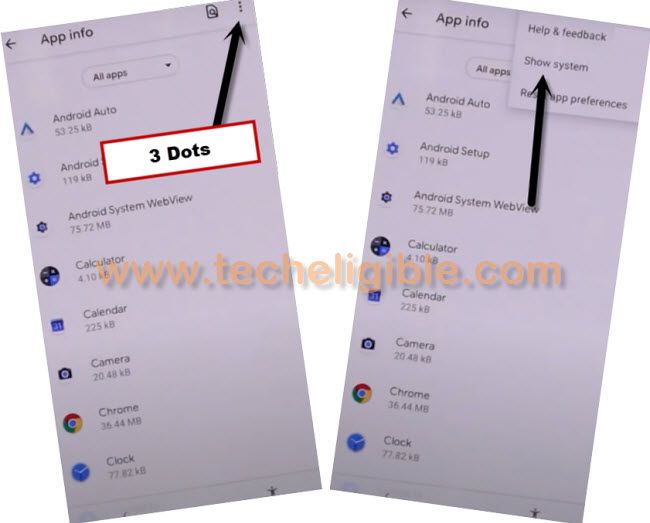
Disable & Force Stop Apps:
-Tap to > (Clock icon) Android Setup > Storage & Cache.
-Now clear both (Cache & Storage).
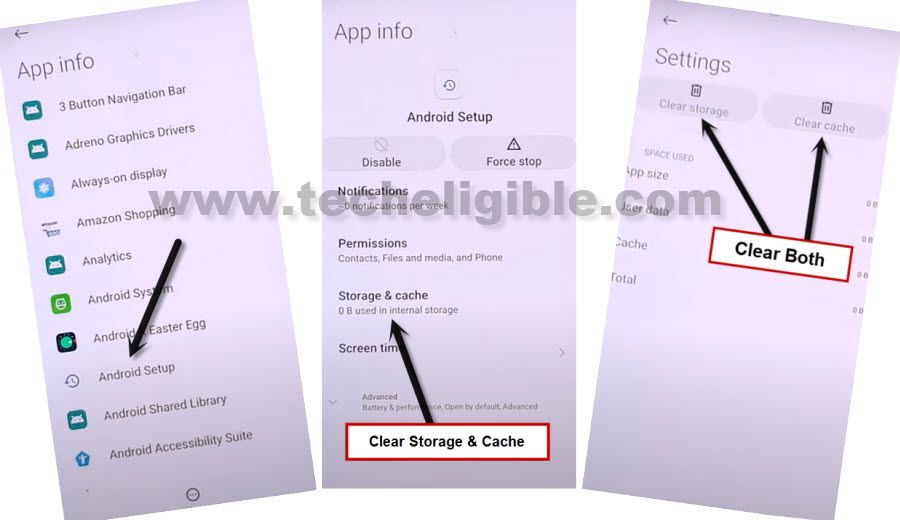
-After that, go back to by tapping on back arrow.
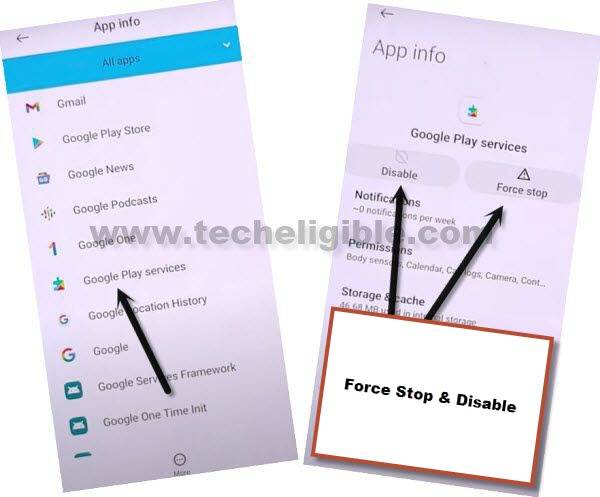
-Force Stop & Disable (Android Setup) app.
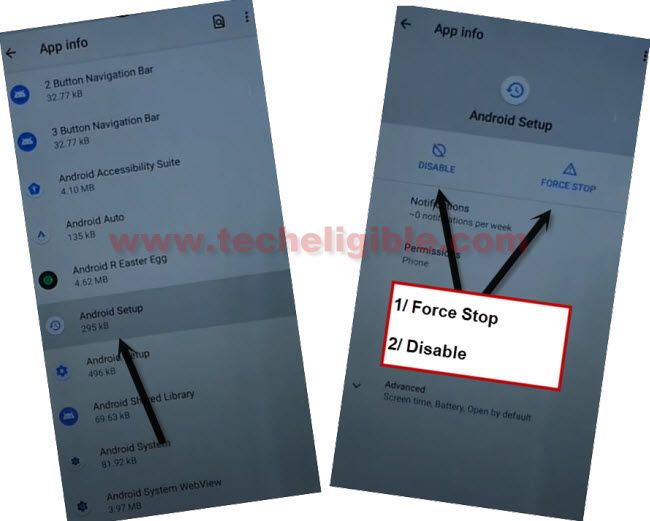
–Find blue color settings icon “Android Setup” same as shown in below image, so just tap to > Force Stop > OK.
-Tap to (Settings gear icon) “Android Setup”, Clear both “Storage & Cache” by going in to (Storage & Cache) option.
-Get back, and tap to > Force Stop > Ok.
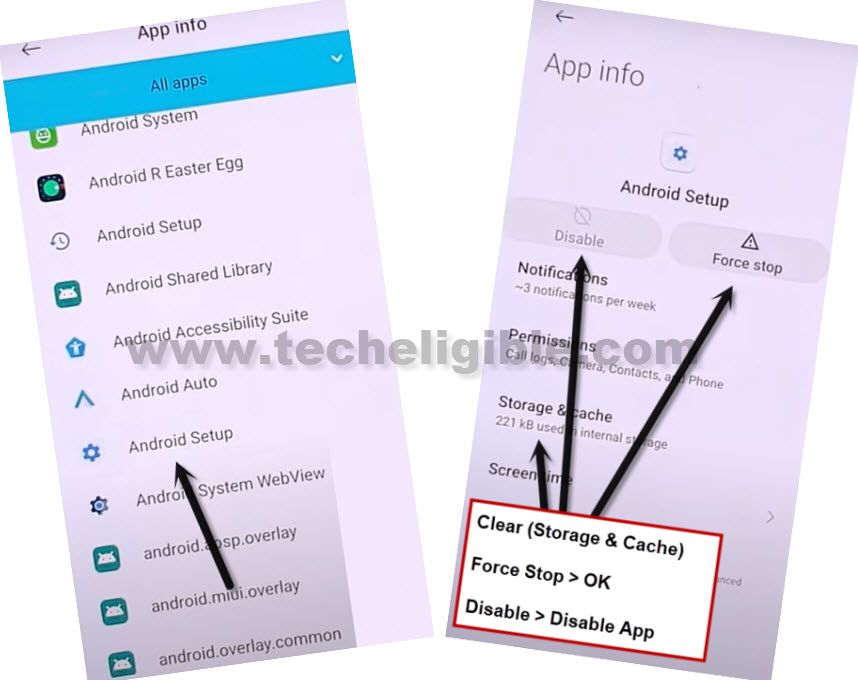
–Find and tap to > Google Play Services > Disable > Disable App.
Enable Google Play Services:
-Go back to first (Hi There) screen, and tap to “Start” button, there you will see (checking for update) screen.
-Tap to “Back Arrow” and you will get back to “Connect to WiFi” screen.
-Swipe up using two fingers, and you will see (Shortcut Menu).
-From that MENU, hit on > Assistant > Settings > Enable (Google Play Services).
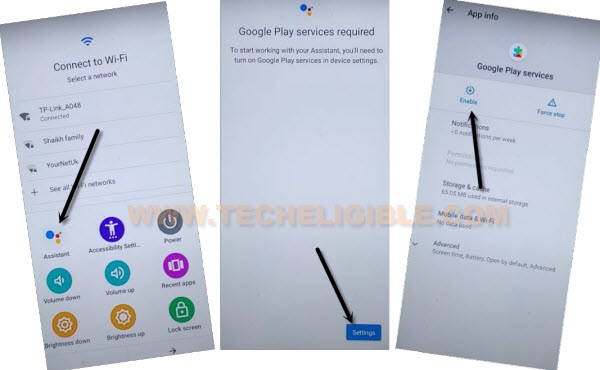
-Tap to “Back Arrow”, and you will see there again (Connect to WiFi) screen, from there hit on > Skip > Continue.
–Now you will have (Google Services) screen, tap to > More > More > Accept.
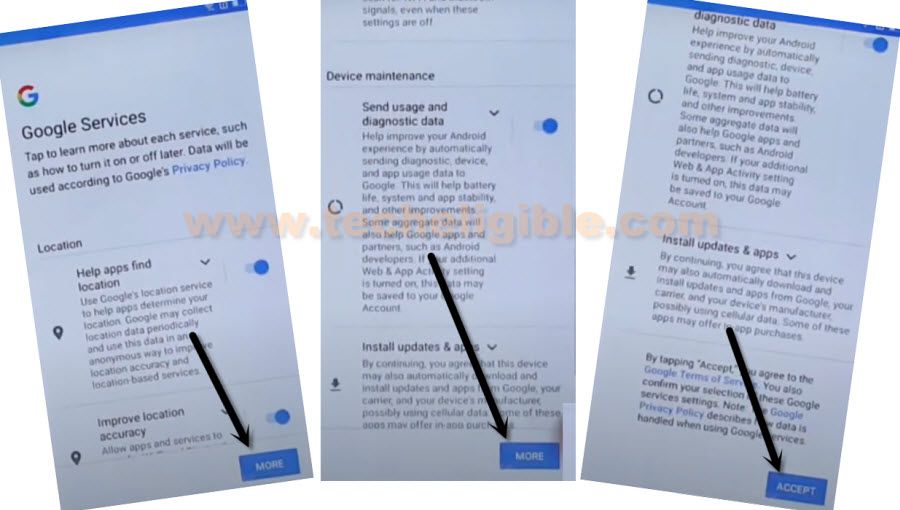
-Complete all steps to finish setup wizard, after that you will easily reach inside your device home-screen. You are all done from Bypass Google Account Moto G Play 2021
-The FRP has been bypassed successfully, now you can add your new google account, and also add new pattern lock for security.