
Is your Oscal device inaccessible after factory reset? That must be due to forgetting google account. In every android device, FRP is the by default function, which prevents unauthorized access to your device after hard reset. If you know Oscal Flat 1C singed in google account, then its very simple to access back to your phone by completing setup wizard steps. If you don’t have that google account or forgot by some reason. Then, you will have to go for frp bypass method. Follow up this method for Oscal Flat 1C FRP Bypass.
Disclaimer: We highly recommend you to apply this method only on your own device. If you are not owner of this device, or you found this from some where, you must return to its real owner. This FRP bypass process is just for educational purpose.
Let’s Start the process of Oscal Flat 1C FRP Bypass:
-Before starting this process, do make sure, the SIM card is inserted and your SIM has some contacts saved already.
-Turn on the device and connect WiFi. Go back on first (Hi there) page.
-Press once the “Volume up” button to bring up volume menu. From there, tap to “3 dots” icon same as shown in below image.
-Tap again on “3 dots” icon.

-Scroll down and go to > Do not Disturb > Schedules.

-Create any one schedule by tapping on > Add more > Events. After that, give any name and tap to “Add” option to save your new created schedule.

-After that, you will be taken inside your new created schedule screen. From there, tap to “Do not disturb behavior”. Select “Create Custom Settings for this schedule”.

-Go to > Calls > Starred Contacts > Add Starred Contacts.

-Hit on any contact name from contact list page. After that, bring up your device dialer by tapping on “Calling” icon for Oscal Flat 1C FRP Bypass.
-Let’s put there this engineering menu code *#*#9646633#*#*
| Note: If the above code do not redirect you on (EngineerMode) screen. Then, try to dial this code *#*#83781#*#* |

-After dialing the code, you will be redirected to the (EngineerMode) screen screen. Swipe once to left side to go to (DEBUG&LOG) page. From there, turn on “USB Debug” option.

Use Zeroknox Tool on Oscal Flat 1C:
-Download (Zeroknox Tool) in your PC
| ⇒ ZeroKnox Tool [DOWNLOAD] |
-After downloading is done, just turn off your any active @ntivirus. After that, extract the downloaded tool from winrar archive and go to extracted folder. From there, double click on “Zeroknox Removal.exe” to run this tool successfully.
-Let’s connect Oscal Flat 1C phone with PC using any data/usb cable.
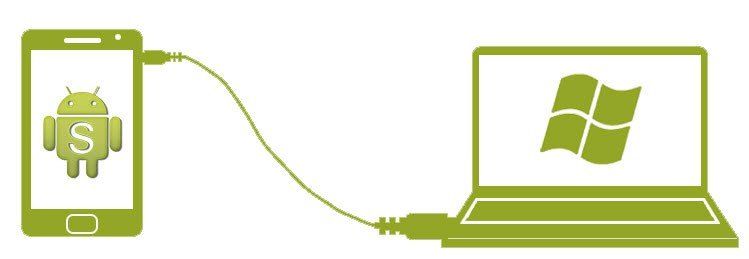
-Choose “File Transfer” from popup window. After that, your device will be detected by the PC.
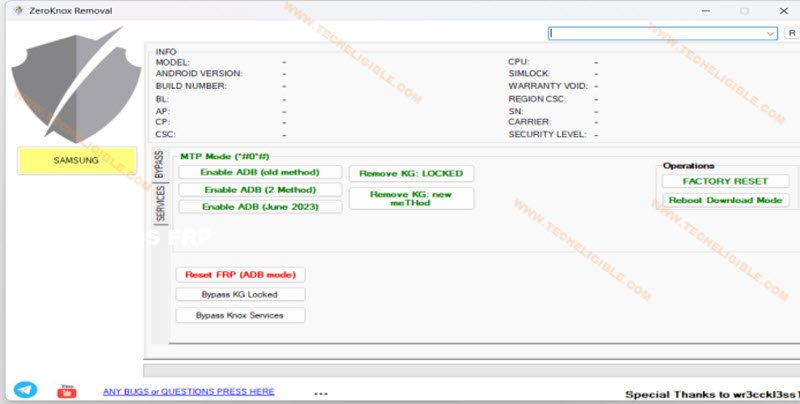
-Click on a “Reset FRP (ADB)” button from the tool screen same as shown in below image. This will start Oscal Flat 1C FRP Bypass process.
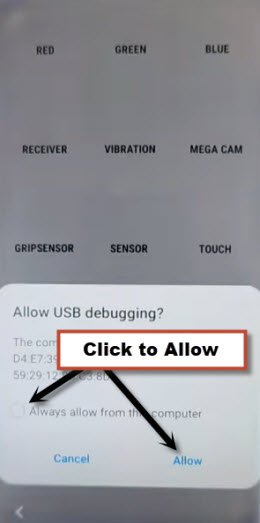
-After that, you will see a popup window on your Oscal device screen. Firstly, check mark the box (Always allow from this computer). After that, tap on “Allow” option.
-Within few seconds, your device FRP will be bypassed completely and you will have a (Done) message the bottom of Zeroknox removal tool software page.

-Your Oscal device will auto restart and you will be able to access directly to your device main home-scree.