
FRP is auto added on a REVVL 6X device after your login with Google account while completing setup wizard steps on new device. This account is used to unlock FRP from the device after hard reset. Problem starts, when you forget your logged in credential after perform hard reset. In this scenario, you need to check out below steps for REVVL 6X 5G FRP Bypass Android 14 without using any PC.
Disclaimer: We highly recommend you to apply this method only on your own device, if you are not owner of this device, or you found this from some where, you must return to its real owner.
Let’s Start REVVL 6X 5G FRP Bypass Steps:
-Firstly, prepare a PIN locked SIM card using any other android device.
-Turn on device & Connect WiFi.
-Go back on first (Hi there) screen. From there, insert PIN locked setup SIM card on your phone.
-As soon as, you see (Enter SIM PIN) screen, just popup sim tray and quickly press “Power” button. Try to do this at the same time.
| Note: Do make sure, once you popup the sim tray, just quickly press “Power” button without a second delay. Means, at the same time, you are pressing pin in sim ejector pin hole to popup sim tray, and at the same time, you are press “Power” button as well. |
-Press “Power” button again to wakeup the screen. After that, you will see a (Not signed in) screen. That means, you have done previous action perfectly. In case of not seeing this (Not signed in) screen, you will have to repeat steps. Re-insert sim card, and popup sim tray and press power key again.

-Swipe down screen from top right corner. This will show you a blank white screen same as shown in below image. (This may take few attempts). Keep on trying by swipe and drag down, do it again and again until you successfully bring up blank white menu top bar.

-After that, double tap on “Date and Month” and drag down the menu quickly without lifting up the finger.. Means, at the 2nd tap, you don’t need to lift- up the finger, just drag down to bottom to bring up top bar menu. This is how, you will be able to bring up top bar menu.
Note: You will have to repeat this action 4-10 times, means, double tap on top and drag down to bring up top bar menu.
| Remember: If the screen is hanged and nothing is happening there, you just restart your device repeat steps. |

-Tap on “Edit” icon from top bar menu bottom corner.
-Scroll down from there and drag and drop “Storage” option at the top.

-Go back by tapping “Back Arrow” icon from top.
-Find and tap on “Storage” option from top bar menu. You can swipe meu to left to find storage option.

-Tap on “Allow” from popup window.
-Let’s take a screen shot from storage app.

-Tap on “Browse” option from bottom bar.
-Go to “Images”. You will have your recently taken screen shot there. Just tap on your screen shot image.

-Hit on “Share” icon from bottom left.
-Share with “Google Search image”.

-Go to “3 dots” kebab menu from top corner and tap to “Terms of service”.

-From terms of service page, just double tap at any text and tap on “Web Search” option. This will take you on google search page.

-Search and visit techeligible official site. Hit on “Menu” icon from top corner and tap on “Download FPR Tools” option.

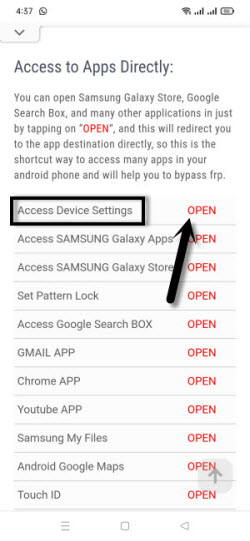
-After reaching to frp tools page, scroll down from there and tap on “Access Device Settings” option.
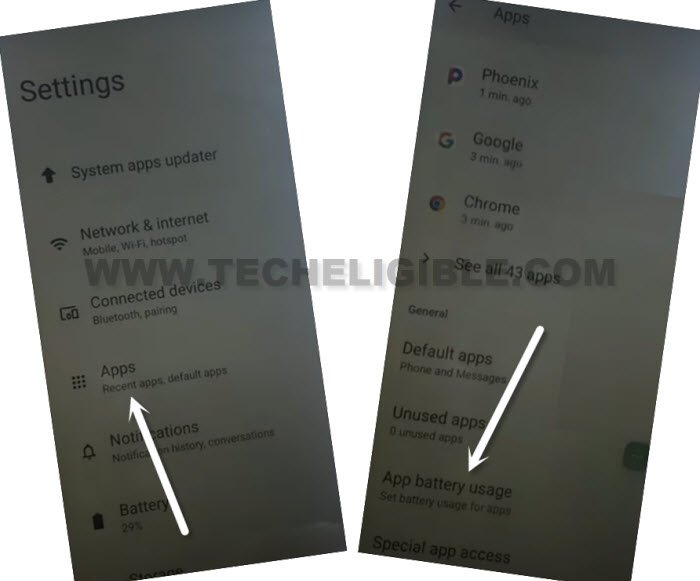
-After that, scroll down from settings page and tap on “Apps”.
-Let’s get into the ” App battery usage” option to reach to app list page.
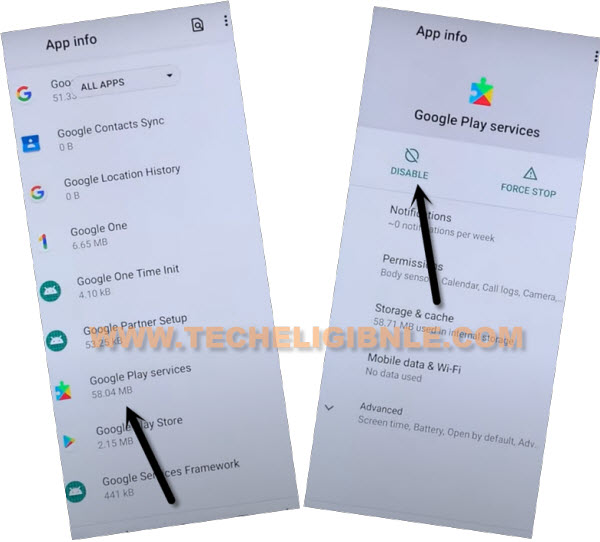
-We are gonna disable google app from here. Just find and tap on “Google Play Services”.
-After that, tap to > Disable > Disable this app for REVVL 6X 5G FRP Bypass.
-Once the app is disabled successfully, lets go all the way back on first (Hi there) screen by hitting on back arrow icon.
-Tap to > Start > Skip, wait for a minute on loading page. After that, tap once on the “Back Arrow”.

-You will reach on a (Connect to WiFi) screen.
-Let’s long press “Power” button and choose “Restart” option to restart the device.

-After restarting is done, from first startup page, go again > Start > Skip.
-You will see a (Getting your phone ready…) loading screen. From there, tap once on the “Back Arrow” icon from bottom to go back to (Connect to WiFi) screen.

-You will notice the, the lock icon will disappear from top bar and (Setup offline) option will also appear up there. That means, the method has worked perfectly. We have to repeat previous steps to enable back google play services.

-Go back to first (Hi there) screen and repeat steps to enable back google play services application.
Let’s Enable Google Play Services App Again By Repeat Steps:
-From first startup page, insert again your PIN locked SIM Card.
-Insert PIN locked setup SIM card on your phone.
-As soon as, you see (Enter SIM PIN) screen, just popup sim tray and quickly press “Power” button. Try to do this at the same time.
| Note: Do make sure, once you popup the sim tray, just quickly press “Power” button without a second delay. Means, at the same time, you are pressing pin in sim ejector pin hole to popup sim tray, and at the same time, you are press “Power” button as well. |
-Press “Power” button again to wakeup the screen. After that, you will see a (Not signed in) screen. That means, you have done previous action perfectly. In case of not seeing this (Not signed in) screen, you will have to repeat steps. Re-insert sim card, and popup sim tray and press power key again.
-Swipe down screen from top right corner. This will show you a blank white screen same as shown in below image. (This may take few attempts). Keep on trying by swipe and drag down, do it again and again until you successfully bring up blank white menu top bar.
-After that, double tap on “Date and Month” and drag down the menu quickly without lifting up the finger.. Means, at the 2nd tap, you don’t need to lift- up the finger, just drag down to bottom to bring up top bar menu. This is how, you will be able to bring up top bar menu.
Note: You will have to repeat this action 4-10 times, means, double tap on top and drag down to bring up top bar menu.
| Remember: If the screen is hanged and nothing is happening there, you just restart your device repeat steps. |
-Tap to “Storage” option from top bar menu for REVVL 6X 5G FRP Bypass.

-Tap on “Browse” option from bottom bar.
-Go to “Images”. You will have your recently taken screen shot there. Just tap on your screen shot image.
-Hit on “Share” icon from bottom left.
-Share with “Google Search image”.
-Go to “3 dots” kebab menu from top corner and tap to “Terms of service”.
-From terms of service page, just double tap at any text and tap on “Web Search” option. This will take you on google search page.
-Search in browser “Techeligible” and go to our website same as shown in below image.
-Hit on a “Menu” icon and go to “Download FRP Tools” option to access official frp tools page.

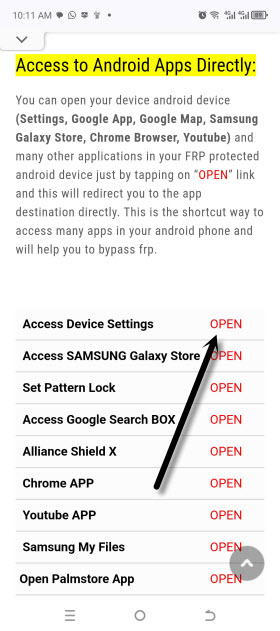
-Scroll down and tap on “Access Device Settings“.
-After that, scroll down from settings page and tap on “Apps”.
-Go to > Apps > See all Apps.
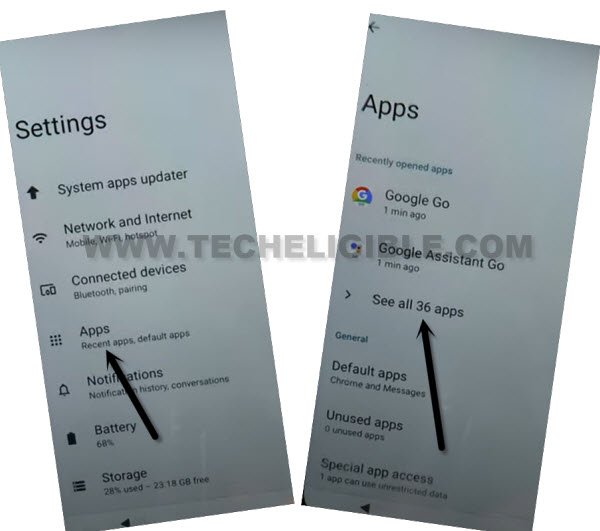
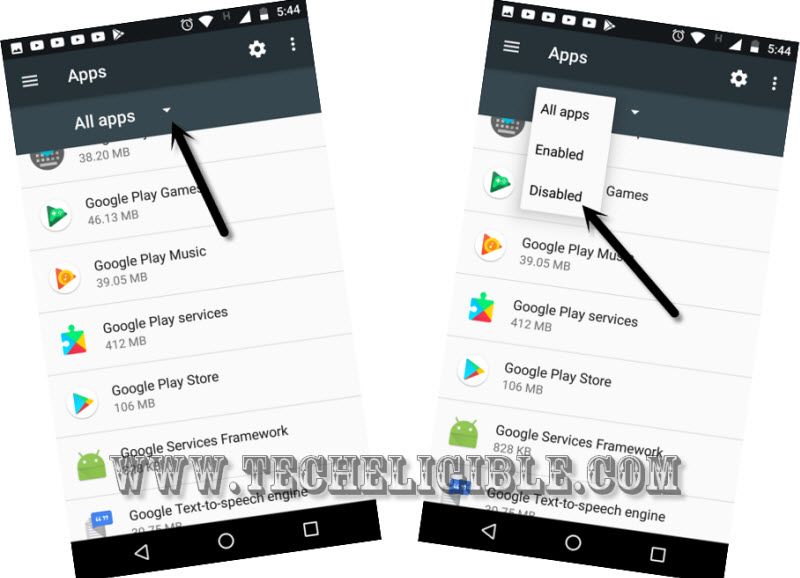
-After that, you have go to “Down Arrow” from all apps same as shown in below image.
-Tap to “Disabled”, this will display you recently disabled google play services app there.
-Hit again on a “3 dots” icon from top corner. After that, tap to “Reset app preferences > Reset apps”. This option will reset your all your recently changes from app list pages. All recently disabled and forced stop apps will be enabled back.
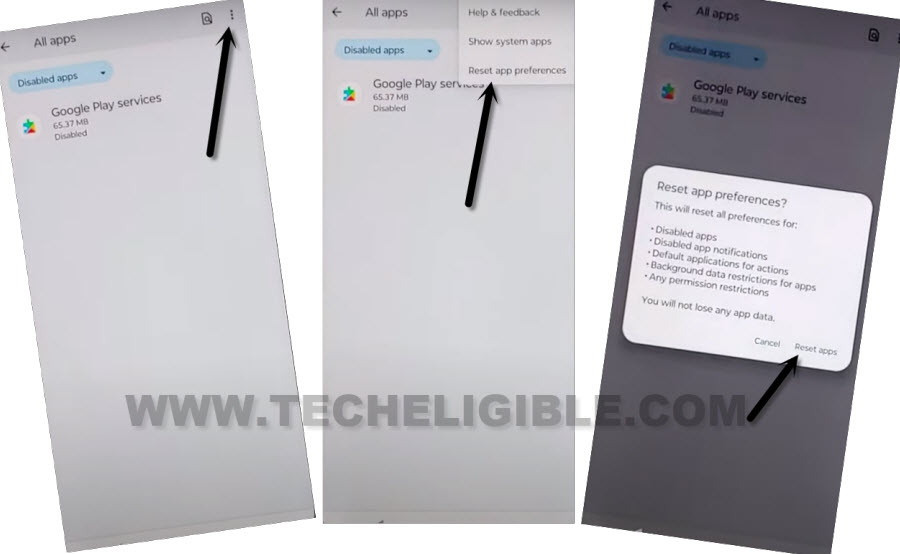
-After resetting app, your recently disabled app will be enabled automatically for REVVL 6X 5G FRP Bypass.
-Go all the way back on first startup (Hi there) screen. From there, hit on > Start > Skip.
-From WiFi page, go to > Setup Offline > Continue.
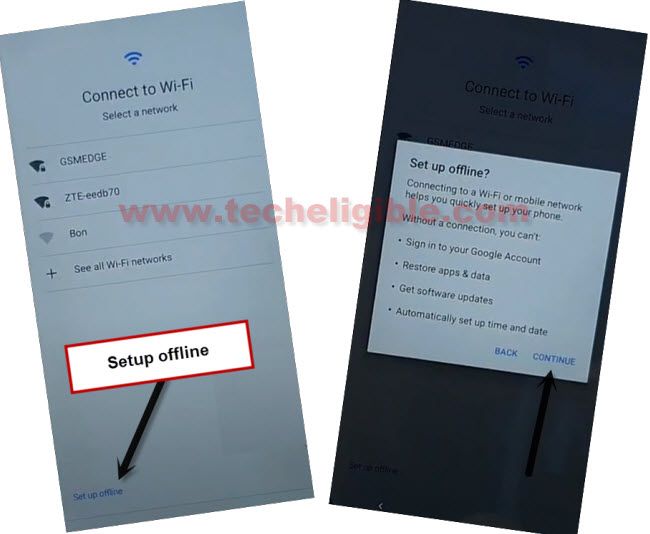
-You will be taken on a google services page. That means, the frp has been bypassed successfully. You can complete remaining steps on your own.