Have you got your device locked with FRP protection after hard reset? If yes!, Then, you can get help with this FRP bypass guide to Bypass FRP BLU VIEW 3 [Android 11]. We don’t need any PC or paid tool. You can start up this process just by connecting WiFi and reach to main settings screen.
FRP is the function to protect device owner from data theft. This feature is auto activated when you link your Gmail account with your BLU VIEW 3 device. Follow guideline from below to solve your device FRP issue.
Let’s Start to Bypass FRP BLU VIEW 3:
-We are going to turn on device and connect WiFi. After that, get back to first (Hi there) page. From there, go to “Vision Settings” and double tap on “Emergency information”. After that, tap to “Edit” option from top corner (See below image).
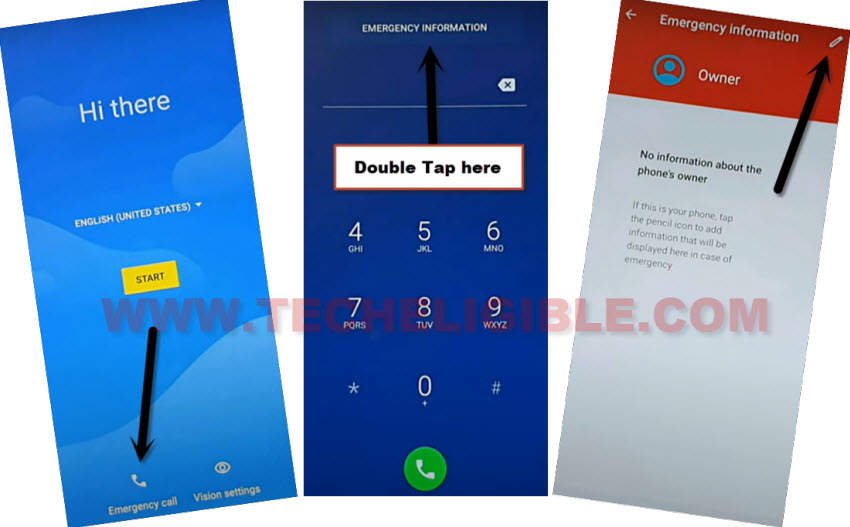
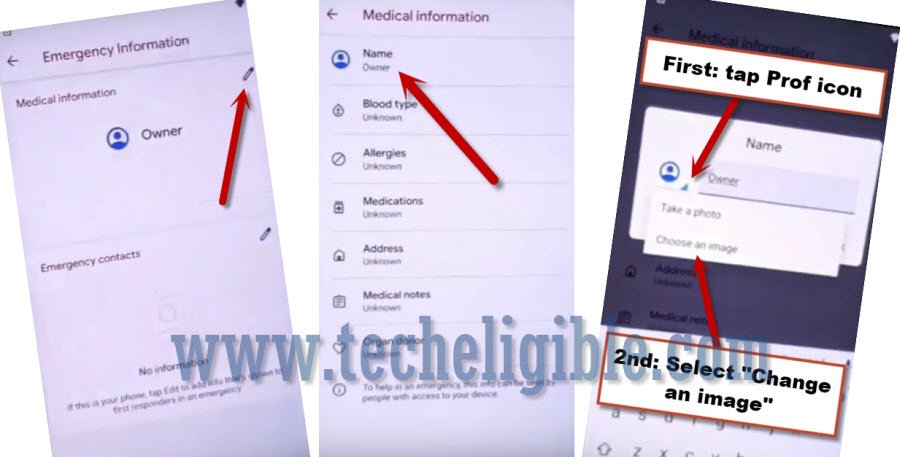
-After accessing to next page, just go to “Name”.
-Tap to on a “Down Arrow” icon from circle option and hit on a “Choose an image” option to reach to next (Recent) page.
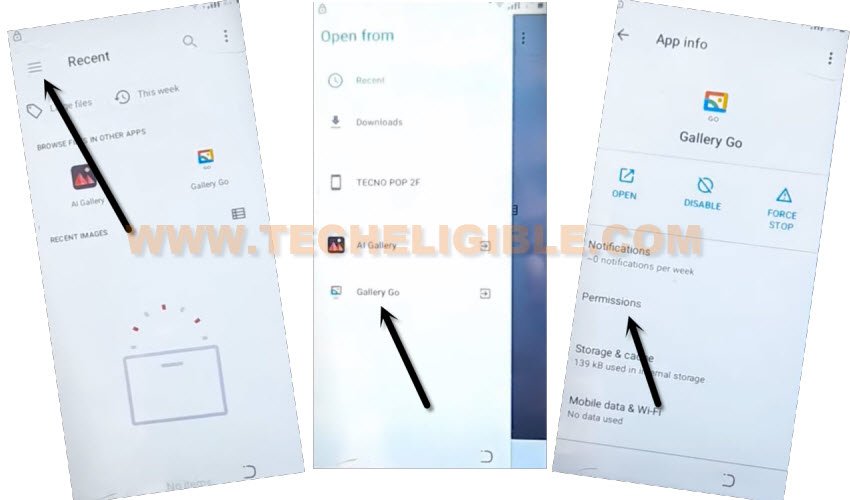
-Hit over the “Menu” icon from top left corner to bring up sidebar menu and long hold at “Gallery Go” option.
-Tap to “Permissions” option to get search icon.
-Access to main settings page by searching in tapping on “Search” icon. After that, search there “Settings” and tap to “Settings app info” option.

-From settings screen, just go to > Apps & Notifications > See all apps.
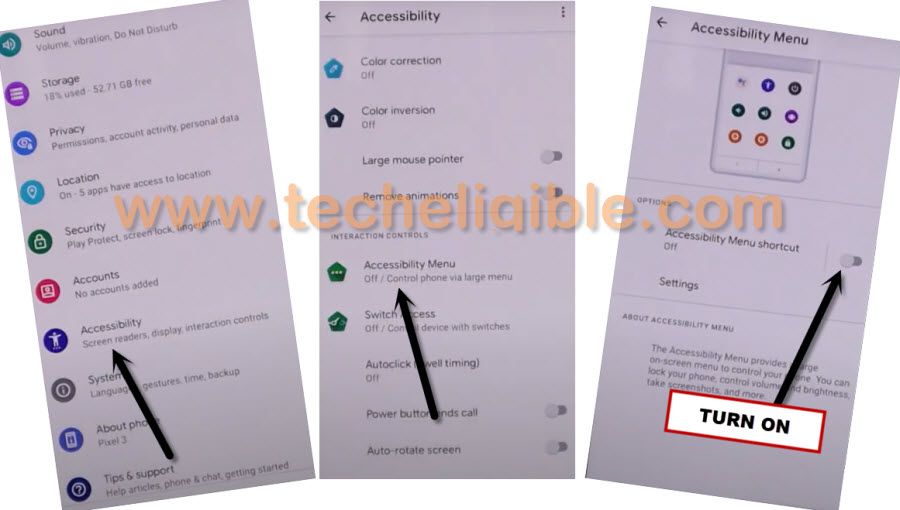
-We have to enable accessibility function. This option will assist you to Bypass FRP BLU VIEW 3.
-From settings screen, just go down and tap to > Accessibility > Accessibility MENU > Turn on (Accessibility Menu Shortcut).
-After turning on this function, you will be shown a popup screen, from there, go to > Allow > Got it.
Let’s disable and force Stop Applications from App info:
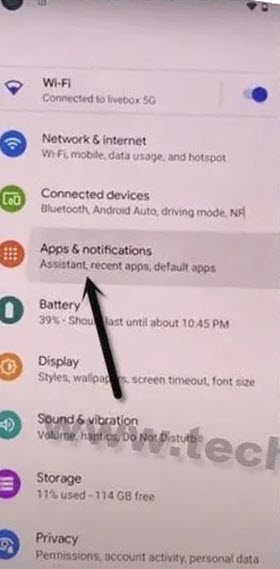
-We have to to access to > Apps & Notifications > See All Apps.
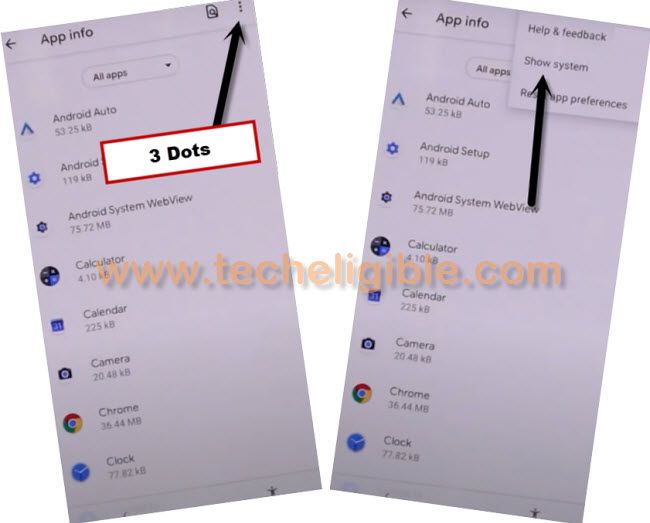
-After that, let’s tap over the “3 dots” kebab menu icon from top corner and go to “Show system”.
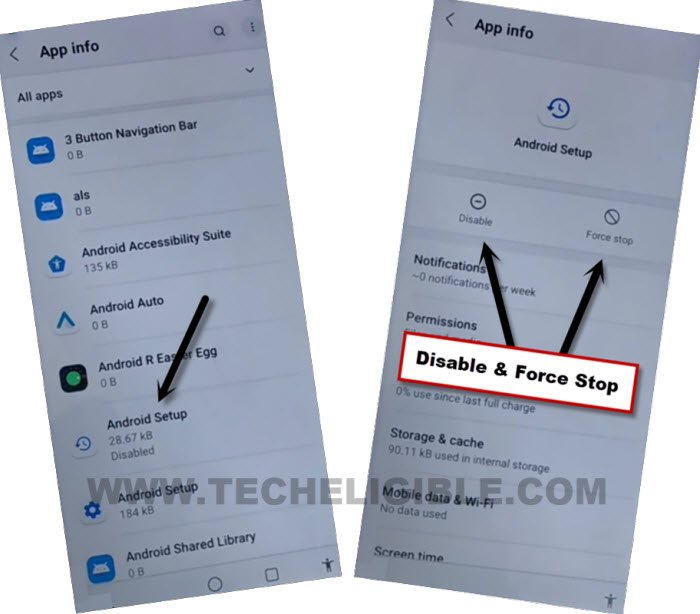
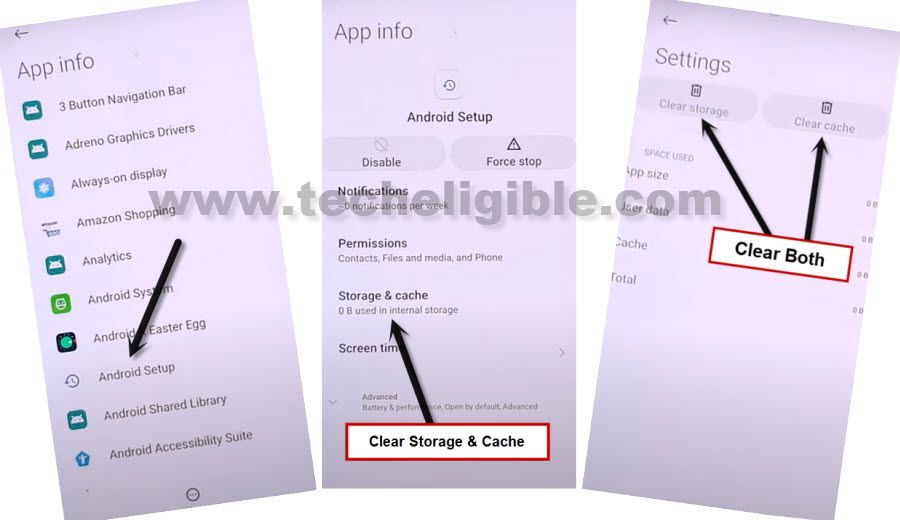
-After that, search from app list an app named (Android Setup). The one is with clock icon.
-After that, simply, tap to “Disable” option and go to “Disable App”.
-Tap also on a > Force Stop > Ok.
-You have to clear storage & Cache from android setup (Storage & Cache) option.
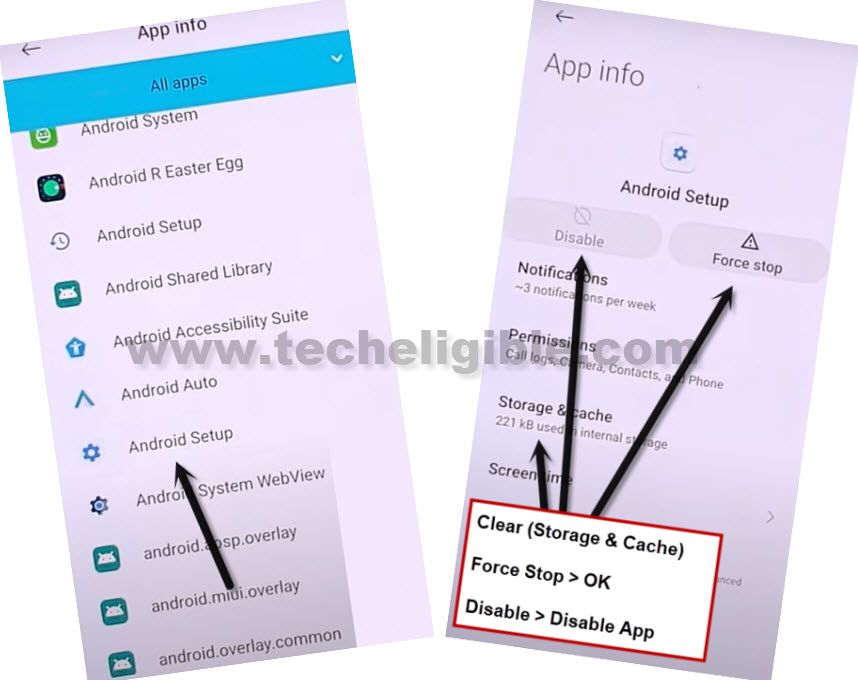
-Go back to app list screen. From there, tap on a another “Android Setup” application. This app appears with a (Gear icon).
-Let’s go to > Android Setup > Force Stop > Ok.
-You have to clear cache as well by going to “‘Storage & Cache” option.
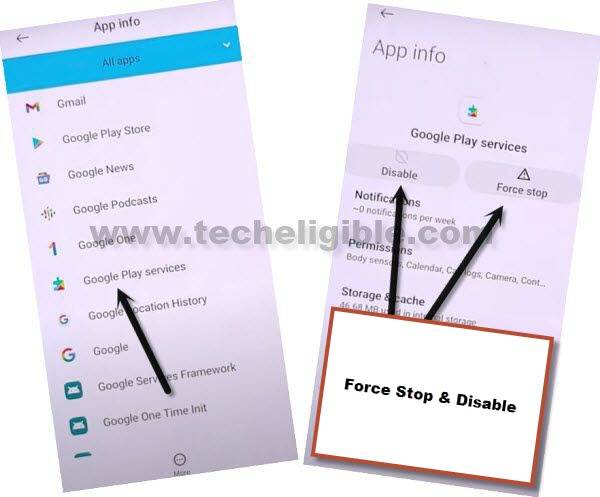
-Tap on a back arrow icon from bottom to go back to app list page. From there, go to > Google Play Services > Disable > Disable this app.
-After that, tap also on a > Force Stop > Ok.
-Clear storage and cache as well of this app by going to (Storage & Cache) option.
-Go back again on app list screen to Bypass FRP BLU VIEW 3.
-From there, find and tap on another app “SetupWizardOverlay”, after that, you have to hit on a “Force Stop” and then, tap to “Ok”.
-Clear cache and storage of this app as well.
-Go all the way back to (Connect to WiFi) screen. From there, tap to > Setup offline > Continue.

-Hit on a “Next” from date and time screen. You will stuck on a loading screen.
-From there, quickly and rapidly tapping on > Human icon > Assistant > Settings.
| Note: The (Settings) option may disappear very quickly, but you don’t have to lose your hope here, keep trying, tap again on > Human icon > Assistant > Settings. After several attempts, you will manage somehow tapping at “Settings” option. |
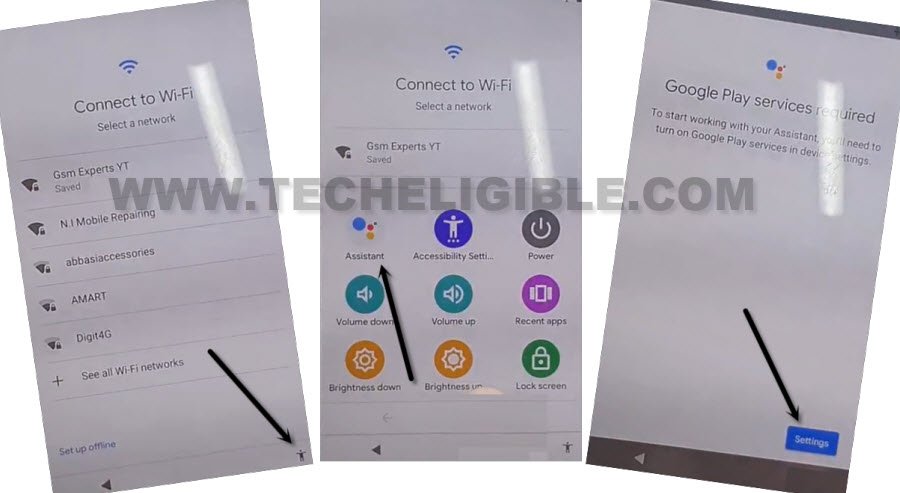
-Finally, you’ve reach to google play services screen. Enable this screen by tapping on “Enable” option.
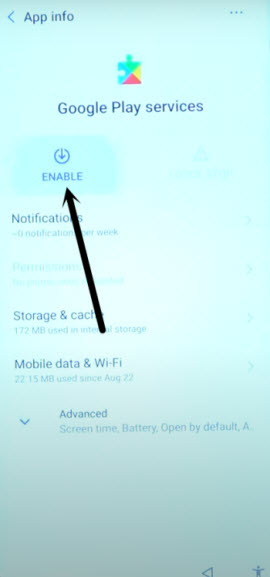
-Go back to (Just a sec..) loading screen, and this will complete within few seconds after enabling google app.
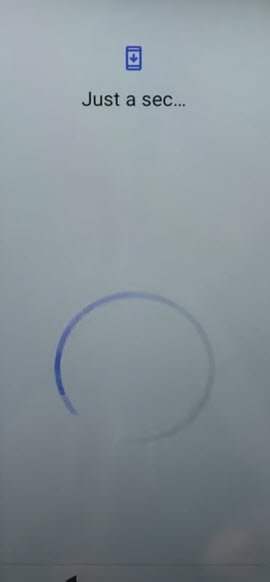
-You can complete remaining steps easily without stuck on google sign in screen.