Top 7 frp bypass guidelines (With and without PC) have been shared in this article. We used different free frp unlocker tools to bypass frp Samsung Galaxy 2026 on Android 14/13/12/11/10 versions devices.
FRP locking function is utilized to safeguard Android devices from unauthorized access. After a factory reset is executed, no one can access that device again until the verification process is completed by signing in with the previously synced Gmail account. If you are facing a similar problem on your device and cannot recall your previously added Gmail account, then follow the steps outlined here to bypass the Google Account.
| Read Also: Bypass FRP on Samsung Android 9/8/7 |
1st Method: Use VG Tool for Bypass Samsung FRP 2026 (Android 14,13)
-Download & install free VG PC tool on PC or Laptop.
| Download & Install VG 3.6 Tool with Key [Link] |
-Do make sure, your @ntivirus software is already off before using VG 3.6 tool.
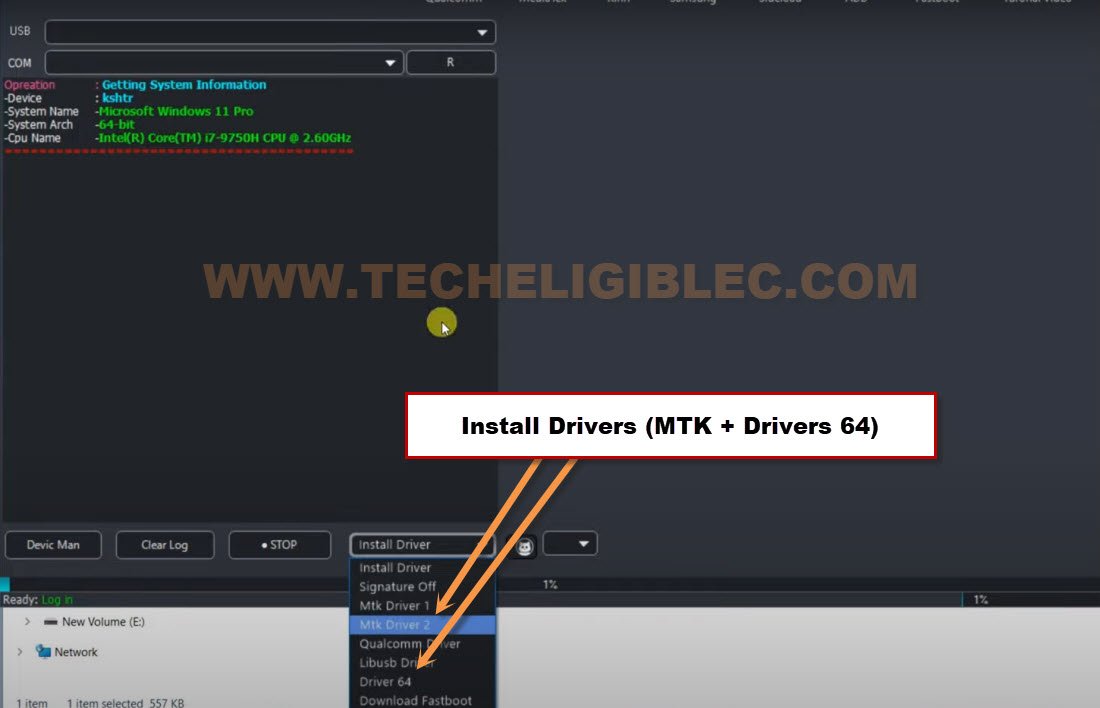
-The Samsung Galaxy 2026 is required proper (MTK + Driver 64) installed already. You must first install all drivers in your PC, So that, you may not face any connectivity problem.
-From VG Tool, install “Driver 64 & MTK” drivers properly.
Note: You can also install Samsung Drivers from here as well [Download]
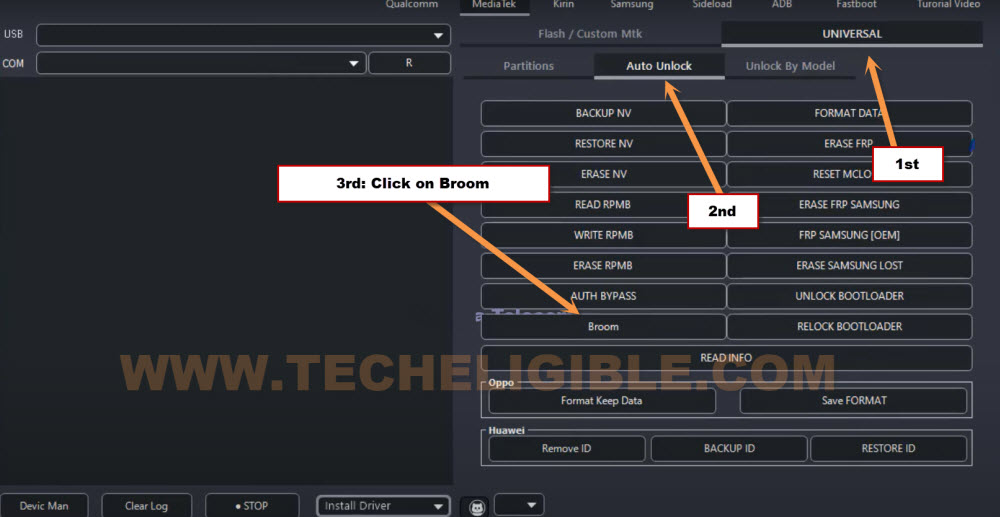
-Lets go to > MediaTek > Universal > Auto Unlock.
-Hit over “Broom” option from there.
Put your Samsung Phone into Download Mode:
-Turn on Samsung Phone & Connect to PC using proper USB Cable.
-After that, Press and long hold (Volume up + Down + Power) keys until the device screen is off.
-Release only “Power” key once the screen is black, while keep holding other (Volume up + Down) keys.
-As soon as you see (Warning) screen, just release (Volume up + Down) as well.
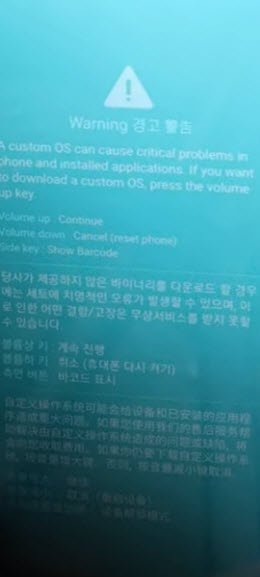
-After that, Press once “Volume Down” button on warning screen to get into the download mode of the frp locked Samsung phone.
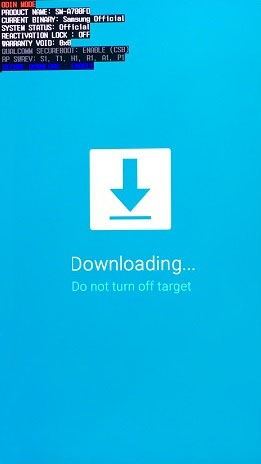
Let’s Get Detected your Phone by VG Tool:
-Reconnect USB Cable.
-Long hold again all (Volume up + Down + Power) keys until the device screen is off.
-Release only “Power” key once the screen is off & black, while keep holding other (Volume up + Down) keys.
-Keep your eye on (VG Tool) screen. As soon as (Samsung Galaxy ) is detected by VG Tool, just release (Volume up + Down) keys as well.
-In VG Tool screen, you will have a (Disabling Protection….. Done).
-Disconnect Samsung 5G from PC.
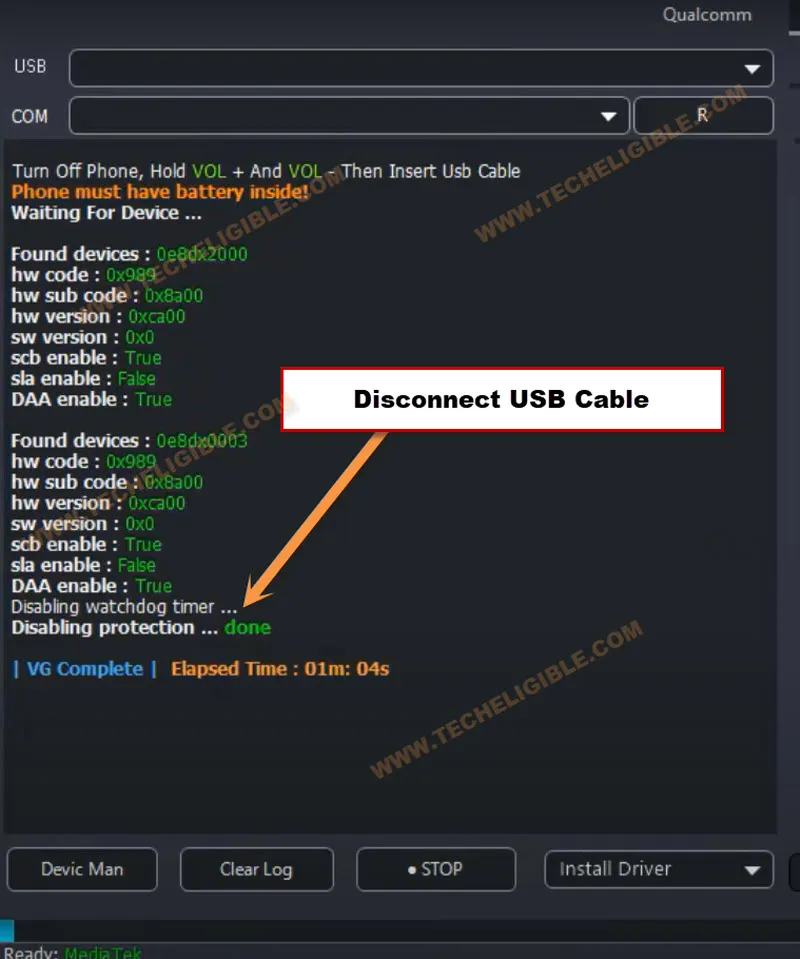
Bypass FRP By VG Tool:
-After that, just click on “Erase Samsung FRP” button from VG Tool.
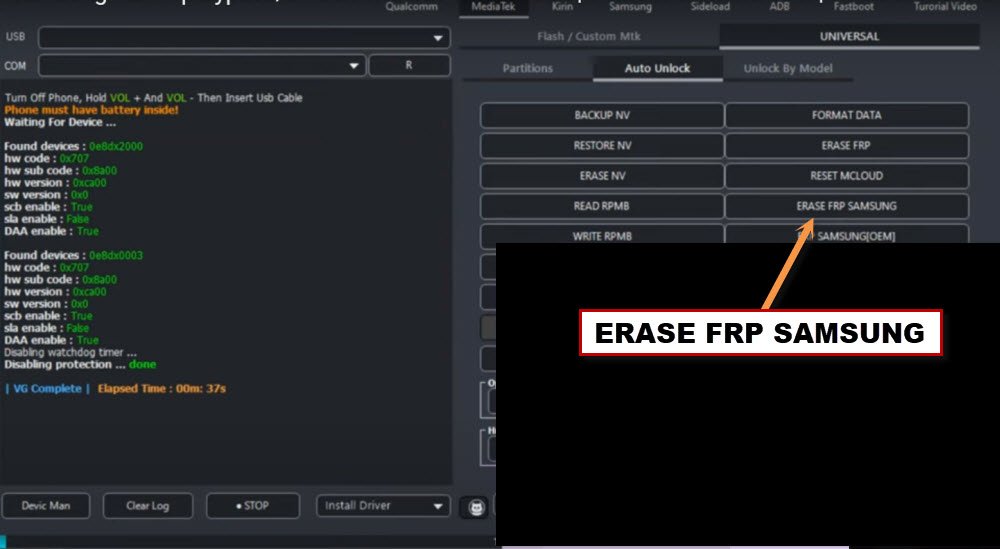
-Connect USB cable again with Samsung device.
Note: If the device is not detected by VG Tool, re-connect USB cable.
-The VG tool will detect Samsung Galaxy , and will start bypassing google account.
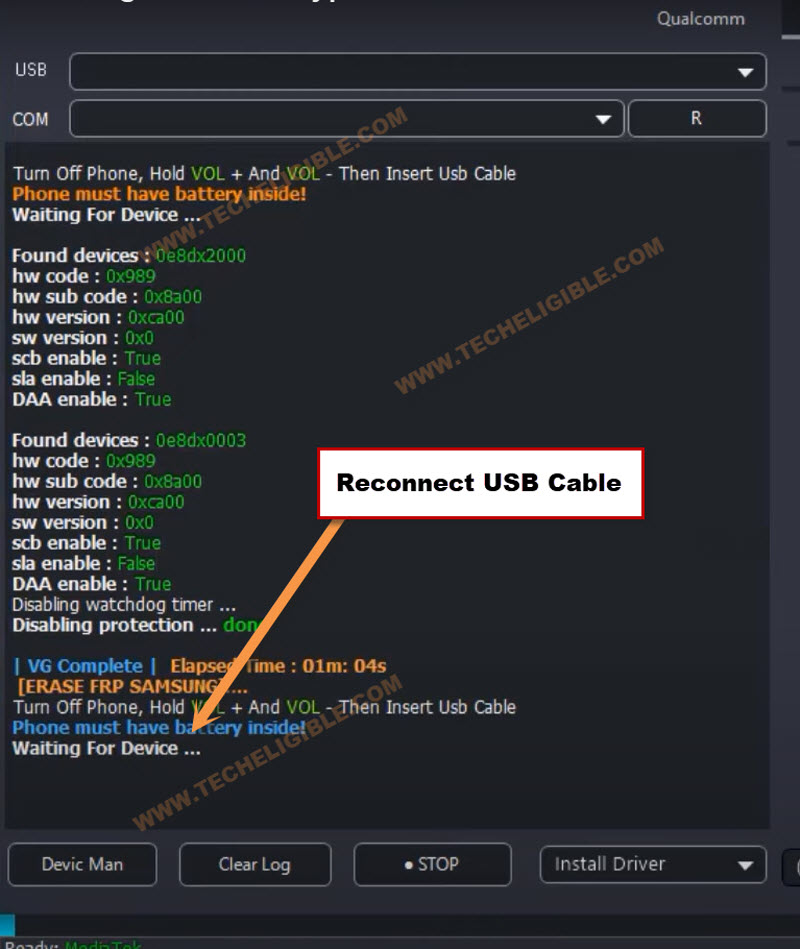
-Few seconds later, you will have a message on VG tool screen (Erasing FRP protection…. done). That means, you have bypassed frp on Samsung Android 14, 13 devices successfully.
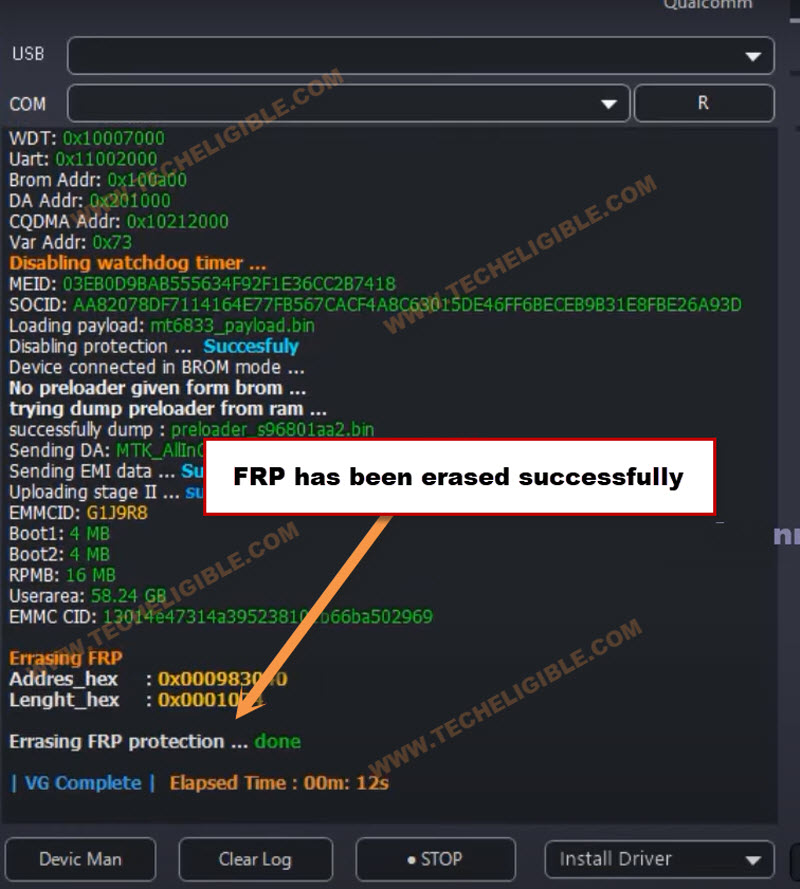
-Disconnect your Samsung device from PC. Now, you can easily use your device without any restrictions. And, setup new FRP account with updated Gmail account.
2nd Method: Use Zeroknox Tool to Remove FRP All Samsung 2026 (Android 13)
This is the best and easy to use PC software. This tool is being used on Samsung galaxy devices to bypass frp. You just have to download this tool on your PC. Install & Launch. After that, connect Samsung galaxy with PC. Click over the “Reset FRP ADB Mode” button to bypass frp directly.
-Turn on Samsung Android 13 device & Connect WiFi.
-Go back on first (Welcome) page.
-Connect phone with PC using proper USB Cable.
⇒ Install Samsung USB Drivers [DOWNLOAD]
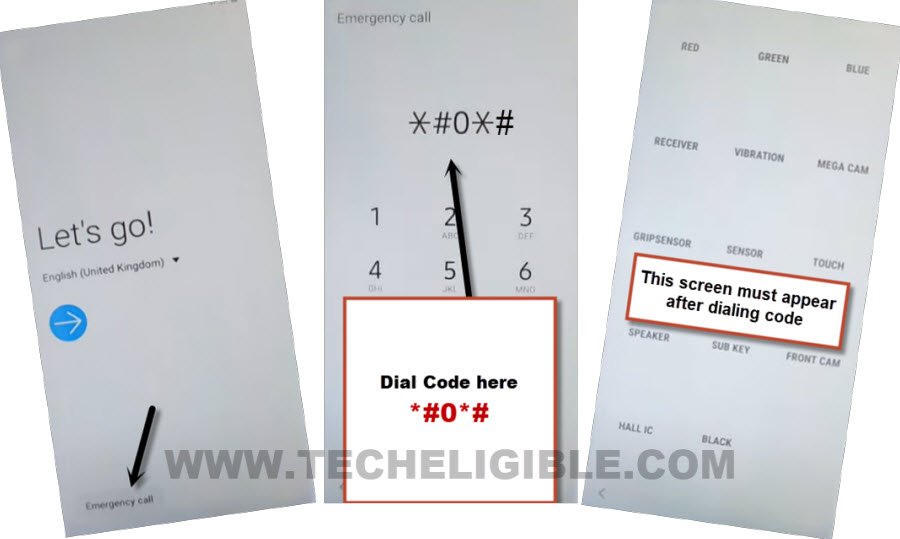
-Lets enable adb first, to do this, just go to “Emergency Call” option from there.
-Dial code on screen *#0*#, once you have a (Blank Boxes) screen, that means, the code has just worked know, and we can easily bypass frp on Samsung 2026 by Zero Knox Removal tool.
Use Zero Knox Tool to Bypass Samsung FRP:
⇒ Zero Knox Removal 1.0 Tool [DOWNLOAD]
Pass: MobileTeam
-Before extracting this tool, just turn off your active @ntivirus tool for a while until you finish up process with this tool.
-Extract tool by giving password.
-Let’s run Zero Knox tool as administrator, and hit over “Enable ADB” option. After that, tap to “Ok” from popup of (is phone connected to WiFi). Do make sure, your Samsung Android 13 is properly connected to WiFi.
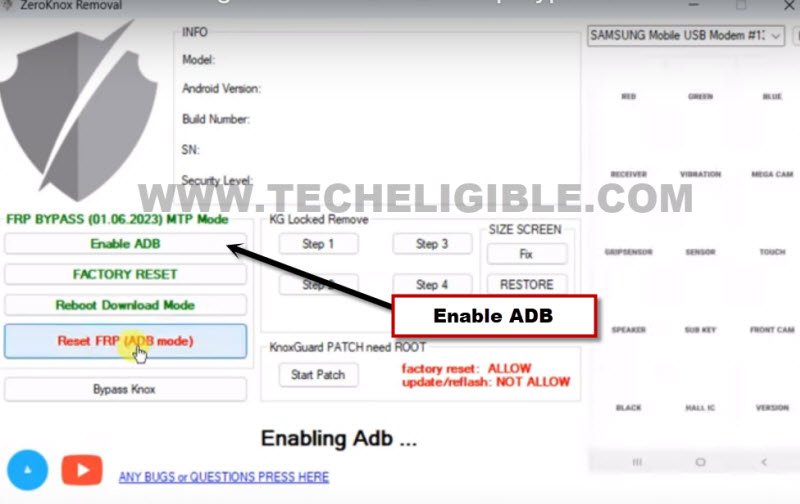
-As, we’ve already dialed code in our device, so just tap to “Ok” from dialing code popup.
-You will receive another popup in your Samsung galaxy Android 13 device screen saying (Allow USB Debugging?), just check mark option (Always allow from this computer), and then hit on “Allow”.
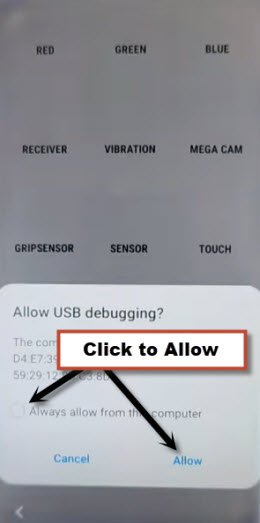
-You will see (Enabling ADB Mode) on your screen, just wait for few minutes.
-Click over “Reset FRP (ADB Mode)” option.
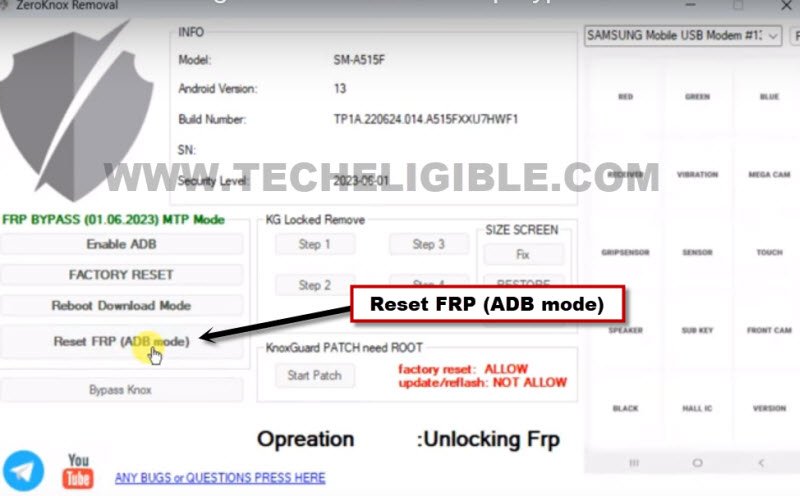
-This will take time to be finished, once its done, you will see there a (Done) message in your tool screen.
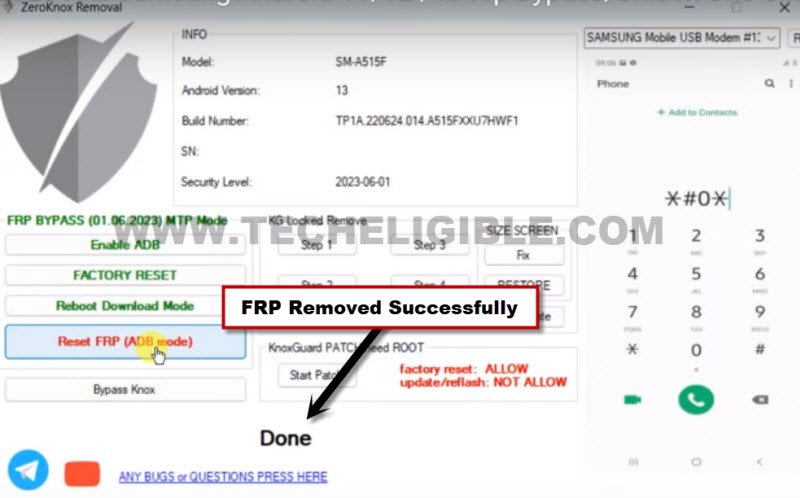
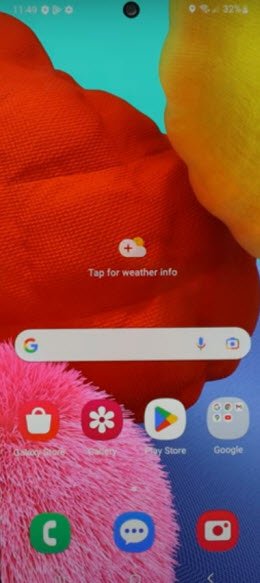
-Samsung phone will auto restart, and you will be redirected inside device home-screen without completing initial setup wizard.
3rd FRP Method: Any Samsung 2026 Android 13 (By Android Service Tool)
Download & Install (Android Service Tool) on your PC. Once downloading and installation process is completed, after that, connect your device to PC and click to “Direct ADB Enable (Samsung)” button from the tool interface. After enabling the adb function, just click to “Reset FRP (ADB)” button to erase the frp lock from Samsung 2026 Android 13 phone. Check out step by step process below.
Download Android Service Tools:
-First of all download below tool in your PC.
| ⇒ Android Service Tool V1.2 [DOWNLOAD] ⇒ Winrar Pass: techeligible.com |
Note: Don’t forget to turn off your @ntivirus software before extracting and running this tool, otherwise you won’t be able to use this tool freely, once you used this software, you can enable back your @ntivirus software.
-Let’s run “Android Service Tool” as administrator in your PC.
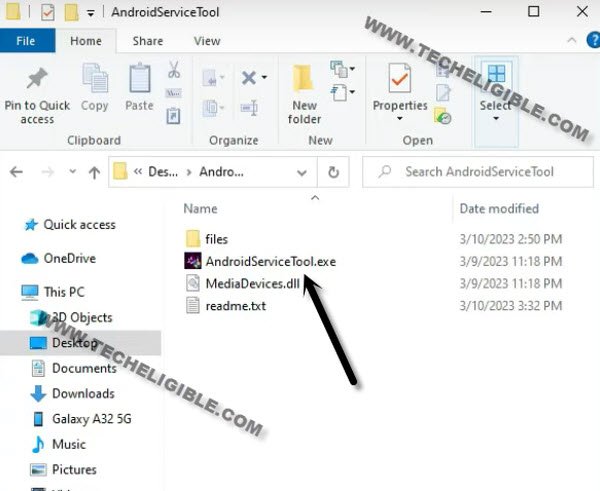
-Turn on Samsung Galaxy Android 13 & Connect with PC using USB or Data cable.
-Do make sure, WiFi is also connected into your FRP locked Samsung Android 13.
-Open your computer (Device Manager), and check your connected Samsung device name there, if the device name is appearing up, that means, your Samsung Galaxy Android 13 has been detected by PC successfully.
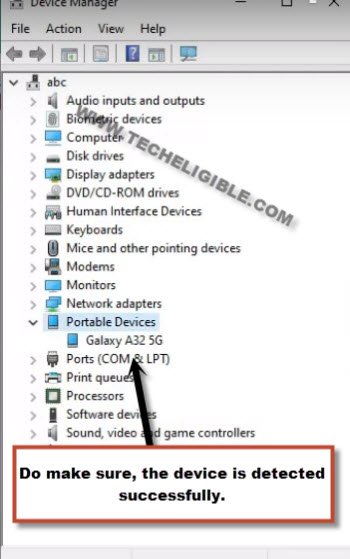
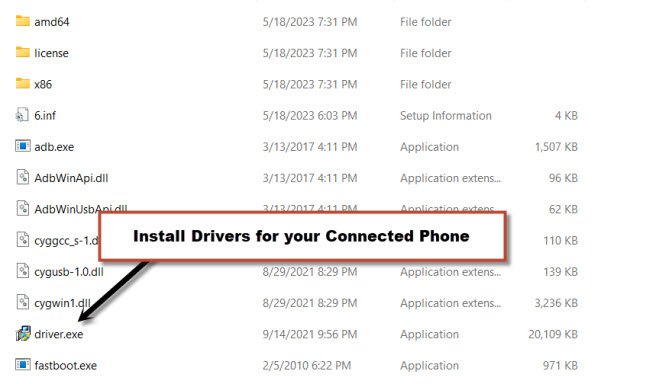
-If your device name is not being shown in device manager, that means, the device is not being detected, Don’t worry about this, just install drivers from downloaded tool folder name “Files”, and run “Driver.exe” from there. After that, try again to connect your Samsung Android 13 with PC and check your device name in device manager.
Enable Direct ADB on Samsung Phone:
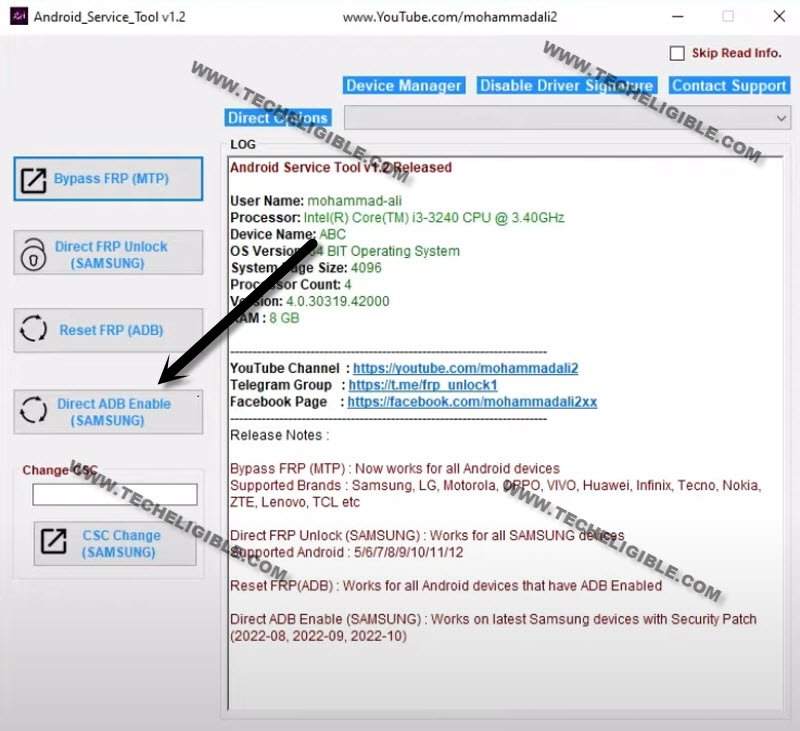
-Let’s get back to (Android Service tool) screen, and tap over “Direct ADB Enable (Samsung)” button.
-You will have a popup window along with some instructions of dialing code on your connected Samsung phone.
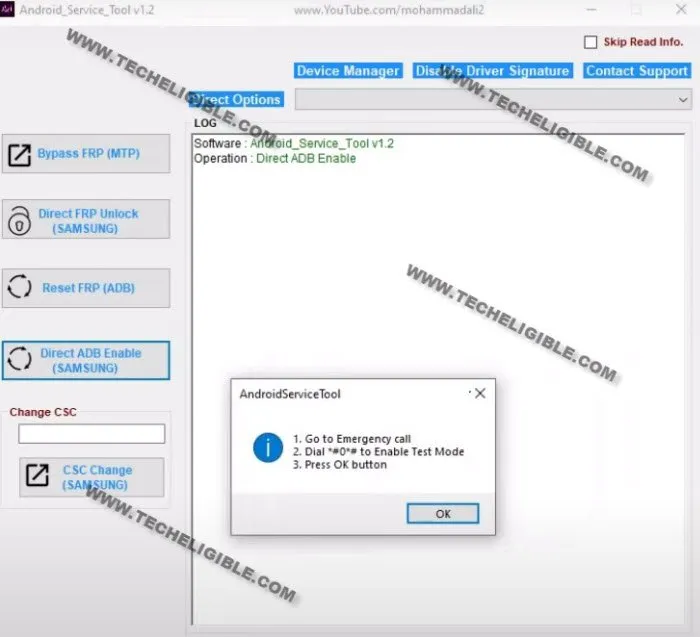
-Put your Samsung Android 13 back on first (Welcome) screen.
-Tap to “Emergency Call” option, and dial this code there (*#0*#).
-Some blank boxes screen will be displayed, that means, the code has just worked.
-Let’s get back to the PC software screen, and click on “OK” from popup, after that, the software will start enabling USB debugging mode, you may check your device (ADB Interface) from device manager.
Note: Android service tool will try to enable USB debugging mode few times, if it does not, then click again on “Direct ADB Enable (Samsung)” button.
-Once your tool has successfully enabled (USB debugging) mode, you will be instructed to click on “Reset FRP (ADB)” button.
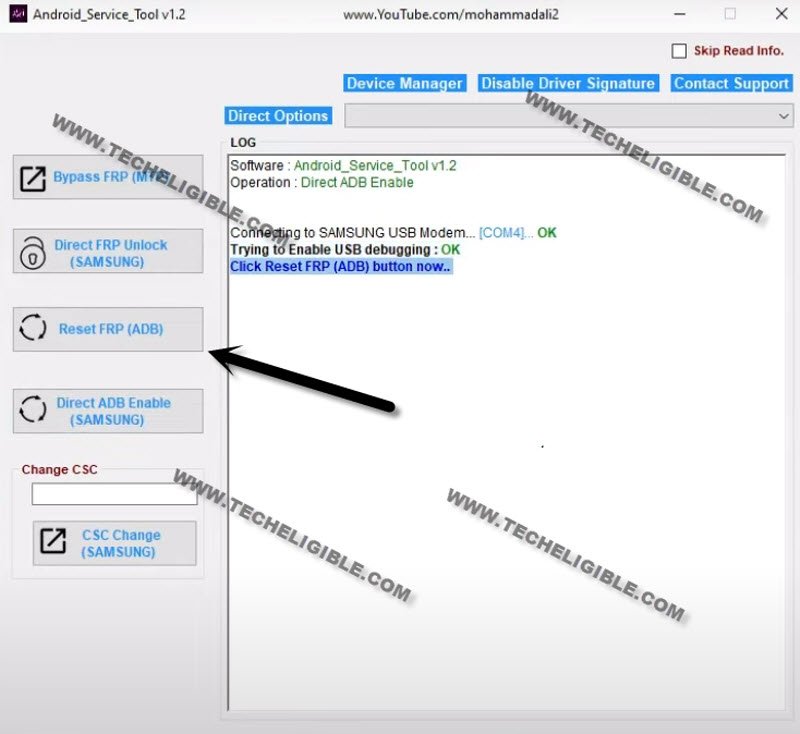
-Tap (Allow) from the phone to allow usb debugging.
-After that, Android service tool will take few seconds to complete its task, and then, the FRP lock will be deleted completely without any extra effort. This is a very short and effortless method to easily Bypass FRP Account on Samsung Android 13.
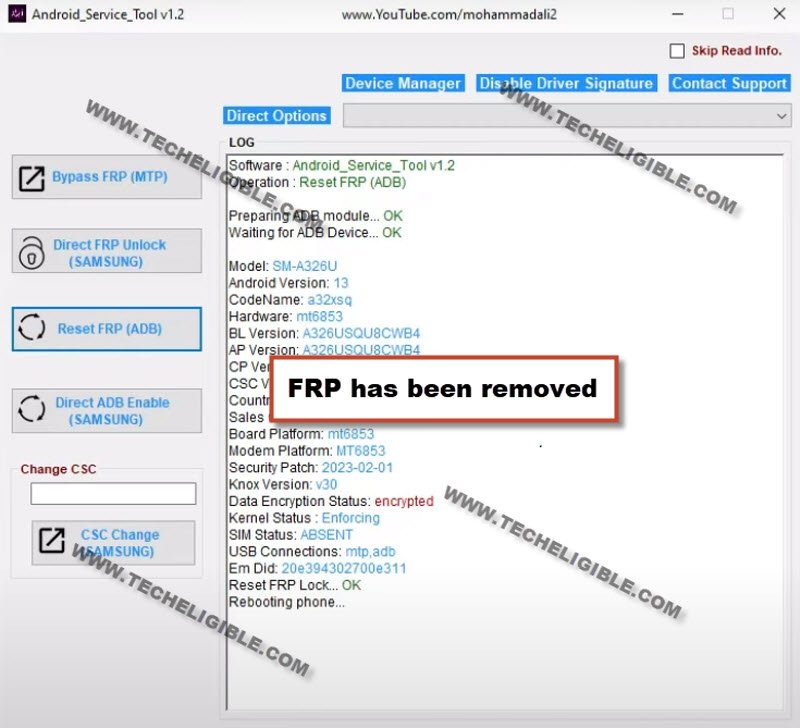
-Your Samsung Galaxy Android 13 will auto restart, after that, we have to reset device from settings.
Reset the Phone After Bypassing FRP:
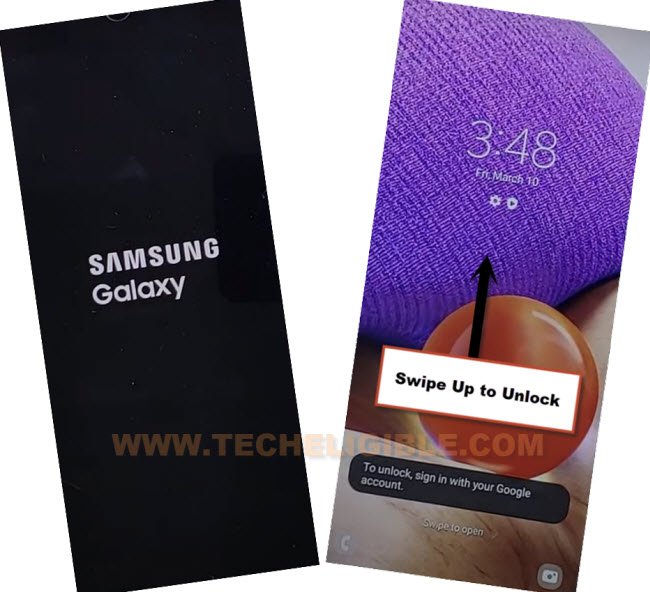
-Once restarting process is done, you will be redirected to your device (Homescreen), wait over that, till all apps load successfully.
Note: Factory data reset will delete all data from your device, if you don’t want to perform this task, you first try to add your new google account, and setup new pattern lock or pin lock, if you did that all successfully, then most probably you won’t require to perform factory data reset task.
-Swipe up screen to unlock.
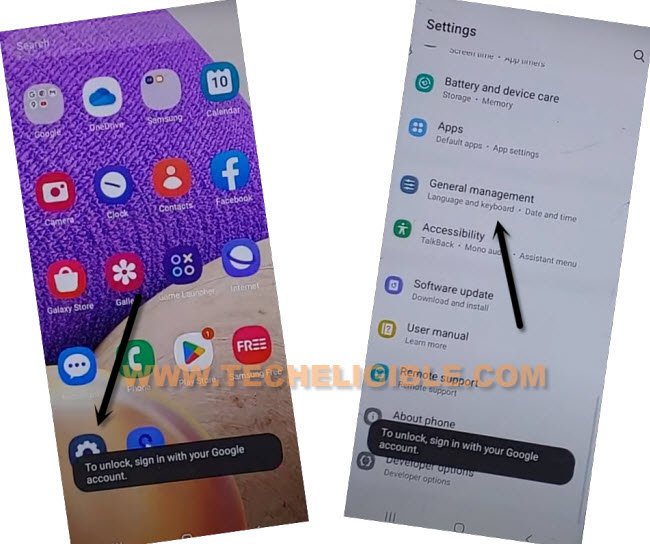
-Go to > Settings > General Management > Reset > Factory Data Reset > Reset > Delete all.
-After that, the device will be completely free of FRP, and there will be none account signed in currently.
-Finish Setup wizard and access to device homescreen.
4th Method FRP Bypass: Samsung 2026 Android 13 (By Samfw Tool)
To get this tool worked on your PC, simply download and open. After that, install proper Samsung usb drivers on your PC. Let’s enable adb and then, with one click on “Remove FRP” button from the tool will bypass frp account from Samsung Galaxy Android 13.
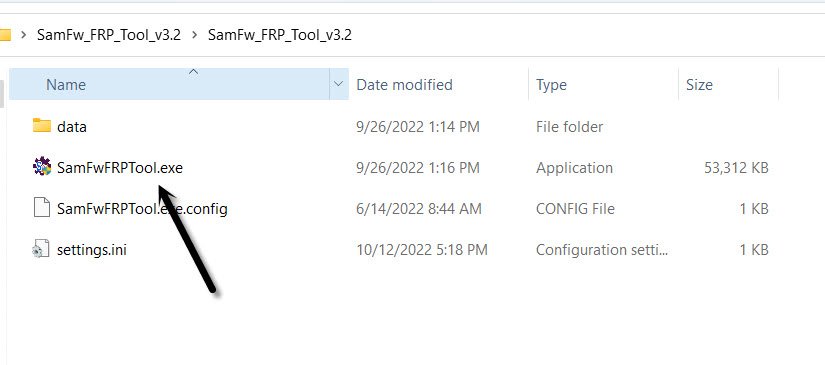
-First step is to Download SamFw tool V3.31 in PC [DOWNLOAD], after downloading finish, open this software in your PC same as shown in below image.
-Lets get back to Samsung Galaxy device, and connect this device with PC, do make sure the device is switched on.
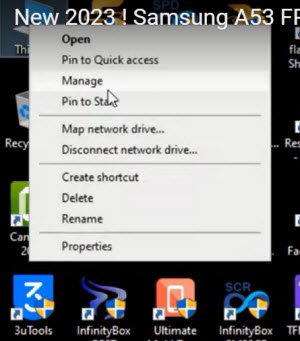
-First of all, we will make sure our Samsung Galaxy Android 13 has been detected by PC, to know this, right click on (This PC / My Computer), and click to “Manage”.
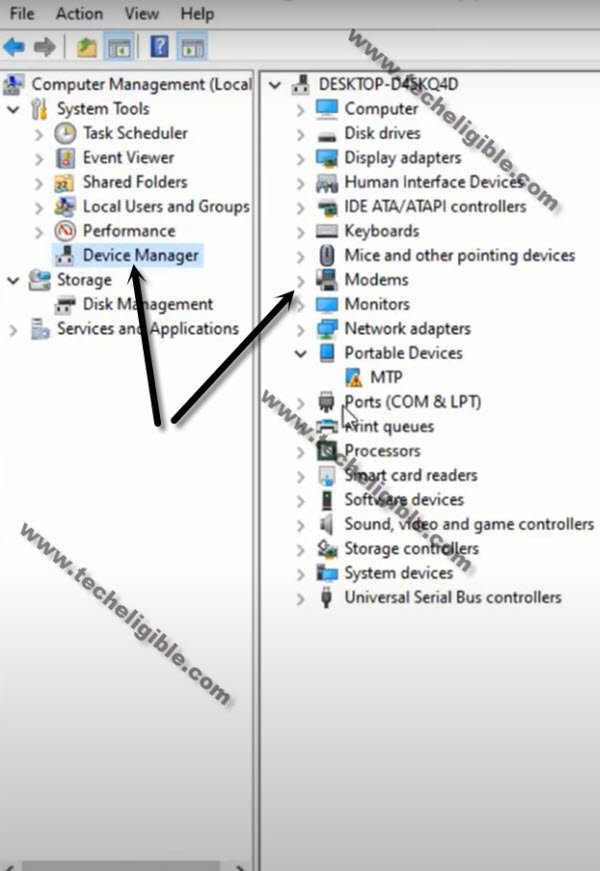
-After that click to “Device Manager”.
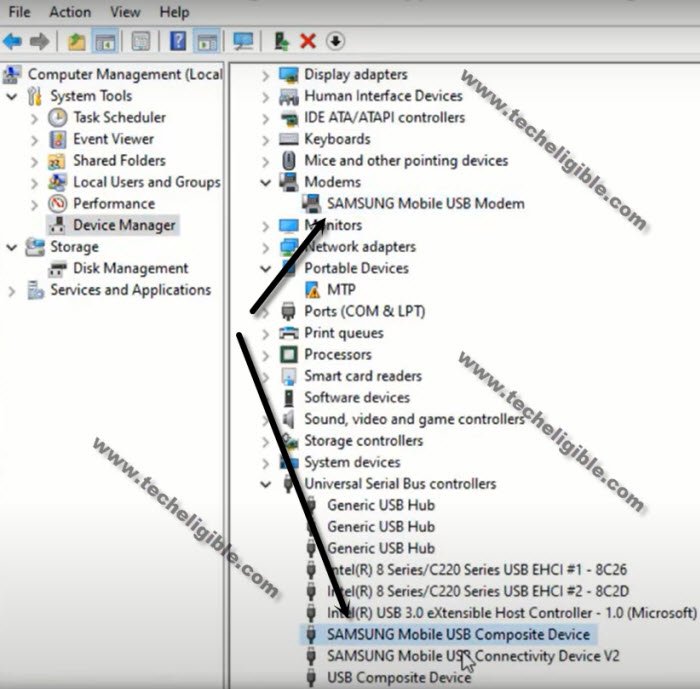
-There, you will be able to see your Samsung device connected detail same as shown in below image.
Note: If you see there any (Exclamation Sign) on your Samsung USB modem hardware, that means your computer is required to install proper Samsung USB drivers, well, while opening (SamFw) tool, you must receive a popup message of installing Samsung USB driver, so you can install those drivers from there easily.
-After successfully connecting device with PC, just open your (Samfw) tool, and there you will have a proper Samsung com port appearing up, that means the device is detected by PC and tool successfully, and you can now easily Bypass Google Account on Samsung Galaxy Android 13.
-Click on button from tool “Remove FRP (Aug 2022 security)” button.
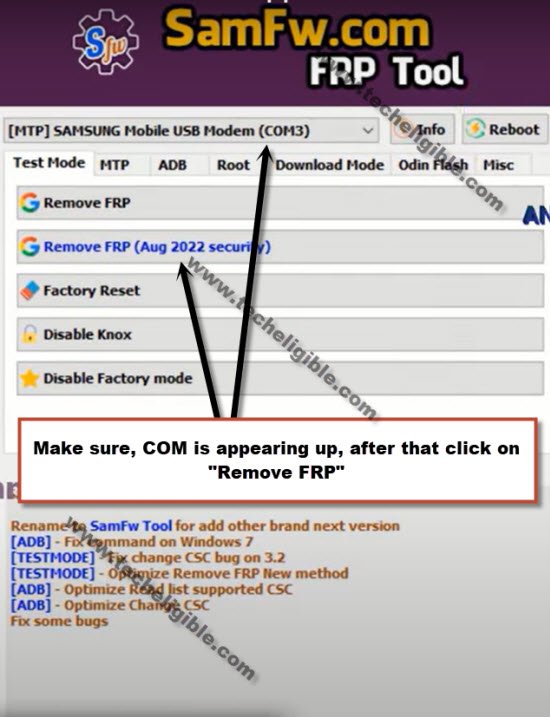
-You will be shown a popup message saying (Enable Test Mode), but do not click on “OK” button from that popup message, we will click this later on after turning on test mode from Samsung Galaxy Android 13.
-From your phone, hit on “Emergency Call”, and dial this code there “*#0*#“, after that you will have there a blank box screen, that means the code is working perfectly and you have successfully enabled test mode.
-Go back to your PC screen, and click on “OK” from enable test mode popup, after that you will receive another popup in your Samsung galaxy device screen saying (Allow USB Debugging?).
-Select option “Always allow from this computer”, and after that, tap to “Allow”.
-Within few seconds or few minutes, you will receive popup in your PC screen saying (FRP Remove Successfully), just hit on “Yes” button.
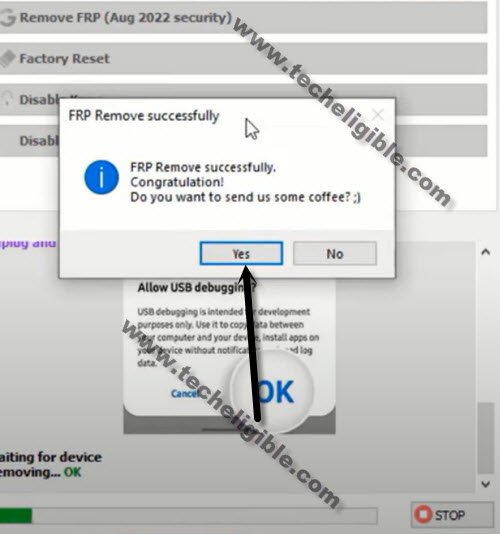
-Samsung Galaxy Android 13 will auto restart, after that, you will get inside your device homescreen without finishing up any setup wizard, just go to your device settings, and setup new Pattern or PIN, and also sign in with new google account.
5th Method: Bypass FRP on Samsung Android 12/11 (By Alliance Shield X)
With help of turning on talkback feature in this device, you can easily reach to frp locked Samsung device settings, from there, we will use Samsung Cloud option. No need of launching browser in the device, only you are required to use another android device, and create free Samsung Account, which will allow you to easily backup and restore an (Alliance Shield X) app. This is the best app for enabling (ADB & MTP) in the device, once you did that, the device can easily be detected by PC, and with single click, you can remove FRP.
Install Alliance Shield X App in Other Device:
-First of all, we will backup an frp bypass app on Samsung account using other Samsung android phone, this is totally safe, you can use your any friend or family member’s Samsung android phone.
-If you don’t own any Samsung Account, so create this account first using your Gmail account, that is totally free, can be created from Samsung website.
-Open “Play Store”, and install “Alliance Shield X” app in your other Samsung device.
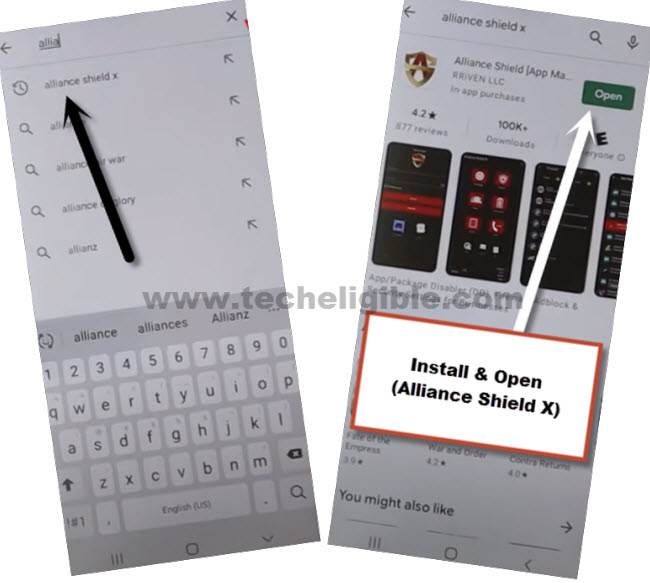
-Tap to > Add Account > Samsung Account > Sign in with already created (Samsung Account).
-Go to > Settings > Accounts & Backup > Backup Data.
-Select only “App”, and tap to “Backup Now”, now you have perfectly backup your (Alliance Shield X) app in your Samsung Account, we will restore this app in Samsung Device.
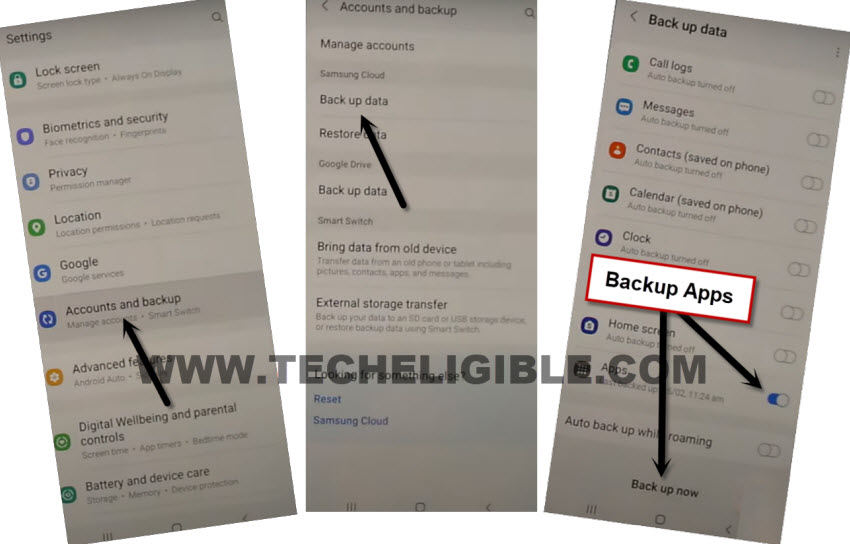
-We have now successfully created our Samsung Account, and backed up alliance Shield X app in our Samsung account, using this account, we will restore this same app in Samsung Device to remove frp.
Enable Talkback & Continue FRP Erasing Steps on Samsung Android 12/11:
-Press both (Volume UP + Power) keys together, and you will have (Use Volume Keys for talkback) popup, just tap on “Use”.
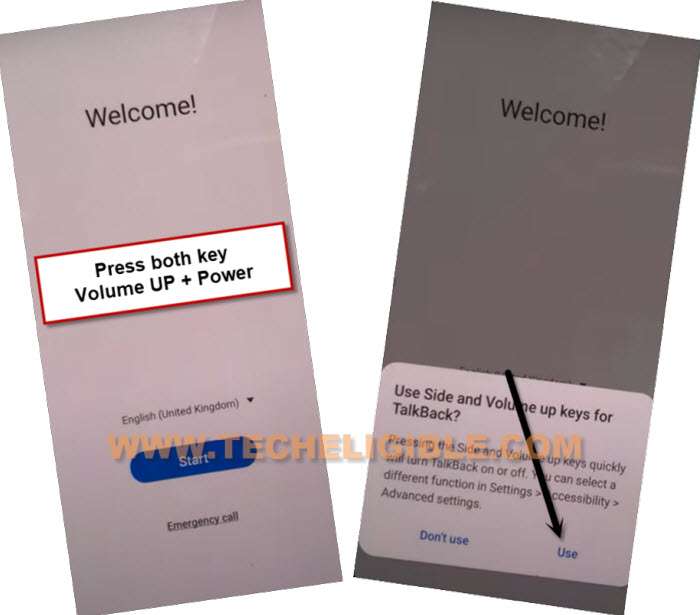
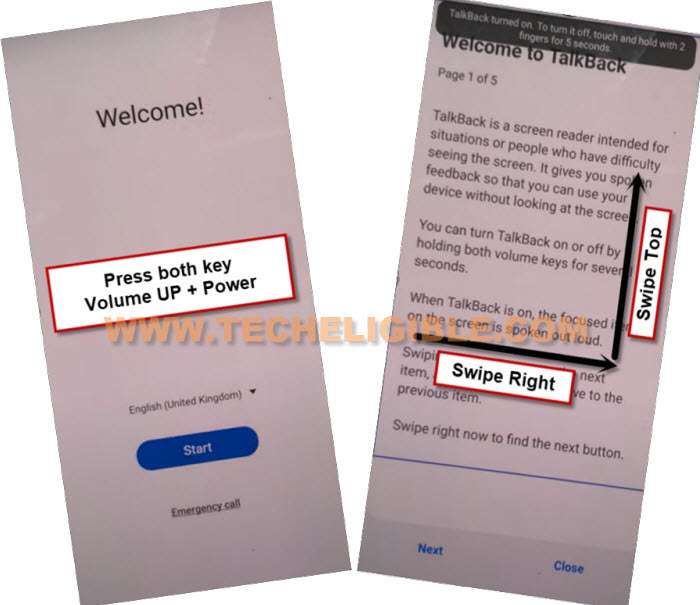
-Press again (Volume UP + Power) keys , and you will see there (talkback turned on).
-You need to Draw “L” by swiping on screen from right to left, and then swipe top, same as shown in below image.
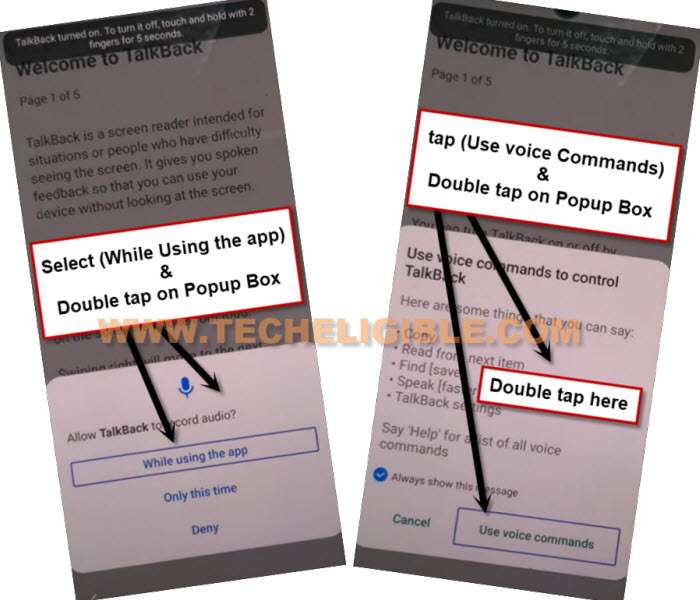
-Select option “while using the app”, now double tap on anywhere on screen.
-Select “Use Command Voice” option, and double tap on popup box.
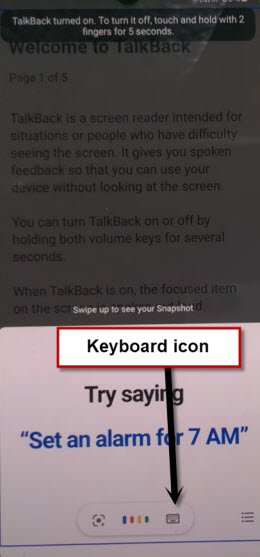
-Speak loudly (Google Assistant).
-Double tap to “Keyboard icon”.
-Turn off talkback by press again both keys (Volume UP/Power).
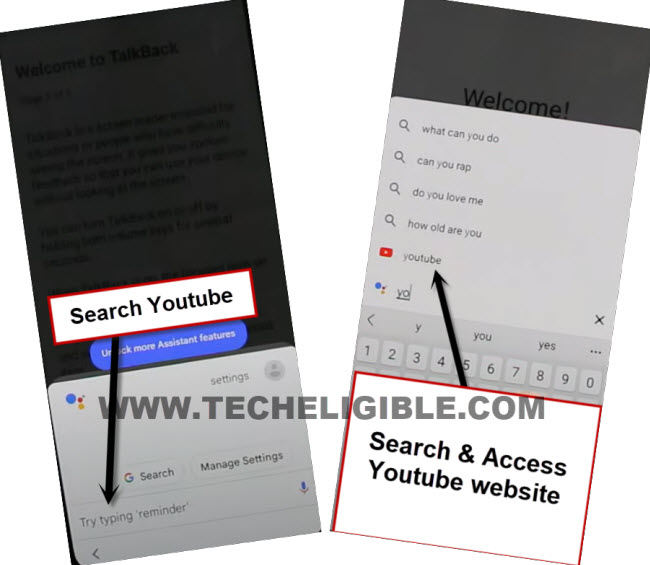
-Type “You”, and hit on “Youtube” icon to reach Youtube website.
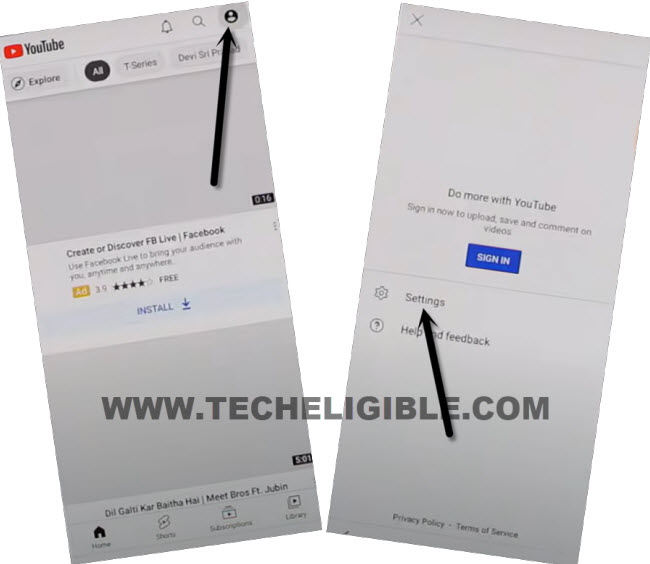
-From up-right, hit on “Profile icon”, and tap on “Settings”.
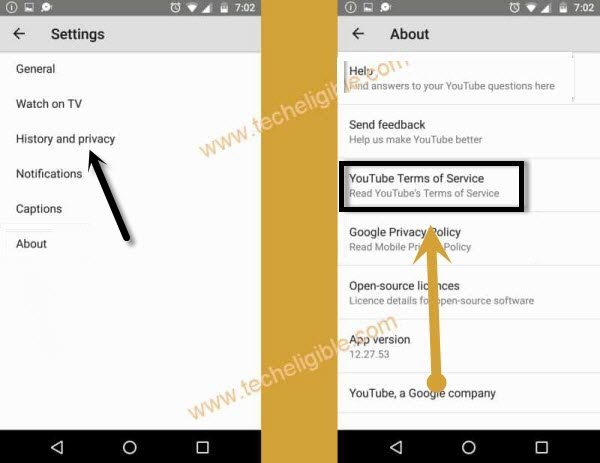
-Tap to > History and Privacy > Youtube terms of service.
-Go to > Accept & Continue > No Thanks.
Sign in with Samsung Account:
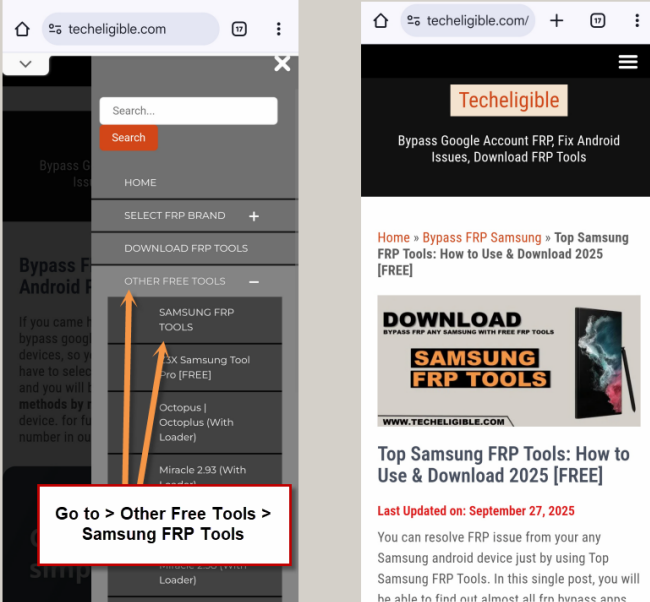
-Access to Samsung frp downloading page by searching in browser with “Techeligible“. After that, visit 1st searched result from there same as instructed in below image.
-Hit on “Menu” option from top corner of the site.
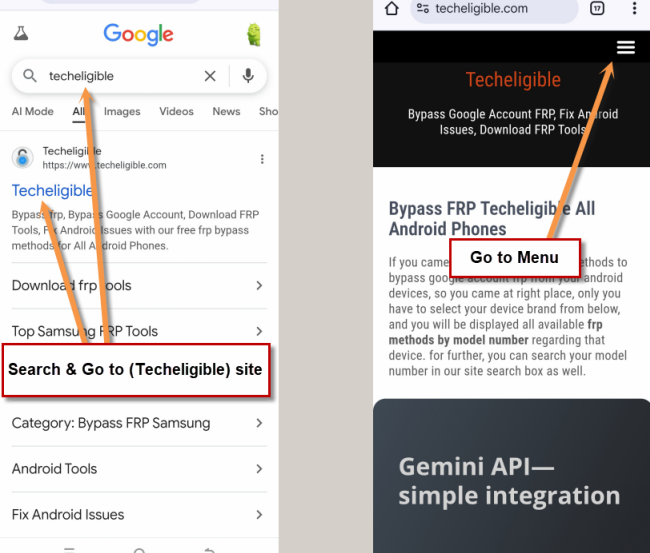
-You have to hit on > Other Free Tools > Samsung FRP Tools.
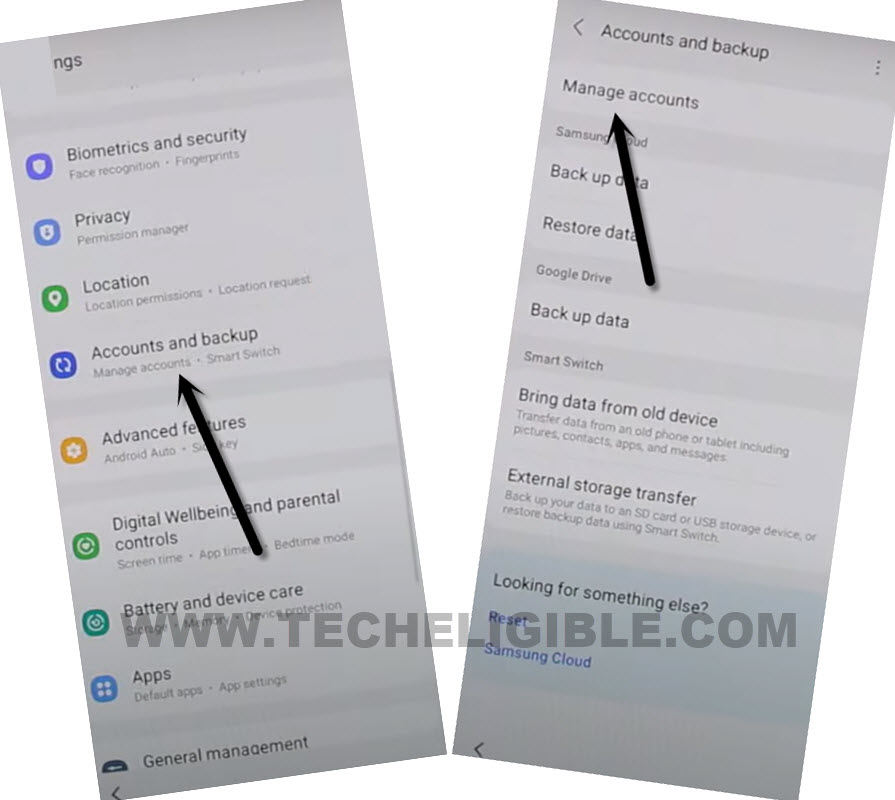
-Tap to “Open Samsung Settings“.
-Go to > Accounts & Backup > Manage Account.
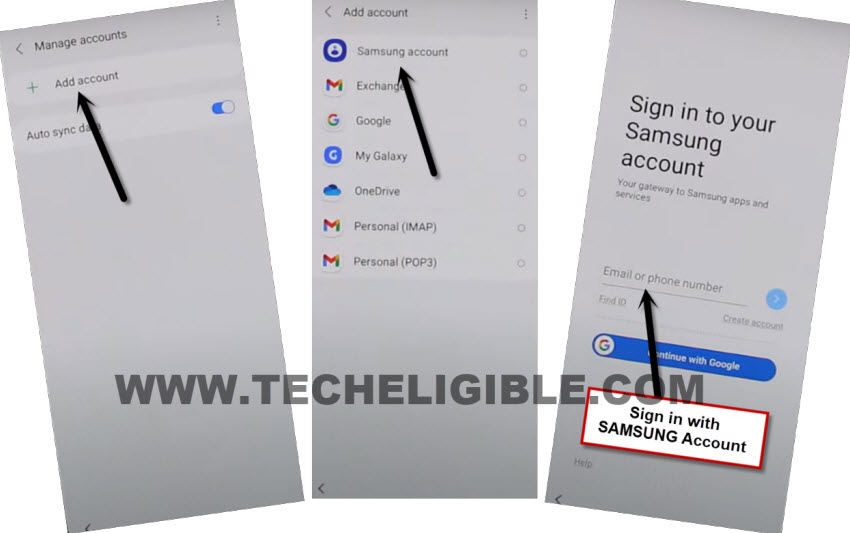
-Tap to > Add Account > Samsung Account > Login with Samsung Account which has alliance shield X app backup.
-By tapping on back arrow carefully, get back to main (Settings) page.
-From there, tap to > Accounts & Backup > Restore Data > Update.
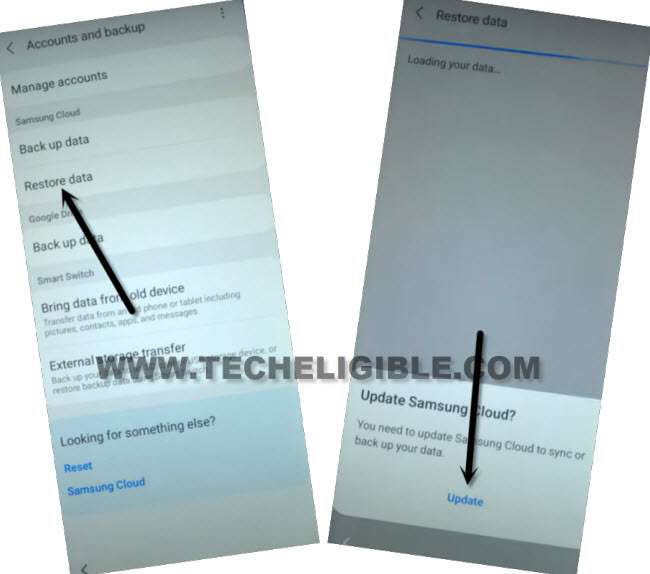
-Wait 30-60 sec till updating process completes, hit again on > Restore Data > Select your device from which you wanna backup (Alliance Shield X) app.
Note: if you face (Something went wrong) error after hitting on Restore data or Device Model name, so this error can easily be fixed here.
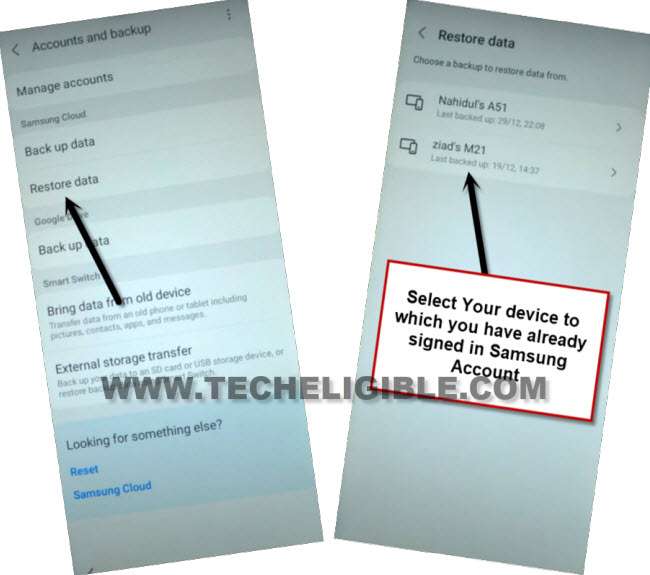
-Un-check option, and tap on “Arrow” icon which is Infront of (APPs).
-Select only “Alliance Shield X” app, and tap to > DONE > RESTORE.
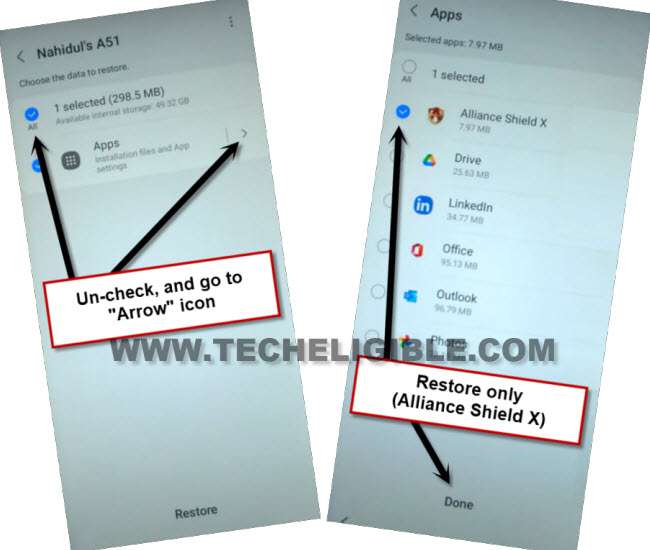
-The (Alliance Shield X) app has successfully been restored from your Samsung Account, now lets go to this app to enable (ADB+MTP) option to easily bypass frp.
Enable ADB + MTP Option:
-Go back to (FRP Tools) page by tapping on back arrow.
-Scroll down and tap to “Alliance Shield X” link.
-Register your new account in (Alliance Shield X) .
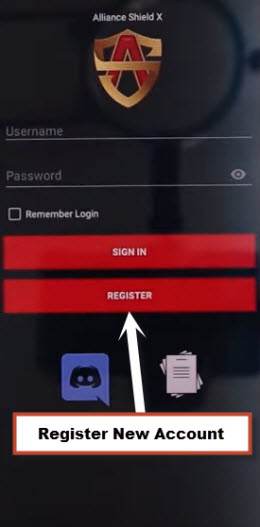
-Sign-in with your registered account in (Alliance Shield X) app.
-Type any “Device Name”, and then tap to “Next”.
-Turn on “Device Admin”, and hit on > Activate > Next.
-Turn on “Knox”, and select option (i have read and agree…), and tap to > Confirm > Next > Finish.
-Go to “App Manager”, and tap to “Close” from popup box.
-Hit on “Search icon” from top corner, and search there “Mode”, and tap to “Service Mode”.
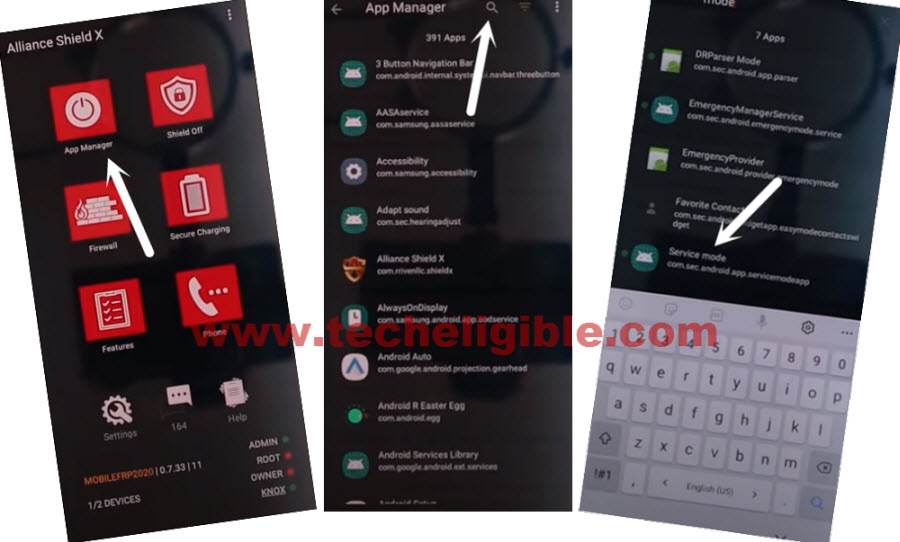
-Tap to “Activities”
-Go all the way down, and tap on option (com.sec.android.app.modemui.activities.usb.settings).
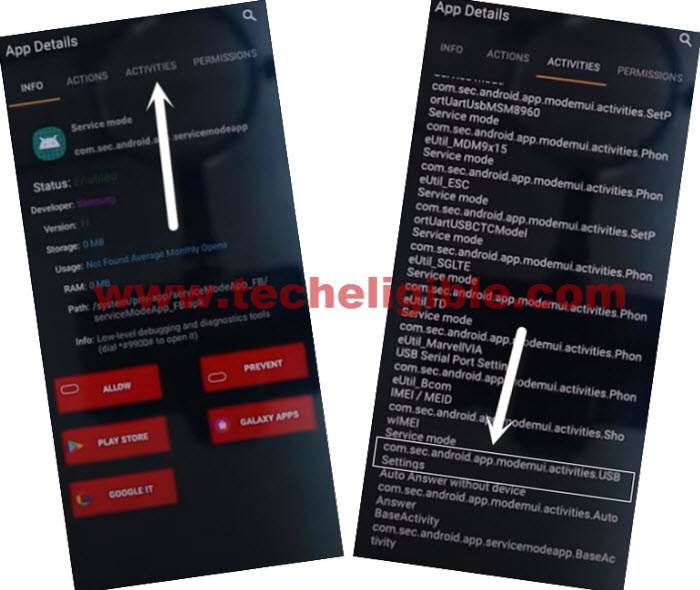
-Tap again on (com.sec.android.app.modemui.activities.usb.settings), and again hit on “OPEN”, and then select (MTP+ADB).
Enable ADB & Bypass FRP on Samsung 12,11:
-Download & Open (Samsung FRP ADB) tool in your PC.
| ⇒ FRP-BYPASS-ADB Tool [DOWNLOAD] |
-Connect Galaxy device to the PC using a USB Cable.
-Extract & Open “FRP Bypass ADB Tool” in PC.
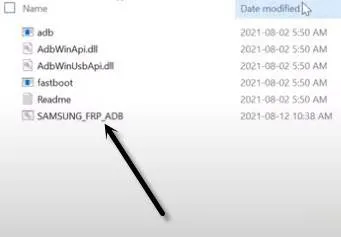
-This tool will start bypassing frp account on Samsung 2026 automatically.
Note: In your Samsung Device, you will have a popup widow, just tap to > Allow > Allow, afterwards, the ADB Tool will detect your device and will start bypassing frp lock.
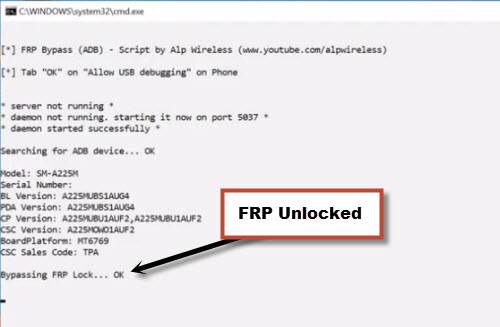
-Now the device will be restart automatically, and Select “Samsung Service”, and then tap to “Always”, this option you may receive while finishing setup wizard.
6th Method: Remove FRP All Samsung 2026 Android 11 (By PIN Locked SIM)
-Setup 4 digits PIN Locked code on your SIM using any other android device.
-Connect WiFi first, and go back to (Choose a WiFi Network) screen.
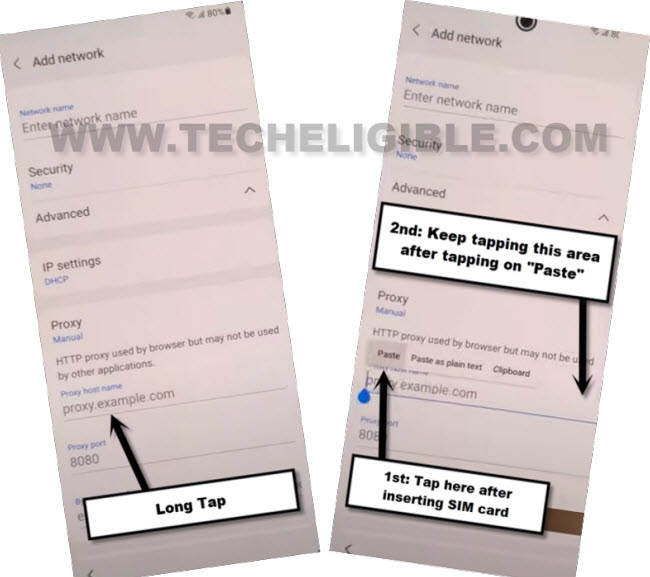
-From there, hit on > Add Network > Advanced > Proxy > Manual.
-Put your (Pin Locked SIM Tray & SIM eject tool) on a stand by position, means just Put SIM Tray in SIM Tray area, but do not insert it, and also put (SIM ejector) tool in sim removal hole, but no need to press both, we will later on insert sim tray, and then eject sim tray as well.
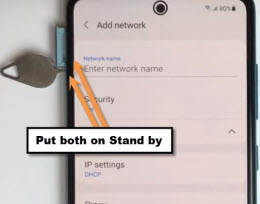
-Long press on url (Proxy.example.com), there you will see (Paste) option.
-Quickly Insert pin locked sim card, and then quickly tap on “Paste” option.
-Quickly start tapping 20-30 times on “Right Side Blank Area” till you don’t see other screen, same as shown in below image.
-Now you will have a (Lock Screen) there.
-Popup SIM tray, and quickly tap on “OK”.

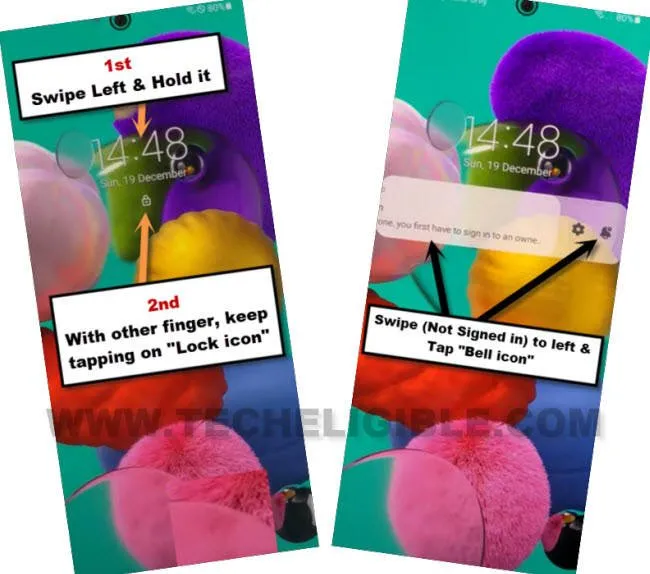
-Swipe left and Long hold (DATE & time), with using other finger, keep tapping on “Lock icon”.
-As soon as you see “Not Signed in” message, just swipe that message to left, and hit on “Bell icon”.
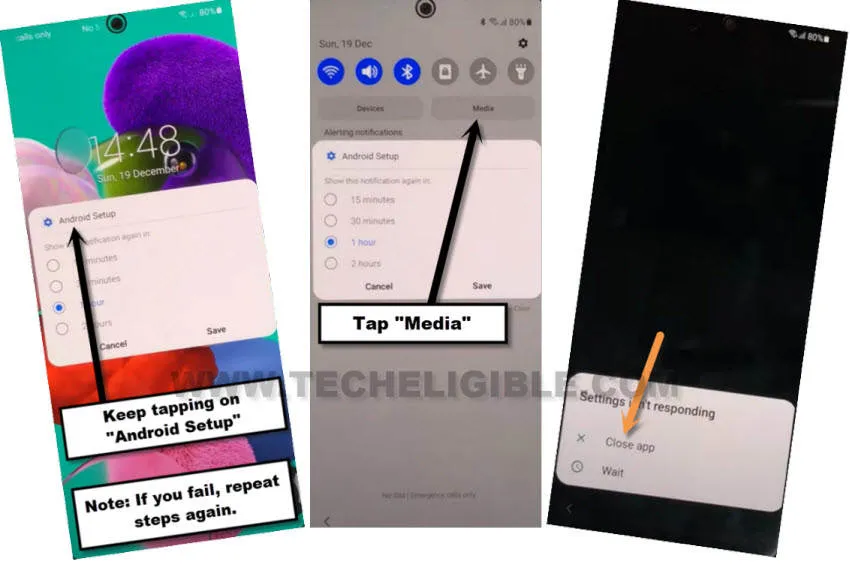
-Keep tapping on “Android Setup”.
Note: If you fail, don’t worry, just repeat all steps, you may have to do this 6-7 time to get perfection in all steps, afterwards, you will be able to follow all steps as fast as possible.
-Tap to > Media > Close app.
-Tap on “Smart Things” icon.

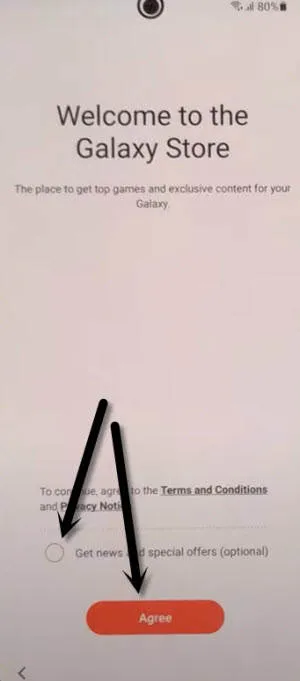
-Select option “Get news and special offer”, and then tap on “Agree”.
-Hit on “Search icon” and search there “Samsung”, and then tap to “Samsung internet browser” from the searched result.
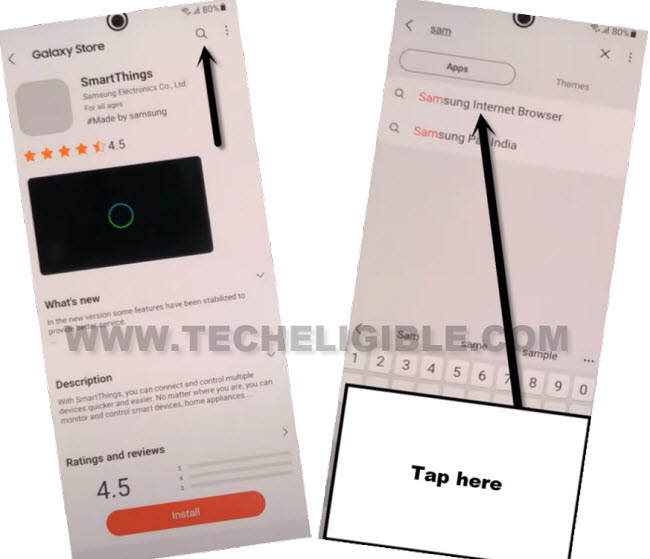
-Hit again on first “Samsung internet browser”.
-Install & Open this browser to bypass frp on Samsung 2026 Android 11.
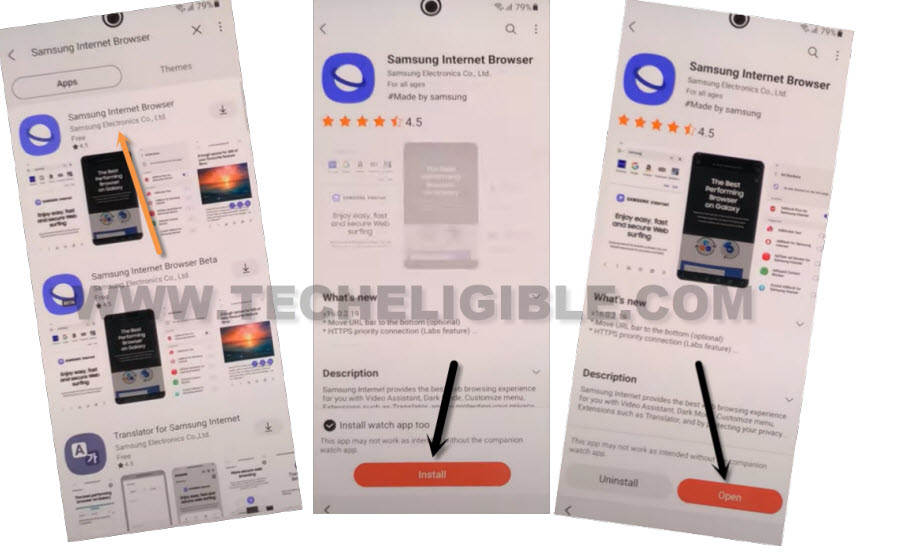
Note: Before installing this app, just uncheck option (Install Watch app too).
-Tap to > Continue > Not Now.
Let’s Access to Samsung Android 11 Settings:
-Search there “Google.com”, from the google website, search there “Download FRP Tools“.
-Visit our website searched result.
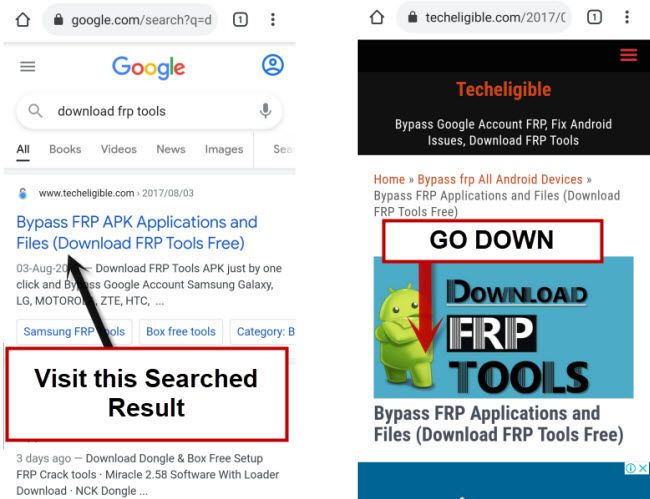
-Go down and hit on “Access Device Settings“.
-From settings, tap to > Accounts & Backup > Manage Accounts > Add Account > Samsung Account.
-Sing in with your Samsung account, this same Samsung account, we will add in other android device as well.
Follow Steps on Other Android Device:
-From [Other Android] phone, Go to > Settings > Accounts & Backup > Accounts.
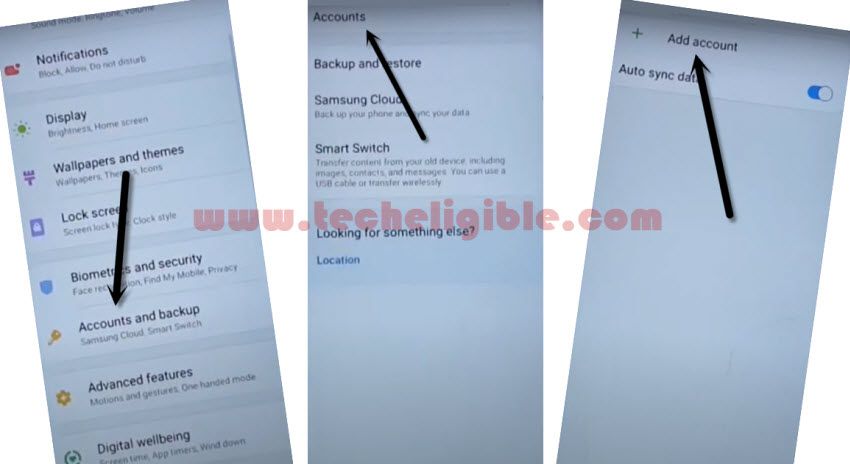
-Add your Same (Google & Samsung Account) which you have already added in your Galaxy device.
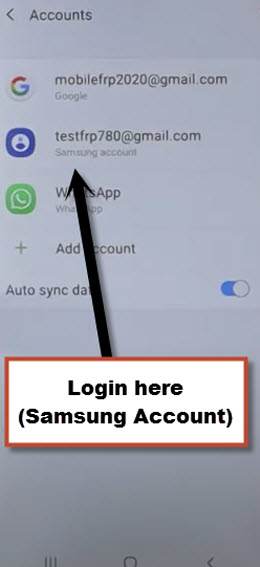
Note: Make sure, your both android devices are on same WiFi network and on Same google account.
-Let’s install “Alliance Shield X” app in other android phone through Playstore.
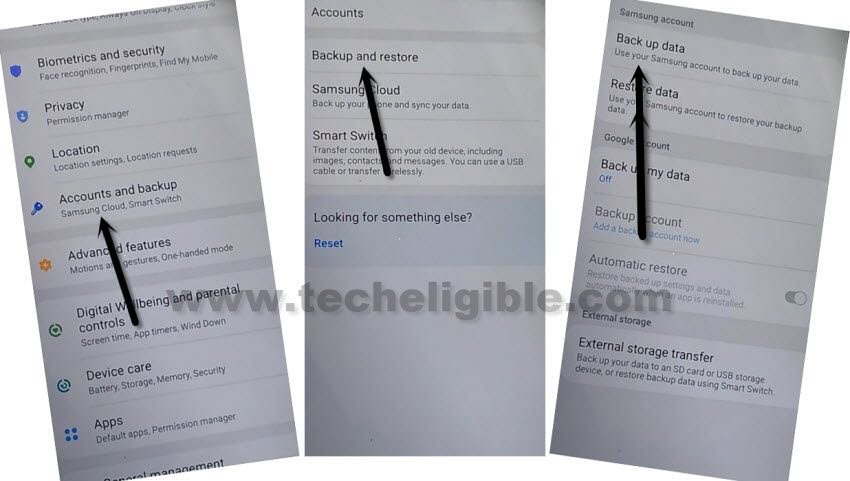
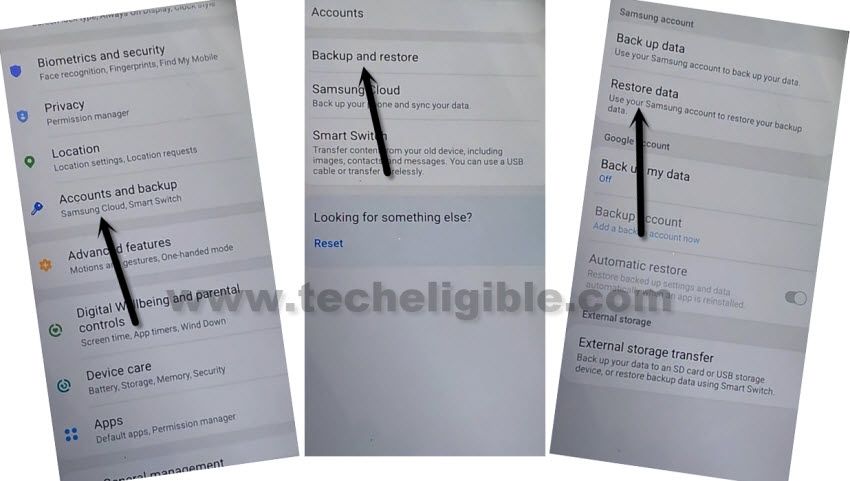
-Go to > Settings > Accounts and Backup > Backup And Restore > Back up data.
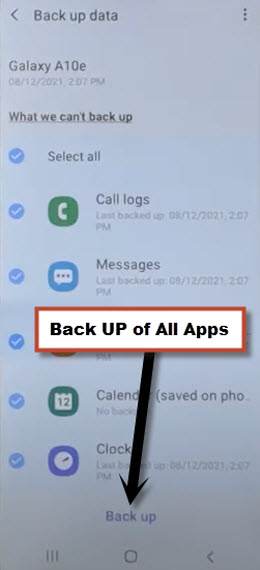
-Tap to “BACKUP UP” button from below to backup all your apps in Samsung Account, which is already signed-in in your (Galaxy Device) phone.
Follow Steps on Samsung Android 11 FRP Locked Device:
-In Samsung Galaxy (frp Locked) device, we will restore (Gmail Account) from other android phone, once we did that, the old and recently synced Gmail account will be removed automatically from frp locked phone.
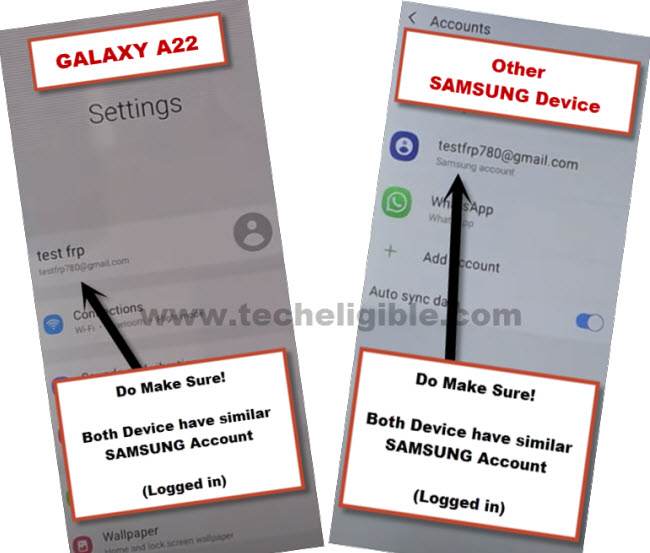
-Once more time, do make sure, your both devices are on same Samsung/Google Account, for that, we will check in Frp locked device as well, to check that, just go to “Settings”, and the top you will have your signed in (Samsung Account), just match that with your other android device.
-Let’s restore data, go to > Settings > Accounts & Backup > Restore Data > Update.
-Wait for few minutes, this will take time in updating all apps.
-Again hit on > Restore Data > Select all apps > Restore > Install, now wait until restoring data process completes.
-Open your device MENU, and open “Alliance Shield X” app from there, this app will be there, because we have already restored that from our other device through (Samsung Account).
-From the (Alliance Shield X) app, tap to > Next > Next > Next > Got it.
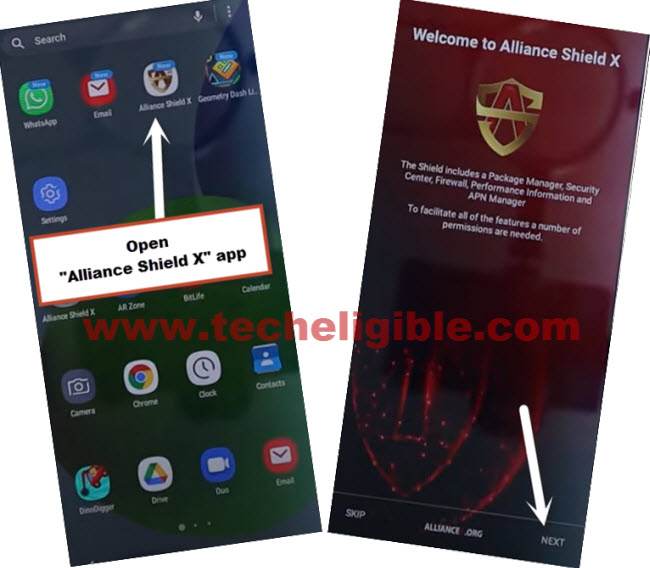
-Register your new account in (Alliance Shield X) .
-Sign-in with your registered account in (Alliance Shield X) app.
-Type any “Device Name”, and then tap to “Next”.
-Turn on “Device Admin”, and hit on > Activate > Next.
-Turn on “Knox”, and select option (i have read and agree…), and tap to > Confirm > Next > Finish.
-Go to “App Manager”, and tap to “Close” from popup box.
-Hit on “Search icon” from top corner, and search there “Mode”, and tap to “Service Mode” to Bypass FRP Samsung Android 11 2022.
-Tap to “Activities”
-Go all the way down, and tap on option (com.sec.android.app.modemui.activities.usb.settings).
-Tap again on (com.sec.android.app.modemui.activities.usb.settings), and again hit on “OPEN”, and then select (DM+MODEM+ADB).
Enable ADB & Bypass FRP:
-Download & Open (Samsung FRP ADB) tool in your PC.
⇒ FRP-BYPASS-ADB Tool [DOWNLOAD]
-Connect Galaxy device to the PC using a USB Cable.
-Extract & Open “FRP Bypass ADB Tool” in PC.
-This tool will start automatically, and will Bypass FRP Account in few seconds, wait until this process finishes.
Note: In your Samsung Device, you will have a popup widow, just tap to > Allow > Allow, afterwards, the ADB Tool will detect your device and will start bypassing frp lock.
-Now the device will be restart automatically, and Select “Samsung Service”, and then tap to “Always”, this option you may receive while finishing setup wizard.
7th FRP Method: All Samsung Android 10 By Screen Shot Capture
This method is specially on how you can bypass google account Samsung Android 10 without using any paid and computer. You are required only a working WiFi connection, through a screen shot option, we will reach to chrome browser to download and install frp removal applications. After that, you can easily complete initial setup without facing any google verification screen.
Take Screen Shot from Samsung Android 10 (2026):
-Connect Wi-Fi first.
-Go back to 1st welcome screen.
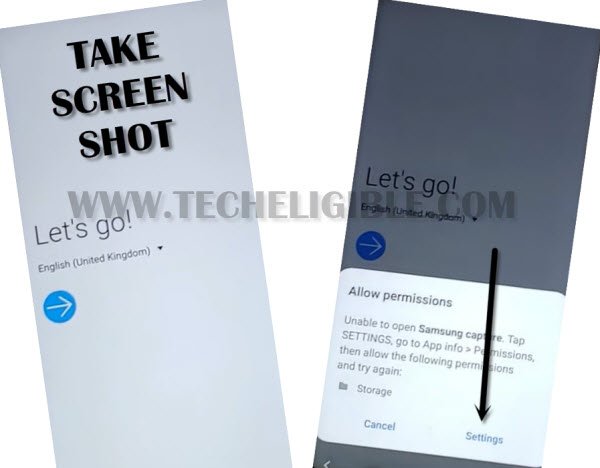
-Press both (Power + Volume Down) key together to take screen shot of your screen.
-It will show popup message with (Allow & Deny) option, so just tap on “Deny”.
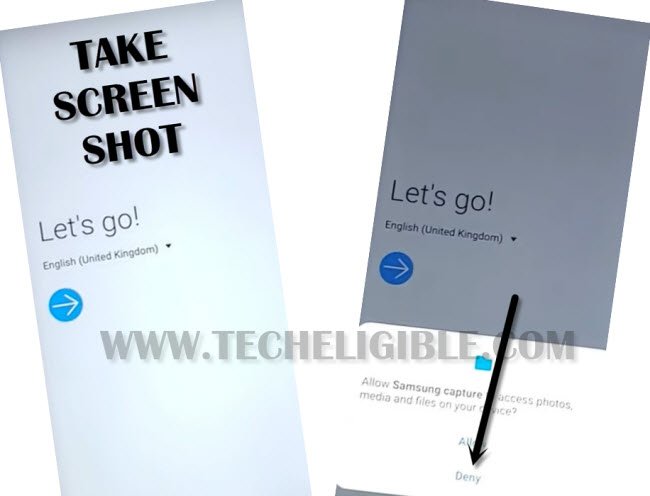
-Now again take screen by pressing both (Power + Volume Down) key together.
-From the popup message, just tap on “Deny & Dont ask again”.
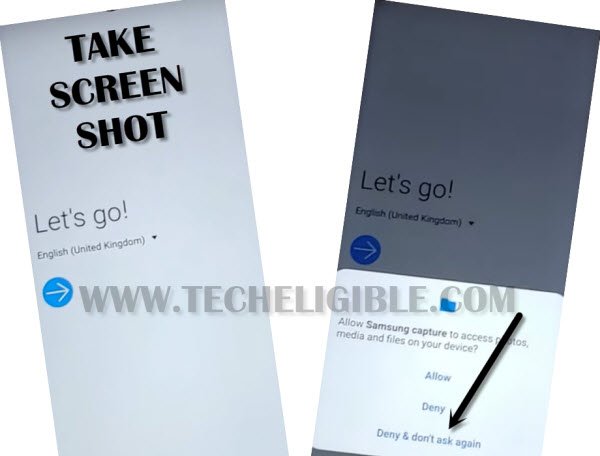
-Now last time, again take screen by pressing the (Power + Volume Down) key together.
-This time it will show a popup window of “Allow Permission”.
-From there, just tap on “Settings”.
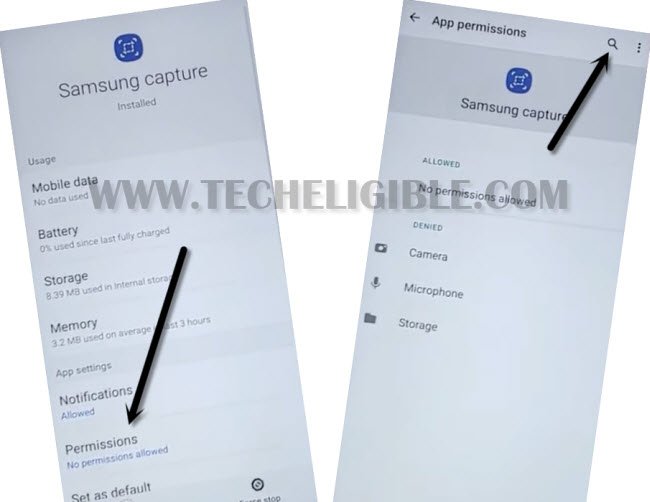
-After that, tap on “Permission”.
-Now tap “Search icon” from top right corner, just type there in search box “Google”.
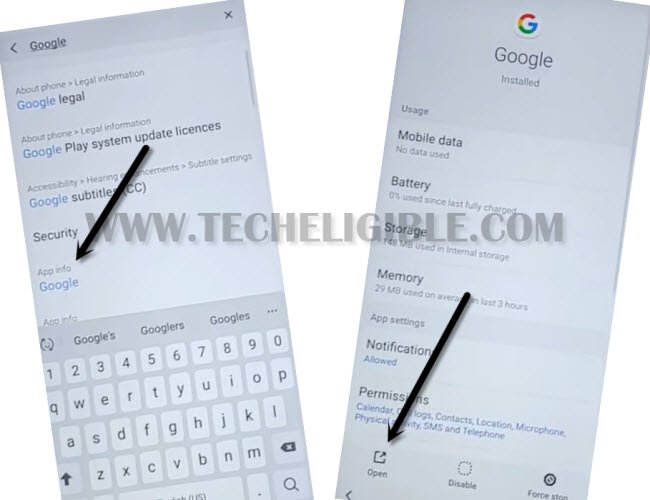
-After that, tap on “Google App info“.
-Now tap on “OPEN” icon from the bottom of screen, and then tap on “No Thanks”.
-Type in search box “Chrome”, and then tap on “Chrome icon” from the searched result to access chrome browser, after that we will be able for All Samsung Galaxy Android 10 Bypass Google Account.
-Tap on > Accept & Continue > Next > No Thanks.
Download Apex Launcher:
-For All Samsung Galaxy Android 10 Bypass Google Account, we will download & install apex launcher free app.
We have to download frp bypass applications on our android device.
-Search in chrome browser “Techeligible“. Visit same searched result as mentioned in below screen shot.
-Tap to “Menu” option from upright corner of the site.
-Simply, go to “Other Free Tools” option from there. After that, tap to “Samsung FRP Tools”.
-Go down & download from there “Apex Launcher“.
-Wait until downloading process complete.
-Now go to top of the page, and then tap on “3 dots” from top right corner of your chrome browser, and then tap on “Downloads” to access download folder.
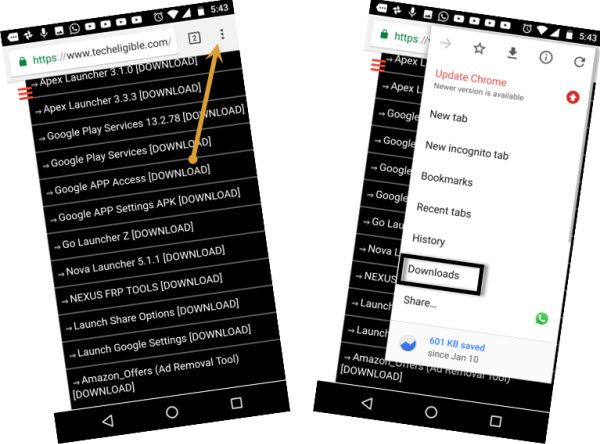
-There you will be able to see your downloaded app “Apex Launcher”.
-Tap on “Apex Launcher”, and then you will see another popup window bottom of your screen, just tap on “Settings” from that window.
-Now enable option of “Allow from this sources”.
-Tap on “Back Arrow”.
-From the Apex launcher popup window, just Tap on > Install > Open > Continue.
Note: If you get back to download folder after installing apex launcher, don’t worry, reinstall and open apex launcher to access in your device home screen.
Go to Menu & Setup new PIN to Bypass FRP:
-From the home screen of your device, just tap on “MENU”.
-From there go to > Settings > Biometrics & Security > Fingerprints > Continue > PIN > Continue.
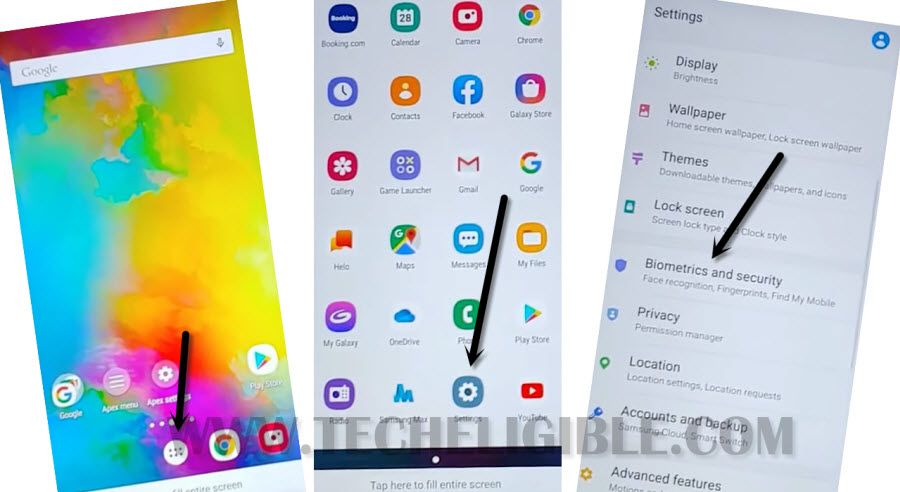
-Set your any desire PIN Code.
-Now it will ask you to add your finger impression, just tap on “Back Arrow” twice time.
-From the setting menu, just tap on “Lock Screen”, and there you will be able to see “PIN” in the field of “Screen Lock Type”, so that means we have successfully set PIN Lock in our device, so you have successfully completed this method to Bypass Google Account Samsung Android 10.
-Restart Samsung Galaxy Android 10 version device, and complete initial setup to access your device home screen normally.
Note: You will be asked to enter PIN Lock while completing initial setup, so just give the PIN lock that you have already setup in your phone, and from the verify google account screen, just tap on “SKIP” option.
Frequently Asked Questions:
Using PC FRP Bypass tools are safe?
Yeah, you can safely use Samfw, Zeroknox, VG and android service tool safely on your Samsung 2026 Android devices. But, follow up steps carefully same as mentioned in this post.
Is it legal to Bypass FRP on Samsung 2026 Android 14/13/12/11/10 devices?
If you are device owner and forgot your logged in google account, then, any FRP unlocking method is safe for you. Because, you are trying to regain access on your own Samsung android 2026 phone.
How do i check android version of my FRP Locked Samsung Phone?
Put your device into the android recovery mode, from there, you can check out your Samsung phone current android version.
How to Disable frp lock on Samsung Android 14 device?
Go to your device settings and remove google account by going to > Accounts & Backup > Manage Accounts. Choose specific google account and tap on (Remove) option.
How to enable FRP lock on Samsung 2026 Phone?
You only have to login with your valid gmail account on your Samsung phone, after that, frp lock will be enable automatically.
The Bottom Line:
We followed up top 7 different frp bypass methods on Samsung Galaxy 2026 Android 14/13/12/11/10 version devices. You just have to check out your Samsung Android version, and choose specific method from here to apply on your device for removing frp lock. All FRP Unlocker tools are free and easy to download on your PC. Firstly, try to recover your lost google account, if you are unsuccessful, then, follow up free frp bypass guideline from here for your Samsung Android devices.