
The Xmobile X8Max has android version 12 along with FRP lock feature. That means, nobody can control your tablet even after attempting factory reset. If you have logged in your Gmail account on your tablet while first time setup, then, FRP lock feature will protect your device from unknown person reach. But, in some conditions, owner can also forget their first time setup google account, that is why, this post has been written to assist device owner, how to reach their tablet again through Bypass FRP Xmobile X8Max Tablet on running Android 12.
Disclaimer: We highly recommend you to apply this method only on your own device. If you are not owner of this device, or you found this from some where, you must return to its real owner. This guideline is only educational and tutorial purpose only.
Let’s Begin to Bypass FRP Xmobile X8Max:
To get your device back with new google account setup, you will have to follow up below FRP bypass guideline on your Xmobile X8Max Tablet. We are going to enable talkback and access to chrome browser, configure new pattern lock protection with multiple attempts to skip google sign in page and complete startup steps easily.
Steps to Follow:
-Connect WiFi first and get back to first (Hi there) screen. From there, turn on talkback on your device by going to > Vision Settings > Talkback > Turn on.

-After enabling the talkback successfully, just swipe right and swipe up on the screen to see another popup window.
-From there, double hit on > While using the app > Use voice Command.
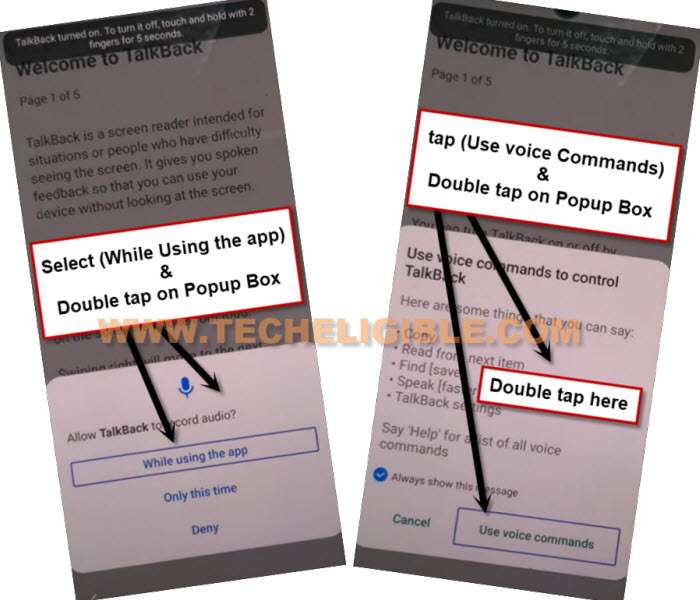
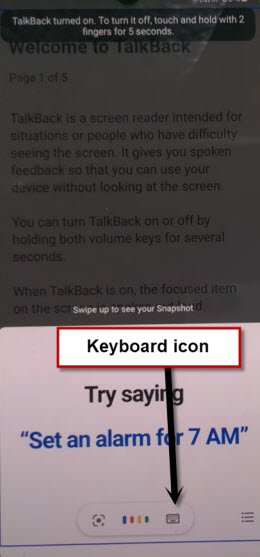
-Once you have green colored border on the screen, just speak loudly “Open Google Assistant“. After that, within few seconds, you will be displayed (Try Saying) window. From there, double hit over the “Keyboard” icon.
Turn off Talkback & Go to Youtube:
-Long hold both (Volume UP/DOWN) keys until you see popup screen of (Turn on talkback Shortcut).
-Release holding keys and long hold again both (Volume UP/DOWN) keys. This time, you will be notified in flash message that, talkback disabled.
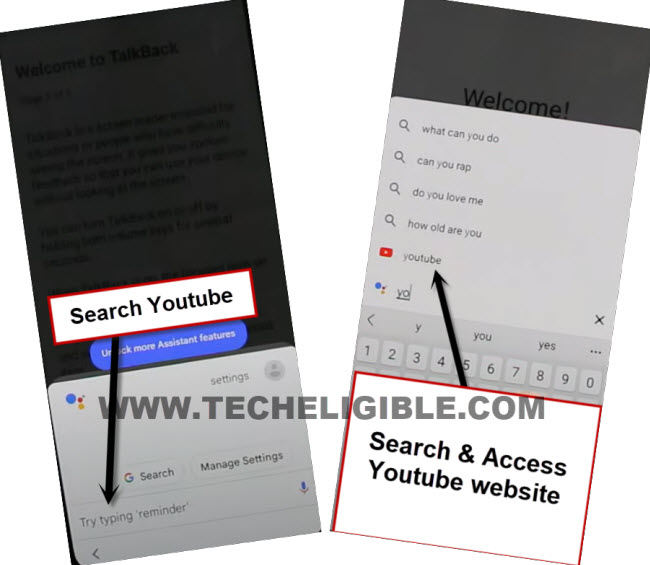
-Lets just turn off talkback by long press or (Volume UP + Power) keys, after that search there “Youtube”, and tap on “Youtube” from searched result.
Note: If you see system update notification, just tap on “Later”.
-Search there (Youtube) and tap on “Youtube” searched result same as illustrated below.
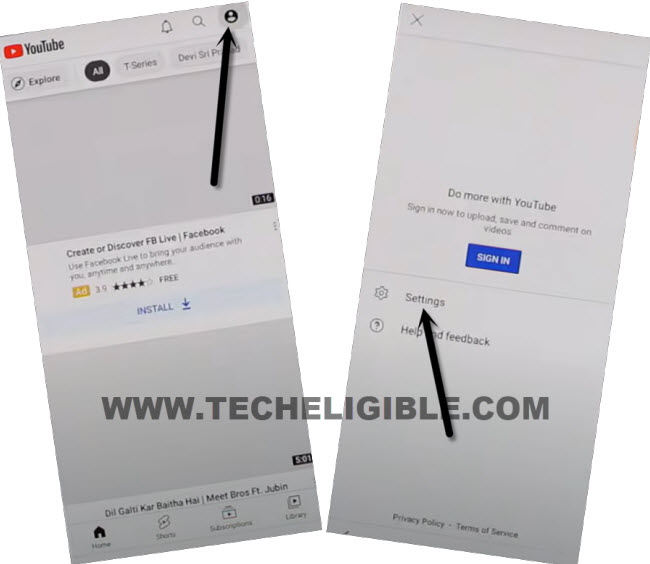
-Let’s hit over the (Human) icon from top corner and go to “Settings”.
-You have to hit over the (About) option from bottom. After that, tap on “Youtube Terms of services” option. This will launch chrome browser popup window.
-Hit over the > Accept & Continue > No Thanks. We will be redirected on the google chrome browser, so that, we could follow up further steps on Xmobile X8Max Tablet FRP Bypass Account.
Configure Pattern Lock Security:
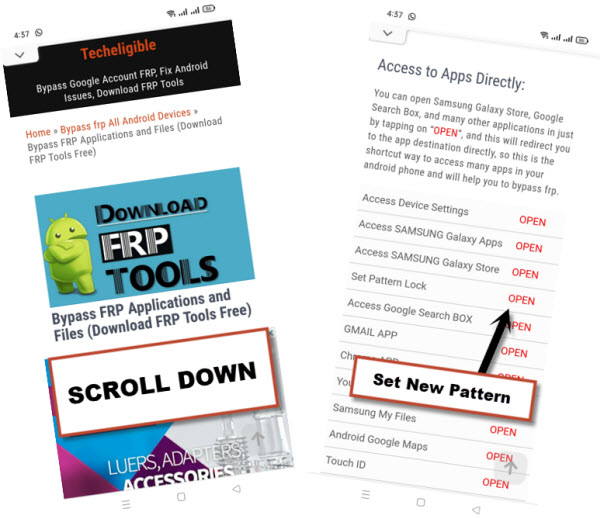
-Search and go to “Techeligible” official site. After that, hit on “MENU” icon from upright corner, after that, from menu list, tap to “Download FRP Tools”.

-For configuring pattern lock, just tap on “Setup Pattern Lock” option from frp tools page.
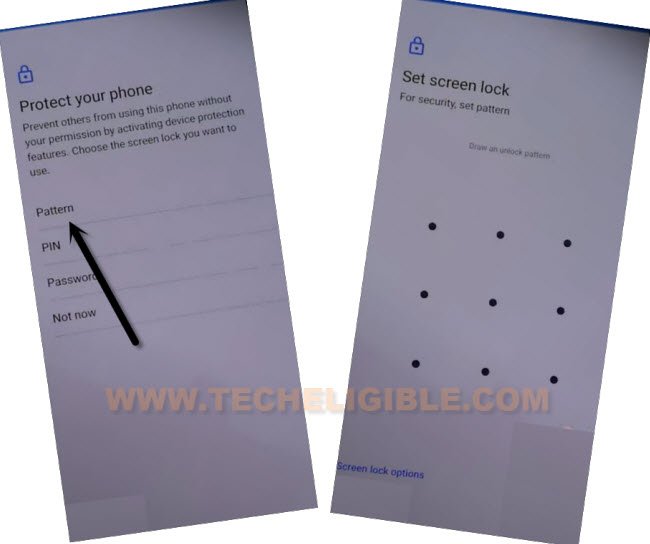
-After reaching to (Protect your phone) screen, let’s go to “Pattern” option.
-Draw your any pattern quickly, after that, tap to “Next”.
-Draw again same pattern and tap to “Confirm” option from bottom corner.
-You may not able to configure pattern lock successfully at first attempt. You will have to repeat pattern lock setup steps multiple times until you have a next screen of (keep your device unlocked while its on you).
Repeat Steps: Quickly draw pattern > Next, Draw same pattern again > Confirm.
-After 10-15 quick attempts, you will be able to see the next screen of (Keep your device unlocked while its on you).
-Go to > Yes I’M IN > Got it.
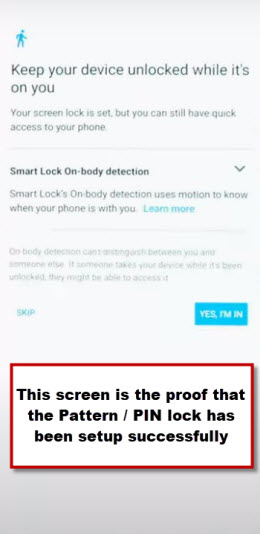
-Congrats, you have configured your new pattern lock successfully, and frp has almost been bypassed, you can complete the verification process by using your newly setup pattern lock code.
-Go back on first (Hi there) screen. After that, tap on > Start > Don’t Copy.
-From pattern lock verification page, draw your newly setup pattern lock there to complete the verification process and bypassing frp account Xmobile X8Max Tablet.
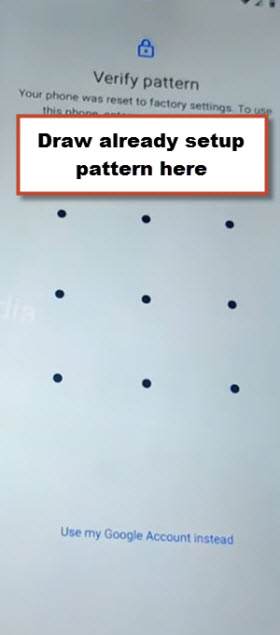
-After few seconds wait over the loading page, you will reach on (Sign in) screen. Skip this screen now by tapping on “Skip” option from the bottom left corner. After that, hit again on “Skip” from the popup notification.
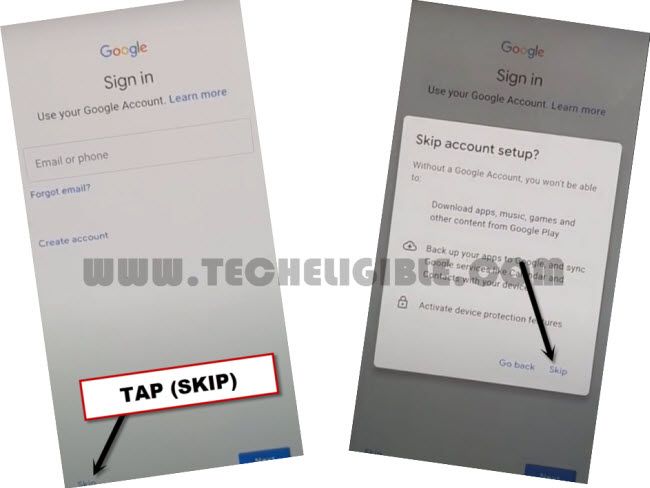
-Reach back to your Xmobile X8Max Tablet main home-screen just by completing start steps accordingly. You won’t be asked to login back with forgotten google account.
The Bottom Line:
Accessing back to FRP locked Xmobile X8Max Tablet is not impossible after forgetting the sign-in credential. We simply enabled the (Talkback) function from first startup screen. After that, launched chrome browser, searched and reached to techeligible official frp tools page. After that, with one tap, we accessed over the (Pattern lock Setup) screen. Configured new pattern lock on our device to bypass the frp account through skipping google verification screen.