
Are you frustrated because getting locked out on your Lava T81N tablet or LAVA Aura T81N? If you are legit owner of this device, then, you deserve to find out perfect frp bypass solution. You came at right place, we are gonna show you easy steps by step guide, that, how to Remove LAVA T81N FRP Google Account that is running on (Android 11).
Why i am locked out with FRP?: Facing Google FRP lock on their own device is the human error, they just attempt hard reset their tablet in a hurry to solve some other issues, and, unknowingly, they come in another big trouble, when they forget logged in google account credential. Check out below the comprehensive guide on frp unlocking Lava T81N tablet.
Disclaimer: We highly recommend you to apply this method only on your own device, if you are not owner of this device, or you found this from some where, you must return to its real owner.
Let’s Begin to Remove LAVA T81N FRP Google Account:
-Insert any working SIM card on your tablet, that has some contacts saved already.
-Switch on tablet & Connect to WiFi network.
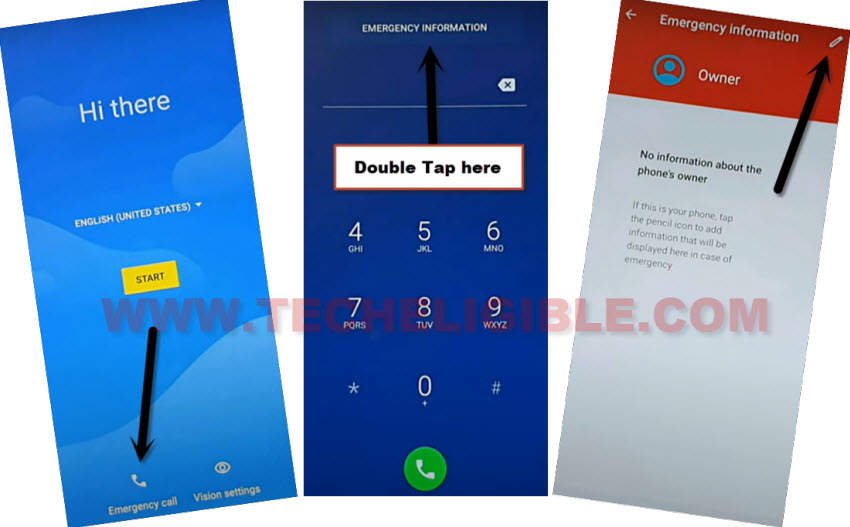
-Go back again to first (Hi there) screen, go to “Emergency Call” option. After that, tap once on the “Emergency information” option, once its turns to red, double on this same option again.
-You will be able to see (Pencil) icon top corner of the screen, just tap on that icon.
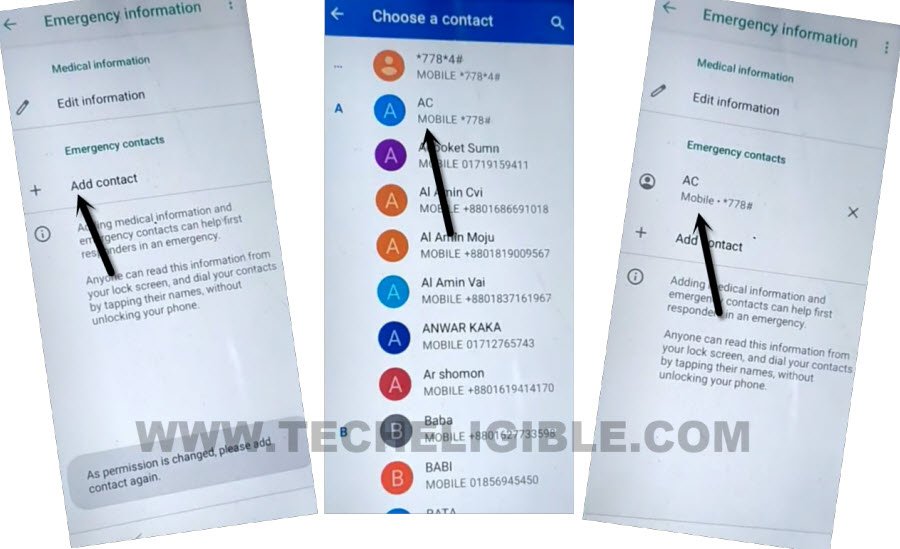
-Let’s get contact list by tapping on “Add Contact” option. Choose any random contact.
-Tap again on same contact name again from next screen.
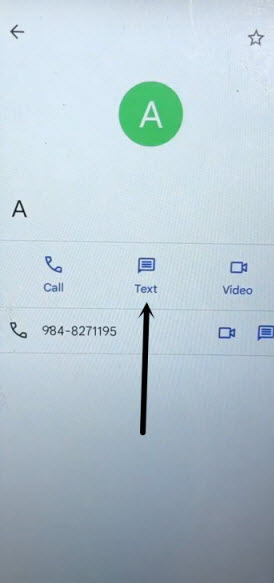
-You will lead to next contact detail page, from there, hit on a “Message” icon to launch the message application.
-Go to “3 dots” icon from top corner, after that, you will be displayed some options list there. Tap on “Help & feedback” option from that list.
Launch Settings & Turn on Accessibility Feature:
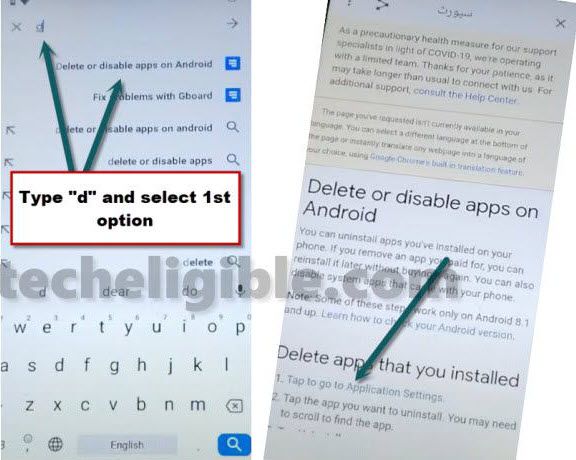
-From next screen, search there with “Delete or disable”. From searched result, go to “Delete, disable & manage unused apps on android”.
-From next article page, just hit over the hyperlink named “Tap to go to application settings”.
-You will have a list of all installed applications, from there, find and tap on “Settings” icon. After that, hit on “Open” to launch settings on Lava T81N Tablet.
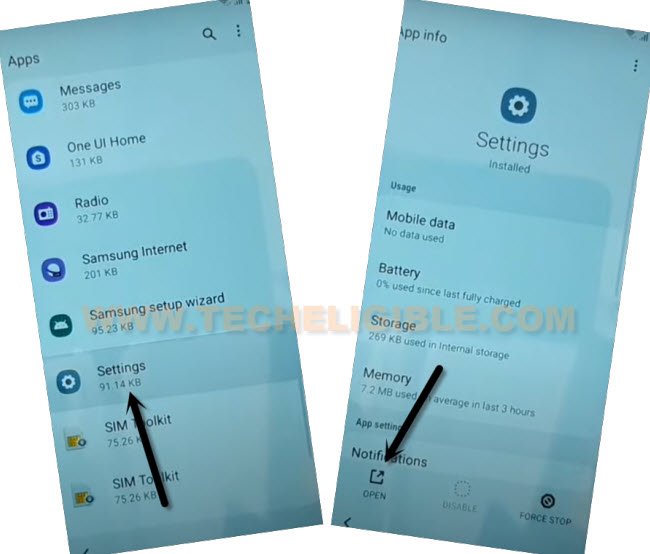
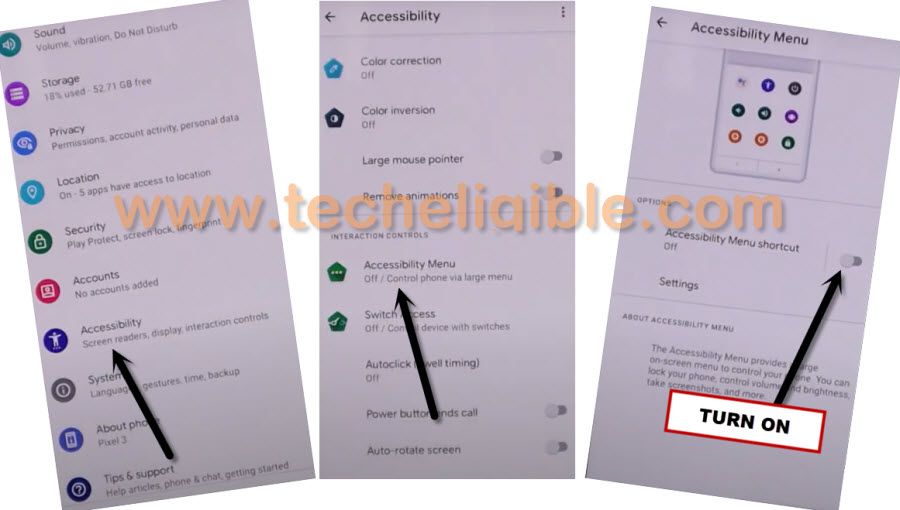
-We are gonna turn on Accessibility feature on our device to successfully Remove LAVA T81N FRP Google Account.
-From settings page, just tap on “Accessibility” option. After that, go to “Accessibility MENU”. Turn on “Accessibility MENU Shortcut”.
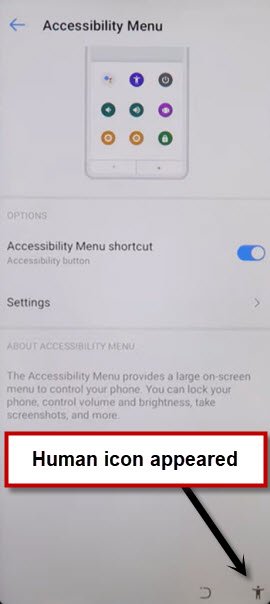
-After turning on Accessibility feature successfully, you will be shown a small (Human) icon on the bottom right corner.
Disable & Force Stop Apps:
-Get back to main (Settings) screen by tapping on the back arrow icon few times. From there, go to > Apps & Notifications > See All Apps.
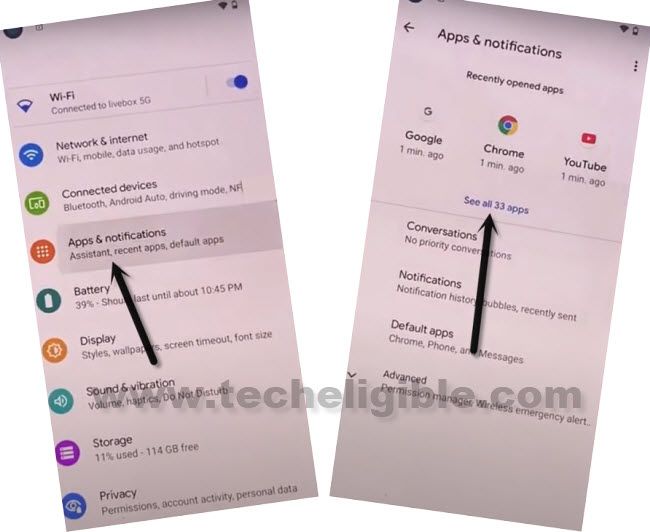
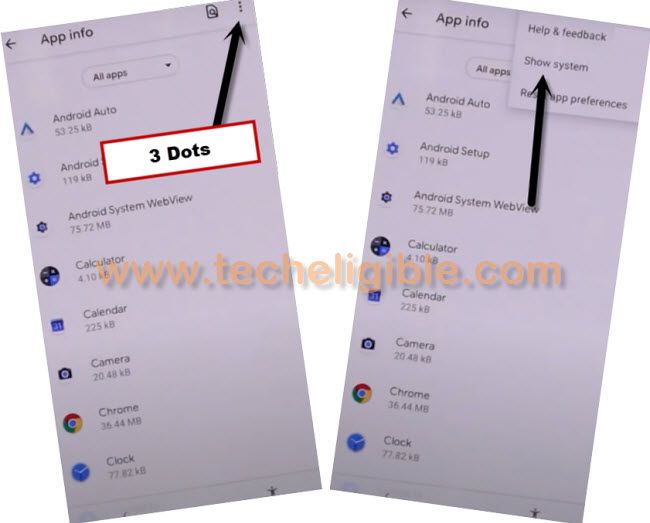
-Get displayed all hidden applications by going to > 3 dots > Show system.
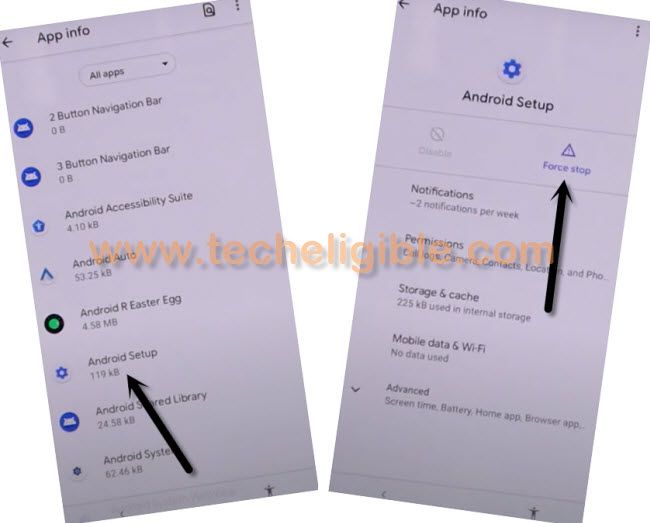
-Need to force stop the android setup app. Find and tap on the same “Android Setup” app same as shown in below image. After that, go to > Force Stop > Ok.
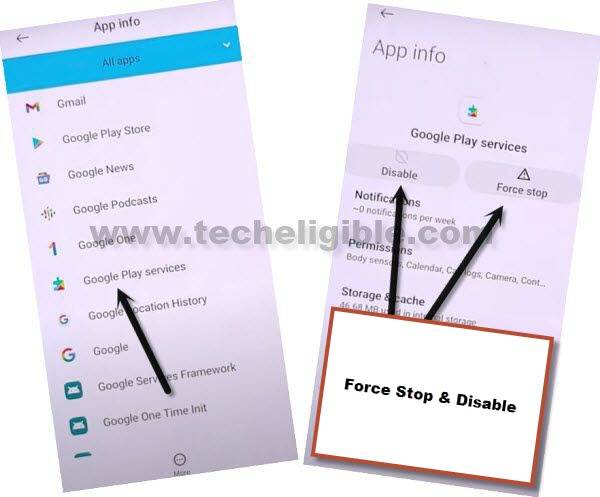
-Go back again to app list screen. From there, tap on > Google Play Services > Force Stop > OK.
-We have to disable this app as well, let’s, tap to > Disable > Disable App.
-Go back again to app list to disabled 3rd application “Google Play Store”.
-Find and tap on “Google Play Store” application.
-Force stop & disable this app too.
Go back to Hello Screen & Enable Apps:
-Go back to first (Hello) screen by tapping on the back arrow key several times. From there, tap to “Start” option.
-Wait over the loading screen till it displays (Checking for updates..) message.
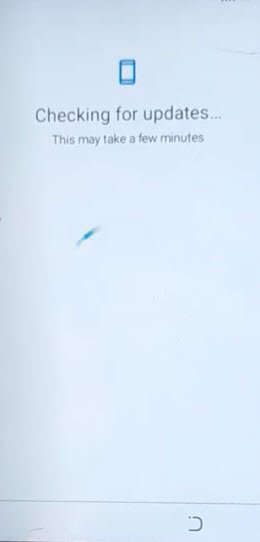
-After that, quickly tap to “Human” icon from bottom right corner to open the (Accessibility Menu Shortcut). After that, tap to “Assistant” option.
-Tap once on the back arrow icon to go back to (Connect to WiFi) screen. There you will have a (Setup offline) option. But, do not hit on this option right now.
-Let’s hit again on > Human icon > Assistant. Say loudly “Open Settings”.
-After that, tap to “Open Settings” option from the assistant screen to reach to main (Settings) page again.
-We are gonna enable again both recently disabled applications. For that, just go to > Apps & Notifications > See All Apps.
-From app list page, go to > Google Play Services > Enable.
-Go back to app list screen.
-After that, enable (Google Play Store) app as well by tapping on > Google Play Store > Enable.
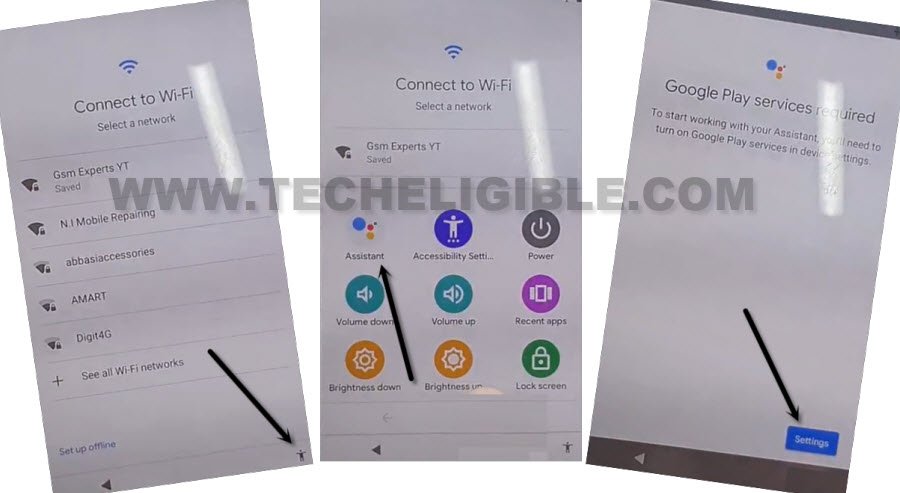
-Get back on WiFi page by tapping over the back arrow icon few times. From there, go to > Setup offline > Continue.

-You will have a just a sec… page. Wait on that screen until its completed and you reach to google services page. From there, tap to > More > More > Accept. After that, skip the (Set Screen lock) page. Its all done from Remove LAVA T81N FRP Google Account . You have accessed on your device main home-screen. Don’t forget to setup your another Gmail account by going to (Settings) page.
FAQs About LAVA T81N Tablet:
Why Facing Google FRP Lock on my Tablet?
Reason behind the facing frp lock triggered on your LAVA T81N tablet, you have forgotten your logged-in google account credential, and you have attempted hard reset on your device. It's mandatory to login back with google account after doing a hard reset.
How to setup Gmail Account on LAVA T81N?
Open up main (Settings) of your device. From there, go to > Accounts > Add Account > Google. You can setup your new google account there.
How to Factory Reset LAVA T81N Device?
Factory reset is performed from main settings page, if you can access to your tablet main home-screen, just go to (Settings) option. Find and go to (Reset Option). From there, you can easily perform factory reset just tapping options respectively.
How we Bypassed FRP?
We simply used a SIM card contact to access to message application. From there, launched the main settings page on our FRP locked tablet. After that, disabled some applications and activated (Accessibility Menu Shortcut) feature. With the help of this feature, we just completed the setup wizard steps in offline mode and successfully bypassed frp account on LAVA T81N Tablet.