
It can be quite challenging to regain access to your phone after performing a factory reset, especially if you have forgotten the Gmail account that was previously logged in. The FRP security feature begins the process of confirming your identity via your Gmail account. You will encounter a Google verification page, and if the Gmail account you provide does not align with the one that was previously configured, your attempt to log in will be declined. To resolve this issue, adhere to the detailed instructions on how to Bypass FRP ZKempler Plus Tablet.
Disclaimer: We highly recommend utilizing this method only on your personal device; if you do not own the device or have acquired it from a different source, you should return it to its legitimate owner. This guide is meant exclusively for educational purposes.
How to Bypass FRP ZKempler Plus Tablet ?
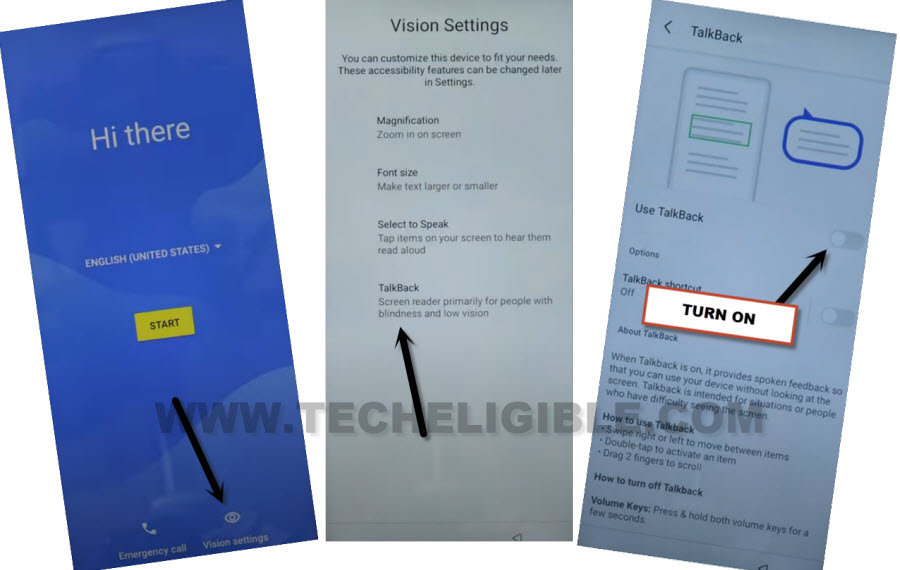
-Go to these options > Vision Settings > Talkback.
-Finally, toggle on the “Use Talkback” function.
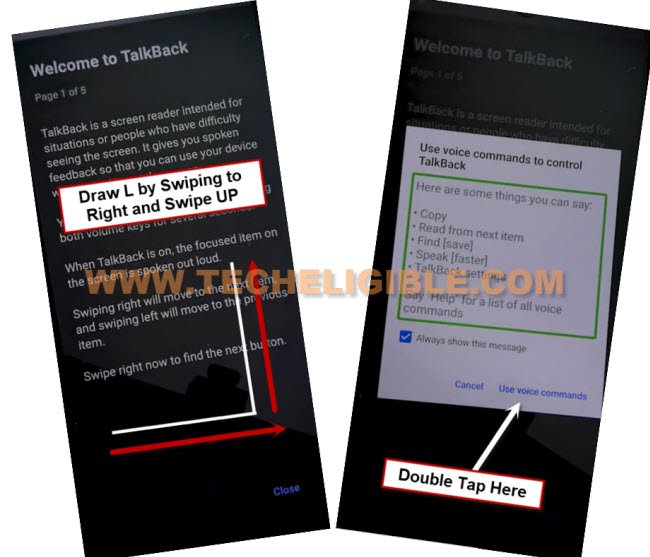
-Let’s simply swipe right and swipe up on the screen same like this _|, there you will be shown a popup screen. Just double hit on > While using the app > Use Voice Command.
-You will notice green colored lines on screen, quickly speak bit loudly “Open Google Assistant”.
Note: If nothing is happening after saying “Open Google Assistant”, try saying loudly “Give me the weather.” Then, you will be able to see Google Assistant pop-up screen.
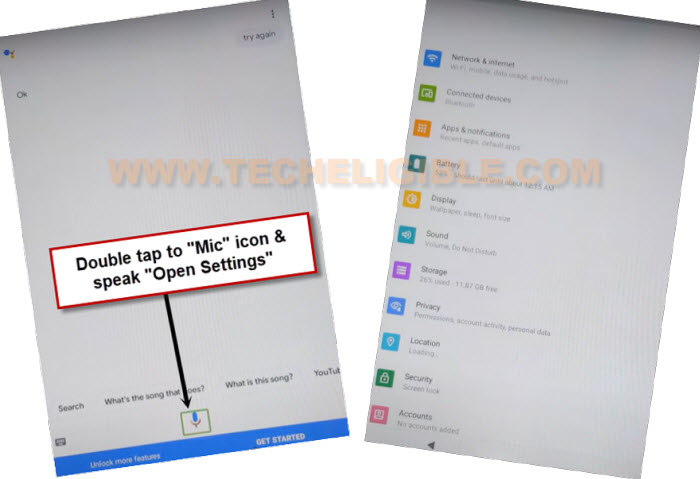
Say: Open Settings on Google Assistant
-Reach at the primary settings page of the tablet device, just tap on the “Mic” icon from google assistant popup and say loudly “Open Settings”.
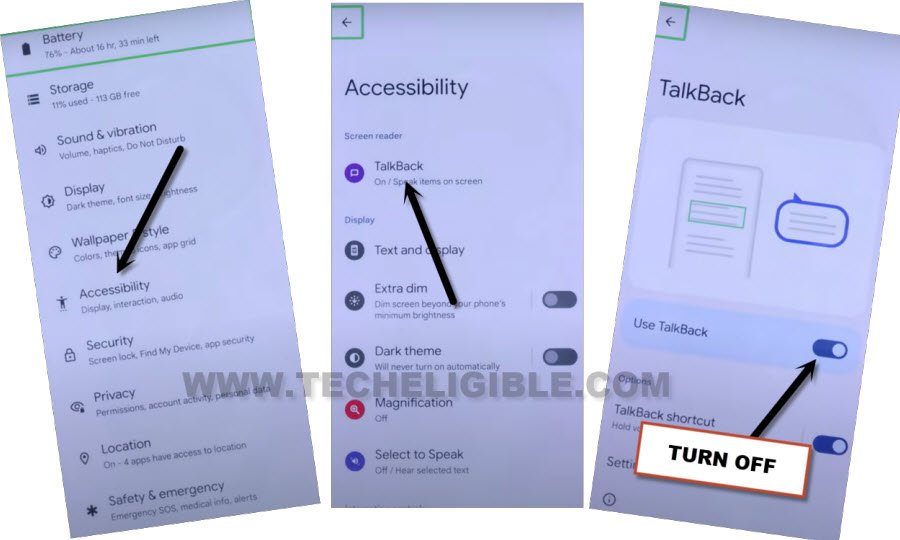
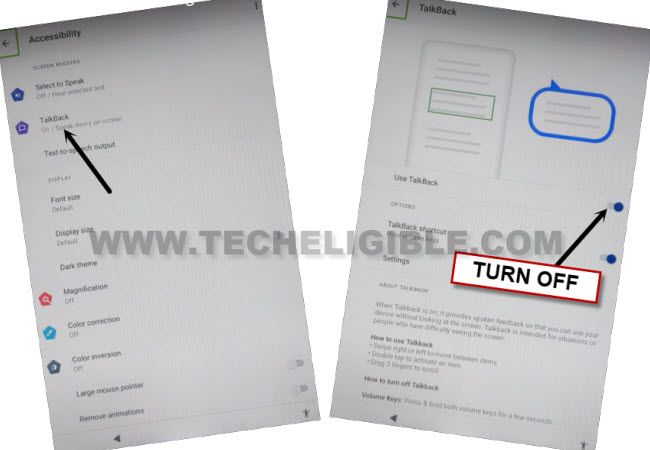
-We are gonna disable the (Talkback) function by tapping on > Accessibility > Talkback.
-Toggle off the “Use talkback” option.
-Tap twice time on back arrow icon to reach back to the tablet primary settings page again. Then, tap to > Accessibility > Accessibility Menu > Turn on (Accessibility menu shortcut).
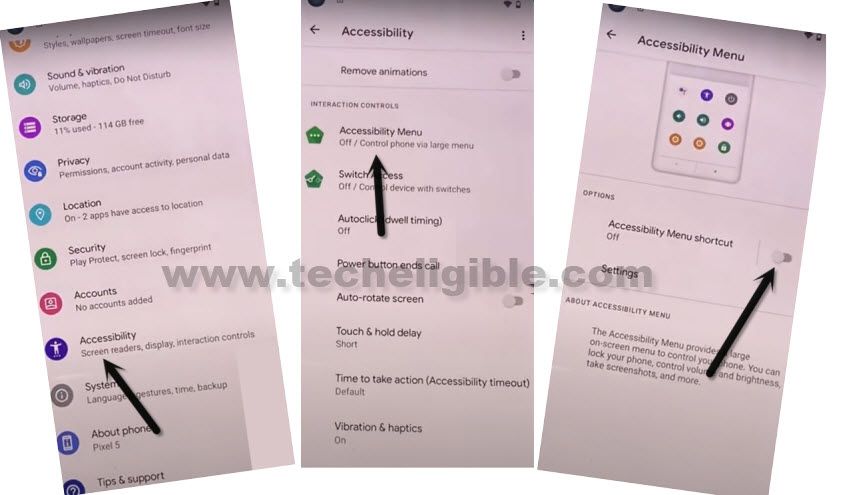
-After activation of the accessibility function, you will get the (Human icon) stick over the right edge of the tablet screen.
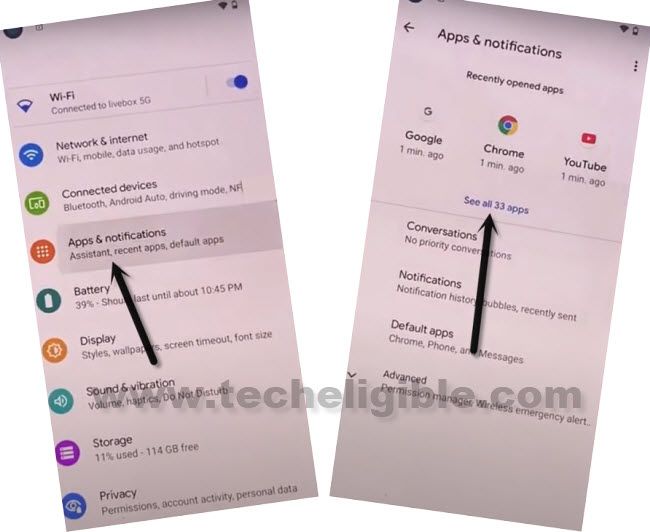
-Go back to (Settings) page and from there, tap on “Apps & Notifications”.
-Then, hit on a blue link named “See All Apps”.
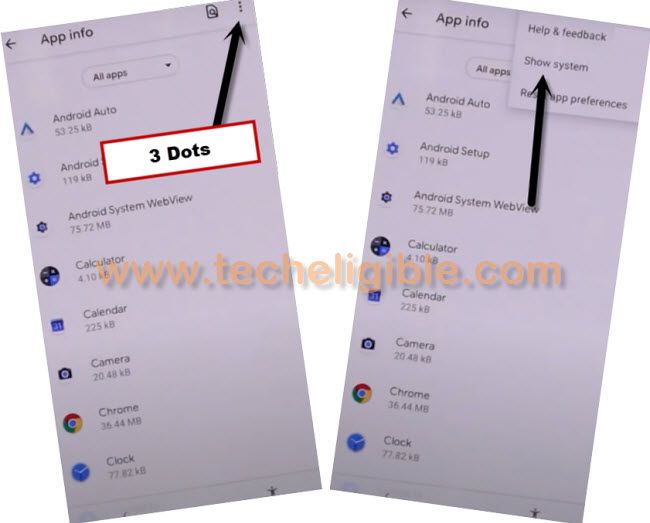
-From the app list page, let’s get displayed all the hidden applications first. For this, hit on “3 dots” and go to “Show system”.
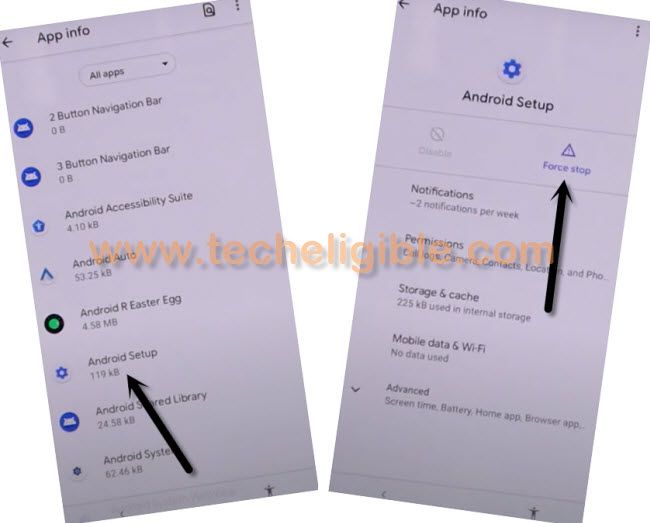
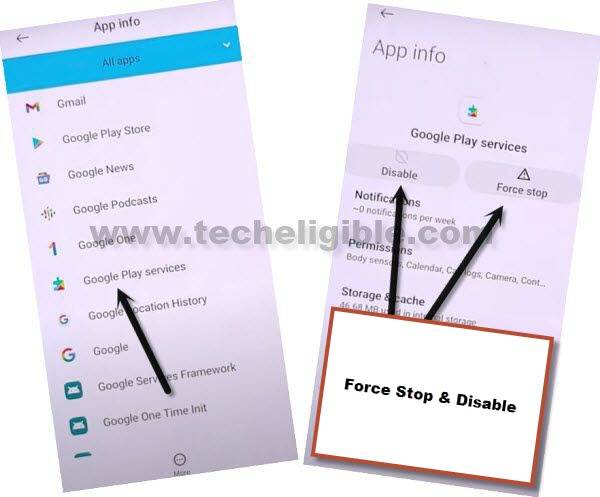
-Let’s locate the and tap on “Android Setup” application same as shown in below image.
-Then force stop this app by hitting on > Force Stop > Ok.
-Go back on the (App list) screen. Then, locate and tap also on the “Google Play Services” app.
-Simply, force stop & disable this application as well.
Disable Talkback through Braille Keyboard
-Go back on the first (Hi there) page by tapping numerous time on back arrow icon.
-Let’s activate the talkback again by going to > Vision Settings > Talkback > Enable “Use talkback.”
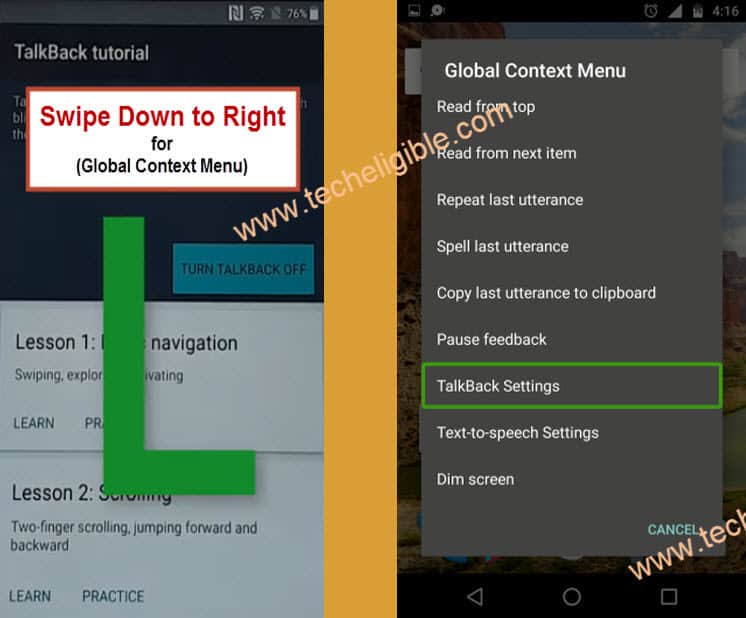
-Let’s make (L) shape on screen through swipe down and swipe right (See image below).
-From popup screen, double hit on “Talback Settings”.
-From the next page, double hit on “Braille Keyboard”.
-Then, double hit also on “Set up braille Keyboard”.
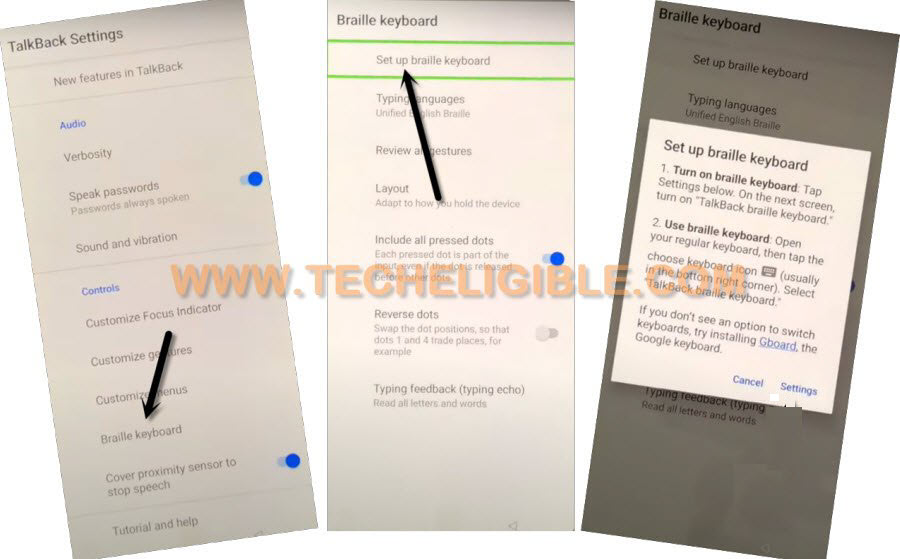
-You will be shown a popup window there, but, right now, we don’t need to hit any option from that screen.
-Let’s hit on “Human” icon from bottom corner of the phone display and then, go to “Accessibility Settings”.
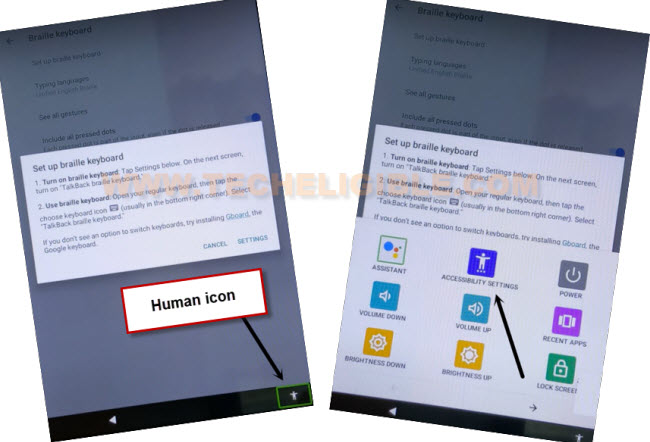
-Go to “Talkback” and just turn off the (Use Talkback) function. After that, from the popup window, go to “Stop” option.
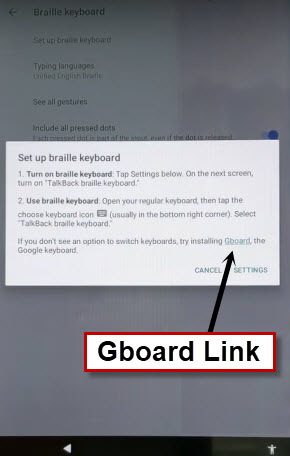
-Go back to popup window page by tapping twice time on (Back Arrow) icon. From that popup window, go to “Gboard” link.
Note: If you don’t get the popup window, just tap on “Set up braille Keyboard”.
Access Settings Page
-After hitting on the Gboard link, you will be redirected on the google play page. We have to tap to “3 dots” icon and then, go to “Settings”.

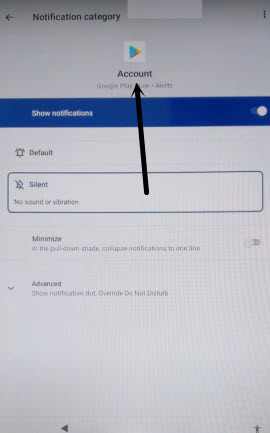
-Afterwards, just, hit on > General > Notifications > Account.
-Tap again on the “Google Play” icon from top center.
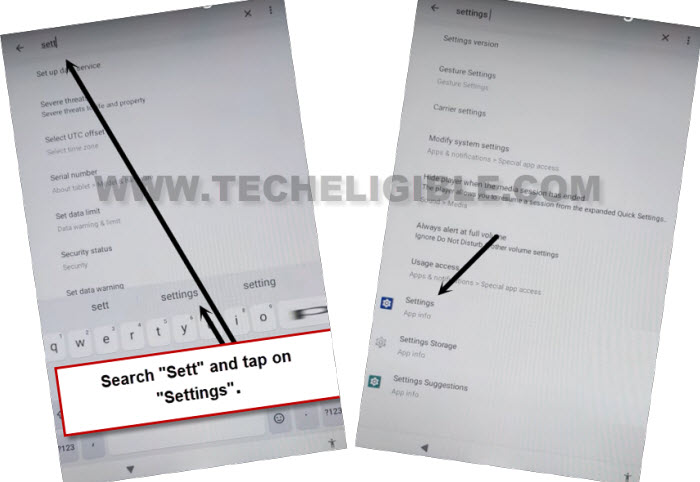
-We’re gonna make move to settings page again, for that, tap to > Permissions > Search option.
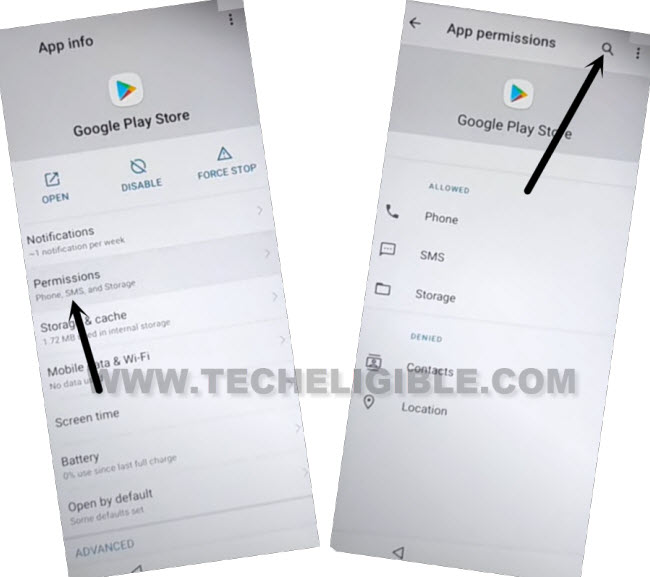
-Type there “Sett” and hit on “Settings” search hint bar.
-Finally, tap to “Settings app info” option and hit on “Open”.
Enable the Disabled Apps Again
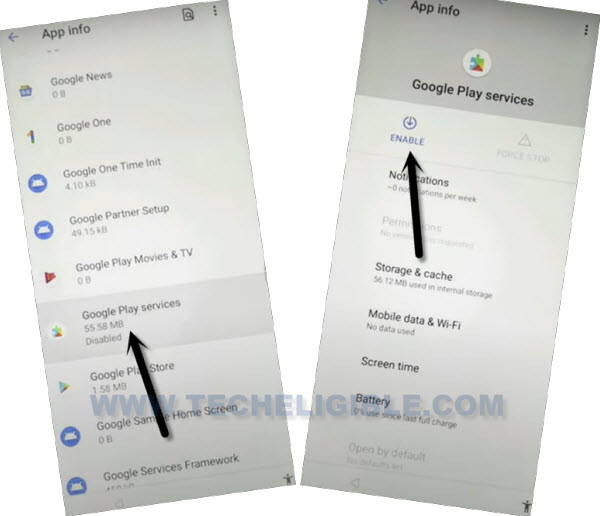
-We are gonna revisit the app list page, for this, tap on > Apps & Notifications > See all apps.
-Enable again the recently disabled app (Google Play Services). Tap over the > Google Play Services > Enable.
Choose Setup Offline Option
-Get back to (Hi there) startup page again. From there, go on “Start” option.
-From the loading page, hit on “Back arrow” icon.
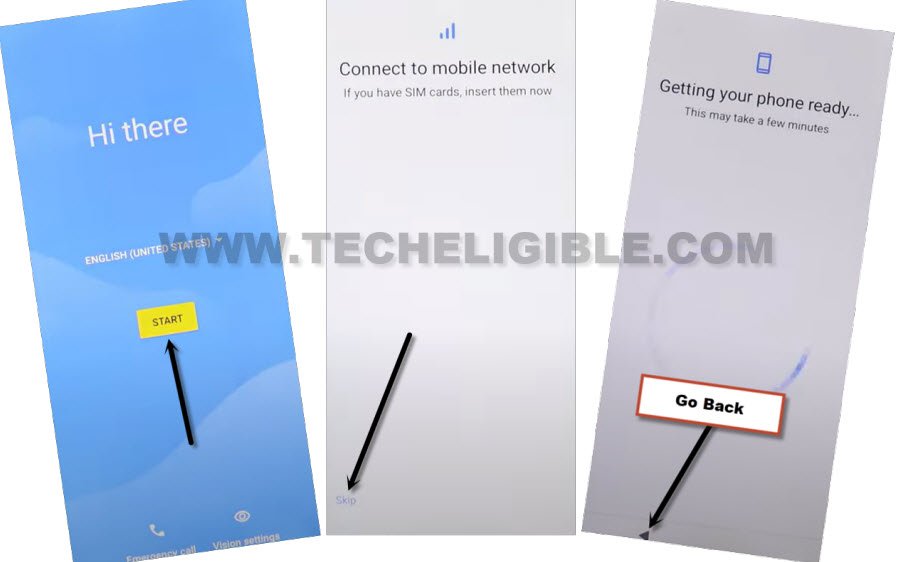
-Finally, you will have a WiFi page on your tablet display. From there, we have to choose “Setup offline” option form bottom left corner.
-Then, from the popup window, tap to “Continue” option.

-Its all done from Bypass FRP ZKempler Plus Tablet. You can easily complete all startup steps on your own. No need to login back again with forgotten account.
The Bottom Line
Turned on talkback function and accessed on the main settings page of the frp locked tablet. From there, we enabled the (Accessibility feature). Afterwards, we just disabled some applications from the main settings page. Then, returned on the startup page.
Enabled again (Talkback) option and reached at the (Settings) page again. From there, we enabled google play services by using the (brailed keyboard) option. After that, without login back with forgotten google account, we successfully setup our ZKempler Plus Tablet again and bypassed frp completely.