Encountering the Google sign-in screen repeatedly during the setup of your phone following a factory reset or hard reset? The fundamental cause of this issue is that your device is secured with FRP protection, which prevents you from advancing in the setup process without signing in with the same Gmail account that was originally configured. In case you cannot recall your Google account, you can use this simple method to Bypass FRP Account LG W30 Pro Without using any paid service and PC tool.
Disclaimer: This procedure for FRP Unlocking is intended solely for the individual who owns the device. It is designed for individuals who have lost access to their Google account following a factory reset.
Continue Method to Bypass FRP LG W30 Pro [Without PC]
Firstly, we have to change the LG phone language from English to any regional language. we will access on the (WiFi network page), from there, we have to get the device keyboard and reach on the (Keyboard Language list) screen.
Reliable Steps to Follow
-Continue steps by connecting WiFi first. Then, go back on the first (Hi there) page.
-We are gonna change the device language from English to Hindi (हिंदी)
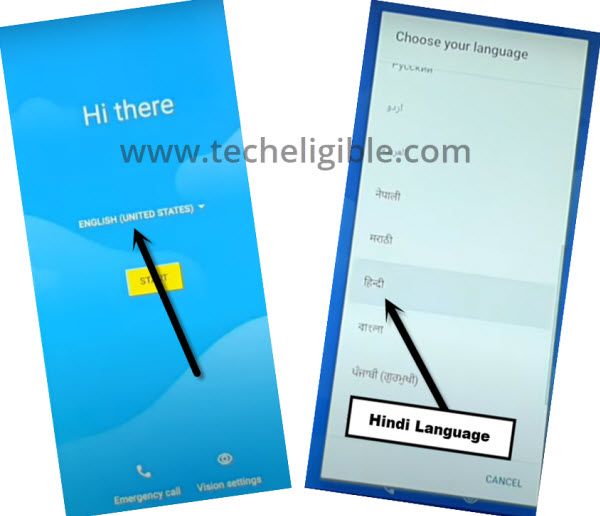
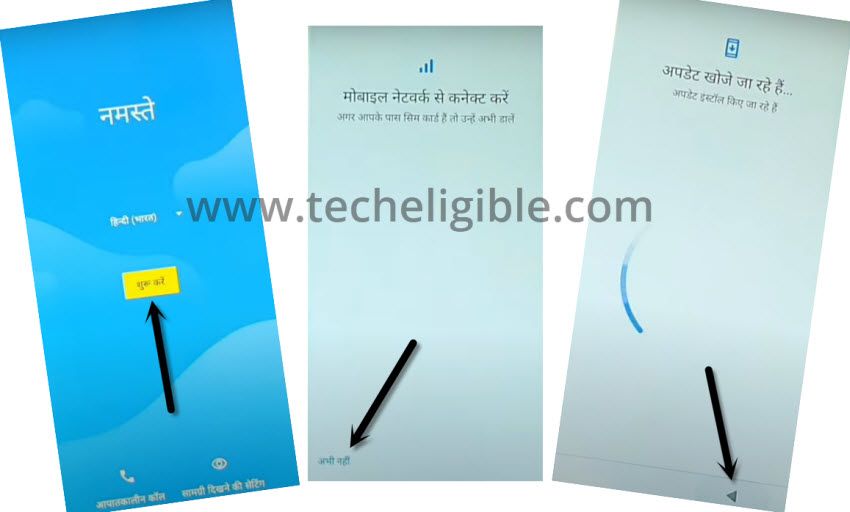
-Afterwards, tap on the “Yellow” start option.
-Then, tap on the “Left option” from bottom.
-Once you reach on the (Loading page..), simply, tap to “Back Arrow” option from bottom to get back on the WiFi page.
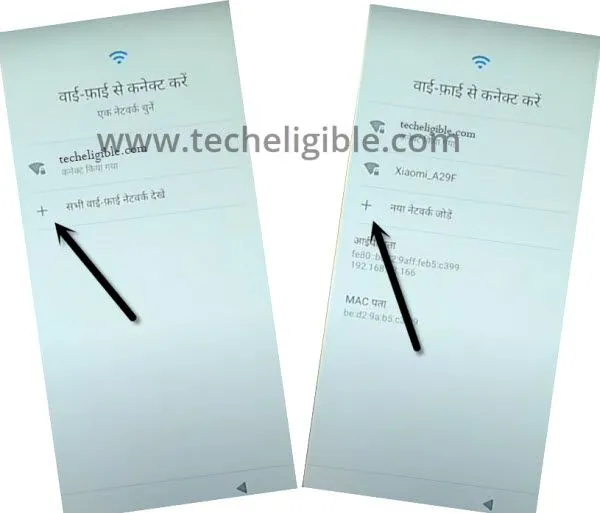
-Let’s go to add new WiFi network option by tapping on > + Option > + Option.
-Bring up the popup window by long holding on the “World” icon. Then, tap to “Last Link” option from there same as shown in below image.
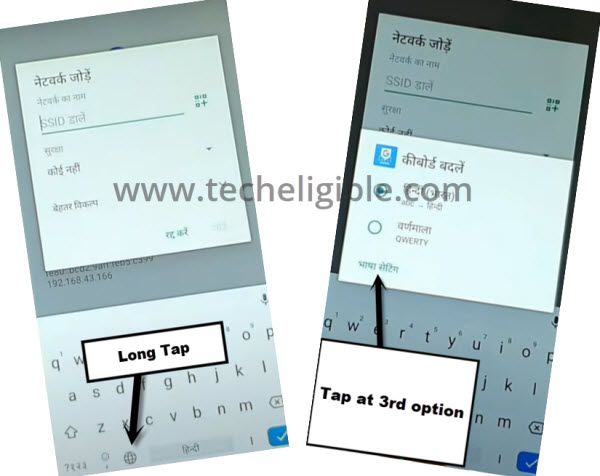
-Click on the “Center” option to access the add keyboard language page.
-From the list of languages, find and tap at any language name, which contains an arrow symbol.
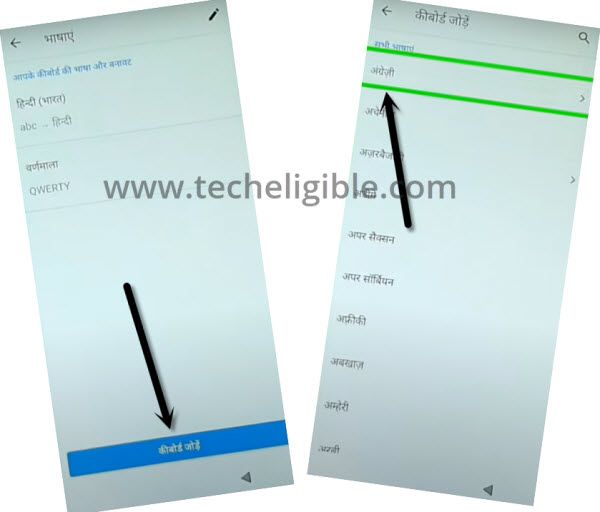
-On next screen, you will successfully get a (3 dots) icon, just tap on those 3 dots option and go to “2nd option.
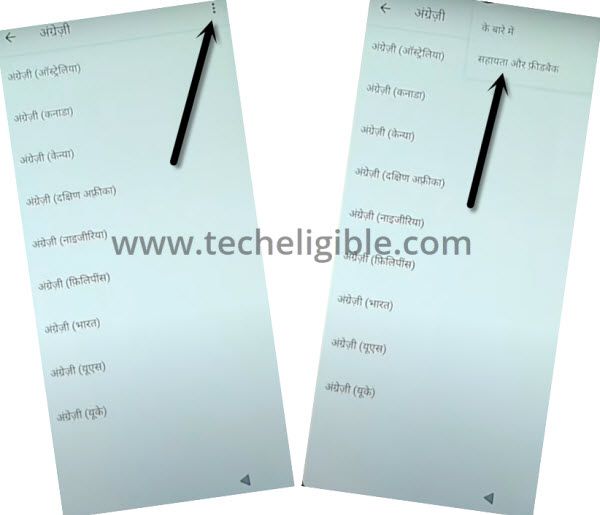
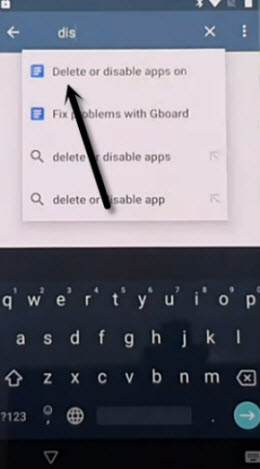
Search with letter (D) and go to (Delete or Disable apps on android):
-Tap over the top search bar and type there “d”.
Note: If your keyboard language is not English, you can switch it to English by long tapping on “World icon” from keyboard and choose the “Qwerty” option.
-After searching with (d), you will get the result of “Delete or Disable apps on android”. Just tap on this article name.
-From next article screen, tap on the hyper blue link same as shown in below image.
-You will be redirected on the app list page, from there, go to “Google Map”. Then, tap on the very first.
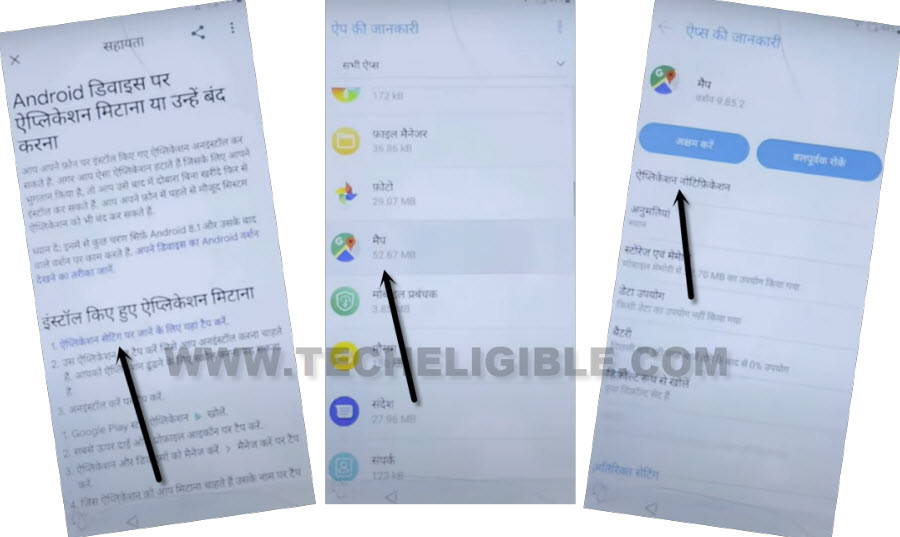
-Next, you have to hit over the “Last option”, this will collapse down further, then, tap again on the “Last Option”.
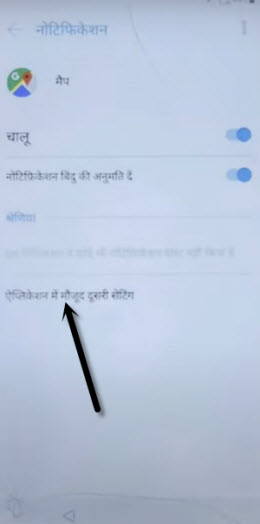
Search Location on Google Map
-If you get the same screen, just, tap to “Top Right” option. Then, go back by hitting on “Back Arrow” option from top left corner.

-Open up the google map menu by tapping at the “Menu” option.
-After that, hit on “Arrow” symbol option, which is listed on 5th number.
-Tap the bottom right option from popup screen.
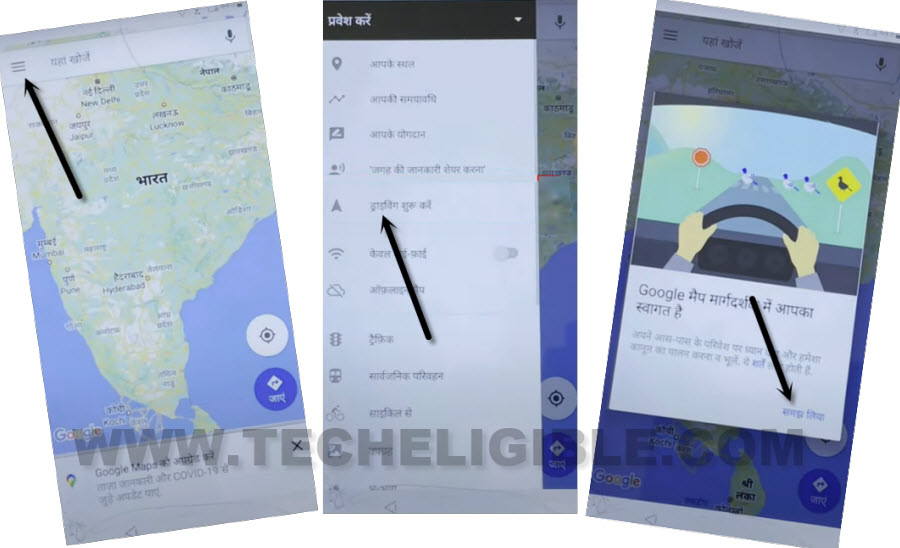
-We have to access over the dialing screen of the phone, for this, search any nearest hotel or restaurant from google map.
-Go to your searched hotel and restaurant name, there, you will be displayed a calling option, just tap on “Call” icon.

Dial the Code to Access Primary Settings Page
-Let’s simply, dial this code on LG W30 pro screen *#*#4636#*#*.
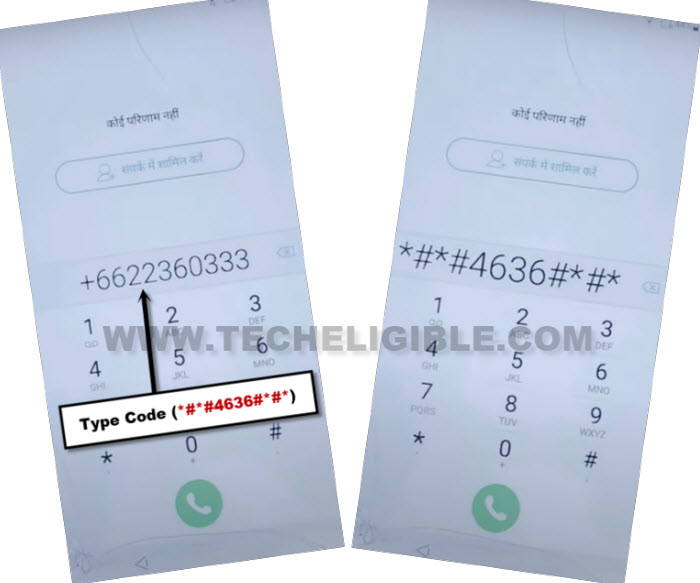
-On next page, choose the “2nd last option”.
-Tap over the “Back Arrow icon” from top.
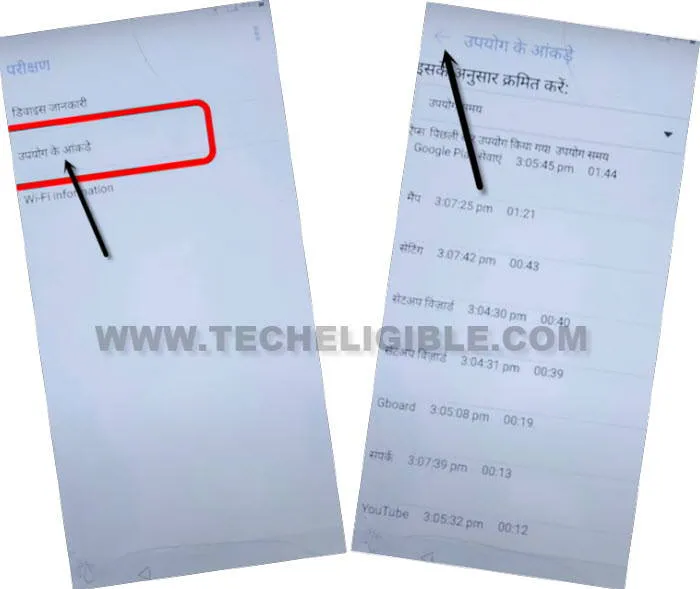
Change Language to English
-Congrats, we’ve reached on the primary settings page of the LG W30 Pro FRP locked phone. From here, go down and tap to > 2nd last option > 1st option > 1st Option.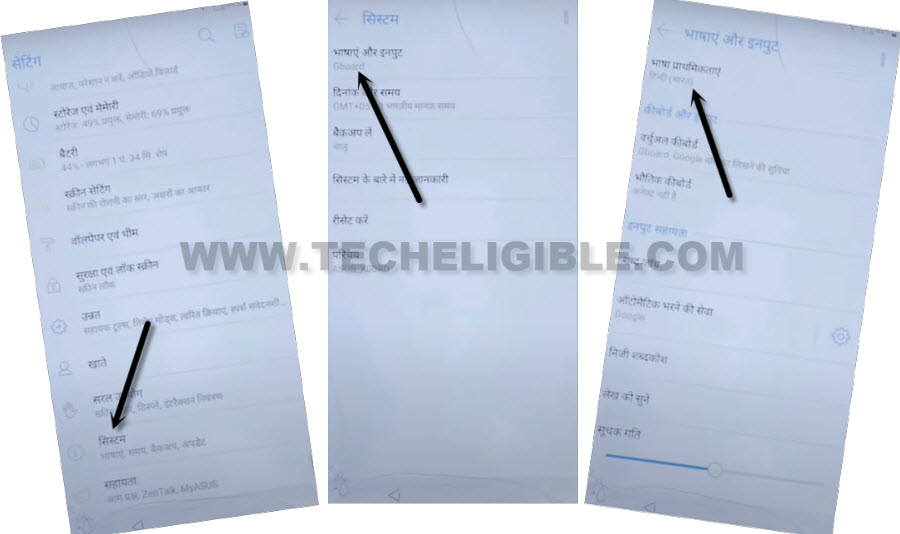
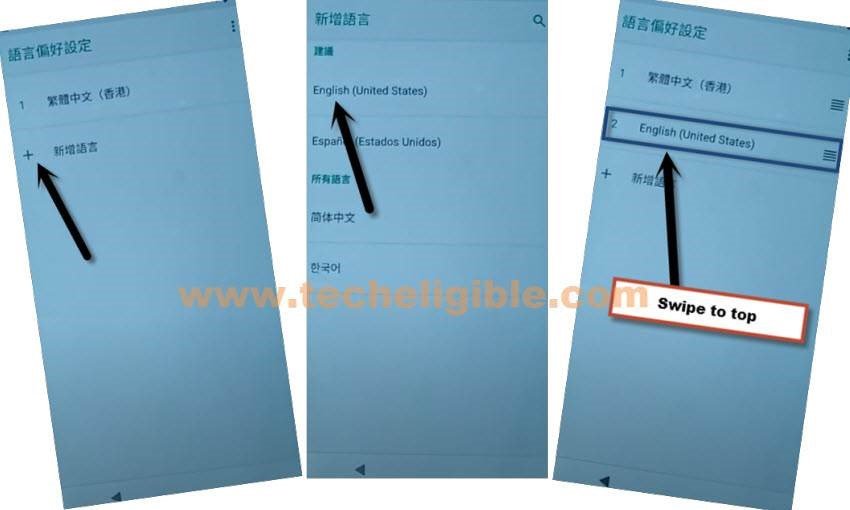
-We need to switch the phone language back to (English), for this, go to “+” option to add new language.
-Choose “English” language from the list of languages.
-Finally, drag the (English) language at the top, then, the phone language will switched to English.
Note: If you are unable to swipe English at the top, then tap “3 dots” from top corner, and select “1st option”, select “Indian Language”, and then tap on “Delete icon” from top corner, then tap “Right Option” from popup window to delete this language successfully.
-Get back on the main settings page. After that, tap on options > Apps & Notifications > See All apps.
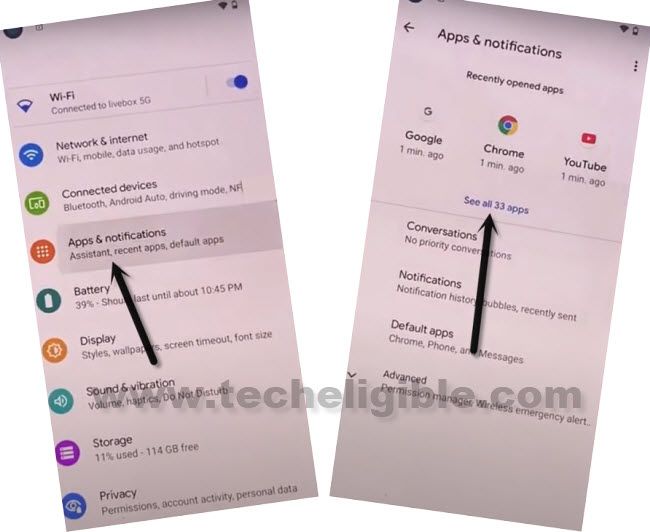
-Let’s open up the google application by going to > Google > Notification > Advanced > Additional Settings in the app.
-Open up the searching bar going to “Search” icon. Then, type there “offline”. After that, tap to searched result “Always Retry offline searches”.
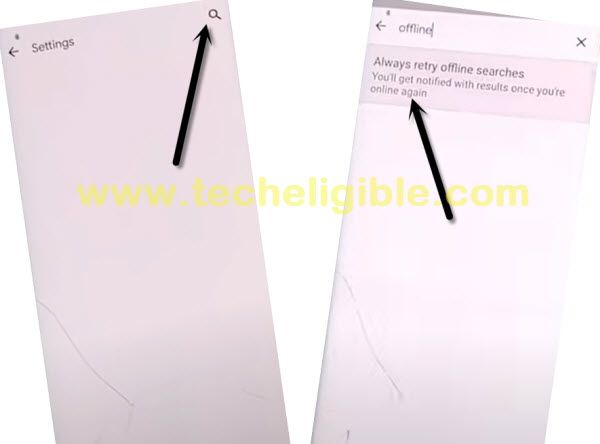
-You will be taken on the (General) page, from there, scroll down and tap on a blue link “Manage Pending Searches”.
-You may face to google popup screen, just hit on “No Thanks” option.
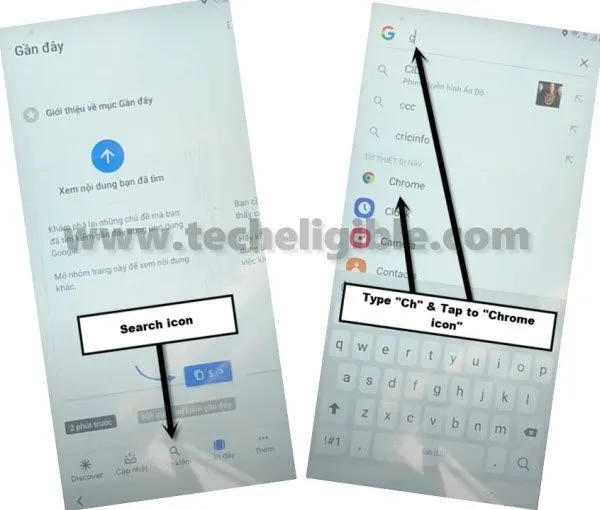
-Afterwards, tap over the “Search” icon from bottom.
-Type there “Ch” and go to “Chrome browser” icon to launch this browser.
-From the chrome welcome page, tap on > Accept & Continue > No Thanks.
Download FRP Free Apps
-Let’s download some apps from the official techeligible frp tools page. For this, search in browser with “Techeligible“. Then, tap to first searched result to access offical site page.
-for accessing to the frp tools page, just go to > Menu > Download FRP Tools.

-We’re gonna download below both apps on our phone from the frp tools page.
1st: Google Account Manager 9.
2nd: Account Login.
-Once the download is completed, go at the top of the browser page, then, hit on “3 dots” icon and tap at “Downloads” to access the download folder, there, we will be able to see both recently downloaded applications.
Install Download Apps
-Let’s install them now, firstly, tap on the “Google Account Manager 9”. You will see the “installation blocked” window, just tap to “Settings” and turn on “Allow from this sources”.
-Finally, hit on the “Back Arrow” option from bottom left corner to get back on the installation page. Now, install this app by hitting at the > Next > Next > Install > Done
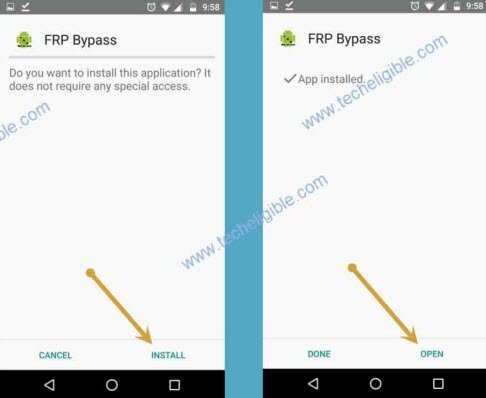
-We need to install one more app, for this, tap on the > Account Login > Install > Open.
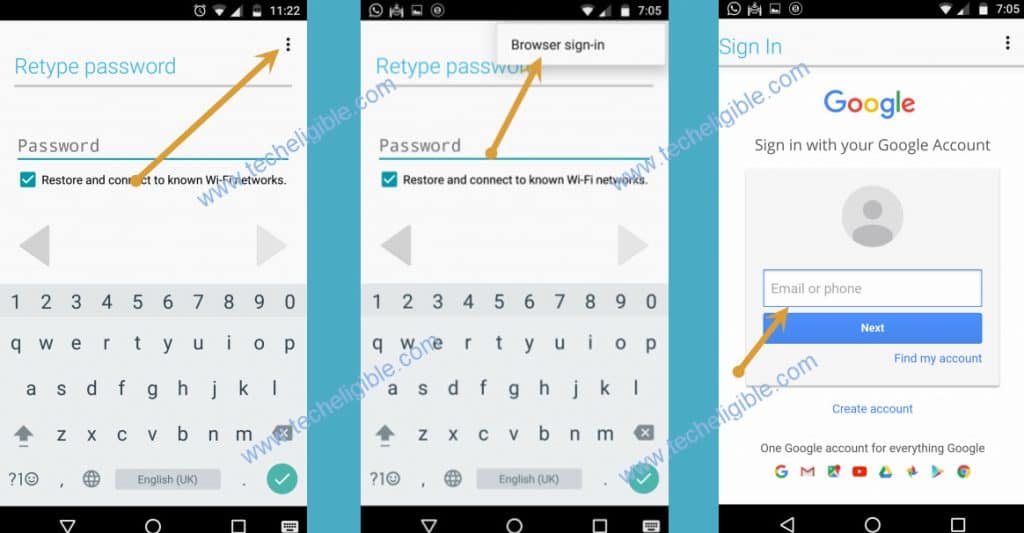
-After launching the (Account Login) app, you will be asked to login with Gmail account. For this, tap over the “3 dots” icon from top and go too “Browser Sign-in”.
The Bottom Line
Its an easy way to fix up your device FRP locking issue, we just connected to WiFi network and changed the device language to (Hindi). After that, accessed over the app list page, from there, we just launched the google chrome browser and downloaded (Google Account Manager 9 & Account Login) application. After that, we setup new google account successfully and completed FRP bypass procedure.