Unsure of the Google account you previously used after performing a factory reset via Android recovery mode? Individuals choose to perform a hard reset on their devices for various reasons, such as regaining access to forgotten security locks or resolving problems with freezing and hanging, among others. However, prior to taking this action, it is essential to be aware of the credentials for the Gmail account that was previously logged in. Failing to do so may result in encountering FRP lock protection on your own device. If you find yourself in a similar condition, refer to the guide provided here to Bypass FRP LG K92 5G.
Disclaimer: We are creating this post to educate people about how to get back their lost device due to forgetting Google account. This method is only for device owner and for educational purpose only.
How to Bypass FRP LG K92 5G (Without PC)?
-Start this method through turning on WiFi and get back to first (Welcome) page.
-Change your LG phone language to Russian (РУССКИЙ). (See below image).
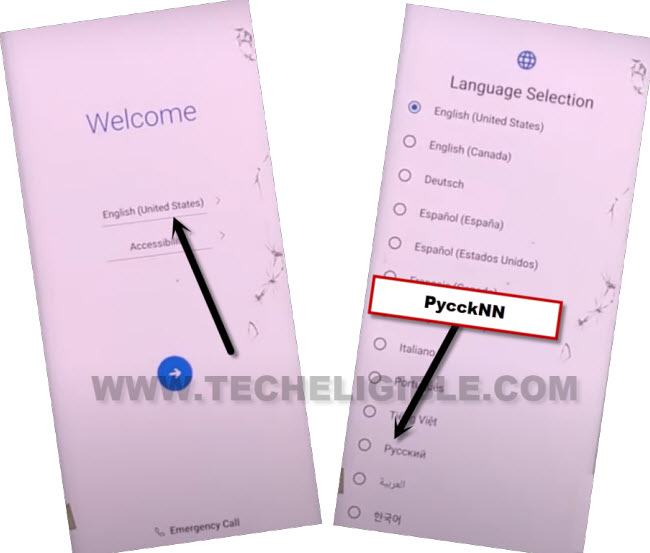
-Once the language is changed successfully, we need to access on WiFi setup page by tapping at “Next Arrow” icon.
-Then, tap to “Right option”. After that, from the loading page, hit on the “Back Arrow” option.
-Let’s tap over the > + Option > + Option from wifi screen.
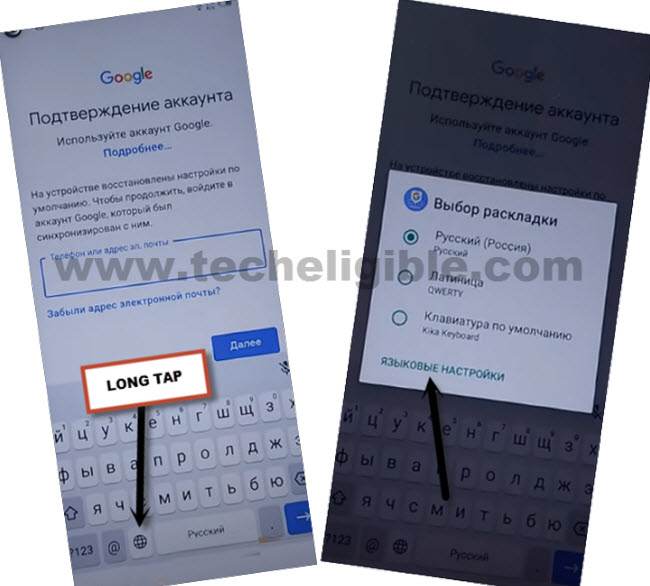
-Once you see the keyboard on your phone screen, just long tap on the “World” symbol.
-From the popup screen, just hit over the “Last Blue Option” link.
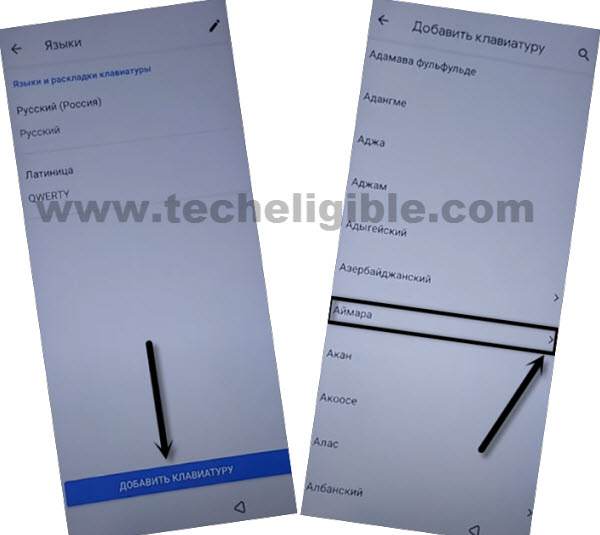
-We will have a keyboard language page, just tap to “Add keyboard” option from bottom center option.
-From next page, tap on the any “Language” which contains an arrow symbol.
-Go on the “3 dots” symbol from upright corner. Then, choose the “2nd option”.
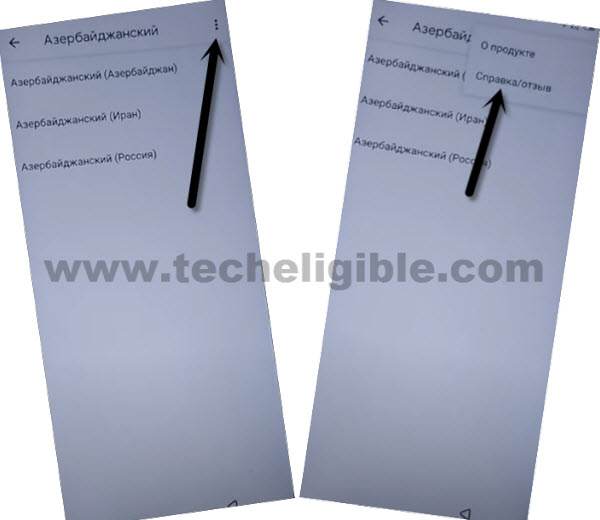
Go on Youtube by (Switch Access Title)
-You will access on the next article screen, from there, tap on the 2nd article named “Switch Access….”.
-On next screen, you will see the youtube video page. From that video, tap on the “Play option”.
-Then, tap on the video title “Switch access for android…”.
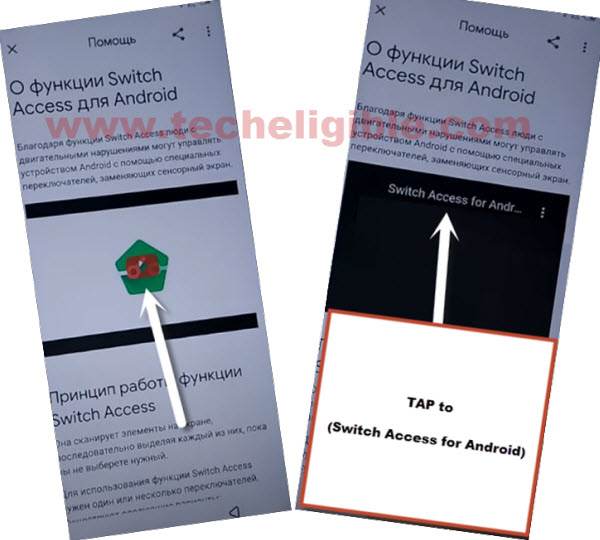
-Then, we will access on the official youtube webpage. From there, drag down the running youtube video.
-After that, access to the settings page of youtube by tapping on “Profile” option from top corner.
-Go to “Settings”.

-On next settings page, tap to “Last option”. Then, tap to “Google option”.

-On the welcome page, tap to > Blue option > Blue option > Left option.
Download Apps & Access on Primary Settings Page
-Search with “Techeligible“. Afterwards, visit the first searched result to access on techeligible site.
-Go to “Menu” and tap over the “Download FRP Tools”.

-Firstly, download the “Quick Shortcut Maker 2.4.0” application.
-Then, scroll up on the page and tap on “Access device settings” option to lead on the primary settings screen.
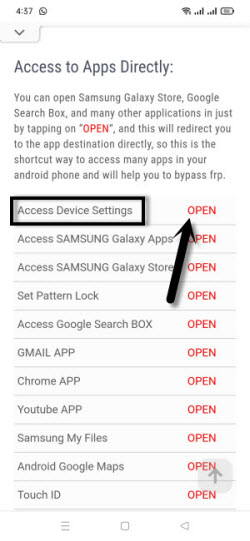
-Let’s change the phone language now.
Switch the Phone Language to English
-After accessing on the primary settings screen. We are gonna change our phone language back to (English). For this, tap to “2nd last option”.
-Then, hit on > 1st options > 1st option.
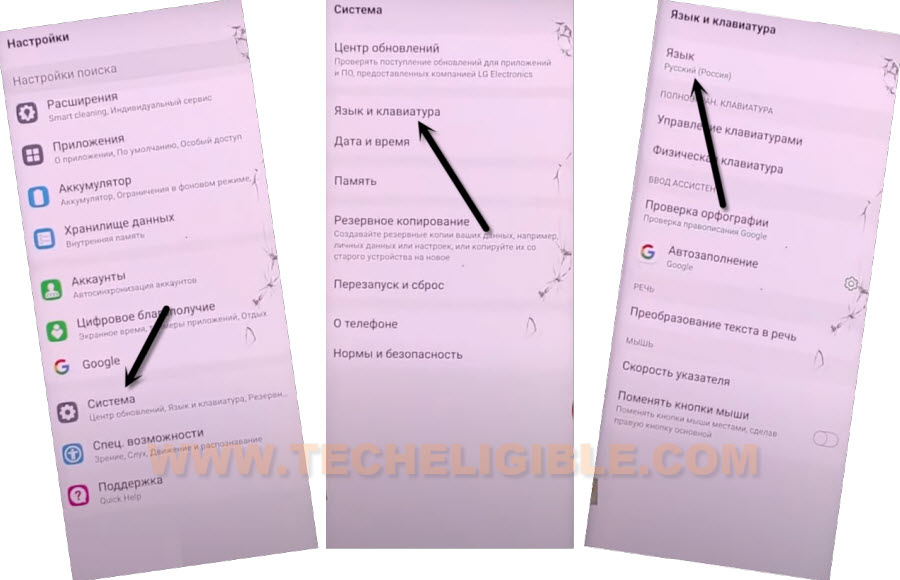
-We have to add new language here, just tap to “+ option”, then, from next screen, choose > English > United State.
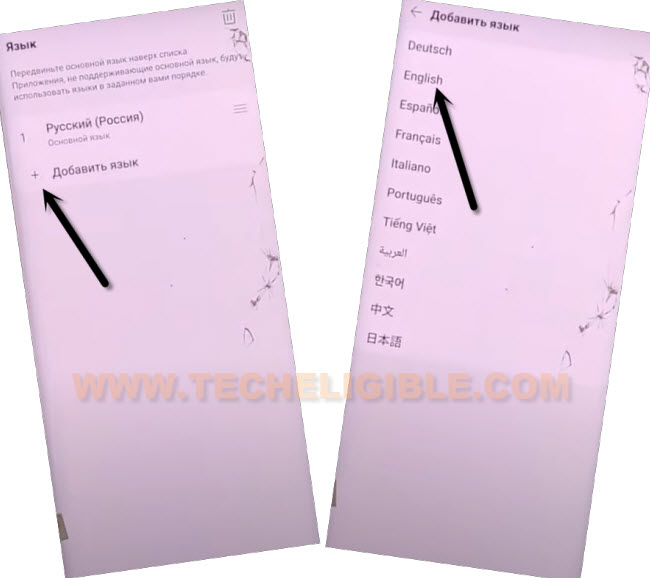
-Once the English language is listed there, tap on the “Delete icon” from top corner. Then, choose the “Russian” language and tap on “Right option” from popup screen.
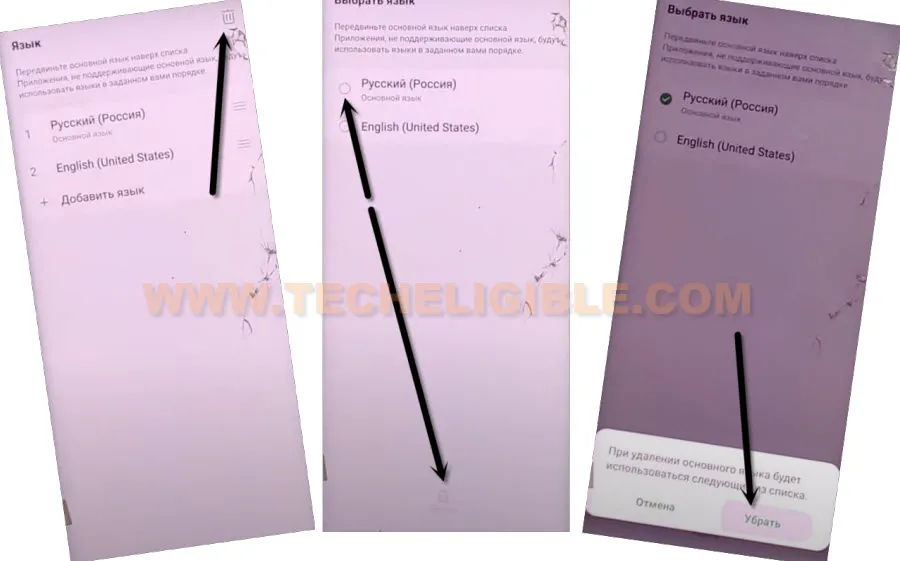
-Once the language is changed successfully, go back on the chrome browser frp tools page by tapping few times on back arrow option.
-Then, tap on the “Download icon / 3 dots icon” from upright corner of the browser page to get the menu options. After that, choose the “Download” option to reach on download folder directly.
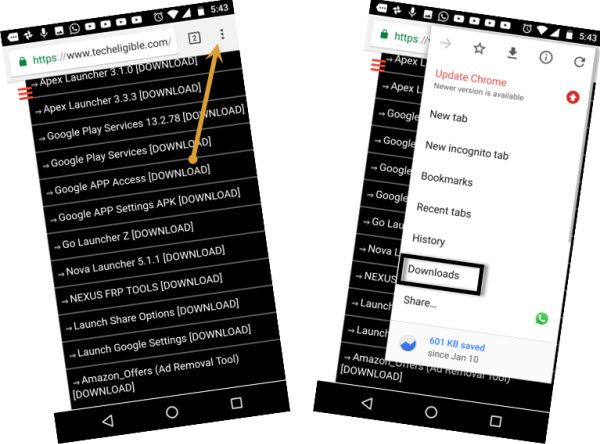
Install & Launch the Downloaded App
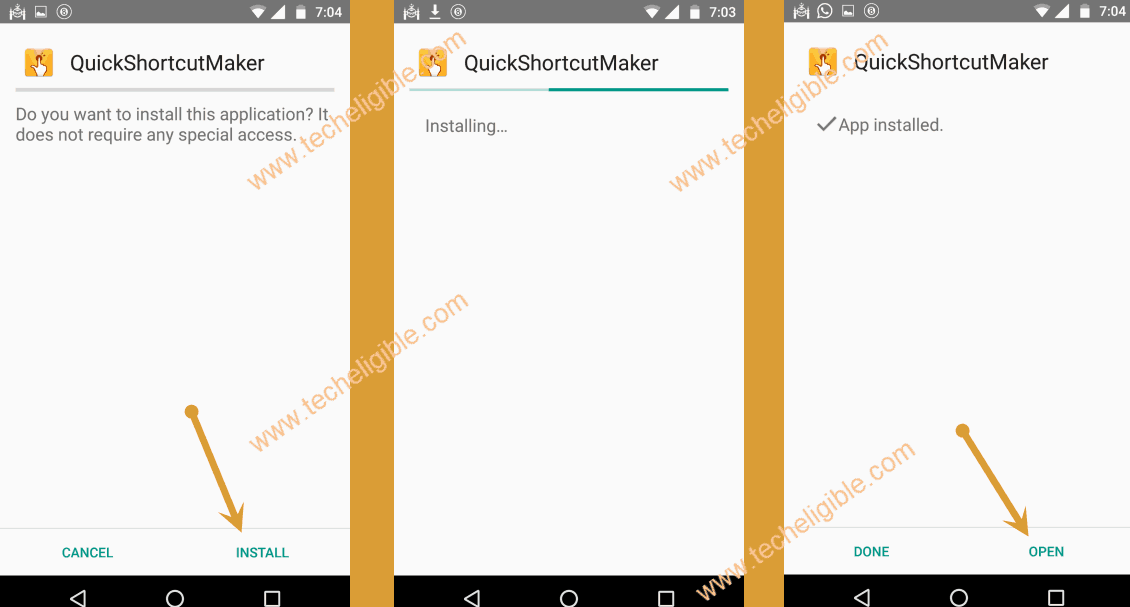
-There, you will have your recently downloaded application, let’s install this app by hitting on “Quick Shortcut Maker 2.4.0”.
-Before your downloading continue, you may have a installation blocked chrome popup window, from that windwo, go to “Settings” option.
-Simply, enable the “Allow from this sources”.
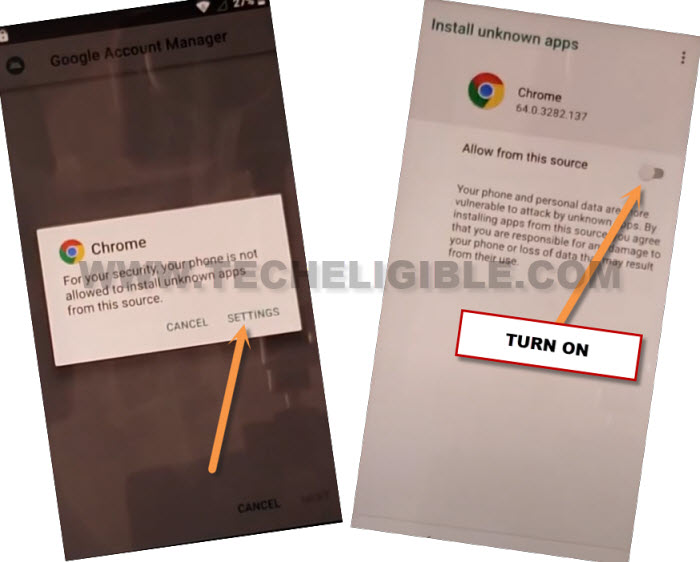
-Tap on “Install”, and then tap on “OPEN”.
Choose Purple Setup Wizard to Complete FRP Bypass Process
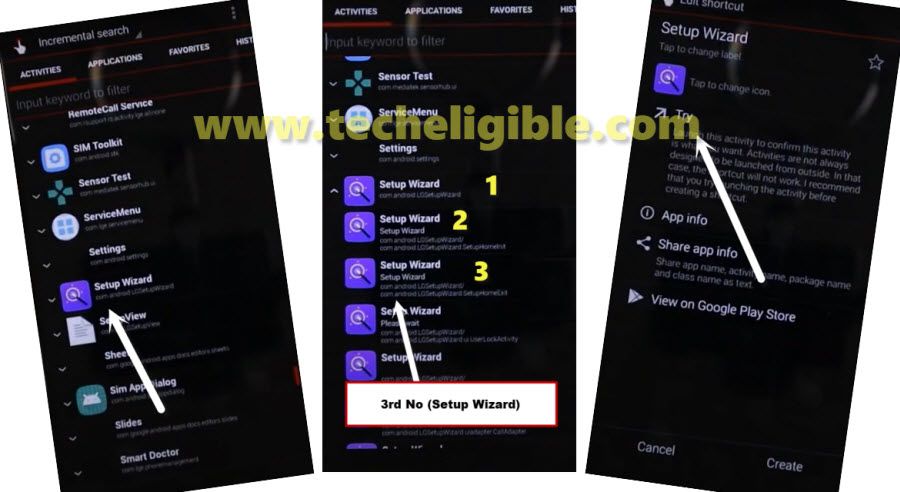
-Let’s find and tap on purple “Setup Wizard” same displayed in below image.
-You will be shown further list of purple setup wizard icons, from there, chose the 3rd number “Setup Wizard”.
-Go to “Try” option.
-After that, the phone will auto restart and may take several minutes in starting up back.
-Once you see the “Welcome” screen, you can now complete all the startup steps easily without having a google verification screen again.
-Let’s do that now, just tap to > Next Arrow > Skip.
-From the WiFi page, we don’t need connect the WiFi connection right now. Just, skip the WiFi page by tapping at “Next” option.
-A popup window will appear up, just choose the “Skip” option to continue setup the phone without internet connection.
-Go to “Next”.
-Now, you will access on the google services screen, from here, hit on > More > More > Accept.

-From the next (Phone Protection) screen, select “No Thanks” option and tap at the “Next”.
-Complete other all remaining steps on your own, its very easy.
The Bottom Line
Got help by changing the phone language to (Russian) for accessing on the google chrome browser page. Then, we downloaded a (Quick Shortcut Maker) free application. After that, accessed to the settings page and switched our LG phone language back to (English). Finally, we reached on the download folder and installed the recently downloaded frp bypass app. Then, we just launched the purple colored (Setup wizard) steps and hit on “Try” option to restart and bypassing frp account.