
Are you exhaust with several attempts to login back with your google account after performing hard reset the phone? If the reply is in (Yes), then, check out our this safe guideline to regain control on your own phone and Bypass FRP DOOGEE S88 Pro completely. Because, your phone is activated with FRP lock protection. If you are thoroughly unable to recover already singed in gmail account, then, follow up our this guide now.
Disclaimer: We highly recommend you to apply this method only on your own device, if you are not owner of this device, or you found this from some where, you must return to its real owner.
How to Bypass FRP DOOGEE S88 Pro
-Firstly, switch on phone, then, simply connect to proper WiFi network. Once its done, get back to (Hi there) page.
-Afterwards, alter the device language to russian (русский) language.
-After you fully change the language, go back on first startup page again.

-Let’s go to next page by tapping on > Yellow option > Bottom Left Option.

-On next page, hit on “Bottom Left” option. There you must have a google link, just tap over that link.
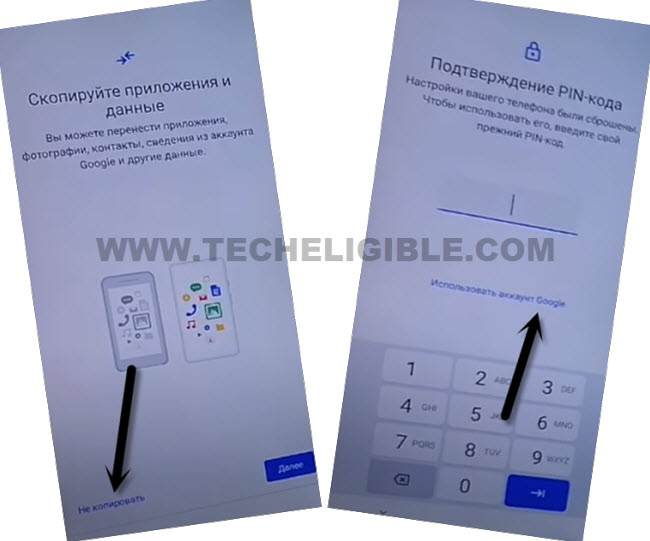
-Let’s get your device keyboard displayed, for this, tap over the (Email or phone) field tab. After that, the keyboard will appear up, from there, long hold on the “World icon”.
-From a popup window, tap on the “Last link”.
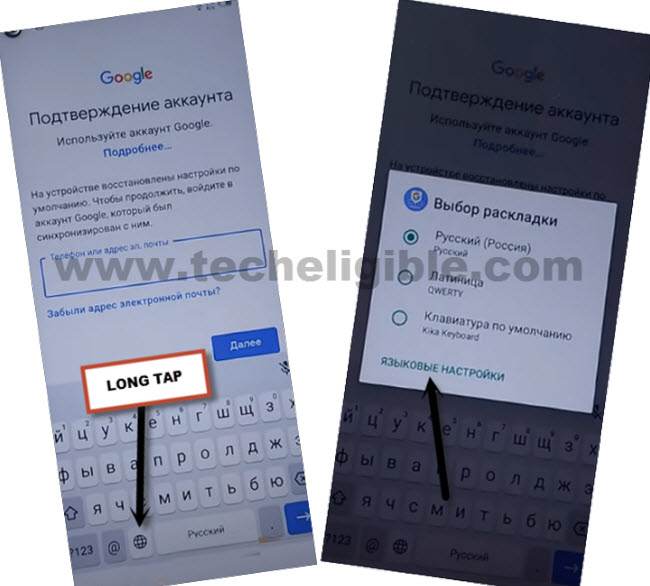
Setup Keyboard Language
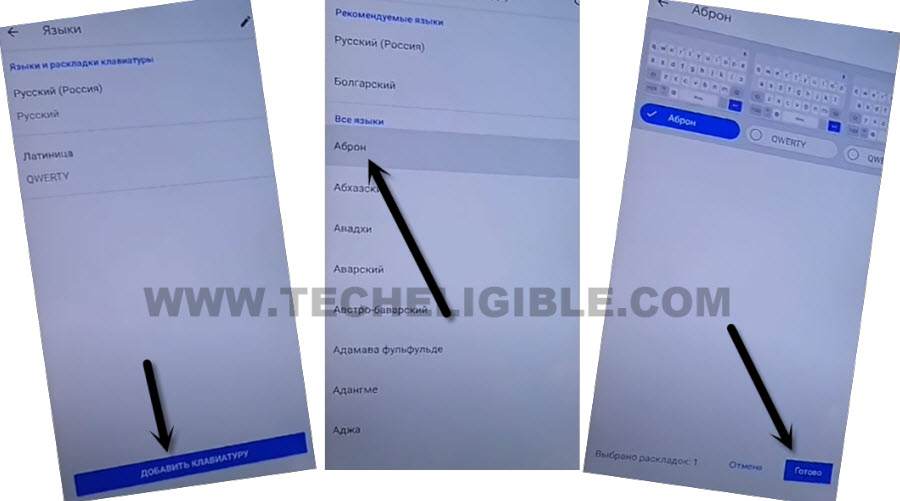
-We have to add keyboard language, just, hit on “Blue” button from bottom center. Then, tap at “3rd number” language same as displayed in the image below.
-Finally. tap on “Bottom right option” to add this language successfully.
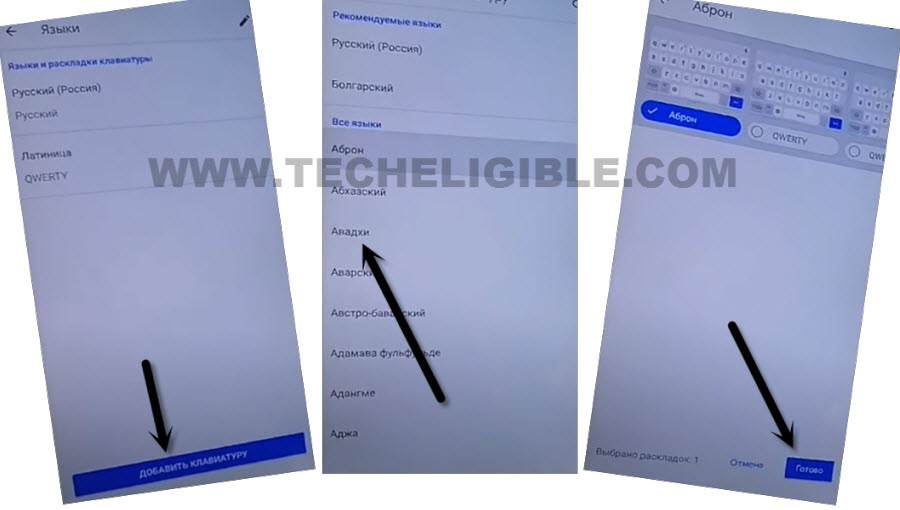
-Let’s setup another language by repeating steps same. Tap again on “Center option” from below.
-Choose “4th number” language and go to “right option”.
Go back to (Hi there) page to Change Language
-Keep tapping over the back arrow icon from bottom to reach back to first startup page. From there, change the phone language to “English”.
-Then, simply, go to next screen by hitting over the “Start” option. After that, tap to “Skip”.
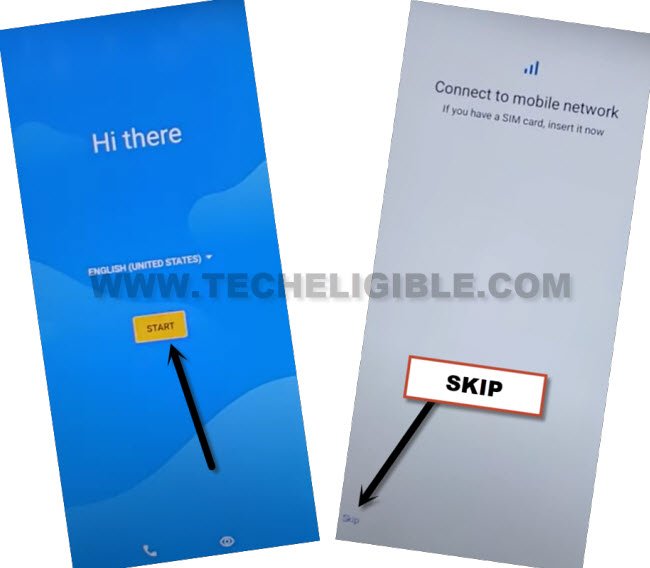
-You may reach over the (Copy apps & data) screen, from there, choose “Don’t Copy” option.
-Then, hit over the blue link of “Use my google instead”.

-Popup your keyboard again by tapping on “Email or phone” field tab. Afterwards, long hold on “World” icon.
-From the popup window, go to “Language Settings”.
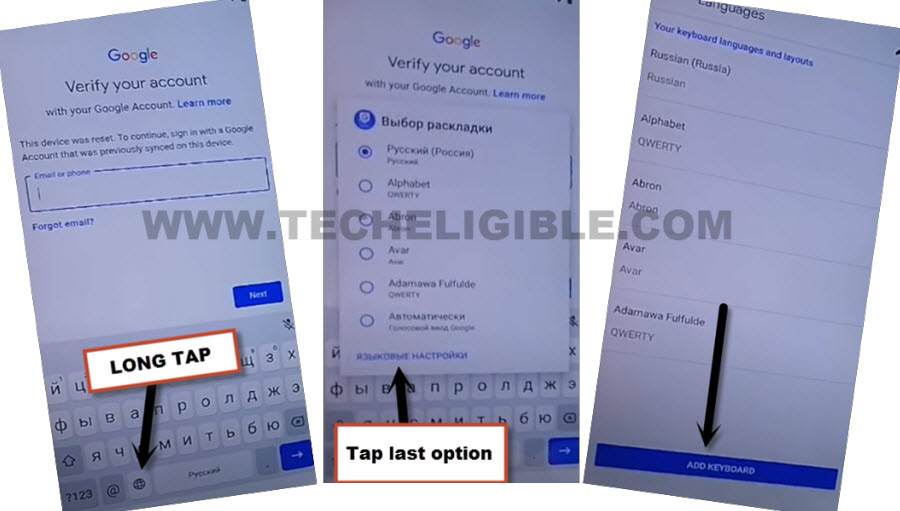
-Hit on the “Add keyboard” button. Then, choose the language “Albanian”.
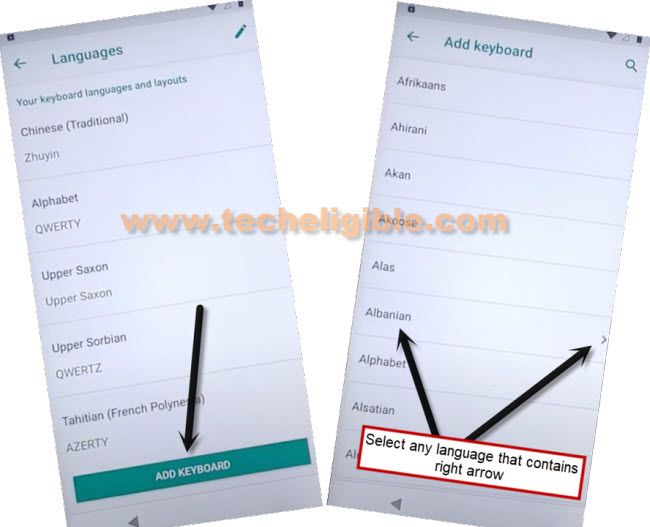
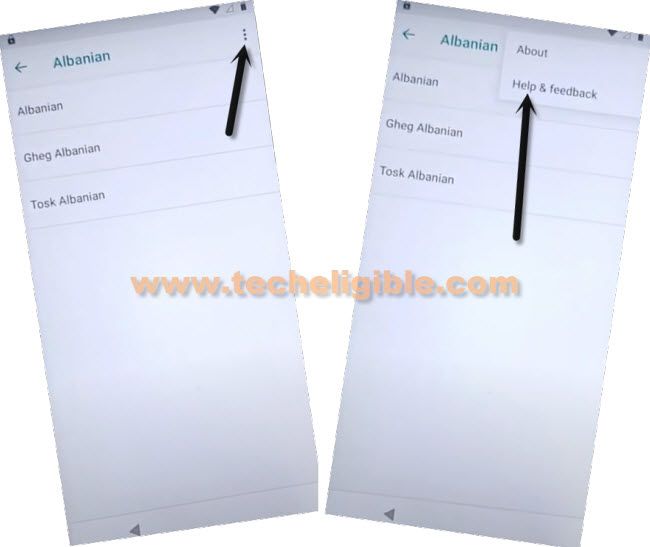
-On next page, go to “3 dots” icon from upper right corner.
-Let’s tap “Help & feedback”.
-On the next support page, just search with the “Morse”. Afterwards, go to “Use morse code” searched option.
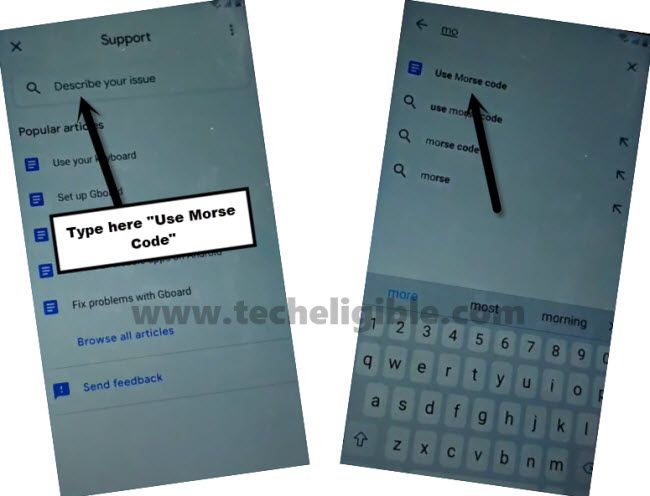
-On next page, the youtube video will appear up. We are going to hit on the “Play option” to play the video. After that, go on the > 3 dots > Watch later.

-Google chrome browser welcome screen will be displayed, just go to “Accept & Continue” option.
-Afterwards, hit on “No Thanks”.
Access on the Primary Settings Page
-Once the chrome browser is fully launched, let’s make search with the “Techeligible” text. Then, go to 1st searched result same as displayed in the below image.
-After that, tap to > Menu icon > Download FRP Tools.

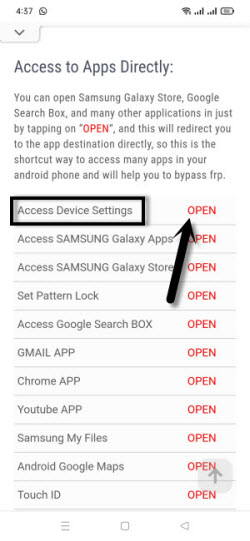
-We have to setup latest pattern lock on this phone to bypass frp completely. For this, from the frp tools page, tap on the “Access device settings” option to manually reach over the primary settings page of the device.
-Go to “Security” option. Then, tap on the “Screen Pinning” from the last.
-Toggle on the option from top right corner.
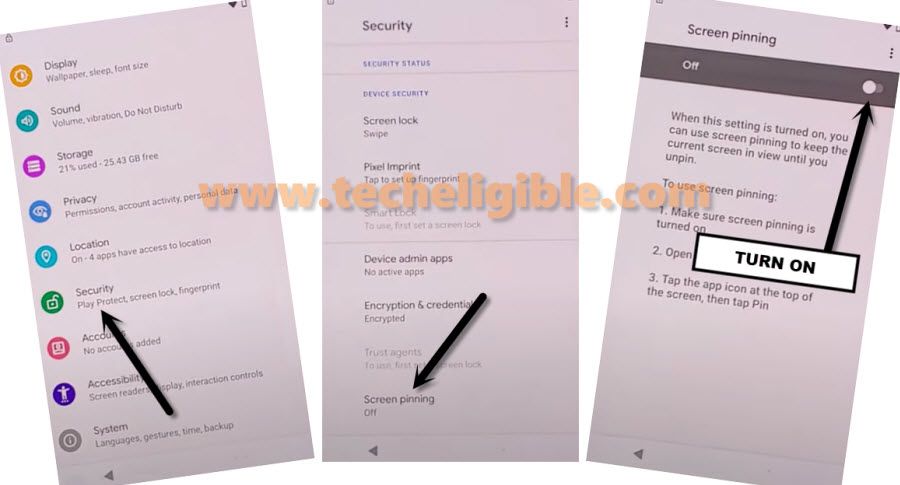
-Toggle on also “Lock Device When unpinning” option.
-Afterwards, tap on “Fingerprint + Pattern”.
-Let’s draw your any pattern on screen and quickly tap to “Next”.
-Draw again same pattern and quickly tap on the “Confirm” option.
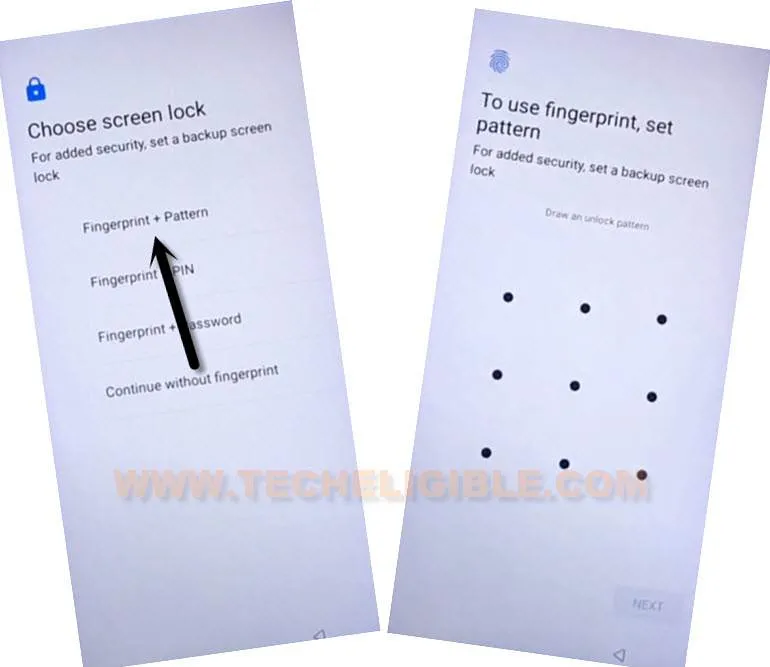
-Once you are redirected on the (Touch Sensor) page, that means, the pattern lock has been setup successfully. You have to hit on “Skip” option.
-We can safely restart our device, because the new pattern lock has been setup successfully.
Restart & Complete Verification Steps
-After restarting is done, from the startup page, go to > Start > Skip > Don’t Copy.
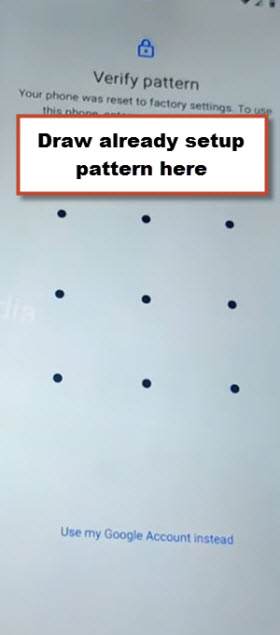
-Once you reach over the verification screen by pattern lock, you can easily draw your recently setup pattern on the page to complete the verification process.
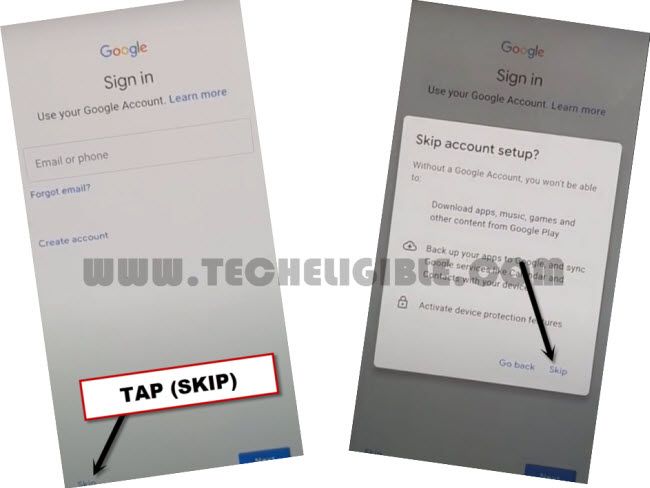
-Once you access on the google sign-in page, from there, go to “Skip”.
-From the popup screen, tap again on “Skip”.
Bottom Line
We simply altered the device language to (Russian). Afterwards, we just added some keyboard languages and then changed the phone language back to (English). Then, we reached over the google chrome browser and opened the frp tools page. From there, we reached directly over the (Primary Settings) page of the phone & setup new pattern lock protection. Then, we restarted the phone and completed all setup wizard steps easily.