
Don’t worry now, if you are experience the FRP locking issue on your own device after doing hard reset the tablet from recovery mode screen. This happens sometimes with those, who have forgotten their already logged in google account complete along with the recovery options. In this case, you feel regret and want your device back. You can check out steps here to Bypass FRP NTT Docomo Dtab d-02h.
Disclaimer: We highly recommend you to apply this method only on your own device, if you are not owner of NTT Docomo device, or you found this from some where, you must return this device to its real owner.
Let’s Start to Bypass FRP NTT Docomo Dtab d-02h
-Turn on your docomo tablet and go to WiFi page. From there, connect WiFi first.
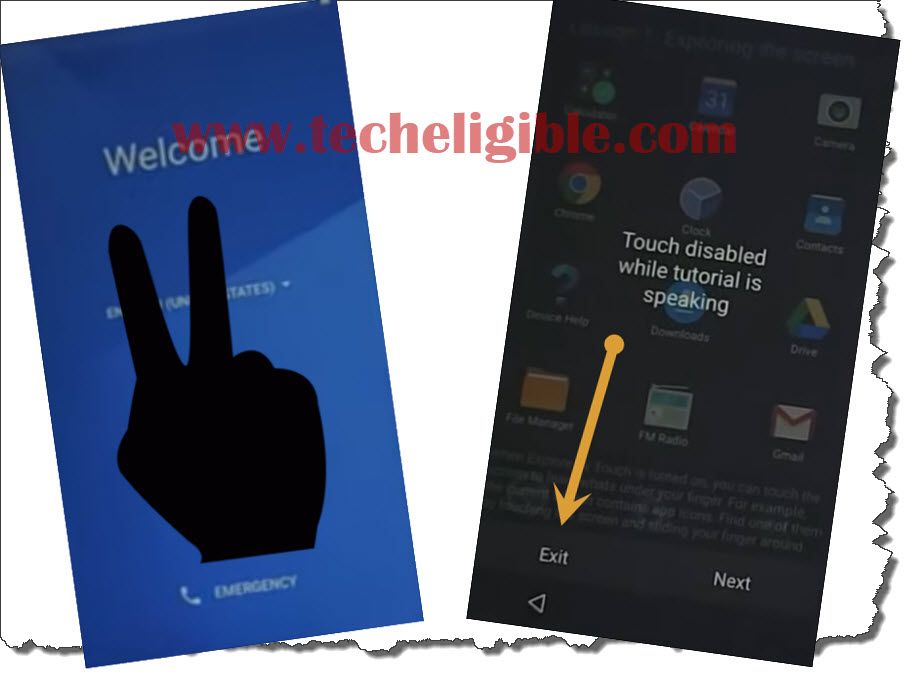
-Once the WiFi is connected, get back on the first (Welcome) screen same as displayed in the below screen shot.
-Long hold on the display with 2 fingers together, keep holding until you see the next (Black Screen).
-Double tap on the “Exit” option.
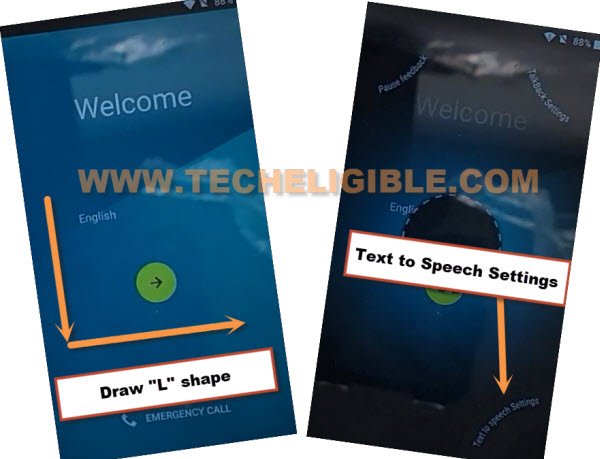
-From the (Welcome) display, swipe down and swipe right same as you make “L” gesture.
-After making a L shape, you will be shown some options on screen corners. From there, double hit on the “Text to speech settings”.
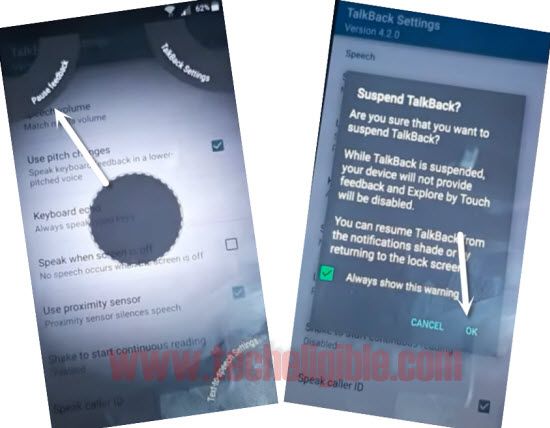
-After accessing on the (Text-to-speech out settings) page, from there, let’s swipe down and swipe right again to make (L) gesture. Then, double tap on the “Pause Feedback” option.
-Tap to “Ok” from popup screen.
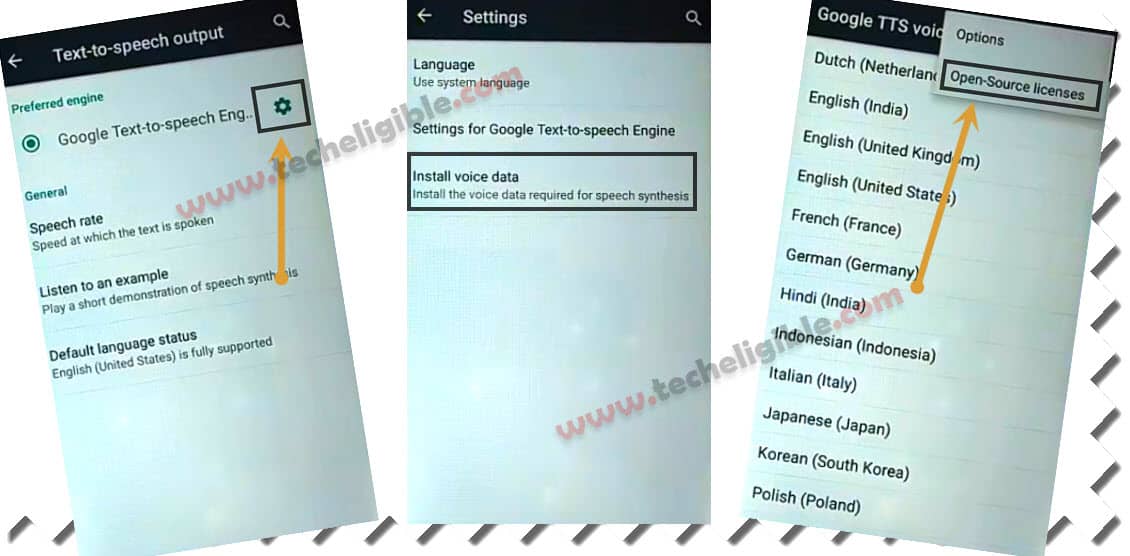
-Hit over the “Exclamation or Settings” icon, that is right next to the (Google Text-to-speech Engine).
-Then, go to “Install Voice Data” option.
-Hit on the “3 dots” menu option from upper corner of the page. Then, tap on “Open-Source Licenses”.
Launch the Chrome Browser
-From the open source licenses page, long tap on any text and then, go to “Web Search” option from top corner.
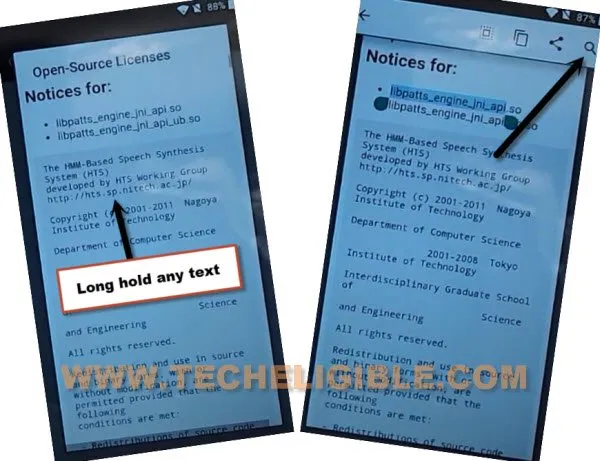
-Finally, the google app will be launched, from there, type the “Chrome” in top search bar and go to “Chrome” icon.
-A popup screen will be shown to you, from there, tap to > Accept & Continue > No Thanks.

Download an Apps
-Let’s conduct a search for “Techeligible“. Afterwards, navigate to the first result that appears.
-Go over the top “Menu” icon and go to “Download FRP Tools”.

-Go little bit down from the frp tools screen, and download from there an application named “Google Account Manager 5“.
-Download one more app named “Account Login“.
-Tap 3-4 times on back arrow icon carefully until you reach back to (Google App) page, from where, we recently searched a (Chrome browser).
-Here, you have to search with “Down” and go to “Download” option.

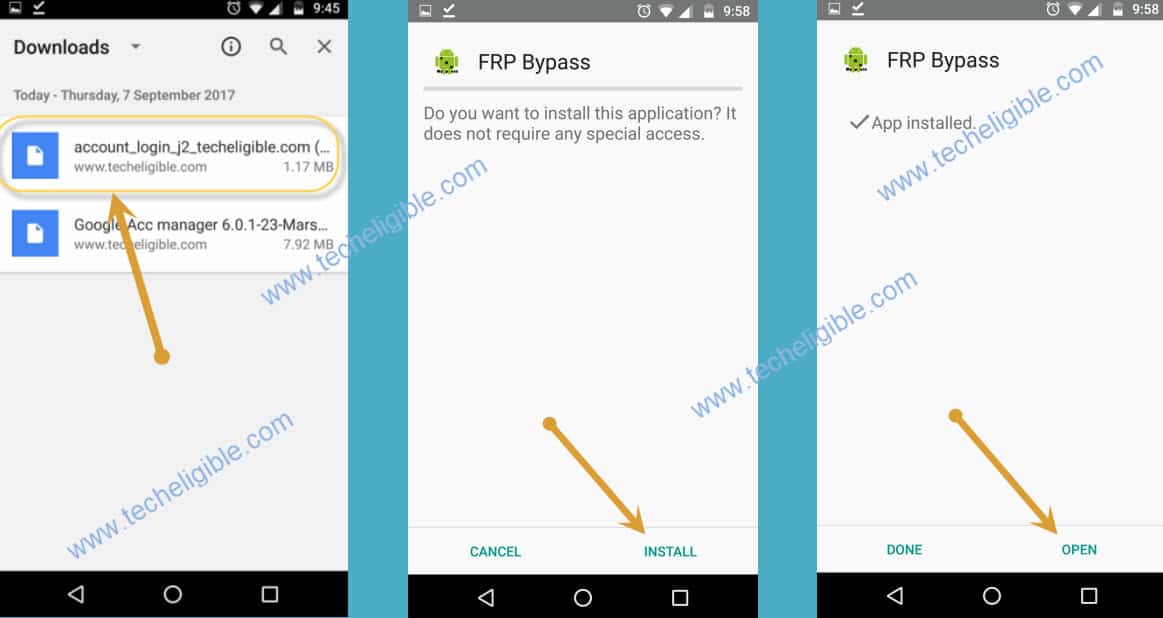
-Upon reaching on the download folder, there, your both recently downloaded apps will be available.
-Let’s start with the installation process by tapping on “Google Account Manager”.
-Before the installation begins, you have to allow this app on your phone by tapping on “Unblock” option.

Login with the New Account
-After that, tap to > Install > Accept > Done > Cancel.
-Let’s install another app by tapping on > Account Login > Install > Open > Cancel.
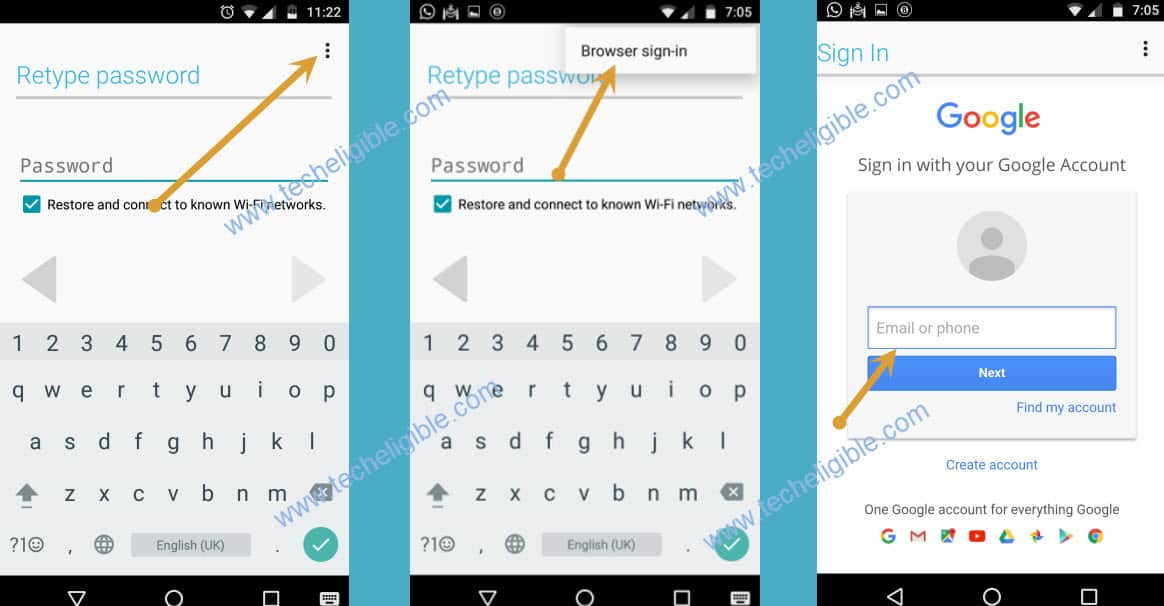
-You will reach at the (Retype Password) page. On this page, we have to hit over the (3 dots) option from upper right corner.
-Then, tap at the “Browser Sign-in”.
-Once we reach at the google account login page, here, we can login with any valid google account. This account will be setup for the future FRP lock protection.
Safely Restart & Access the Home Screen
-You can safely restart your NTT Docomo Dtab device.
-From the first startup page, go to > Next > Skip.
-From the (WiFi) settings screen, tap also > Skip > Skip Anyway.
-From the (Protect your phone) screen, hit over the same option > Skip & Skip Anyway.
-After that, hit on > More > More > Next.
-Swipe (Magazine) page to left side 2 times and then, hit on (Do not show this again).
-You have reached to your Docomo Dtab d-02h tablet main home-screen.
Note: Don’t forget to turn off the (Talkback Option) from settings. For this, go to > Settings > Accessibility > Talkback > Disable talkback.
The Key Points
We just connected WiFi to our Docomo Tab, and then, enabled the talkback function with the help of long pressing the screen using 2 fingers at the same time. Once its done, we accessed to the (Open Source License) page and long tap the text and then, got the (Google App) there. Then, launched the chrome browser and downloaded 2 frp bypass application. Afterwards, we just installed both apps and login with google account to bypass the frp account.