This could be big challenge for the device owner forgetting google account right after factory reset. Because, FRP is actually setup on previously signed in google account. If the device owner forget their previously setup google account, then, they will not be allowed to access their own device until they login back with the same google account, that was forgotten. In this situation, here are 6 frp bypass methods available to Remove FRP Samsung Galaxy S8, S8 Plus phone.
Why to disable FRP Before Selling Samsung S8/S8+?
This is an ethical step and should be done by every Samsung Galaxy S8 Plus/Galaxy S8 devices owner to disable FRP before selling the device to others or gifting to someone. This can easily be done just by removing signed in google account. So that, whenever new device owner perform hard reset on this device, then, he will not face a Google verify page.
You can find out all available frp bypass methods in this single post on Galaxy S8 Plus, Galaxy S8. Because, new security patch level is updated, the frp method is also required to be updated. That’s why, we have included some top frp bypass ways in this single post, and the method-1 is the most latest one. We would recommend you to apply (Mehtod-1) first for FRP Bypass Samsung Galaxy S8/S8 Plus.
Method 1: Use Free PC Tool (Samfw) to Remove FRP Galaxy S8, S8 Plus on [Android 9/8/7]
Disclaimer: We highly recommend you to apply this method only on your own device, if you are not owner of this device, or you found this from some where, you must return to its real owner. This process is just for educational purpose to assist device owner, how to approach on their own FRP locked Samsung S8/S8+.
We will use free (Samfw Tool) here. Simply, download & install on your PC and with one click frp can be removed from your Samsung S8 device.
-Start this method by Downloading SamFw tool V3.2 in your PC or Laptop [Download].
-After that, go to this tool folder, and double click on (SamFwFRPTool.exe).
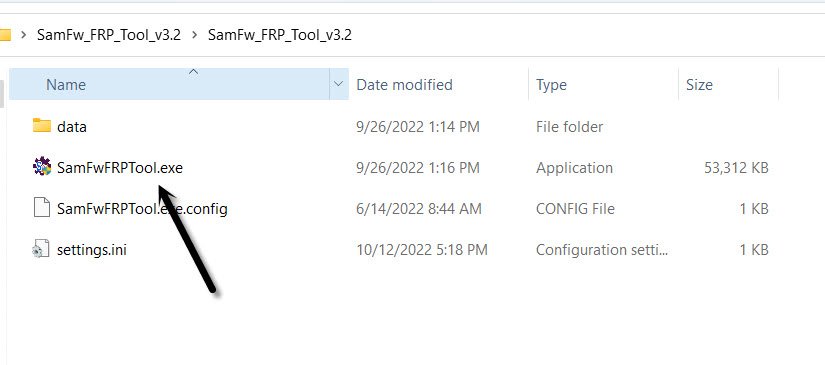
Note you may have a popup of installing Samsung USB driver, so install drivers as well, so that you may not face any connectivity issue.
-Turn on your device, and connect with PC.
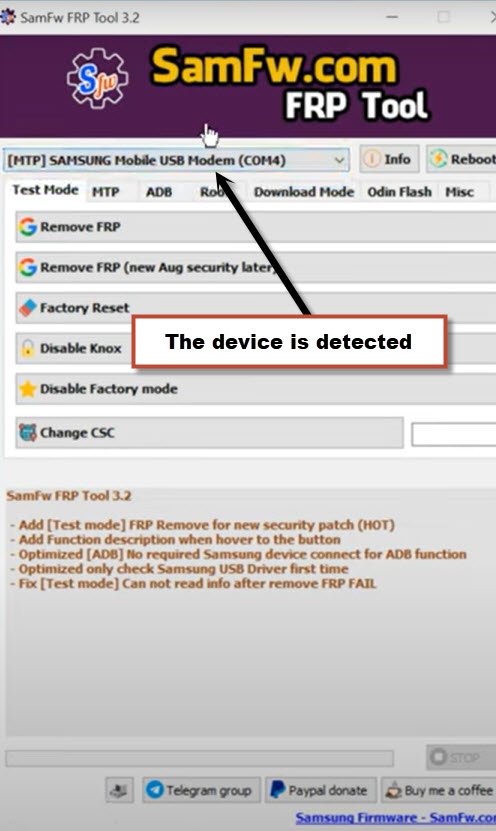
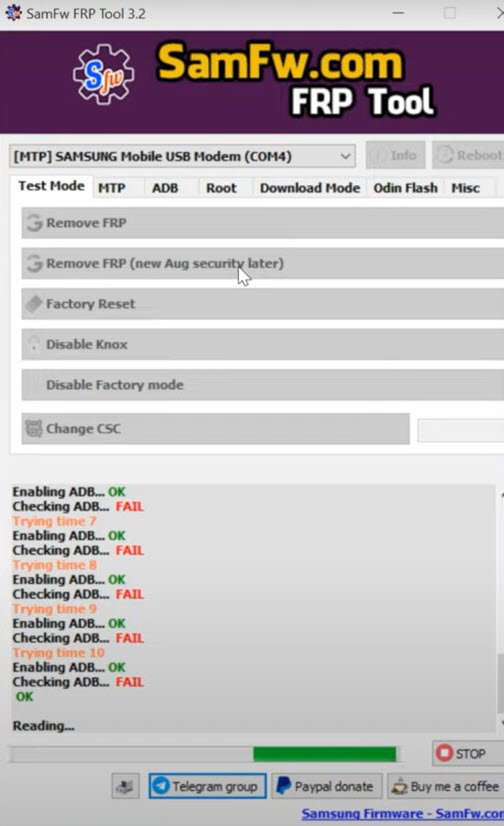
-Once the device is detected by tool, the device Com port will start appearing up in your Samfw tool same as shown in below image, if the device is not detected, do make sure proper Samsung USB drivers are installed, and also connect and disconnect device 2-3 times from PC.
-Click on button from tool “Remove FRP (New Aug security Later)” button.
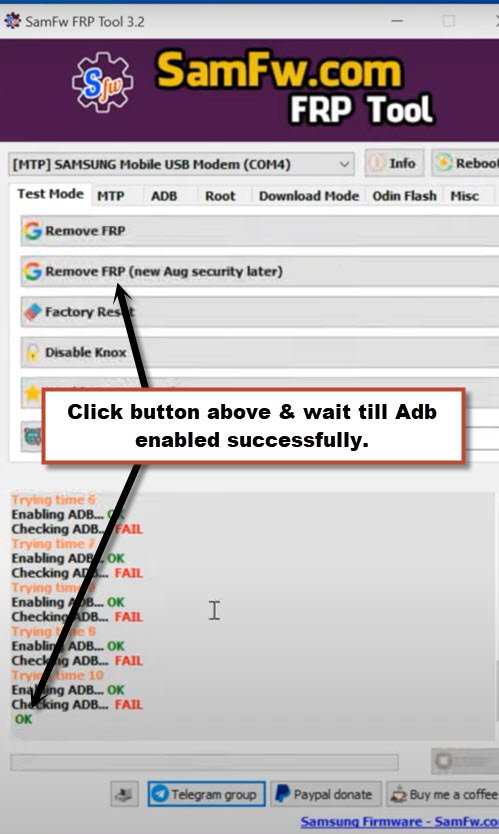
-Wait, the FRP Bypass process will just start, this process will take few minutes, once you see (OK) in samfw tool, that means the adb has been enabled successfully.
-Hit on “Emergency Call”, and dial this code there “*#0*#“, after that you will have there a blank box screen.
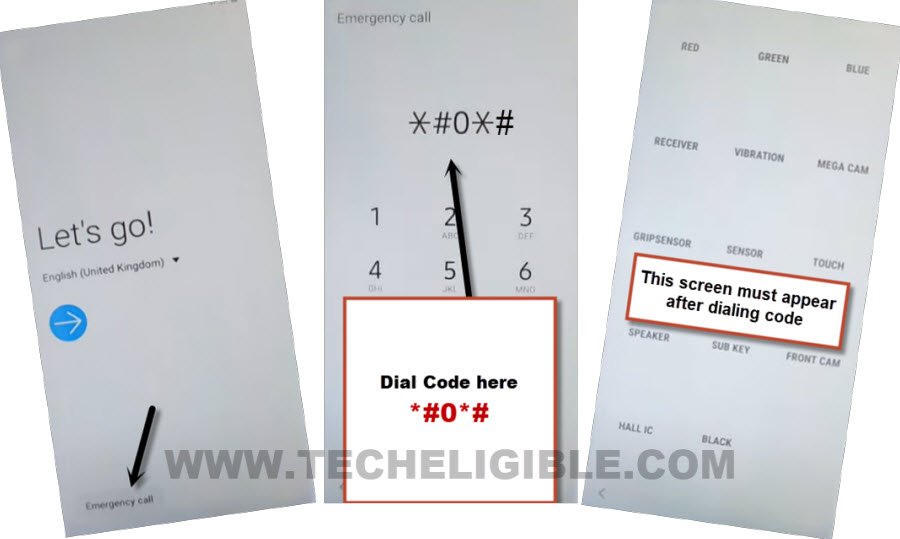
-Tap again on “Remove FRP (New Aug security Later)” button, and this time, this software will start reading all device info.
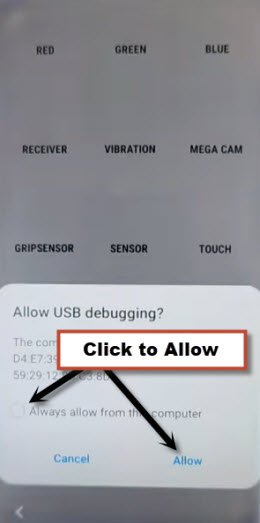
-You will receive a popup message, firstly check mark option “Always allow from this computer”, and after that, tap to “Allow”.
-From another popup window, tap to “Samsung setup wizard”, you will get into the device settings.
-Again hit on “Allow” from USB debugging popup message.
-After that, the device will just restart, and you will reach inside your device homescreen.
-Go to > Settings > General Management.
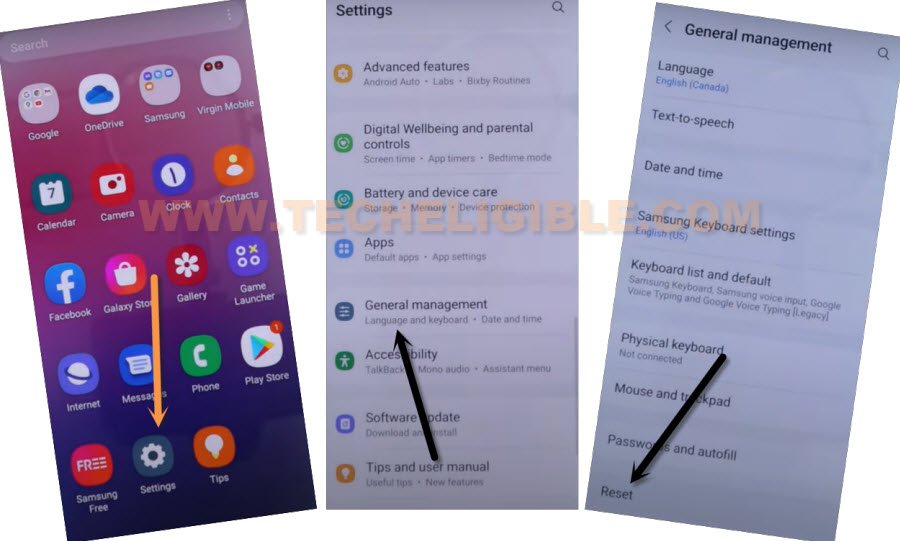
-Lets perform factory reset task from settings, for that go to > Reset > Factory Data Reset > Reset > Delete all.
-After that, the device will auto restart, and you are all done, just finish setup wizard and use your device without having any old google account signed in.
Method 2: Use SIM Card to Bypass FRP Samsung S8/S8 Plus on [Android 9]
You don’t need to flash device by combination firmware, and most of the device firmware are also unavailable by free access, so this method suits to you if you are having difficulties in searching the combination files, just use any your working SIM Card and through that you can bypass google frp.
This method will work on your Android 9 version device, so before starting the process, do make sure you have Android 9 version, if you don’t the device version, so you can find out that by putting your device on recovery mode.
You just have to connect WiFi on your Samsung S8/S8+, and after that access to YouTube website by following our steps. Download frp tools. Follow steps from below. (This method is only for Device Owner, those have forgot their Gmail account, and want their device back).
This method has successfully been applied on (SM-G955U) android 9. if you have other model or other android version, we hope you will be able to find out most nearest frp methods from below.
Tools You Need
♦ Wifi Access.
♦ Sim Card. (Having PIN Locked)
♦ Sim Tray Removal PIN.
Note If your sim card is not pin locked, that’s not a big deal, just set your any 4 Digits pin code by using any other phone and then use that sim for Galaxy S8 and S8 Plus.
Let’s Start FRP Bypass Steps on Samsung S8/S8 Plus:
-Turn on Phone & Connect Wifi.
-Put device back to its first “Let’s Go!” screen.
-Insert active Sim Card, after inserting the sim card, you will see “Enter u
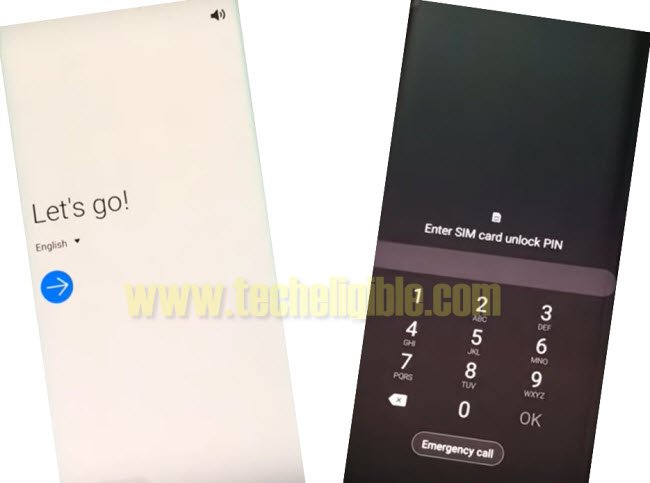
-Press “Power Button” & Remove “Sim Tray” simultaneously.
-Now press “Power Button” again to wake-up device, and there you go, there you will have the “Lock icon” on screen. same as shown in below image.
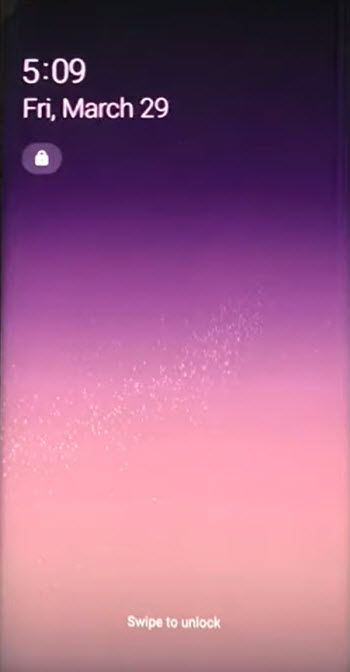
-If you do not see this screen, then you are unsuccessful, do apply this trick again until you get the lock. (Make Sure you are pressing power button and removing sim tray at same time.
-So lets do it again, because you wont be able to this at first time.
-Reinsert sim card.
-Press (Power Key & Remove SIM Tray) at the same time.
-Press (Power Key) again to wake up device, and see this time “Lock Screen” appears or not, if it does not, do repeat it again until you succeed.
-Once you get the lock screen same as shown in below image, lets go for the next step.
-Tap on > Lock icon > Notification Settings > See All.
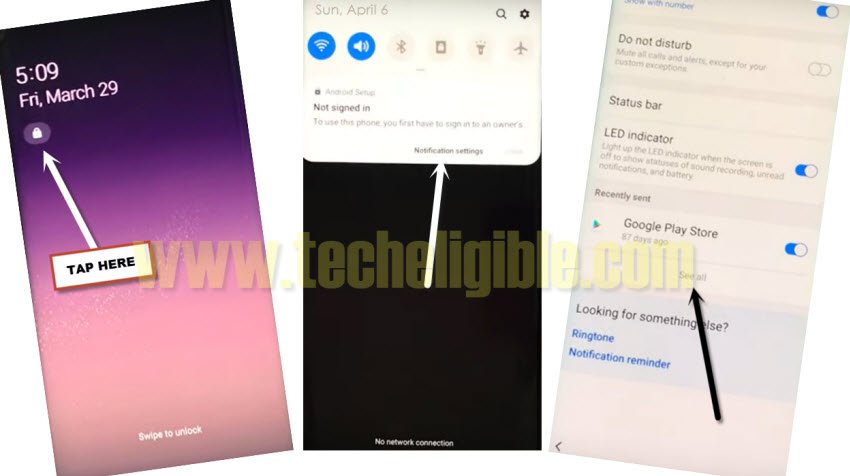
-Now Tap on > Most Recent > All > Youtube > In App Notification Settings > About > Google Privacy Policy.
-Now tap on “Not Now” from the bottom popup window.
-Congrats, You have successfully accessed to the Samsung Internet Browser.
Download FRP Apps From Below in Samsung S8/S8+:
-Search in chrome search bar with “Techeligible“. After that, go to 1st searched result to reach to techeligible site.
-Let’s tap over the “Menu” option from there.
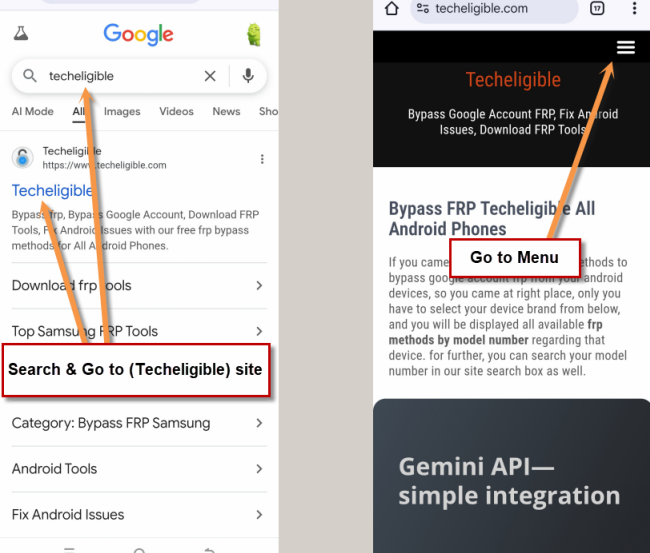
-Navigate to Samsung frp tools screen by going to > Other Free Tools > Samsung FRP Tools.
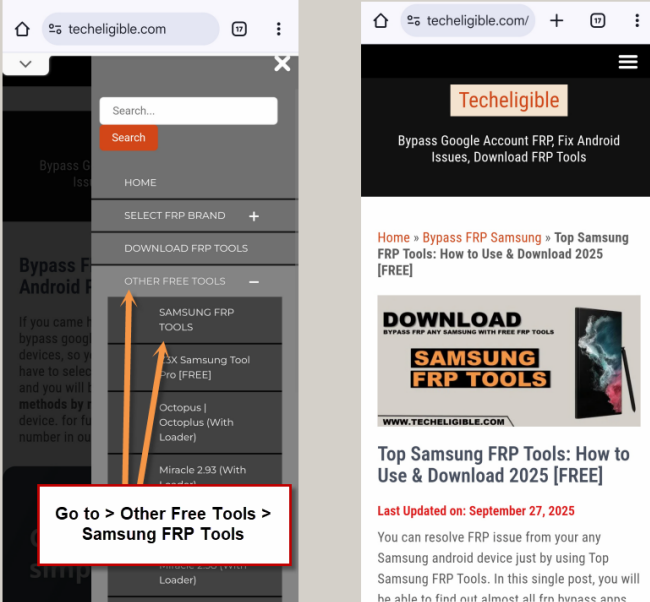
-Download from there “Apex Launcher 3.3.3“, and wait until downloading process finish.
-To access the download folder, tap on “MENU” icon from bottom right corner of the browser & select “Downloads”.
-Tap on > Apex Launcher > Settings > Allow from this source.
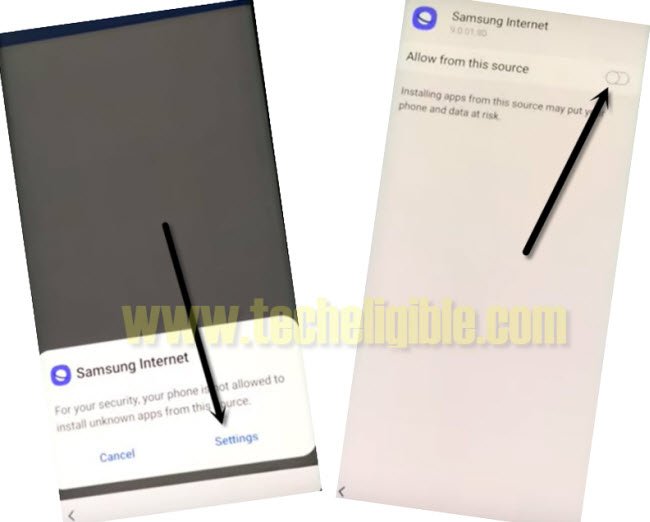
-Go back by tapping on back arrow.
-Tap on > Install > Open.
-Here you go, you are in your Samsung Galaxy S8 and Galaxy S8 Plus, but still some work need to be done.
Download & Install Google Acc Manager:
-Go to device “MENU”.
-Open “Internet Browser”.
-This will surely show you same frp tools page.
-Just download from there “Google Account Manager 6“.
-Tap on “MENU” icon from bottom right corner, and tap on “Downloads”.
-Tap on > Google Account Manager 6 > Install > Done.
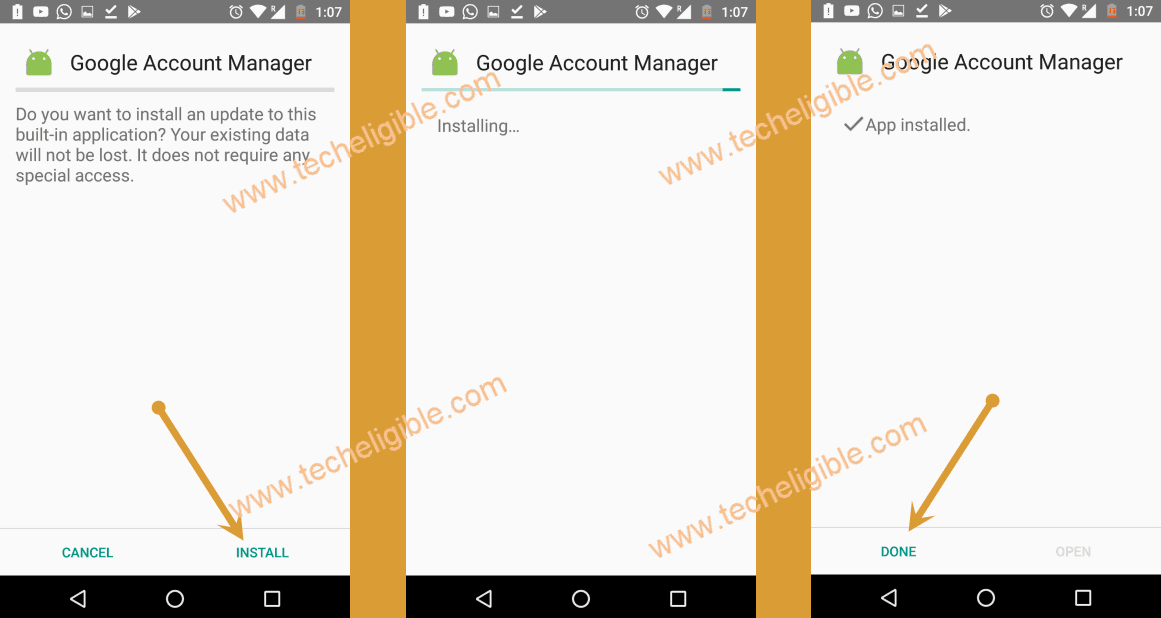
-Now we have to install one more frp apps.
-Download Also “Account Login” app from the same frp tools page.
-To install this app, Access to download folder again by pressing on MENU icon and select “Download”.
-Tap on > Account Login > Install > Open.
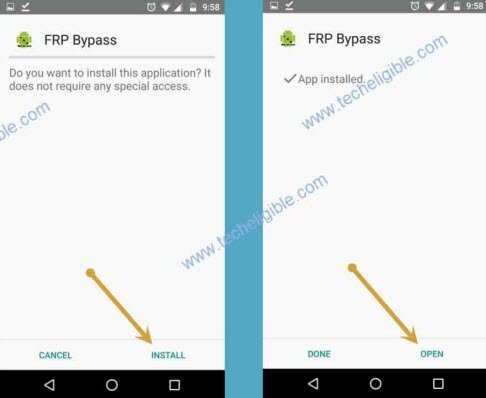
-After successfully opening this app, you will see a screen of (Retype Password), just hit on “3 dots” from the top right corner and then tap on “Browser Sign-in” to access the sign in page.
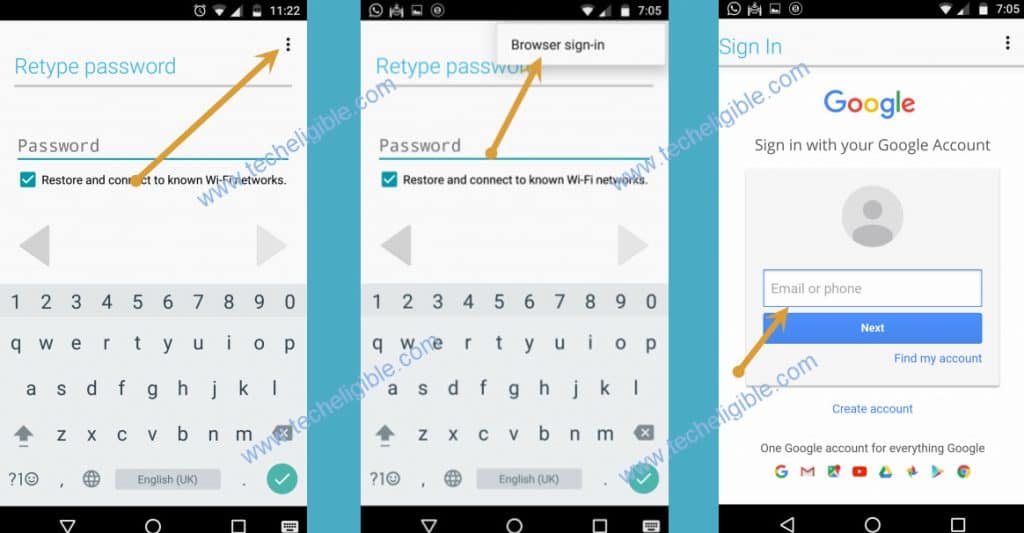
-Login in to browser using your valid and active Gmail account to finish this method.
-To verify that, has your Gmail account successfully added or not, just go back to “Settings”, and tap on “Accounts & Backup”, and then tap on “Accounts”, there you will be able to see your new signed in Gmail account, so that means you are all done.
-Restart your device, and then complete “Setup Wizard”, and this time you will not see any google verification screen, if you see that, there will be “Skip” option, just tap on that to Remove Google FRP from Samsung Galaxy S8 Plus, Galaxy S8.
Method 3: Bypass FRP Galaxy S8 & S8 Plus Phone By Blutooth Headphones
-Before starting this method, you are required 1 sim card having pin locked code, you can set 4 digits pin lock code on your SIM with other phone.
-Remove your SIM Card.
-Turn on your frp locked phone & connect wifi first.
-Go to the screen of “Verify your Account”.
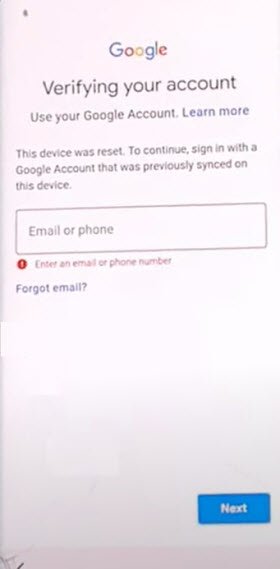
-From the “Verify Your Account” screen, just tap on “Back Arrow” 3 times, until you get back to the screen of “Check out some info to get Started”.
Follow Below 4 FRP Remove Steps Quickly and Carefully
-Okay, now we are going to follow very important steps, do this very carefully and very quickly.
-While keep tapping on “Next”, just insert SIM Card back into the phone. (You have to do this at the same time, means while tapping on NEXT, you have to insert sim card, do this simultaneously).
-When you see message of “Enter sim card unlock pin”, just quickly remove your SIM card.
–Quickly tap on “OK” from “Check SIM/SD Card tray” popup window.
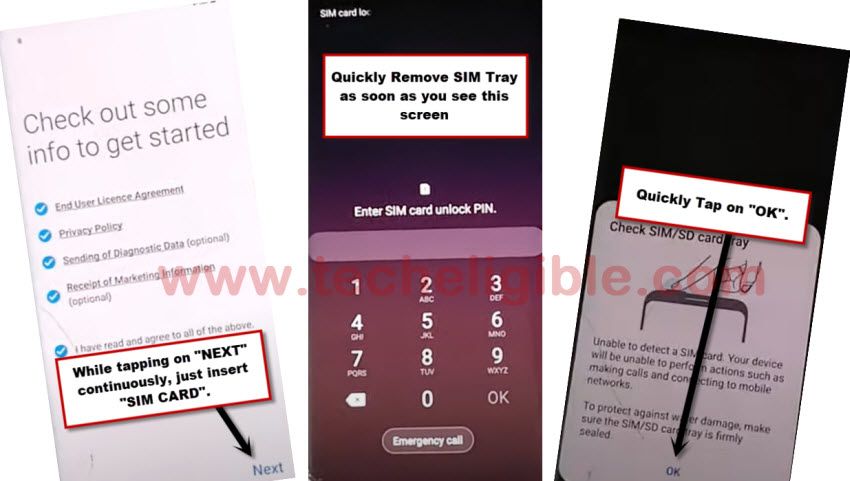
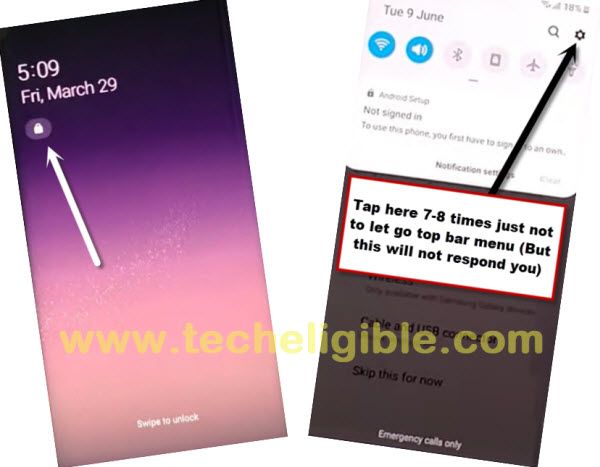
–Quickly tap on “Lock icon“.
–Quickly start tapping 6-8 times on “Setting gear icon” from the top bar menu, but top bar menu will not respond you, don’t worry about that, what we want is just to get top bar menu here.
Note You have to follow above all 4 steps very quickly, otherwise you won’t be able to Remove google FRP.
-Now tap on “Bluetooth icon”.
-Use your any newer generation (Bluetooth Pods / Bluetooth headphones) for making pair with.
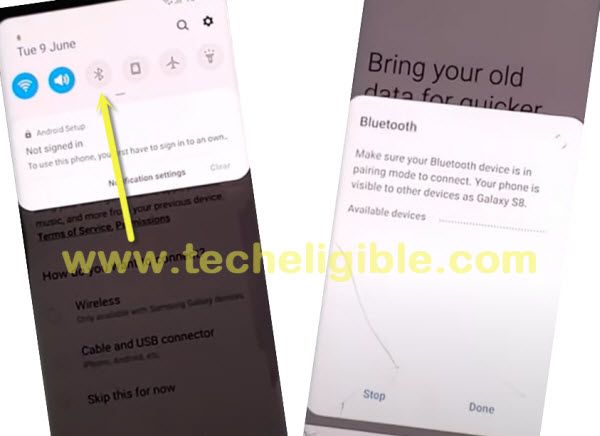
-After making pair successfully, just press your Bluetooth pods/headphone power button 3 times quickly.
-By doing this, new popup window will appear, and then tap on “Google” icon from there.
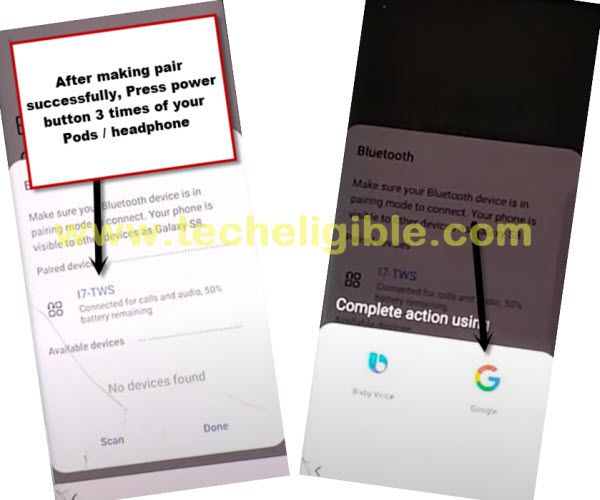
-From there, just go to > Notification > in-app notification settings.
-Tap on “search icon” from top right corner, and search there “Offline”.
-Tap on “Always retry offline searches”.
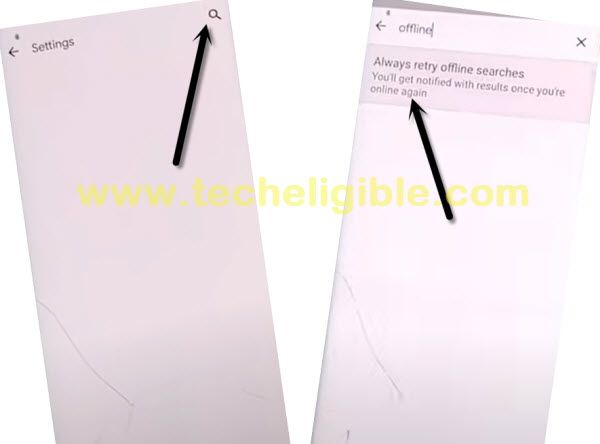
-Go down and tap on “Manage pending searches”, and hit on “No Thanks” from bottom popup window.
-Now tap on “search” from bottom bar.
-search “Settings”, and tap on “Setting gear icon” from searched result.
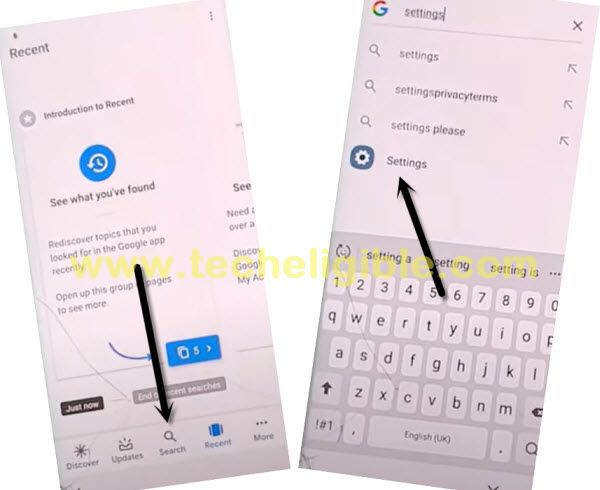
Setup 4 digits Pin Lock Code:
-Go to > Biometrics and Security > Other Security Settings > Pin Windows > Turn it ON.
-Now, we are required to set pin lock for Bypass FRP Samsung Galaxy S8 / Galaxy S8 Plus.
-Let’s go to > Use screen lock type to unpin >Pin.
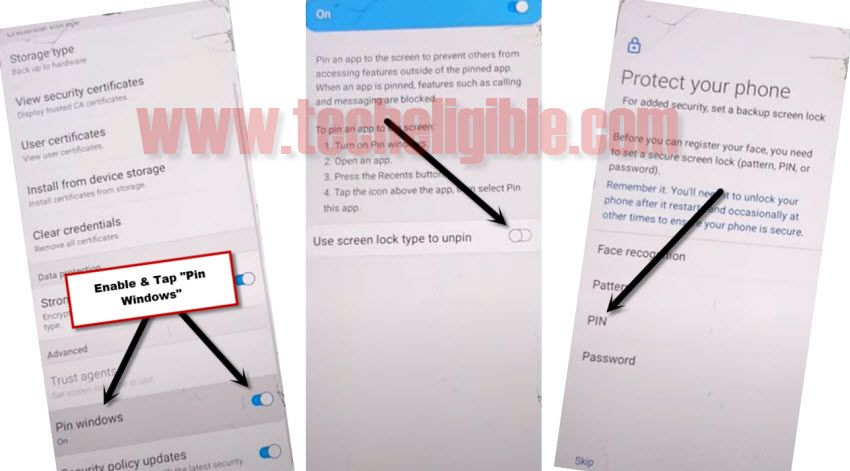
-Select option “Require pin when device power on”, and then hit on “Continue”.
-Set up pin code there “1234”.
-After setting up pin code 2nd time “1234”, just tap on “OK”.
-Now get back to “Settings” by tapping on back arrow several times.
-To verify that, you have successfully set pin code or not, just hit on “Lock Screen”, and there you will be able to see “PIN” underneath (Screen Lock Type), so that means we have successfully set our 4 digits pin code, and we can restart our phone for Samsung S8 FRP Bypass.
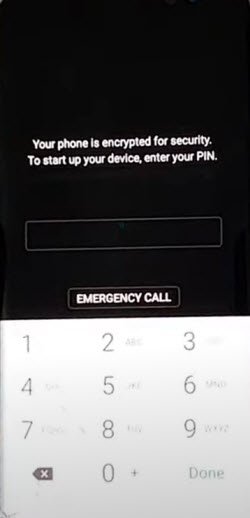
-Now restart your phone, and complete setup wizard, while completing the setup wizard, you will be asked to enter your already set 1234 pin lock code, and connect wifi also while finishing the initial setup wizard.
Method 4: FRP Unlock on Galaxy S8/S8+ By Enabling Call Option [Android 9]
-First of all, you are supposed to connect “WiFi” in your phone.
-Go to the screen of “Verify your Account”.
-Tap on email field to bring keyboard.
-From the keyboard, just hit on “Setting gear icon”.
-Go to > Keyboard layout and feedback > key-tap feedback.
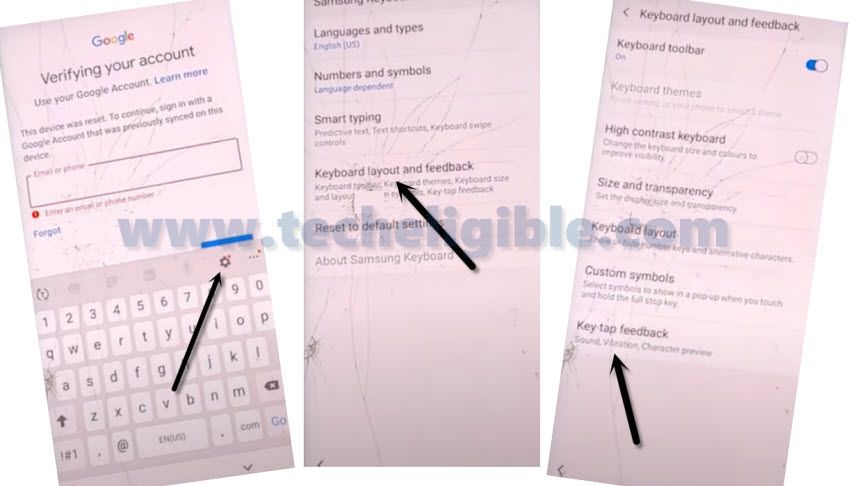
-Tap on > Sounds and vibration > Answering and ending calls > enable “Answer Automatically.
-Tap on top right corner button to “Turn on”.
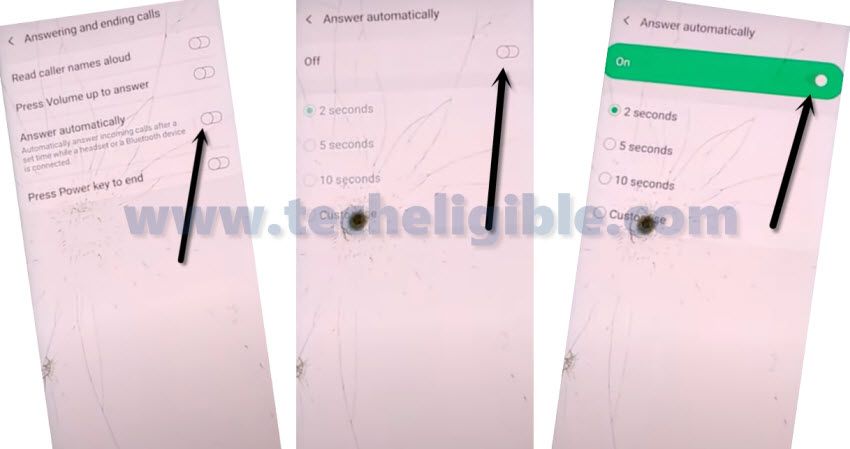
-Tap on both “2 seconds & Customize” options at the same time using your 2 fingers, by doing this few times will crash “Call Settings”.
Note Make sure you are tapping both options at the same time, at first time, it may take you to back, so from there just, hit on > Answering and ending calls > answer automatically.
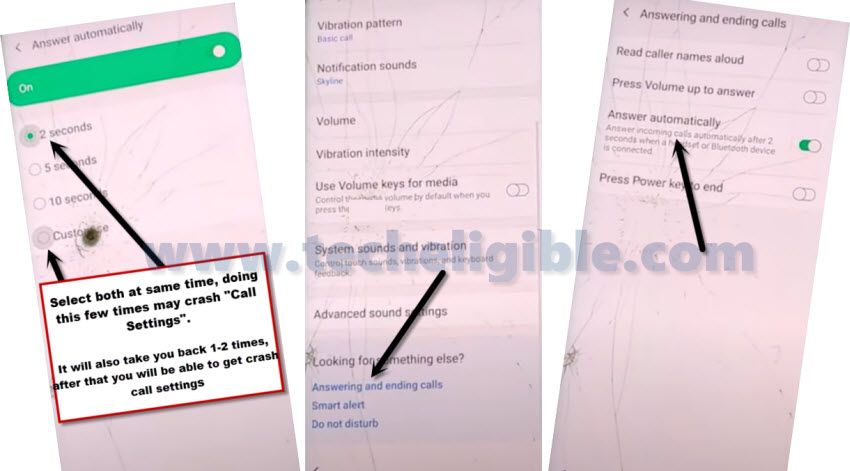
-Now again hit both options (2 seconds + Customize) at same time.
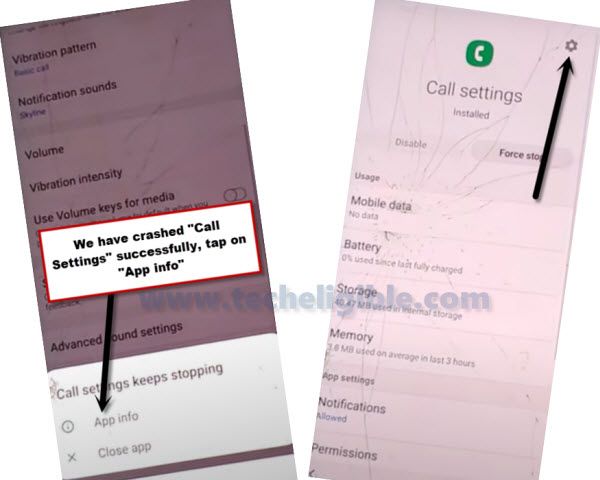
-After that, it will show you a popup box of “Call settings keep stopping”.
-Just tap on “App info” from there.
-Tap on “Setting gear icon” from top right corner.
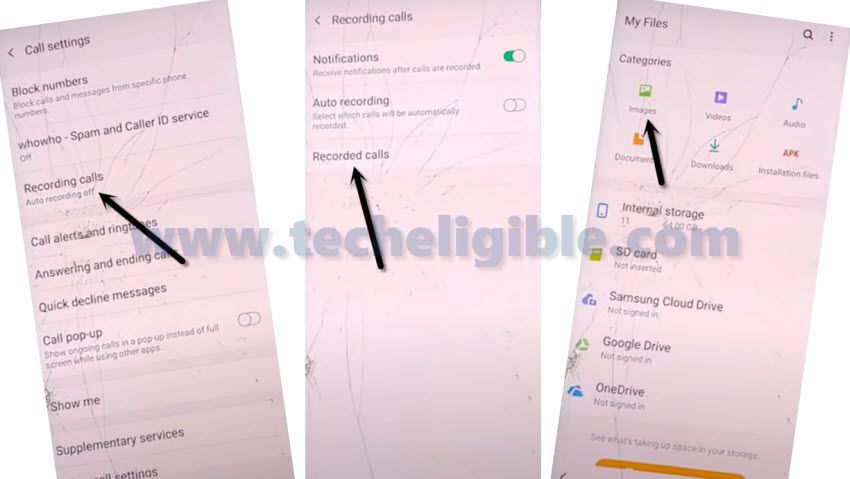
-After that tap on > Recording Calls > Recorded Calls.
-It will redirect you to the “My Files”, now we can easily Bypass FRP Galaxy S8 Plus/S8.
-Just tap on “Images” from there.
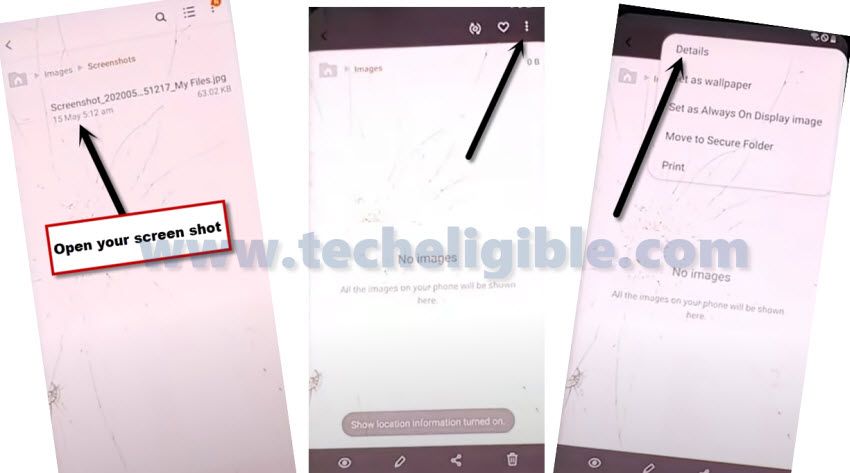
-Now take screen shot by long press (Power Key + Volume Down).
-After that, open your screen shot image.
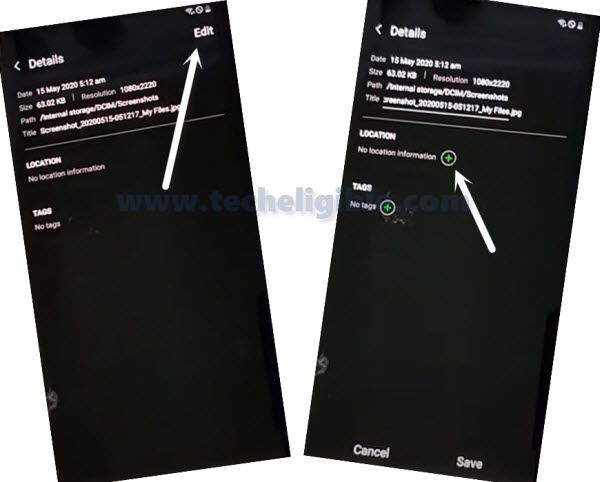
-Go to your screen shot image details by tapping on “3 dots” from top right corner, and then select “Details”.
-Now tap on “+ sign” that is right after LOCATION.
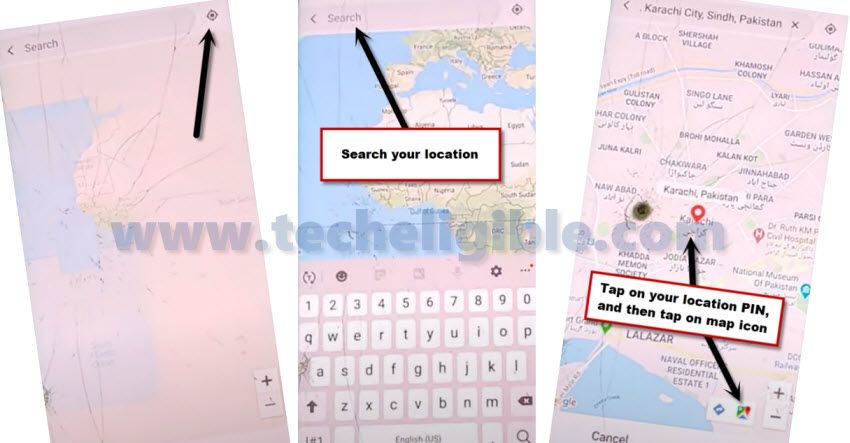
-Now tap on “Direction icon” from top right corner, and then tap on “Allow”.
-Search your any desire location from top search box.
-After that, tap on “Map image” from bottom right corner.
Sign in with your Outlook or Hotmail Account:
-Tap on “SKIP” from top right corner, and then tap on “Share”.
-Tap on “Gmail icon”, and then tap on “Skip”.
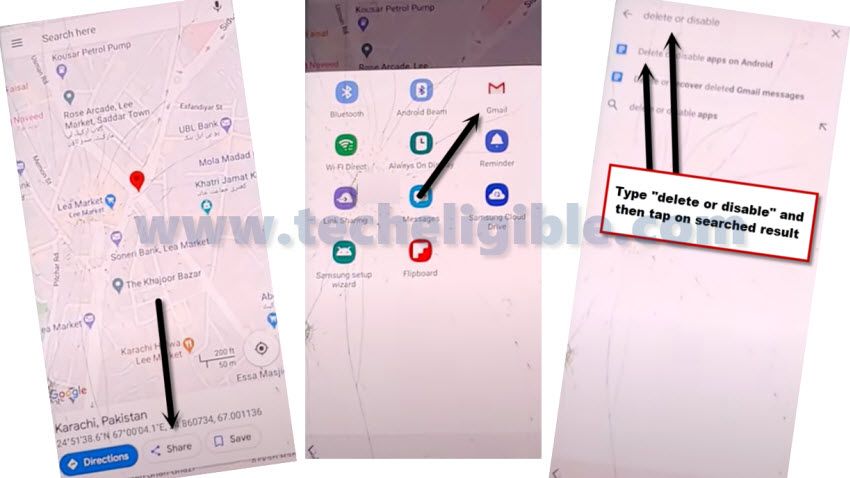
-After that, tap on “Add an email address”.
-Select “Outlook/Hotmail and Live”.
-Now add your any Hotmail or Outlook account there to sign in.
-After entering your account details, just hit on “Sign in” button.
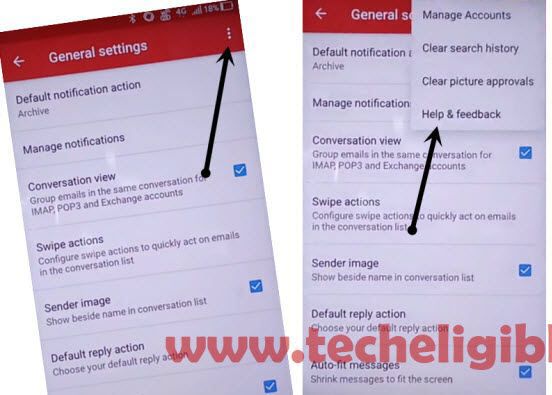
-Now tap on > Next > Next > Take me to Gmail > 3 dots from top right corner > Help & Feedback.
Go to Device Settings:
-Tap on “Describe your issue” search box, and then type there “Delete or Disable”, after that select searched result “Delete or disable apps on android”.
-Now tap on “Tap to go to application settings” to Bypass Google Account from Samsung Galaxy S8 Plus, Galaxy S8.
-From there, just go to > Google > Notifications > in-app notification settings.
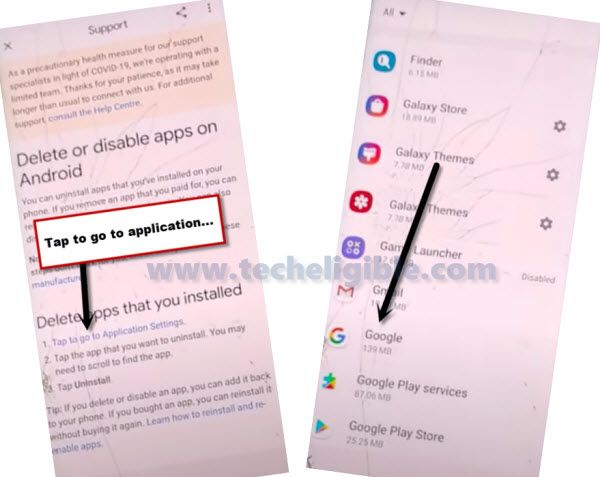
-Tap on “Search icon” from top right corner, and type there “Offline”, after that tap on searched result “Always retry offline searches”.
-Tap on “Manage Pending Searches”.
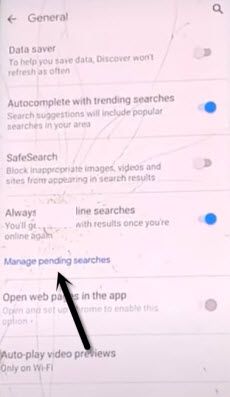
-If you receive bottom popup window of google sign in, just hit on “No Thanks”.
-Now tap on “Search”, and then type there “Settings”, and then tap on “Setting gear icon” from the searched result.
-Go to > Biometrics and Security > Other Security Settings > Pin Windows > Turn it ON.
-From there, Tap on also > Use screen lock type to unpin > Pattern > Continue > Set your desire pattern lock there.
-After drawing pattern 2nd time, just hit on > Confirm > Skip.
-Restart your phone now.
Complete Setup Wizard
-After restarting finish, just draw your previously set pattern lock.
-Connect WiFi to your device first.
-You will be asked to enter your pattern lock right after connecting WiFi, so just draw your already set pattern lock.
-Boom, now you will be redirected for the next step, so just complete rest steps to access device normally. and you are all done from frp bypass process on Galaxy S8/S8+ Without PC (SM-G950N/SM-G955N) Android 9.
Method 5: Bypass Google Account on Samsung S8/S8+ [Android 8] By Flashing with Firmware
This frp bypass methods cover all Galaxy S8 Plus and S8 Android version, we have included combination files of both models, so just download combination files from below and then follow rest method, with the help of flashing process, you can easily Bypass FRP on Samsung Galaxy S8 Plus, Galaxy S8 Android Versions 10, 9, 8. if you don’t want to bypass frp by combination files, you can try other frp methods of galaxy s8 and s8 plus here.
Note: if you do not find your device combination files, you can request us in comment box, we will try our best to upload for you.
Download Combination Files
-First step is to download combination file for your device by matching model number and firmware code, if you don’t know, just follow below steps.
-Switch off your device.
-Put your device into “Android Recovery Mode” by press and holding keys (Volume UP + Bixby Key + Power key) together.
-Release keys once you enter into “Android Recovery Mode”.

-There you will be able to see your device “Firmware CODE”.
-As you can see, in my case my device firmware code is (G950FXXU2CRED).
-This is bootloader level 2 firmware code, how did i recognized that it is bootloader level 2 firmware, i just see a digit no “2” right after my device model number (G950FXXU2), as can be seen in below image.
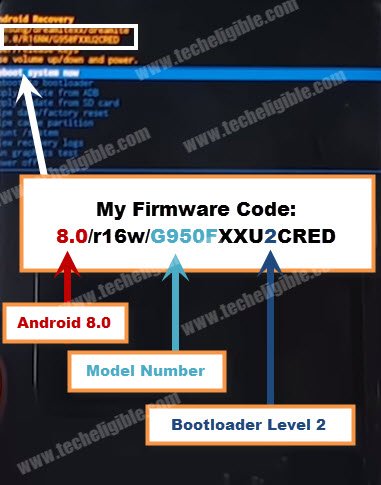
-You just have to note down your this firmware code, because we have to download Combination File just by matching model number and bootloader number.
-Go to below link to download comibation file of your deivce in your PC, and come back here.
| COMBINATION FILES GALAXY S8 Plus & S8 | DOWNLOAD |
-Once the downloading process finish, lets move on to next step.
-Now we will official stock firmware, because after flashing the device with the combination files, you will surely need to flash it again with official stock firmware to get back to your device normally. so firt we will download stock firmware, and after that we will start our flashing process, just follow steps carefully.
Download Official Stock Firmware:
– After downloading “Combination Files”, now you also need to download “Official Stock Firmware”.
– Downloading official stock firmware is very easy, just follow below steps.
– Go to your “PC Browser”.
– Type in google search bar “Download Sammobile Firmware“.
– Open very first search that related to “Sammobile Firmware”.
– Type your device model in search bar option for FRP Bypass from Samsung Galaxy S8 Plus, Galaxy S8.
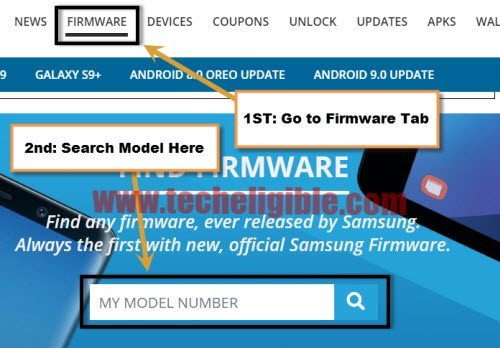
-Now go down, and there you will be able to see a list of “Firmware”.
-Download firmware from there according to your device android version and country.
-Once you are done from downloading both (Combination Files & Stock Firmware). You have to download 2 more below tools in your PC.
| ADB FRP BYPASS | [DOWNLOAD] |
| ODIN SOFTWARE | [DOWNLOAD] |
Lets Begin FRP Steps by Flashing Device with Combination File
-Keep all downloaded files and frp tools on your desktop including (Combination Firmware + Official Stock Firmware + Odin Software + ADB FRP Bypass).
-Alright, now turn off your antivirus software to avoid any type of interruption while flashing device.
-Extract all downloaded files.
-Go to extracted folder of “Combination Firmware”.
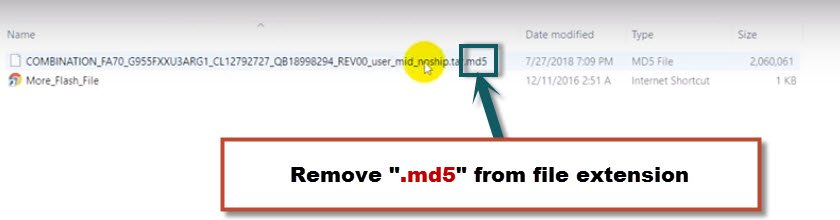
-Right click on “Combination File”, and then click on “Rename”, after that remove “.md5” from file extension.
-Now Open “Odin Software”.
-Click on “AP”, and then give file path of “Combination Firmware”.
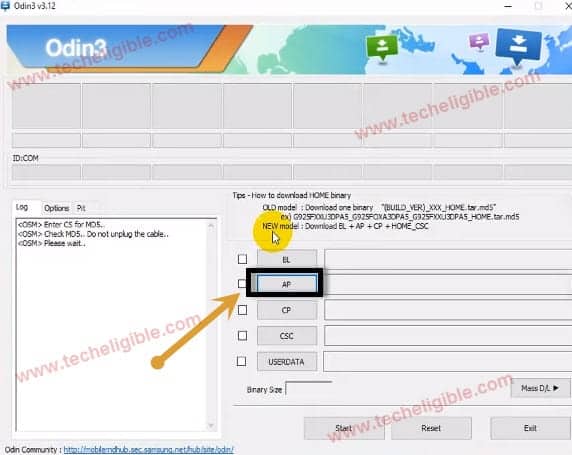
Note Make sure you have extracted combination firmware already, and removed “.MD5” from combination file extension.
-Put device into download mode by pressing (Volume Down + Bixby Key + Power Key).
-Once you see blue warning! screen, just press (Volume UP) key to continue.
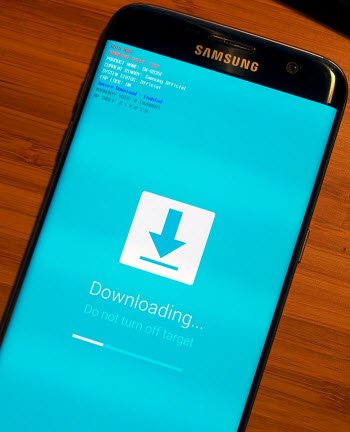
-After that, connect device to computer by micro USB Cable.
-Now you will see in “Odin Software” there will appear “IDCOM” port number, and this will turned to “BLUE Color” that means your device has successfully connected to computer.
-Click on “START” button to flash Galaxy S8 Plus / S8 device.
-Wait until you see “Pass!” sign in Odin software.
-After flashing process finish, your device will auto restart.
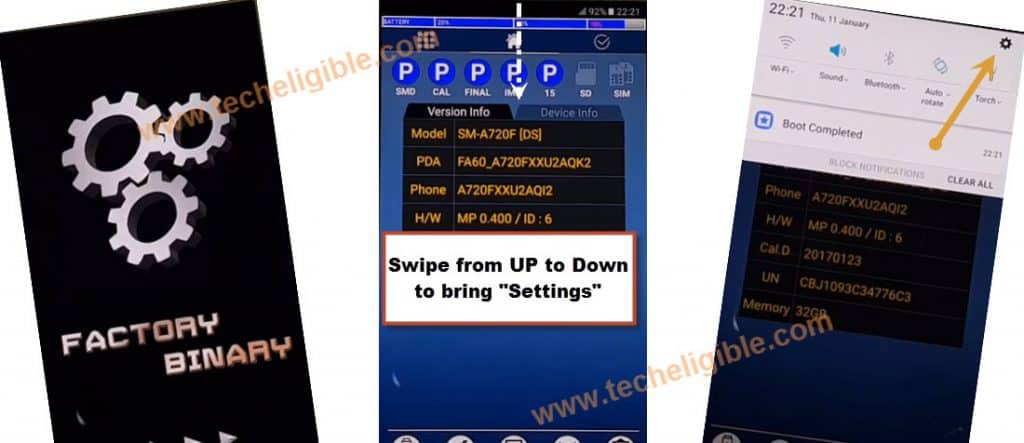
-After restart, device will auto enter into “Factory Binary mode”.
Enable ADB Mode:
-Swipe down from top of the screen.
-Tap on “Settings gear icon” from top right corner (See Below Image).
-Now go down, and then tap on “Developer Options” to Bypass FRP Samsung Galaxy S8 Plus/Galaxy S8.
-Make sure that “USB Debugging” mode is enabled from there.
-Go back to very first home screen.
-Tap on “IME” from bottom of your screen.
-Calculator will be launched right after you hit “
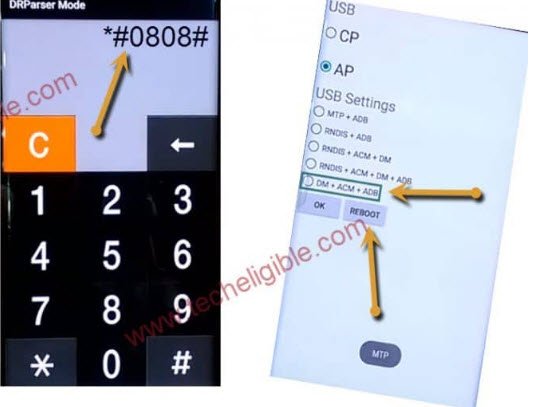
-Type code there “*#0808#“.
-USBSetting Mode will open.
-Select option from there “DM+ACM+ADB“.
-After that, tap on “REBOOT” button.
-Go to the folder of “ADB FRP BYPASS”.
-Right click on “RUN” and then run as administrator.
-Now “CMD” will open.
-Connect device to computer, make sure your Samsung Galaxy Device is on.
-After that you will see in your “CMD” window, there will be a message like “Press Any Key to continue…”.
-Just press any key from your keyboard.
Note if you do not see any message like this, just close “CMD” window, and then reopen it (See Below image)
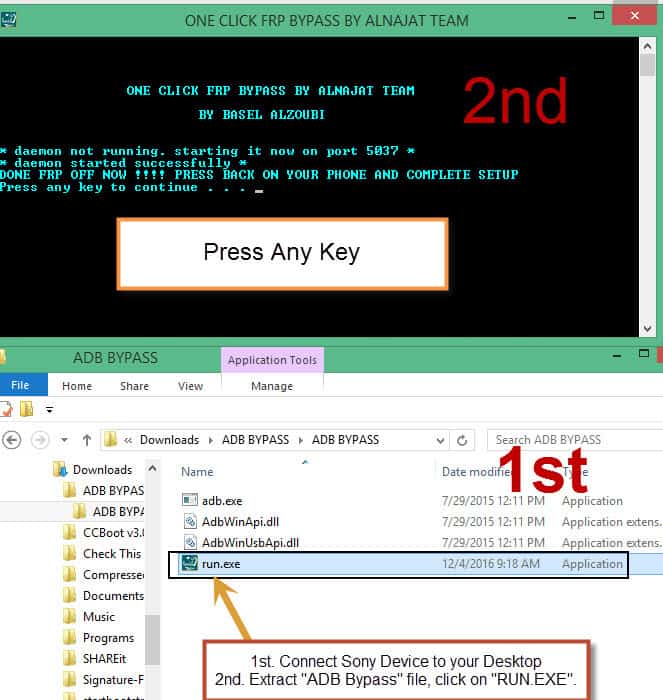
-Within few seconds, the frp bypass process will be completed.
-Let’s Flash Galaxy S8+ and S8 by official stock firmware.
-Congrats, you are done, now you only have to flash the device with stock firmware to access home screen.
Flash Galaxy S8 Plus, S8 By Stock Firmware
-Put device into “DOWNLOAD MODE” again.
-Connect device to computer.
-Open “Odin Software”.
-Give all the file path in odin software just by matching file name, like in “AP” give AP file, and in “BL” give bl file and so on.
Note Make sure, in odin “CSC“, give file path of “HOME CSC” instead of CSC only.
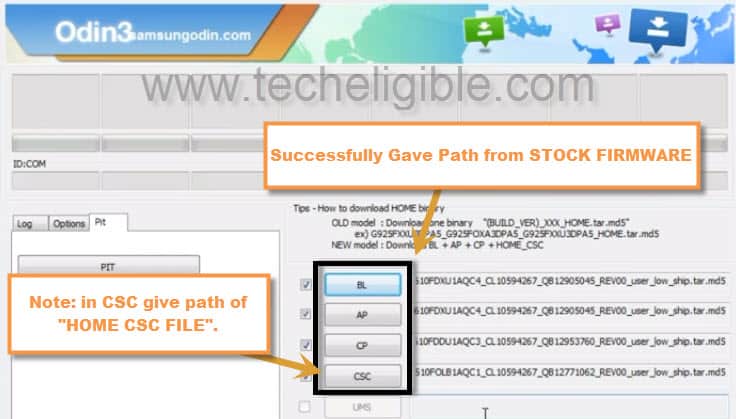
-Now click on “START” button to flash Galaxy S8+ and S8 device.
-Wait until you see a message “PASS!” on your Odin software.
-after flashing process finish, disconnect device from computer.
-Device will auto restart, after complete initial setup to access your device home screen.
Useful FRP Bypass Tips From Users on Samsung S8/S8 Plus
-To begin with, You need to flash combination, after that flash from normal firmware only system+sboot+boot+recovery+cache.
-The phone need 15 min to boot up then only click next-next-next or swipe from up the notification bar and go to setting then to enable OEM and make hard reset.
-If your phone still boot hang on logo just re-flash sboot + boot from normal firmware.

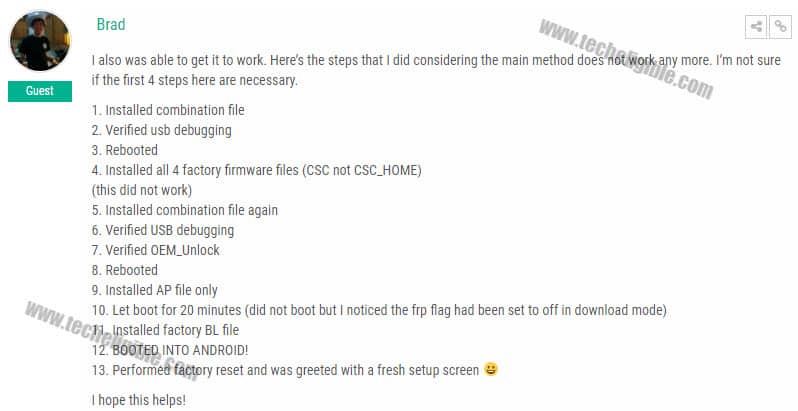
-You can also try below steps, if are stuck somewhere in bypassing frp on Galaxy S8.
-Follow all steps from below comment snap, this another alternate method, that worked successfully with one of our site visitor.
-You have to reset your device as well. Just go to galaxy S8 “MENU”.
-After that, go to > Settings > About Phone > Look for Something Else? > Factory Data Reset > Reset > DELETE ALL.
Method 6: How to Bypass FRP on Samsung S8/S8 Plus By (Samsung FRP Helper) Software on (Android 8)
Note: This method has successfully been applied on Galaxy S8 (SM-G950F), and S8 Plus (SM-G955F) Android 8.0.
1st Step is to Downgrade Android Version 8.0 to 7.0
-Lets Downgrade android version from Oreo to Nougat now.
-Click Below to downgrade android version.
⇒ Downgrade Galaxy S8|S8 Plus Android 8.0 to Android 7.0 [Click Here]
-After successfully downgrading android version, now you are eligible to bypass frp.
Let’s Begin FRP Bypass Process
– Connect Wi-Fi to your device first.
– Go to “Verify Your Account” screen.
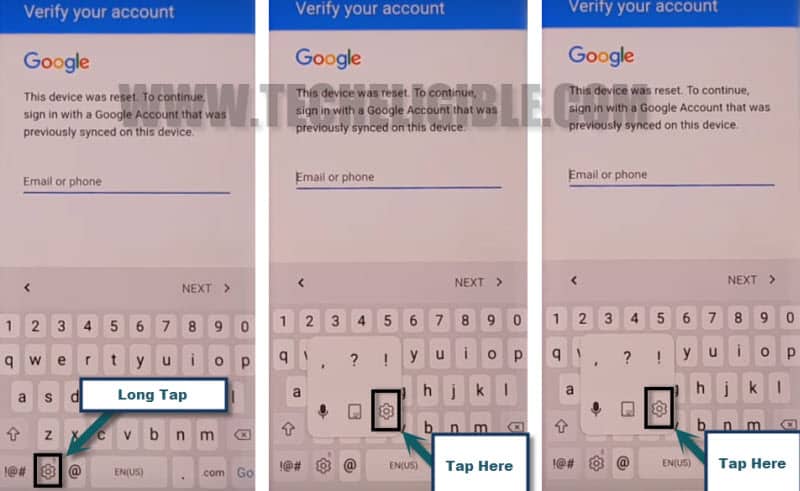
– Tap on “Enter Email or Phone” field to bring “Keyboard”.
– Long tap on “Settings gear” icon, after that select “Settings” from there.
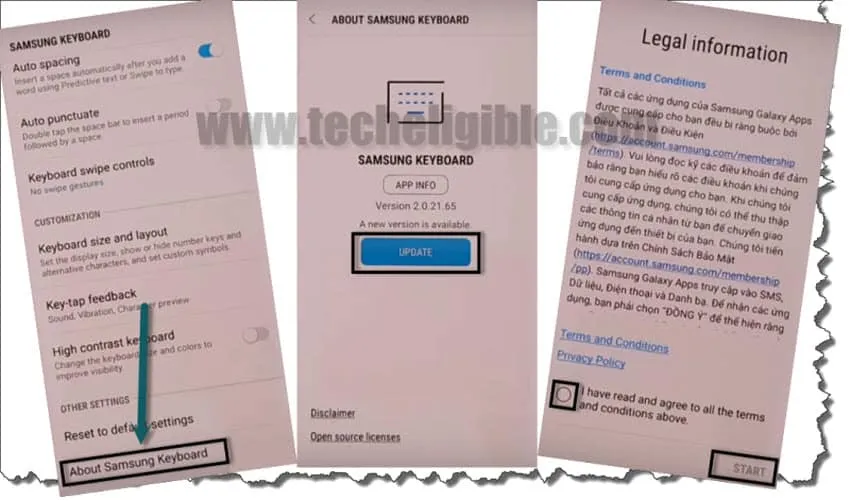
– Swipe down, and tap on “About Samsung Keyboard”.
– Tap on “UPDATE”.
– Select “i have read and agree all the term..”, and then tap on “START”.
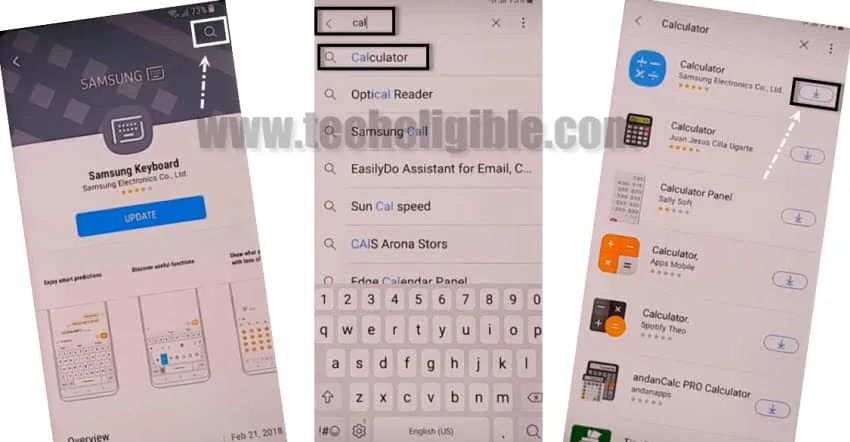
– Tap on “Search icon”, and type “Calculator”.
– Tap on “Calculator”, and after that tap on “Download icon” to downloading and installing calculator app.
Type Below Code to Enable ADB Mode for FRP Bypass
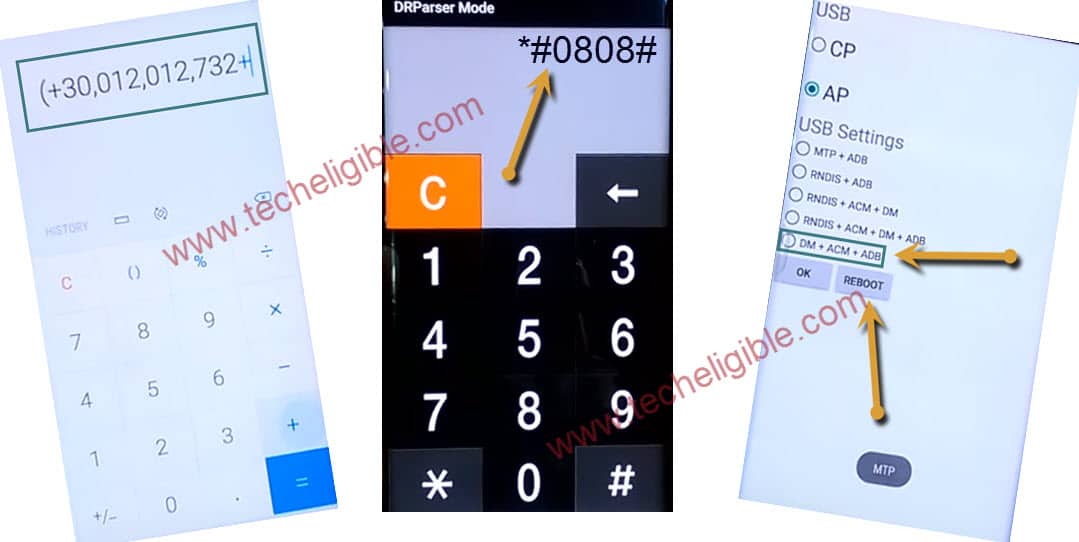
– Open “Calculator”.
– Type code in Calculator ” (+30012012732+ “
– After that, DRParser Mode will open, type code there ” *#0808# “
– USB Setting will open, select “DM + ACM + ADB“, after that tap on “Reboot“
Note Put your device on “Welcome Screen”, do not turn it off.
Download PC Frp Tools in Your PC
| GSM FLASHER (203 MB) | [DOWNLOAD] |
| SAMSUNG FRP HELPER V0.2 | [DOWNLOAD] |
| SAMSUNG USB DRIVER | [DOWNLOAD] |
– First of all install USB Device, this would help your device.
– Now Turn OFF antivirus software to avoid file deleting).
– After that, just turn off “Firewall” to avoid port blocking as well.
– Install “Samsung USB driver” in your PC.
– Extract “SAMSUNG FRP HELPER” from winrar archive file.
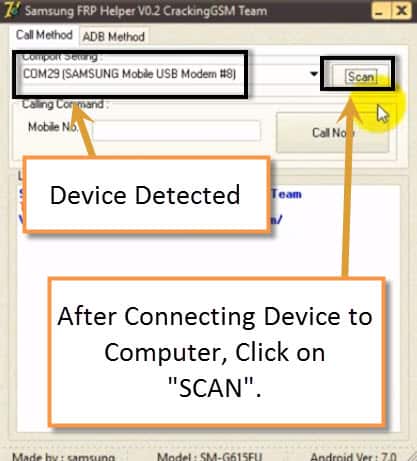
– Now Run “Samsung frp helper” software in your PC.
– Connect the device to computer by USB cable.
– Now Click on “Scan” button, and you will get your device com port on your Software screen.
– Go to “ADB MODE” tab, After that click on “REMOVE FRP” button to Bypass FRP Samsung Galaxy S8 Plus, Galaxy S8.
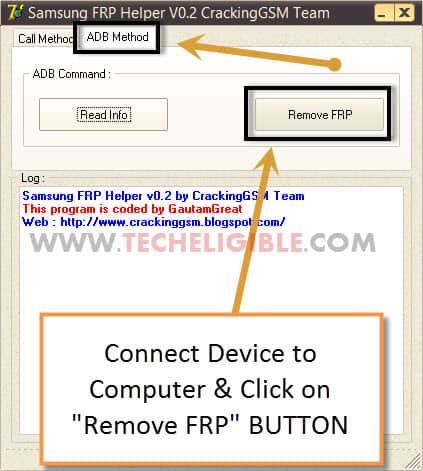
Note: If you see “NO DEVICE FOUND”, no problem by clicking 6-7 times on “Remove FRP” button, software will detect your device and will start to Bypass Google FRP, if even then the device is unable to be detected by the software, then follow below method to bypass frp.
Bypass FRP By GSM Flasher Tool
– Extract “All in One Tool” file.
– Run “All in One Tool”.
– Click on “GSM FLASHER Bypass Adb Tool“.

-Turn on Samsung Galaxy device.
-Reconnect Device to computer
– Allow USB Debugging option, if you get.
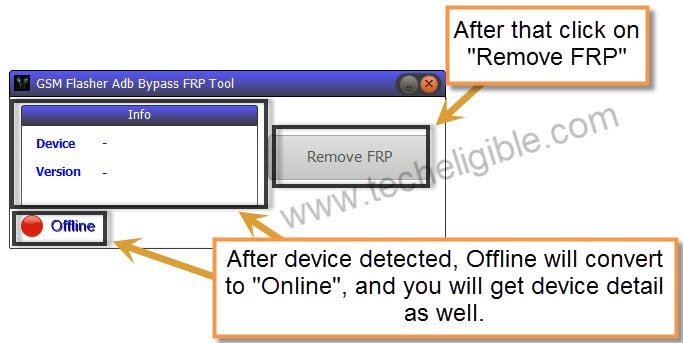
– Now wait 1-2 minute “GSM Flasher Bypass ADB Tool” will detect your device.
– Just click on “REMOVE FRP” button to Bypass FRP Samsung Galaxy S8 Plus without using any paid service.
Conclusion:
We used 6 different FRP Bypass methods to Bypass FRP on Samsung S8 / S8 Plus. As you know, there are different android version Samsung S8/S8+ phones available. For each android version, there is separate frp bypass methods is available.
We used 2 PC frp bypass tools (Samfw & Samsung FRP Helper). These both are very effective and working free tool to bypass frp. We simply, enabled adb mode from Samsung phone, after that, connect the device to PC and used these tool to remove frp.
In (Method-3), We also have used (PIN locked Setup sim card). Setup 4 digits pin locked code on SIM Card. After that, insert that sim on FRP locked Samsung S8/S8+ phone. Somehow, we brought up top notification and enabled (Bluetooth) function. Used (Bluetooth headphone) to reach to google browser. From there, we opened (Settings) and setup new security lock protection to bypass frp.
On Samsung s8/s8 plus phone Android 8 version, we used a method by flashing the device with firmware using Odin tool. After that, we downloaded and used (ADB FRP Bypass) tool to remove frp.
Read More
Samsung Galaxy S7 | S7 Edge FRP Bypass