
Have you lost access to your own Samsung Note 20/Note 20 ultra phone after factory reset? That happened because of FRP locking security feature. The phone is locked with google account and will not be allowed reaching back to main home-screen until the device owner remember back and sign in again with google account. Otherwise, you will have to follow up alternate method to to bypass frp first. After that, complete setup wizard steps.
We have 5 frp bypass methods to Bypass FRP on Samsung Note 20, Note 20 Ultra (5G) Android 13/12/11/10. So that, you don’t face any issue in gaining access back to your Samsung locked phone. Try with (Method 1), that is the latest one and working tremendously on many other Samsung phone as well in unlocking frp with few steps.
Disclaimer: This method is only for device owner and for educational purpose only.
Method 1: Bypass FRP Samsung Note 20/20 Ultra By Samfw Tool [Android 13/12/11]
-Firstly, download this awesome working tool from below.
⇒ SamFW V3.31 Tool [DOWNLOAD]
Password: techeligible.com
-Once downloading is done, just extract the tool from winrar archive, you will be asked for a password, use above given password to unzip or extract the tool.
-Now double click on “SamFwFRPTool.exe” file name same as shown in below image

-Lets get back to Samsung Galaxy device, and connect this device with PC, do make sure the device is switched on.
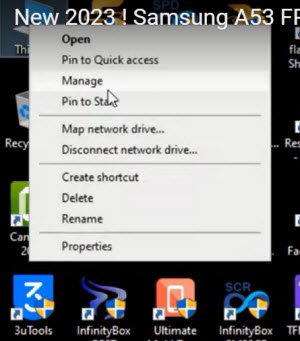
-First of all, we will make sure our device has been detected by PC, to know this, right click on (This PC / My Computer), and click to “Manage”.
-After that click to “Device Manager”.
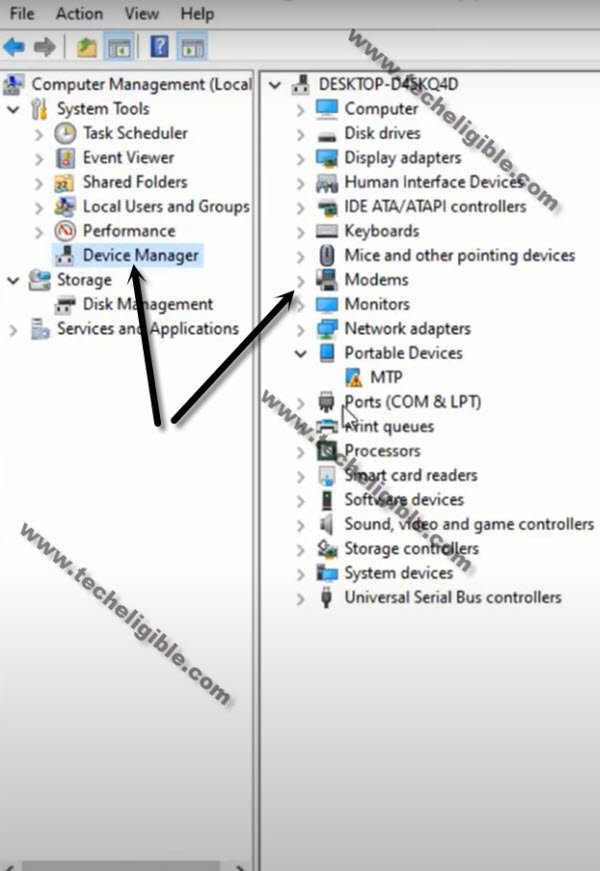
-There you will be able to see your device connected detail same as shown in below image.
Note: If you see there any (Exclamation Sign) on your Samsung USB modem hardware, that means your computer is required to install proper Samsung USB drivers, well, while opening (SamFw) tool, you must receive a popup message of installing Samsugn USB driver, so you can install those drivers from there easily.
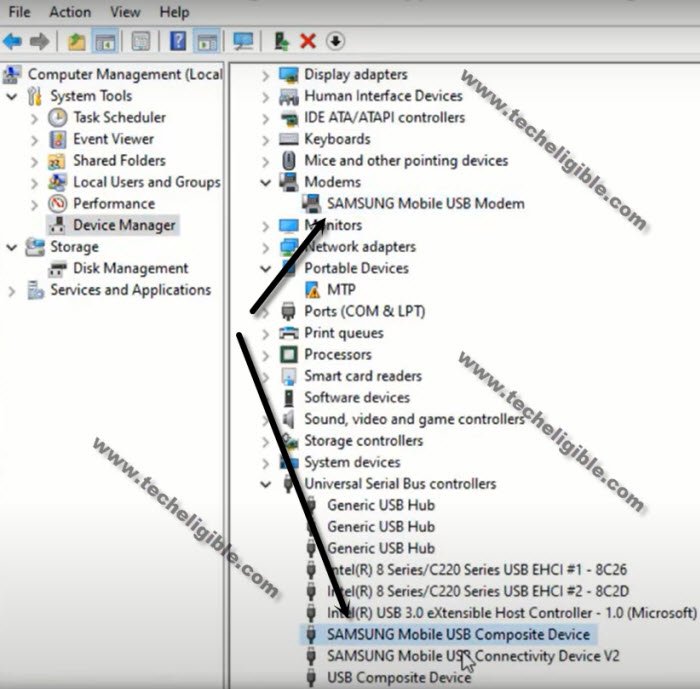
-After successfully connecting device with PC, just open your (Samfw) tool, and there you will have a proper Samsung com port appearing up, that means the device is detected by PC and tool successfully.
-Click on button from tool “Remove FRP (Aug 2022 security)” button.
Note: You can update your Samfw tool to the newer version, you must receive a popup window after running the tool on PC, just, click to update option.
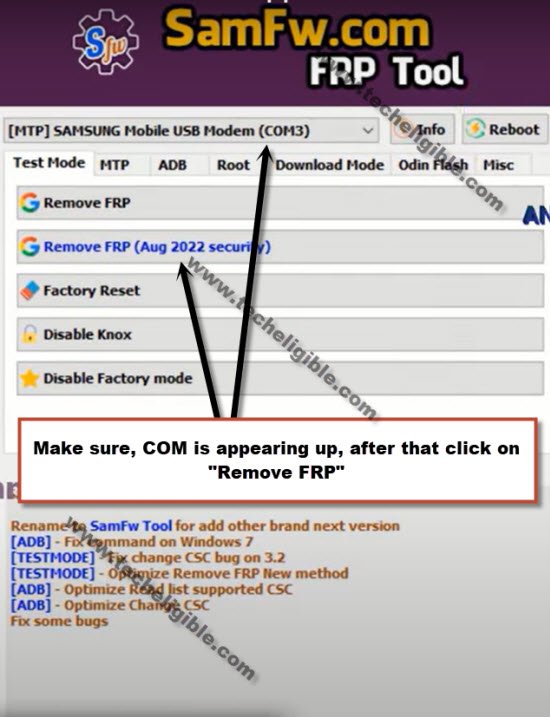
-You will be shown a popup message saying (Enable Test Mode), but do not click on “OK” button from that popup message, we will click this later on after turning on test mode from Samsung Galaxy device.
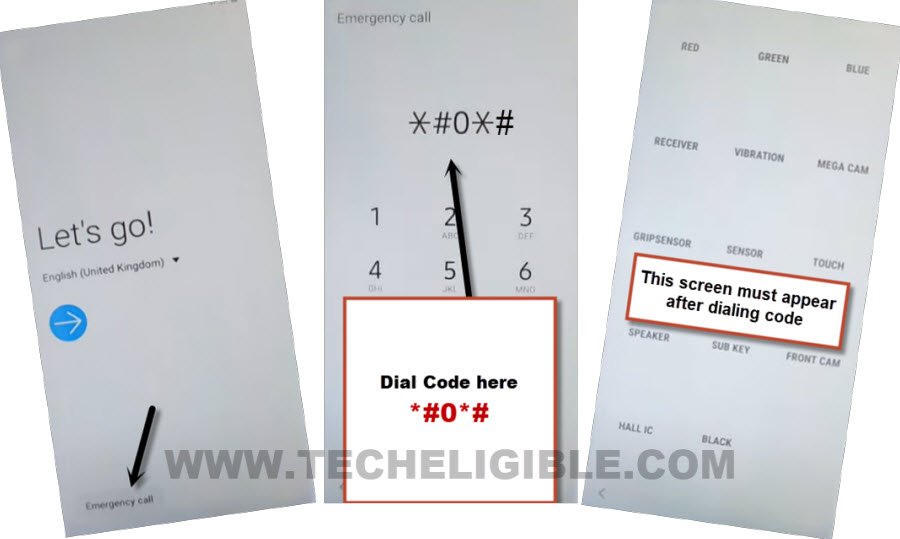
-From your Samsung device, hit on “Emergency Call”, and dial this code there “*#0*#“. after that you will have there a blank box screen, that means the code is working perfectly and you have successfully enabled test mode.
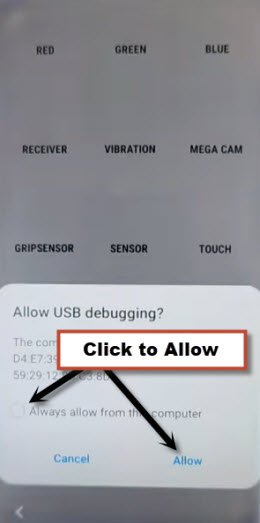
-Go back to your PC screen, and click on “OK” from enable test mode popup, after that you will receive another popup in your Samsung galaxy device screen saying (Allow USB Debugging?).
-You will have a (Allow USB Debugging) popup message on your android phone screen, just click to an “Allow” option.
-As soon as you hit on a “Allow” option, the tool will start removing frp process.
-In few seconds, you will receive a popup message “FRP Remove Successfully, Congratulations”, this is how you can easily bypass frp from your any Samsung Device or android device with single click.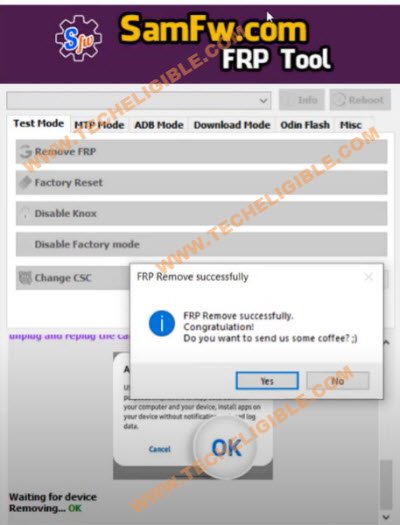
Method 2: Bypass FRP Samsung Note 20, Note 20 Ultra [Android 12/11]
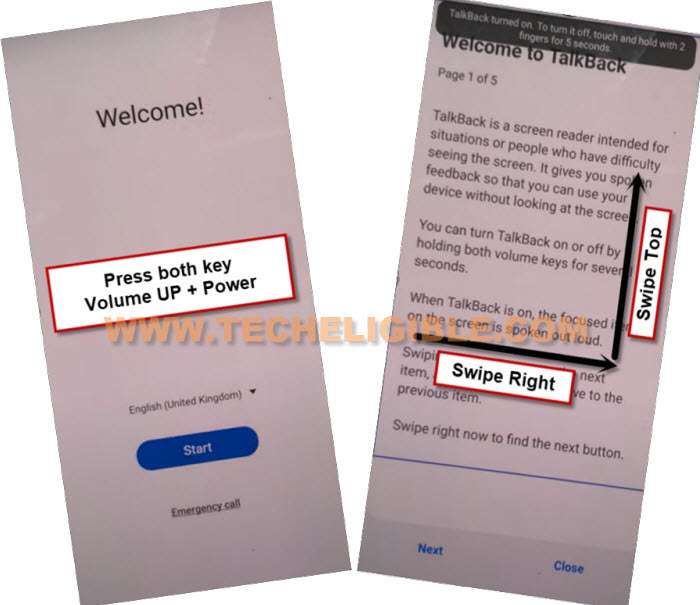
-We are going to turn on talkback to reach google chrome browser easily, so long hold both “Volume UP Buttons + Power Buttons” simultaneously, after that tap on “Use”.
Note: If (Volume UP + Power) do not work, then try with long press both (Volume UP + Volume Downs buttons) to turn on talkback, even then, if you are failed to turn on talkback, then you will have to go for an alternate method to Launch browser via PC.
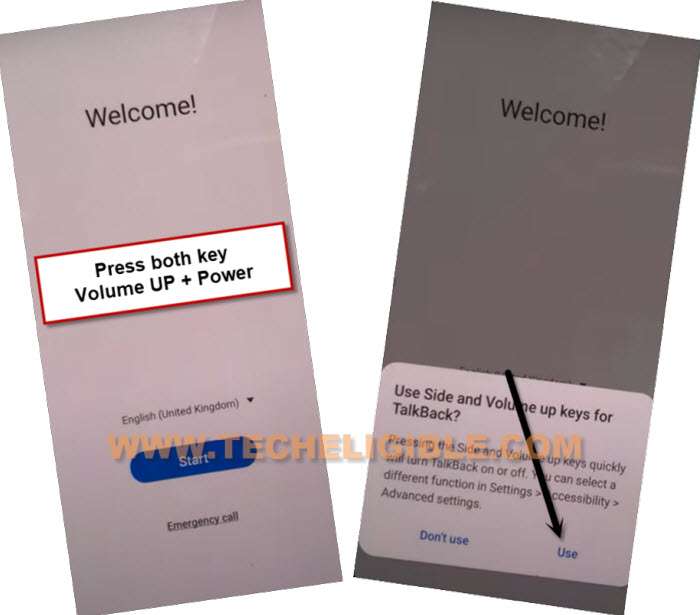
–Keep holding both keys again (Volume UP + Power), and this time the talkback feature will turn on completely, you will also have a flash message on screen.
–Now just make “L” shape by swiping on screen from right to left, and then swipe top. (See below image).
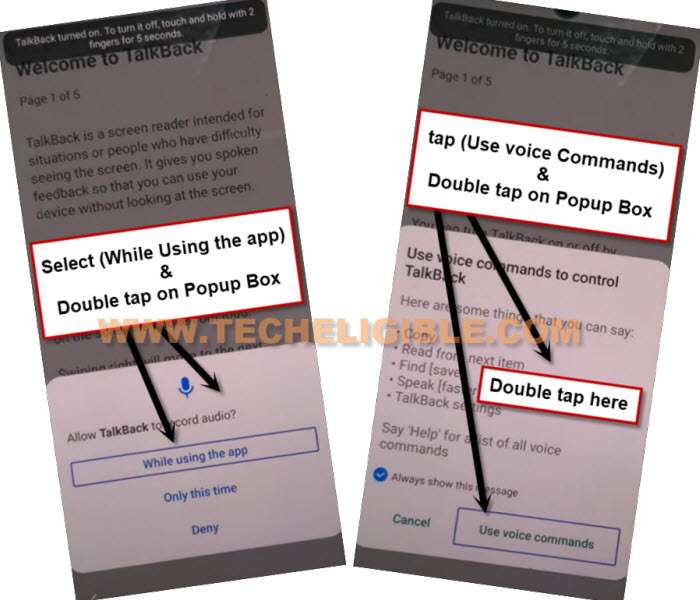
-Tap once on “while using the app”, now double tap on anywhere on screen.
-Tap once on “Use Command Voice” option, and again double tap on popup box.
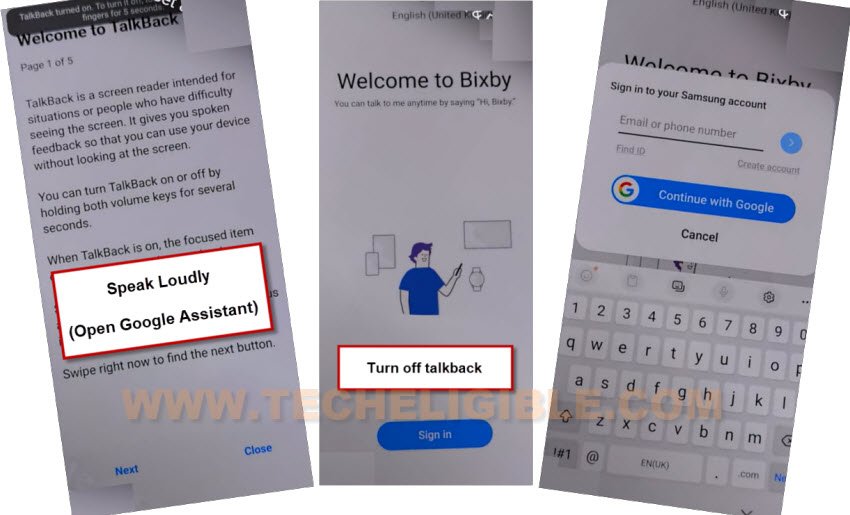
–You have to speak very loudly (Open Google Assistant).
-As soon as you reach to (Welcome to Bixby) screen, just Press both (Volume UP + Power) keys at same to turn off talkback.
-Hit on “Sign in” button, and sign in there with your registered Samsung account.
Note: If you do not have any Samsung Account, click here to create new acc.
-Tap to > Start > Continue.
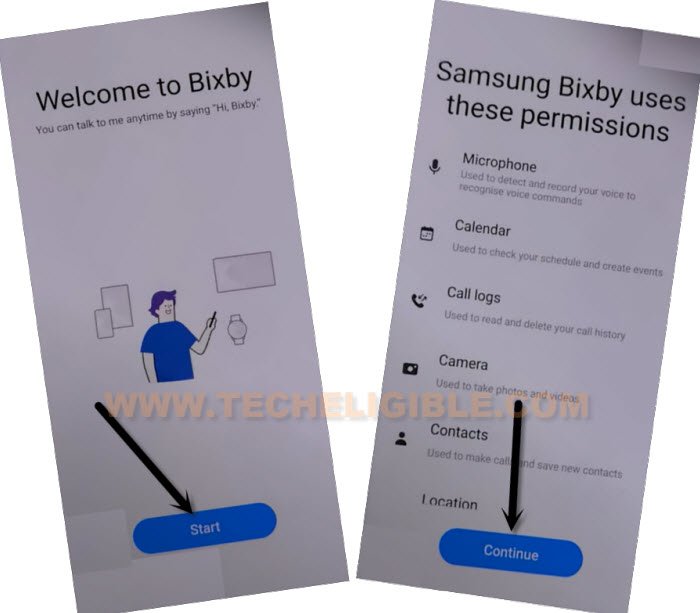
-Go all the way back to first (Welcome) homepage.
-Enable talkback again by long press both (Volume UP + Power) buttons, and then tap on “Use”
-Tap once on “while using the app”, now double tap on anywhere on screen.
-Tap once on “Use Command Voice” option, and again double tap on popup box.
–You have to speak very loudly (Open Youtube).
-Now you will be redirected inside Youtube official website.
-From top right corner, tap on > Profile icon > Settings icon.
-Tap to > About > Youtube Terms of Service.
-Now open chrome browser by hitting on > Accept & Continue > Next > No Thanks.
Install Alliance Shield from Google Store:
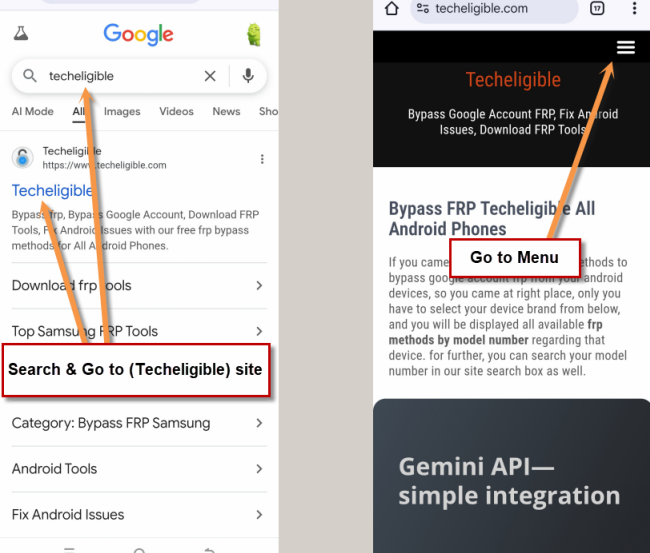
-Make search there with “Techeligible“. After that, go to techeligible site.
-Navigate to “Menu” option from top corner.
-After that, simply, hit on > Other Free Tools > Samsung FRP Tools.
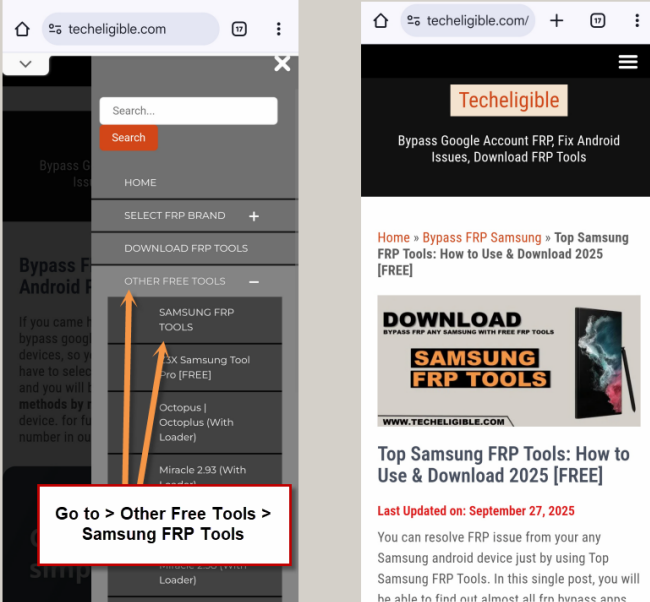
-Visit our website searched result, and from there tap on “Install Alliance Shield X from Galaxy Store“.
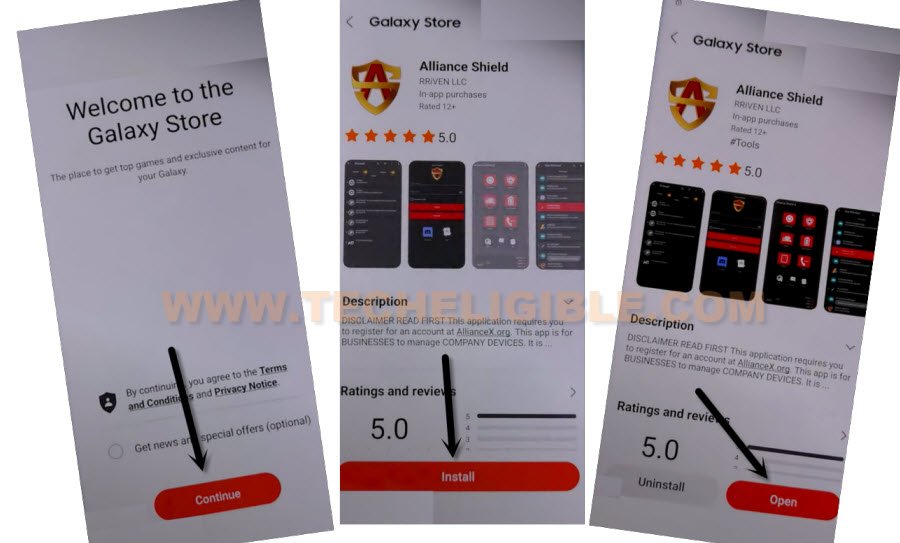
-You will be redirected inside Galaxy Store, from there hit on > Continue > Install > Open.
-Once you reach to Alliance Shield X app, tap to “Skip”.
-If you have registered your account already, so sign in there with your account, otherwise create your free account in (Alliance Shield X) app by hitting on (Register) button.
-Tap to > Next > Turn on (Device Admin) > Activate.
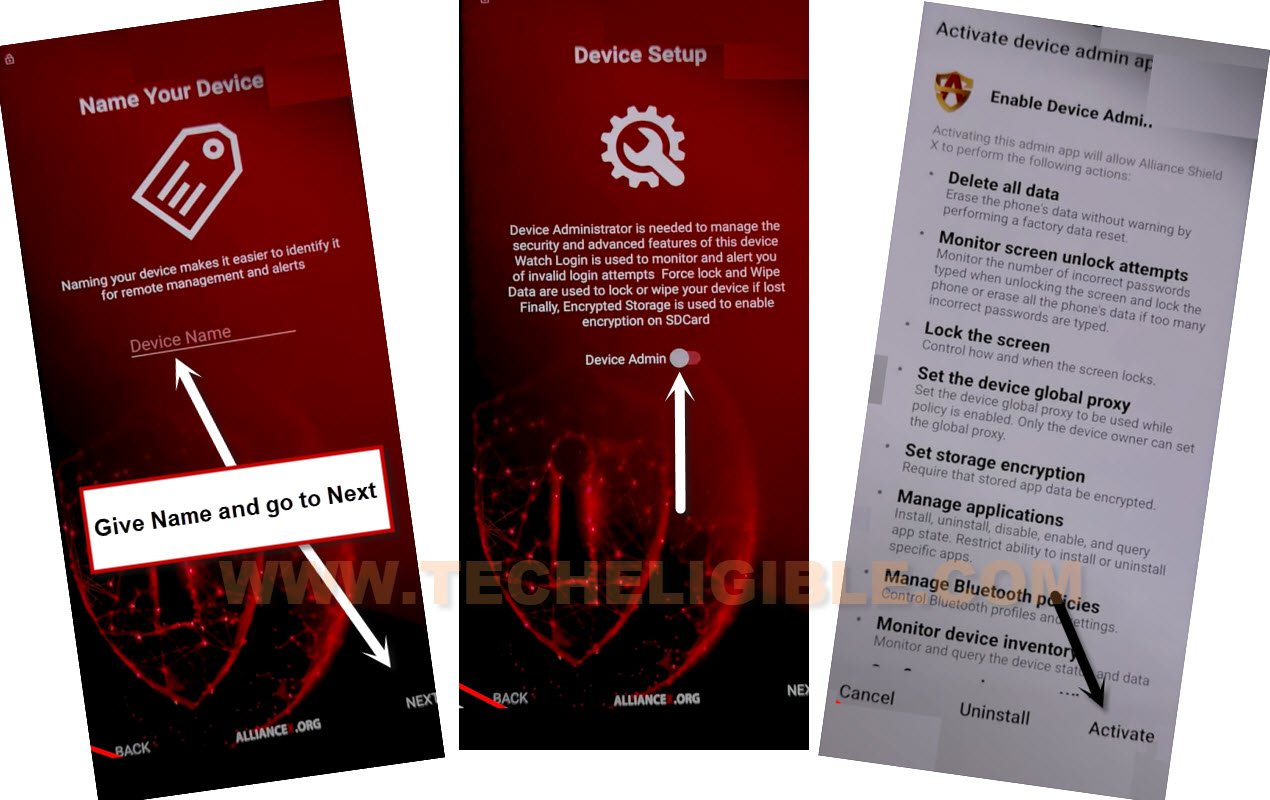
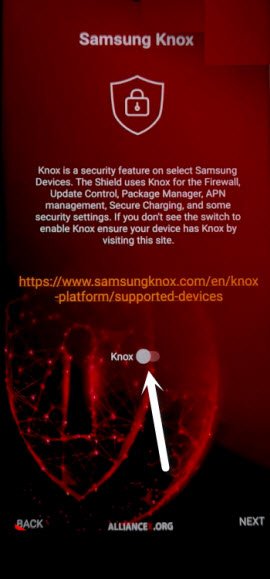
-Turn on (Knox) > Agree > Next > Finish.
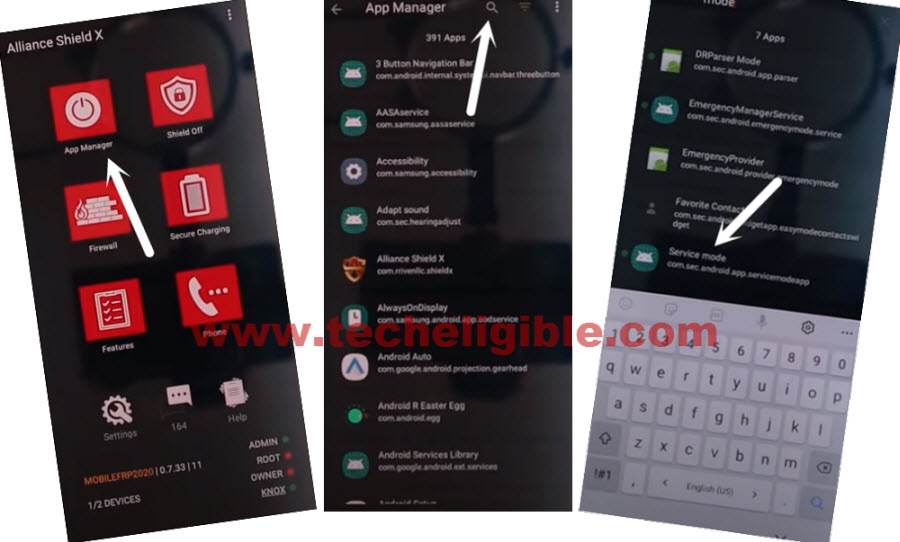
-Go to “App Manager”, and tap to “Close” from popup box.
-Hit on “Search icon” from top corner, and search there “Mode”, and tap to “Service Mode”.
-Tap to “Activities”, after that go all the way down, and tap on option (com.sec.android.app.modemui.activities.usb.settings).
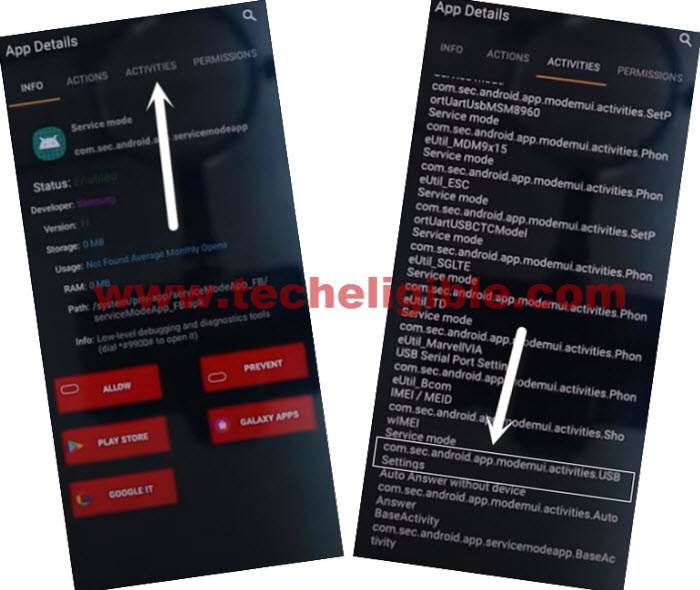
-Tap again on (com.sec.android.app.modemui.activities.usb.settings), and again hit on “OPEN”.
Note: But, you may not be able to Enable to Turn on (ADB) option from there, if you have an error of (Unable to Complete Action), just go back by tapping on “Back Arrow”.
-Go back to (Samsung FRP Tools) page by hitting on back arrow few times.
-Tap to “Open Samsung Settings“.
-Tap to > Biometrics & Security > Other Security Settings > Device Admin app.
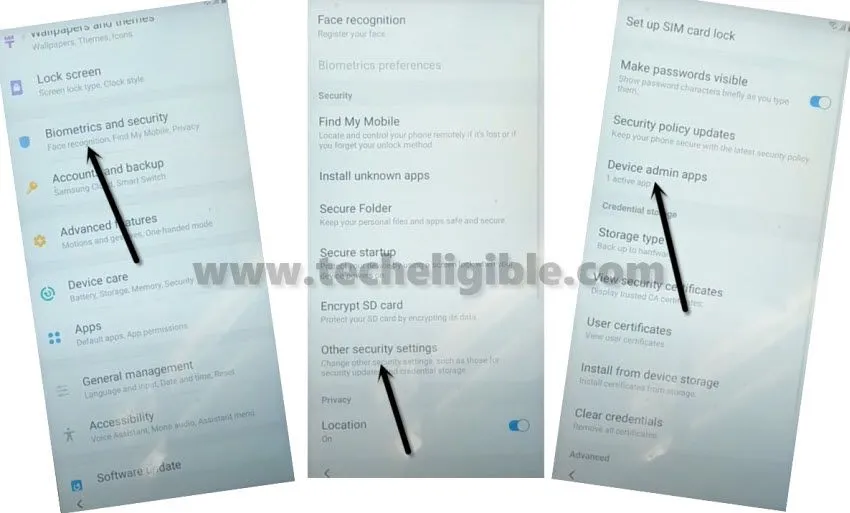
-Tap to > Alliance Shield X > Activate.
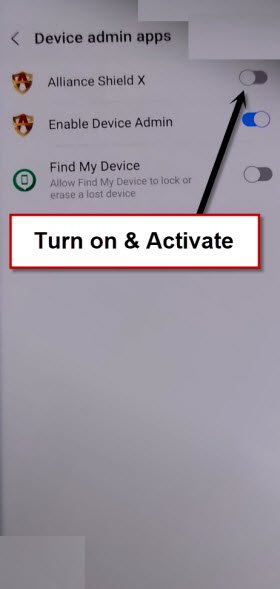
-Go back to (Samsung FRP Tools) page by hitting on back arrow few times.
-Hit on “Install Alliance Shield X from Galaxy Store“, and then tap to “Open”.
-Go to “App Manager”, and tap to “Close” from popup box.
-Hit on “Search icon” from top corner, and search there “Mode”, and tap to “Service Mode”.
-Tap to “Activities”, after that go all the way down, and tap on option (com.sec.android.app.modemui.activities.usb.settings).
-From popup window, tap to “Open”.
-Turn on “MTP + ADB” option.
Download & Use Samsung FRP ADB:
-Download & Open (Samsung FRP ADB) tool in your PC [DOWNLOAD]
-Connect your device Samsung Note 20 again to PC.
-Extract & Open “FRP Bypass ADB” tool in PC
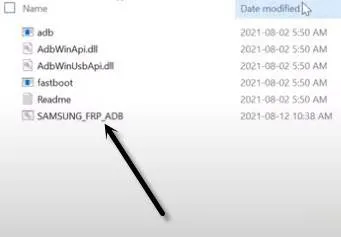
-This tool will start automatically, and will Remove FRP Samsung Note 20 in few seconds, wait until this process finishes.
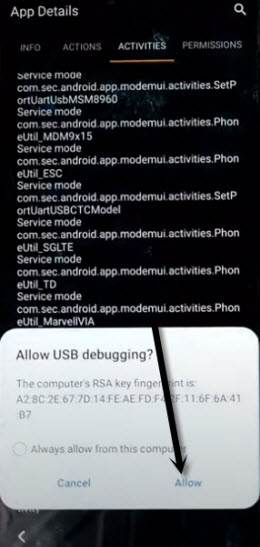
Note: In your Samsung Device, you will have a popup widow (Allow USB Debugging?), just tap to > Allow > Allow, afterwards, the ADB Tool will detect your device and will start bypassing frp lock.
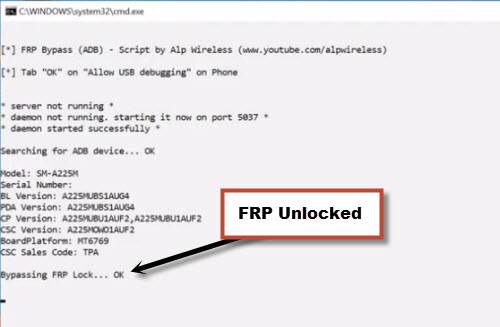
-Samsung Note 20 will automatically restart, and now you have to finish setup wizard.
-Once you reach inside device homescreen successfully, now we have to perform factory reset task from the device settings.
-Swipe down from top bar to bring top menu, and then tap on “Settings” gear icon from top corner.
-Go to > About Phone > Software Information, now tap 7 times rapidly on “Build Number”.
-Go back to “Settings”, from there, go to > Developer Options > Turn on (OEM Unlocking).
-Now go back to (Settings) again, from there tap to > General Management > Reset > Factory Data Reset.
-Hit again on “Reset” option, now the reset process will start.
-This is how you can easily Remove Google Account on Samsung Note 20, Note 20 Ultra Android 12, and android 11, thank you for visiting us.
Method 3: Bypass FRP Samsung Note 20/20 Ultra By Samfirm Tool
-Firstly, Install & Open “SamFirm Tool 1.6.4” in your PC [DOWNLOAD]
-Secondly, Install “Samsung USB Drive” in PC [DOWNLOAD]
-Now you are supposed to Connect “WiFi” to device.
-Afterwards, connect phone with PC as well.
-Open (SamFirm) software, tap to > Android Tool > Bypass FRP.
-Hit on > Scan > Bypass FRP.
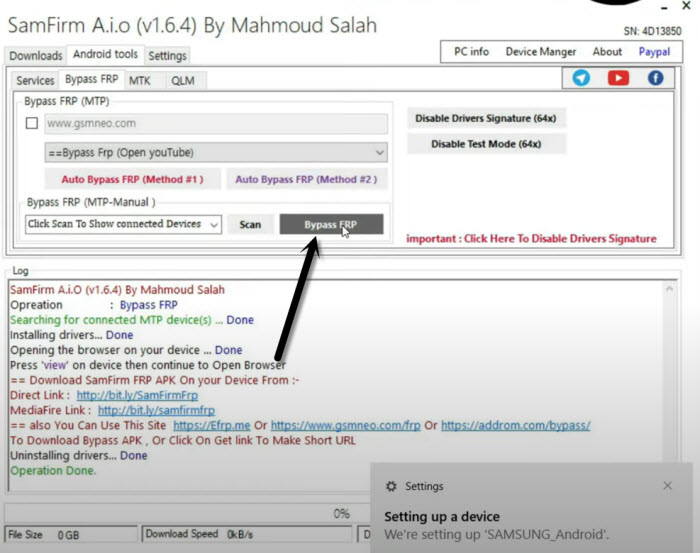
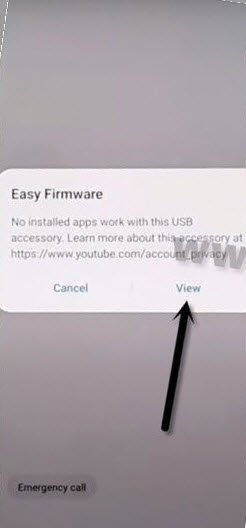
-Tap on “View” option from Samsung Note 20 device.
Note: If you do not receive a popup window, just tap to “Disable Driver Signature” from the Samfirm tool, and then reconnect your device and try again.
-Tap to > Accept & Continue > Next > No Thanks.
Let’s Install S9 Launcher:
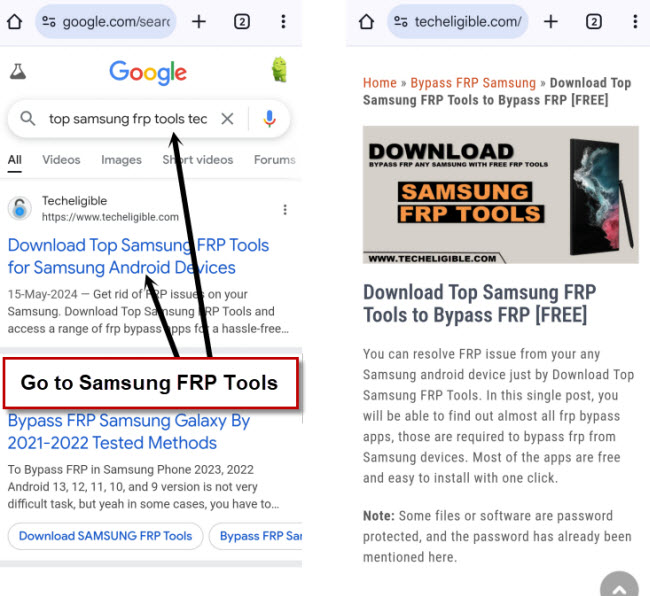
-Search “Top Samsung FRP Tools Techeligible“, and visit our website searched result.
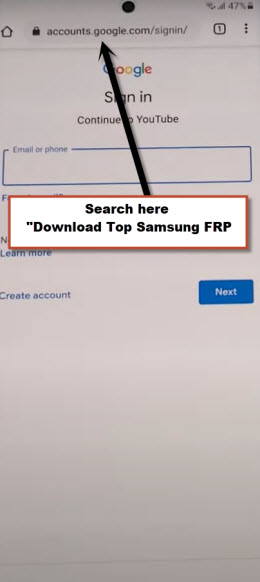
-Go to our website searched result same as shown in below image.
-Go down, and hit on “Install S9 Launcher“, you will be redirected to the installation screen.
-Tap to > Update > Install & Open > Login with Google Account.
-From popup window (Want a faster way to sign in), just tap to “Cancel”.
-Now hit on > Allow & Download > Install Anyway > Continue > OK, afterwards.
-After few seconds, you will be redirected inside the device homescreen.
-Arrange another NON-FRP Locked android device, and follow steps in that device.
Let’s Follow Below Steps in Other Android Device:
-Go to > Settings > Accounts & Backup > Accounts.
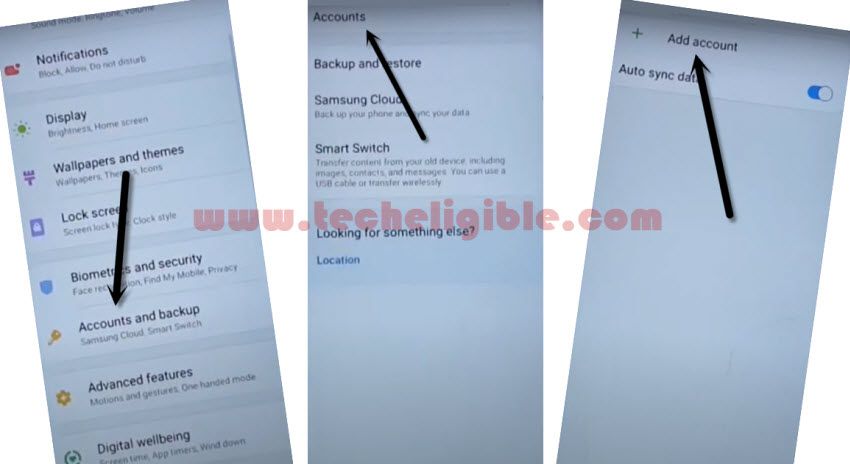
-Add your Same (Gmail Account) which you have already added in your Galaxy NOTE 20 device while downloading (S9 Launcher) app.
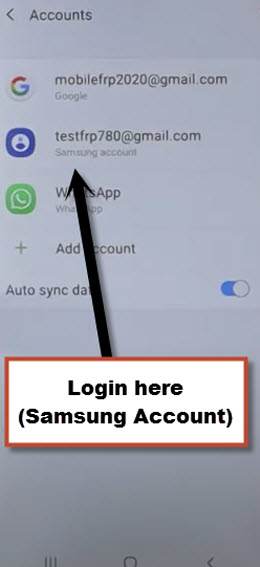
Note: Make sure, your both android devices are on same WiFi network and on Same Samsung Account.
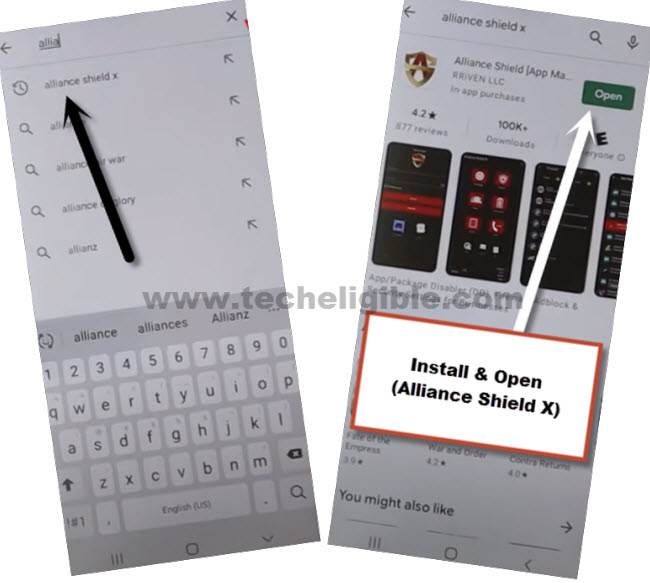
-Open “Play Store” in other android device, and install “Alliance Shield X” app.
-Go to > Settings > Accounts and Backup > Backup And Restore > Back up data.
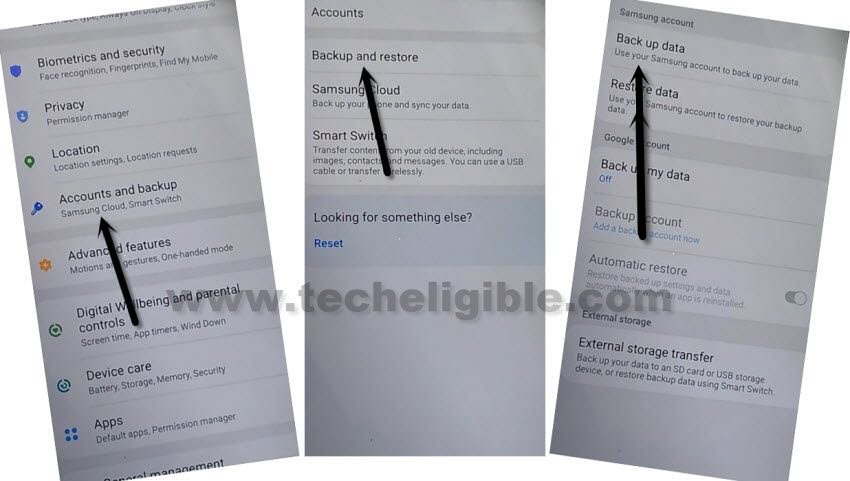
-Tap to “BACKUP UP” button from below to backup all your apps in Samsung Account, which is already signed-in in your phone.
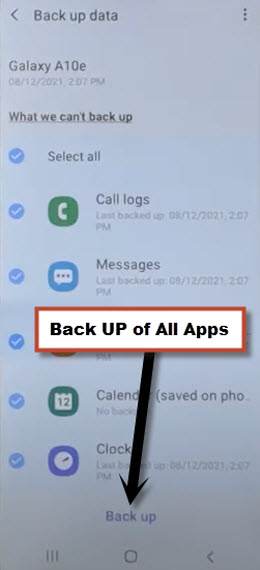
Follow Steps on Samsung Note 20/20 Ultra:
Remember: The same (Gmail Account) which you signed in (Galaxy NOTE 20), should also be signed-in in your (Other Android Device), means your both devices should be with same Gmail Account in order to bypass frp Account correctly.
-Go to > Accounts & Backup > Backup and Restore > Restore Data.
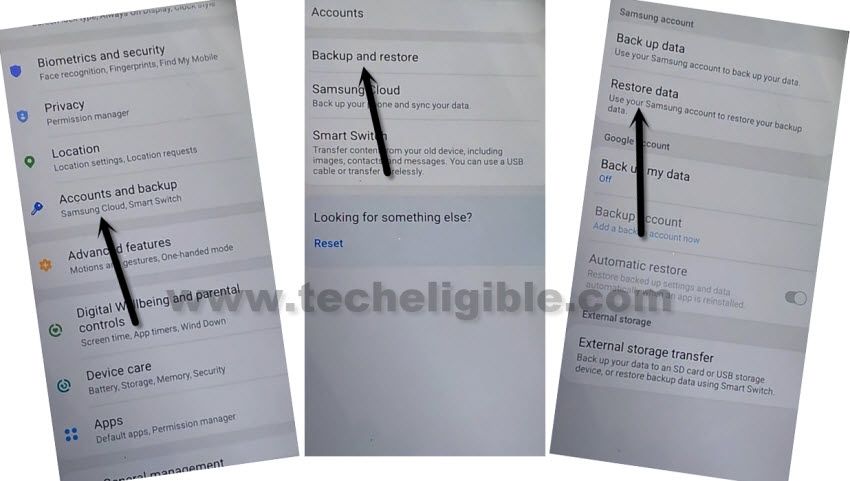
Note: You may have a (Update Samsung Cloud) popup window, just hit on “Update” button, after that tap to “Restore” and wait until this updating process done.
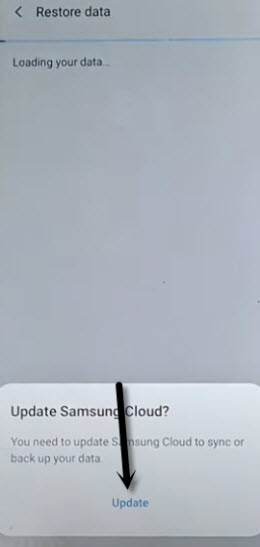
-After few minutes waiting, tap again on “Restore Data” option.
-There you will have (Choose a verification Method) screen, Choose any one of your method to verify your email.
-Now tap to “Get Started” button and this will start restoring data.
-De-select the “Select All” option, and the tap to “Next Arrow” which is right next to the (Apps), after that select only “Alliance Shield X”, and then tap to > Done > Restore > Install.
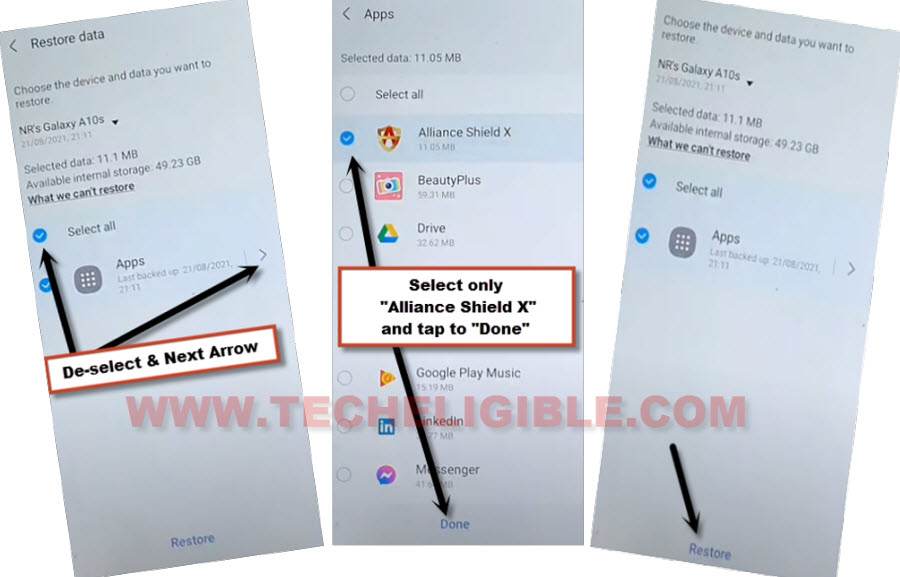
Create an Alliance Shield X Account:
–Go to > MENU > Alliance Shield X.
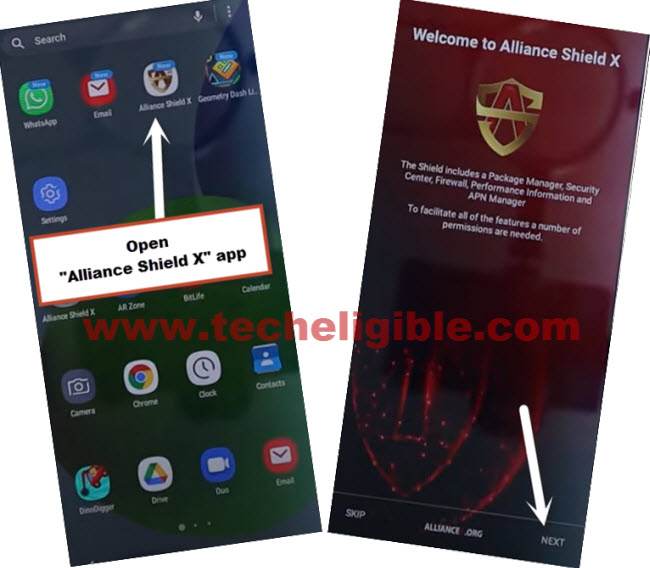
–From the (Alliance Shield X) app, tap to > Next > Next > Next > Got it.
-Register your new account in (Alliance Shield X).
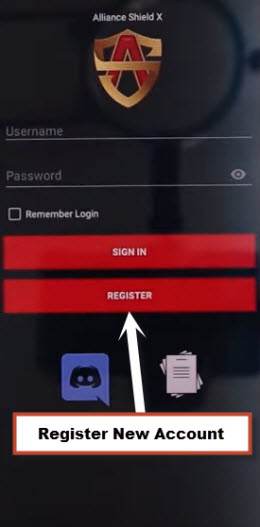
-Sign-in with your registered account in (Alliance Shield X) app.
-Type any “Device Name”, and then tap to “Next”.
–Turn on “Device Admin”, and hit on > Activate > Next.
-Turn on “Knox”, and select option (i have read and agree…), and tap to > Confirm > Next > Finish.
–Tap on “App Manager”, and tap to “Close” from popup box.
–Hit on “Search icon” from top corner, and search there “Mode”, and tap to “Service Mode”.
-Tap to “Activities”, and then scroll all the way down, and tap to (com.sec.android.app.modemui.activities.usb.settings).
-Tap again on (com.sec.android.app.modemui.activities.usb.settings), and again hit on “OPEN”, and then select (MTP+ADB).
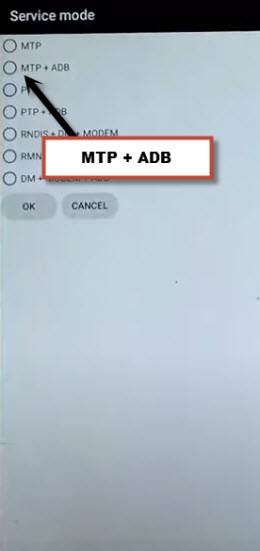
Final Step to Bypass Google Account:
–Open “SamFirm tool” in PC, and then connect your Galaxy NOTE 20 device with PC.
-Go to > Android Tool > Bypass FRP > Scan.
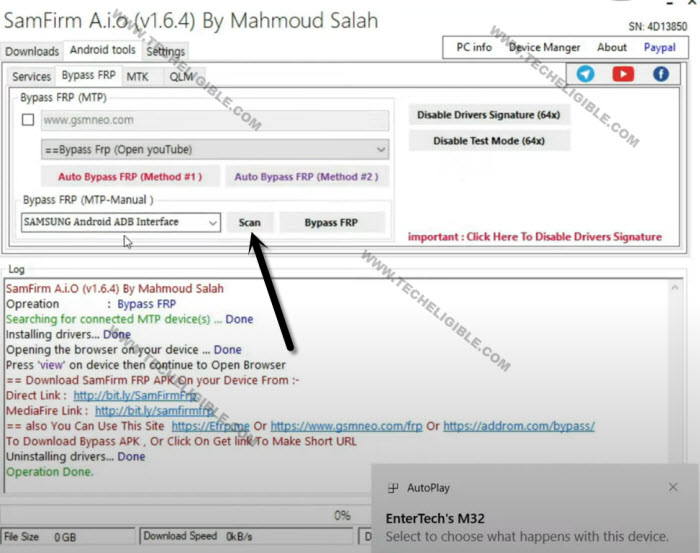
–Go to > Services > Read Device info.
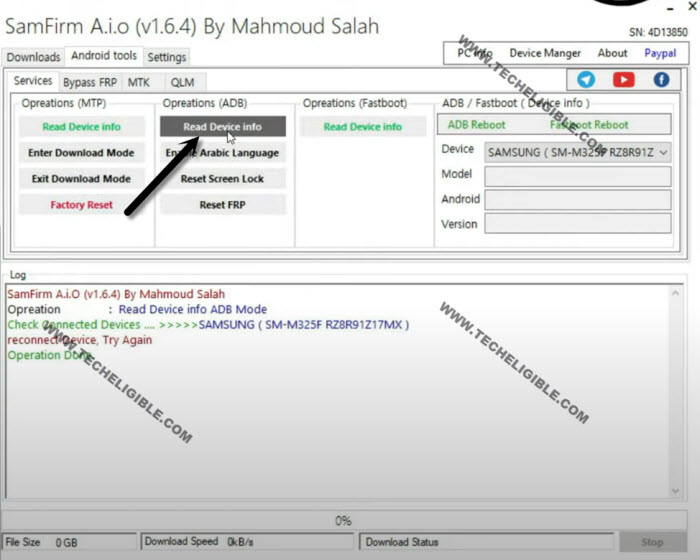
–Once the info reading process completes, just hit on “Reset FRP” button from there to start bypassing frp.
Note: You will also receive a popup window (Allow USB Debugging) in your Galaxy NOTE 20, just tap to “Allow”.
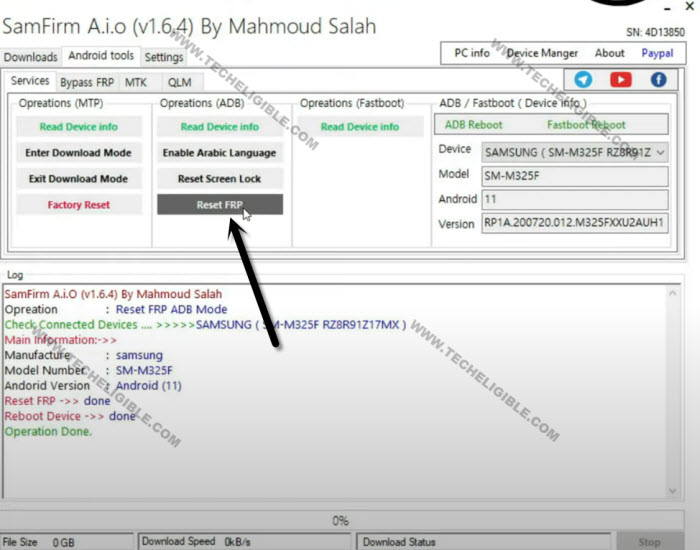
–The connected device will auto reboot, the method has been completed
Method 4: Bypass FRP Galaxy Note 20/20 Ultra By Smart Switch App
This is method 2, the first half part of this method is the as we have already described above, but last half part of this method is totally different, we are using (Smart Switch App) to bypass frp account, so you have to do that all, just follow steps from below.
–Install & Open “SamFirm Tool 1.6.4” in your PC [DOWNLOAD]
–Install “Samsung USB Drive” in PC [DOWNLOAD]
–Connect “WiFi” to Galaxy NOTE 20, after that connect with PC.
–From (Samfirm) software, tap to > Android Tool > Bypass FRP.
–Tap to > Scan > Bypass FRP.
–You will receive a popup window in Galaxy NOTE 20, just hit on “View”.
Note: If you do not receive a popup window, just tap to “Disable Driver Signature” from the Samfirm tool, and then reconnect your device and try again.
–Tap to > Accept & Continue > Next > No Thanks.
–You will see “Google Sign in” screen, but there will be a search area at the top bar, we are going to access Samsung frp tools page.
–Search “Top Samsung FRP Tools Techeligible” and visit our website searched result.
-Tap on link “Open Samsung Settings“.
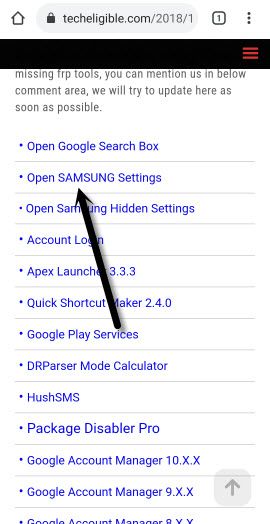
Let’s Transfer Gmail Account:
-Go to > Accounts & Backup > Bring Data from old device > Download.
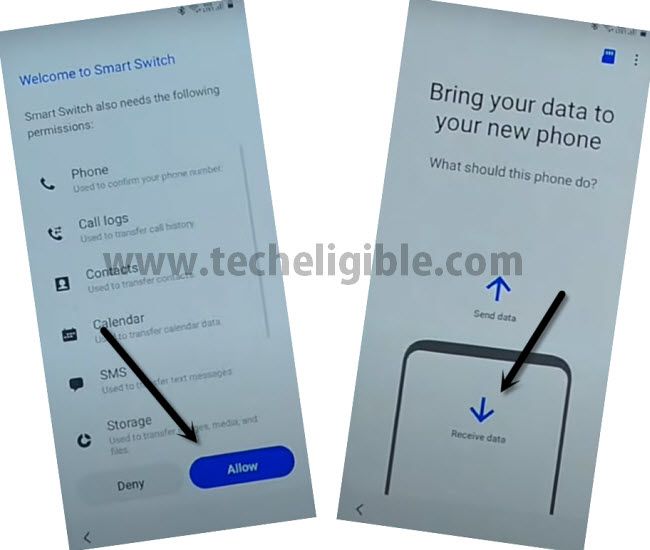
-After waiting for few sec or minute, you will see (Welcome to Smart Switch) screen, tap to “Agree” option from there.
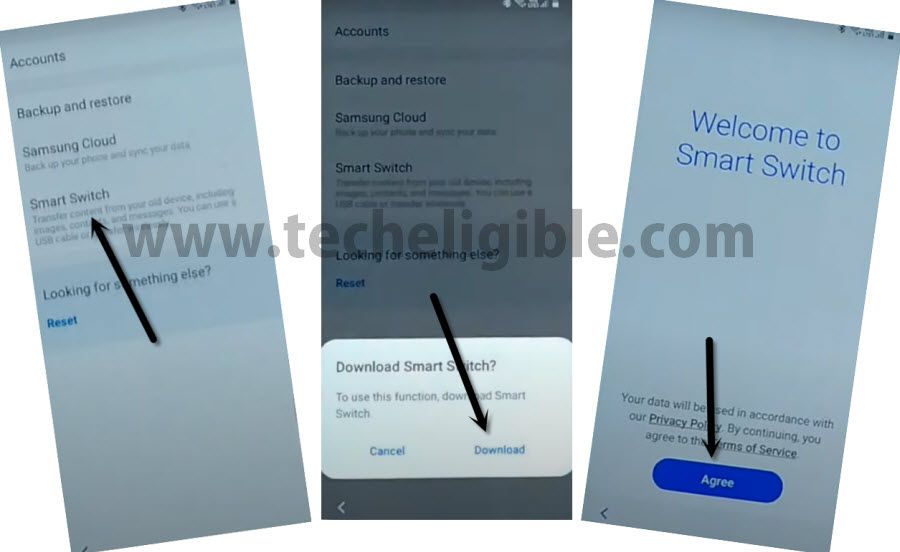
-Hit on > Allow > Receive Data > Galaxy > Cable.
Open Smart Switch in Other Android Device:
-In other android device, install (Smart Switch) app from google play store.
-You should know your signed in google account in other android device, because this same google account will also be added in frp locked phone through below steps.
Note: If your other smartphone is of Samsung Brand, so you don’t need to install this app, you can open this app directly by going to > Settings > Accounts & Backup.
-Open Smart Switch App.
-Tap to > Agree > Allow, now hit on “Allow” for few more times.
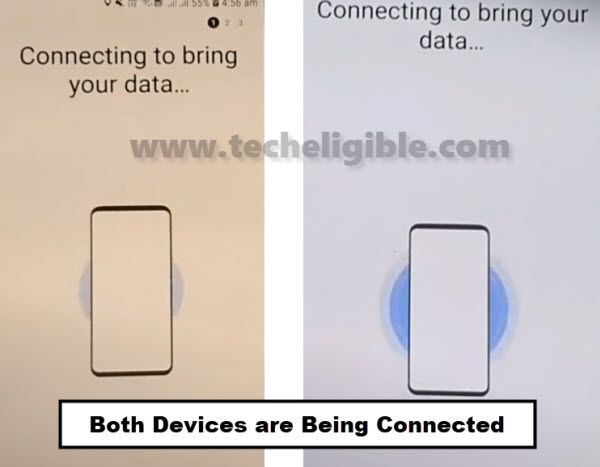
-After launching the Smart Switch app, just tap to “Let’s Go”, and you will be asked to connect both devices each other using OTG cable.
Remember: The OTG must be connected to (FRP Locked) device, because we are going to transfer frp apps from other device to frp lock device.
-You are suppose to hit on “Allow” in both devices.
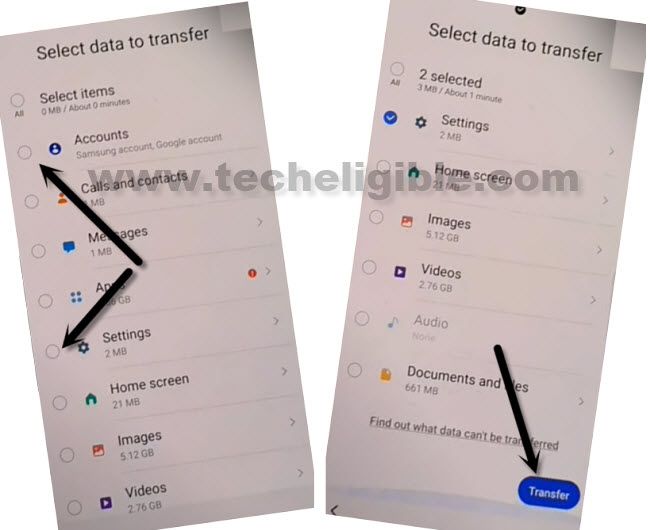
-From (GALAXY NOTE 20) device, Select only “Accounts and Settings”. and then tap to “Transfer” button.
-Tap on “COPY” from other Android device.
-Wait until transferring process finish, and you see “All Done” in your other phone, afterwards, just tap to “GO TO HOME SCREEN” button from Samsung Note 20.
-Now finish your setup wizard, because the Gmail account which is signed-in in other phone, has also been signed-in in your (Galaxy Note 20) device, that’s all till now, we hope you enjoyed both methods and managed to remove google account from your device successfully.
Method 5: Bypass Google Account Galaxy Note 20/Note 20 Ultra By New PIN Setup
Add new Gmail Account on your Samsung Galaxy Note 20, Note 20 Ultra. If you do not remember your previously added Gmail Account then you do have to bypass frp to get your phone back, it is way better to fix this frp locking issue on your own rather than visiting phone repairing shops and paying them some bucks to fix this issue.
Good thing is that, the frp solution is very easy for Samsung Galaxy Note 20, because you are not required any PC or downloading frp apps for this, we can easily add our new account and setup 4 digits new pin code through the “Verify Your Account” screen keyboard options.
Continue FRP Steps Here
-You should connect WiFi to your frp locked device first before starting the process.
-Go the screen “Verify your Account”.
-Tap to “Email of Phone” filed to bring keyboard.
-Tap “3 dots”, and then tap “Youtube”.
-Now tap to any video next arrow icon, this will launch Youtube.
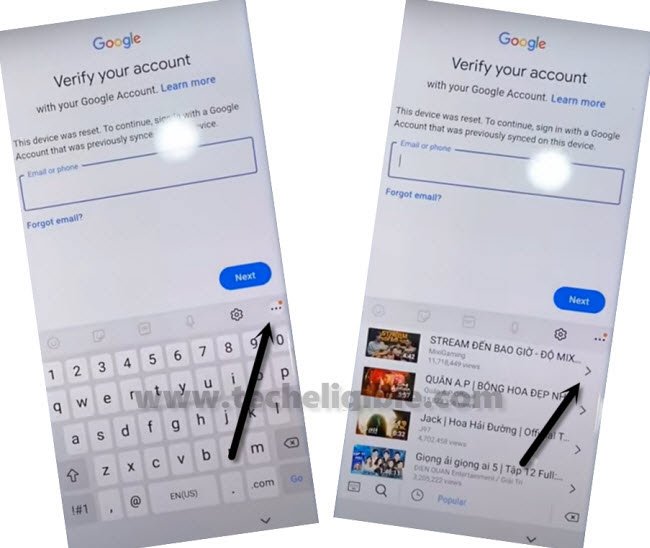
-Finally, drag down the Video, and tap to “Profile icon” from top right, and tap > Settings > About > Youtube Terms of Service.
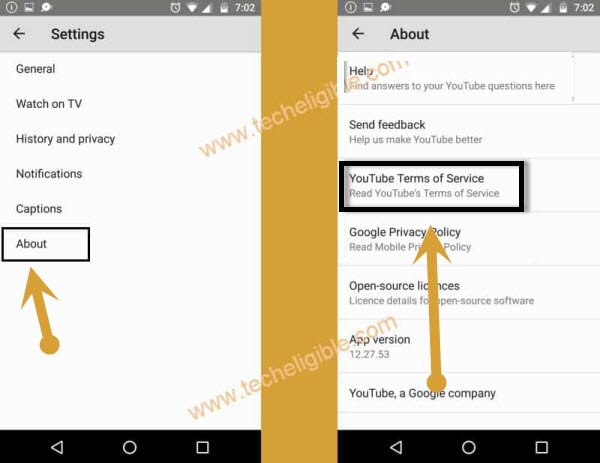
-Tap to > Accept & Continue > Next > No Thanks.
-After accessing to Chrome Browser.
Go to Samsung Settings Page:
-Access to Samsung frp downloading page by searching in browser with “Techeligible“. After that, visit 1st searched result from there same as instructed in below image.
-Hit on “Menu” option from top corner of the site.
-You have to hit on > Other Free Tools > Samsung FRP Tools.
-Tap on “Open Samsung Settings” from there.
-After that you will be redirected to your Samsung Settings.
Add New Account:
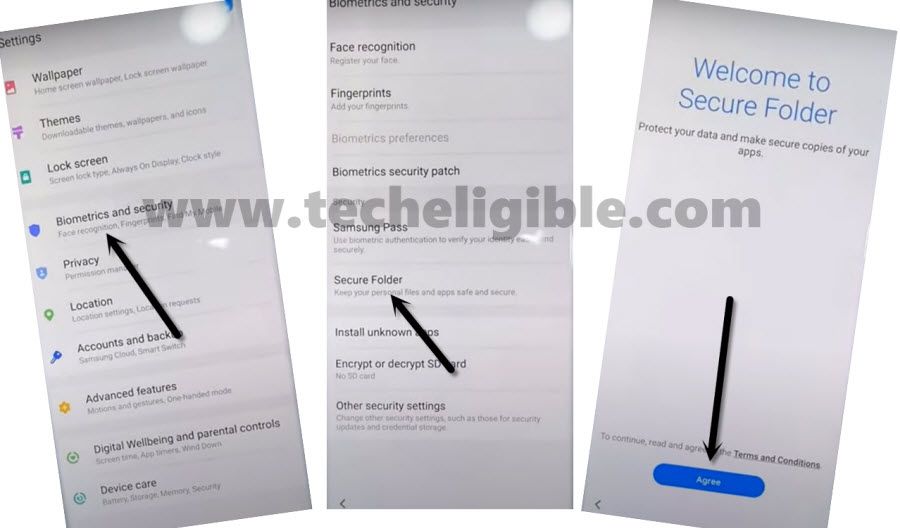
-Tap to > Biometrics & Security > Secure Folder> Agree.
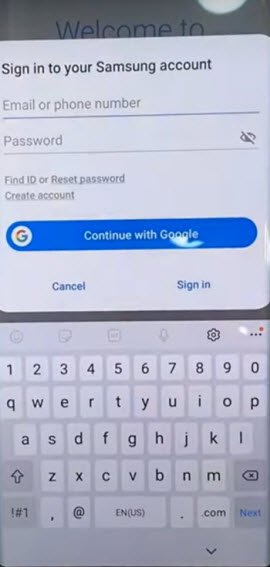
-Type your any Google Account there to sign in with for bypassing frp account.
-After entering email and pass, tap to “Sign in” button.
-From new window, select (i have read and agree all of the above), and then tap to “AGREE” button.
Note: If you see a popup window of (Want a faster way to Sign in), just tap to “Cancel”.
-After that, it will start to create secure folder for you, just keep patience.
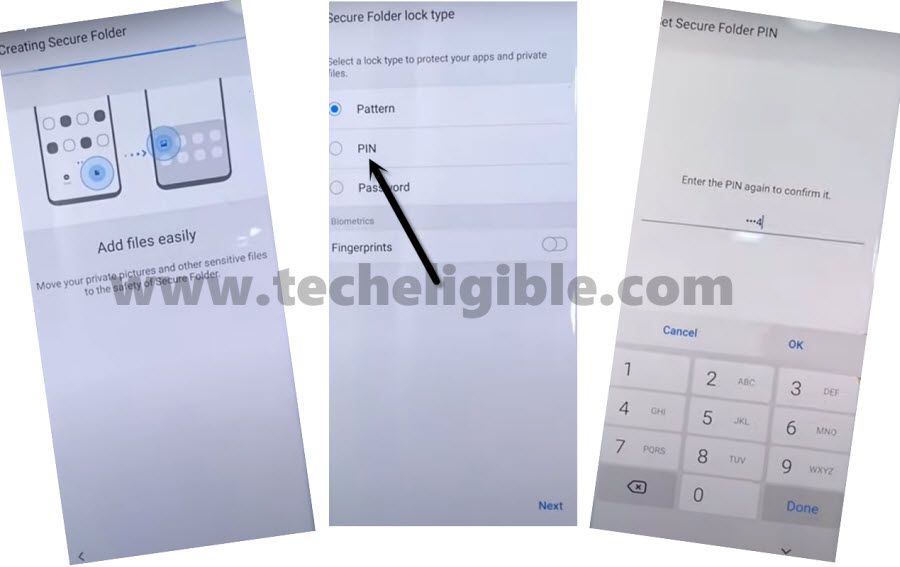
-You will be asked to setup PIN Code.
-Tap to > PIN > Next.
-Setup your pin code 1234.
-Tap “3 dots” from top right corner, and then tap to “Settings”, and then tap to “Lock Type”.
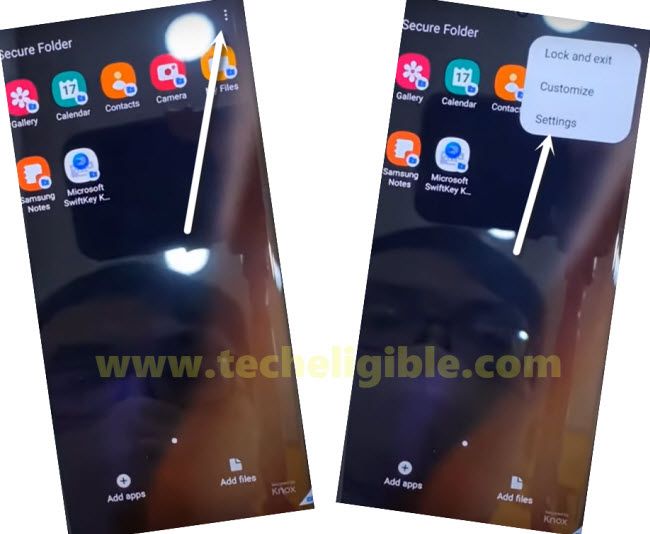
-Give the same “1234” pin and then tap to “Next”.
-Enable “Fingerprints” option from the last, and then tap to “Continue”.
-Select “PIN”, and again setup your pin code (1234).
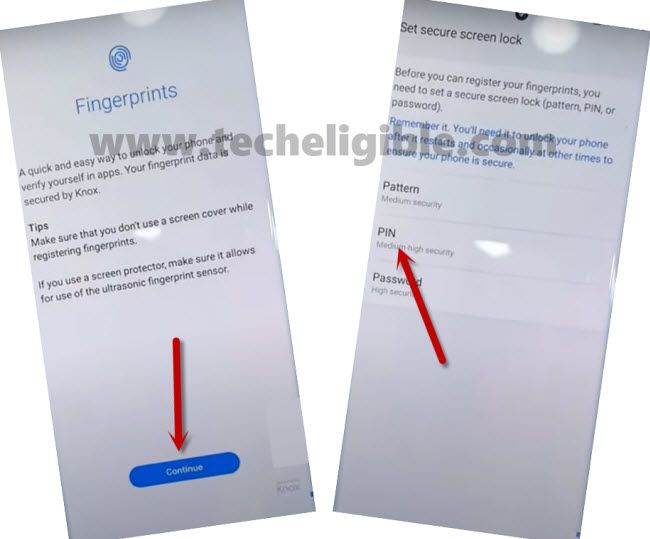
-Now it will ask you to setup your fingerprints as well, just ignore that, and long press “Power Button”, and reboot Samsung Galaxy Note 20.
-Complete your initial setup.
FAQs
How setup new FRP lock protection on Samsung Note 20 Phone?
You can setup new FRP protection just by deleting old google account from (Settings > Google > Accounts and backup). Login with new google account by going to (Settings > Google > Add Account). FRP protection works with logged in google account.
What precaution Steps Should i take before Factory Reset Samsung Note 20/Note 20 Ultra?
To prevent your Samsung Note 20/20 ultra from being locked by FRP, you must delete or remove your logged in google account from Samsung (Settings). After that, you can factory reset easily without facing FRP locking issue.
How to Bypass FRP, if the device is locked after factory reset?
In this matter, there are 6 frp bypass methods available, you can start with 1st method of frp from top of this article. In that method, we just downloaded ad installed (Samfw) software on PC. After that, connect our phone to PC and bypassed frp account with one click from the tool.
Conclusion
-We simply followed 5 FRP ways on Samsung Note 20/20 ultra FRP locked device to bypass frp. In method-1, you are required to download PC tool named (Samfw) tool. This is a free and best unlocking frp tool.
-In the 2nd method; we simply enabled talkback function using volume and power keys. After that, managed to access to chrome browser and downloaded and installed (Allince Shield App) on our phone. After that, we used ADB tool from PC to bypass frp account.