
It was too easy to unlock any Android device when it was on Android 1.1 to Android 5.0. These type of older android version devices could easily be unlocked just by factory reset. Simply, put android device into android recovery mode and hard reset from there. After that, the device pattern lock and all security lock was removed easily. Later on, google decided to put Factory reset protect (FRP) locking feature on latest android version devices, this was introduced from Android version 5.1 to onward till Android 17. Keep continuing.
If you are a device owner of (Motorola Moto G05) and facing FRP lock protection there because of forgetting google account after factory reset. Then, you can follow up below 2 FRP Bypass methods on your Motorola device to fix this accessing issue and FRP Bypass Motorola Moto G05 without any Payment.
2 free PC FRP Bypass tools were used for FRP Bypass Motorola G05. 1st tool is (Prime Tool X) & 2nd tool is (SP Flash Tool). You can apply both tools on your device to bypass frp and set up device again from starting. Follow these free tips right now to reach back to your Motorola device.
Disclaimer: We highly recommend you to apply this method only on your own device, if you are not owner of this device, or you found this from some where, you must return to its real owner. This process is just for educational purpose to assist device owner, how to approach on their own FRP locked ZTE AXON 50 Lite.
| Method 1: Bypass FRP on Motorola Moto G05 By SP Flash Tool [With PC] |
| Method 2: Bypass FRP Moto G05 By Prime Tool X [With PC] |
Method 1: FRP Bypass Motorola Moto G05 By SP Flash Tool
If you have lost your device access after factory reset, in this situation, you can use SP Flash tool on your Motorola G05 device to flash and bypass google account. Through this beneficial method, we can reach back to our device and setup fresh google account.
This FRP Bypass method is very simple, just download following FRP bypass tools on your PC and unzip all files. After that, run (SP Flash Tool) and connect Motorola G05 with PC after proper drivers installation. Then, click to (Start) button from SP flash tool to start flashing the Moto G05 device. Follow Step by step frp removal guide from below.
Download SP Flash Tool & Scatter Files of Motorola G05:
-Start FRP Bypass Steps by downloading all FRP Bypass Files for Moto G05 from below.
⇒ Extracting Tool Password: gsmprime
| SP Flash Tool V3.6 (59.3 MB) | DOWNLOAD |
| fastboot_lamu_g_user (Scatter Files) (231 KB) | DOWNLOAD |
| Mediatek Drivers (9 MB) | DOWNLOAD |
| UsbDk Drivers (6 MB) | DOWNLOAD |
-After downloading of all above given files is done, simply, unzip all files. unzip file extracting password has already been given above.
Extract Downloaded Tools & Run SP Flash Tool:
-Go to SP flash tool folder and install it on your PC by double click on flash_tool.exe file.
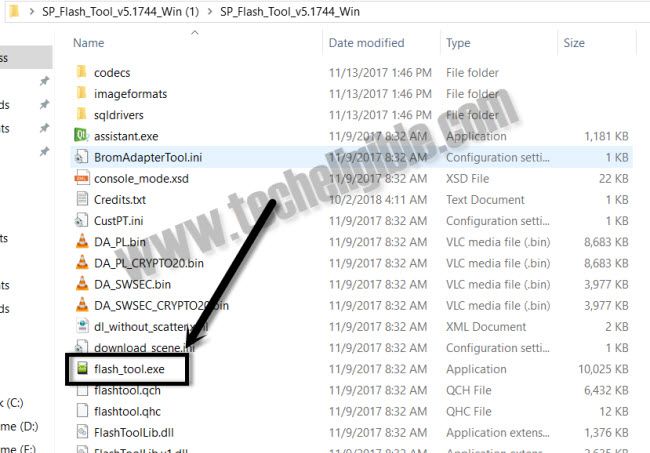
-Once the SP flash tool is fully launched, lets give file path in (Download-Agent) by clicking over the “Choose” button from there.

-After that, select file (DA_A15_lamu.bin) from your extracted folder of fastboot_lamu_g_user.

-After that, give scatter loading file as well in sp flash tool by hitting on “Choose” button.

-Select file (MT6768_Android_scatter.txt) from same extracted folder of fastboot_lamu_g_user.

Go to Format Tab from SP Flash Tool & Give Scatter Codes:
–Do make sure, everything is unchecked from SP Flash tool.
-Go to “Format” tab from top bar.

-Choose “Manual Format Flash” option.
-Copy below both codes and past there respectively same as shown in below image.
Begin Address [HEX]: 0x1508000
Format Length [HEX]: 0x100000
-Finally, tap over the “Start” button from same screen to bypass frp Moto G05.

Connect Motorola G05 to PC to Start Bypass Google Account Process:
-Turn off Moto G05 device. Wait for 5 seconds after device is completed switched off.
-Connect device with PC using USB Cable.
Note: Make sure, you are connecting device to the computer on switched off mode.
-Few seconds later, SP Flash tool will flash Moto G05 device completely and also bypass google account.
-Once the flashing process is completed, you will see a (Check mark) icon on screen.
Moto G05 is not Recognized by PC? Check 3 Tips to Fix it:
1st: Drivers are not installed properly. You can download & install drivers from here.
2nd: USB Cable/Data cable is not working. Try again by changing USB Cable.
3rd: Try with other PC input.
Set up Moto G05 After Bypassing FRP:
-Switch on Moto G05 and go to (Connect to WiFi) screen.
-We will set up this device without connecting to WiFi. From WiFi screen, just tap to > Setup Offline > Continue.
-Finish up all setup steps as per your choice. Once you reach to (Google Sing in) screen, just tap to > Skip > Skip.
-If you don’t wanna setup new pattern lock, you can skip that screen too. Finish up all steps on your own as yo do with another android phone.
-You are all done from bypass google account Moto G05 without any paid tool just by using SP Flash tool and flashing with scatter files.
Method 2: FRP Bypass Motorola Moto G05 By Prime Tool X
You can reach back to your device and complete setup wizard steps easily after applying following FRP method for FRP Bypass Motorola Moto G05. If you can’t recover your lost google ID and you’ve hard rest your Motorola phone. In this, you can get help from this post to fix up this issue. We will use a (Prime Tool X) software. With the help of this tool, you will be able to fix your problem with one click.
-Start steps by downloading and installing (Prime Tool X) in your pc first. You can download with the below given link.
| ⇒ Prime Tool X V7 [DOWNLOAD]
Pass: MobileTeam |
-Install the tool in your PC by using already given password.
Note: Before extracting the tool, you may have to turn off @ntivirus. After using the tool, you can activate it again.
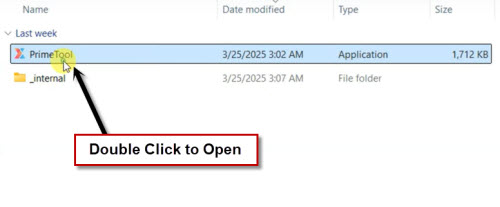
-In order to get your device detected by the PC. You must download and install below drivers in your PC.
| ⇒ Mediatek | [DOWNLOAD] |
| ⇒ UsbDK 64 Bit | [DOWNLOAD] |
-After that, go to “Motorolarola” tab from your Prime tool x screen same as mentioned in below image.
-You have to select “Motorola G05” model from the tool and click on “Remove FRP” option from the tool screen.
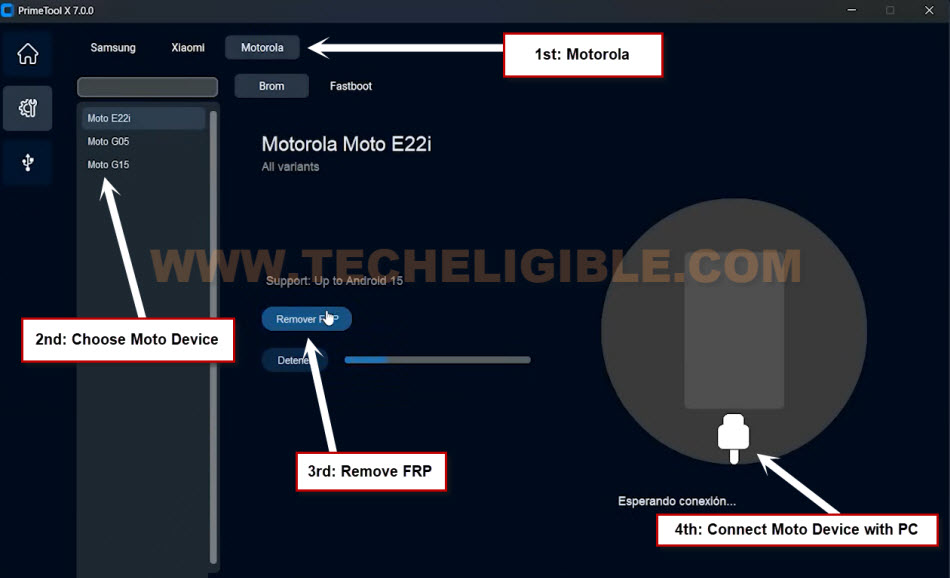
Time to Connect Motorola G05 with PC to Bypass FRP:
-Turn off Motorola G05 & Connect to PC with USB Cable.
-Quickly long hold “Power” button for 3-4 seconds after you see a ((Charging or Motorola Logo) on screen.
| Device is not Detected?: If, even after few tries, your device is not being detected by the Prime tool. In this case, just try another method.
1- Turn off device again. 4- Turn on your to complete setup wizard steps. If it does not turn on, just long press (Volume Down+ Power) button for 10 seconds. After that the device will be turned on. |
| Note: If you’re unable to bypass frp with this guide, you can check out another latest FRP method of Moto G05 with latest prime tool x version. Click Here. |
-After that, your Motorola phone will be detected by the tool and frp will be bypassed. As you can see in below screen shot.
-Once the frp removal process is done, you can disconnect the device from PC.

-Complete setup wizard steps.
-After reaching to your device main home-screen, just reset Motorola G05 manually from settings.
FAQ’s on Motorola G05 FRP Bypass:
Unable to Bypass FRP By Prime Tool X?
If the Prime Tool X did not work on your Motorola G05 device, then, you can try with (SP Flash Tool) method. We hope, this method work perfectly fine and you will be able to bypass google account on Motorola.
SP Flash Tool is not running on my PC?
If the Prime Tool X did not work on your Motorola G05 device, then, you can try with (SP Flash Tool) method. We hope, this method work perfectly fine and you will be able to bypass google account on Motorola.
My Motorola Moto G05 device is not being recognized by PC & SP Flash Tool
1.Either you did not install proper USB Drivers on your PC or USB cable is not working. 2. We have already mentioned (Mediatek & USB Dk) drivers link above of this post, you can download and install both drivers. After that, try to reconnect your device. 3. Try also by switching your PC input.
Should i connect to WiFi While Completing Setup wizard Steps after FRP Bypass is done by SP Flash Tool?
No, you should not use connect WiFi. Inface, you have to complete Motorola Moto G05 setup wizard steps in setup offline mode.