
Disabling few applications and enabling google assistant option, you will be able to get back your device and complete setup wizard steps even after forgetting your google account. This method is for Remove FRP Account Ulefone Note 13P without the help of any paid tool. Simple steps are there, just go to settings using the steps from below and disable some apps from there. Follow up steps from below.
Disclaimer: We highly recommend you to apply this method only on your own device, if you are not owner of this device, or you found this from some where, you must return to its real owner.
Let’s Begin to Remove FRP Account Ulefone Note 13P:
-Start steps from here by turning on the device and connect WiFi.
-Put your device back to first (Hi there) page.
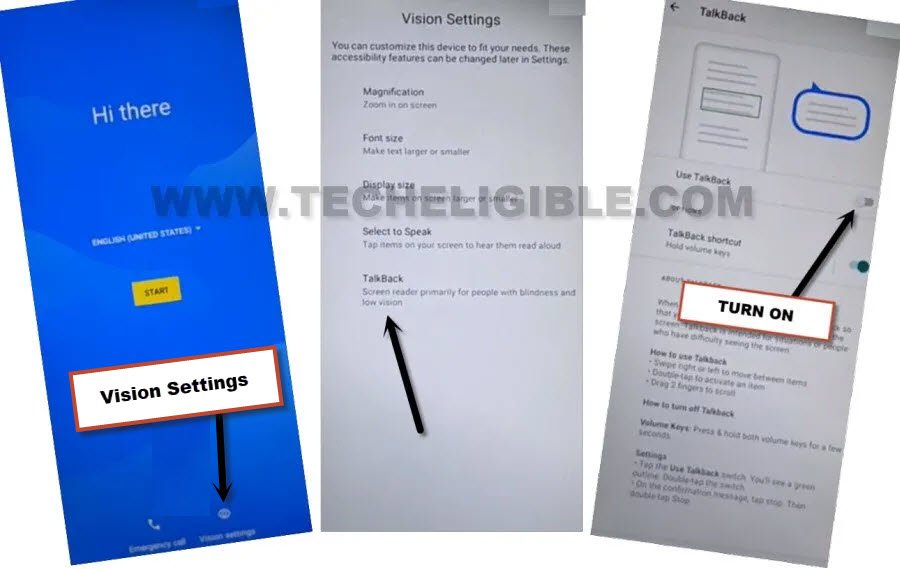
-Enable talkback function by tapping on a “Vision Settings” option. After that, go to “Talkback” and turn on “Use Talkback” option.
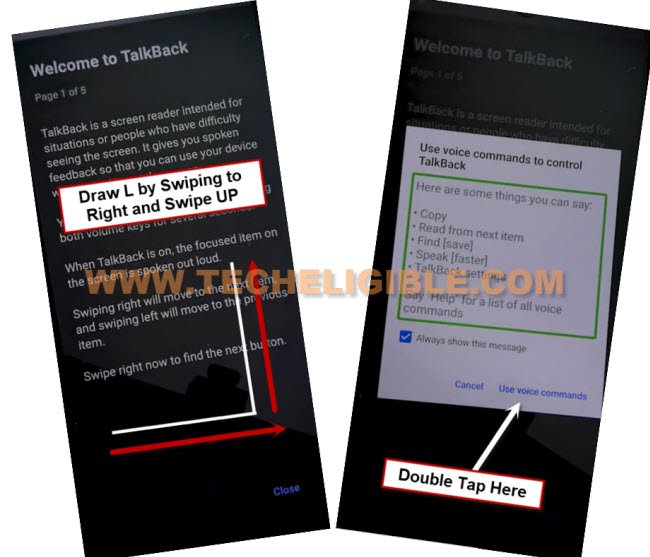
-Once the use talkback is enabled, you will be displayed a black (Welcome to talkback) screen. Simply, swipe right and swipe up on screen same as shown below.
-After that, you will be shown another popup screen, just double tap to > While using the app > Use Voice Command.
Note: If the (Voice Command) window do not popup, swipe right and swipe up again on screen, and this time the popup window will appear up, so double tap on “Use Voice Commands”.
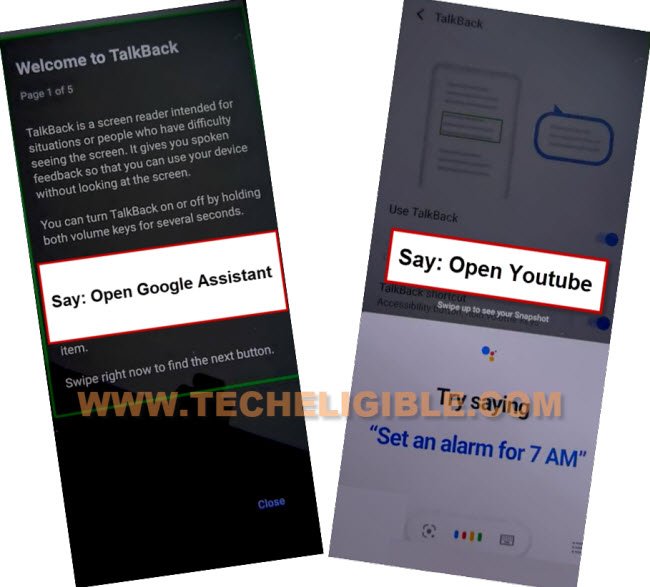
-Wait till you see a green colored lines on screen. After that, say loudly “Open Google Assistant”.
-Once the google assistant window appears up, just say loudly again “Open Youtube”.
-We’re now on a youtube screen. Let’s disable talkback function by long holding both buttons (Volume UP + DOWN). From popup window, double tap to “Turn on” option.
-Long press again both keys (Volume up + down). After that, this will turn off the talkback function completely.
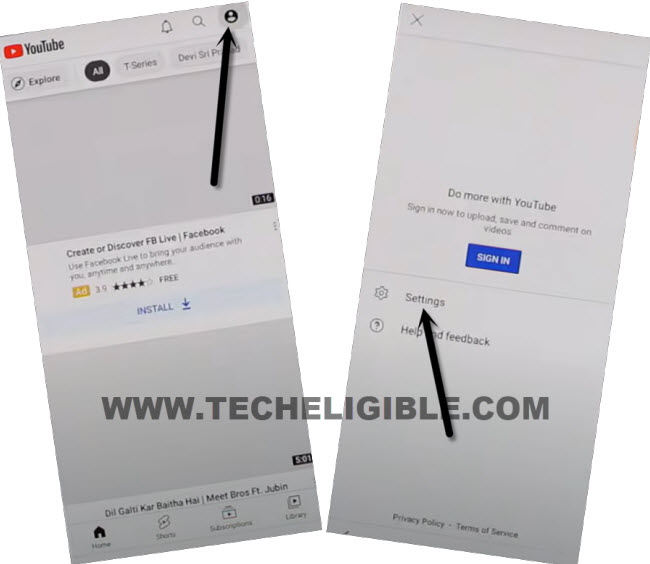
-From youtube page, go to “Human circle” icon from top corner and tap on “Settings”.
-Tap to > About > Google Privacy Policy.
-Go to > Accept & Continue > No Thanks.
Go to Ulefone Settings Page:
-Access to techeligible website. After that, go to official frp tools page from there by hitting on “Menu icon” from top corner.
-Tap to “Download FRP Tools” text from sidebar menu.

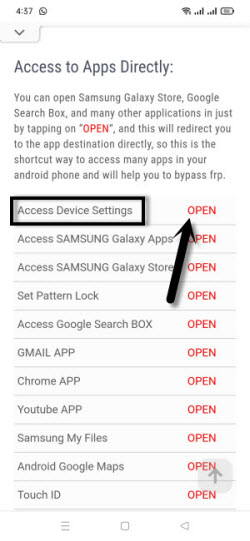
-Hit on a “Access Device Settings“. This will take you inside your device main settings screen.
Turn on Accessibility Function & Disable Some Apps:
-Go to “Intelligent Assistance” option from settings page.
-Let’s enable this option by going to > Accessibility > Accessibility Menu > Turn on the (Accessibility MENU Shortcut).
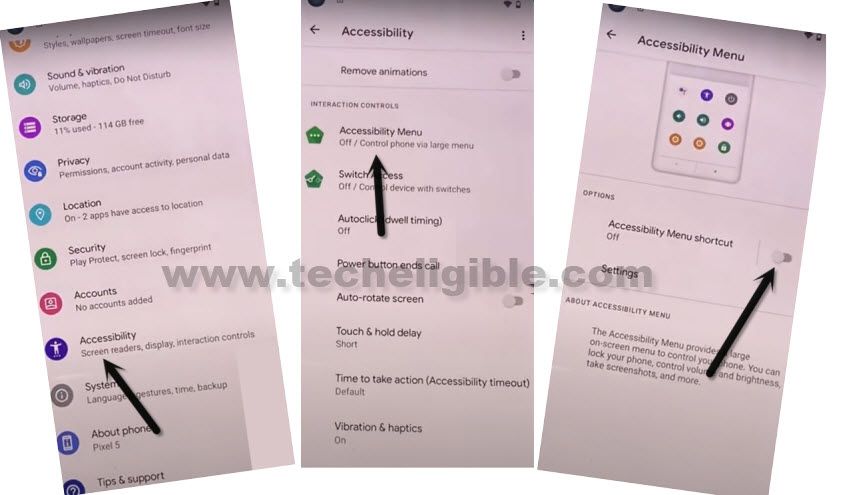
-After turning on this, simply, hit on “Allow” from popup screen. After that, go to “Got it” option.
-You will have a (Accessibility) button on bottom right corner of the screen in shape of (Human icon).
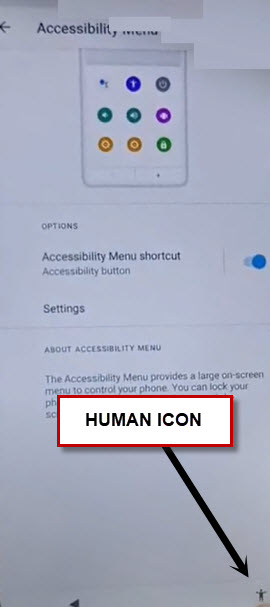
-After turning on that option, you will start having a (Human icon) at the bottom right corner of the page.
Disable Some Apps:
-Go back to main settings screen. From there, hit on a > Apps & Notifications > See All Apps.
-After reaching to app list page. Just, hit on a “3 dots” icon from top corner and go to “Show system”.
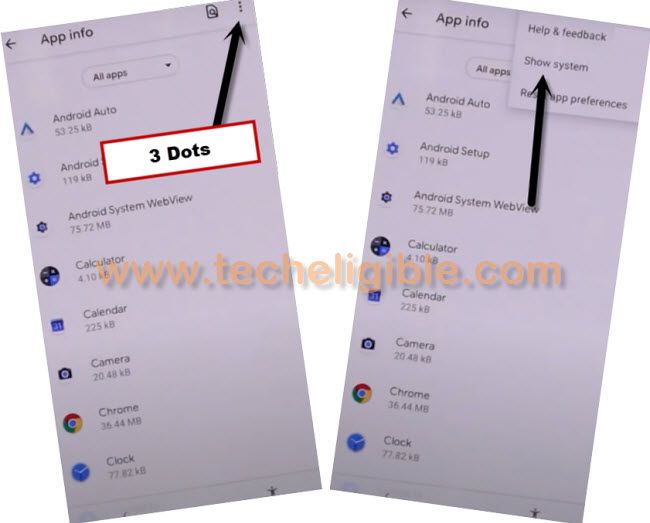
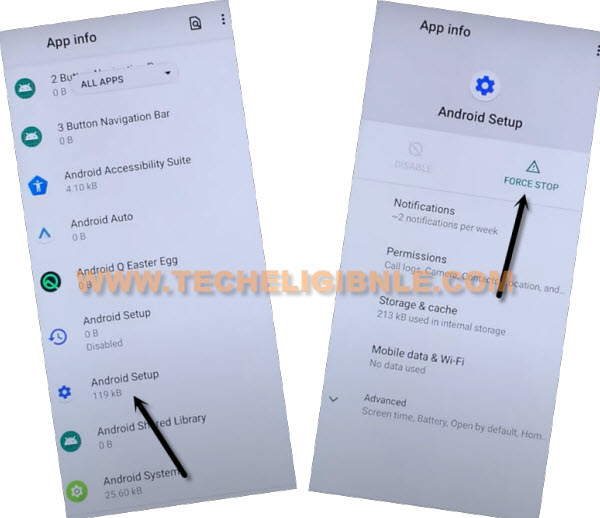
-We’re gonna disable some apps now. From app list page, just tap to “Android Setup” app same as shown in below image.
-After that, hit on a > Force Stop > Ok.
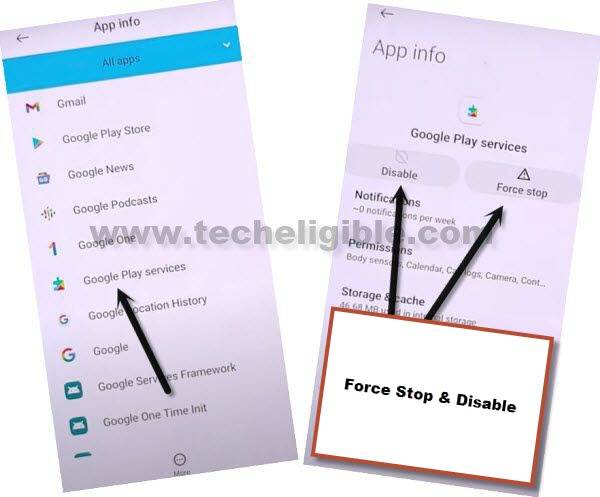
-Return on a app list screen. From there, hit on a “Google Play Services” application.
-After that, you have to disable & force stop this app.
Go back on Hi there Screen:
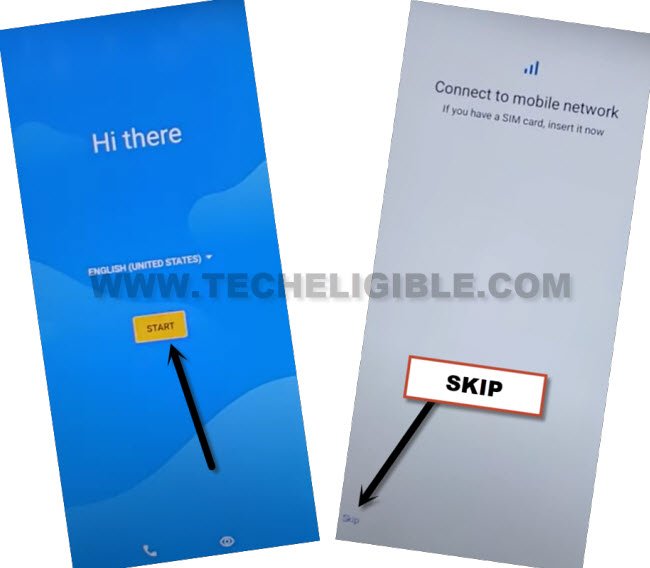
-Keep tapping on the back arrow icon to reach back to first (Hi there) screen to Remove FRP Account Ulefone Note 13P.
-Go to > Start > Skip.
-Tap on a “Don’t Copy” option.
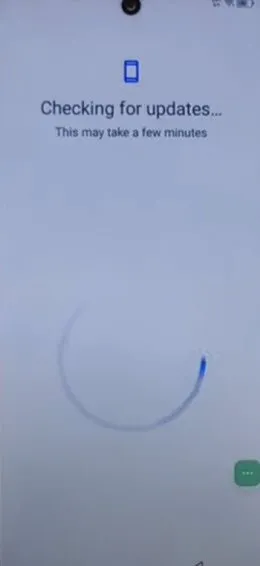
-You will stuck on a (Checking for update…) screen. To get this completed, we have to enable back google play services app using (Accessibility Shortcut) button.
Follow Steps Quickly & Repeatedly to Enable Google App:
-We have to hit on > Human icon > Assistant. After that, you may see (Settings) option at bottom right corner of the next loading page. Try hit on that (Settings) option.
| Note: The (Settings) option may disappear very quickly before you hit on that. So, you have to try multiple times to successfully hit on (Settings) option. Let’s try again by hitting on > Human icon > Assistant > Settings. -Try to hitting on “Human icon > Assistant” as fast as possible, so that, you could successfully hit on (Settings) option as well. |

-You will able to hit on (Settings) option successfully after 10-20 tries.
-After accessing to google play services app page, just quickly tap to “Enable” option to enable this app again. After that, we will be able to complete setup wizard steps easily without stuck on (checking for update) screen.
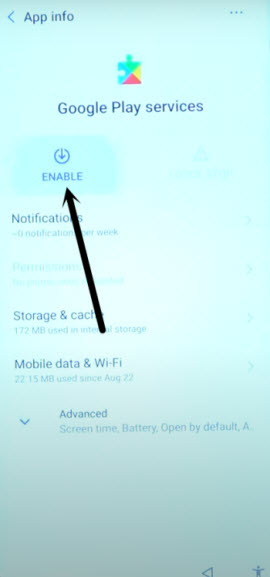
-Go back to (Checking for update..) page by hitting on back arrow icon 1-2 times. This loading page will be completed within a second.
-After that, you will be redirected on a (Google Services) screen. You can complete all remaining steps on your own to access back to main home-screen of your device.