
Getting the google sign in screen again and again while setup the phone after perform factory reset/hard reset? The core reason behind this, your phone is locked with FRP protection and this feature will not allow you to go through this process until you login back with same Gmail Account, that was setup earlier. If you don’t remember your google account, then, follow this easy way to Bypass FRP LG K51s.
Disclaimer: This FRP Unlocking process is only for the device owner. For those, who have forgotten the google account after hard reset.
How to Bypass FRP LG K51s? (Stepwise Free Guide):
-Continue process by turning on the LG phone and connect to WiFi first.
-Get back on the (Welcome) screen. Let’s enable the talkback function just through long pressing both (Volume UP + Down) keys simultaneously. Keep holding keys until you see the popup window of (Talkback Shortcut) popup. From there, tap on the “Turn on” option.

-Simply, long hold again both (Volume UP + Down) keys, this time, you will be taken on the (Welcome to Talkback) screen.

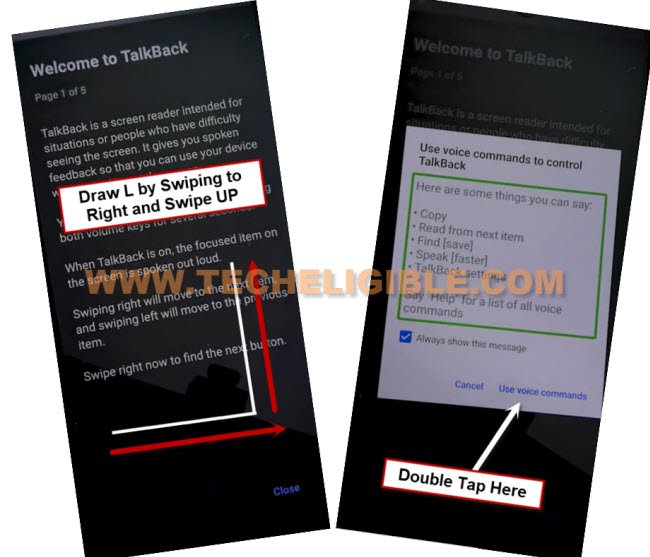
-Swipe right and swipe up on screen, then, you will see the popup window, from that, double tap to > While using the app > Use Voice Command.
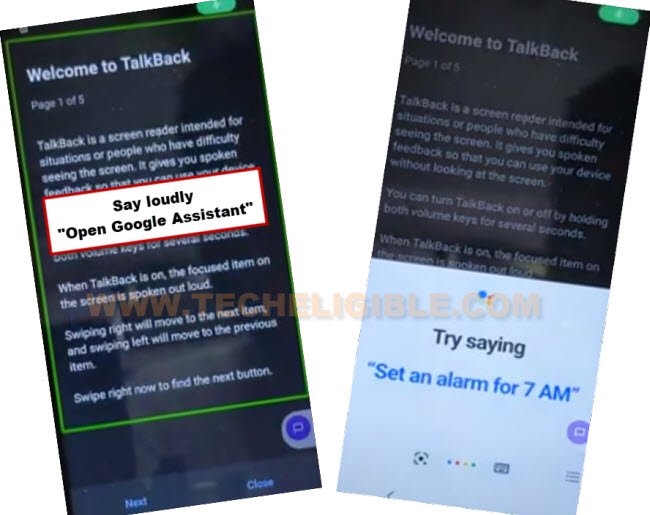
-Then, you will see the (Green colored) lines on screen, just say loudly “Open Google Assistant”.
-After that, you will see the (Try Saying) popup screen will appear up.
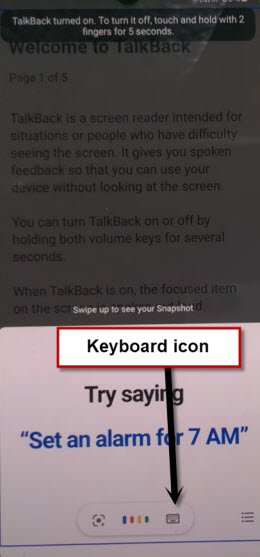
-Double tap over the “Keyboard” icon.
-Let’s turn off talkback function by long pressing both buttons (Volume UP + Down).
Access at the Primary Settings
-Once the talkback is fully disabled, type there “Open youtube” and tap on “Send” option. This will launch the youtube website directly.

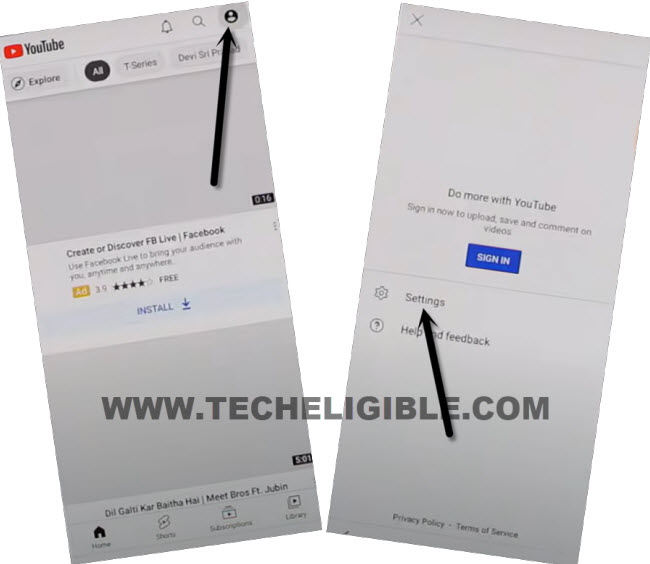
-Go on the “Profile” option from top corner and hit on “Settings” option.
-Access on the chrome browser by tapping over the > About > Youtube terms of services.
-After that, choose the > Accept & Continue > No Thanks.

-We have to access to the main settings page of the LG K51 phone. For this, make search on google with “Techeligible” text.
-Go to 1st searched result of the official techeligible site and open up the menu list by tapping on top corner menu icon. Finally, tap to “Download FRP Tools” option.

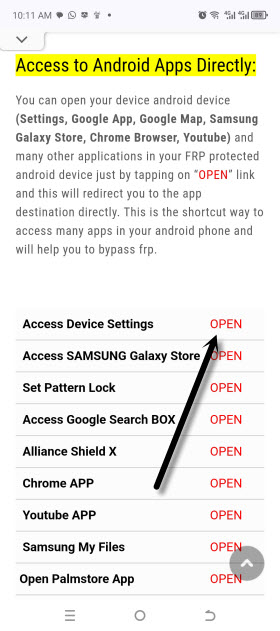
-You will access over the frp tools page, from there, tap to open “Access device settings“.
Display All Hidden Apps & Disable Some Apps Completely
-Go to > Apps > App info.
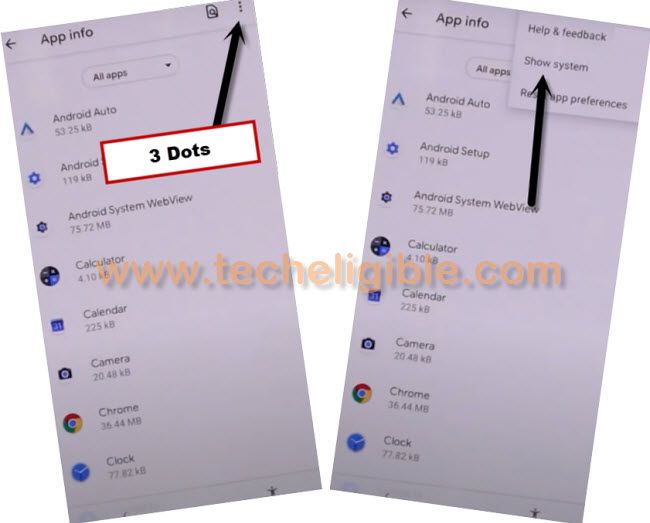
-Then, hit over the > 3 dots > Show system. This will display you all the hidden app as well.
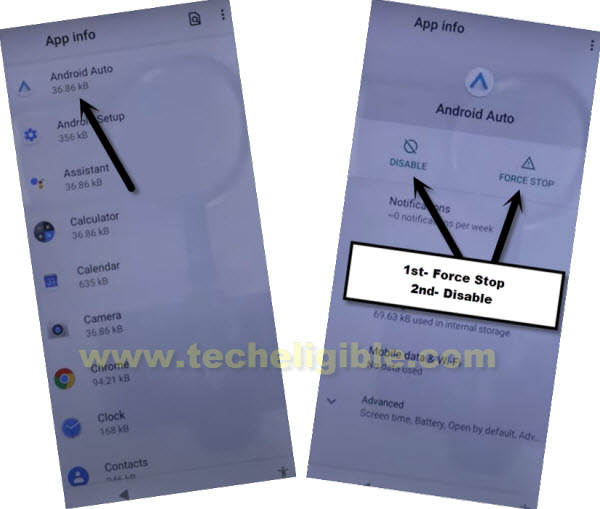
-From the app list page, find and tap over the “Android Auto” app. Simply, disable & force stop this app.
-Tap on the “Back Arrow” icon to go back to app list page.
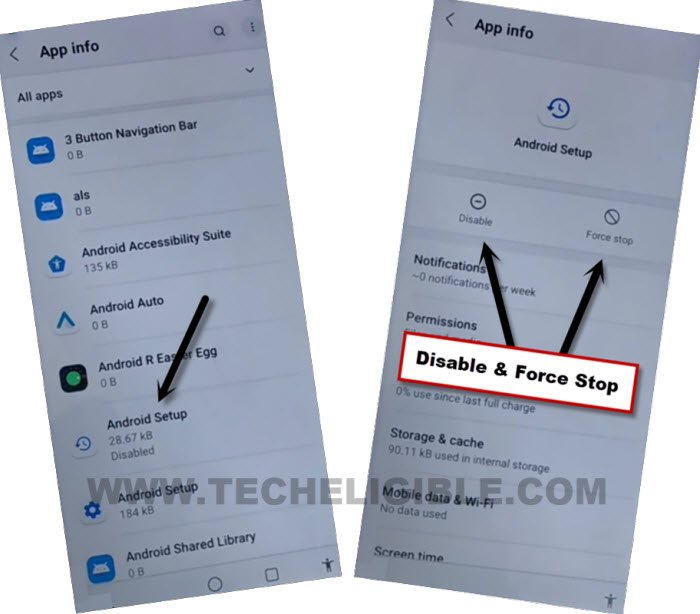
-Find and tap on the click icon “Android Setup” application. You also have to (Force Stop & Disable) this application too.
-Let’s get back to app list page again. After that, find and tap on the “Google Play Services” apps. Disable & Force Stop this app.
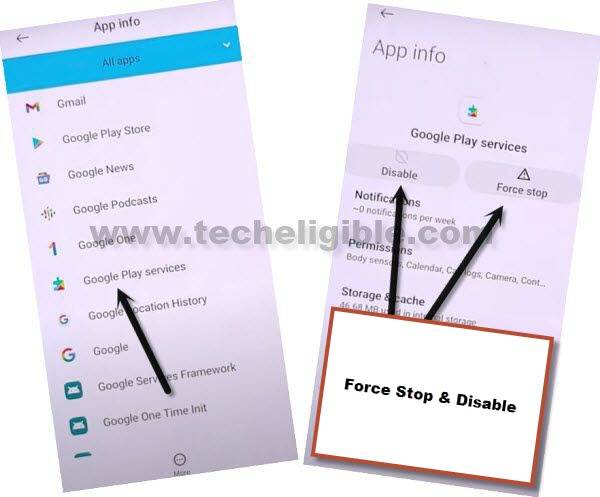
-Go back again. Now, disable and force stop “Google Play Store” application.
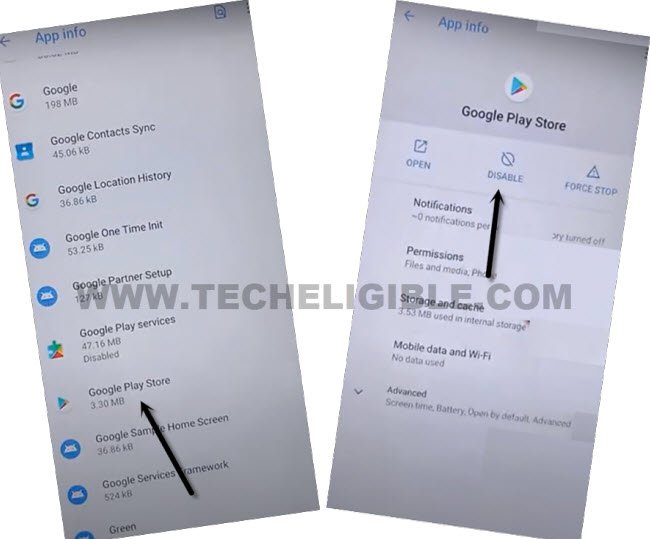
-We’ve successfully disabled 4 main applications from FRP locked LG K51 phone.
Restart & Setup Phone Again
-Let’s restart the phone now.
-From the first (Welcome) page after restarting done, just go to > Next > Skip.
-Tap to “Next” icon from welcome screen, after that, tap to “Back Arrow” from bottom on loading page.

-You will access over the (Set internet connection) screen. From there, we have to do a simultaneous action.
-Using your two fingers together, turn off WiFi & Tap on “Next” option at the same time. If you did this correctly, you will get the (Just a sec…) screen.
-From the loading (Set internet connection) page, just hit on back arrow icon to go back to WiFi screen and turn on the WiFi option again.

Enable Google Play Services App Through Talkback
-Enable talkback function by long holding buttons (Volume UP + Down). After that long holding buttons, you will again the (Welcome to Talkback) screen.
-From there, double hit on the > Close > Close.

-Simply, swipe right and swipe up over the screen to get the (Use voice command…) popup window. From there, double tap to “Use Voice Command” option.
-As soon as, you get the green lines on WiFi page, just say loudly “Open Google Assistant”.

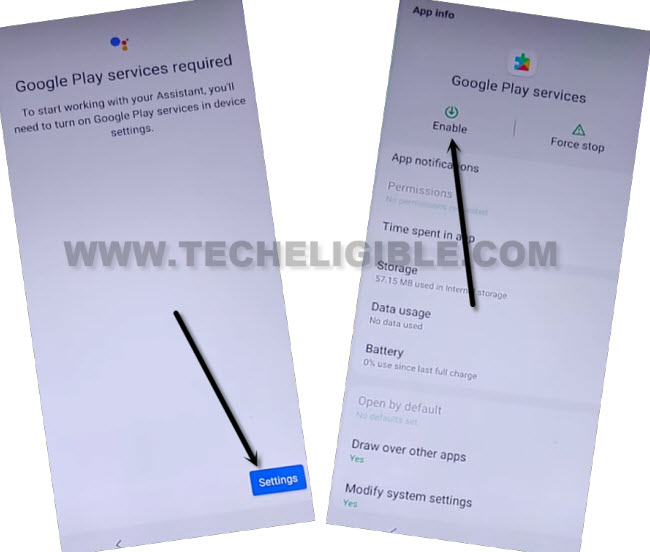
-Next, you will be asked to enable the google play services app.
-Turn off the talkback function now by long pressing again (Volume UP + Down) keys.
-Tap over the “Settings”. After that, enable this application by hitting over the “Enable” option.
-Tap once over the “Back Arrow” option to go back to (Set internet Connection) screen.
-Let’s “Turn off WiFi” and press the “Next” option at the same time using your two fingers together.
-This time, you will see again (Just a sec..) loading screen but for a few seconds only. After that, it will redirect you on the (Google Services) page.

Go to Main Home-Screen
-From there, tap to > More > More > Accept.
-From the (Secure your phone) page, tap on the > No Thanks > Next > Skip Anyway.
-You will be taken on the (Legal documents) screen, from there, choose “other” and go to “Next”.
-Select all (i agree) option, after that, tap on “Done” option. Finally, you will reach on the main home-screen.
The Bottom Line
We enabled the talkback option through long press (Volume UP/DOWN) buttons, then, accessed on the chrome browser through this function. From there, we launched the frp tools page and accessed on the primary settings page of the LG K52s phone. From there, we disabled (Android Setup/Google Play Services/Google Play Store) apps.
Finally, we restart the phone and then, enabled talkback function again. After that, we turned off WiFi and hit on the (Next) option at the same time to get the (Google Services) page. Once we got this page, that means, the FRP has been bypassed and we can complete all remaining steps easily.